Purpose
The purpose of this Quick Reference Guide (QRG) is to provide a step-by-step guide of how to export a report in Oracle Analytics Cloud (OAC) Classic.
Introduction and Overview
This QRG explains how to export a report in OAC Classic. In OAC, reports can be exported in various formats, including Excel, PDF, PowerPoint, CSV, and more. Users can choose to export reports either as raw data or in a formatted view, depending on their needs.
Export a Classic Report
Follow the below steps to export a classic report. There are 9 steps to complete this process.
Step 1. To export a report as an Excel, navigate to the desired report. Click the gear (settings) icon on the right side of the screen.
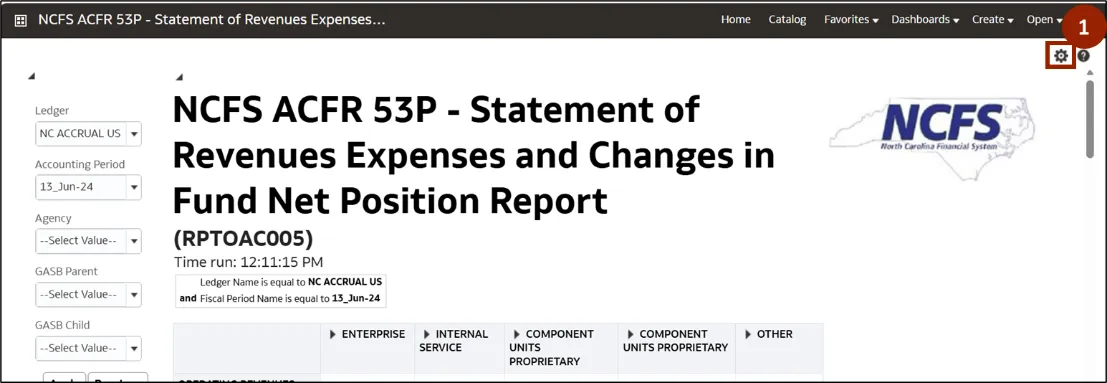
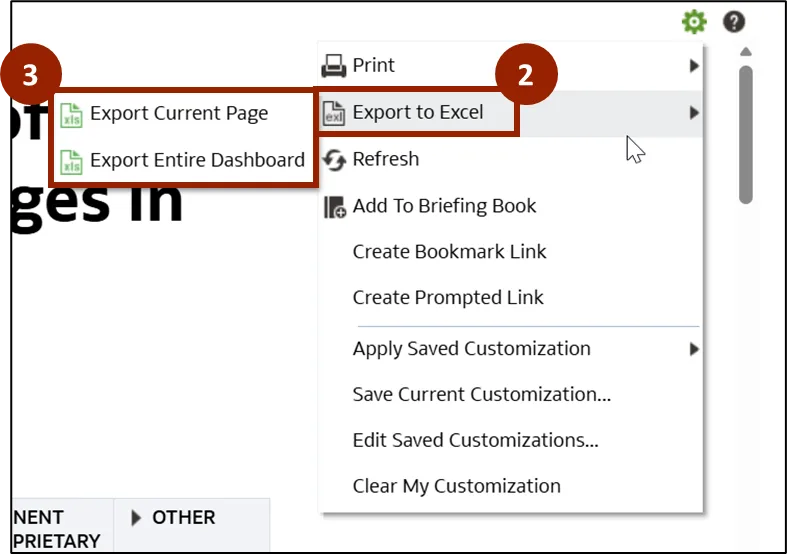
Step 2. A drop-down list will appear. Select Export to Excel.
Step 3. Click either the Export Current Page or Export Entire Dashboard option as required.
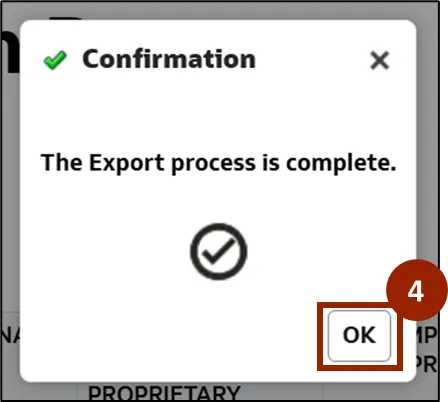
Step 4. A Confirmation pop-up window is displayed confirming the export process is complete. Click OK.
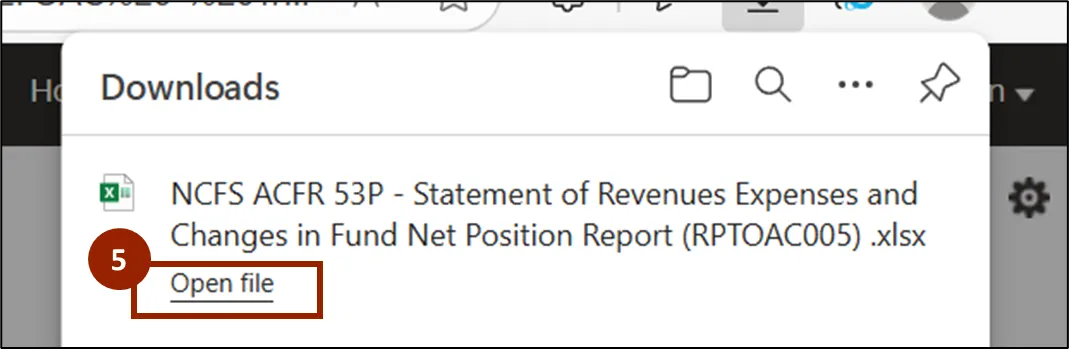
Step 5. The report is downloaded, and a notification appears in your browser, confirming that the file has been saved to your device. Click Open file to open the report.
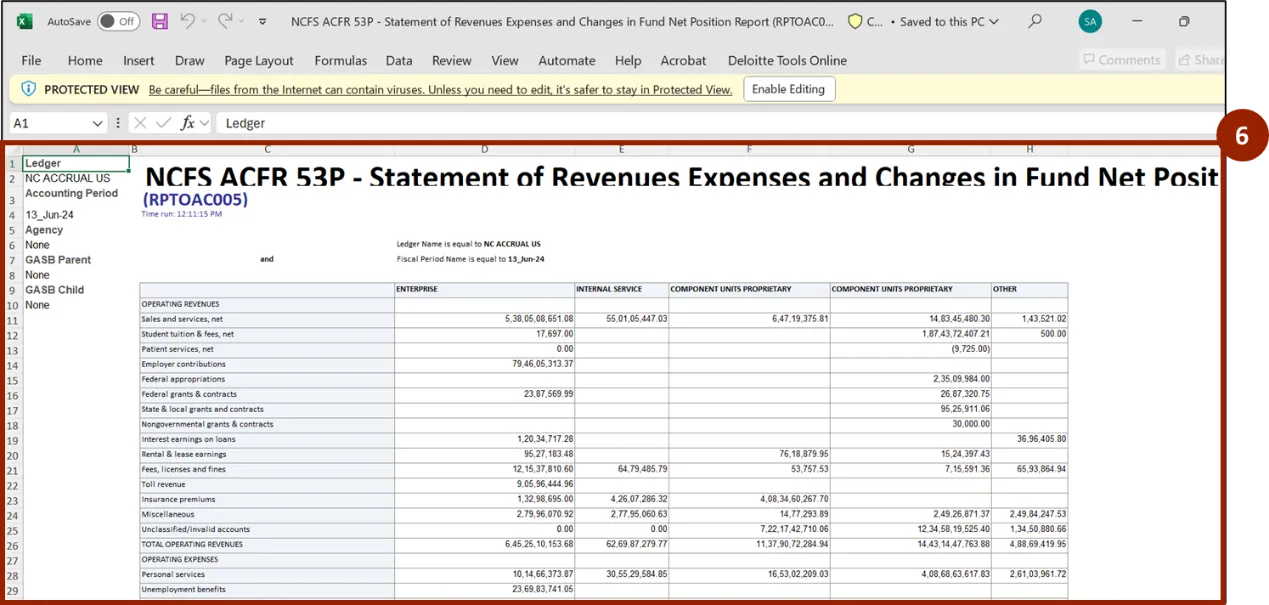
Step 6. The report will open in Excel and display the exported data.
Step 7. Alternatively, scroll down to the bottom of the desired report and click Export to export the report in the desired format.

Step 8. A drop-down menu is displayed. From the menu, select Data or Formatted based on the preferred export type.
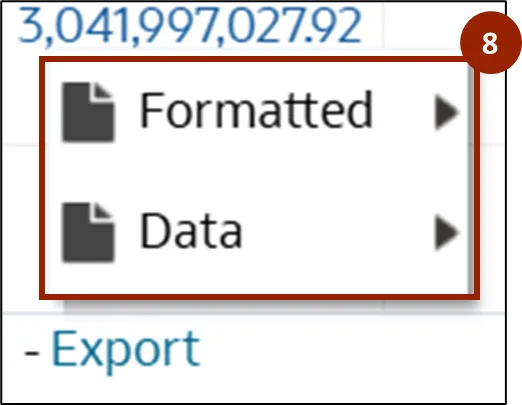
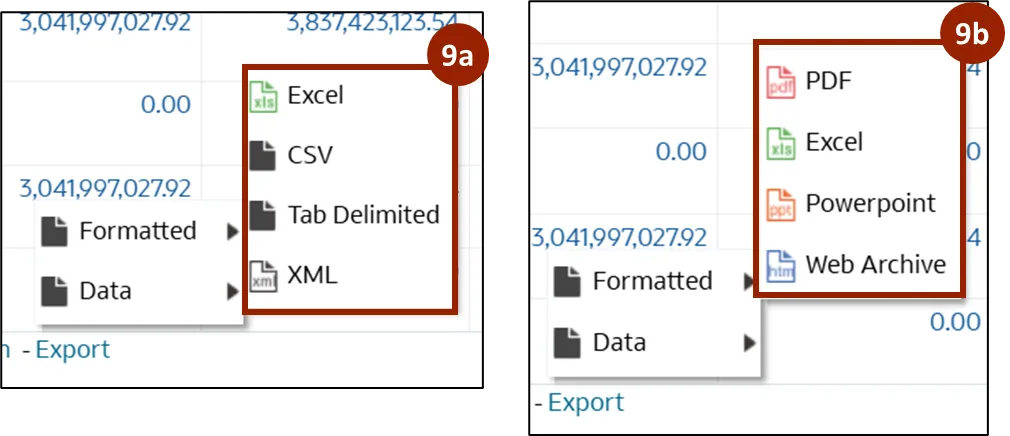
Step 9. Choose the following options as suitable:
- If Data is selected, choose the required format from the drop-down menu.
- If Formatted is selected, choose the desired output format from the drop-down menu.
Wrap-Up
OAC users can export reports in various formats like Excel, PDF, PowerPoint, or CSV, choosing either raw data or a formatted view using the steps above.
Additional Resources
- Virtual Instructor Led Training (vILT)