Purpose
The purpose of this Quick Reference Guide (QRG) is to provide a step-by-step explanation on how to Inquire on Inventory Reservations in the North Carolina Financial System (NCFS).
Introduction and Overview
This QRG covers how to view an inventory reservation in NCFS. A reservation is a link between demand and the supply you intend to use to fulfill that demand. For example, you create a reservation to link a specific on-hand quantity of an item to a transfer order, SSP order, or sales order for a customer. This reservation ensures that the specified quantity is available on a certain date so you can fulfill this order on time. Reservations should never be created, edited, or deleted from the Reservations task, these changes should occur at the source transaction level.
Inquire on Order Reservations
To inquire about order reservations in NCFS, please follow the steps below:
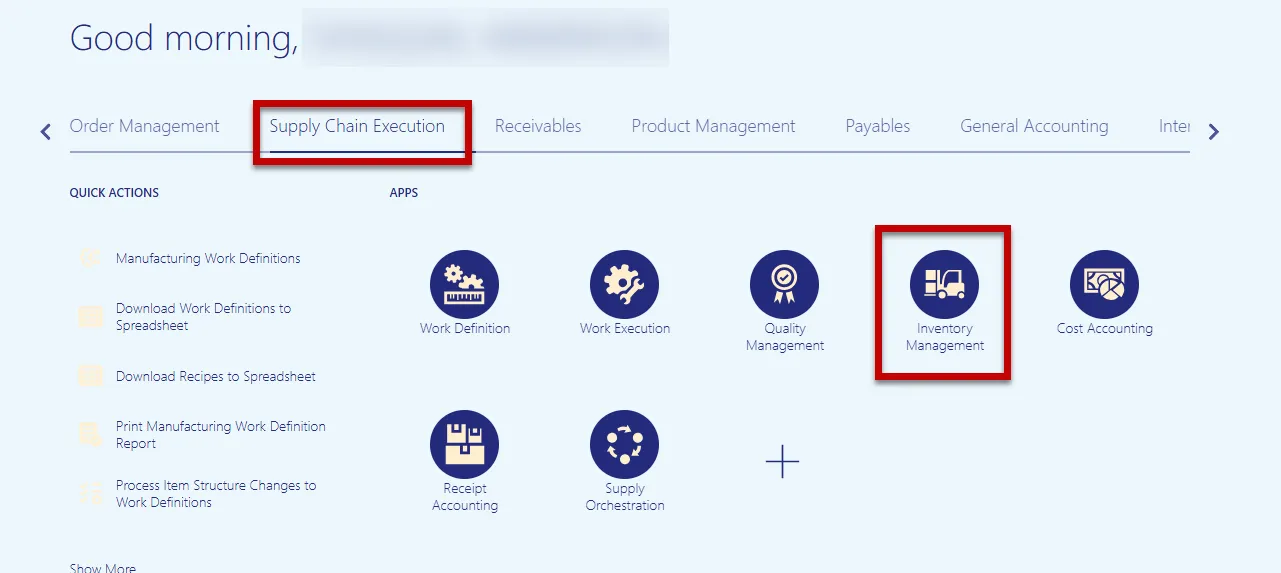
Step 1. Log in to the NCFS portal with your credentials to access the system. Navigate to Supply Chain Execution and select Inventory Management.
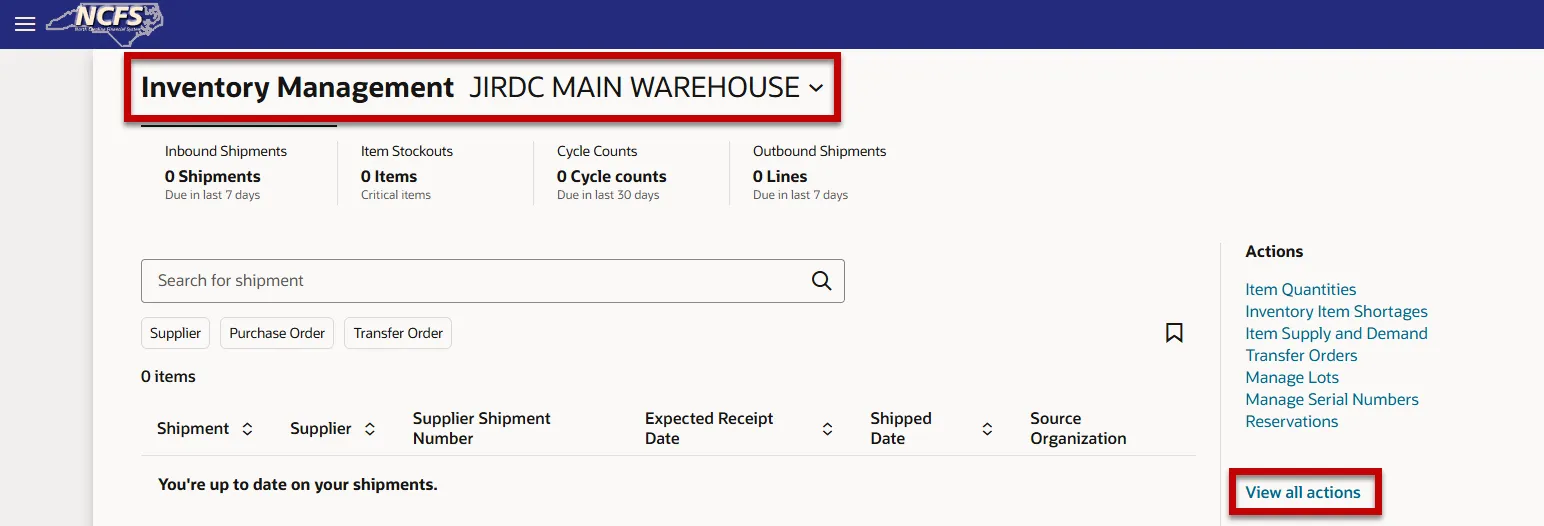
Step 2. Select the appropriate Inventory organization from the drop-down selection and then click the View all actions hyperlink.
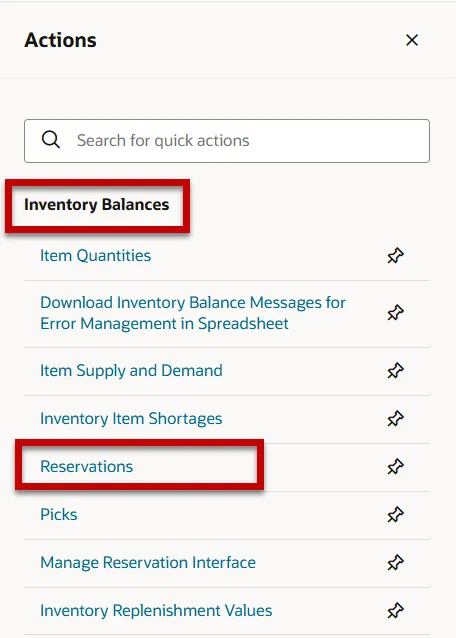
Step 3. The Actions window will appear. Under Inventory Balances, select the Reservations task.
Step 4. On the Reservations screen, the search bar can be used to search for a specific item or demand document number, i.e. transfer order number.
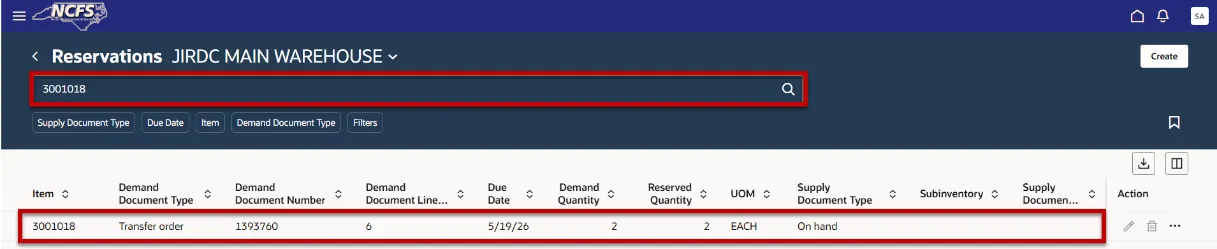
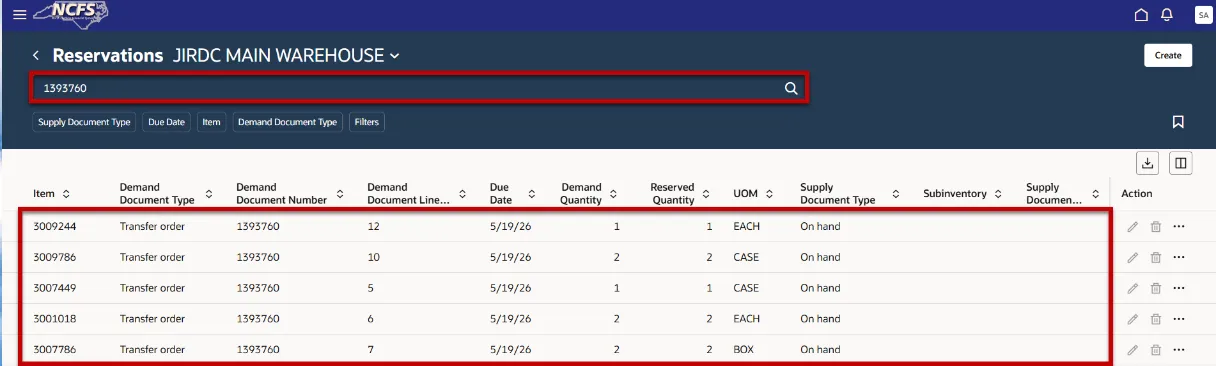
Step 5. There are several filters that can assist when searching/inquiring for an order reservation.
- Supply Document Type: Purchase Order, On hand, Requisition, Transfer order return, Work order, and Transfer order.
- Due Date: Enter date range for when the reservation is due.
- Item: Inventory Item number
- Demand Document Type: Purchase Order, Transfer order return, Sales order, Work order, Transfer order.

Step 6. After selecting the appropriate filters, the inventory Reservation information will display.
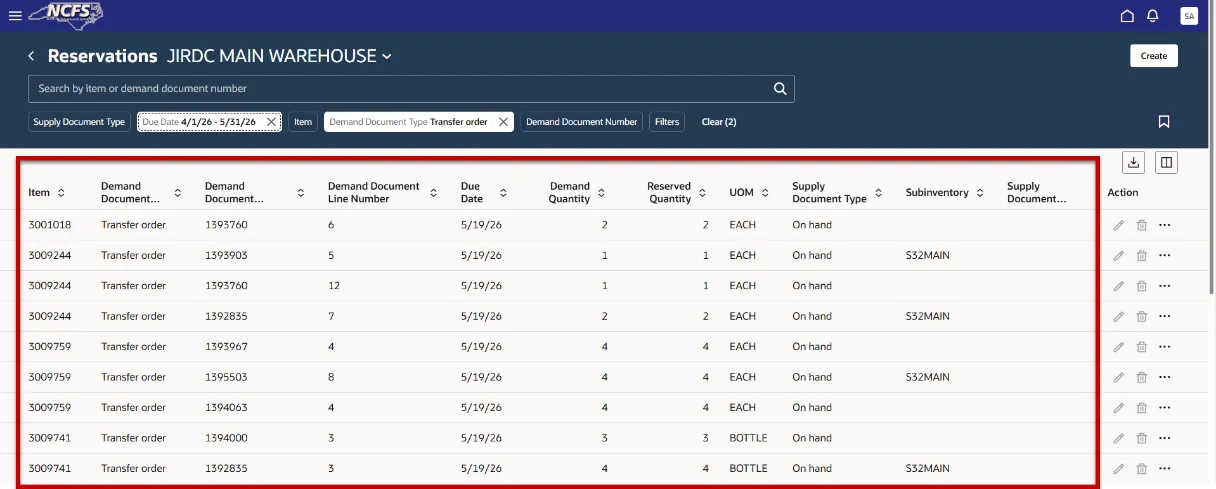
Step 7. The inventory Reservation information displayed can be downloaded into an Excel spreadsheet by clicking the Export button.
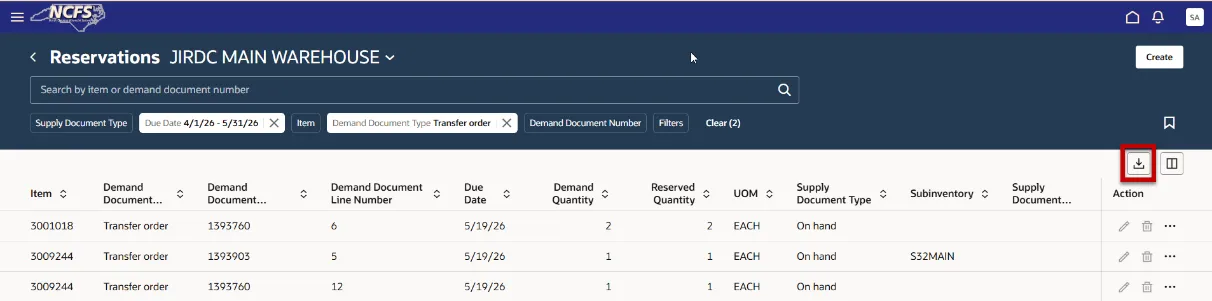
Step 8. Click the download file “Reservations” to open.
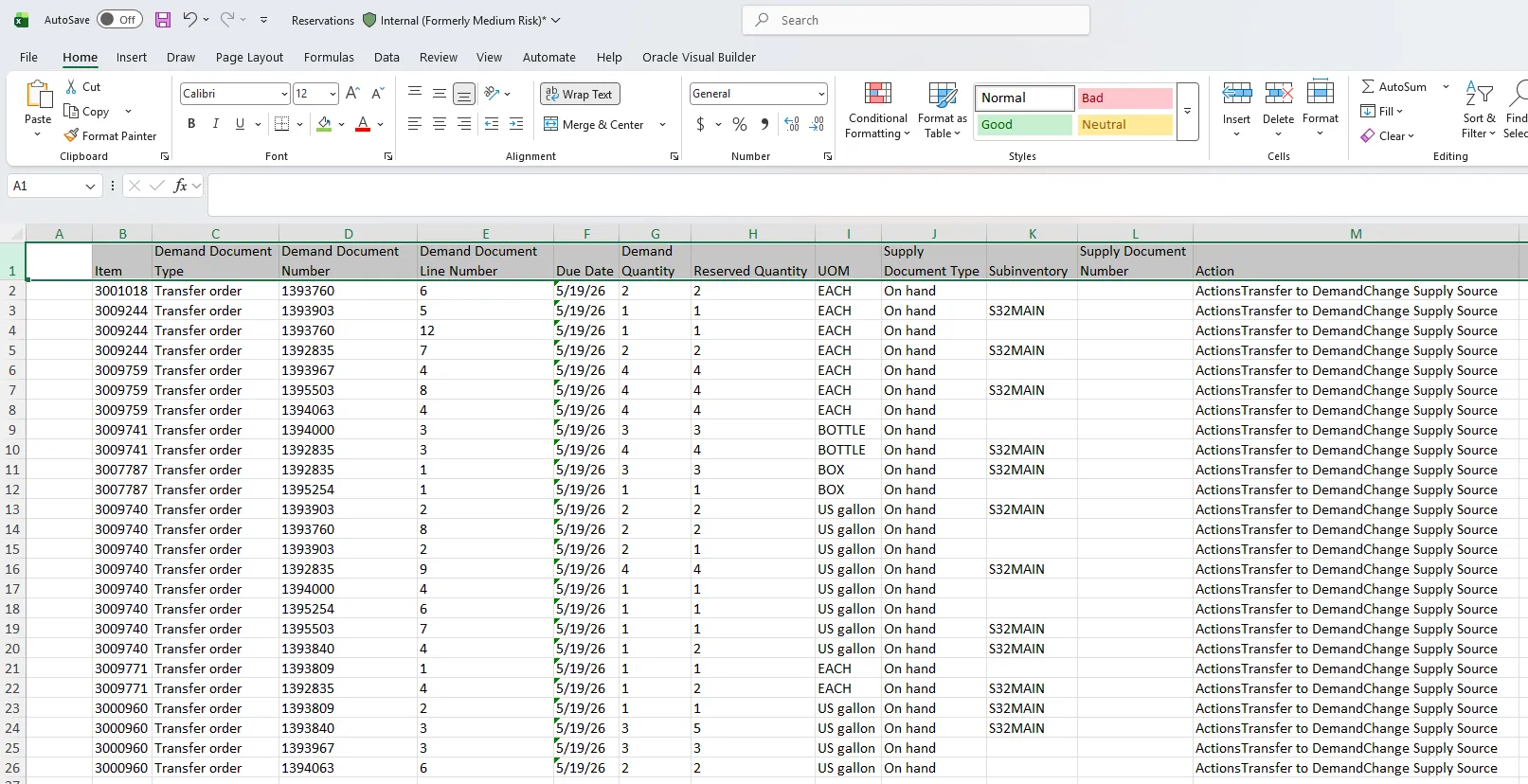
Wrap-Up
The purpose of this QRG is to provide a step-by-step explanation on how to Inquire on Inventory Reservations in NCFS. Reservations should never be created, deleted, or edited from the Reservations task. Any changes to a Reservation should occur at the source transaction level.
Additional Resources
Web-Based Training (WBT)