Purpose
The purpose of this Quick Reference Guide (QRG) is to provide step-by-step explanation on how to create, record, and approve Physical Inventory counts for inventory organizations in the North Carolina Financial System (NCFS).
Introduction and Overview
Accurate system on-hand quantities are essential for managing supply and demand, maintaining high service levels, and planning production. Physical inventories allow you to reconcile system maintained on-hand balances with the physically present quantity of material to ensure that the correct on-hand quantity is reflected in the application. A critical part of the physical inventory process is reviewing and approving discrepancies between the system-maintained quantity and the physically counted quantity, so that the appropriate adjustments are made in NCFS.
Create a Physical Inventory Count
To create a Physical Inventory Count in NCFS, follow the below steps:
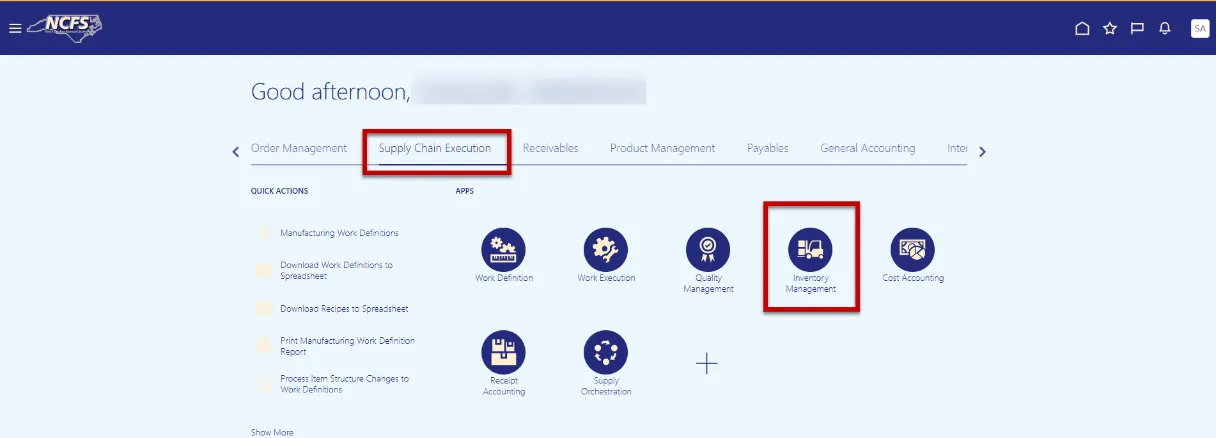
Step 1. Log into NCFS with your credentials. Navigate to the Home page, select Supply Chain Execution and then select Inventory Management.
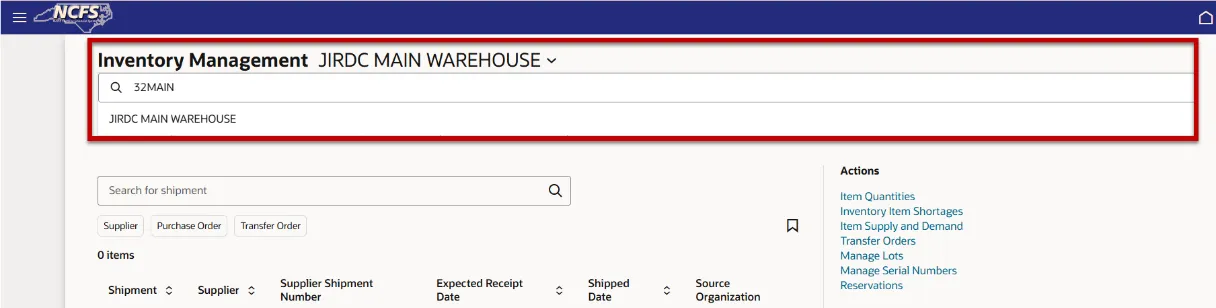
Step 2. Enter the appropriate Inventory Organization in the drop-down search bar and select.
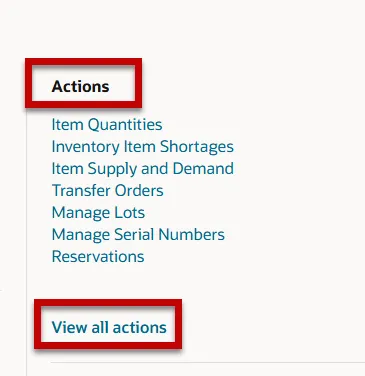
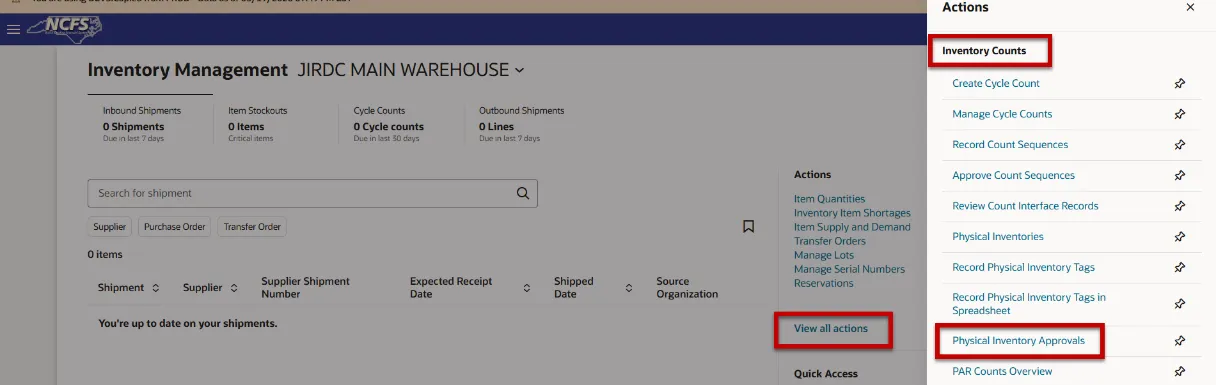
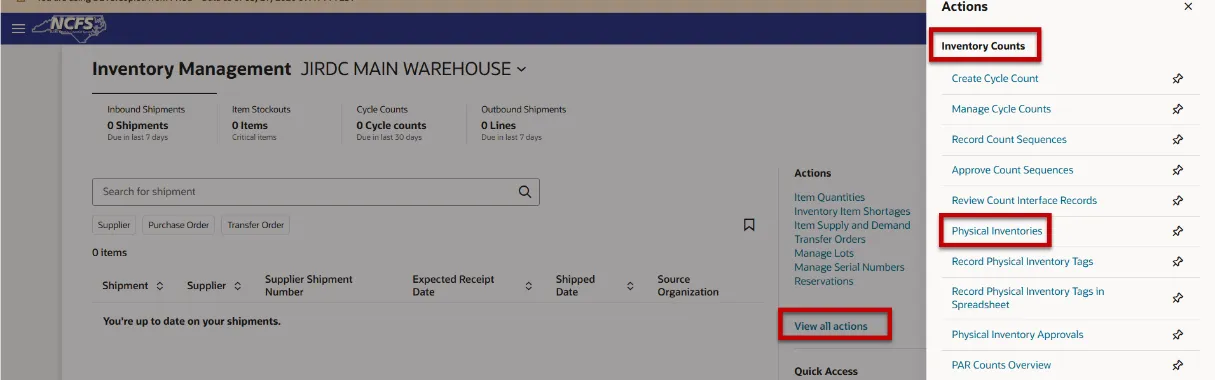
Step 3. Under Actions, click the View all actions hyperlink.
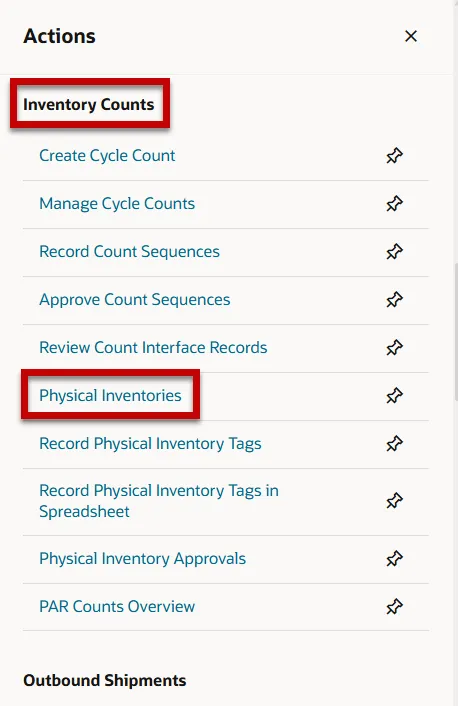
Step 4. The Actions window will appear. Under the Inventory Counts section, select the Physical Inventories task.
Step 5. Click the Create Physical Inventory button to create a new physical inventory count.
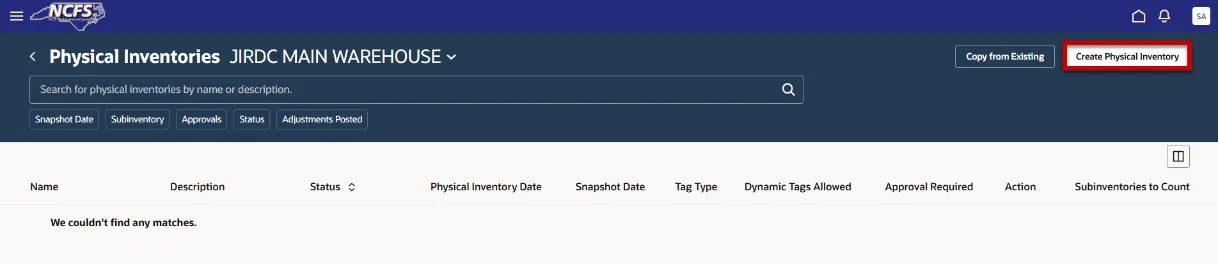
Step 6. On the Define Physical Inventory screen, complete the following fields:
- Physical Inventory Name: 32MAIN COUNT 09092026
- Description: 32MAIN PHYSICAL INVENTORY COUNT 09092026
- Physical Inventory Date: 09/09/2026
- Include all subinventories in count: Check box if you wish to count all subinventories for the inventory organization. Leave unchecked to manually select which subinventories are included on the next screen.
- Include zero on-hand balances in count: This box defaults checked and can be left checked. This attribute does not currently pull in items with zero quantities and OSC is working with Oracle to resolve it.
- Include negative on-hand balances in count: This box defaults checked and can be left checked. This attribute pulls in items with negative on-hand quantities.
- Tag Type: Default tags
- Starting Default Tag: Enter “000001”
- Use dynamic tags: This box defaults checked and can be left checked.
- Show serial numbers on tags: This box defaults checked and can be left checked.
Step 7. Click the Continue button.
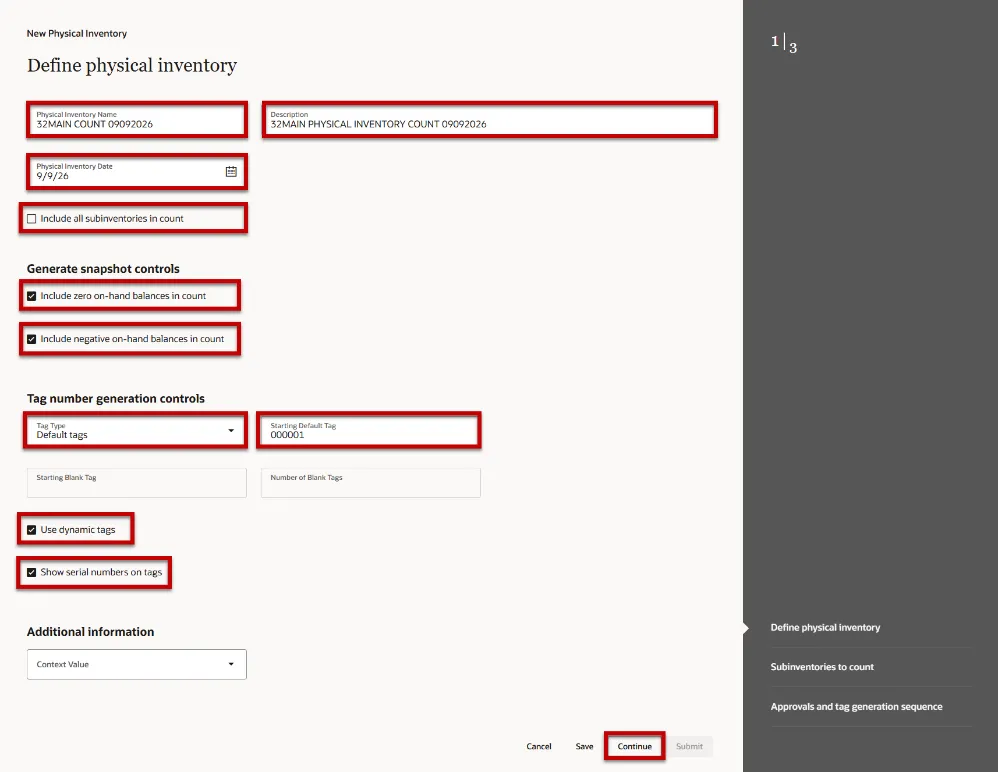
Step 8. On the Subinventories to count screen, check the Include in Count box to include the subinventory(s) in the physical count.
Note: Since we left the Include all subinventories in count box unchecked, we can select only the subinventories we wish to count.
Step 9. Click the Continue button.
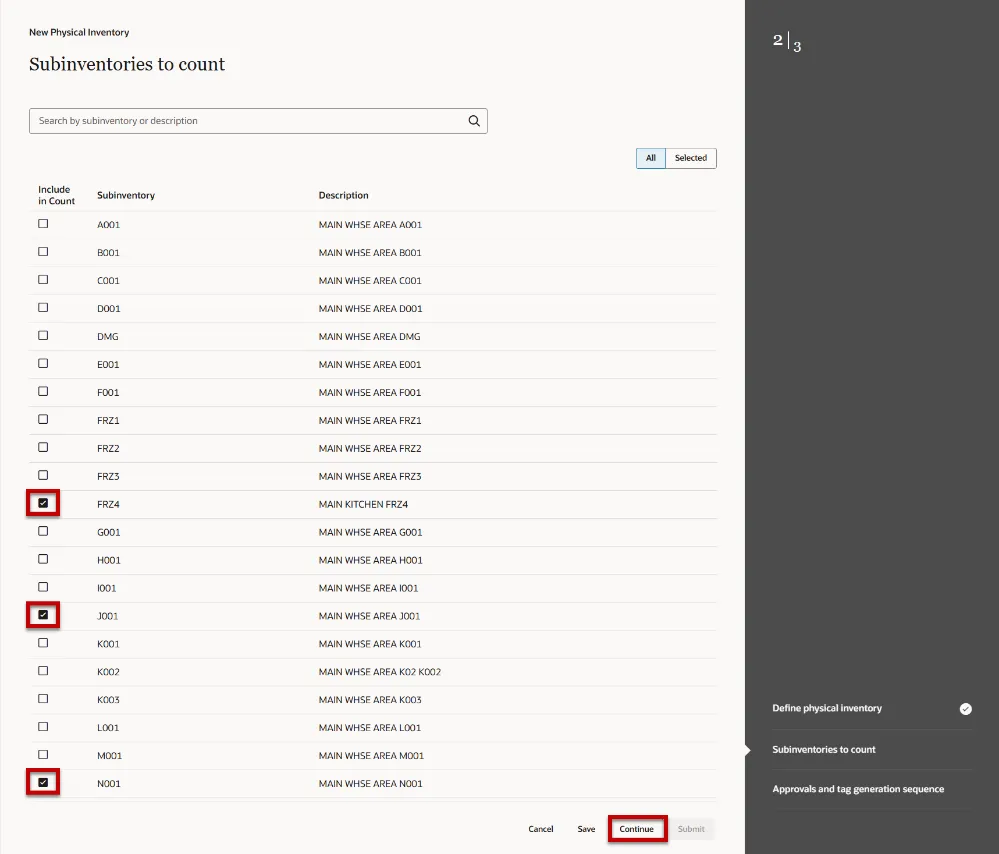
Step 10. On the Approvals and tag generation sequence screen, complete the following fields:
- Approval required button: Defaults selected
- Tag generation sequence:
- Sequence 1: Subinventory
- Sequence 2: Item
- Sequence 3: Locator
- Sequence 4: Revision
Step 11. Click the Submit button.
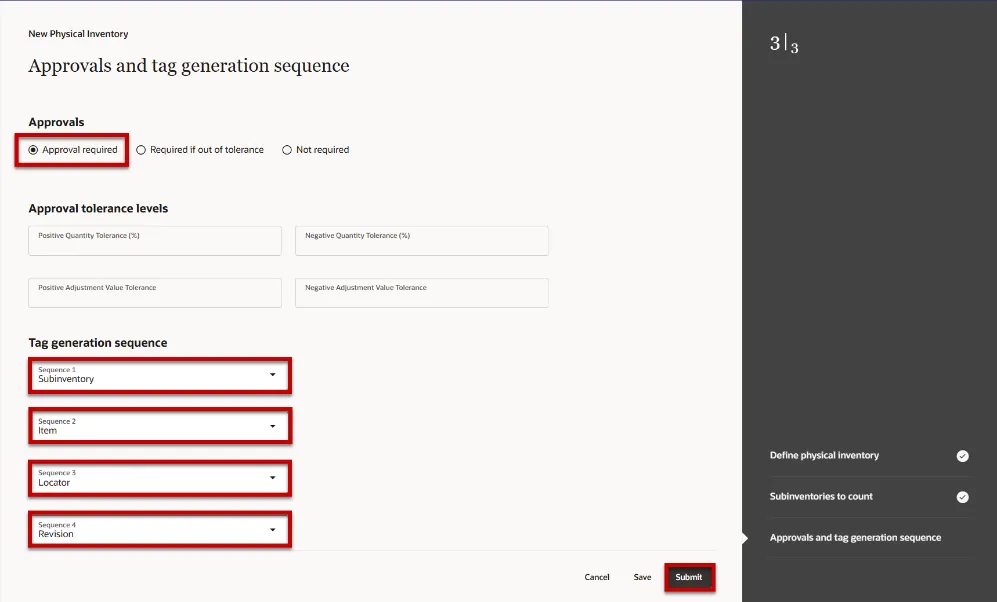
Step 12. Navigate back to the Physical Inventories screen to see the newly created Physical Inventory Count.

Generate Physical Inventory Snapshot
The item quantities Snapshot is a picture of the system data at a given time and is used to compare NCFS system item quantities to inventory organization on-hand quantities. All warehouse operations should be halted until the physical counts are complete.
To Generate Snapshot of item quantities on hand in the system, follow the steps below:
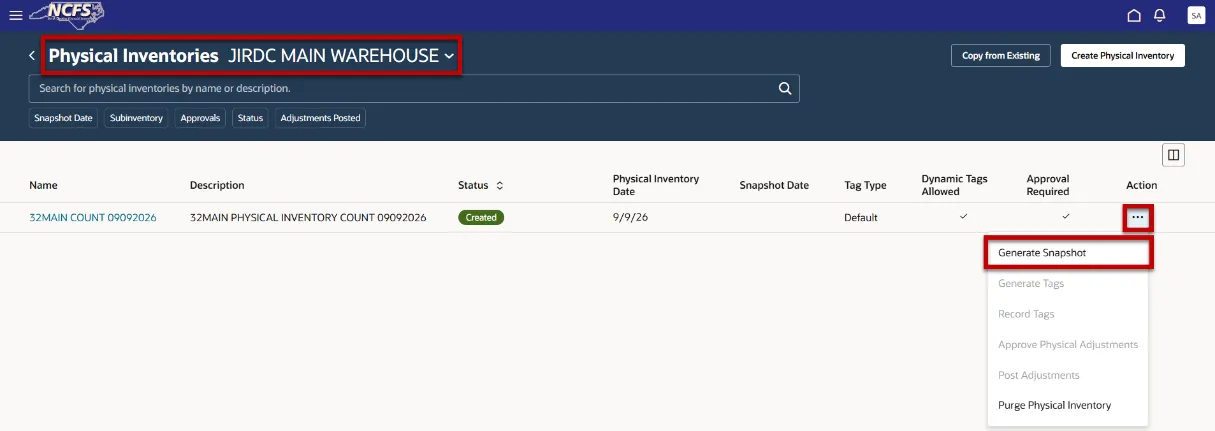
Step 1. Navigate to the Physical Inventories task and click the three dots under the Action column.
Step 2. Click the Generate Snapshot task. The Process id submitted will appear on a blue banner.
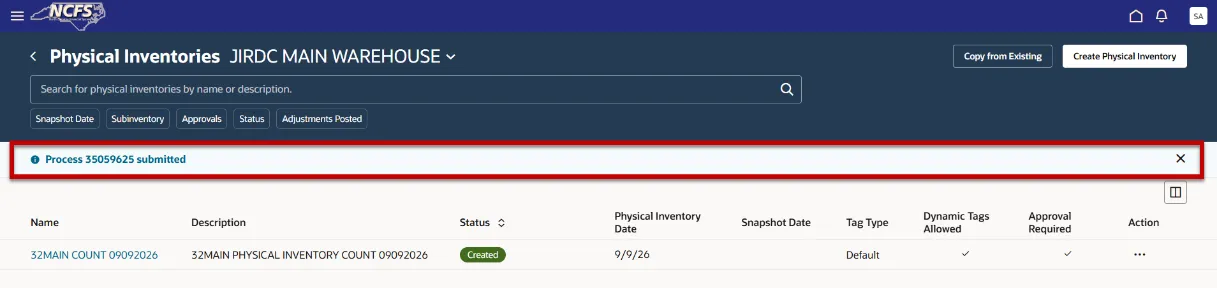
Step 3. Navigate to Scheduled Processes and enter the process id number provided in the Process ID field and click the Search button, to see the status of the ESS job.
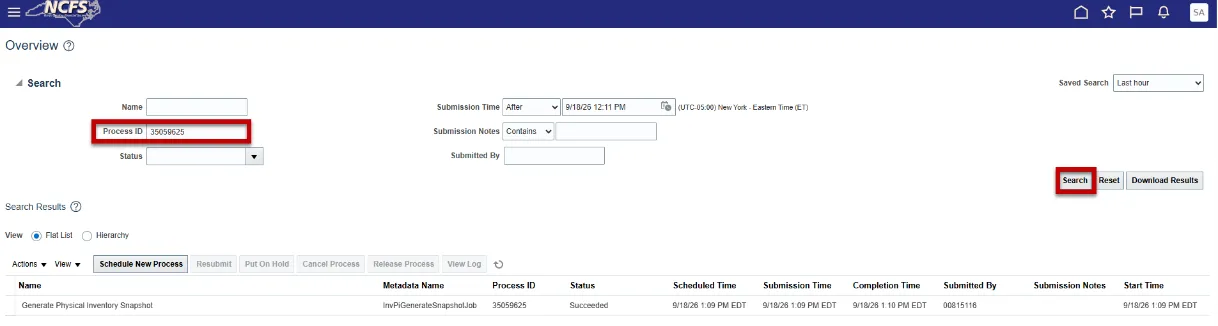
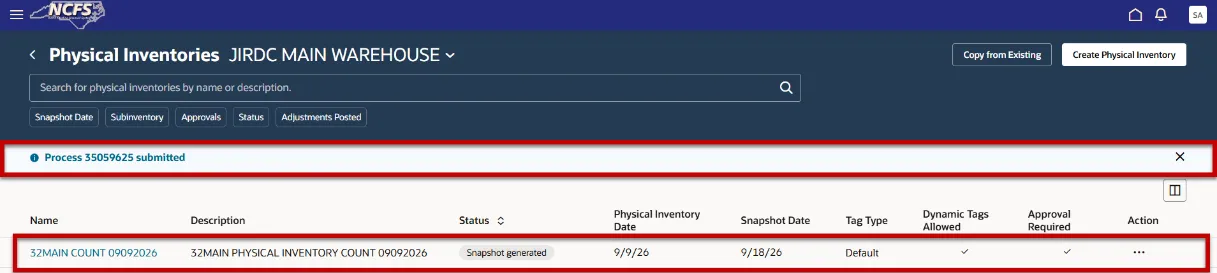
Step 4. Once the Status is Succeeded, navigate back to the Physical Inventories task and the Snapshot Date field will be populated.
Generate Physical Inventory Tags
To Generate Tags for physical inventory counts in NCFS, follow the steps below:
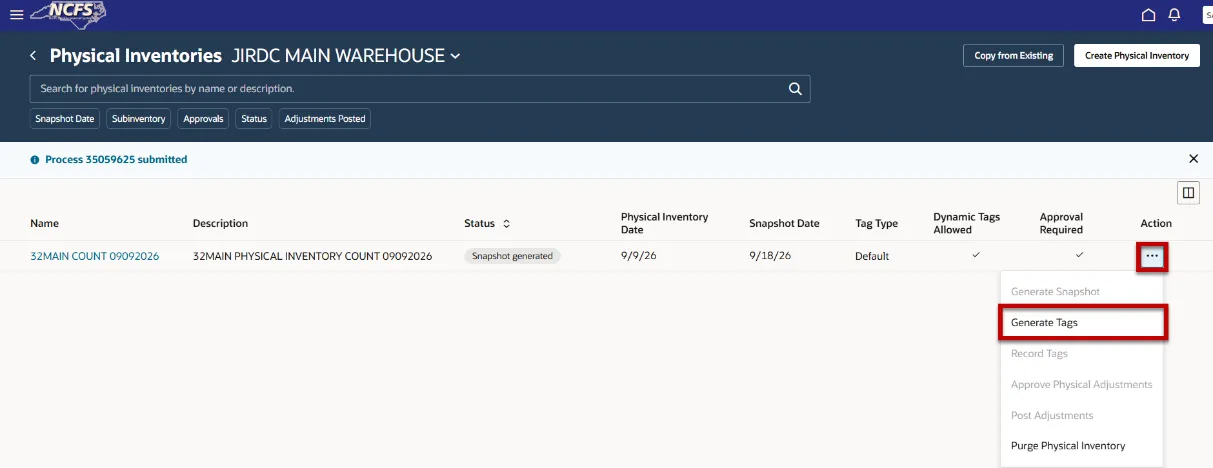
Step 1. Next, click the three dots under the Action column and select the Generate Tags task.
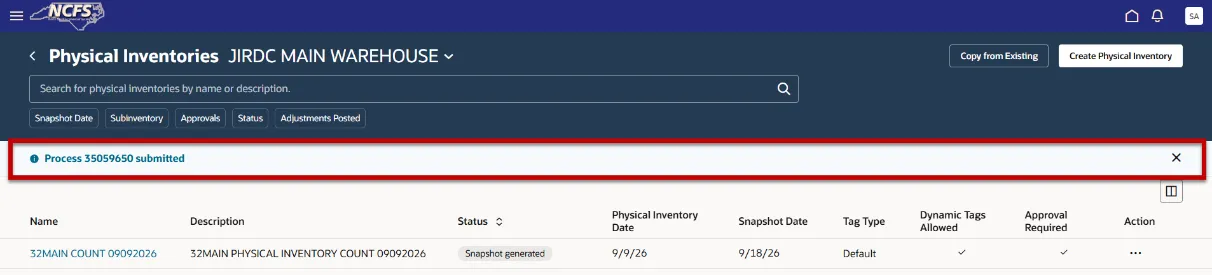
Step 2. The Process id submitted will appear on a blue banner.
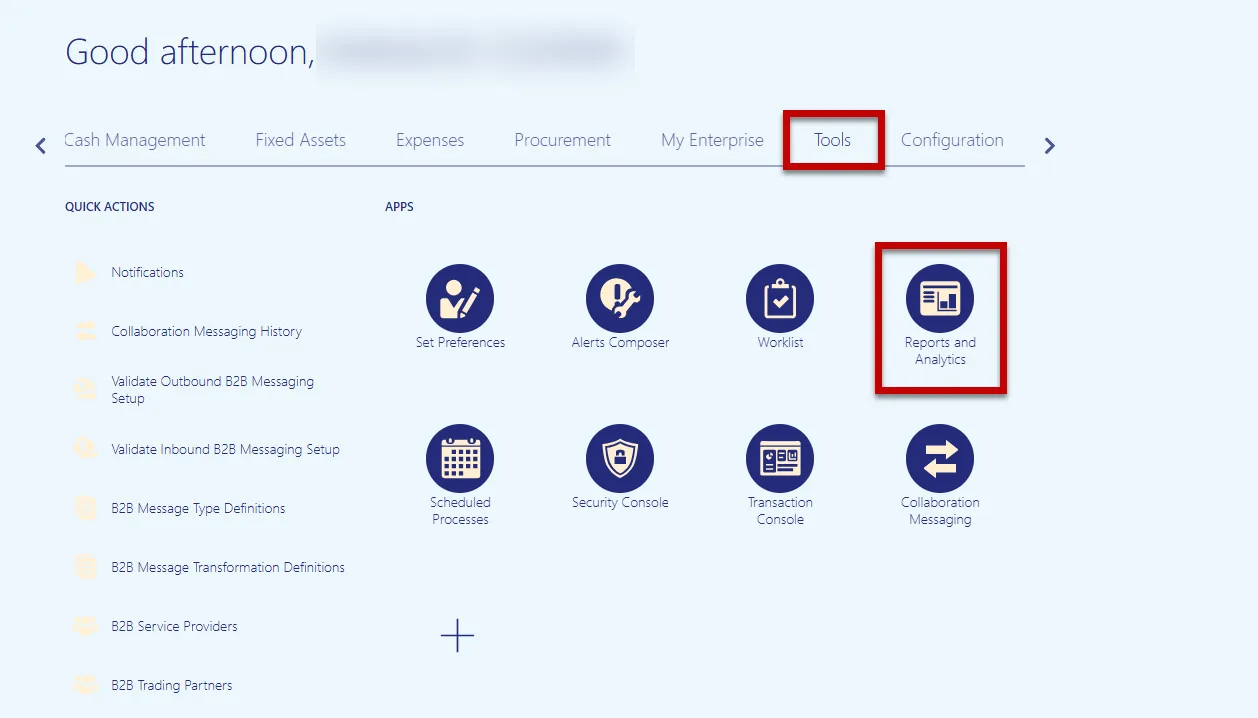
Step 3. Navigate to the Tools tab and select the Scheduled Processes app. Then enter the process id number provided in the Process ID field and click the Search button, to see the status of the ESS job.
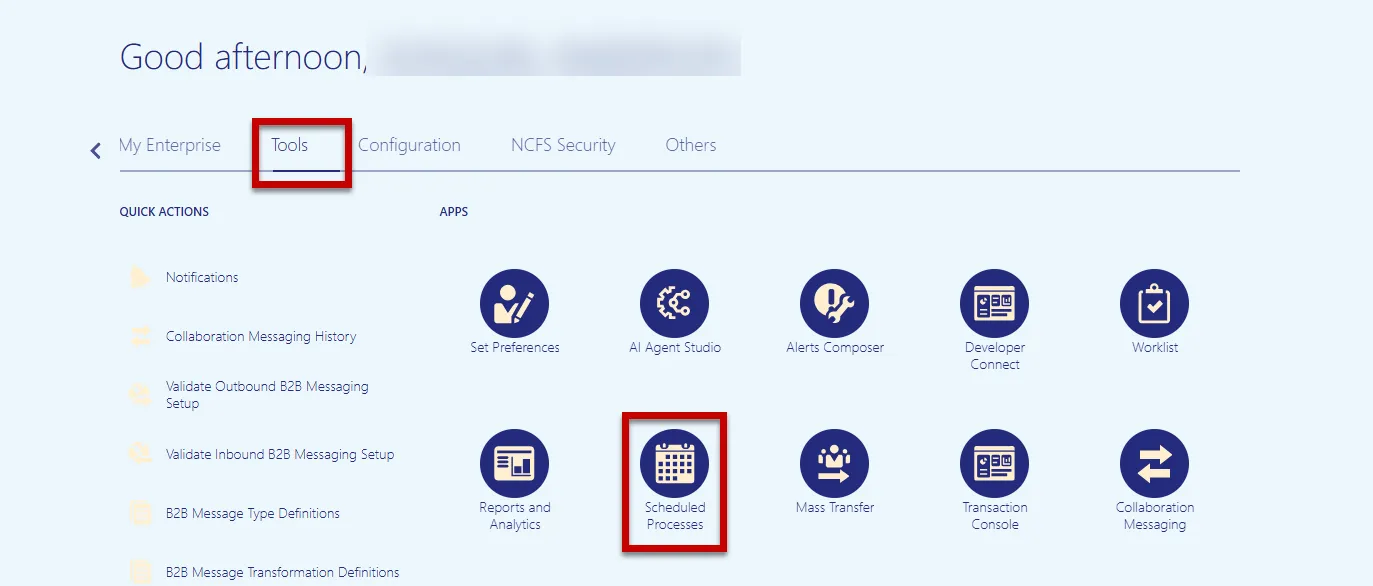
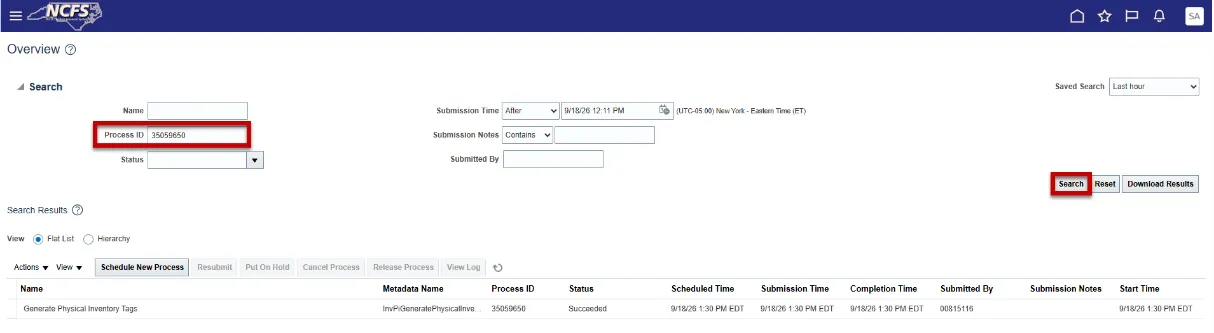
Step 4. Once the Status is Succeeded. Navigate to the Tools tab and select the Reports and Analytics apps.
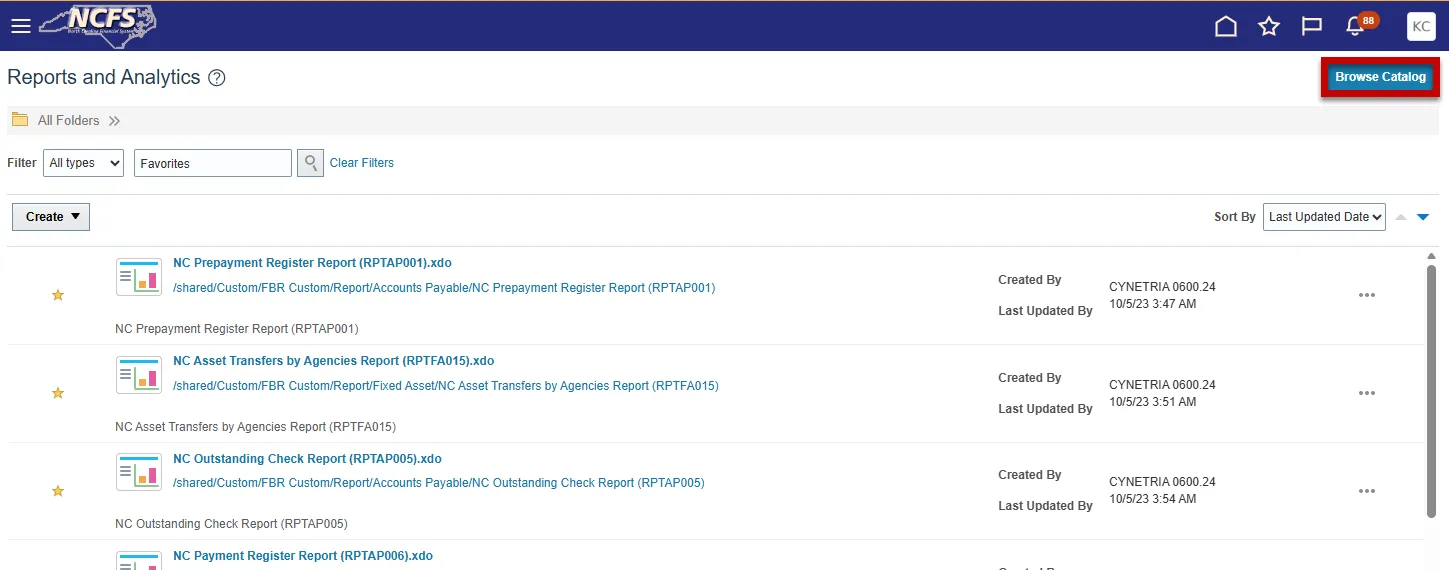
Step 5. Once on the Reports and Analytics page, select the Browse button in the upper-right corner.
Step 6. Select the NC Physical Inventory Count Listing Report (RPTIN032).
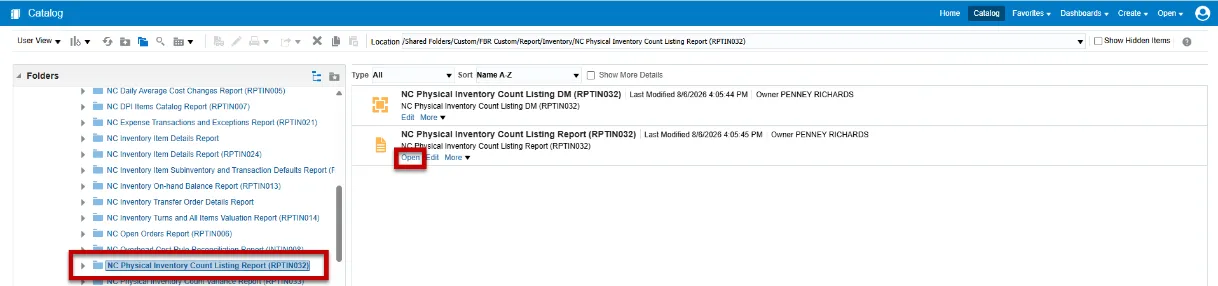
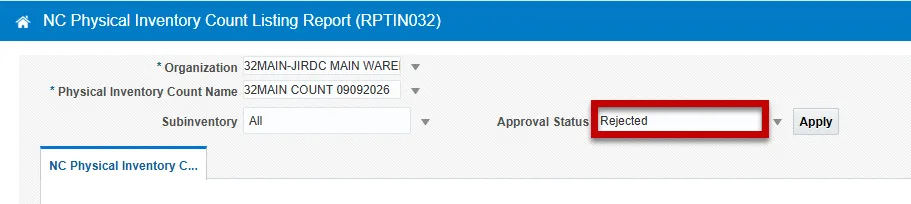
Step 7. Open the report and populate the following parameters:
- Organization: Select the appropriate inventory organization
- Physical Inventory Count Name: Select the appropriate Physical Inventory Count
- Subinventory (Defaults All): Specific subinventories can be selected to count.
- Approval Status (Defaults All): You can select different status’ if desired.
Step 8. Click the Apply button to run the report.

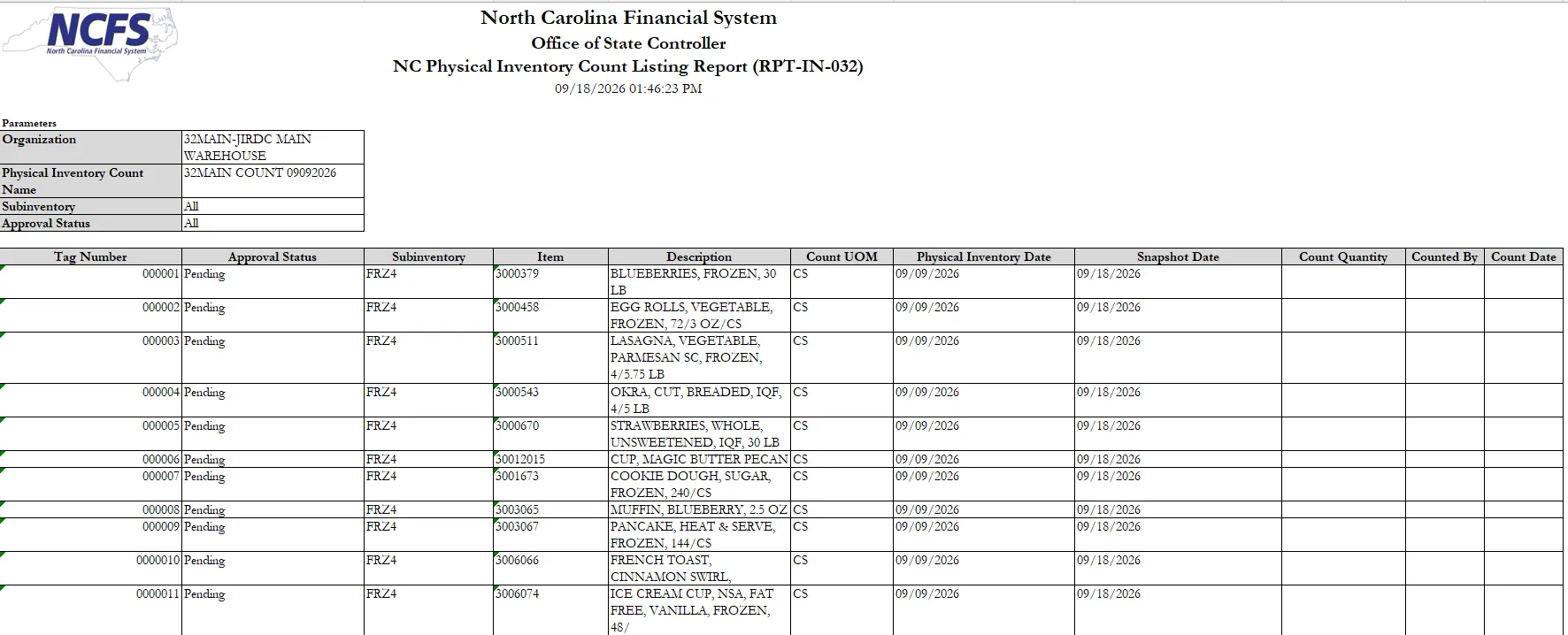
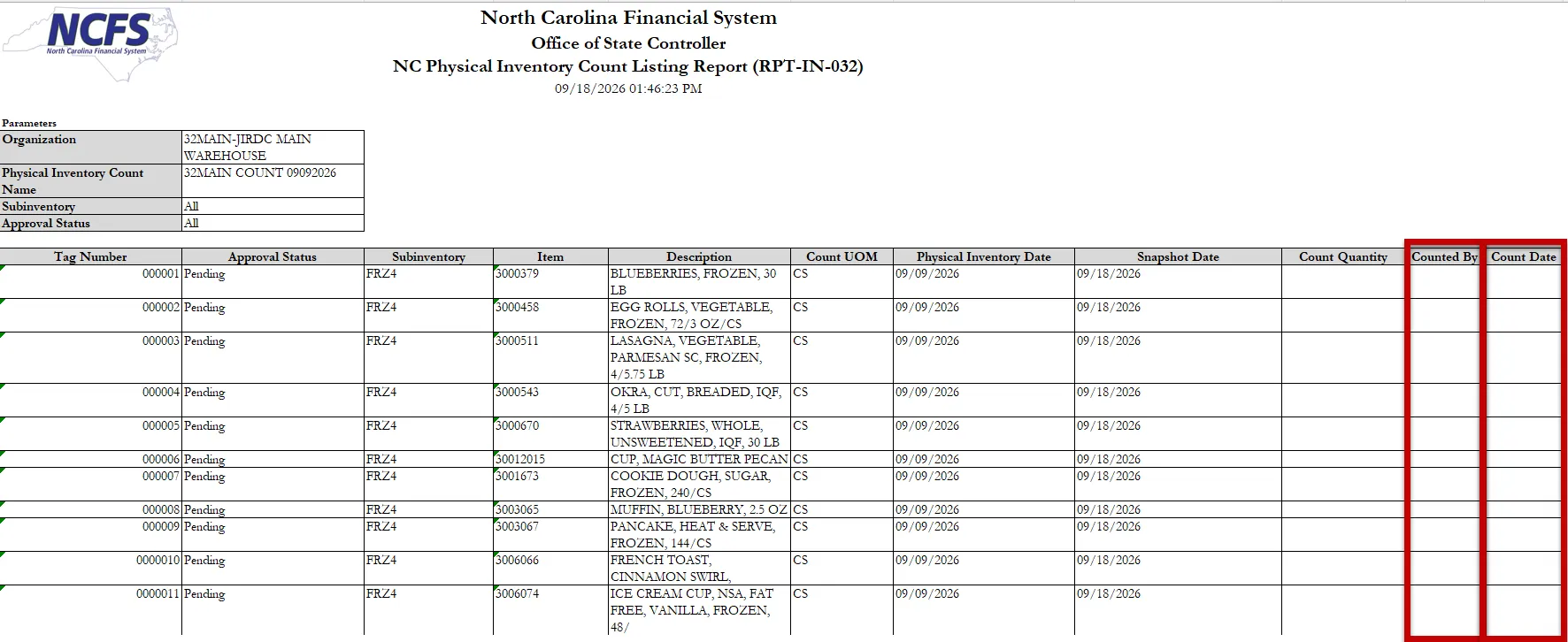
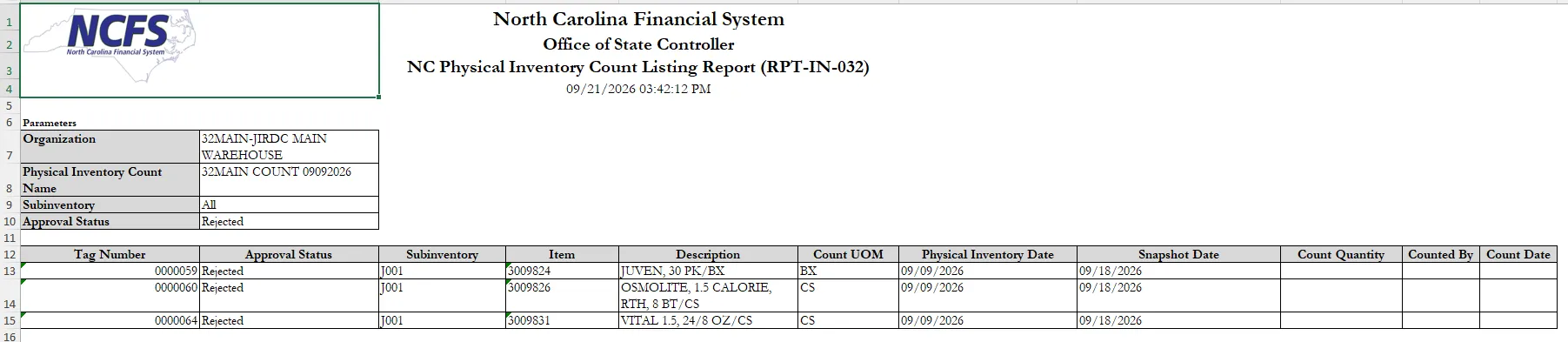
Step 9. Review the NC Physical Inventory Count Listing Report (RPT-IN-032) before starting the physical inventory count.
Record Physical Inventory Tags Manually
To Record Tags Manually for physical inventory counts in NCFS, follow the steps below:
Step 1. Inventory Organization staff should record inventory items on-hand counts in the Count Quantity Column, enter the name of person performing count in the Counted By column, and date counted in the Count Date column on the NC Physical Inventory Count Listing Report (RPT-IN-032).
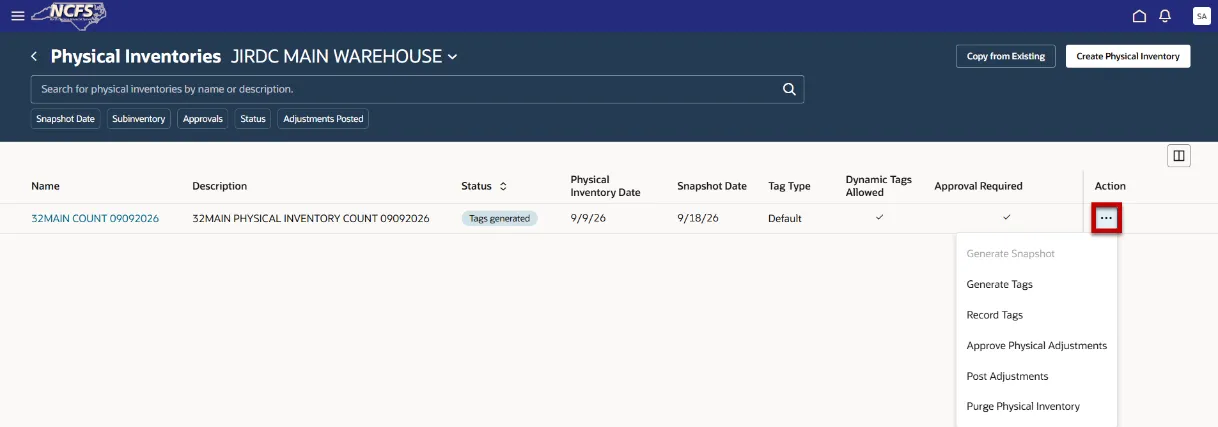
Step 2. Navigate back to the Physical Inventories task and click the three dots under the Action column. Select the Record Tags task.
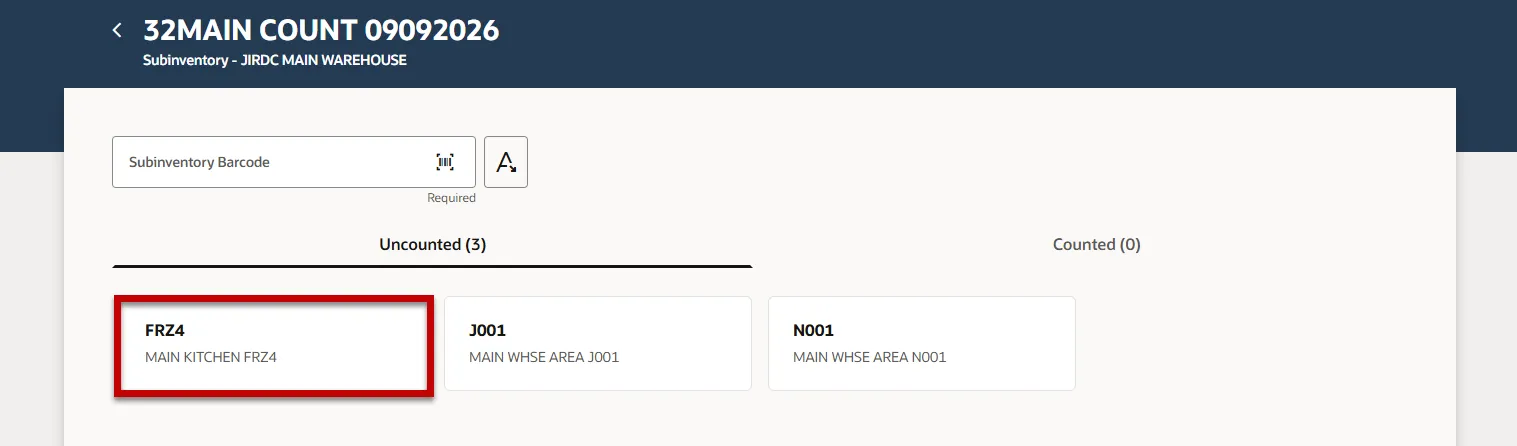
Step 3. On the Record Counts screen, under the Uncounted section, select a subinventory to count.
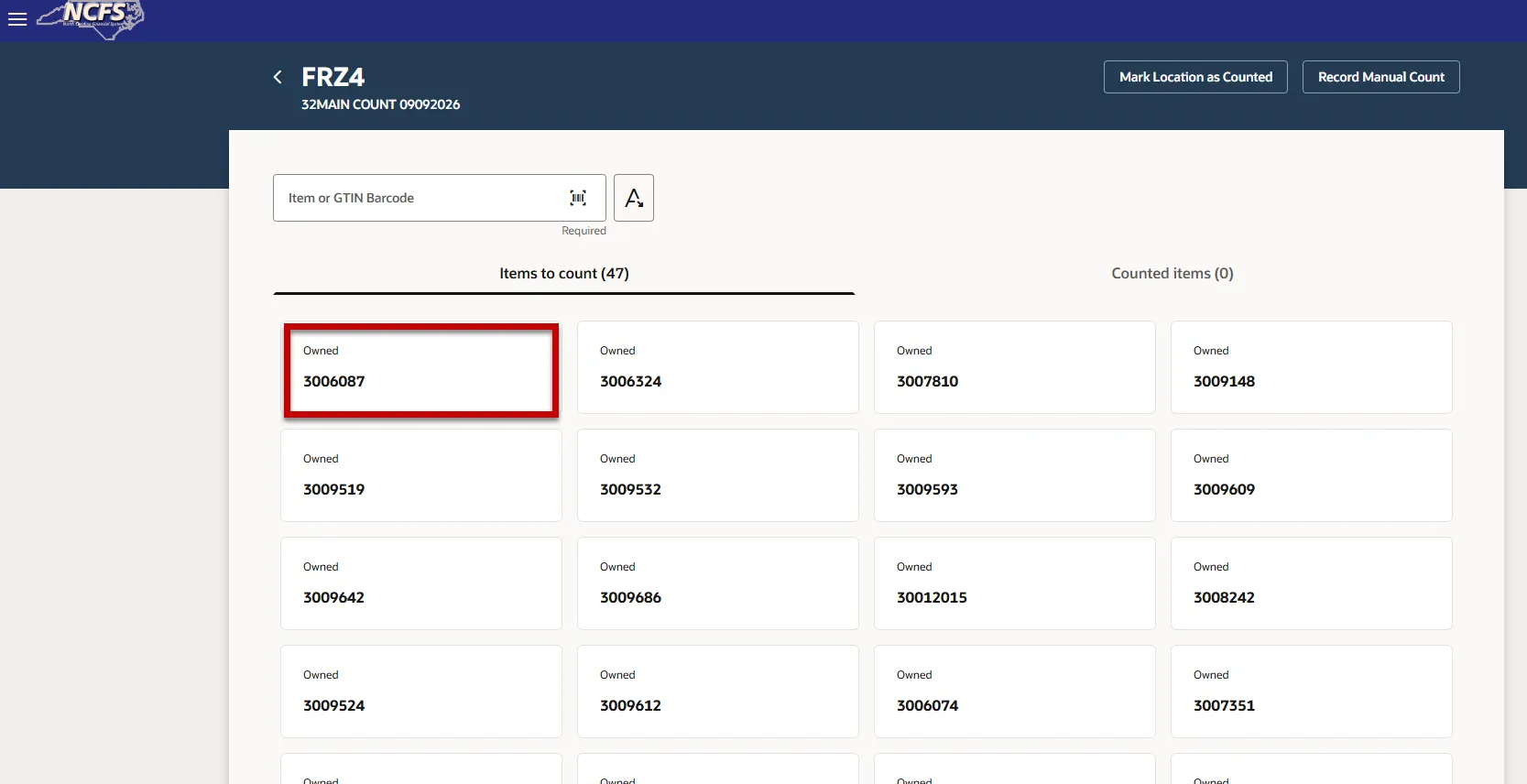
Step 4. Under the Items to count (##) section, click on an item to record the count manually.
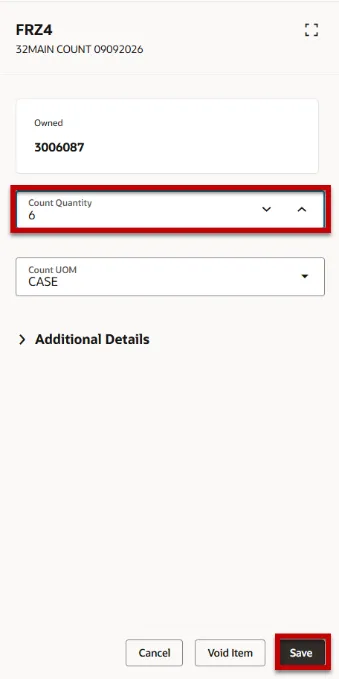
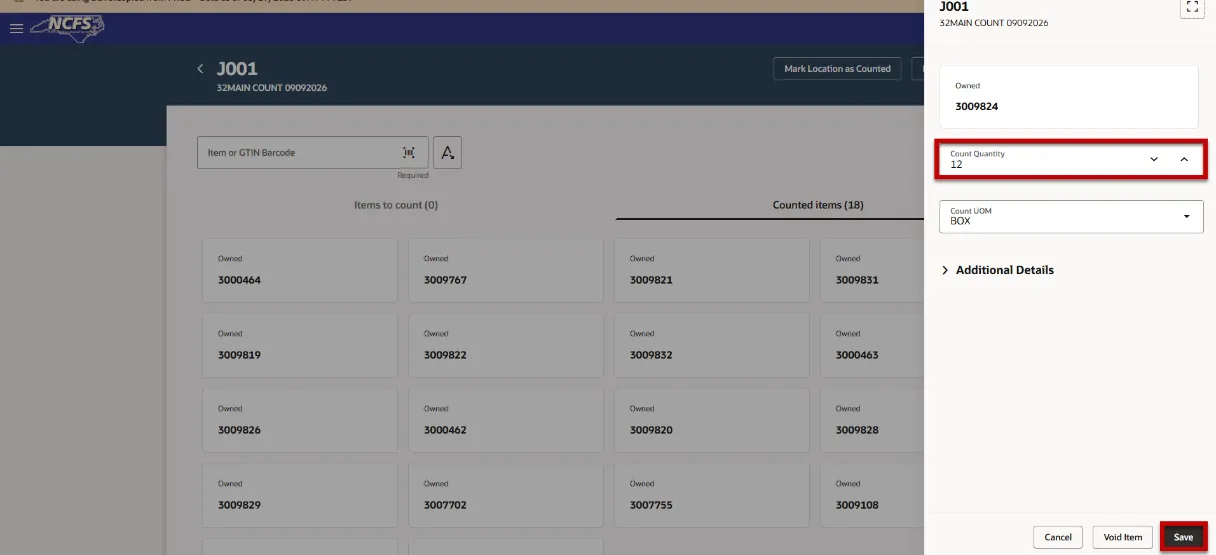
Step 5. The item count window will appear. Enter the on-hand quantity in the Count Quantity field and click the Save button.
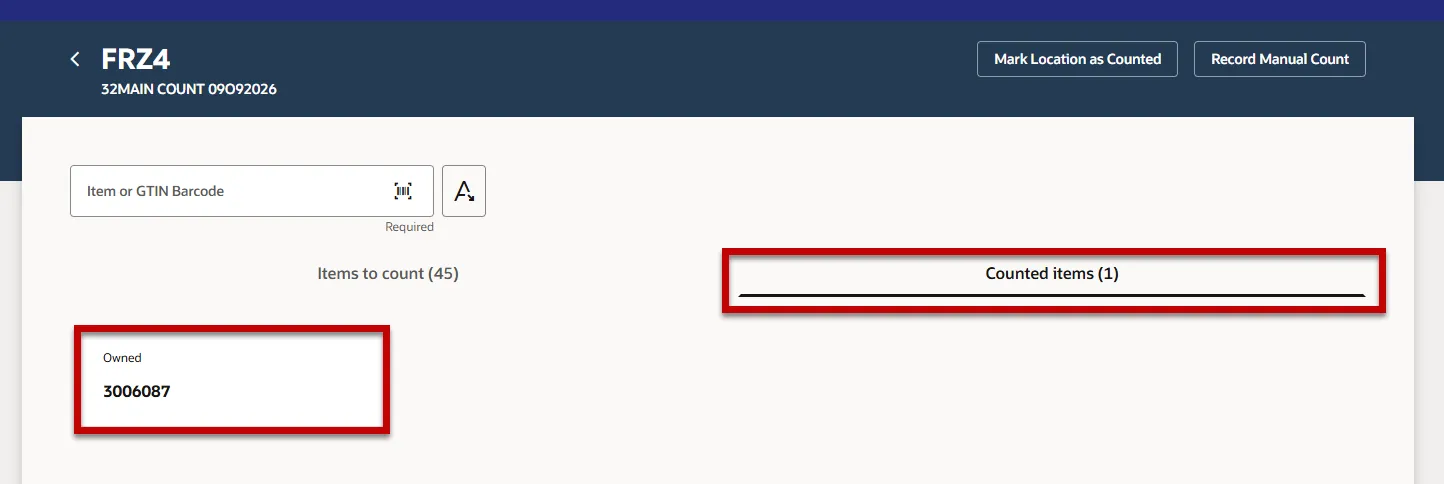
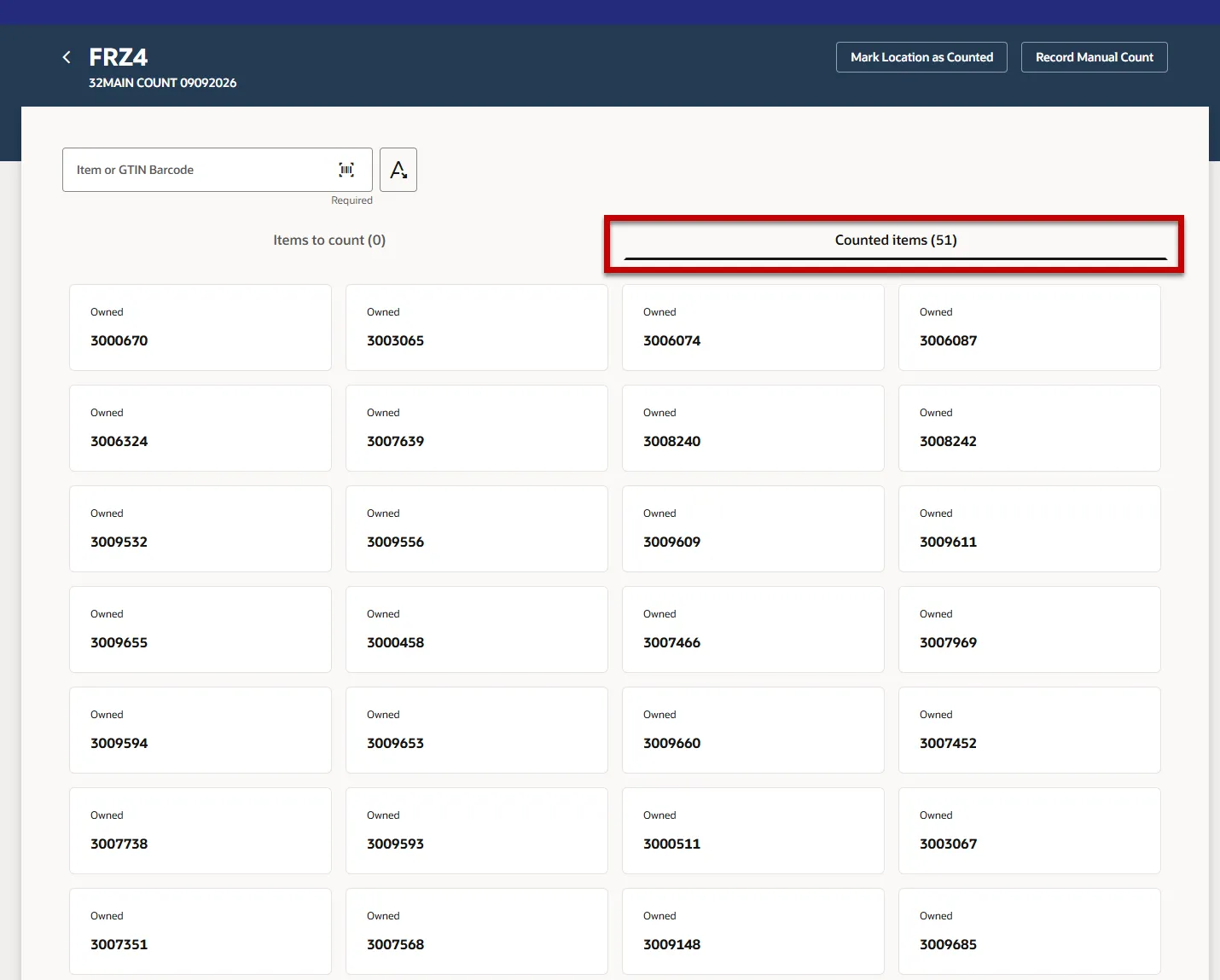
Step 6. This item will now appear under the Counted Items (#) section.
Record Physical Inventory Tags in Spreadsheet
To Record Physical Inventory Tags in Spreadsheet for physical inventory counts in NCFS, follow the steps below:
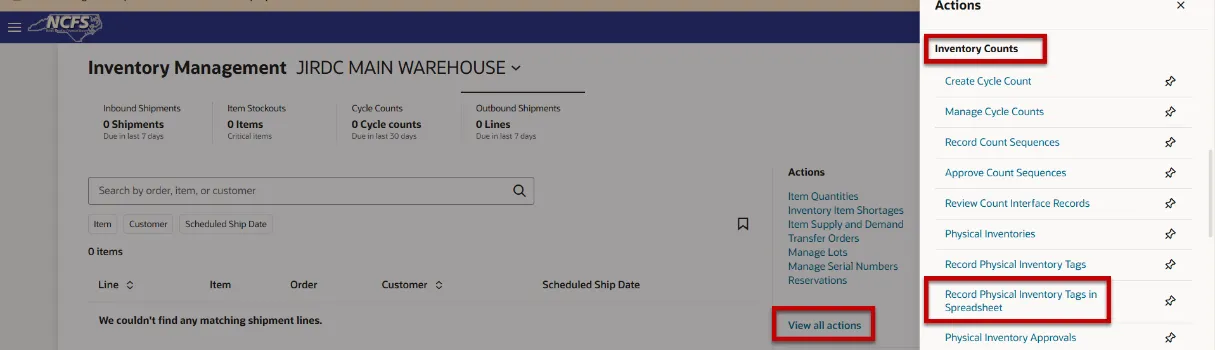
Step 1. Navigate to the Inventory Management page, click the View all actions hyperlink, under the Inventory Counts section, select the Record Physical Inventory Tags in Spreadsheet task.
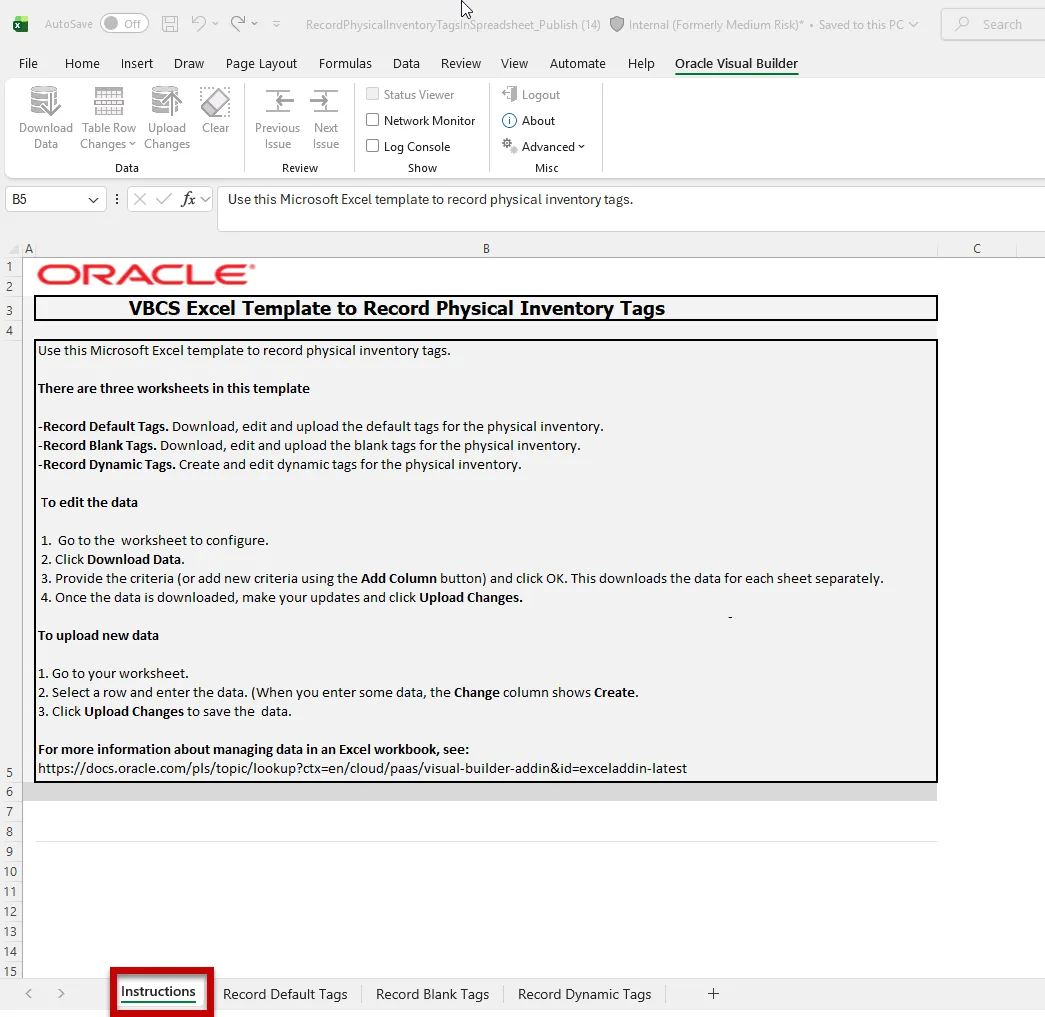
Step 2. Click the downloaded RecordPhysicalInventoryTagsinSpreadsheet Excel worksheet and review the Instructions tab.
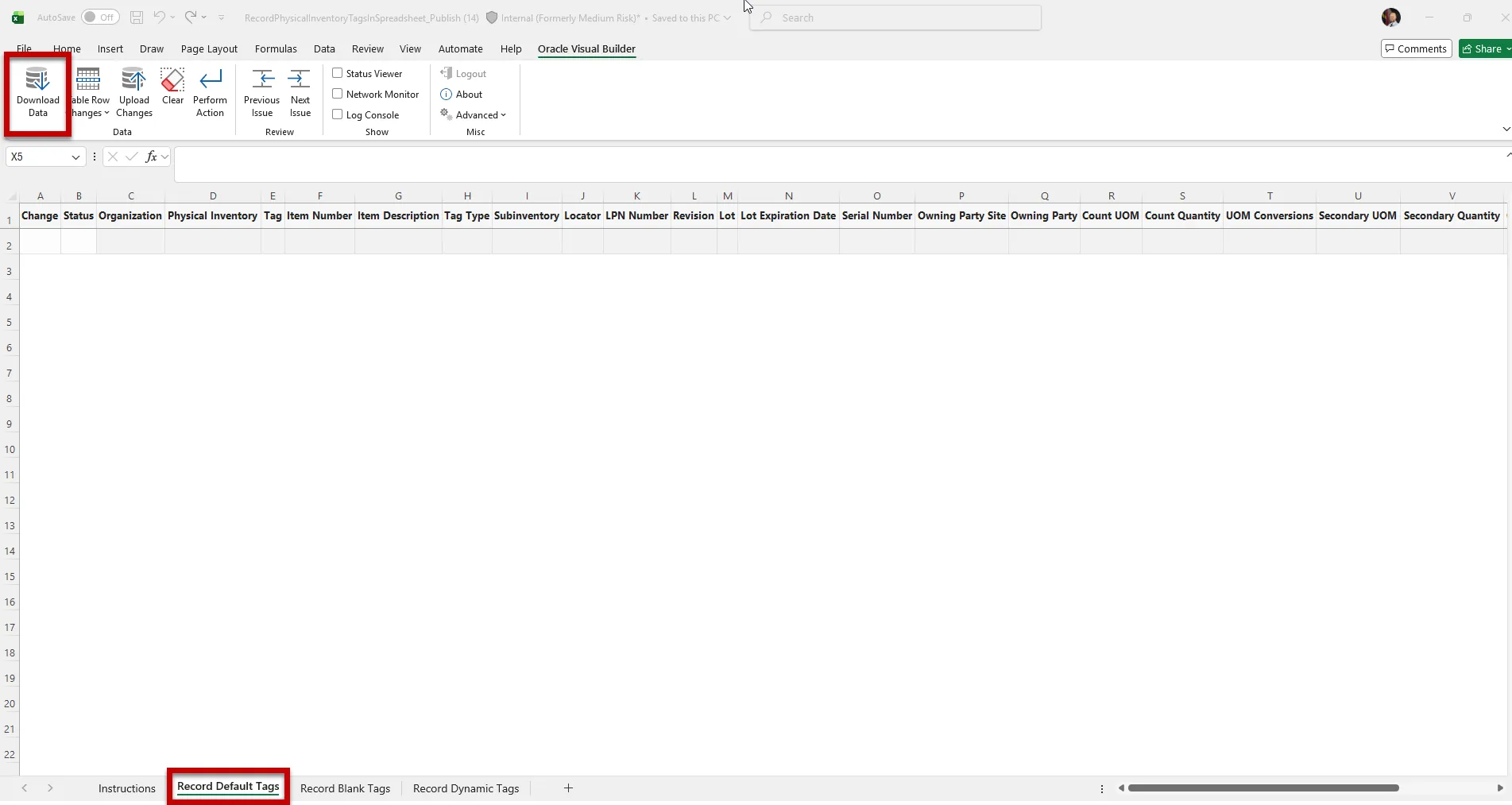
Step 3. Click the Record Default Tags tab. Next, under the Oracle Visual Builder section at the top of the screen, click the Download Data option.
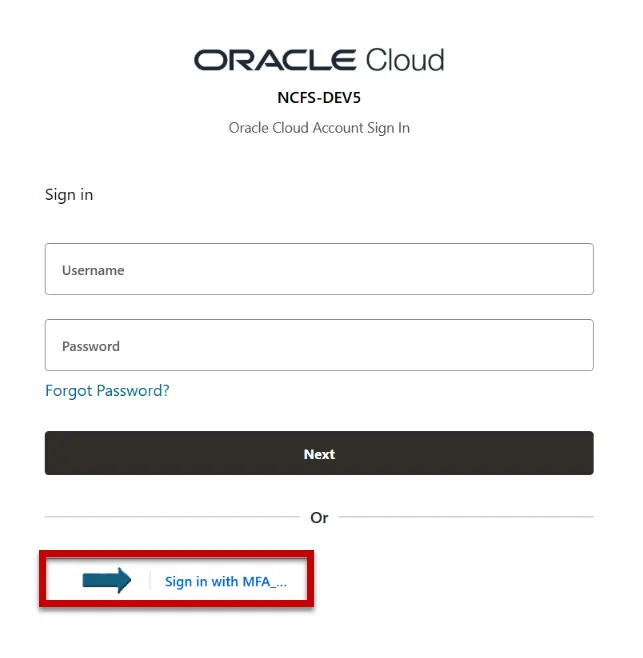
Step 4. The Oracle Cloud log-in window will appear, log in using your credentials.
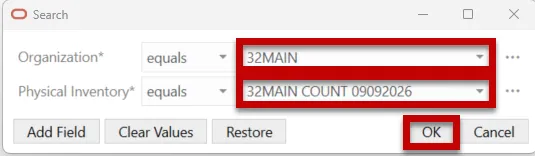
Step 5. The Search box will appear, search for the Organization name and select the Physical Inventory name. Click the OK button.
Step 6. All the inventory items with a positive or negative on-hand quantity located in the subinventories selected will appear in the worksheet under the Record Default Tags tab.
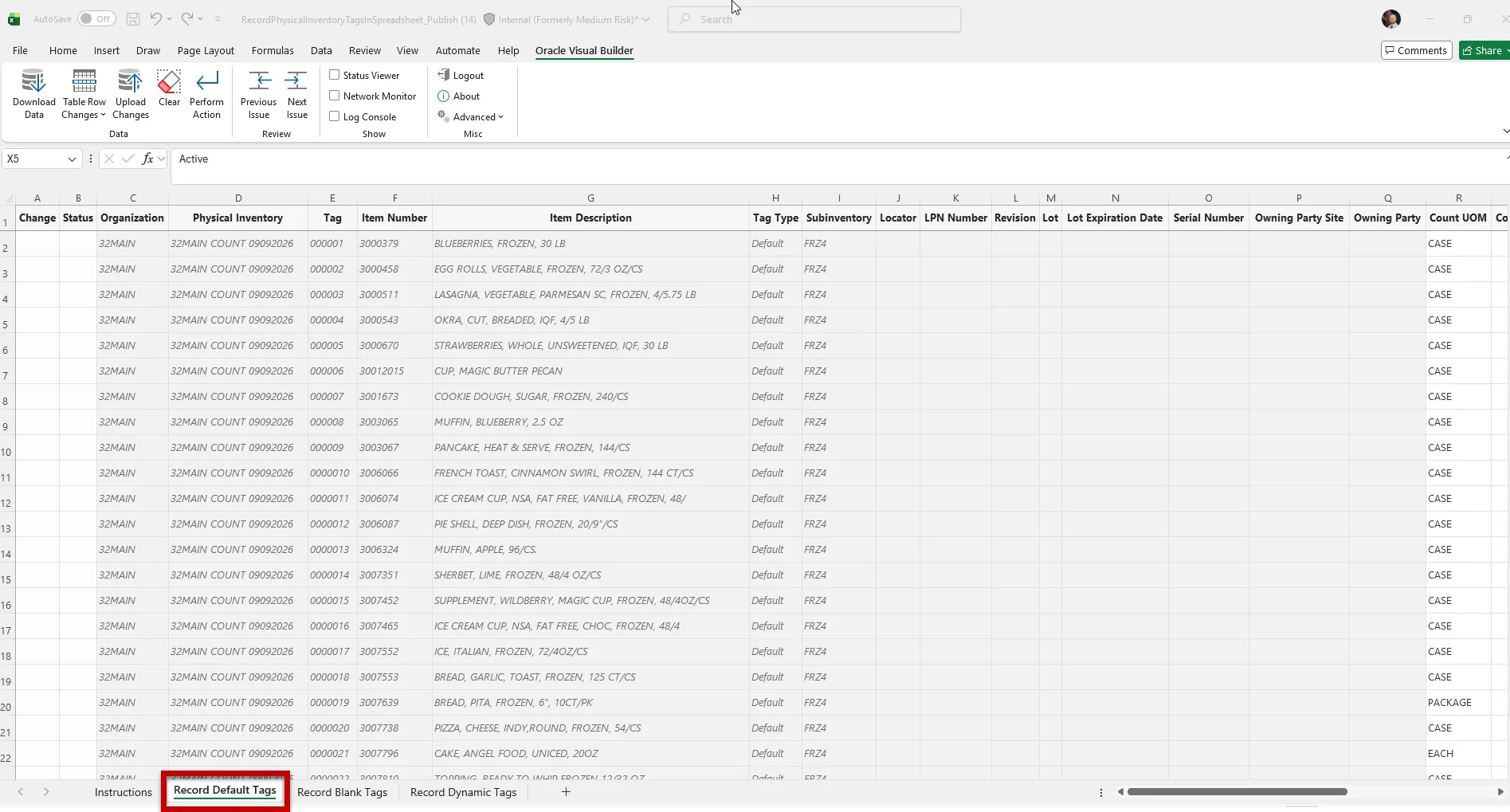
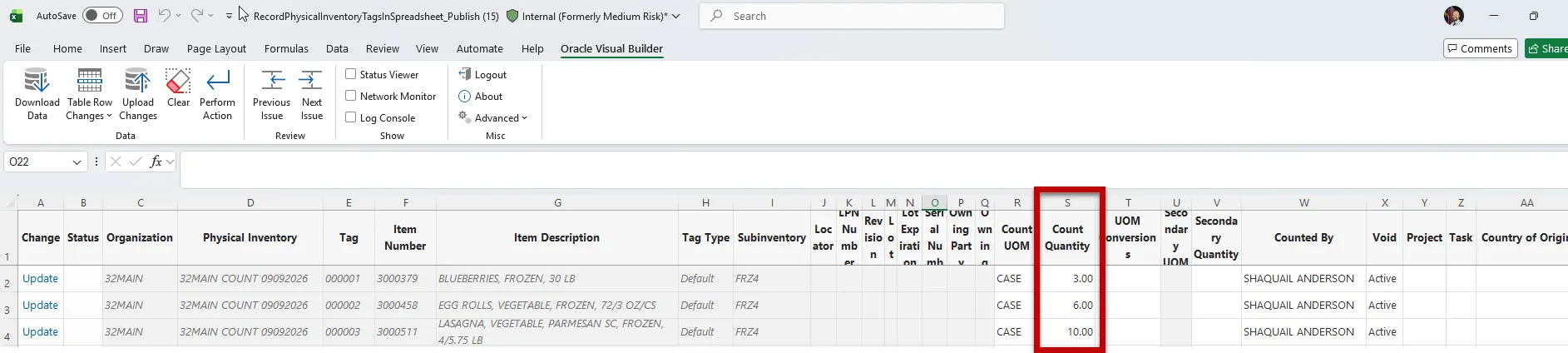
Step 7. Enter inventory item on-hand count quantity from the NC Physical Inventory Count Listing Report (RPT-IN-032) into the Count Quantity field (Column S) for all inventory items.
Note: The Count Quantity must be a zero or positive number.
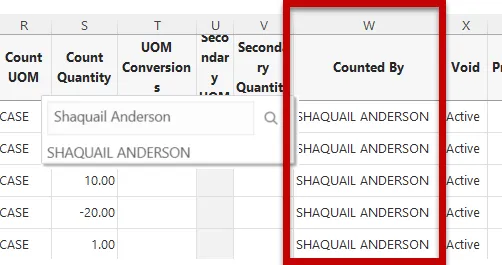
Step 8. Click inside the blank field under the Counted By (Column W) and type the name of the user that performed the Physical Inventory Count and click the search icon. Click the name to populate into the Counted By field.
Note: Once the user is selected, you can click and drag that name down to all the rows.
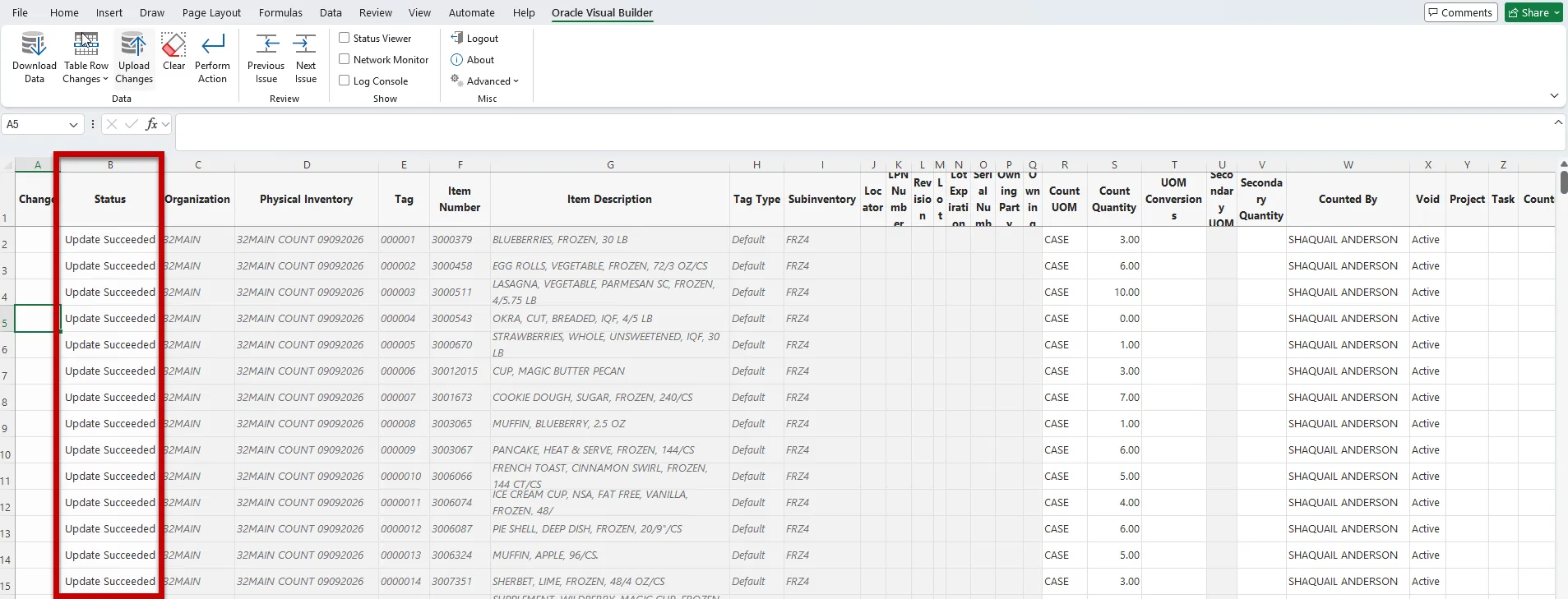
Step 9. Click the Upload Changes button at the top of spreadsheet to upload the Physical Inventory Counts.

Step 10. The Status (Column B) field will update to the status “Update Succeeded”.
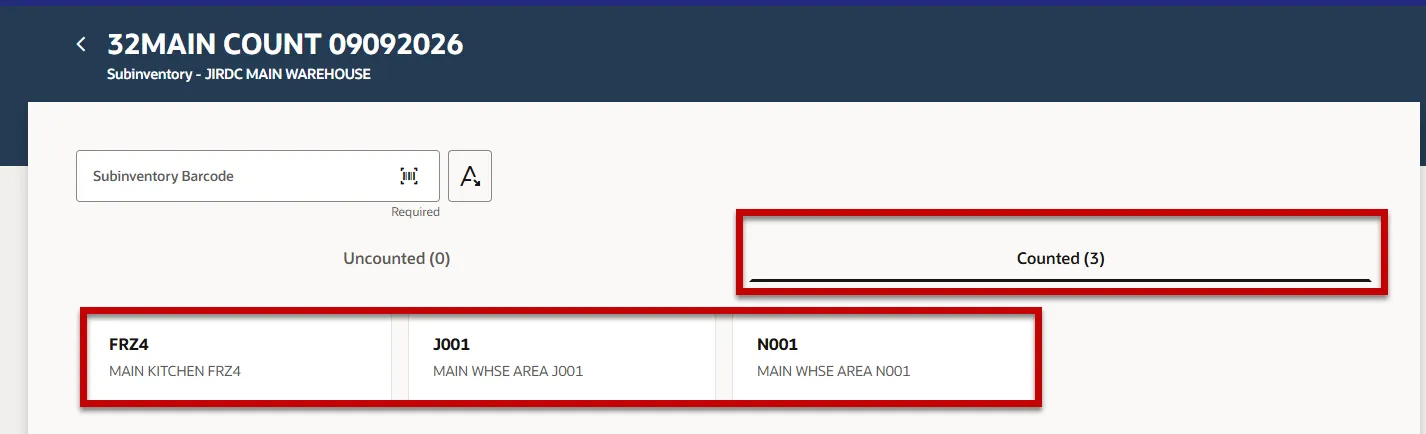
Step 11. Navigate back to the Record Physical Inventory Tags task. It shows all three subinventories are now counted.
Record Physical Inventory Tags in Spreadsheet for Inventory Items with Zero On-hand Qty’s
Inventory Items with zero on-hand quantities do not currently populate during the Physical Inventory Snapshot process.
Note: This step is performed before the Physical Inventory Approvals process.
To Record Physical Inventory Tags in Spreadsheet for inventory items with zero on-hand quantities, follow the steps below:
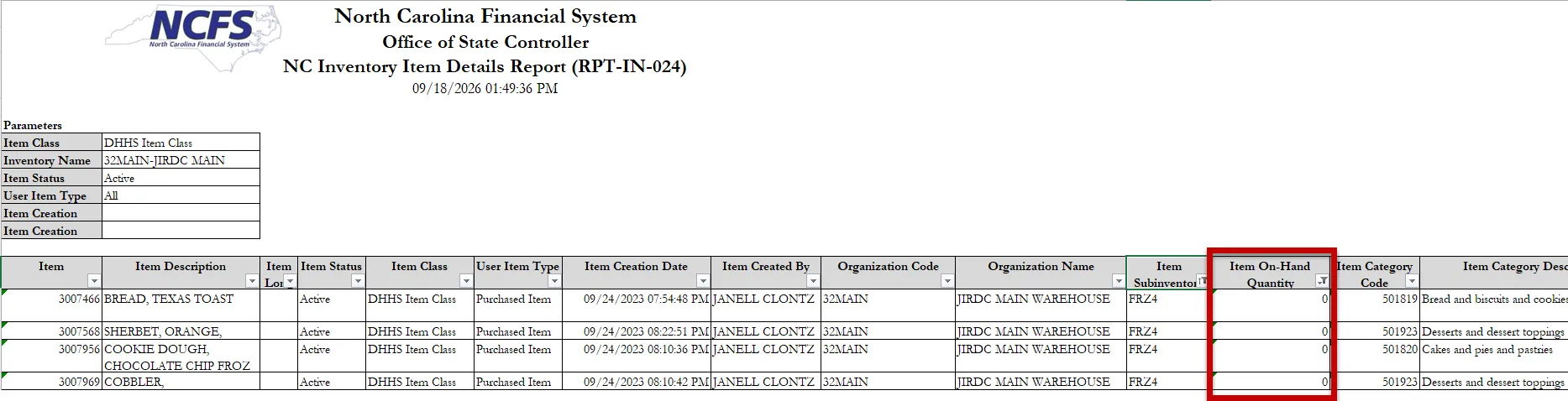
Step 1. Run the NC Inventory Item Details Report (RPT-IN-024) to identify the inventory items that have zero on-hand quantities in NCFS and need to be counted.
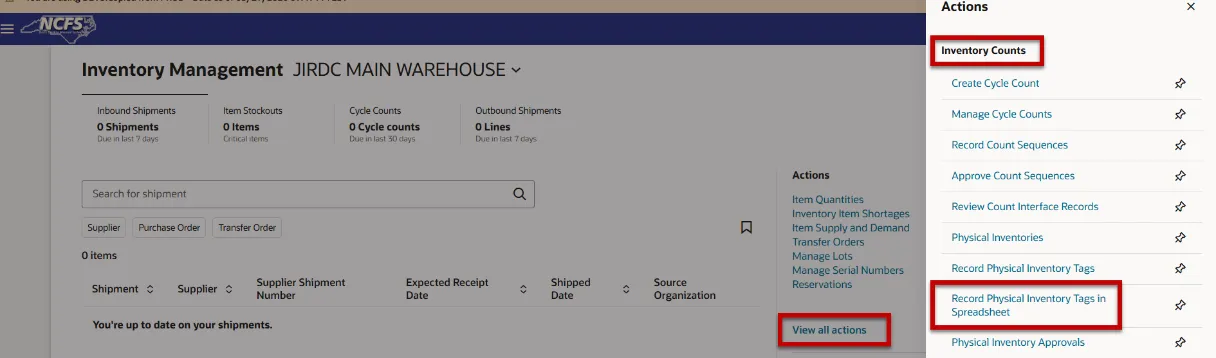
Step 2. Navigate to the Inventory Management landing page, click the View all actions. Under the Inventory Counts section, select the Record Physical Inventory Tags in Spreadsheet task.
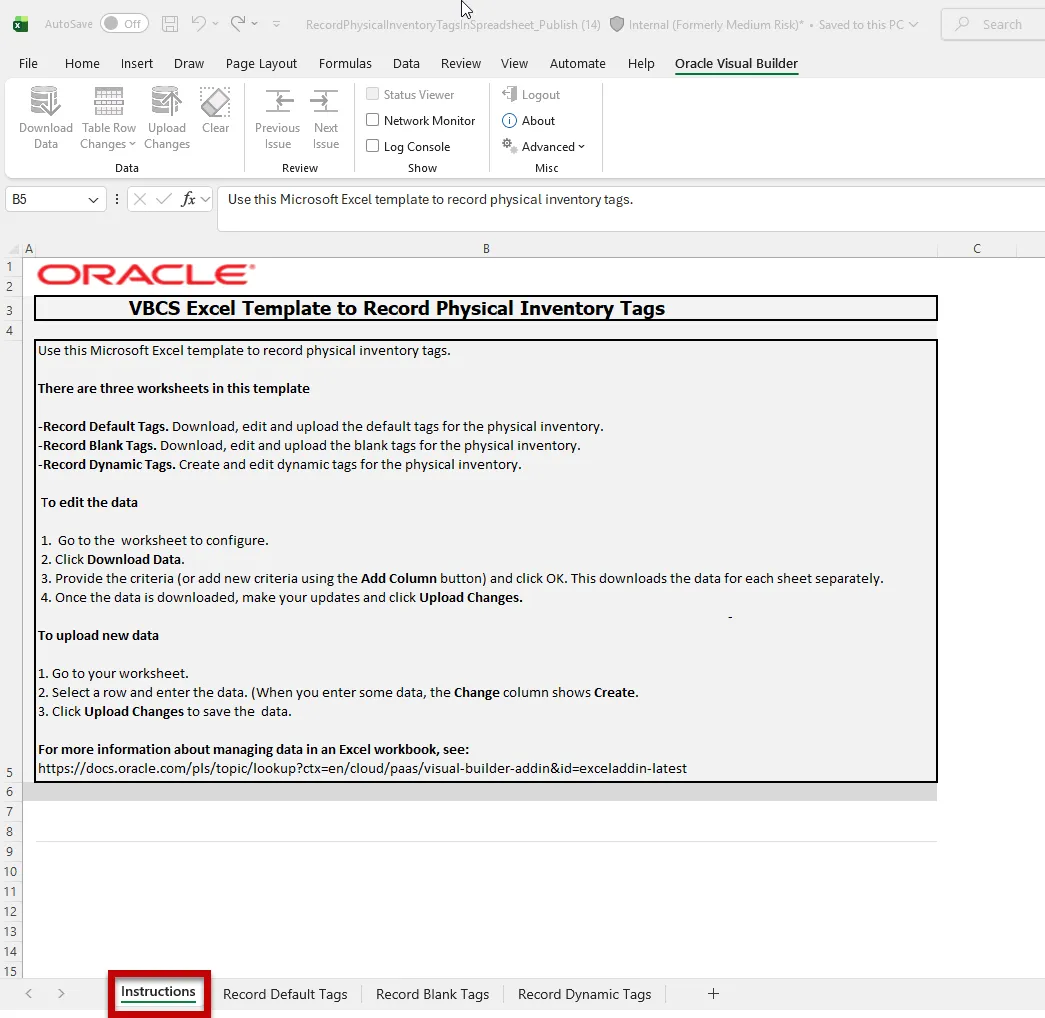
Step 3. Click the downloaded RecordPhysicalInventoryTagsinSpreadsheet Excel worksheet and review the Instructions tab.
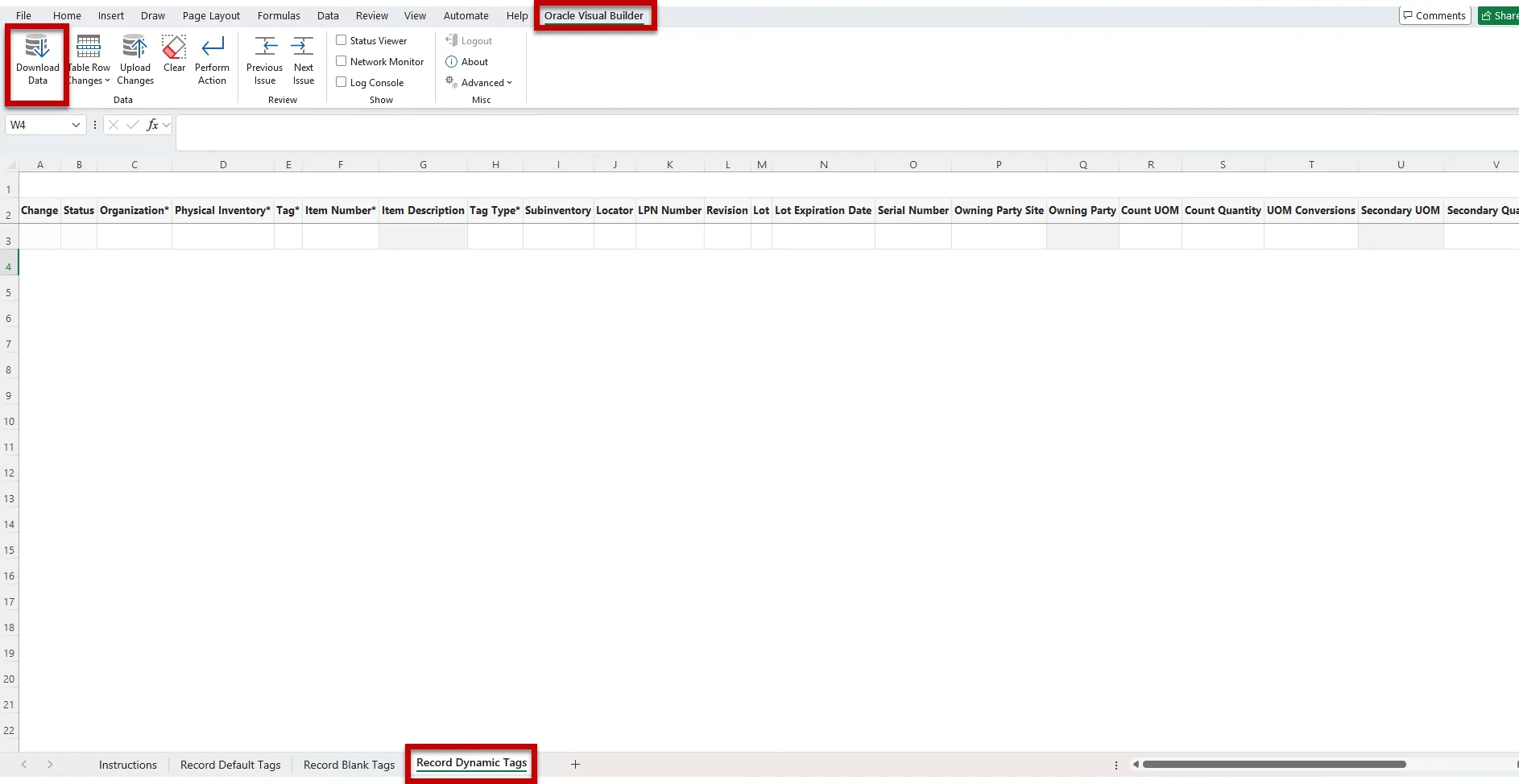
Step 4. Click the Record Dynamic Tags tab. Next, under the Oracle Visual Builder section at the top of the screen, click the Download Data option.
Step 5. The Oracle Cloud log-in window will appear, log in using your credentials.
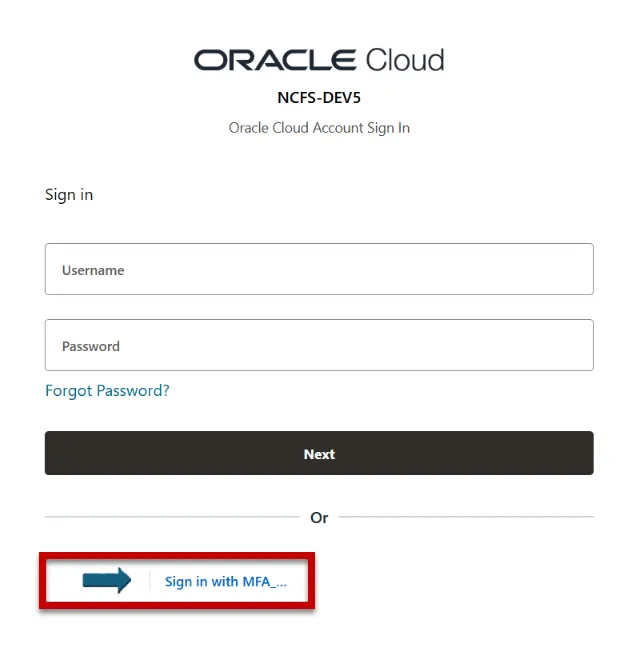
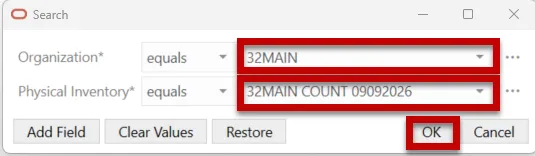
Step 6. The Search box will appear, search for the Organization name and select the Physical Inventory name. Click the OK button.
Note: No data will populate since we are recording Dynamic tags for the zero on-hand quantities.
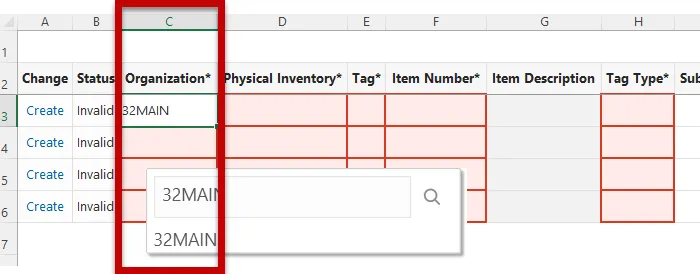
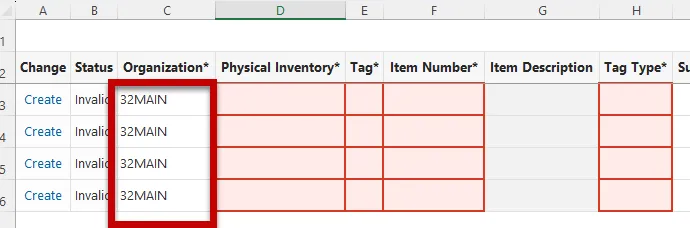
Step 7. Click into the Organization field (Column C) and search for the appropriate inventory organization for this Physical Inventory Count.
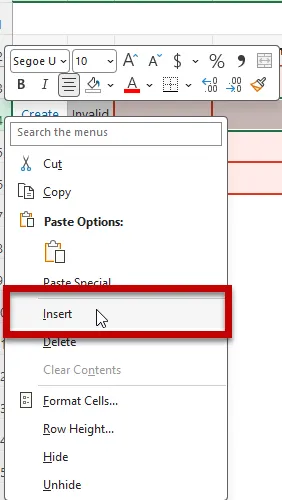
Step 8. After selecting the appropriate inventory organization, you can add additional rows by right clicking on the row and then click the Insert option. Insert as many rows needed to record items with zero on-hand quantities.
Step 9. Drag down the Organization number to all rows.
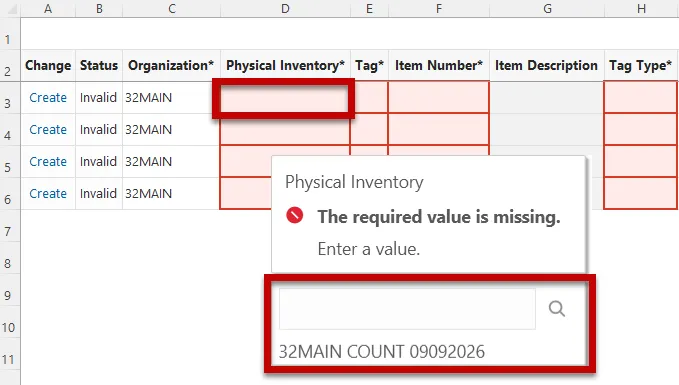
Step 10. Next, click into the Physical Inventory (Column D) field to select the Physical Inventory Count. Once selected, drag it down to all the rows needed or click the Fill option under Home.
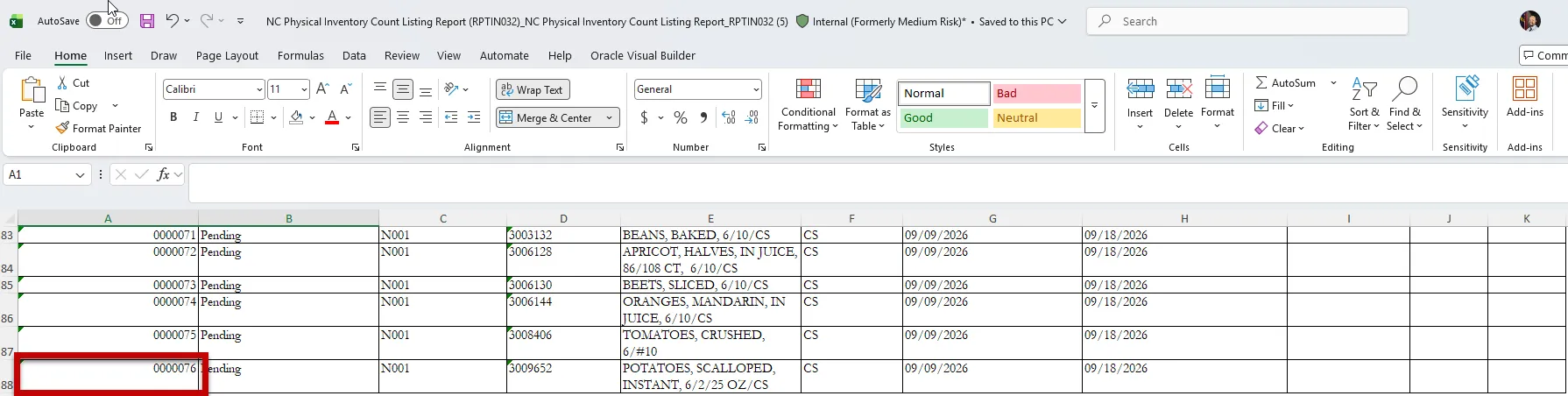
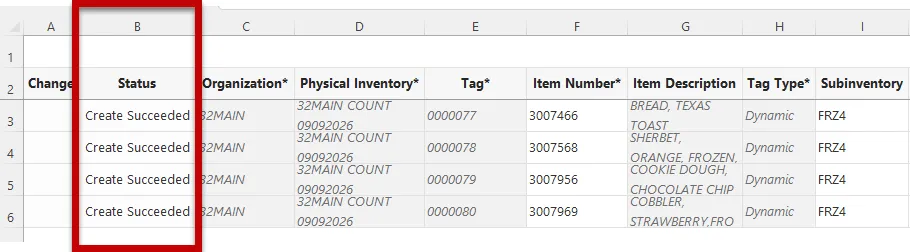
Step 11. Refer to the NC Physical Inventory Count Listing Report (RPT-IN-032) to find the last Tag number (Column A) used on the Physical Inventory Count. In this example, the last Tag number used is 0000076. The first Tag (Column E) number should be the next tag number in line for your Physical Inventory Count, 0000077, and then continue in sequence as needed.
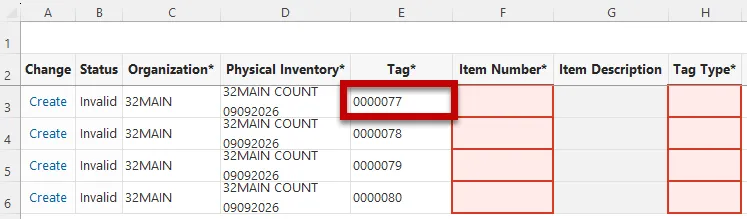
Step 12. Next, copy the item numbers from the NC Inventory Item Details Report (RPT-IN-024) and past them into the Item Number (Column F) field.
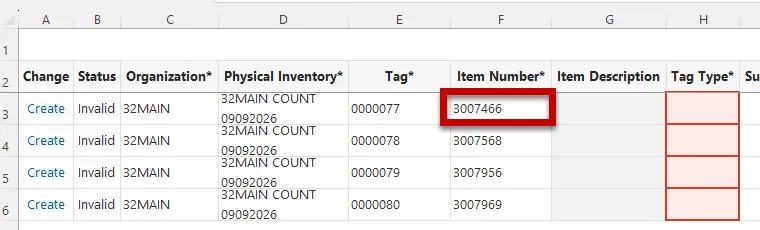
Step 13. Tag Type (Column H) is always Dynamic. Drag down to populate all rows needed.
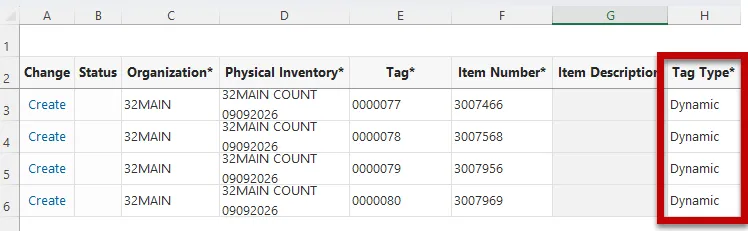
Step 14. Next, copy the item subinventories from the NC Inventory Item Details Report (RPT-IN-024) and paste into the Subinventory (Column I) field.
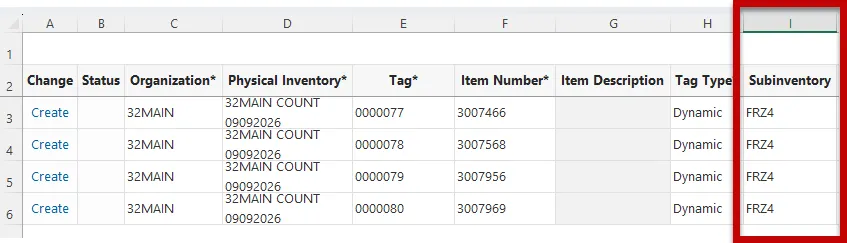
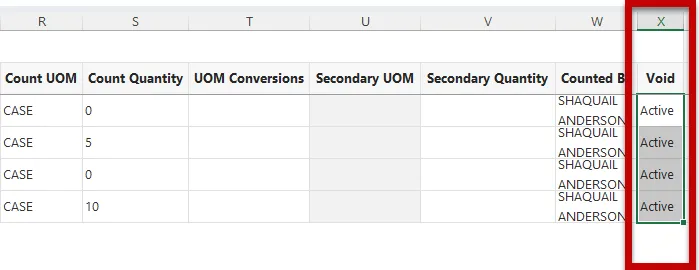
Step 15. Next, copy the UOM (Column AS) from the NC Inventory Item Details Report (RPT-IN-024) and paste into the Count UOM (Column R) field.
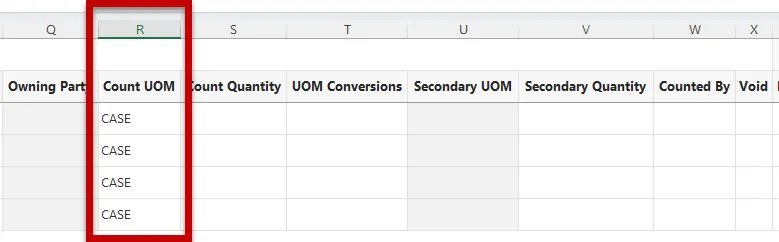
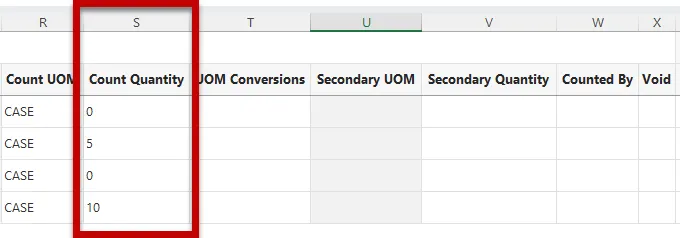
Step 16. Enter the item on-hand quantities counted in the Count Quantity (Column S) field.
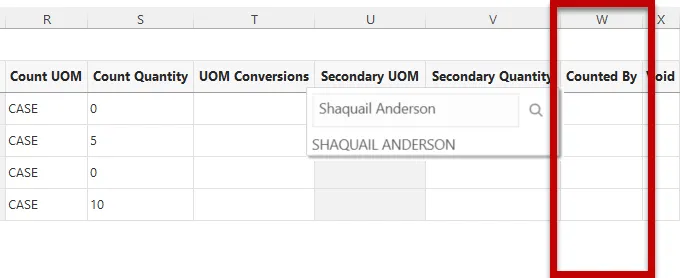
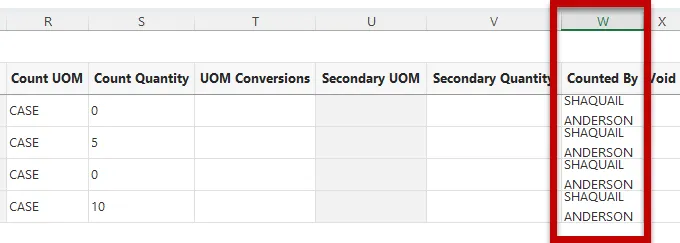
Step 17. Next, click into the Counted By (Column W) field to search for user recording the counts. Select the name and then drag it down to all rows needed.
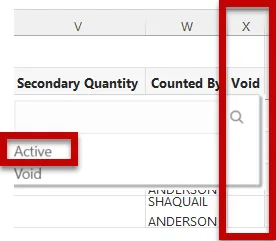
Step 18. The last column to complete is the Void (Column X) column. Click into the field and select the Active option. Drag down to all rows needed.
Step 19. Review all keyed data and then click the Upload Changes under the Oracle Visual Builder task.

Step 20. After the upload is complete, the Status (Column B) will show “Create Succeeded”.
Step 21. Navigate back to the Record Physical Inventory Tags task. The inventory items with zero on-hand quantities are now included in the Physical Inventory Counts.
Physical Inventory Approvals
Once all Physical Inventory Counts are recorded, the designated Inventory Organization Approver should review and approve the counts.
To Approve Physical Inventory Counts, follow the steps below:
Step 1. Navigate to the Inventory Management landing page and click the View all actions hyperlink. Under the Inventory Counts section, select the Physical Inventory Approvals task.
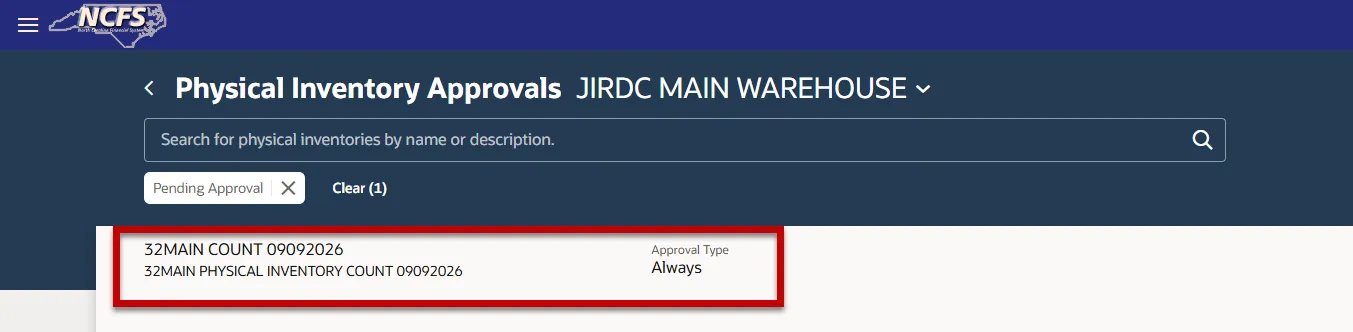
Step 2. Select the Physical Inventory Count for approval.
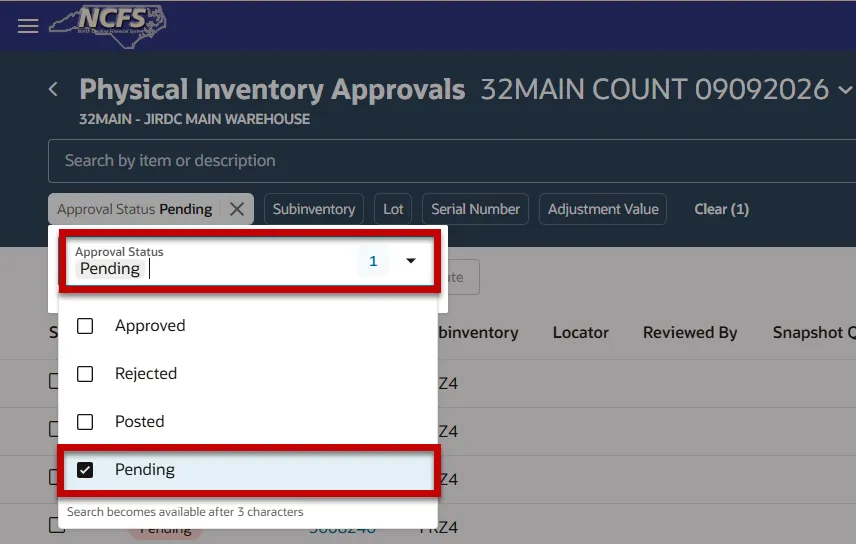
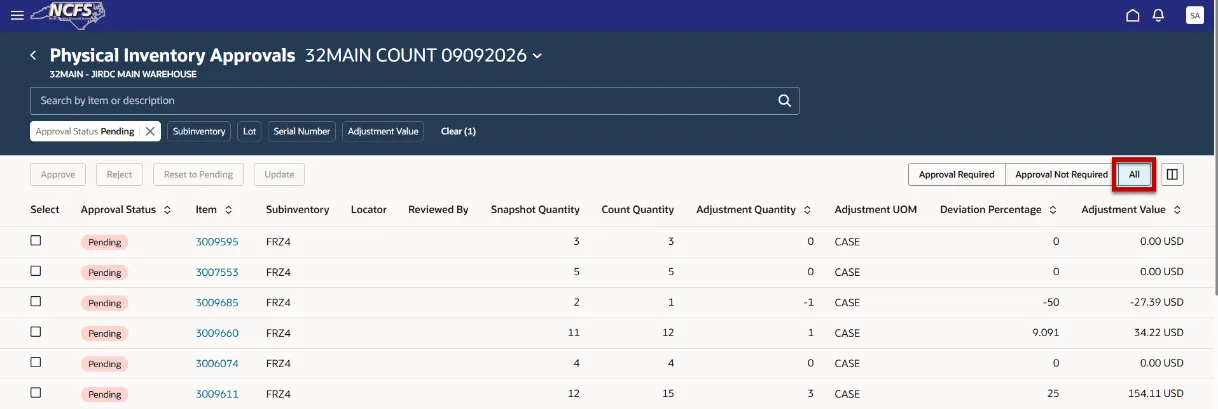
Step 3. The Approval Status defaults Pending status. Click the Approval Status filter to select more options.
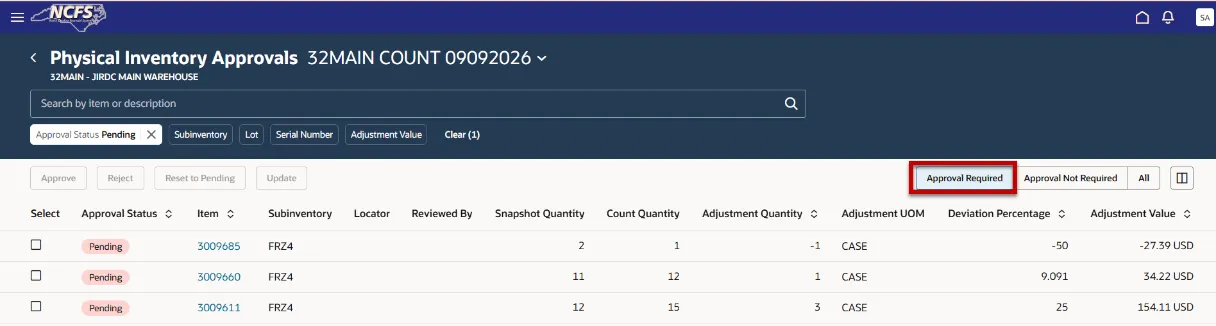
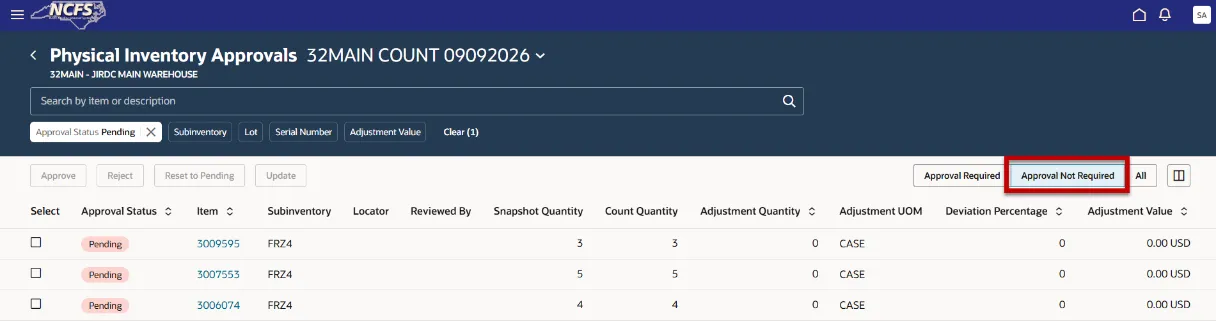
Step 4. There are three tabs on the left side of screen that change the view of counts needing action.
- Approval Required (Defaults): These include item counts that need reviewing and action taken.
- Approval Not Required: These include items(s) counts that do not need action taken but still may need to be reviewed. I.E. Adjustment Quantity is zero for these counts.
Note: Physical Inventory Counts do not require approval unless an adjustment is made to the on-hand counts, but it is recommended to review and Approve.
- All: Includes both Approval Required and Approval Not Required item counts.
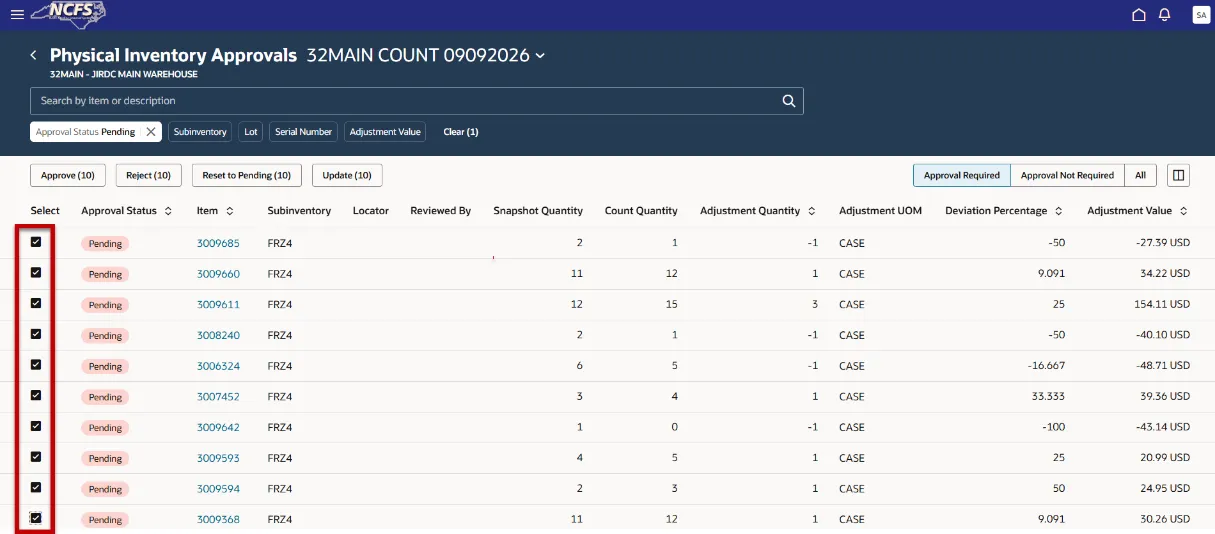
Step 5. To approve Physical Inventory Counts, click the Select box beside each record. Then click the Approve button.
Note: Only 10 records can be chosen at one time currently. This is expected to be increased by 27A release.
Physical Inventory Approvals – Rejecting a Count
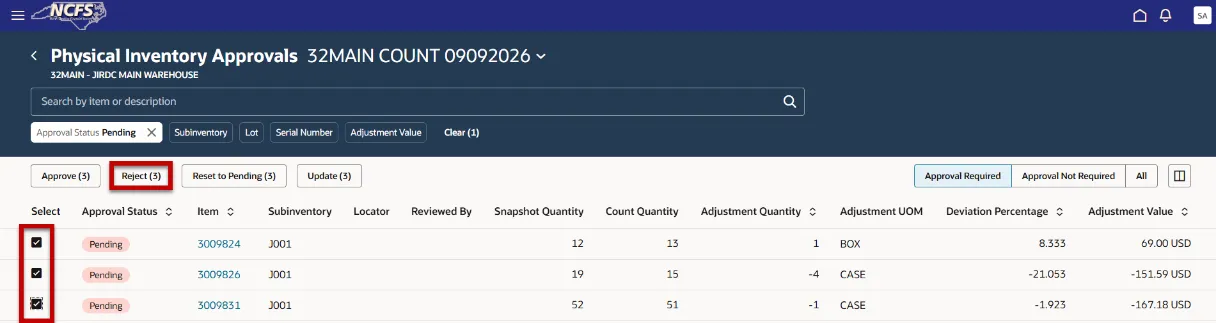
There may be times where an approver Rejects an inventory item count and requires a new count.
To Reject an inventory item count and request a new count, follow the steps below:
Step 1. Navigate to the Physical Inventory Approvals task, click the check box under the Select column and then click the Reject button.
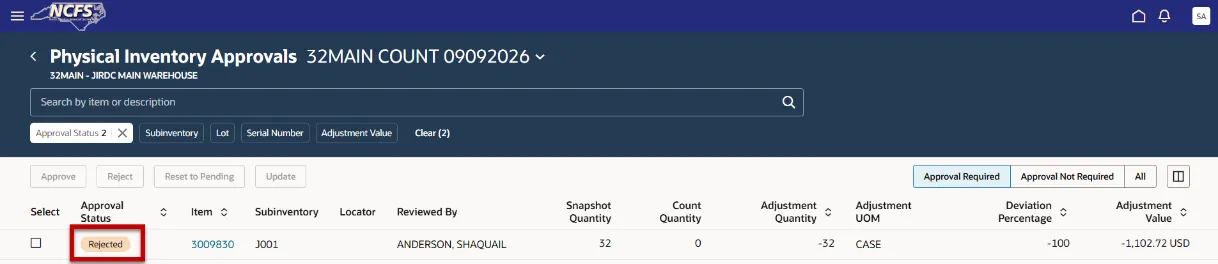
Step 2. Select Rejected as the Approval Status to view all rejected Item Counts.
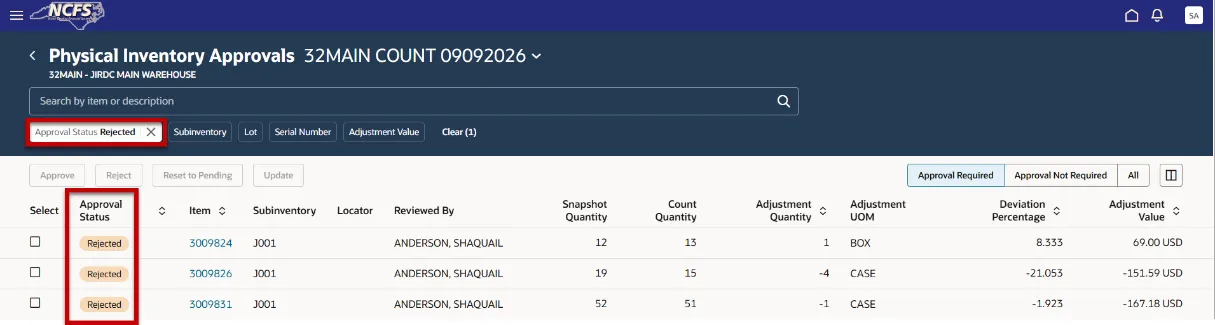
Step 3. Run the NC Physical Inventory Count Listing Report (RPT-IN-032) and chose Rejected as the Approval Status.
Step 4. Navigate to the Record Physical Inventory Tags and record the new count for the rejected items and click the Save button.
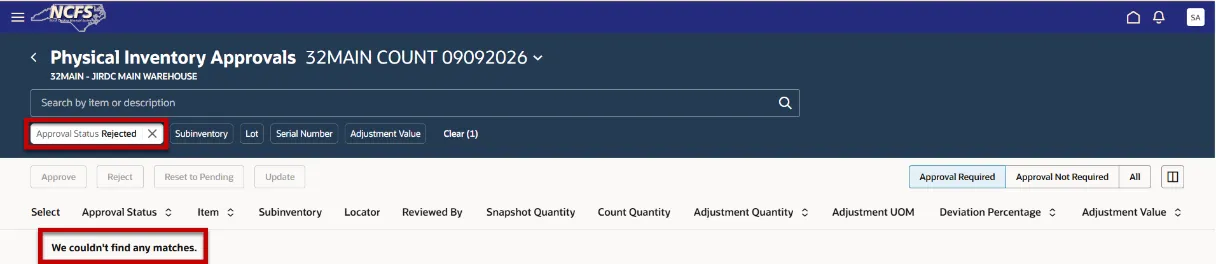
Step 5. Navigate back to the Physical Inventory Approvals task, filter on Rejected as the Approval Status and the item counts will no longer be there.
Void a Physical Inventory Item Count
There may be times when an item no longer needs to be counted or should be inactive, in this case the item count can be Voided and Rejected from the Physical Inventory Count.
To Void an item count from the Physical Inventory Count, follow the steps below:
Step 1. Navigate to the Inventory Management landing page, click the View all Actions hyperlink. Under the Inventory Counts, select Record Physical Inventory Tags task.
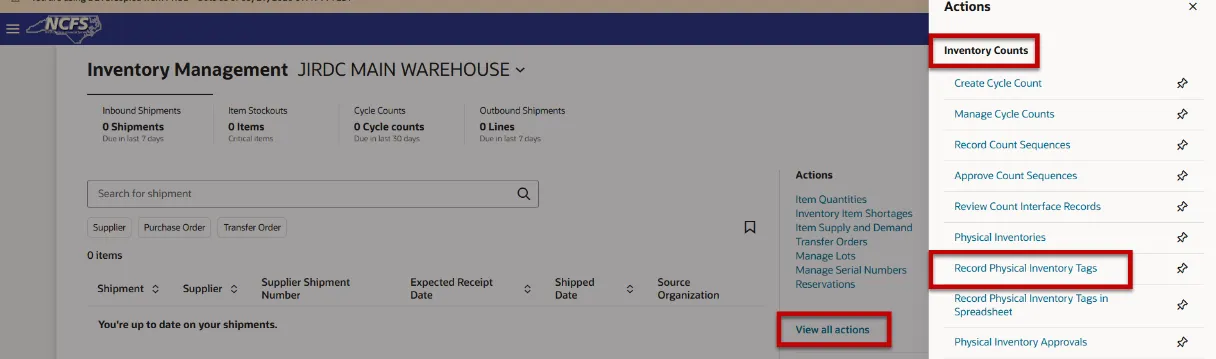
Step 2. Select Organization Name and click the Continue button.

Step 3. Select the Physical Inventory Count name.
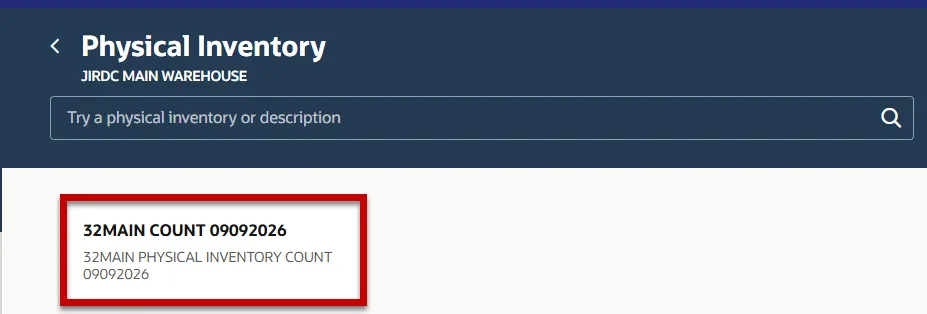
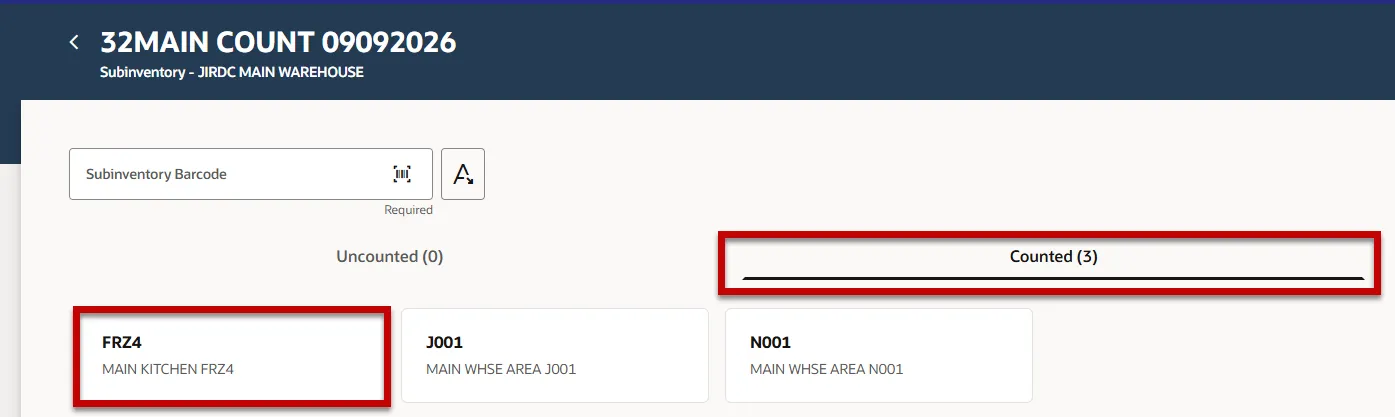
Step 4. Under the Counted section, select the subinventory.
Step 5. Under the Counted items section, select the item to void. I.E. 3009830.
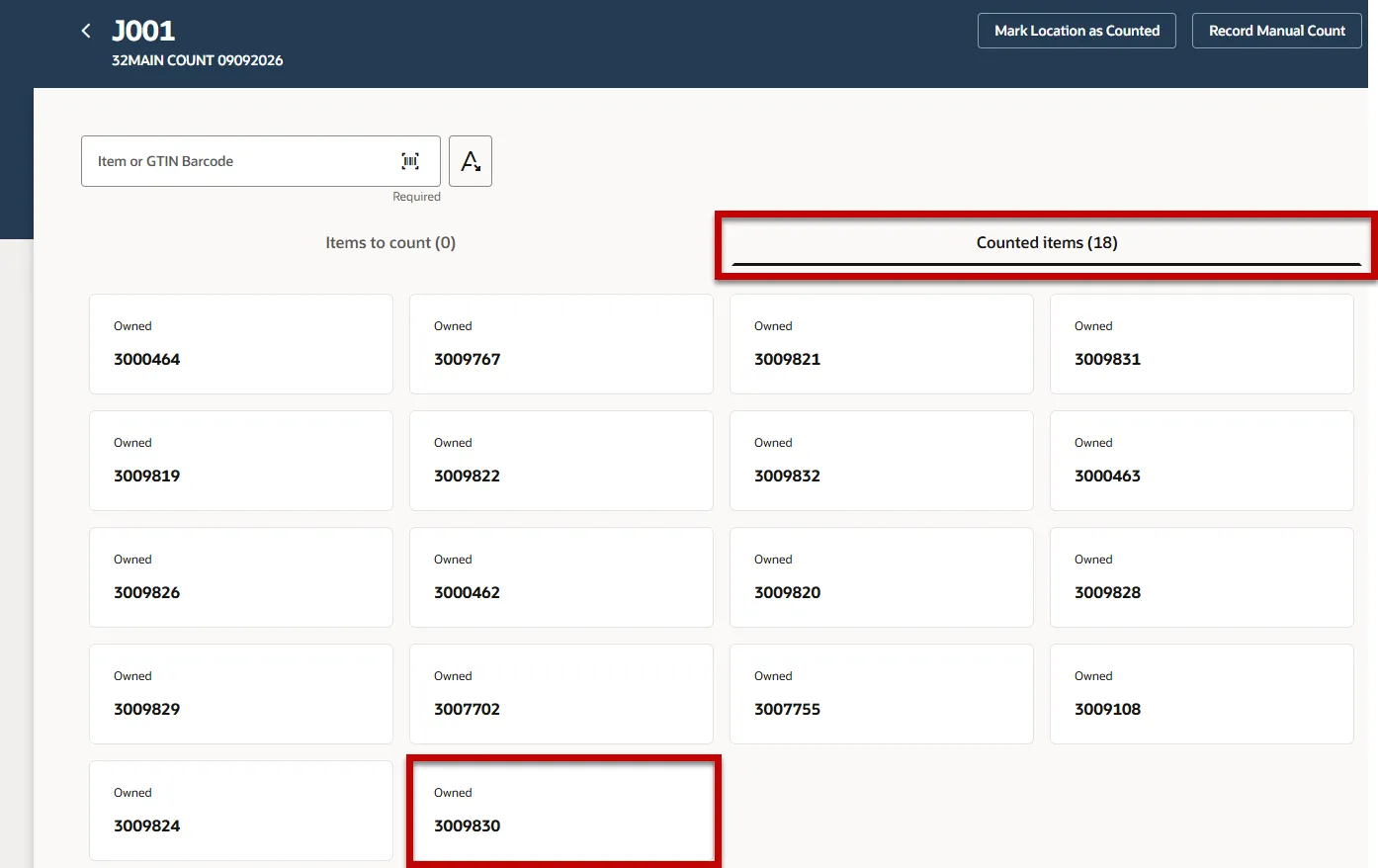
Step 6. Click the Void Item button.
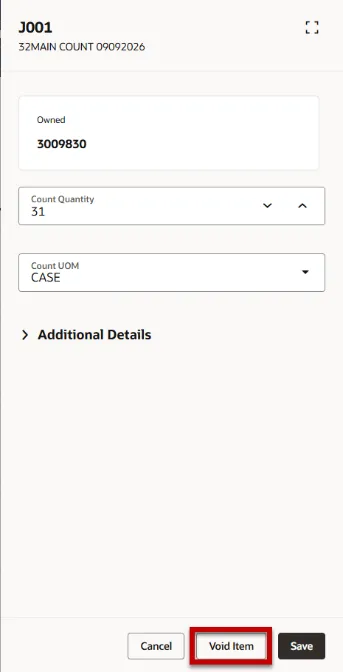
Step 7. The Approver selects the record and rejects it from the count. The count Approval Status will update to Rejected and the Count Quantity will show as zero. This item count will not be posted or updated in NCFS.
Post Adjustments for Physical Inventory Counts
To Post Adjustments for Physical Inventory Counts, follow the steps below:
Step 1. Navigate to the Inventory Management landing page, click the View all actions hyperlink. Under Inventory Counts, select Physical Inventories task.
Step 2. Click the three dots under the Action column and select the Post Adjustments task.
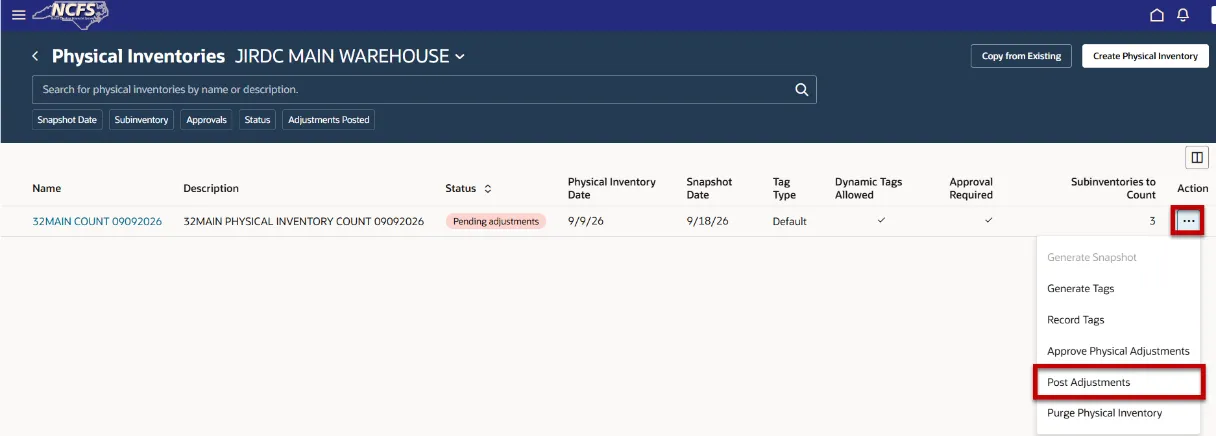
Step 3. The Post Physical Inventory Adjustments window will appear, the current date defaults in the Adjustment Date field, update as needed then click the Submit button.
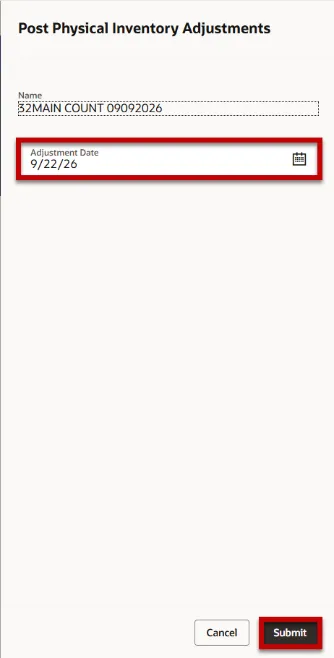
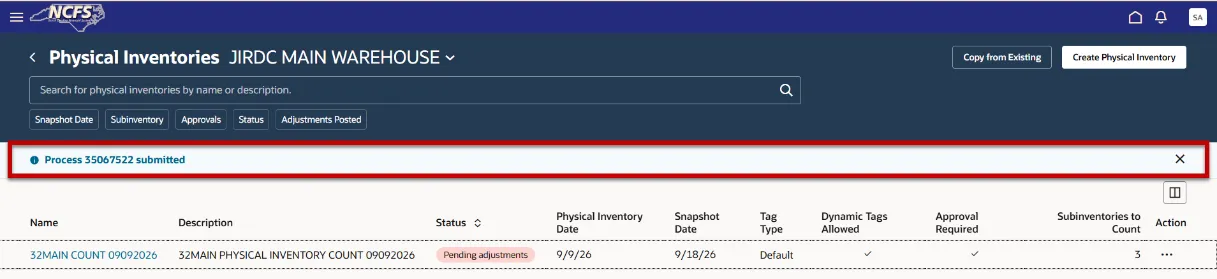
Step 4. The Process ######## submitted will appear in a blue banner. You can monitor the progress of this ESS job under the Scheduled Processes task.
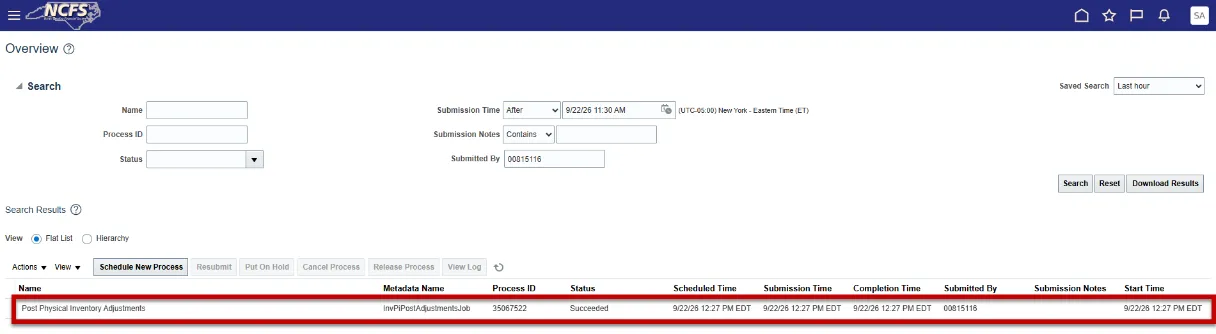
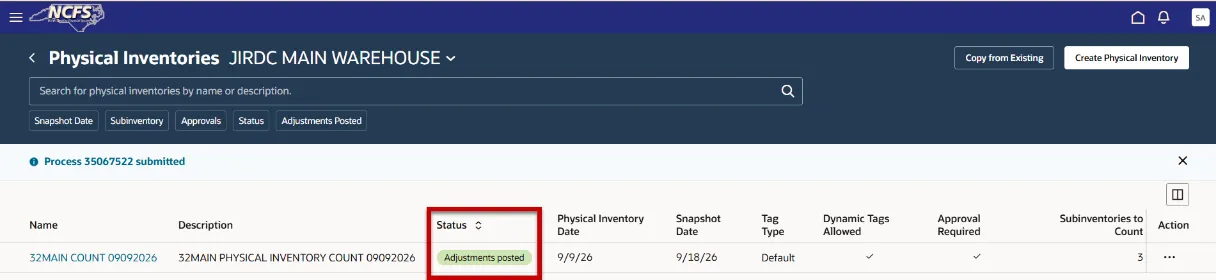
Step 5. After the Post Physical Inventory Adjustments ESS job completes. The Physical Inventory Count Status will update to Adjustments posted.
Step 6. Click the three dots under the Action column and select Approve Physical Adjustments task.
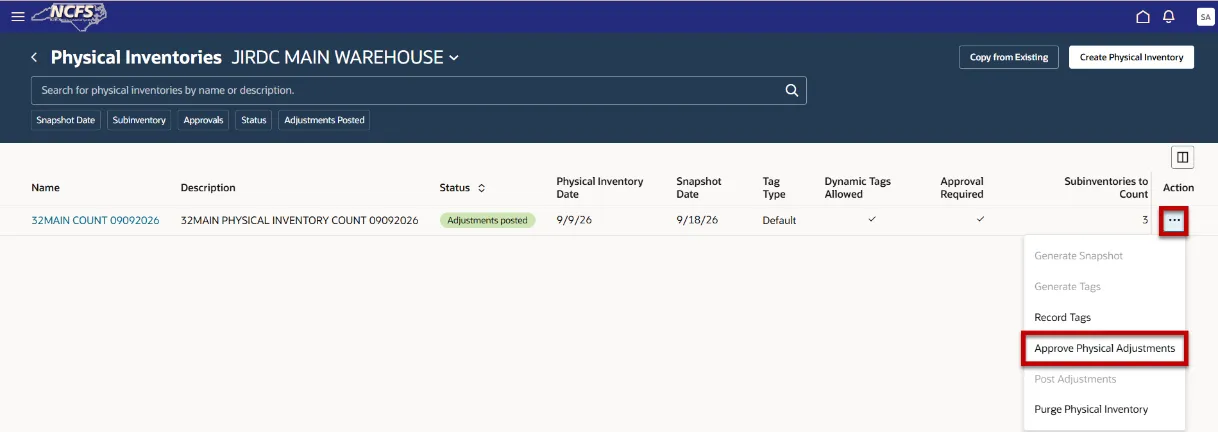
Step 7. Update Approval Status to Posted to view all Posted Physical Inventory Count updates in NCFS.
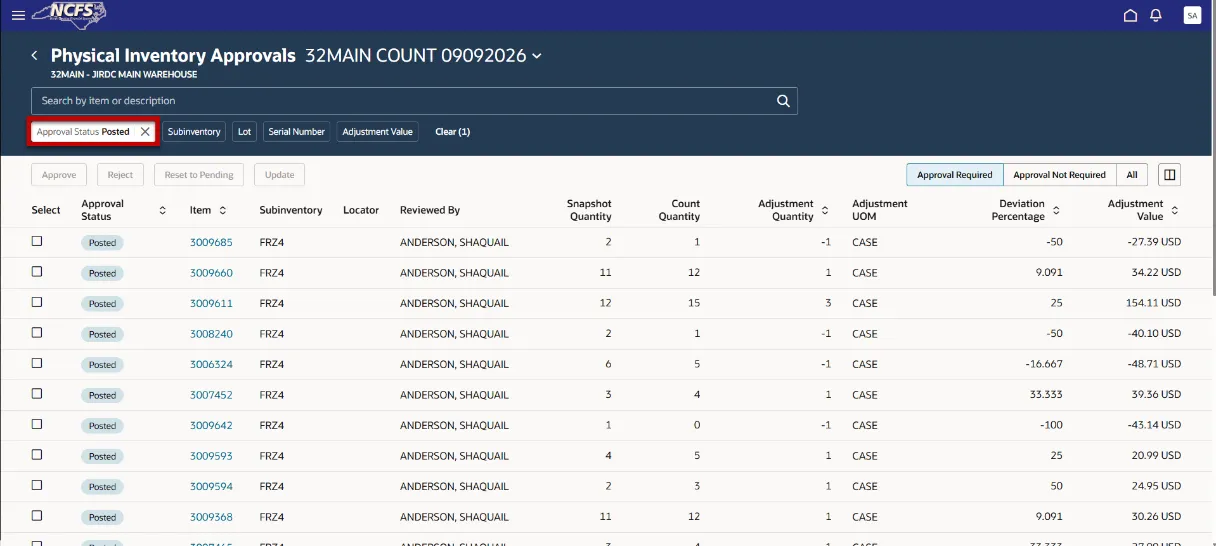
Step 8. The only inventory count record that did not post is the Voided and Rejected record.
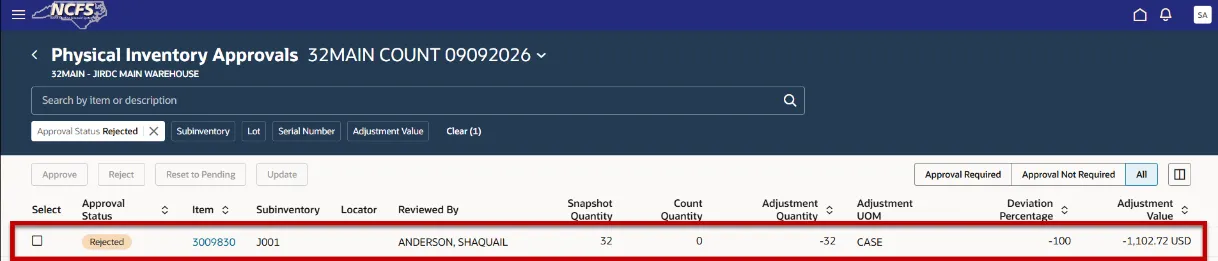
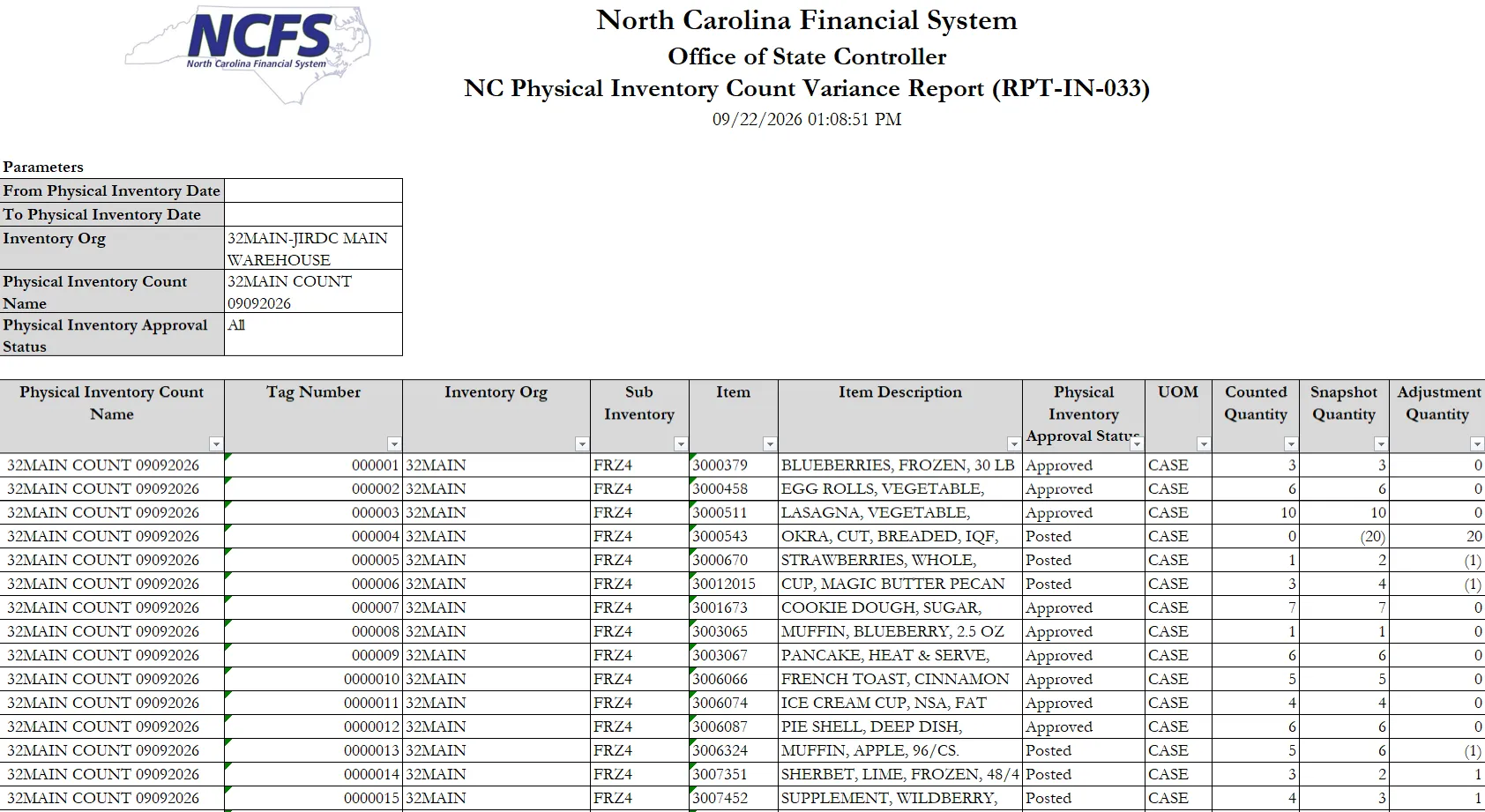
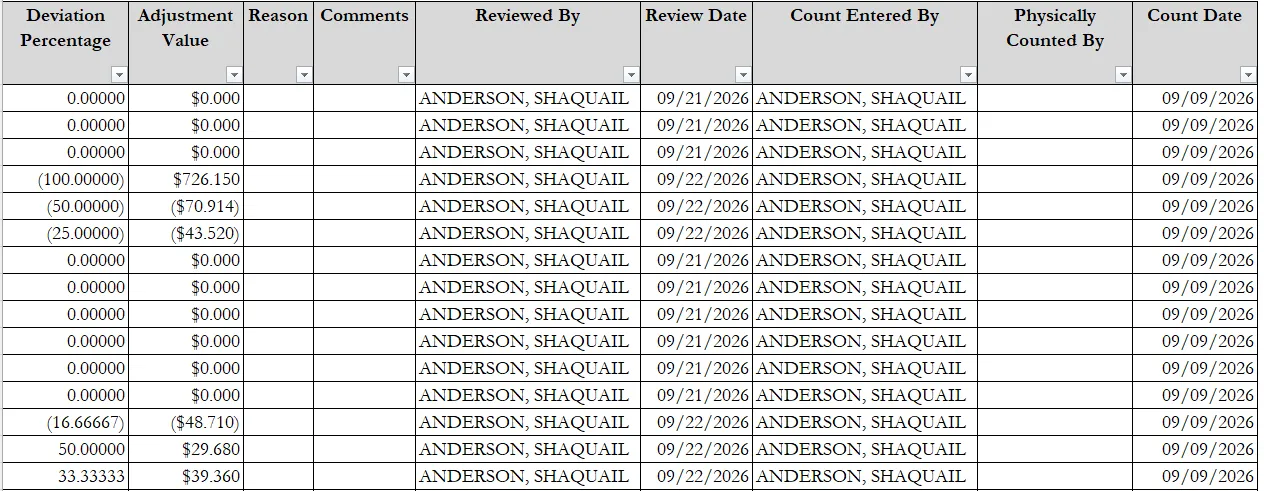
Step 9. Navigate to Reports and Analytics and run the NC Physical Inventory Count Variance Report (RPT-IN-033).
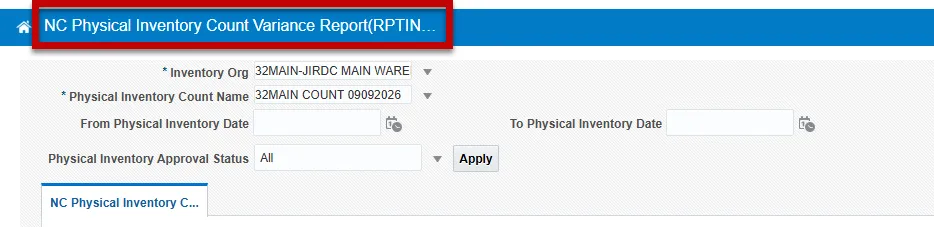
Step 10. The NC Physical Inventory Count Variance report shows all the relative information from the Physical Inventory Approvals task.
Note: Item counts that have zero for Adjustment Quantity show Approved, but did not update to Posted, because there were no on-hand quantity changes to Post.
Purge Physical Inventory Counts
Once a Physical Inventories Count is Posted, there are no changes that can be made to the count, and the count cannot be purged from NCFS to be used for historical transaction reference. If a Physical Inventory Count is keyed in error or is no longer needed, prior to Posting Adjustments, the Physical Inventory Count can be purged completely from NCFS.
Note: Please refer to your agencies’ policies and retention schedule for more information on purging data from NCFS.
To Purge Physical Inventory Counts in NCFS, please follow the steps below:
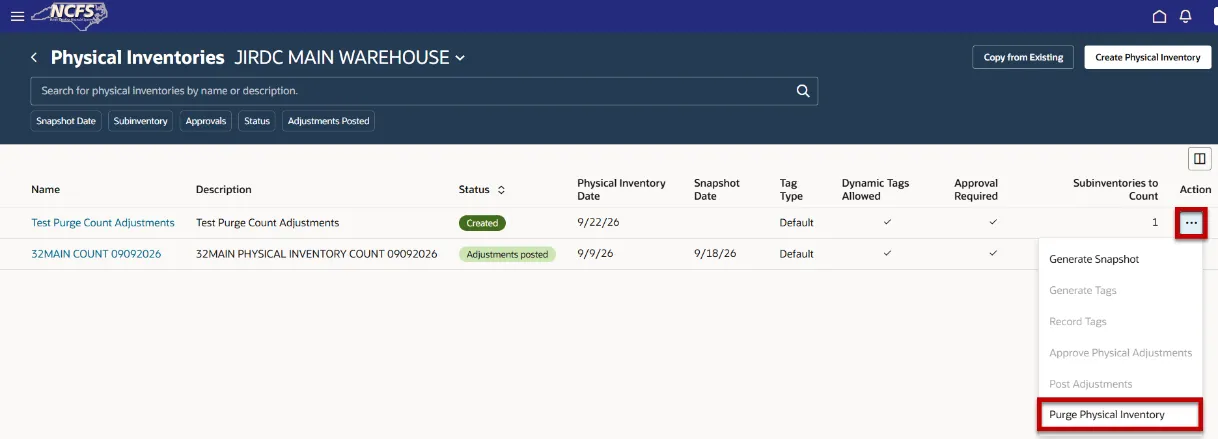
Step 1. Navigate to the Physical Inventories task and click the three dots under the Action column. Select the Purge Physical Inventory task.
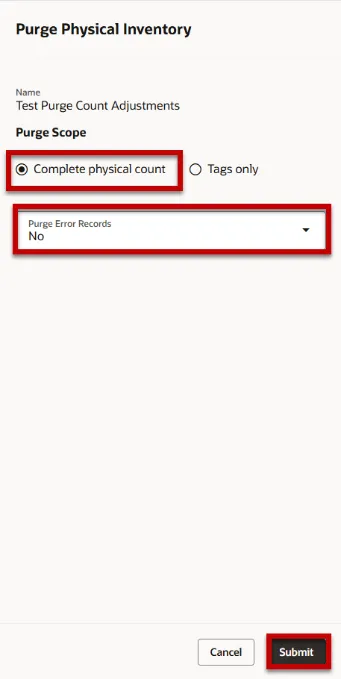
Step 2. The Purge Physical Inventory window will appear, select the Complete physical count button, select No for Purge Error Records, and click the Submit button.
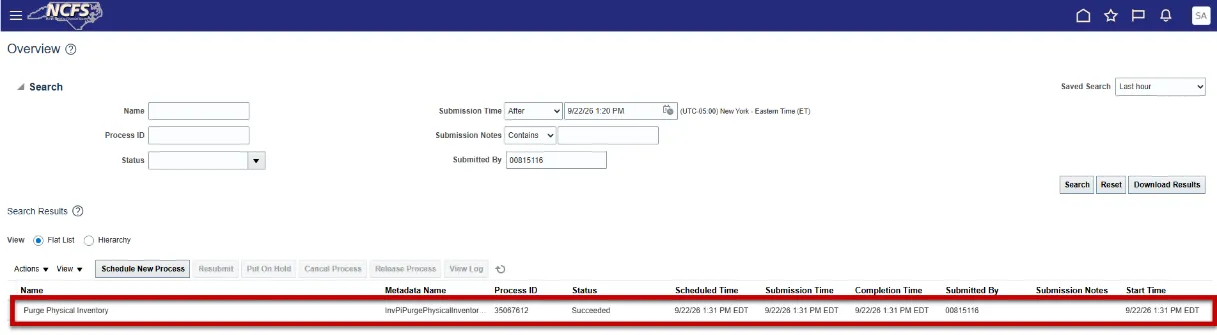
Step 3. The Process ######## submitted will appear in a blue banner. Navigate to the Scheduled Processes task to monitor the ESS job.
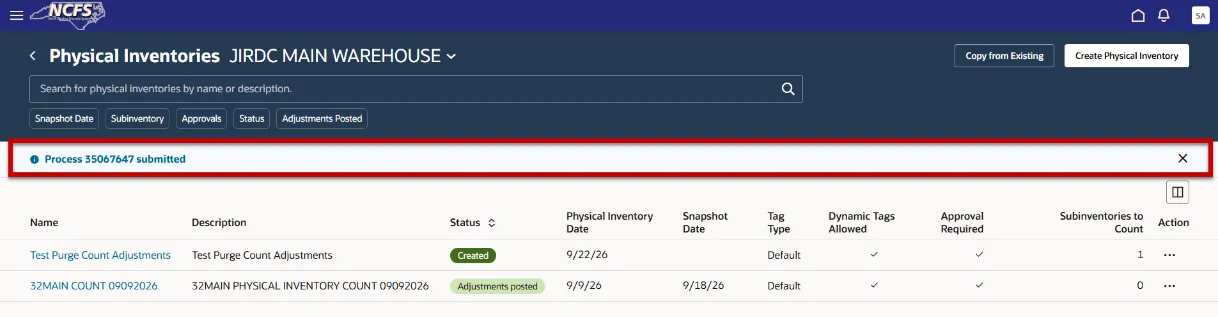
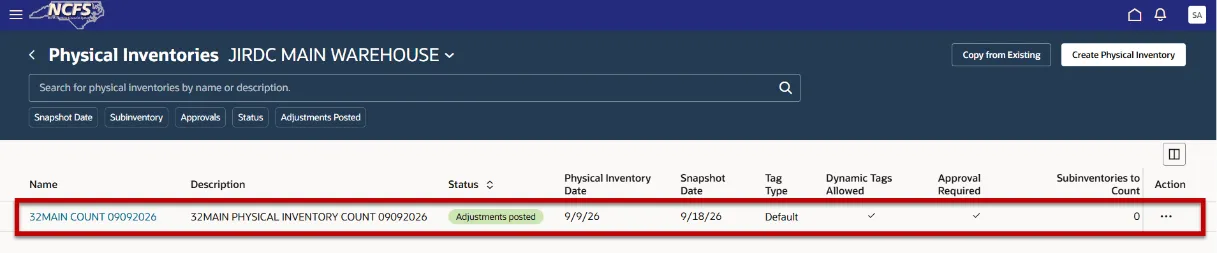
Step 4. Once the Purge Physical Inventory ESS job has Succeeded. Navigate back to the Physical Inventories task. The Physical Inventory Count is now purged.
Physical Inventory Reports and ESS Jobs
- NC Physical Inventory Count Listing Report (RPTIN032)
- NC Physical Inventory Count Variance Report (RPTIN033)
- Generate Physical Inventory Snapshot
- Generate Physical Inventory Tags
- Post Physical Inventory Adjustments
- Purge Physical Inventory
Wrap-Up/Important Notes
The purpose of this QRG is to provide step-by-step explanation on how to create, record, and approve Physical Inventory counts for inventory organizations in NCFS.
Accurate system on-hand quantities are essential for managing supply and demand, maintaining high service levels, and planning production. Physical inventories allow you to reconcile system maintained on-hand balances with the physically present quantity of material to ensure that the correct on-hand quantity is reflected in the application. A critical part of the physical inventory process is reviewing and approving discrepancies between the system-maintained quantity and the physically counted quantity, so that the appropriate adjustments are made in NCFS.