Purpose
The purpose of this Quick Reference Guide (QRG) is to provide a step-by-step explanation on how to change the book for a source line in the North Carolina Financial System (NCFS).
Introduction and Overview
In NCFS, Source Lines are interfaced invoice records as pending asset additions. There are various reasons to move these lines from one book to another prior to addition, such as if the asset was purchased by one agency on behalf of another. These lines can be moved from one book to another with the Change Book feature. A user must have data access to more than one asset book to perform this action; if you are unable to do so, please contact the OSC help desk by messaging NCFS@ncosc.gov.
Changing the Book for a Source Line
Step 1. Log in to the NCFS portal with your credentials to access the system.
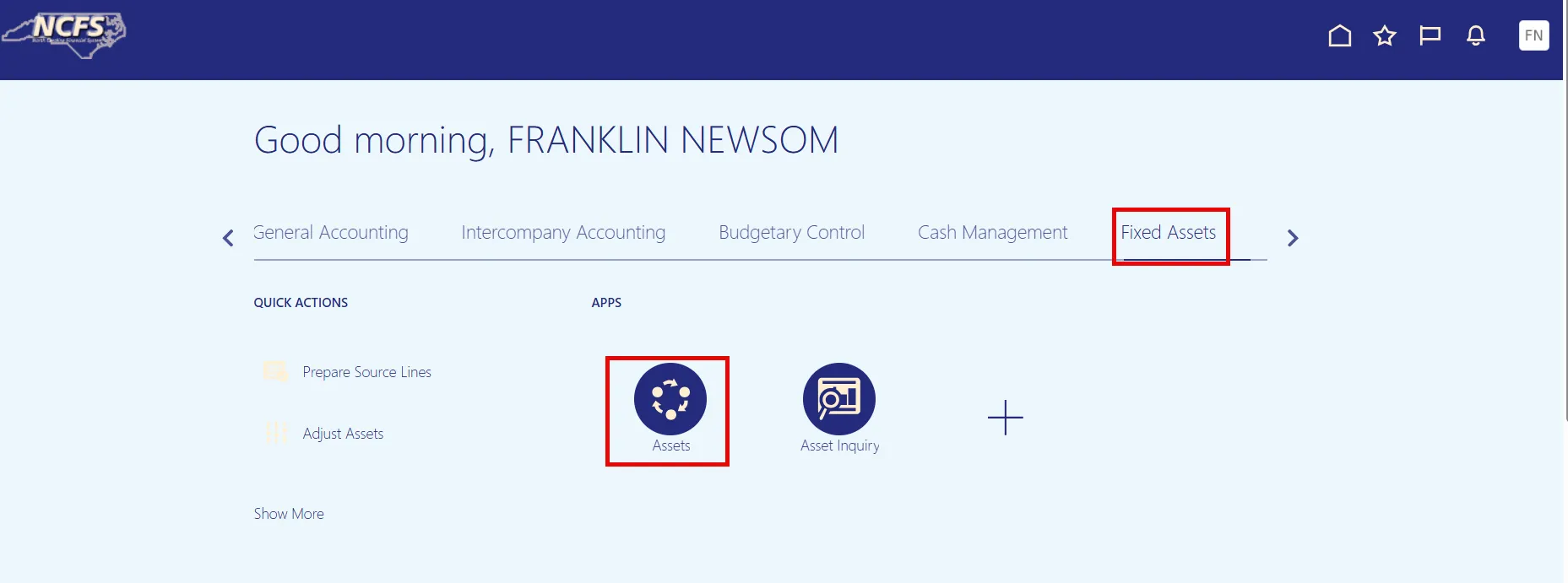
Step 2. On the Home page, under the Fixed Assets tab, click the Assets app.
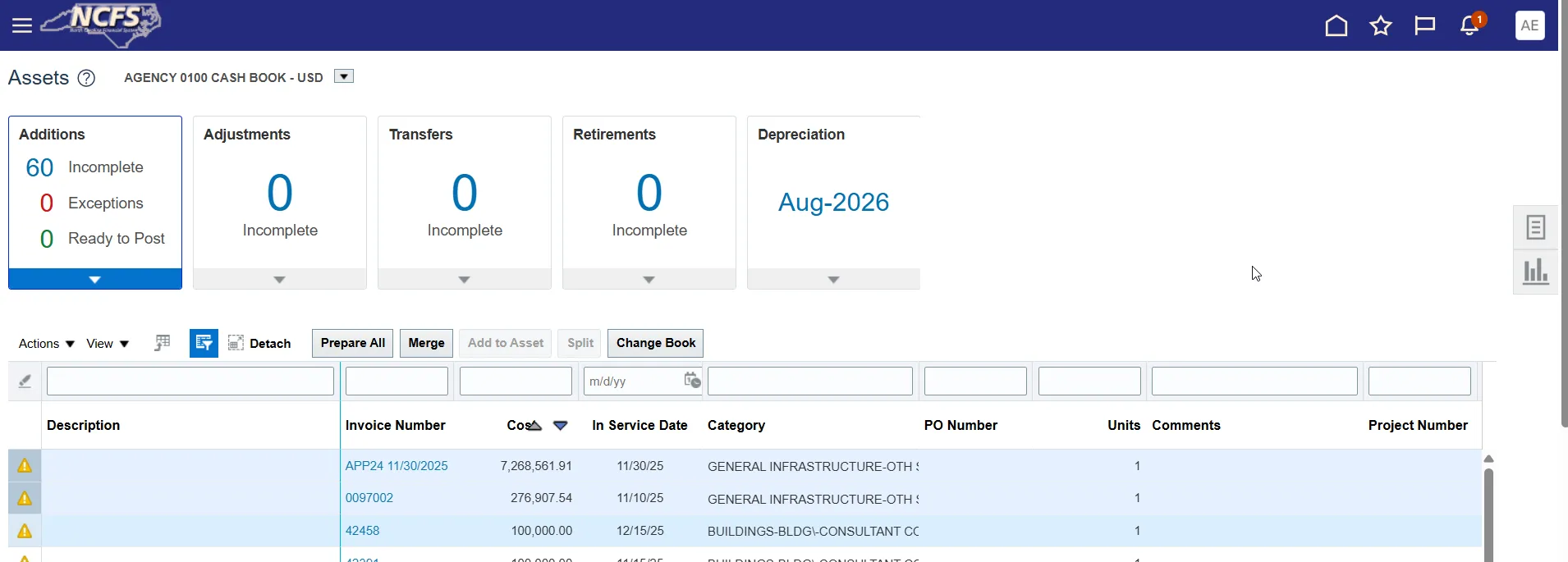
Step 3. On the asset dashboard, locate and select the line or lines to be moved to a new book. You can select multiple lines by holding the CTRL key and clicking the white space at each line.
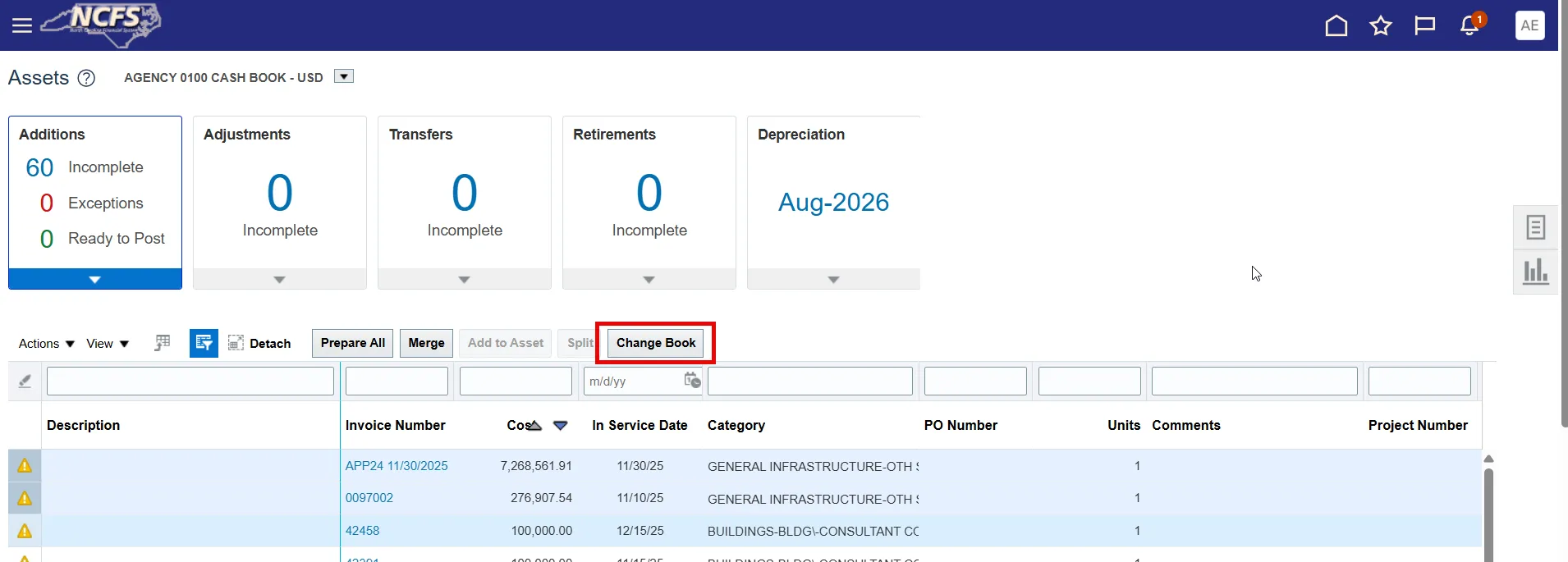
Step 4. Click the Change Book button.
Step 5. Use the Drop-Down list to choose the new Book and click Submit.

Wrap-Up
The steps above detail how to Change the Book for a Source Line.