Purpose
The purpose of this Quick Reference Guide (QRG) is to provide a step-by-step explanation on how to suspend depreciation on an asset during addition in the North Carolina Financial System (NCFS).
Introduction and Overview
In NCFS, capitalized assets depreciation by the Straight-Line Method (STL) and by a half-year depreciation convention. Assets added to NCFS are, by default, prorated to January 1 of the fiscal year of addition. Capitalized assets are set to depreciate by default during asset addition.
There may be situations where you do not want an asset to depreciate by STL or with a half-year convention; this most often occurs for RTU or SBITA category assets that have a set schedule. In these situations, OSC recommends suspending depreciation and making manual depreciation adjustments instead.
An agency can choose to suspend depreciation during asset addition. Suspending depreciation on a previously posted asset, restarting depreciation on a posted asset, and making manual depreciation adjustments is an OSC only task; please submit a ticket to NCFS@ncosc.gov with these requests.
Suspend Depreciation of an Asset during Addition
There are 8 steps to complete this process.
Step 1. Log in to the NCFS portal with your credentials to access the system.
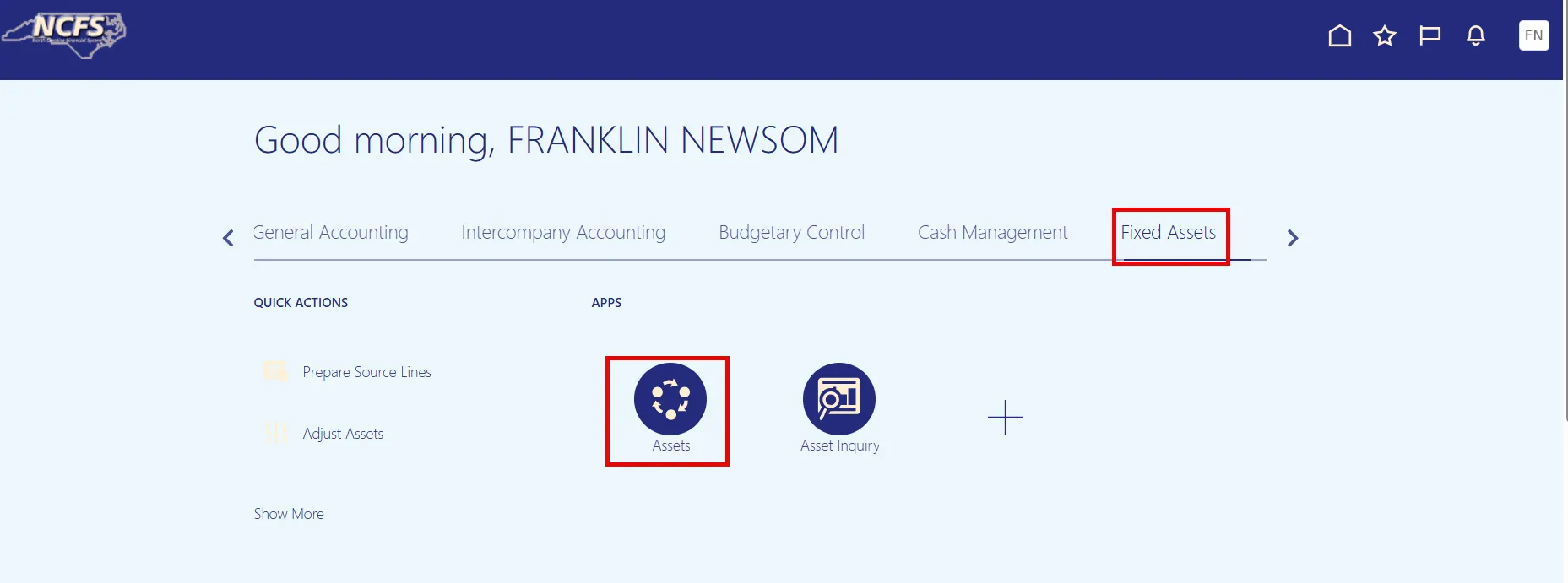
Step 2. On the Home page, under the Fixed Assets tab, click the Assets app.
Step 3. On the Asset Dashboard page, within the Additions tile, locate your source line or manual addition line. Click the description hyperlink to open the Edit Source Line (or Edit Asset) page.
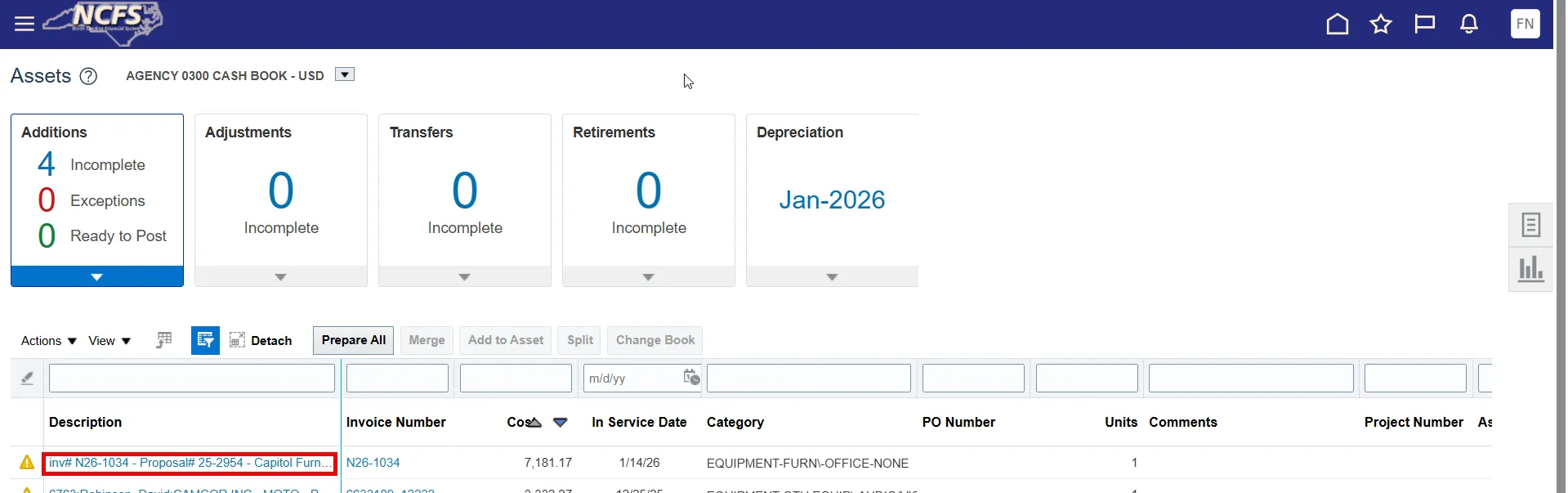
Note: If no description hyperlink is available, you can access the Edit page by selecting the line, opening the Actions drop-down list, and selecting Edit.
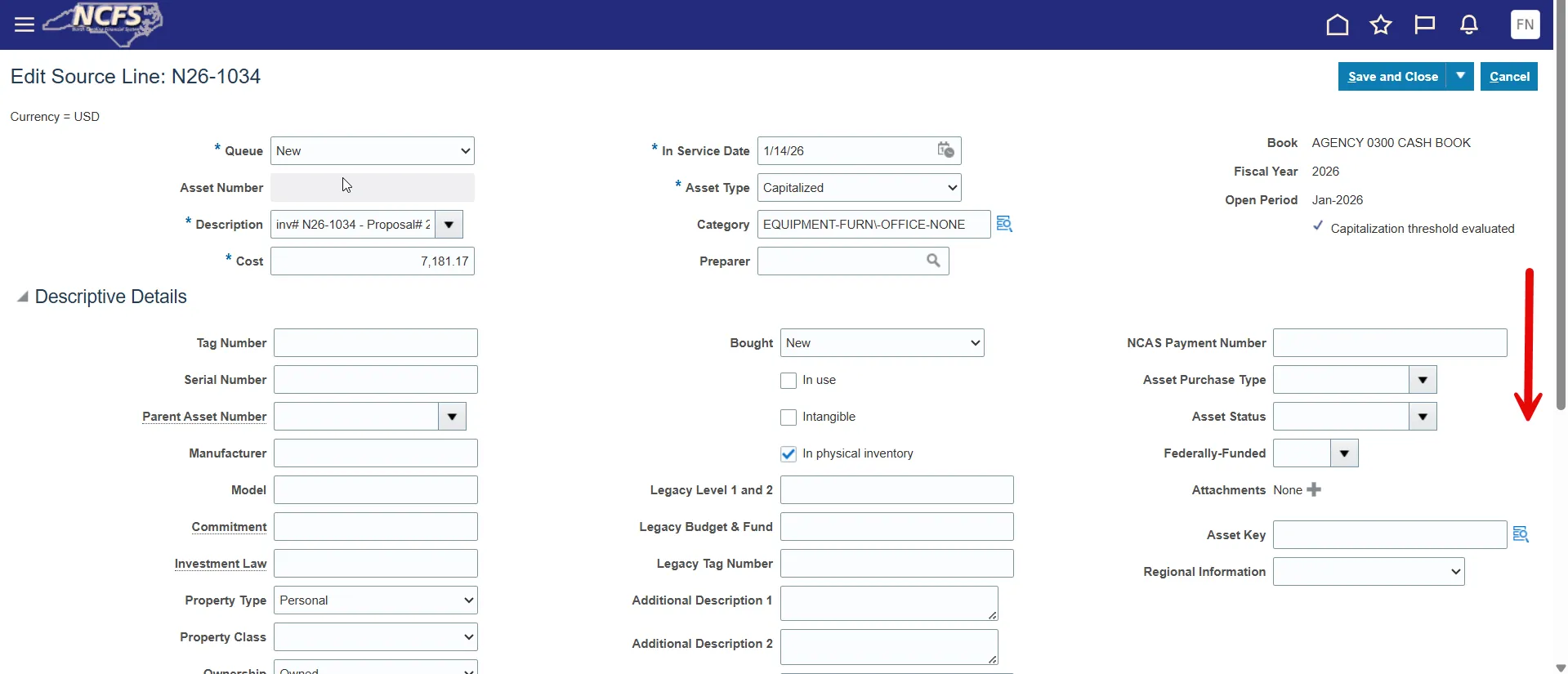
Step 4. Scroll down to the bottom of the page.
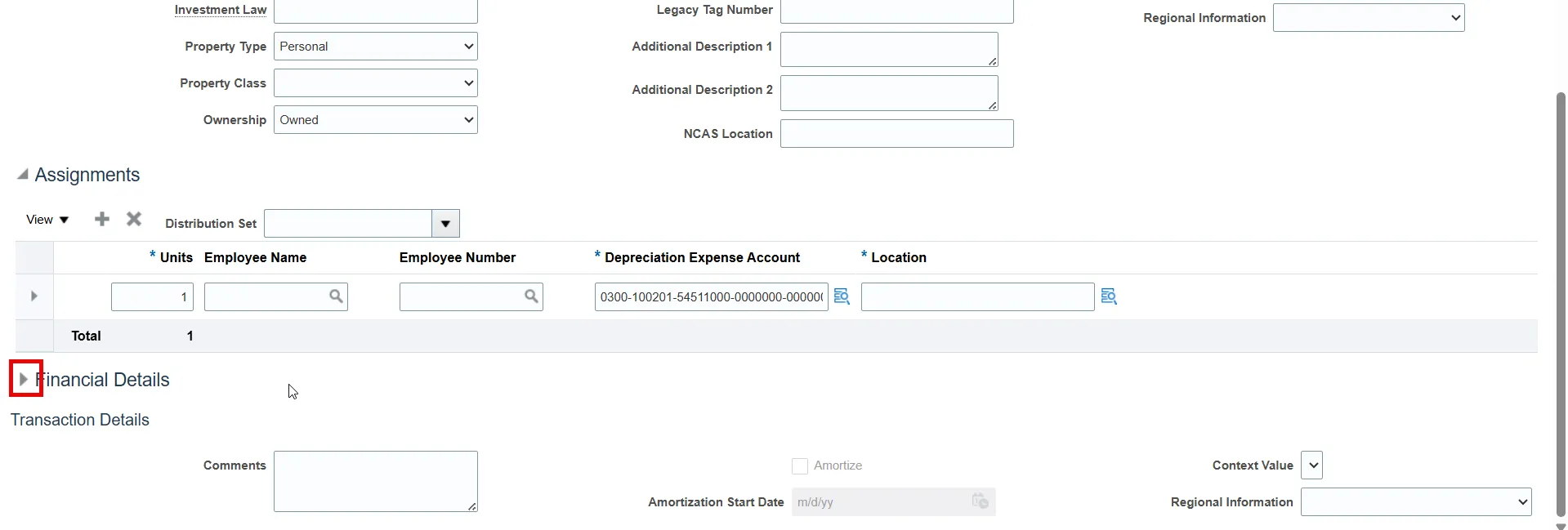
Step 5. Open the Financial Details by clicking the arrow to the left.
Step 6. De-select the Depreciate toggle.
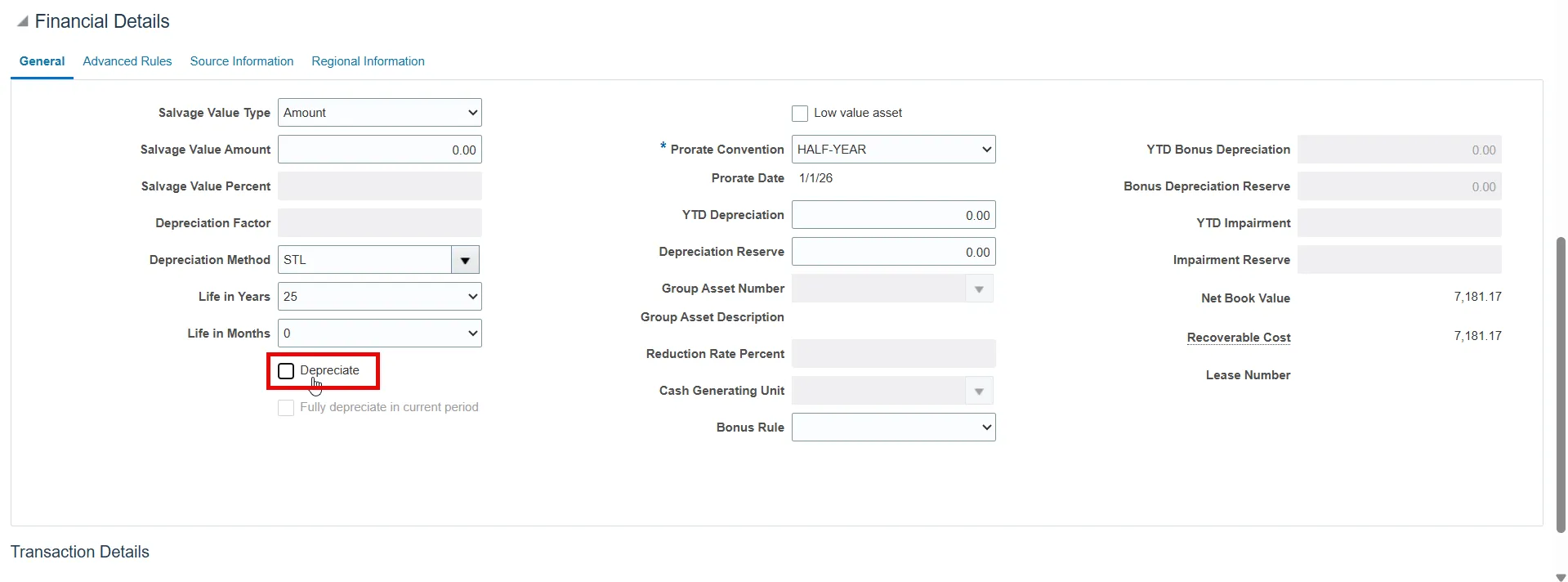
Step 7. Scroll to the top to and click Save and Close.
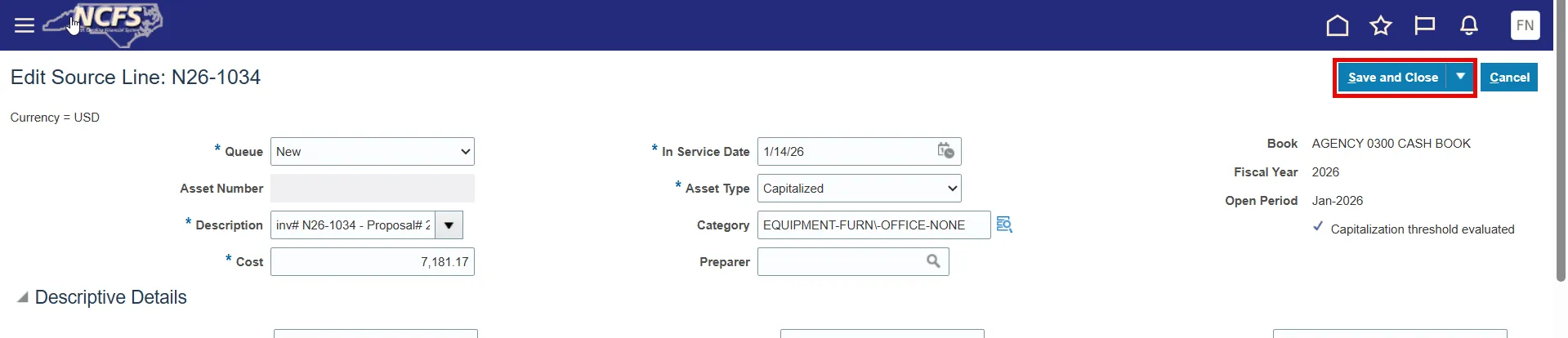
Step 8. You have successfully saved this source line or manual addition to have suspended depreciation. Monthly depreciation will not occur for this asset once fully posted.
Wrap-Up
The steps above detail how to suspend depreciation of an asset during addition.