Purpose
The purpose of this Quick Reference Guide (QRG) is to provide a step-by-step explanation on how to edit previously deleted source lines in the North Carolina Financial System (NCFS).
Introduction and Overview
Source lines in NCFS Fixed Asset are pending transaction lines found on the Asset Dashboard which have been interfaced from NCFS Invoicing. Deleting lines which should not be fully posted to the asset books are a daily task for NCFS asset users. The steps below detail how to recover these lines in case of accidental or erroneous deletion.
Copying Data to NCFS Fixed Assets ADFDi Spreadsheets
There are 7 steps to complete this process.
Step 1. Log in to the NCFS portal with your credentials to access the system.
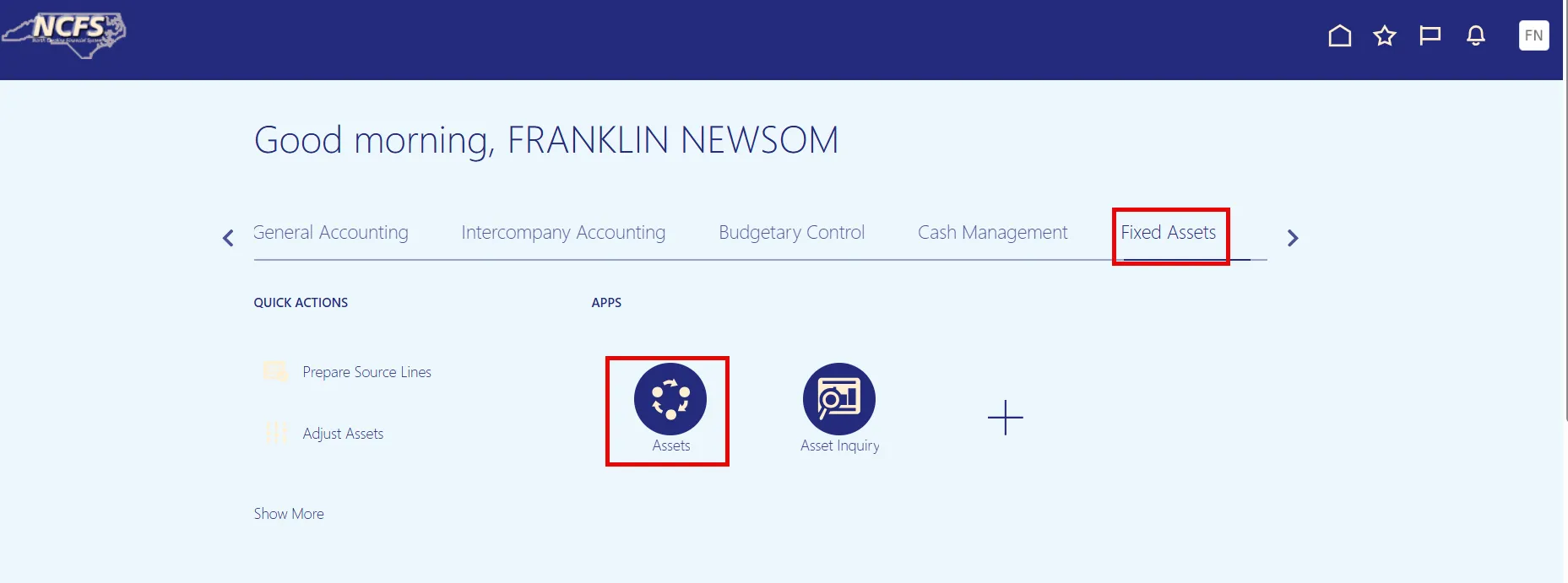
Step 2. On the Home page, under the Fixed Assets tab, click the Assets app.
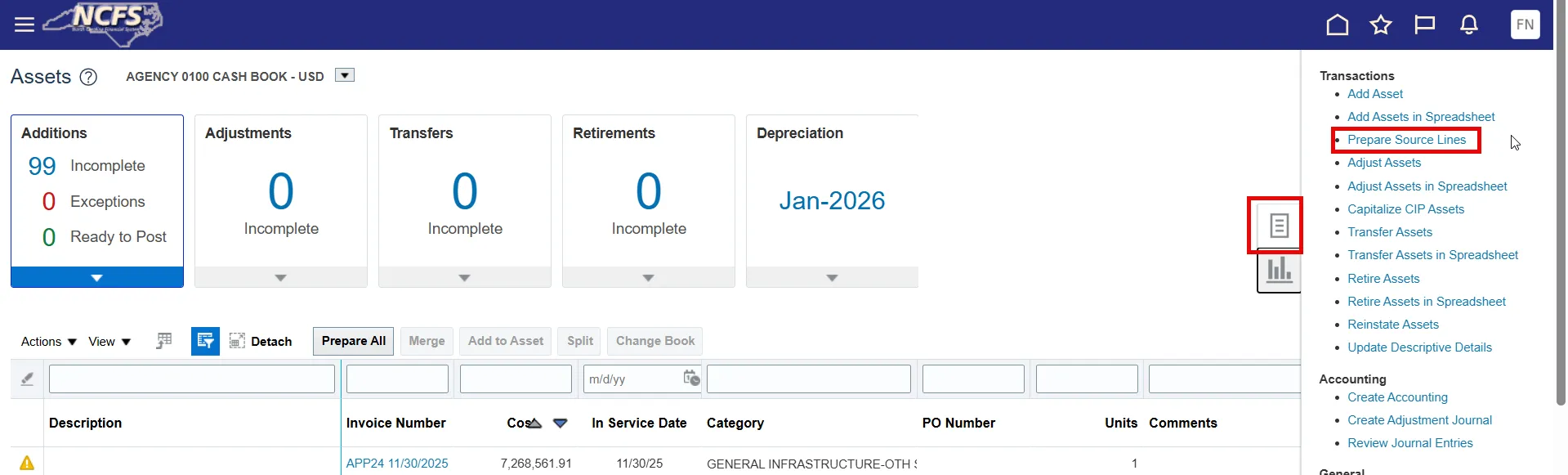
Step 3. On the Asset Dashboard page, open the Tasks list and click Prepare Source Lines.
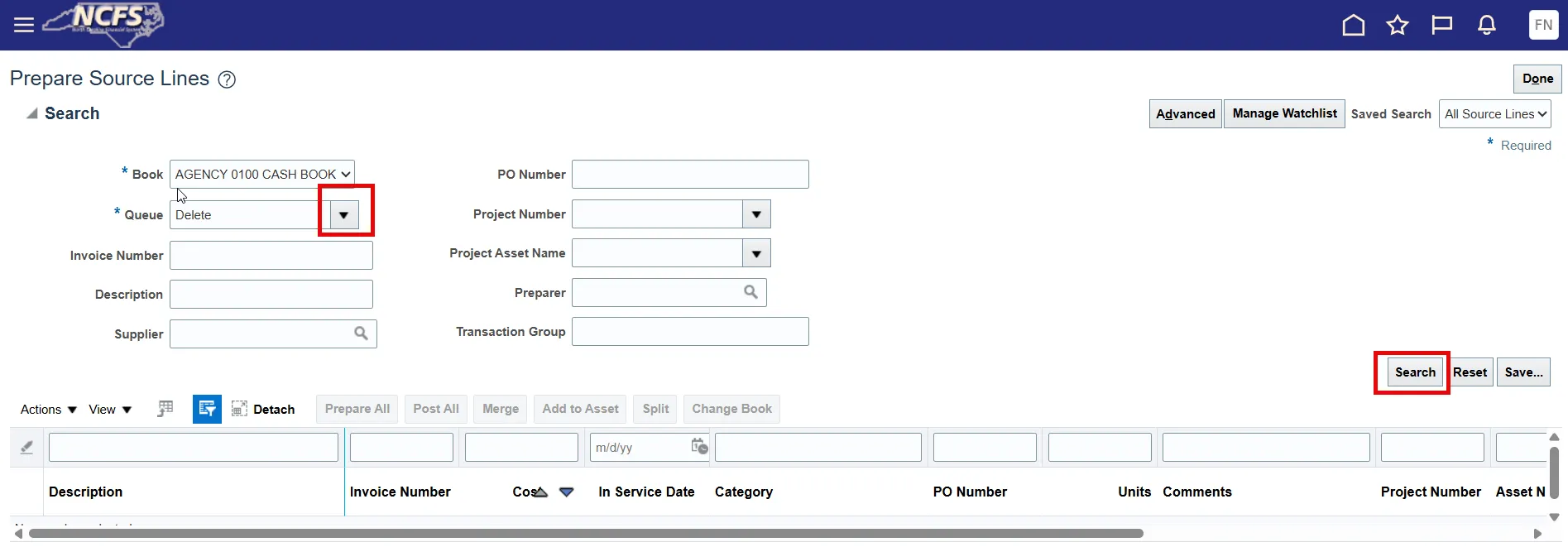
Step 4. The Prepare Source Lines page will appear. Use the search feature to find your deleted line. Use the Queue field to include the “Deleted” status by opening the Drop-Down list. Click Search to run the inquiry.
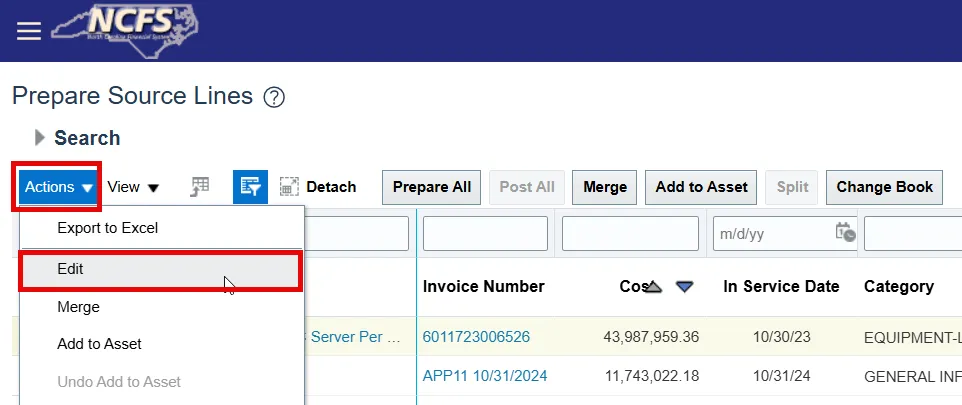
Step 5. Locate your source line within the search results and highlight the line by clicking. Edit the source line by opening the Actions Drop-Down list and choosing Edit.

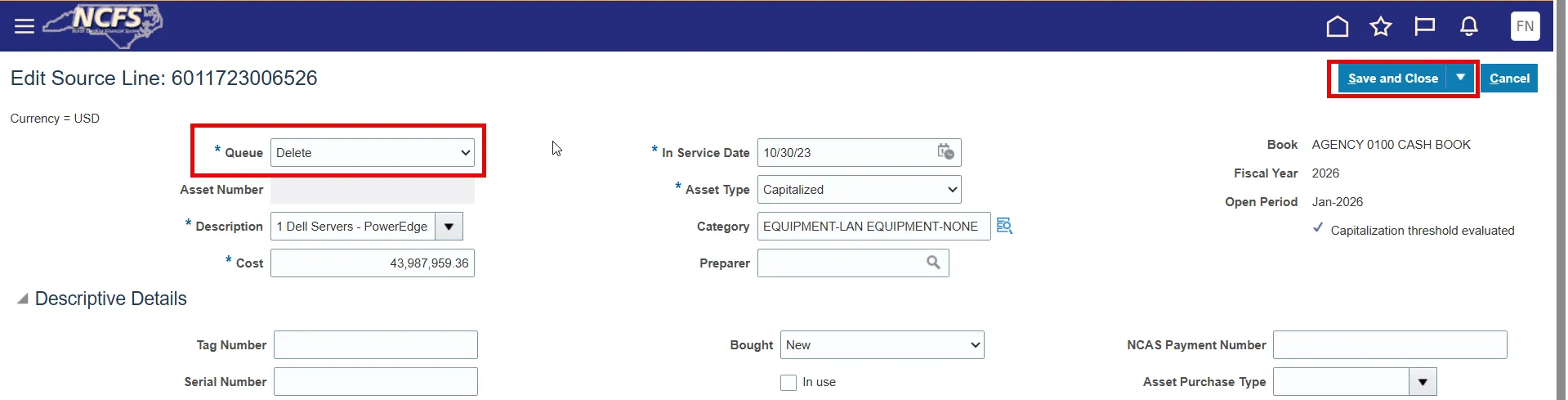
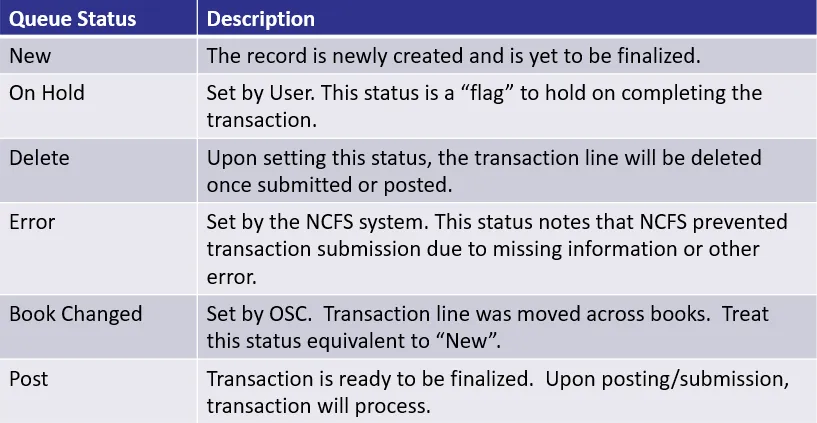
Step 6. The Edit Source Line page will open. Change the Queue status to an appropriate status with the Drop-Down list and make any needed corrections, then click Save and Close. See below for Queue status details.
Step 7. Once saved, the Source Line has been moved to its new status and you have successfully edited a previously deleted Source Line.
Wrap-Up
The steps above detail how to locate and edit a previously deleted Source line.