Purpose
The purpose of this Quick Reference Guide (QRG) is to provide a step-by-step explanation on how and when to perform partial asset retirements and negative cost adjustments in the North Carolina Financial System (NCFS).
Introduction and Overview
This QRG explains how and when to perform partial asset retirements and negative cost adjustments. When an asset’s cost is decreased aside from depreciation, either a Partial Retirement or a Negative Cost Adjustment is required.
- Partial Asset Retirement
- Used when a portion of the asset leaves service.
- Can be due to an end of useful life, sustaining damage enough to terminate use of a portion, surplus/sale of a portion of the asset, or other reasons.
- For example, a permanent toolbox attached to a truck is damaged and needs to be removed but not replaced.
- Negative Cost Adjustment
- Used when the value of the asset decreases but the entire asset stays in service.
- Can be due to incorrect initial valuation or other reasons.
- For example, a truck was originally added as an asset with a value of $500,000 but should have been entered with a value of $50,000.
Partial Asset Retirement
To perform a partial asset retirement, please follow the steps below. There are 9 steps to complete this process.
Step 1. Log in to the NCFS portal with your credentials to access the system.
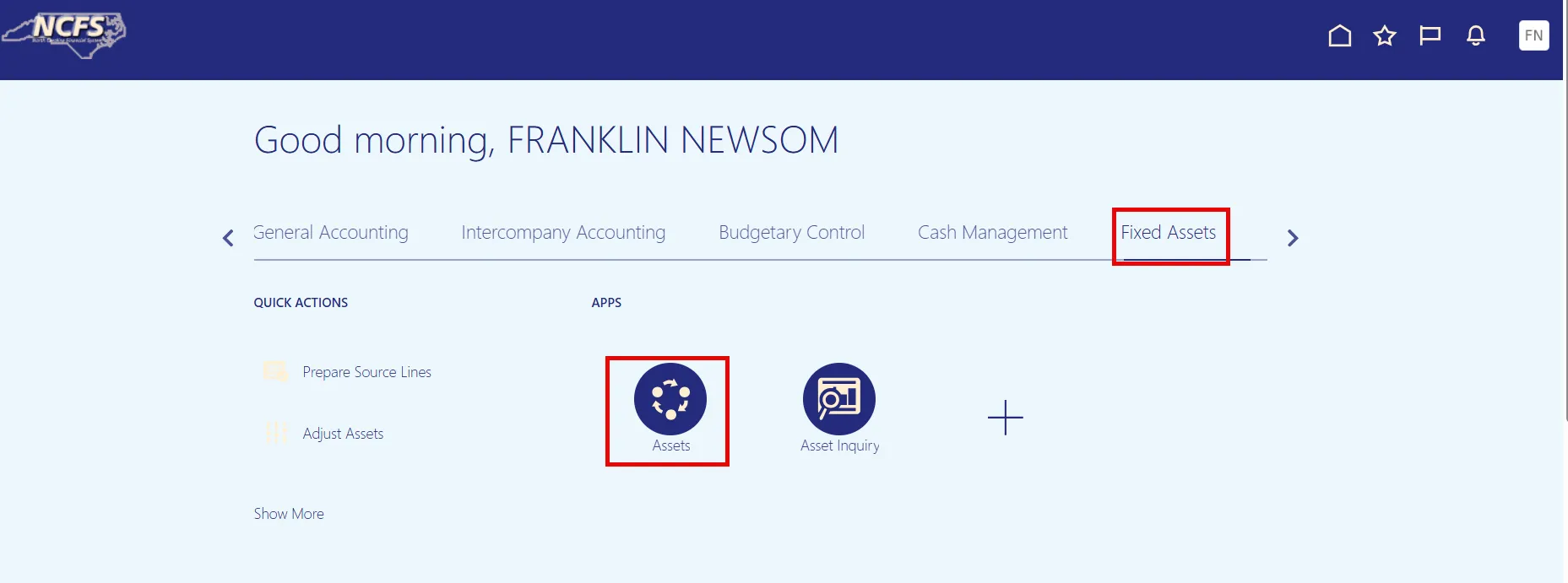
Step 2. On the Home page, under the Fixed Assets tab, click the Assets app.
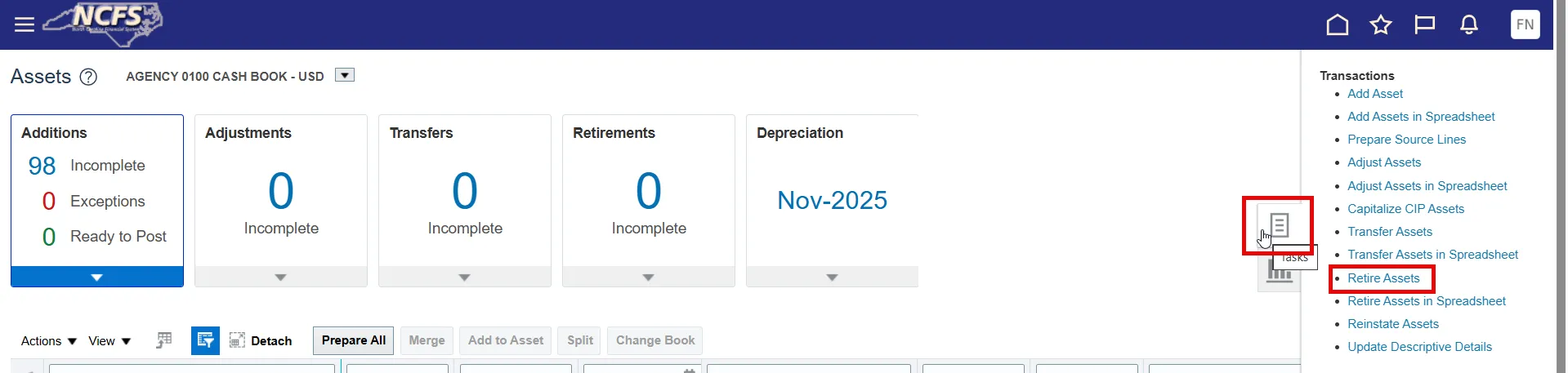
Step 3. On the Asset Dashboard page, open the Tasks list and click Retire Assets.
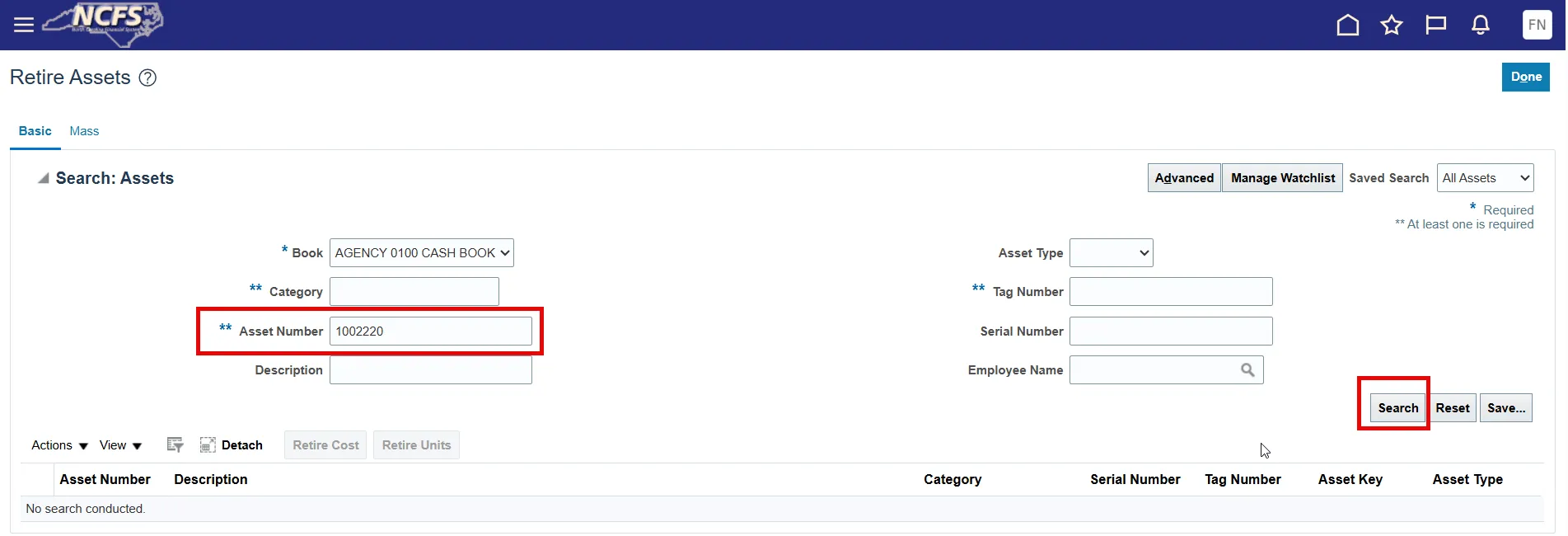
Step 4. The Retire Assets page will open. On this page, search for your asset.
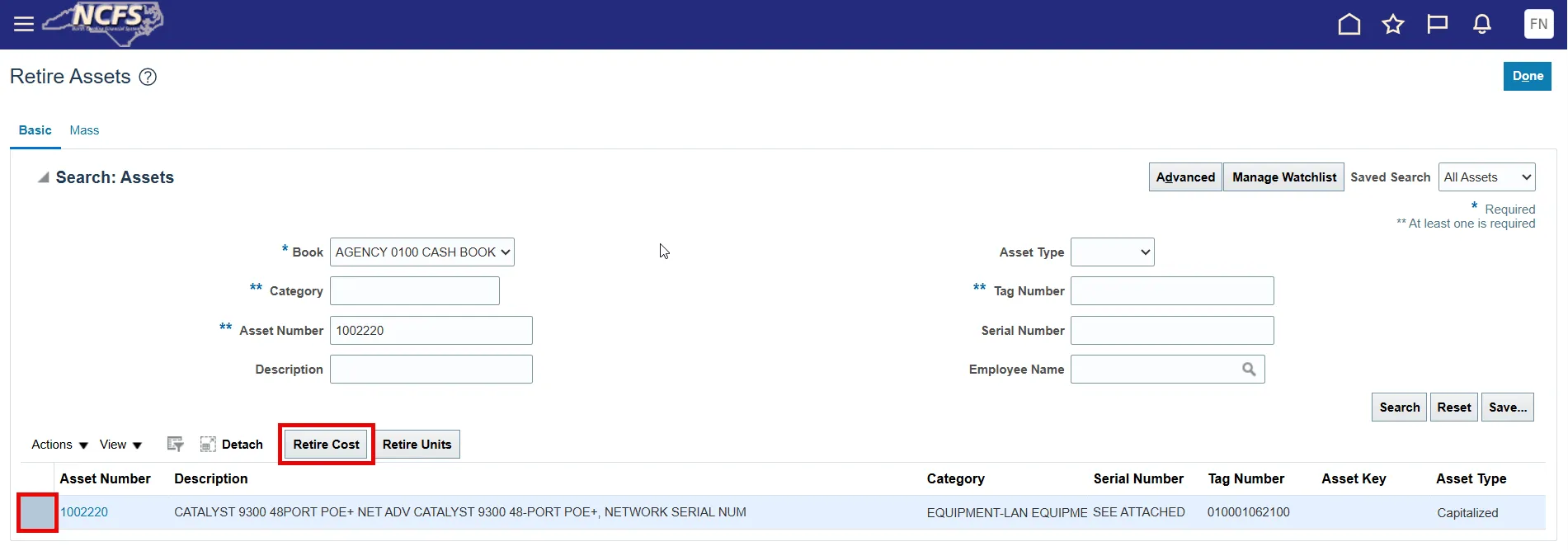
Step 5. Select your asset line (blue highlight) and click the Retire Cost button.
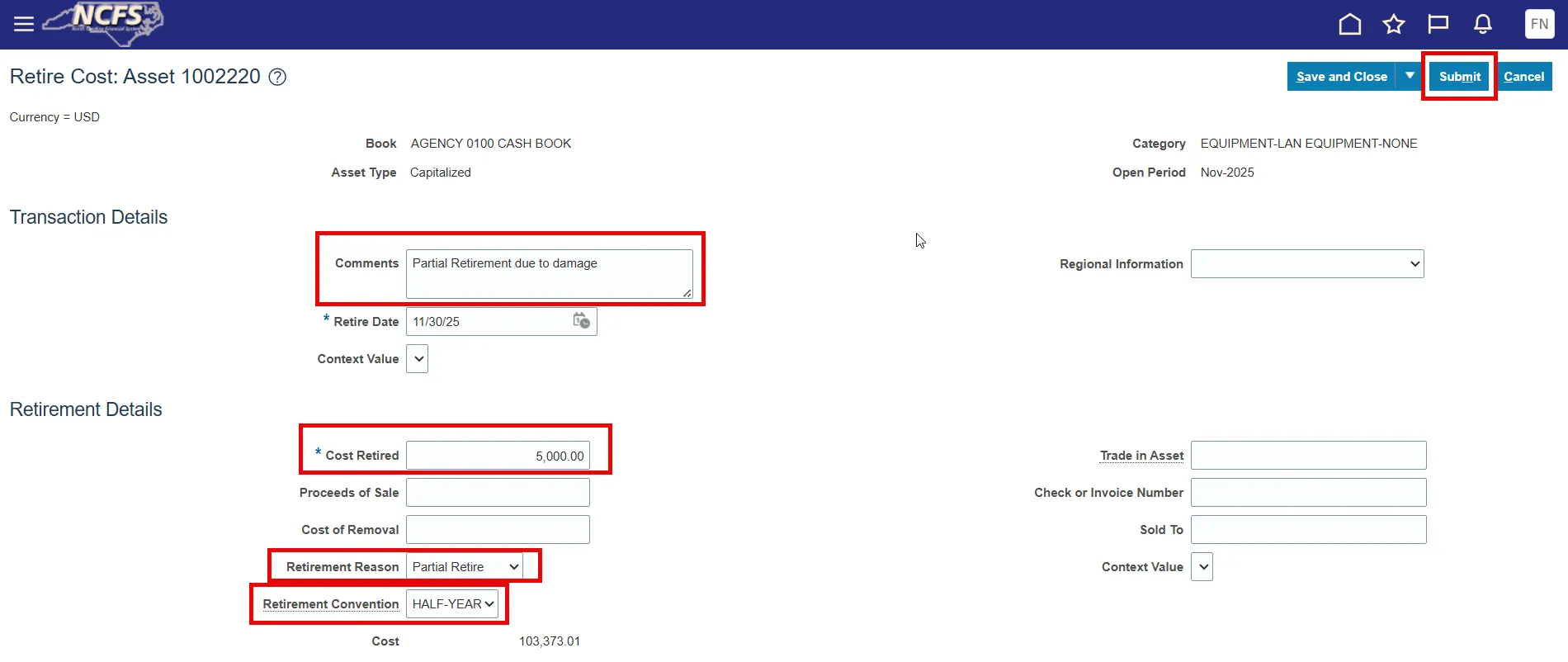
Step 6. Enter the cost to be retired in the Cost Retired field. For a partial retirement this number represents the cost removed from the total value.
Step 7. Choose the Retirement Reason of Partial Retire from the Retirement Reason drop-down list.
Step 8. Add Comments and ensure the Retirement Convention is set to Half-Year, the state-standard convention.
Step 9. Lastly, click the Submit button to complete your Partial Retirement.
Negative Cost Adjustment
To perform a negative cost adjustment, please follow the steps below. There are 8 steps to complete this process.
Step 1. Log in to the NCFS portal with your credentials to access the system.
Step 2. On the Home page, under the Fixed Assets tab, click the Assets app.
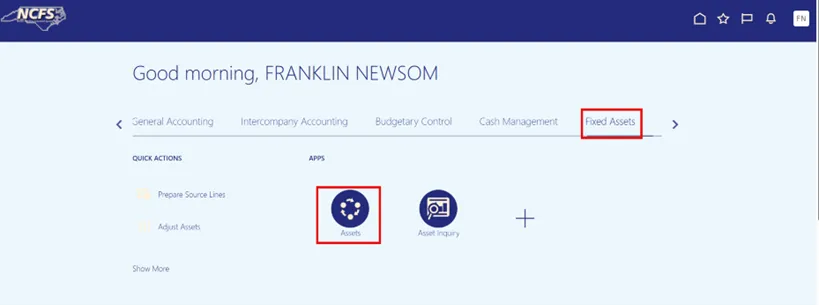
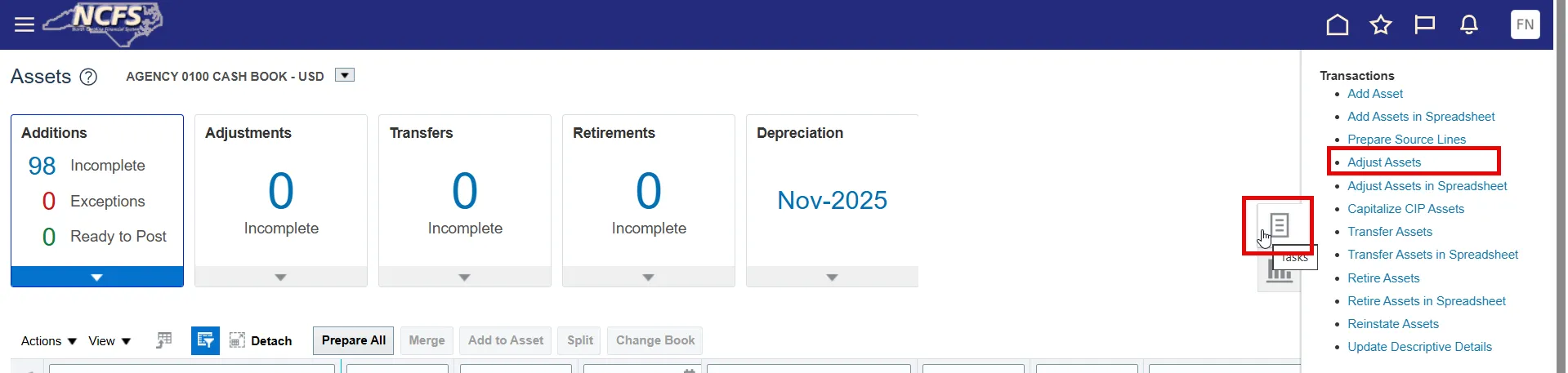
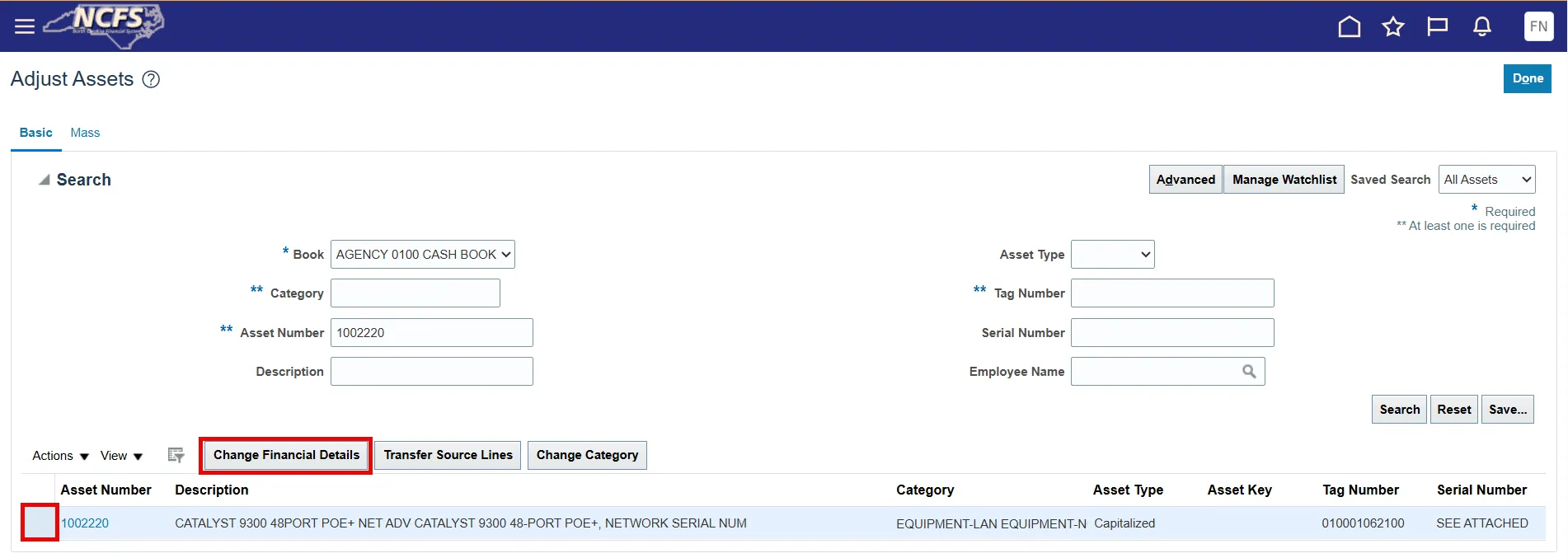
Step 3. On the Asset Dashboard page, open the Tasks list and click Adjust Assets.
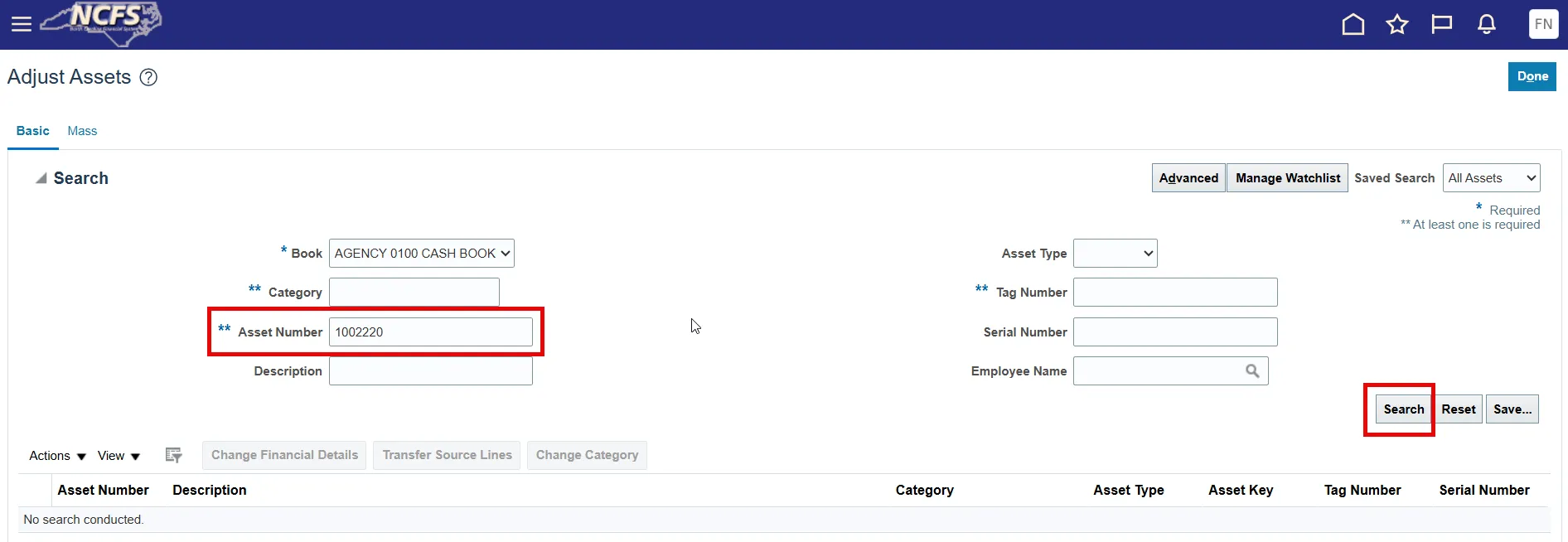
Step 4. The Adjust Assets page will open. On this page, search for your asset.
Step 5. Select your asset line (blue highlight) and click the Change Financial Details button.
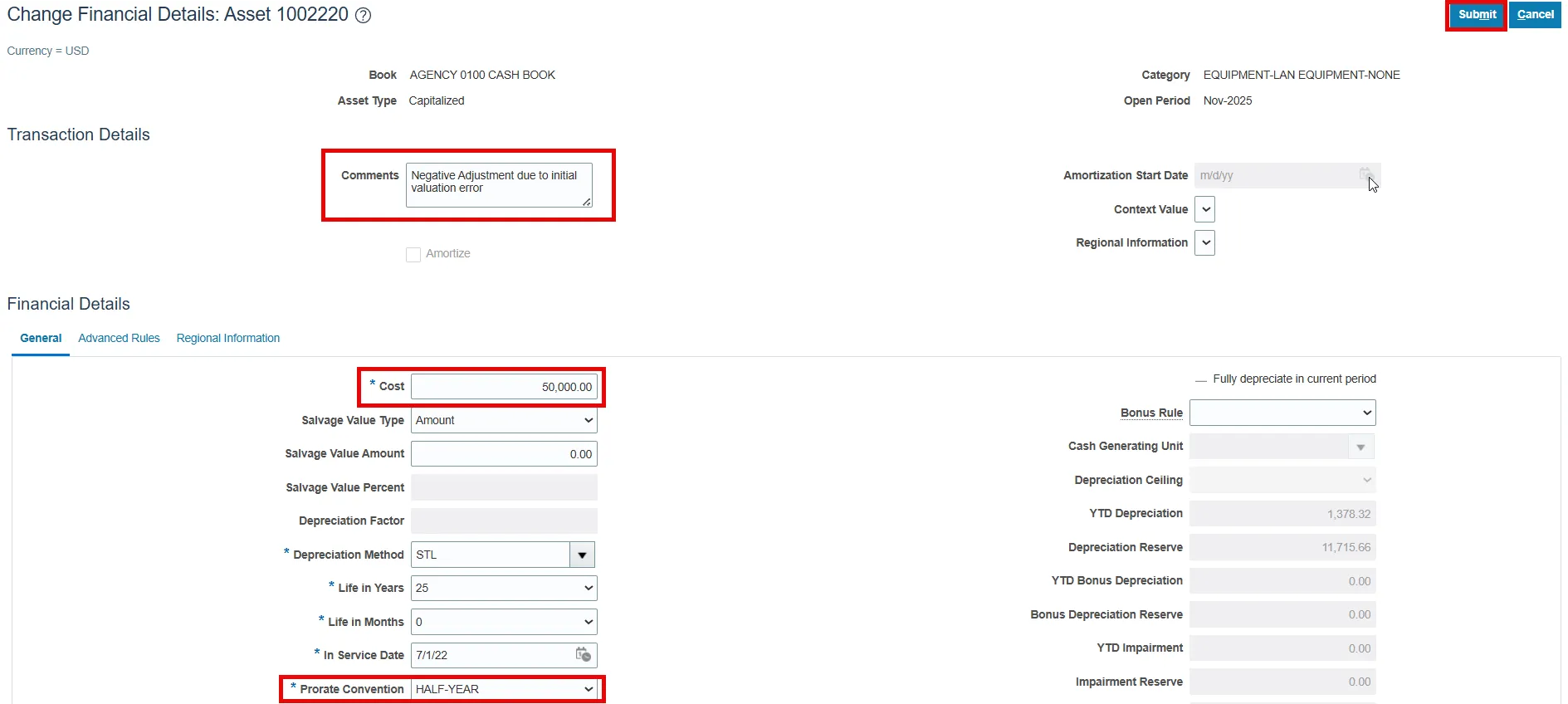
Step 6. Enter the new total value in the Cost field. For a negative cost adjustment this number represents the new total value.
Step 7. Add Comments and ensure the Prorate Convention is set to Half-Year, the state-standard convention.
Step 8. Lastly, click the Submit button to complete your Negative Cost Adjustment.
Wrap-Up
Understand when and how to perform a Partial Retirement or Negative Cost adjustment using the steps above.
Additional Resources
- Virtual Instructor-Led Training (vILT)