Purpose
The purpose of this Quick Reference Guide (QRG) is to provide a step-by-step guide on how to view dunning history in the North Carolina Financial System (NCFS).
Introduction and Overview
This QRG covers the process for viewing dunning history in NCFS by navigating to the History tab on the Customer page within the Collections Manager.
Create Customer Records
To view dunning history in NCFS, please follow the steps below. There are 17 steps to complete this process.
Step 1. Click the Company Single Sign-On (SSO) button.
Step 2. Enter your @dac.nc.gov email address.
Step 3. Click Next, then enter password.
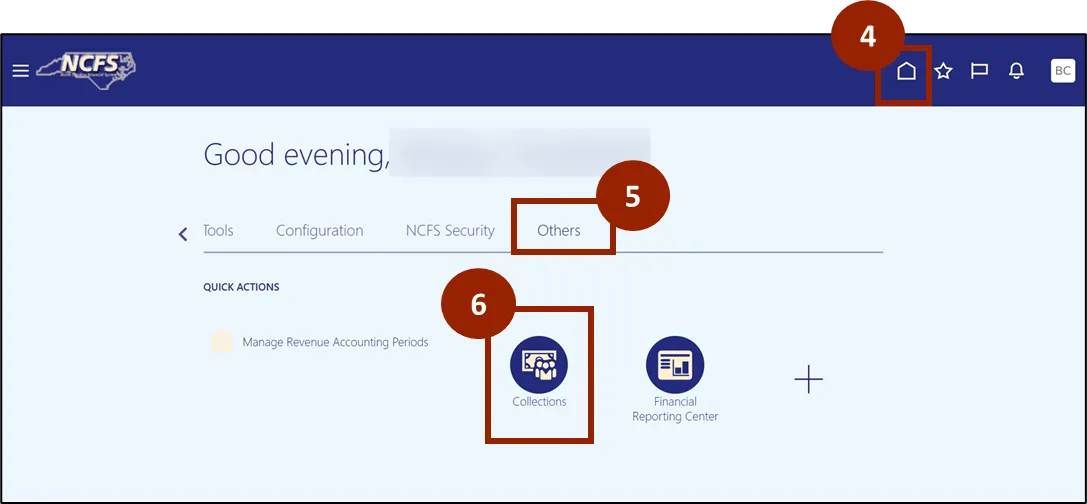
Step 4. Navigate to the Home page.
Step 5. While on the Home Screen, navigate to the Others tab.
Step 6. In the Others tab, click on Collections.
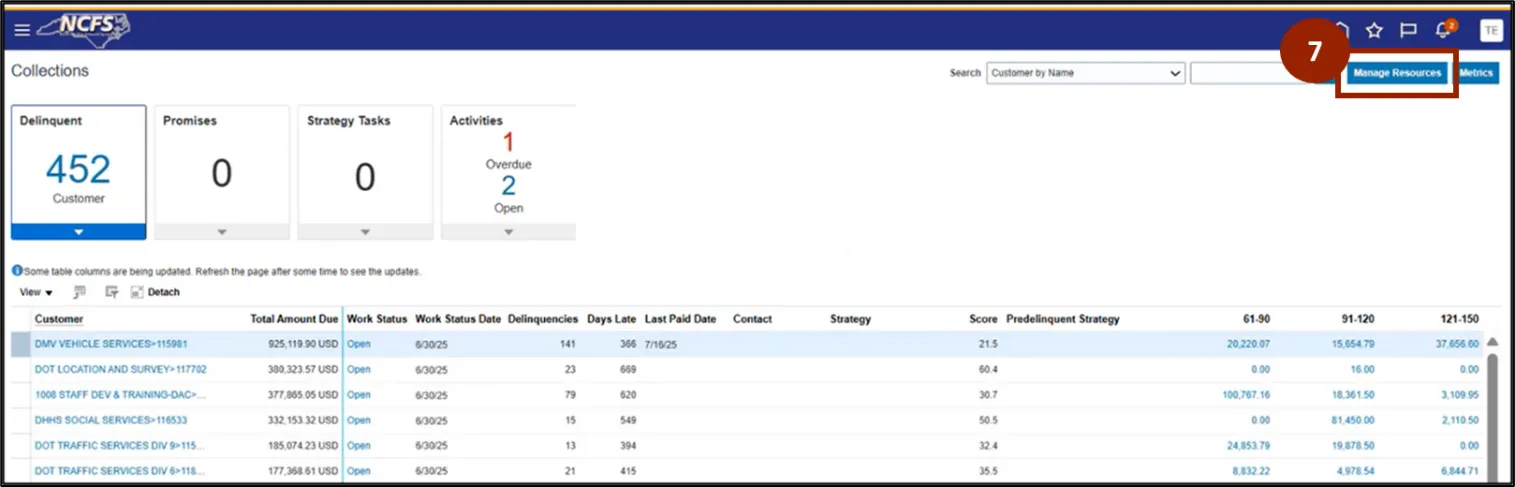
Step 7. Click on the Manage Resources.
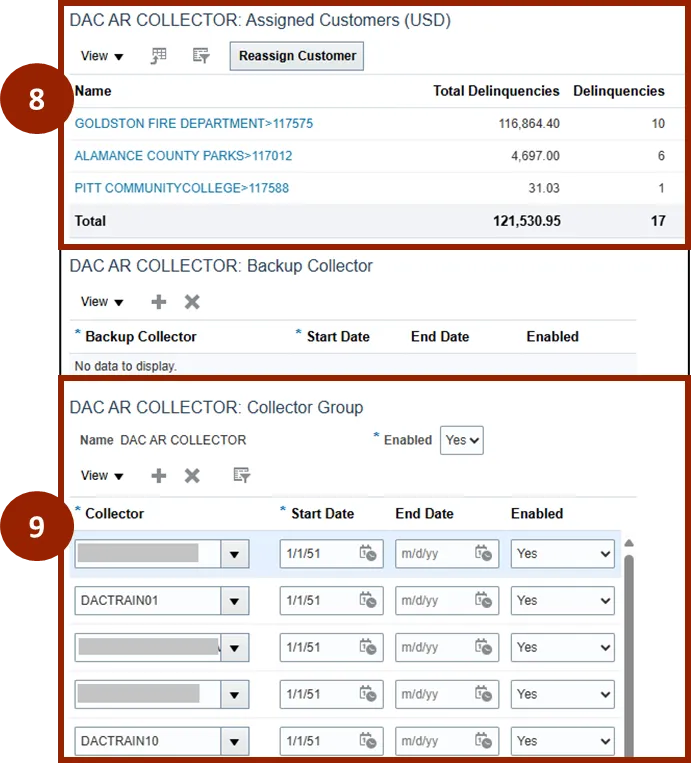
Step 8. Customers can be found in the Assigned Customers section.
Step 9. The DAC AR Collector section displays all collectors assigned to the group.
NOTE: Once added to the collector group, the Collector has visibility for all customers.
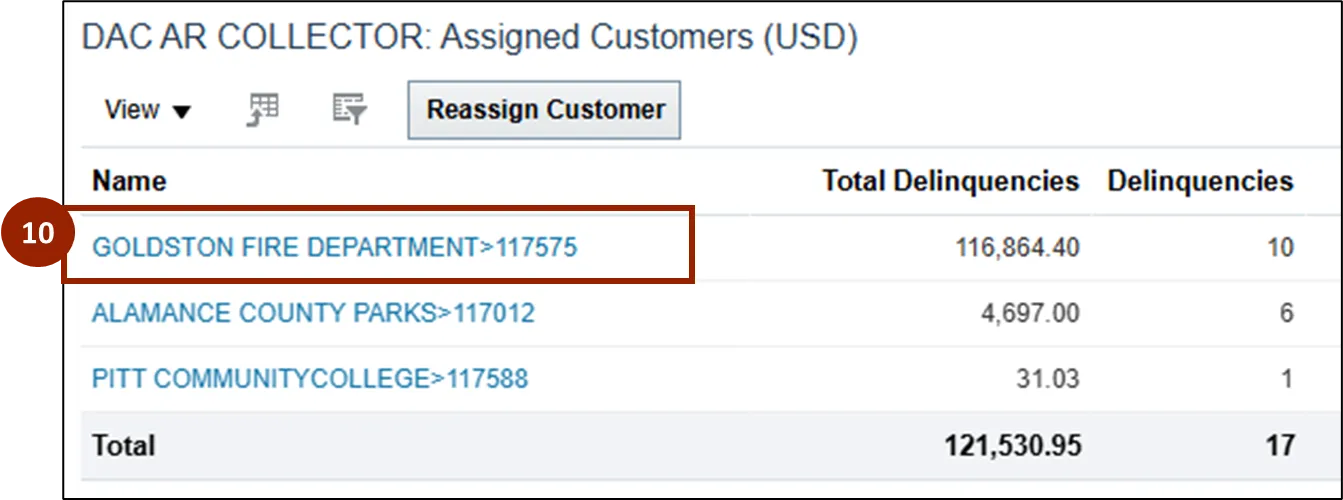
Step 10. To navigate to the Customer page within the Collections Manager, click on the Customer Name.
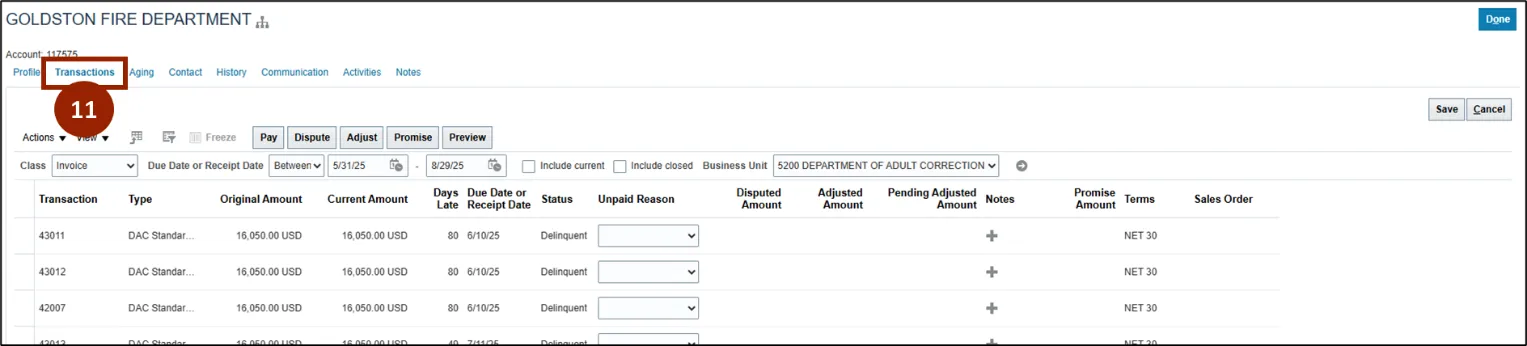
Step 11. The Customer page will automatically open on the Transactions tab.
Step 12. From the Customer page, select the History tab.
NOTE: Within the History tab of the Customer page, Collectors can see a chronological record of all significant interactions, activities, and changes related to the customer’s account.
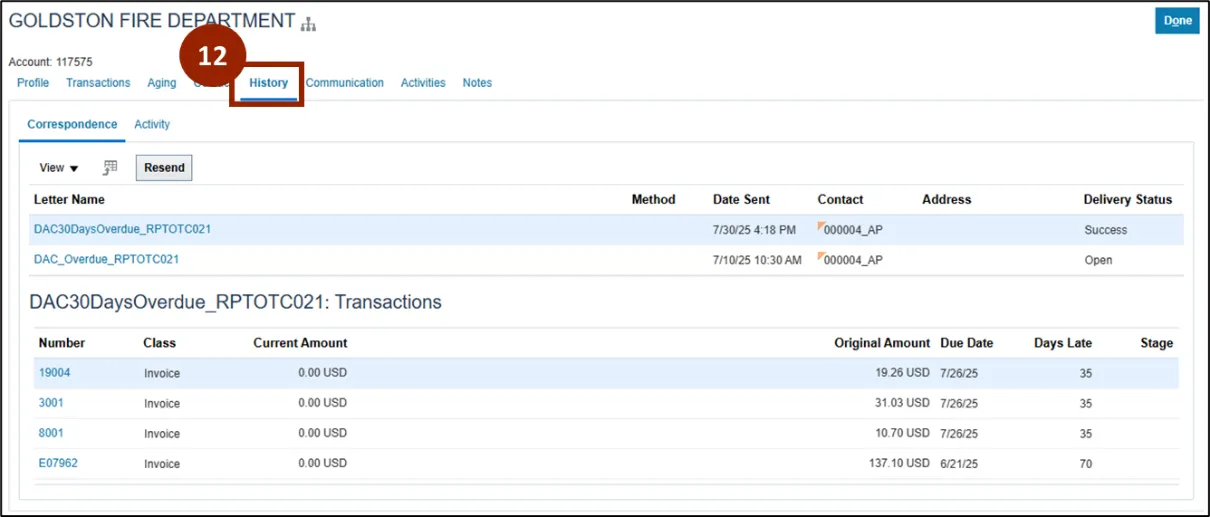
NOTE: When accessing the History tab of the Customer page, the Correspondence tab is displayed by default.
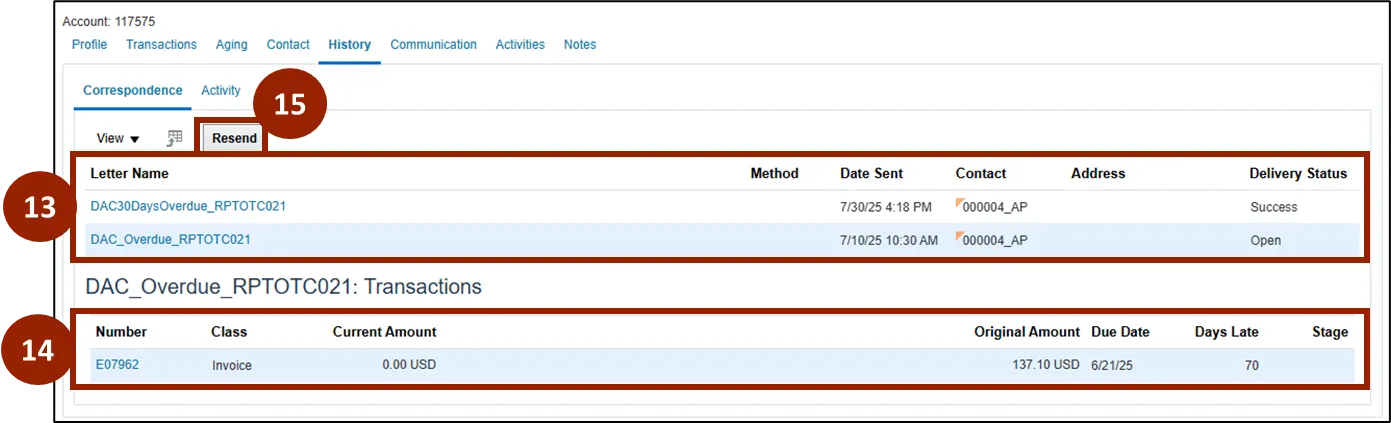
Step 13. On the Correspondence tab view all Dunning Letters sent, including Letter Name, Date Sent, Contact, and Delivery Status.
Step 14. Select the Letter Name to see the Transactions included in that specific dunning letter.
Step 15. Select Resend to send the dunning letter again.
Step 16. On the Activity tab, view a full transaction history for the customer, including all receipts and adjustments created.
Step 17. To see more than the last 30 days of transactions, adjust the date range and select the gray arrow to update the table.
Wrap-Up
NCFS users can view dunning history in the Collections Manager by accessing the History tab on the Customer page. This allows users to quickly review account correspondence and activity for effective collections management.
Additional Resources
- Instructor Led Training (ILT)
- AR109: Manage Collections (Coming Soon)