Purpose
The purpose of this Quick Reference Guide (QRG) is to provide a step-by-step guide of how to Manage Receivable Credit Memos in the North Carolina Financial System (NCFS).
Introduction and Overview
This QRG covers the process of Manage Receivable Credit Memos. This process provides information on applying methods to calculate and manage tax amounts on invoices accurately.
Manage Receivables Credit Memos
To approve expenses via the notification bell icon, please follow the steps below. There are 16 steps to complete this process.
Step 1. Log in to the NCFS portal using the Company Single Sign-On (SSO) button.
Step 2. Enter your @dac.nc.gov email address.
Step 3. Click Next, then enter your password.
Note: The system will automatically sign on using SSO and log in to NCFS. After the first login using SSO, future access may not require credentials. If SSO is not available, enter credentials manually within the Username and Password fields, then click Sign-In.
Step 4. Navigate to the Home page.
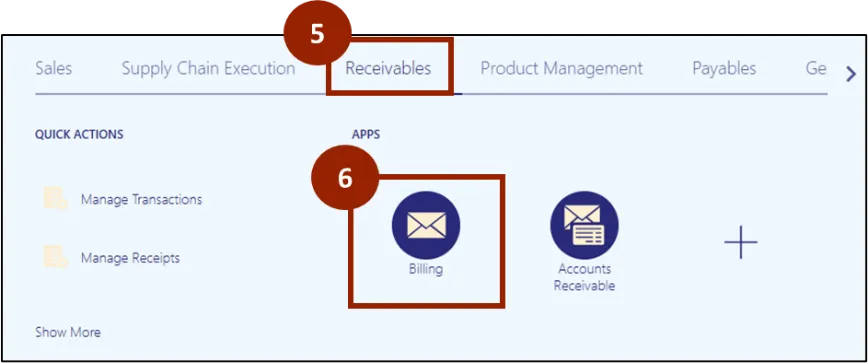
Step 5. Click on the Receivables tab.
Step 6. Click on Billing.
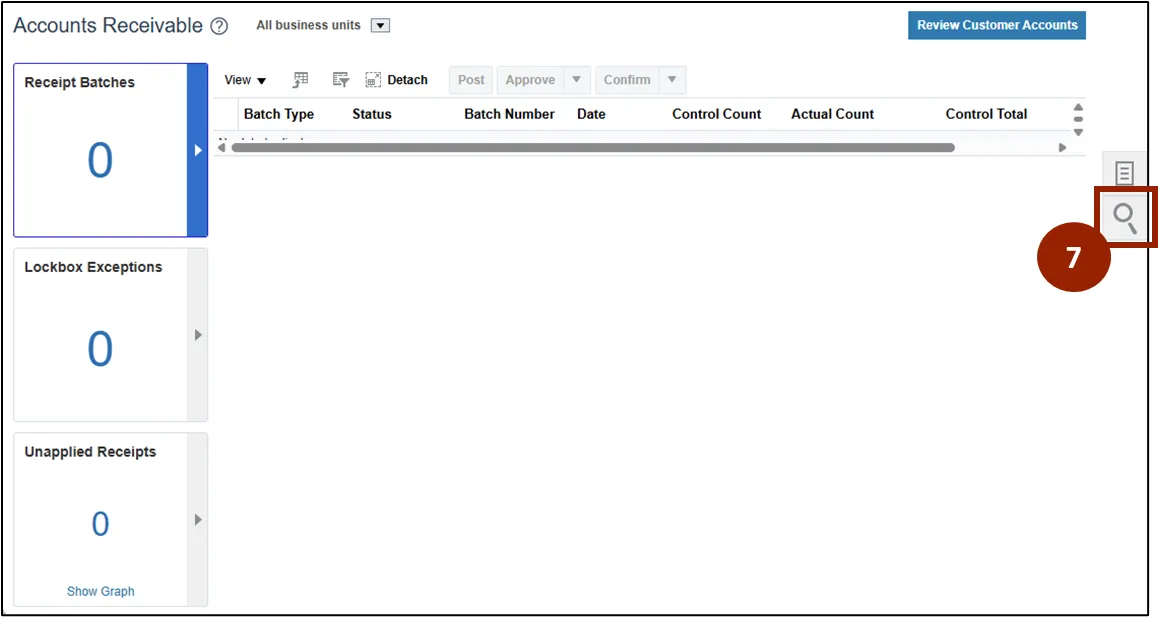
Step 7. On the Billing page, click the Search icon.
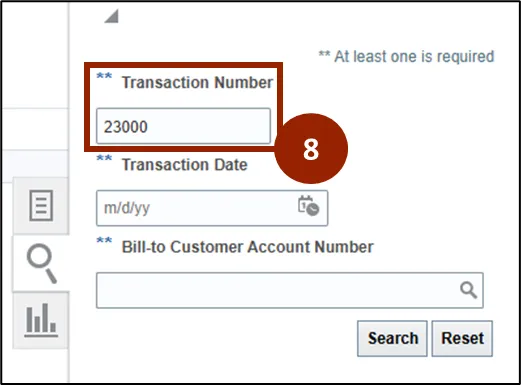
Step 8. Enter the Transaction Number and click Search.
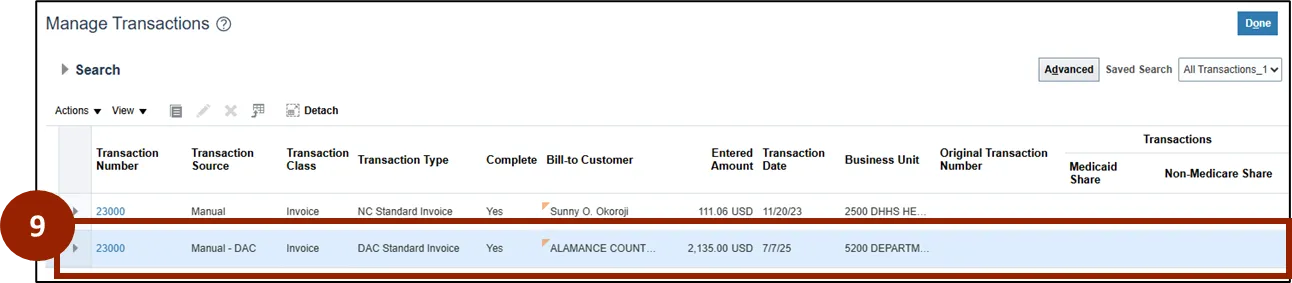
Step 9. Click the relevant invoice from the Search list.
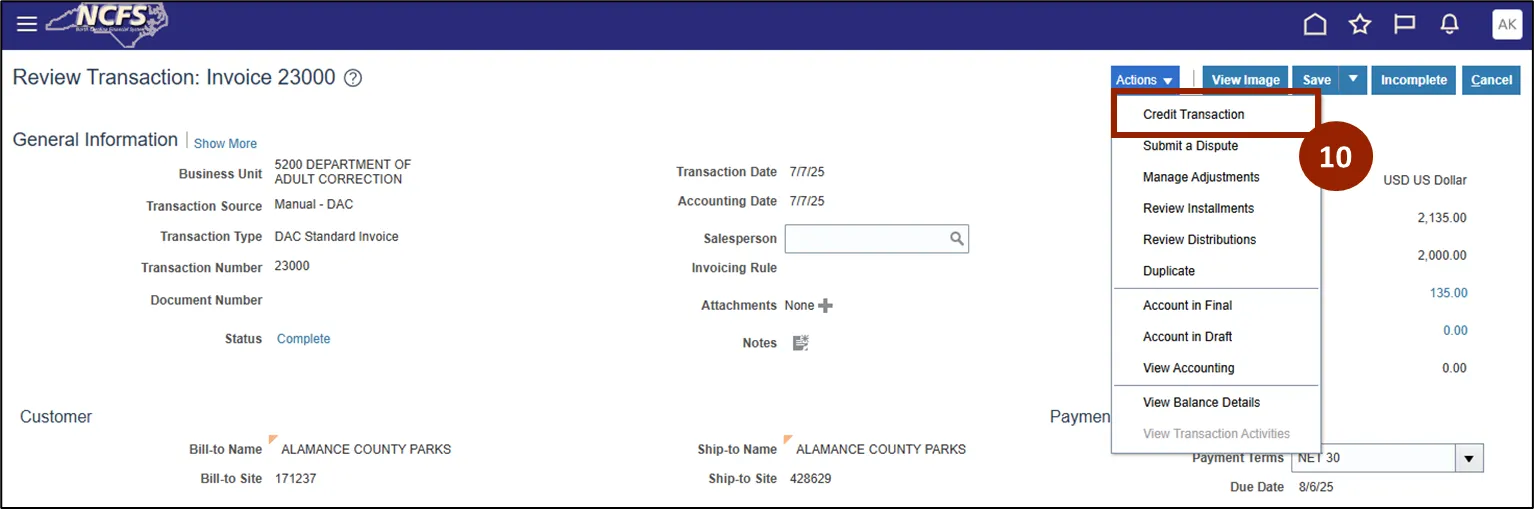
Step 10. Click Credit Transaction from the Actions list.
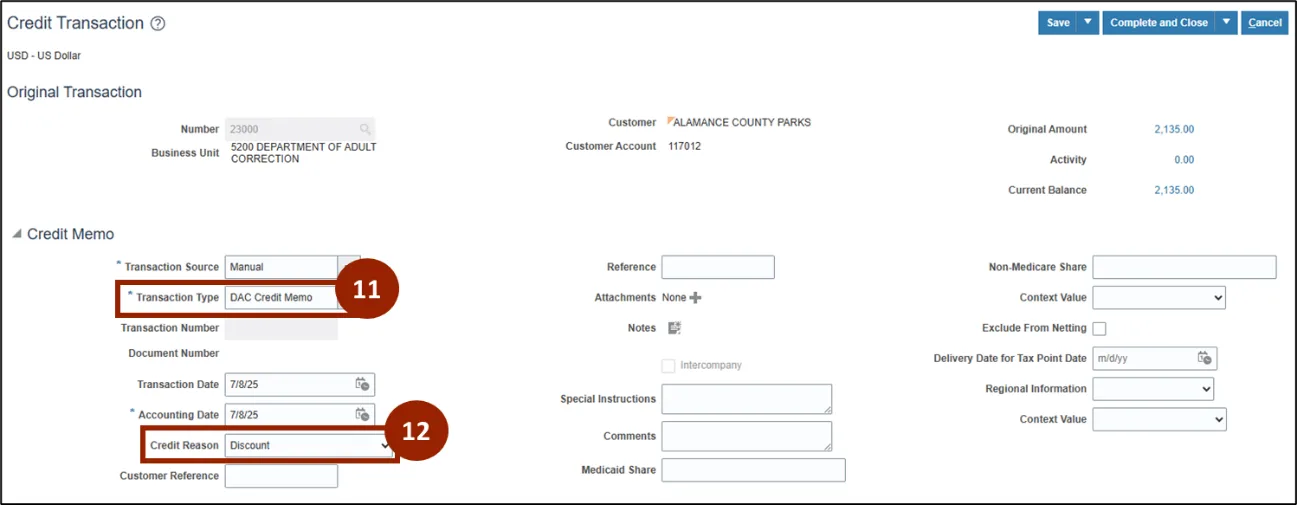
Step 11. Enter DAC Credit Memo in the Transaction Type field.
Step 12. Select the reason for credit from the Credit Reason field.
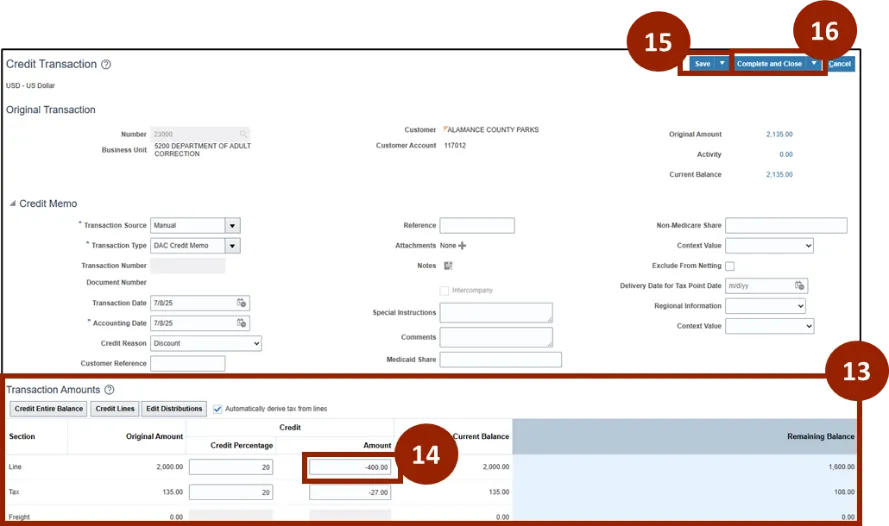
Step 13. Navigate to the Transaction Amounts section, locate the relevant line item for which the credit is being issued.
Step 14. In the Amount field, enter the amount to be credited, making sure to use a minus sign (-) before the number (e.g., -500.00).
Step 15. Click Save.
Step 16. Click Complete and Close.
Wrap-Up
NCFS users can reference the Manage Receivable Credit Memos using the steps above.
Additional Resources
- Instructor Led Training (ILT)