Purpose
The purpose of this Quick Reference Guide (QRG) is to provide a step-by-step explanation of how to create and pay a Non-PO matched Zero-Dollar Invoice in the Accounts Payable module in the North Carolina Financial System (NCFS). Please reference QRG AP-41 if the purpose of the Non-PO matched Zero Dollar invoice is for 1099 purposes.
Introduction and Overview
This QRG covers the steps on how to create and then pay Non-PO matched zero-dollar invoices in the AP module in NCFS.
Note: Zero-dollar invoices should always have a total amount of $0. The invoices have an equal positive and negative line amounts.
Zero Dollar Invoice
There are 18 steps to complete this process.
Follow steps one through five to create a zero-dollar invoice.
Step 1. Login to the NCFS portal.
Step 2. Click the Payables tab from the home page.
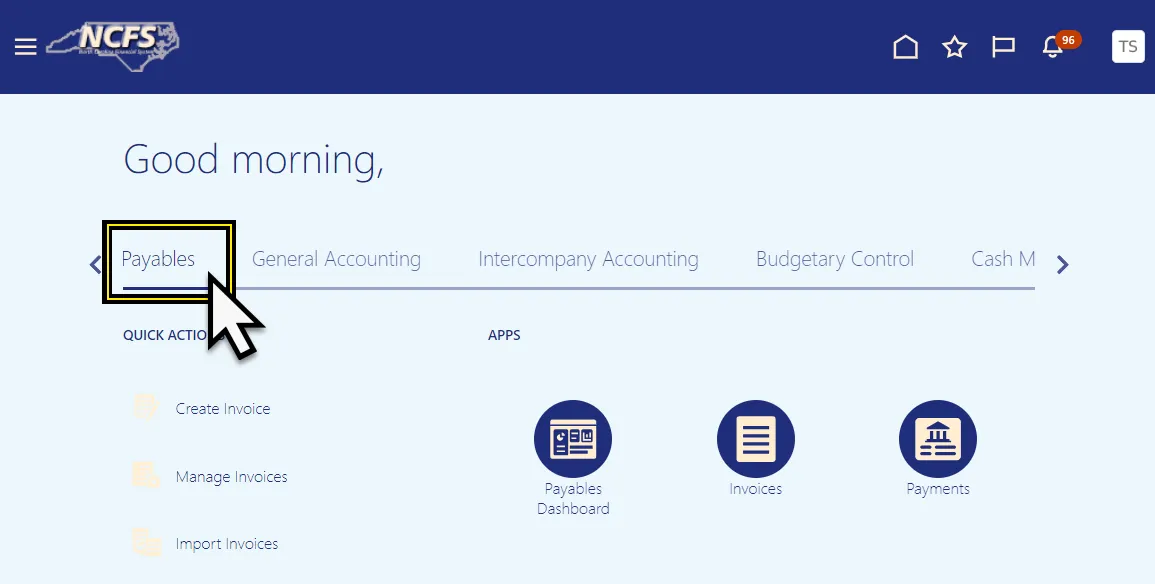
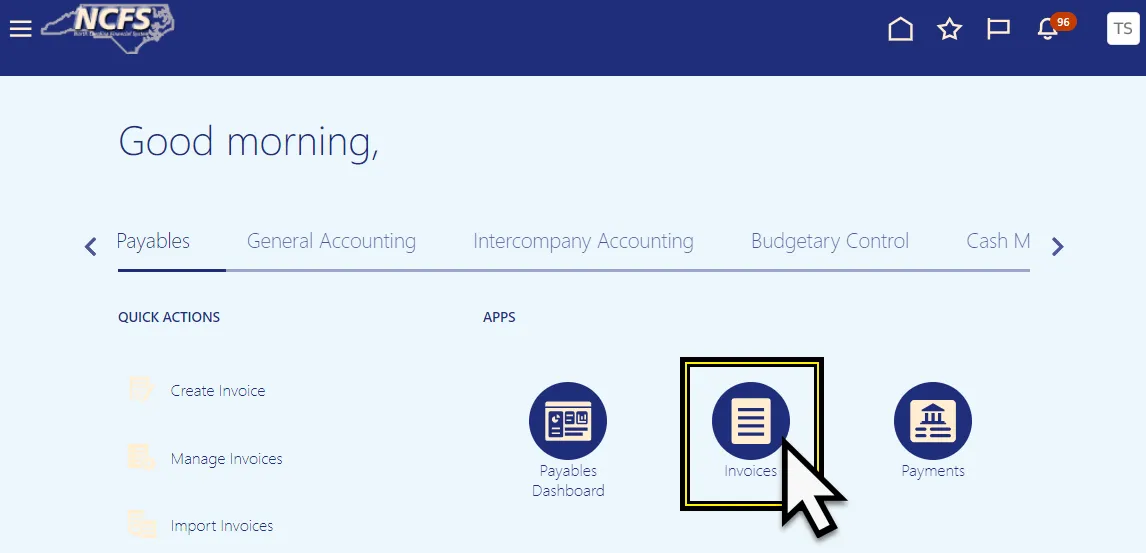
Step 3. Click the Invoices app.
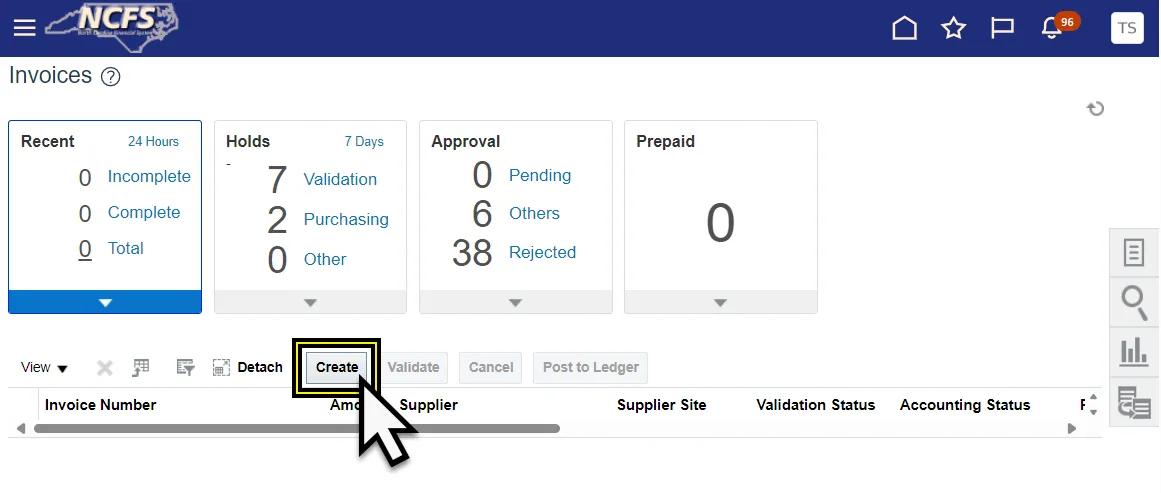
Step 4. Click Create to create a zero-dollar invoice.
Step 5. The Create Invoice page is displayed.
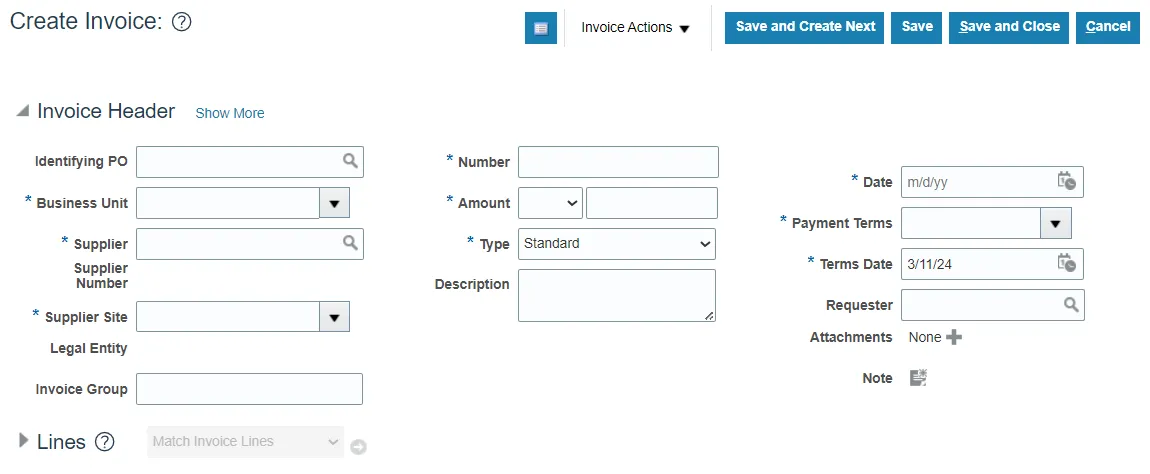
Step 6. Enter the supplier information, invoice number, set the payment terms to Immediate, and enter Zero (0.00) in the Amount field.
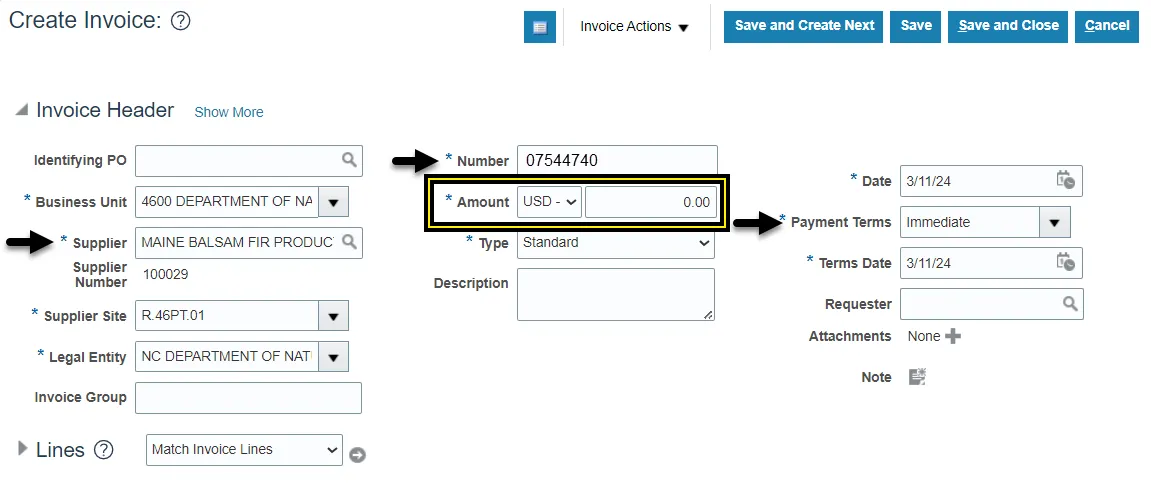
Step 7. Enter the positive line for the information that is being corrected to for this correction. Be sure to enter the correct distribution combination.

Step 8. Enter the negative line for the information that is being changed that reverses the original information. The two lines must net to 0.00.
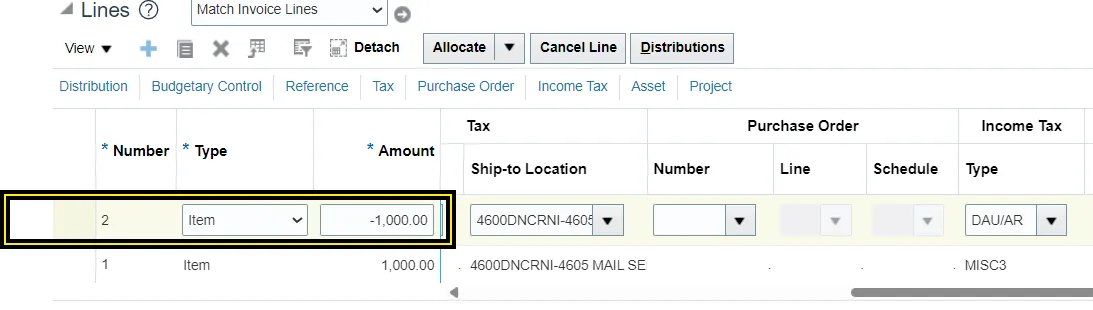
Step 9. Click Save.

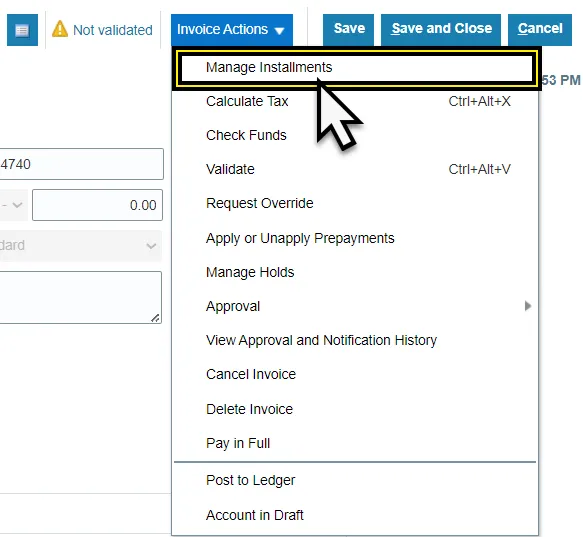
Step 10. Click the Invoice Actions drop-down menu.

Step 11. Select Manage Installments.
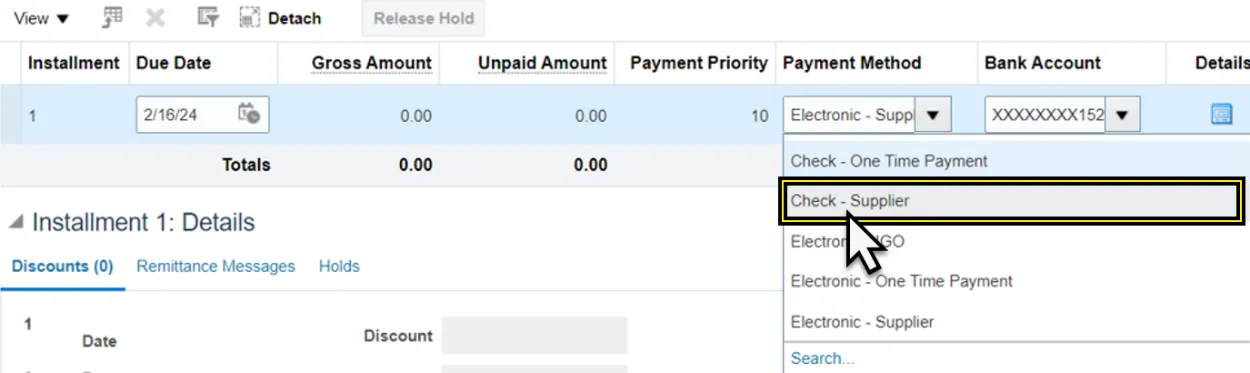
Step 12. Select Check Supplier option under Payment Method.
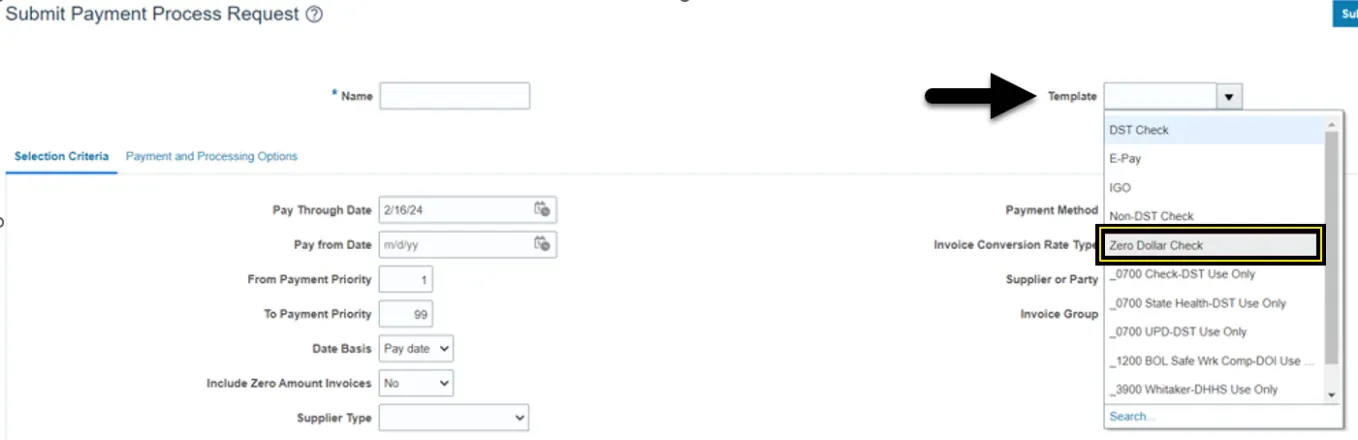
- When paying the Non-PO matched Zero Dollar invoice the Zero Dollar Check template will be used so that a $0 check is not printed when paying the Non-PO Zero Dollar invoice.
13. Click Save and Close.
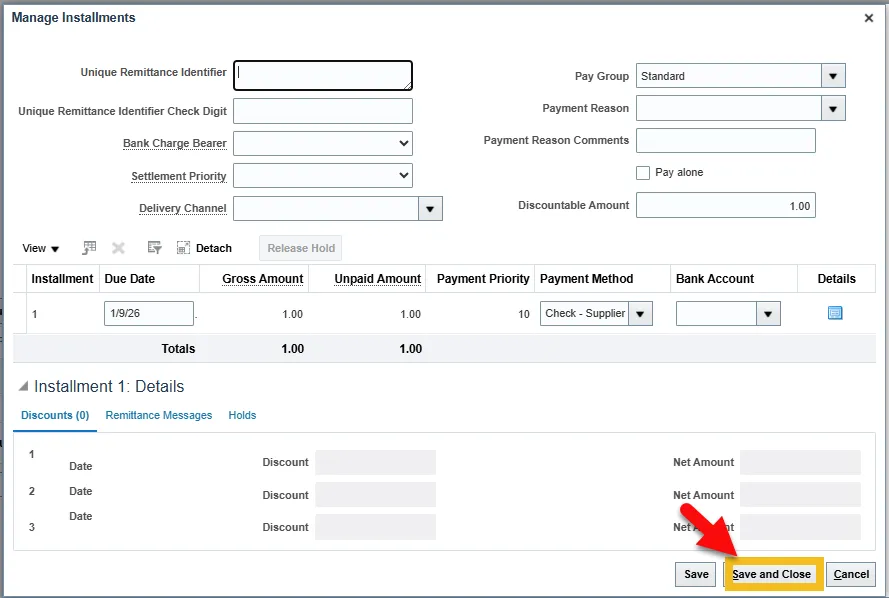
14. Return to the invoice page and click the Invoice Actions drop-down menu.

15. Select Validate.
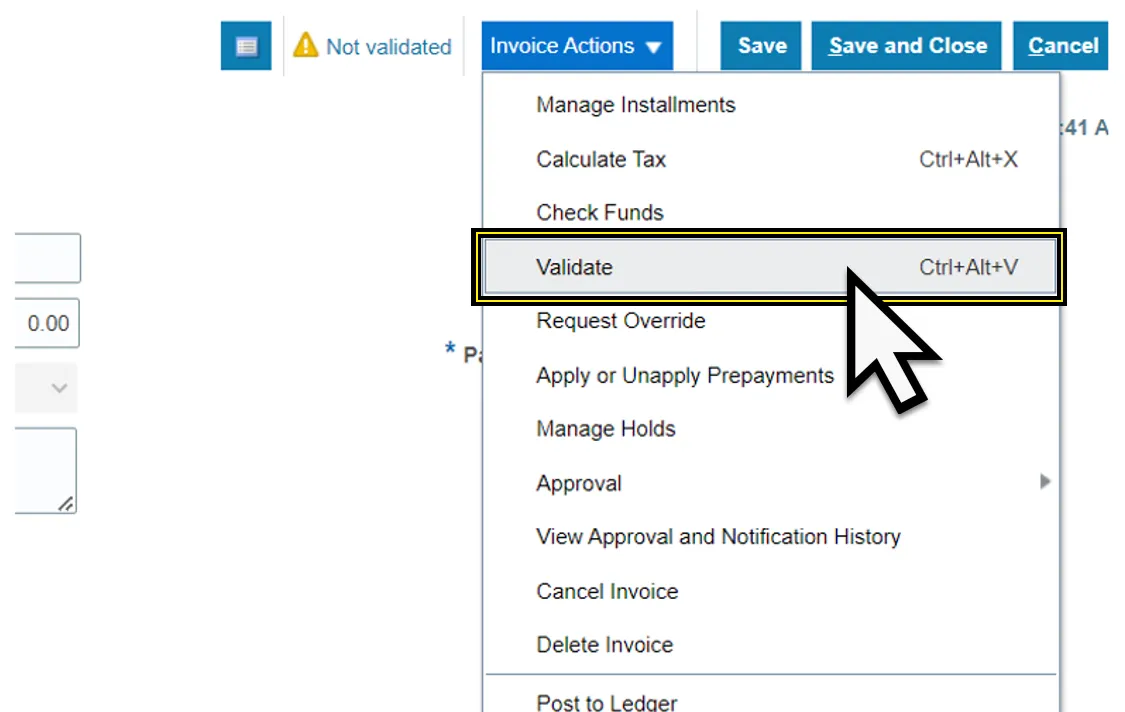
16. Click the Invoice Actions drop-down menu.

17. Select Approval and approve the invoice, based on your agency policy for the approval process.
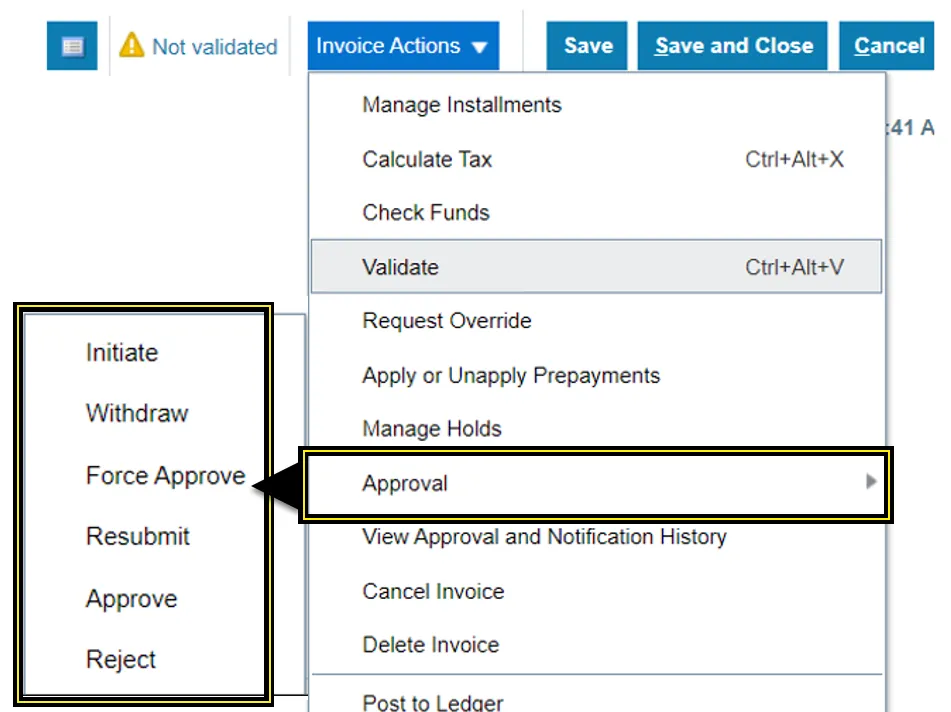
18. Click Save and Close. The process is complete.
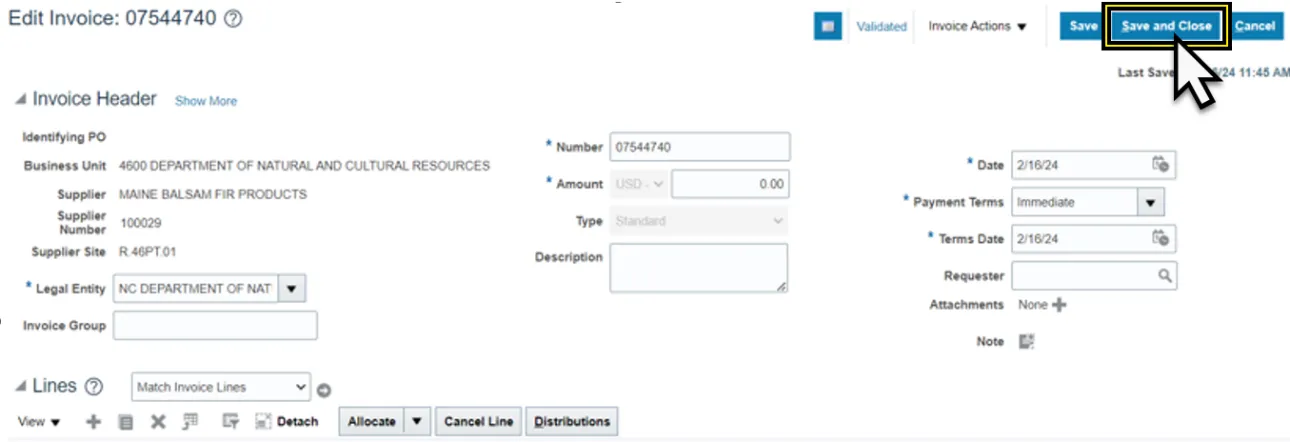
Payment Process Request (PPR) Template for Zero Dollar Invoices
There are 6 steps to complete this process.
Step 1. Login into NCFS using your credentials.
Step 2. Navigate to the Payables tab from the home page.
Step 3. Click the Payments app.
Step 4. Click the Tasks icon.
Step 5. Click Submit Payment Process Request from the Payments section of the Task panel.
Step 6. Select the Template – Zero Dollar Check. Use this template to pay zero-dollar invoices without checks being printed.
Note: Complete all the stages of the PPR. The PPR will not have to be approved by the cash management team. The PPR will be completed with a payment file that has no checks to print. This payment file does not need to be recorded.
Note: See NCFS QRG AP-09a: Create and Process Check Payments to see all the steps of creating a PPR.