Purpose
The purpose of this Quick Reference Guide (QRG) is to provide a step-by-step explanation of how to Update Suppliers in the North Carolina Financial System (NCFS).
Introduction and Overview
This QRG covers the maintenance of suppliers in NCFS, which will enable you to Update different Supplier date elements.
Update the Supplier
To update the supplier data elements in NCFS, please follow the steps below. There are 21 steps to complete this process.
Step 1. Log in to the NCFS portal with your credentials to access the system.
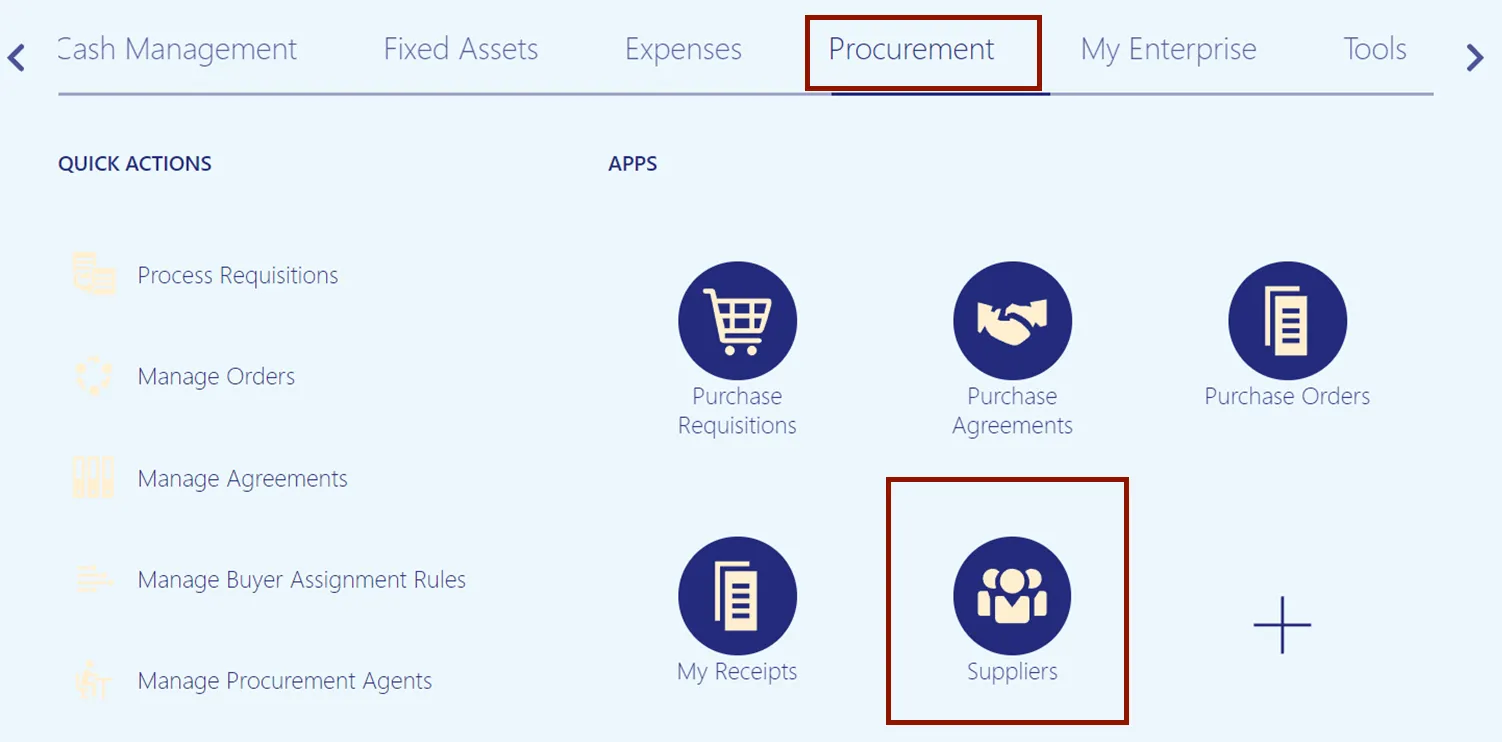
Step 2. On the Home page, click the Procurement tab, and then click the Supplier app.
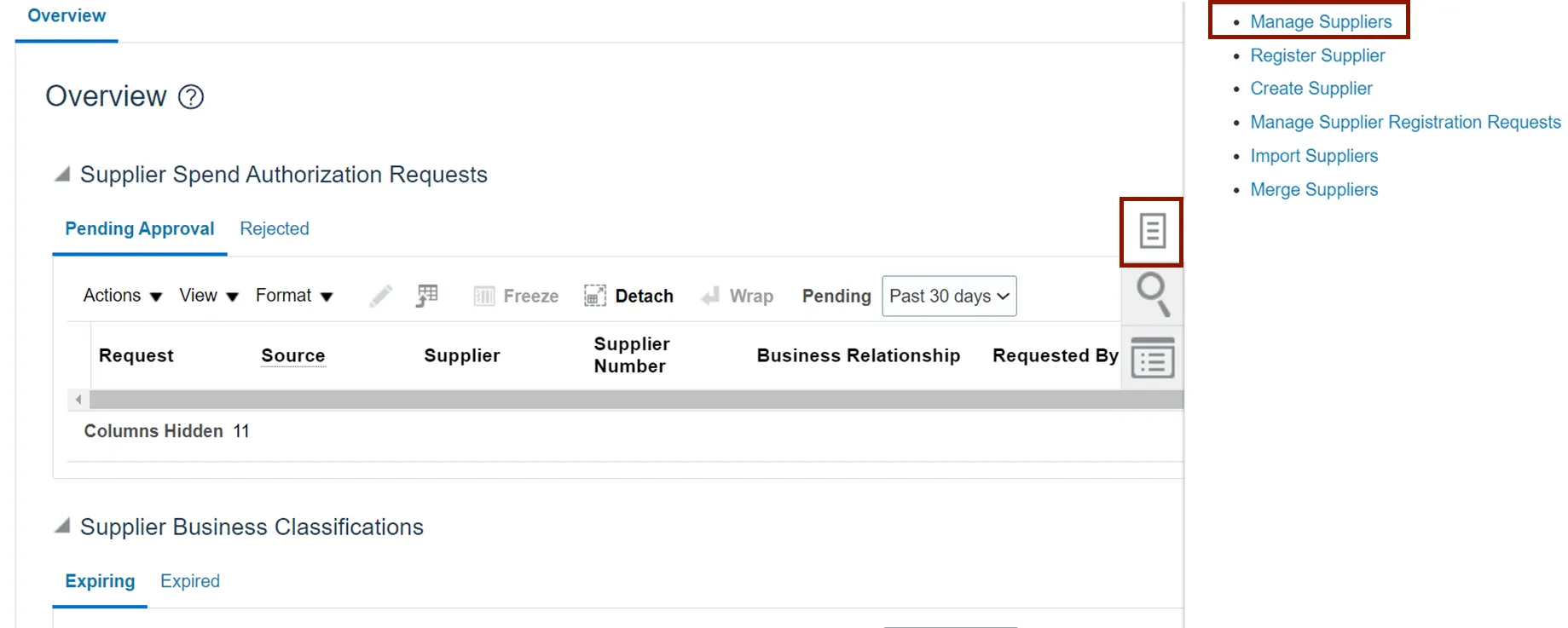
Step 3. On the Overview page, click the Tasks icon, and click Manage Supplier.
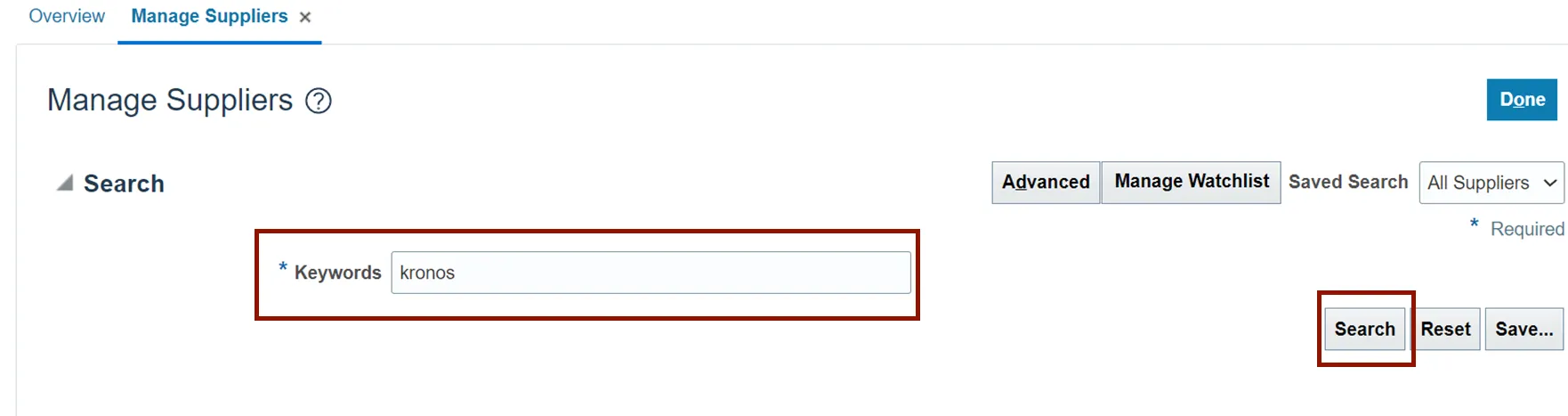
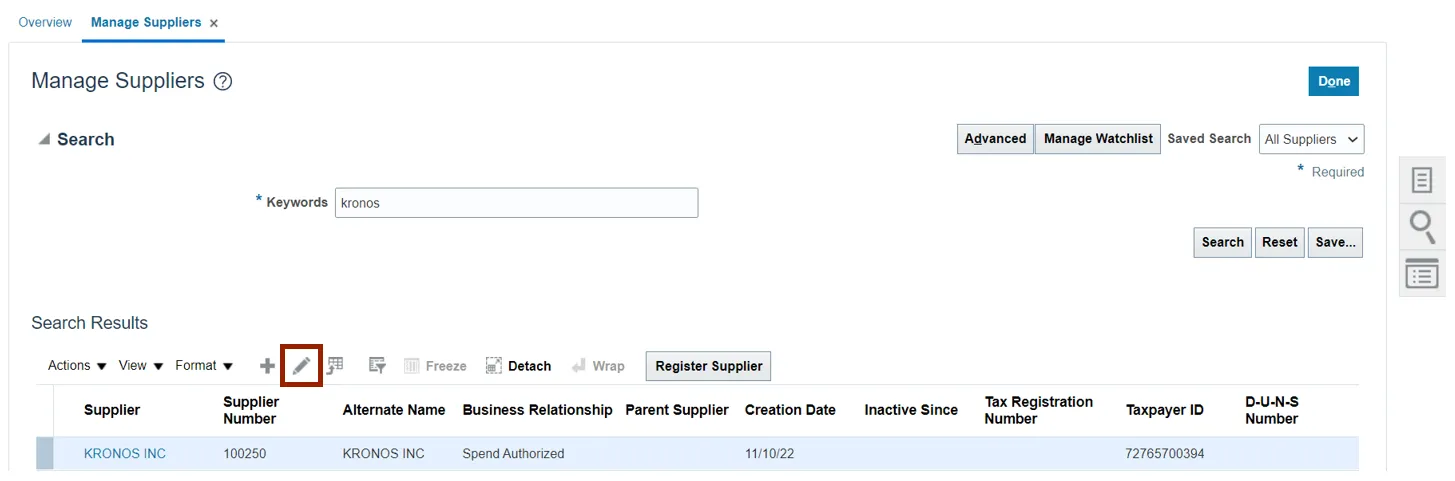
Step 4. Enter the keywords in the Keywords field.
In this example, we choose Kronos. Click the Search button.
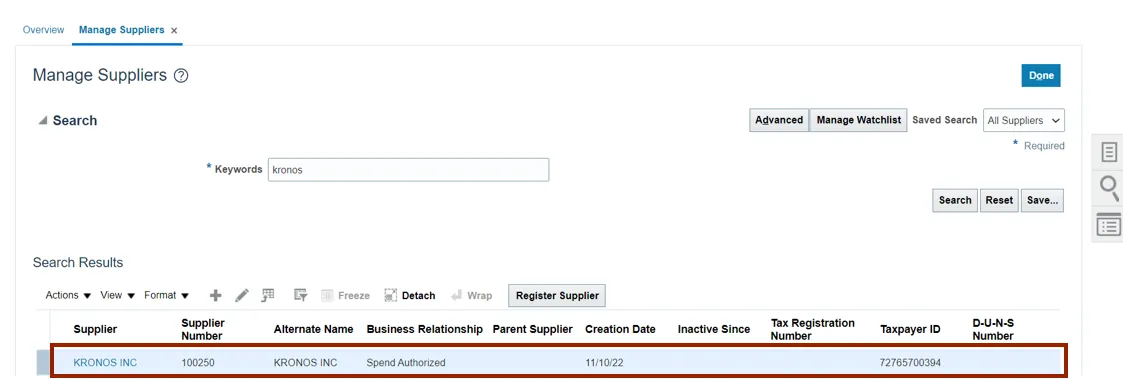
Step 5. The Supplier is displayed in the Search Results section.
Step 6. Click the Edit icon.
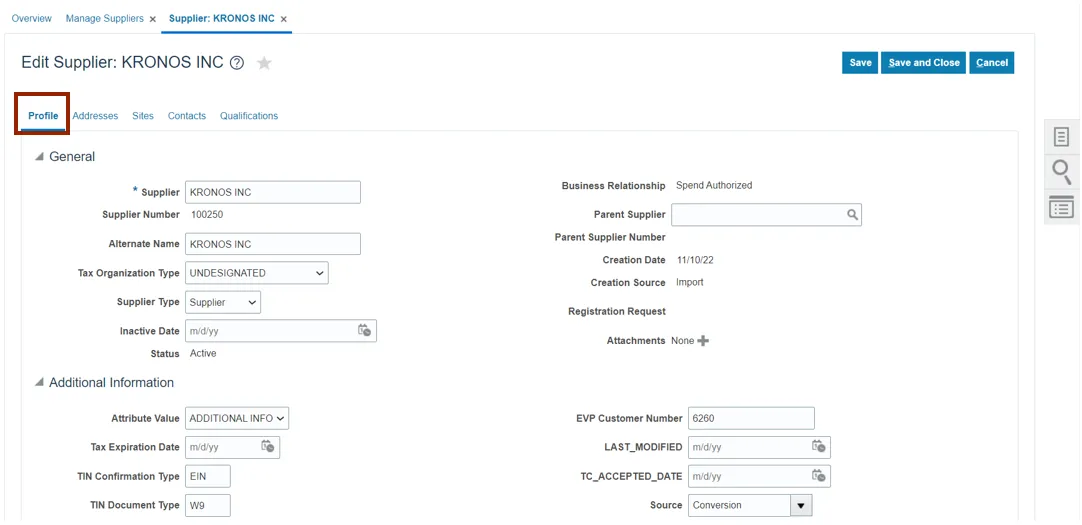
Step 7. Click the Profile tab and make edits to the Supplier if required.
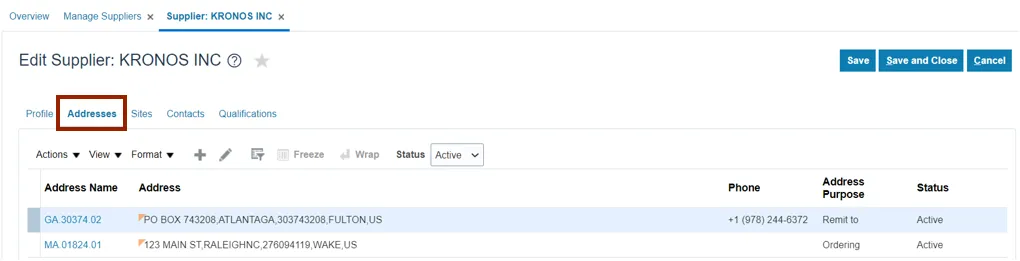
Step 8. Click the Addresses tab.
Step 9. Click the Edit icon.
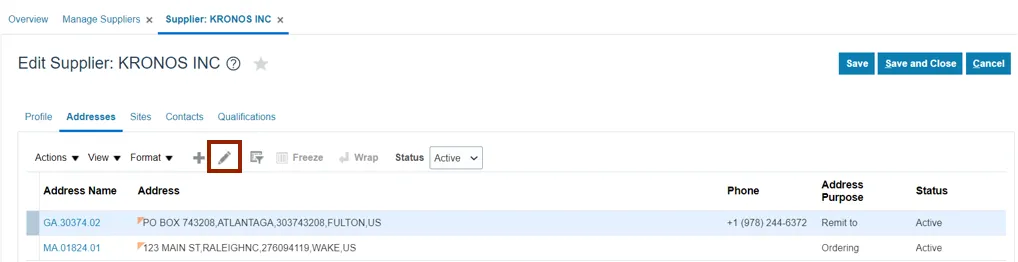
Step 10. Edit the Address section if required and click the Save and Close button.
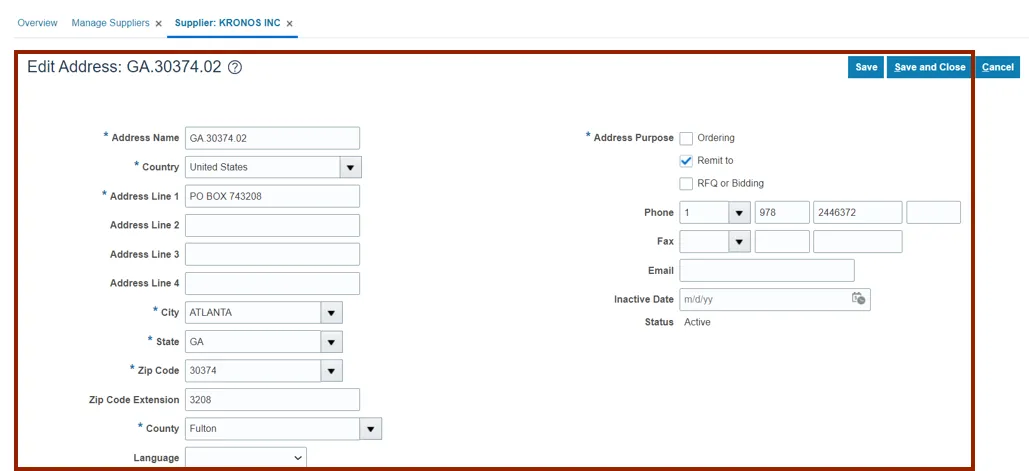
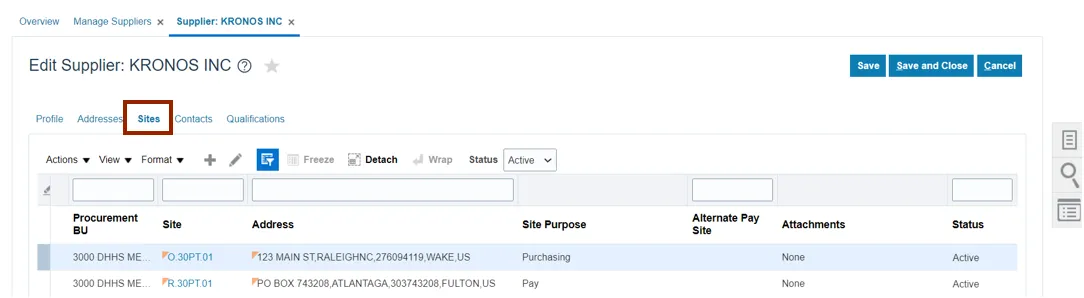
Step 11. Click the Sites tab.
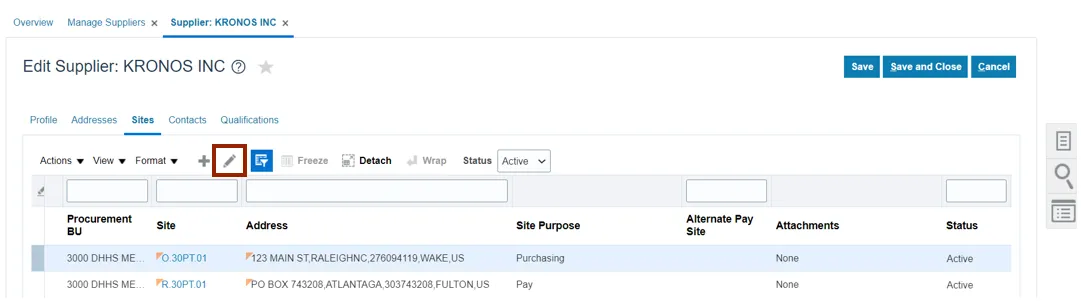
Step 12. Click the Edit icon.
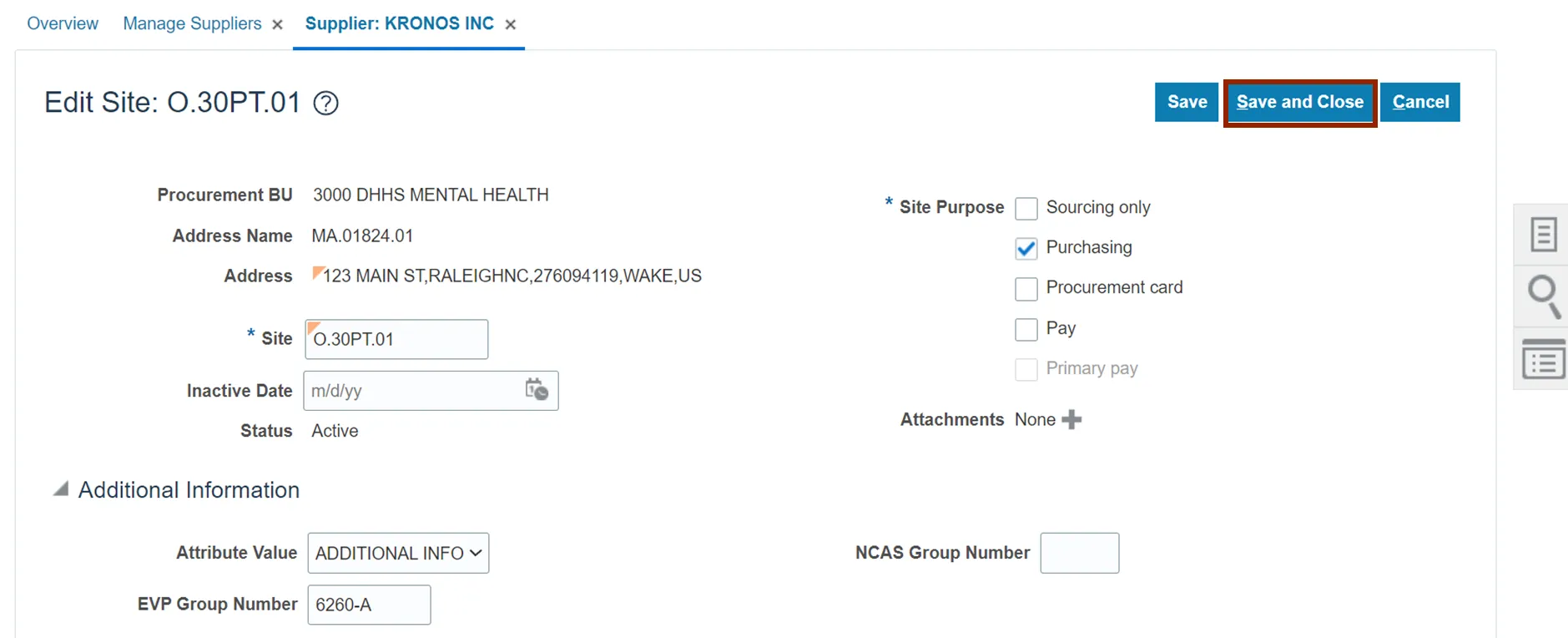
Step 13. Edit the Supplier Site if required.
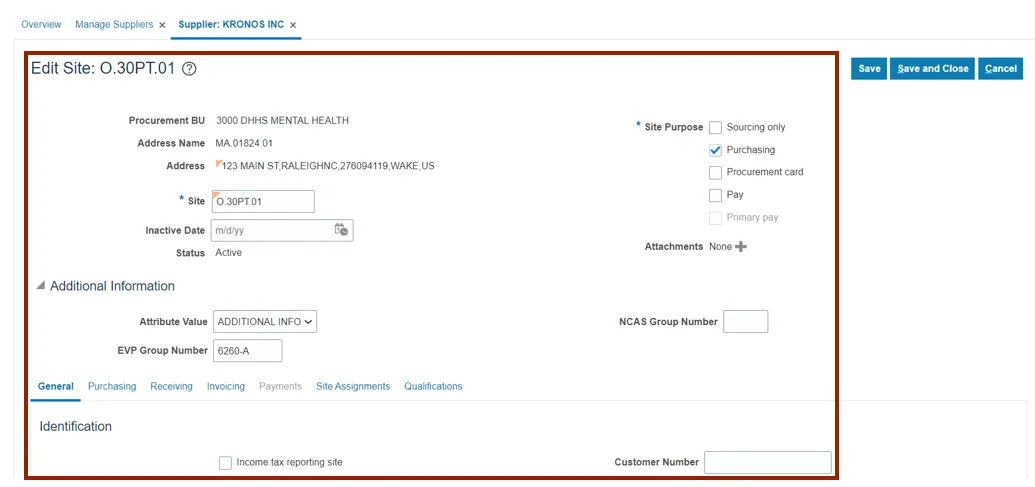
Step 14. Click the Save and Close button.
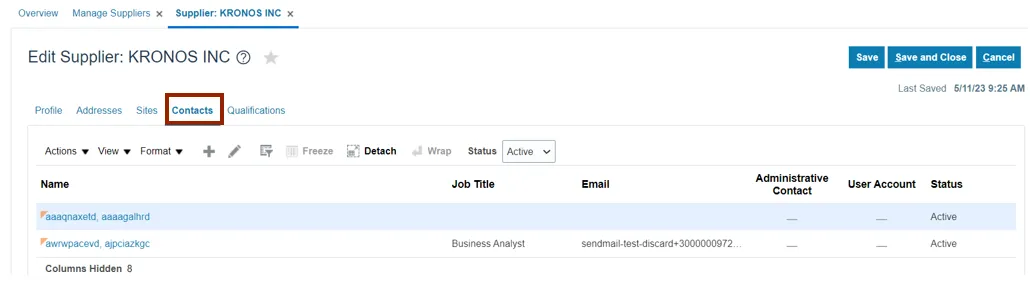
Step 15. Click the Contacts tab.
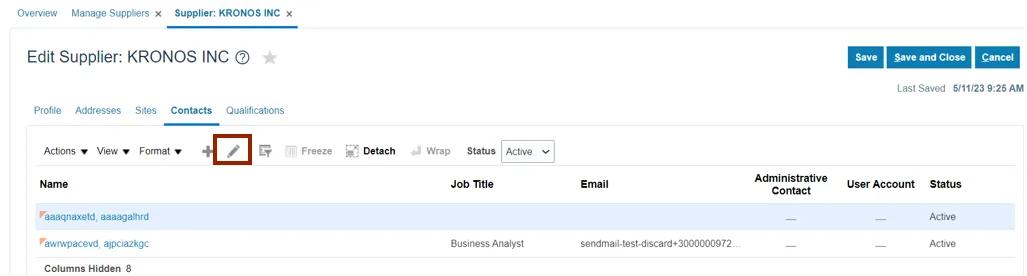
Step 16. Click the Edit icon.
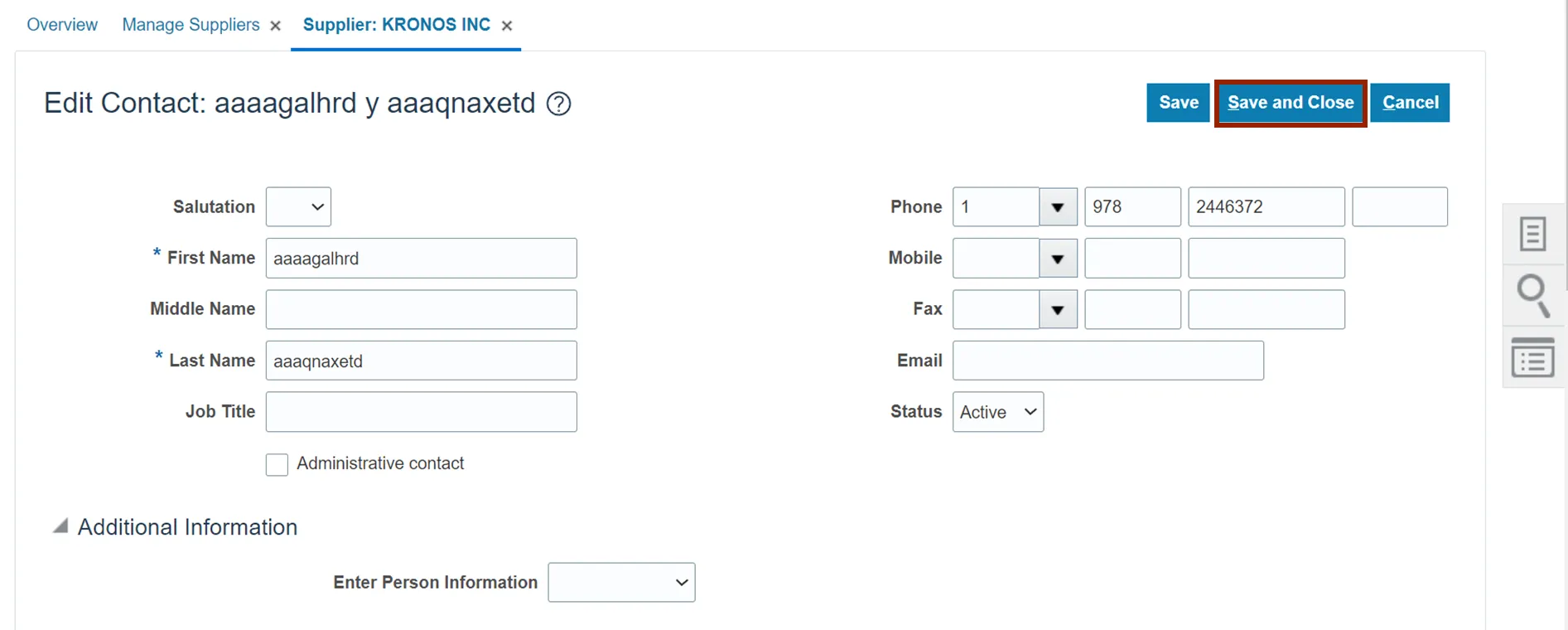
Step 17. Edit the Contact information if required.
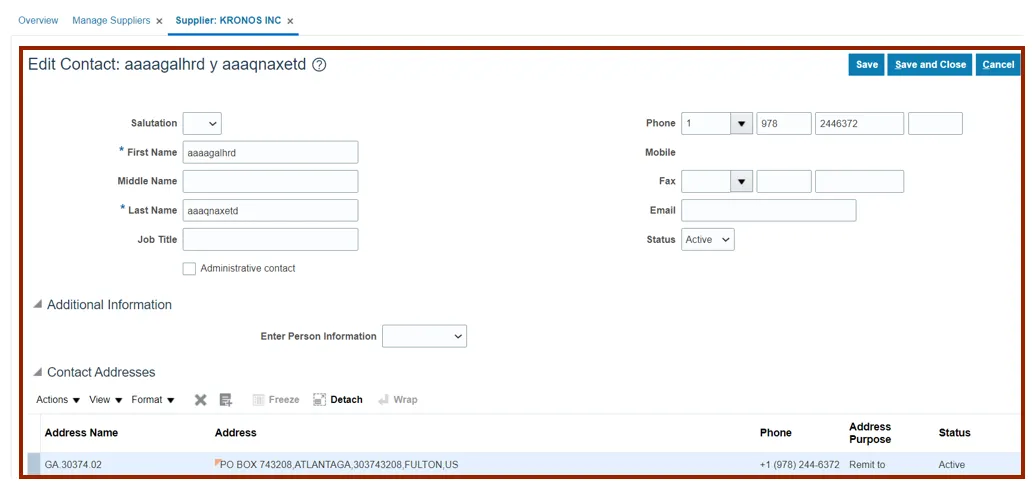
Step 18. Click the Save and Close button.
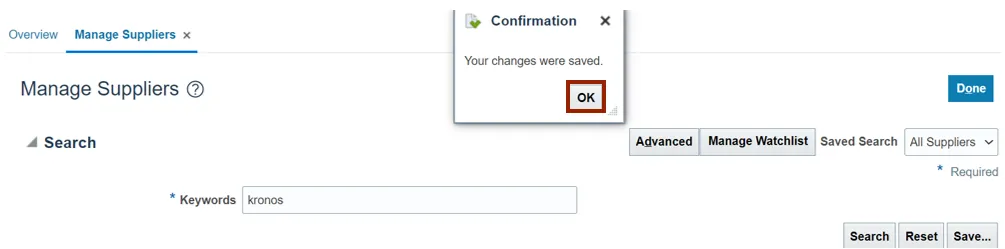
Step 19. The Confirmation pop-up appears. Click the OK button.
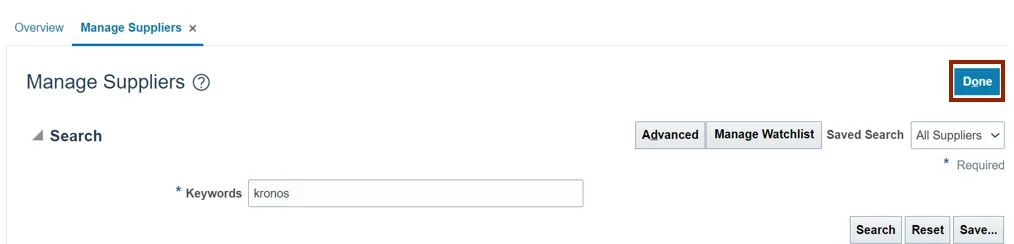
Step 20. Click the Done button.
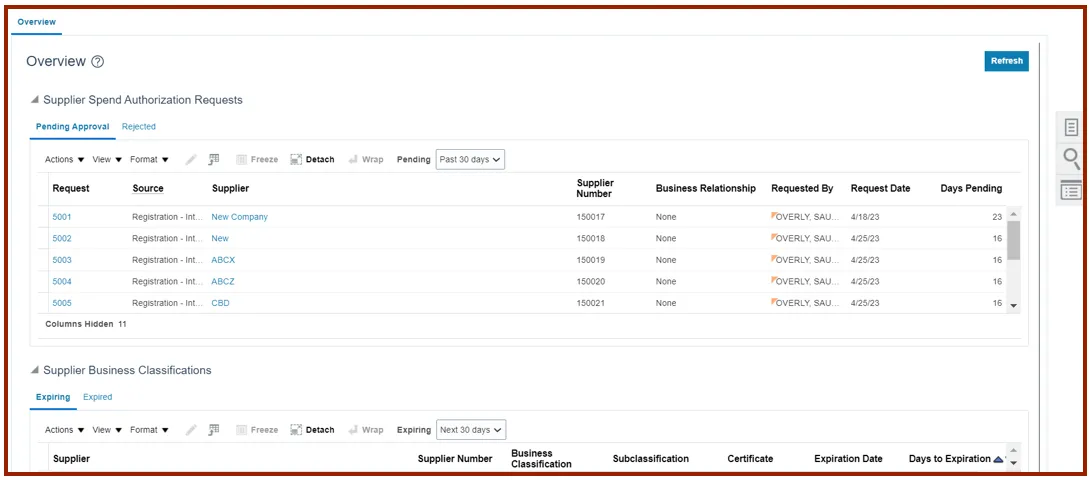
Step 21. The Overview dashboard displays.
Wrap-Up
Create and manage suppliers using the steps above to update the supplier registration request and update the supplier data elements.
Additional Resources
- Virtual Instructor-Led Training (vILT)