Purpose
The purpose of this job aid is to explain the Work Schedule Rule finder search tool to find work schedules on IT0007 via the WSR Finder button.
WSR Finder (IT0007)
To change a work schedule rule on an individual, process the change via the PA30 transaction code. Always use COPY to keep a record of the historical work schedules. This process is used only if an action isn’t required for the change.
There are 4 steps in this process.
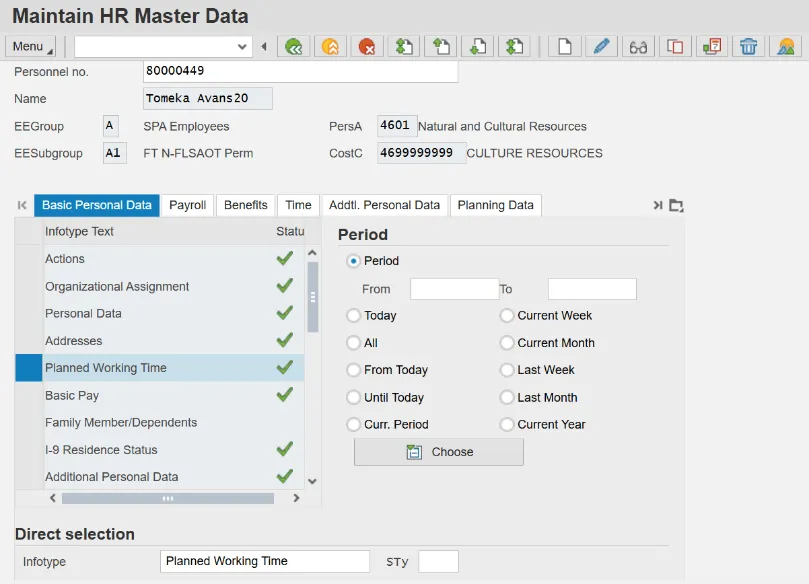
Step 1. In PA30, go to Infotype 0007 (Planned Working Times) and click the Copy button.
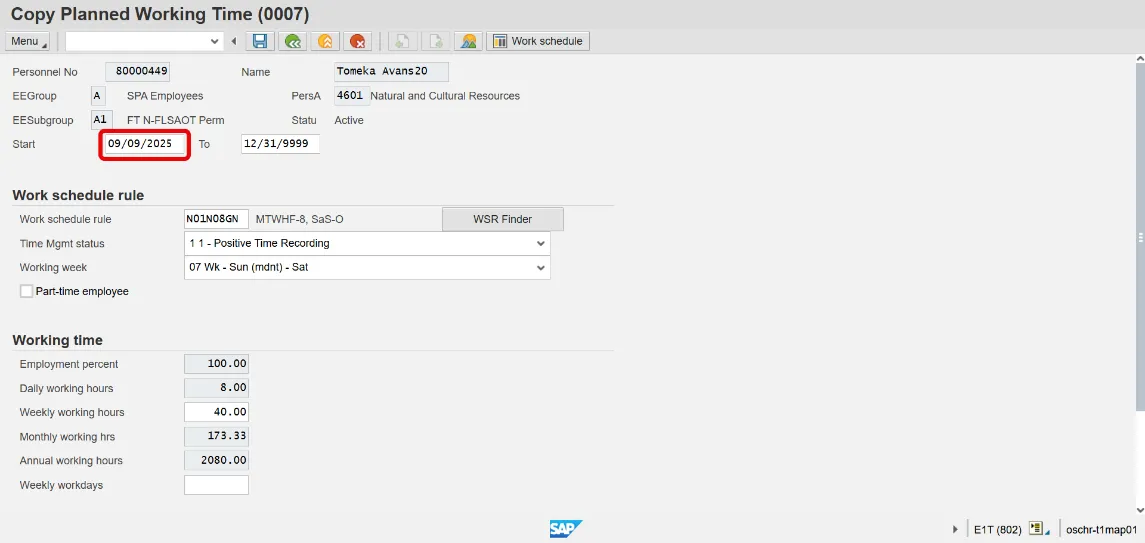
Step 2. Enter the Start date.
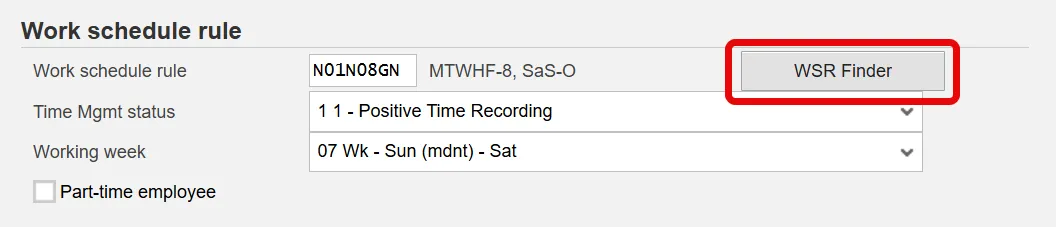
Step 3. Click the WSR Finder button to access the WSR Finder tab.
The WSR Finder tab is a tool for use in searching for a user specific work schedule rule.
Step 4. Search by applying the designated hours on the expected day in the Planned working hrs column.
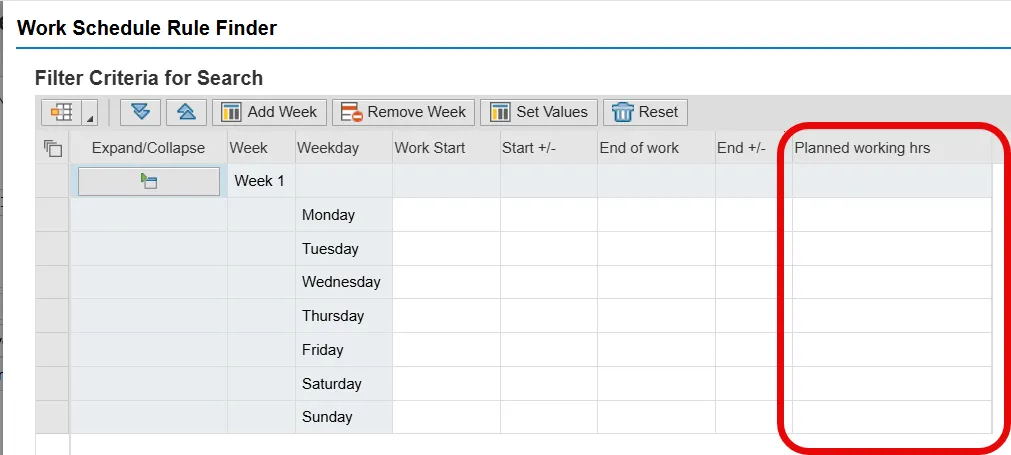
Note: The only usable searchable field is Planned working hrs.
SCENARIO: THE EMPLOYEE IS EXPECTED TO WORK 5.5 HOURS ON TUESDAY.
There are 3 steps in this scenario.
Step 1. Apply 5.5 hours on Tuesday in the Planned working hrs field and click the Execute Search button. After the search is executed, the work schedule rules containing the searched daily hours are displayed in list form.
Step 2. Choose the appropriate work schedule.
Step 3. Review the Time Mgmt status, Working week and Weekly working hours for correctness.
Access the PA job aid Change Work Schedule Rules for full work schedule rule change directions.