Purpose
The purpose of this Quick Reference Guide (QRG) is to provide Manual Bank Disbursement Account Monthly Reconciliation for Direct Agencies in the North Carolina Financial System (NCFS) from Oct-2023 forward.
The NCFS month ending balance for the disbursement account is calculated as follows:
- Prior Month Ending Balance
- Plus +: Requisitions (payments issued for the month)
- Less -: Payments cleared for the month
- Less -: Payments voided for the month
- Equals: Month Ending Balance for the Current Month
Once the NCFS month ending balance for the current month is calculated, it should be compared to the DST Statement of Account ending balance for the disbursement account to ensure both systems are in balance.
Prior Month Ending Balance (Sep-23)
To ascertain the prior month ending balance, use the MM170-1 CK RECONCILIATION report series dated 10/02/2023 and search for report AP-R002A. The TOTAL CURRENT OUTSTANDING amount on the report will be the beginning balance for the Oct-23 bank reconciliation.
Requisitions (Payments Issued for the Month)
There are 2 steps to complete this process.
Step 1. In NCFS, run the NC Daily Disbursements (Requisition) Report (RPT-CM-010) with the following parameters:
- Journal Status: Posted
- Journal Creation – From Date: (for Oct-23 use 10/01/2023)
- Journal Creation – To Date: (for Oct-23, use the current date)
Step 2. View and filter the report output:
- Filter the Posting Date column (column J) for the month being reconciled (for Oct-23 use 10/* to filter).
- Filter the Disbursement Account column to exclude payroll account 2000299 (column F).
- If there is more than one disbursement account for an agency, filter for the account being reconciled.
- Filter the Payment Method column to exclude all but:
- Check [select all types]
- (Blanks)
- Note: E-Pays are processed through a different disbursement account.
- Use the Excel AutoSum function to calculate Budget Code Amount (column G), this total should equal the CMCS REQUISITION IN on the DST Statement of Account.
- If there are no negative requisitions, then the CREDITS total on the DST Statement of Account should equal the disbursement report total.
- For Oct-23, any duplicate requisitions submitted to CB$ for Oct-23 must be subtracted from the DST Statement of Account requisition totals to reconcile the requisitions. The CB$ corrections for Oct-23 duplicates have been processed in Nov-23 and will be an adjustment users will need to account for in reconciling Oct-23.
Payments Cleared for the Month
There are 4 steps to complete this process.
Step 1. Run the Oracle-delivered Bank Statement Report in NCFS to obtain a list of checks cleared during the month in NCFS. Use the following steps to generate the report:
- From the Home page, navigate to the Overview page: Cash Management > Bank Statements and Reconciliation.
- In the Overview screen, use the task list to run the Bank Statement Report under the Reports section.
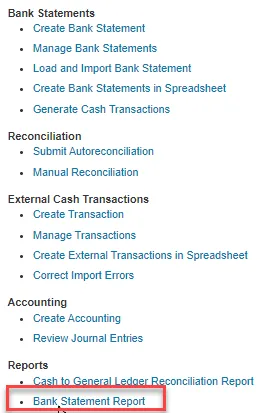
- Within the Basic Options section, enter the following information:
- Bank Account: Select the appropriate bank disbursement account.
- From Statement End Date: Select the first day of the month being reconciled (for Oct-23 select 10/01/2023).
- To Statement End Date: Select the last day of the month (for Oct-23 select 10/31/2023).
- Click on the Submit button at the top right of the screen.
- A confirmation notice is generated. Record the Process number.
Step 2. View and Republish the output of the Bank Statement Report:
- Navigate to: Home Page > Tools > Scheduled Processes
- Expand the Search function at the top of the page, enter your Process number in the Process ID field.
- Click the Search button. The following result should be displayed.

- Select your row by clicking on any field in this row.
- Scroll down to the Output & Delivery section at the bottom of the page.
- Click on the Republish link.

Step 3. Download the report, click on the Actions icon, then select Export, then CSV.
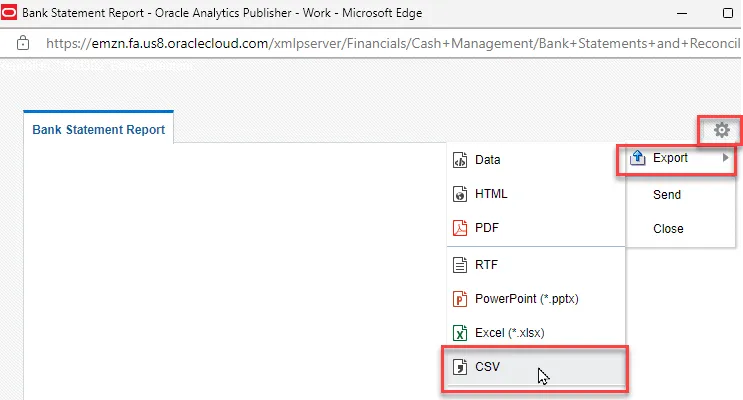
Step 4. Convert the report output to Excel. Refer to the “How to Convert a CSV File to Excel“ instructions which are at the end of this QRG.
Note: The total amount from the Excel file represents the total amount of checks cleared from the disbursement account. This amount should equal the checks cleared on the DST Statement of Account report.
Identifying External Voided Payments (Imported from NCAS)
To generate a list of voided payments that were imported into NCFS from NCAS, use the following steps. There are 4 steps to complete this process.
Step 1. Click on Manage Transactions from the task list under External Cash Transactions.
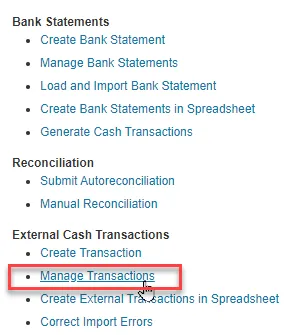
Step 2. On the Manage External Transactions page, select the following search criteria from dropdown choice lists:
- Bank Account
- Status (of payments) = Voided
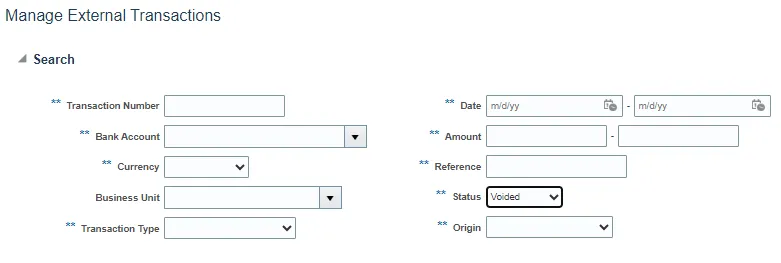
Step 3. Click the Search button.
Step 4. The list of voided external payments is displayed and can be exported to Excel.
Calculating the Ending Disbursement Account Balance
The NCFS month ending balance for the disbursement account is calculated as follows:
- Prior Month Ending Balance
- Plus +: Requisitions (issued payments for the month)
- Less -: Payments cleared for the month
- Less -: Payments voided for the month
- Equals: Month Ending Balance for the Current Month
The NCFS month ending balance for the current month should equal the DST Statement of Account balance for the month, assuming there are no exceptions or timing differences.
Note: The following sections of content contain helpful information which is indirectly related to the monthly manual disbursement bank account reconciliation process.
Identifying Exceptions
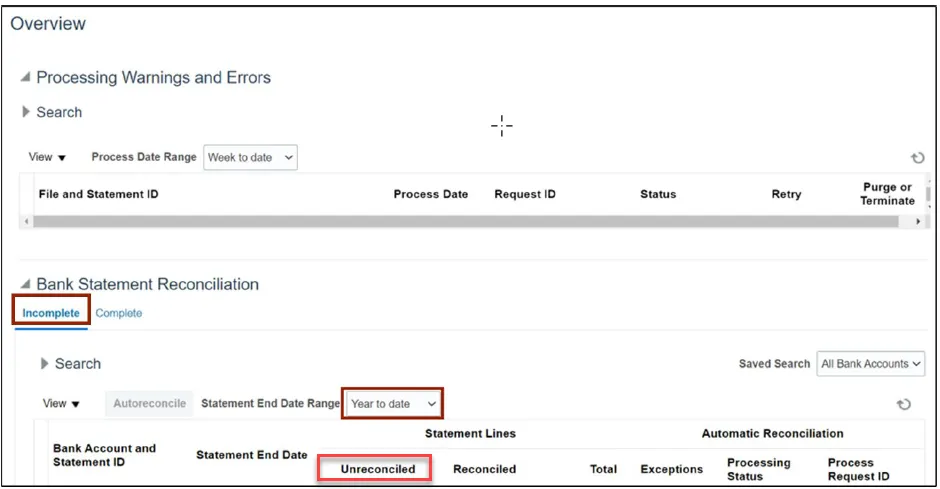
From the Overview page, click on the Incomplete tab within the Bank Statement Reconciliation section.
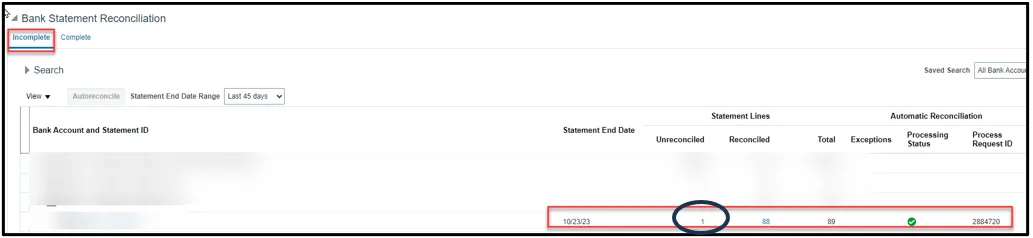
Any Bank Account that contains a number in the Unreconciled column, indicates that there was either:
- A check number (reference) that could not be found in the outstanding check list or
- A check cleared for an amount other than that listed as a payment transaction.
For each exception, expand the Bank Account and then click on the Statement ID hyperlink to display the details of each incomplete bank statement. Exceptions are rare.
Payments Issued from NCFS
Payments issued should equal the requisitions total:
- For Oct-23, NCAS AP payments issued between 10/01 – 10/05 will not be included in the MM170-1 reports but were exported into NCFS as external payments. These payments can be identified by exporting the external payments and filtering on an Issue Date in October.
- After Oct-23, checks issued from NCFS AP should equal the amounts disbursed as requisitions.
To generate a list of payments issued from NCFS for a specific period, run the NC AP Cash Disbursements Report (RPT-CM-045). Report parameters for a specific month include the following:
- Disbursement Bank Account Number: Select the appropriate bank account if multiples exist.
- Payment Process Request Status: Payments completed
- Payment Method: Check (all check options)
- Payment From Date: First day of month being reconciled – 10/01/2023
- Payment To Date: Last day of month being reconciled – 10/31/2023
The NC Outstanding Check Report (RPTAP005) can be scheduled monthly to obtain the total of uncleared checks from NCFS. This report must be scheduled to run the evening of the last day of the month or early in the morning of the first day of the month to get the accurate balance for all the outstanding checks that should equal the bank statement ending balance for the month that is being reconciled.
Report parameters for a specific month include the following:
- Business Unit: Select your business unit.
- Disbursement Bank Account Number: Select the appropriate bank account if multiples exist.
- Payment From Date: 10/10/2023.
- Payment To Date: Last day of the month being reconciled.
When processing the monthly bank reconciliation be sure to check the incomplete tab to ensure that all the checks are being reconciled without any issue. In case you have unreconciled checks, this means that there is an issue with DST clearing file that will require some research. If you need help in researching submit NCFS ticket to NCFS@ncosc.gov.
How to Convert a CSV File to Excel
There are 4 steps to complete this process.
Step 1. Open a new Excel spreadsheet and select the following from the primary ribbon/menu:
- Data
- From Text/CSV
- Select the CSV file to be converted from File Manager
- Click on Import
- Under Data Type Detection, select Do Not Detect Data Types
- Click the Load button
- Under Table Design, select Convert to Range
- When the following message pops up, click the OK button

Step 2. Delete the first row to remove the Column Numbers.
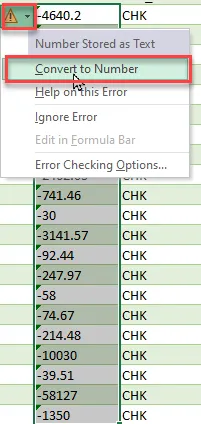
Step 3. Convert the amounts to numbers.
Step 4. Use the Excel AutoSum function to calculate the total amount.