Purpose
The purpose of this Quick Reference Guide (QRG) is to provide a step-by-step guide how to Save and Share a Report in Oracle Analytics Cloud (OAC) Classic.
Introduction and Overview
This QRG covers the process of saving and sharing a report in OAC Classic. Users can save reports in either My Folders or Shared Folders. My Folders is a personal workspace unique to each user for private report storage. Shared Folders allow users to share reports with designated agencies, such as OSBM, OSC, and the Fiscal Research Division.
Save and Share a Report
Follow the below steps to save and share a report in OAC classic. There are 8 steps to complete this process.
Step 1. To save a report, navigate to the desired report and perform the required analysis.
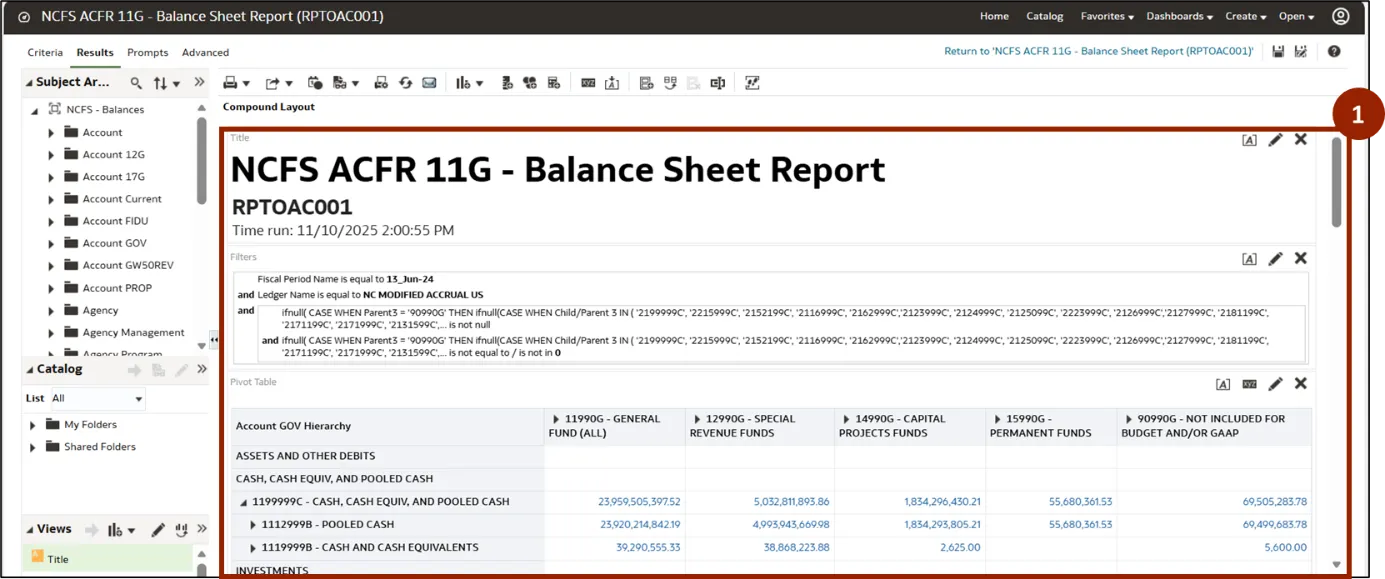
Step 2. Once the changes are complete, you can find the Save As icons in the top right corner to save your report.
- Save As icon - To save a copy of the report to My Folder or Shared Folder.
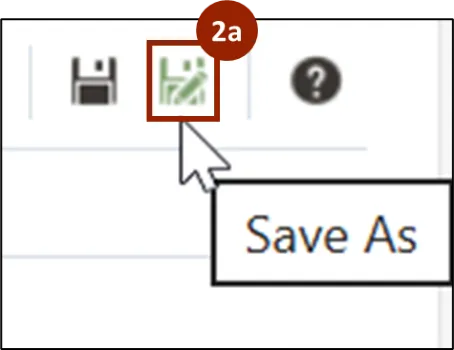
Step 3. If you would like to save a copy of the report in My Folder or the Shared Folder, click the Save As icon.

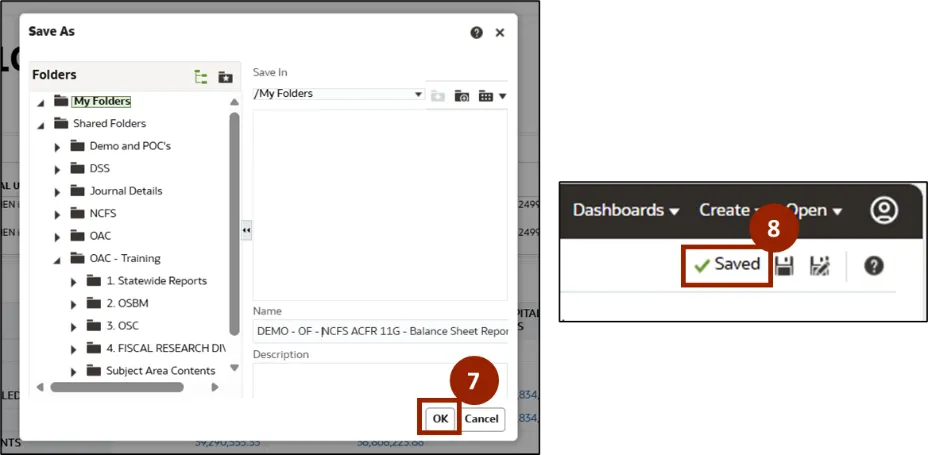
Step 4. A Save As pop-up window is displayed. Enter the name of the report in the Name field.
Step 5. Enter the required description in the Description field.
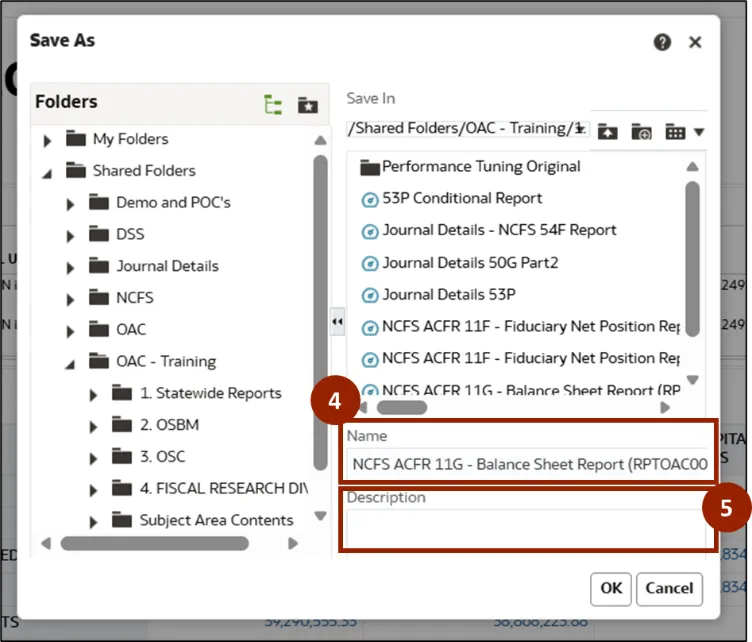
Step 6. The user can save the report in My Folders or Shared Folders:
- My Folders: This is a personal workspace unique to each user.
- Shared Folder: This enables sharing of the report with specific agencies such as OSBM, OSC, and the Fiscal Research Division.
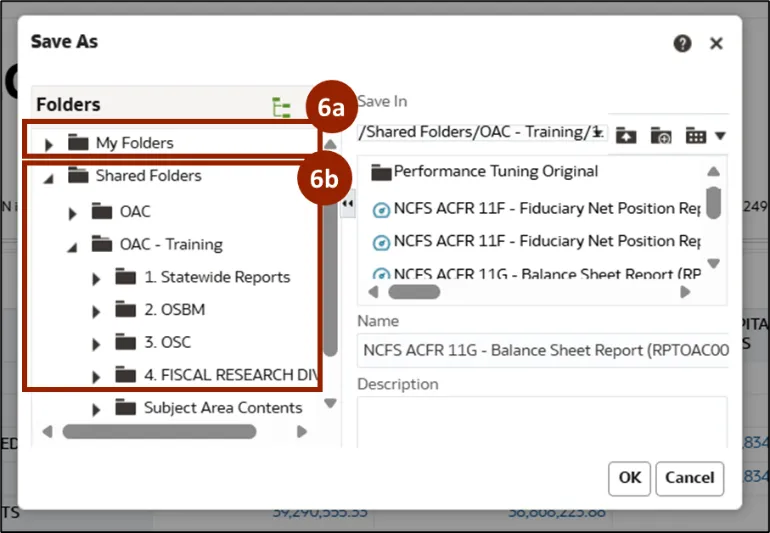
Step 7. After selecting the desired folder, click OK to complete the save process.
Step 8. After saving, a Saved message appears at the top of the report, confirming that a copy of the report has been successfully saved in the selected folder.
Note: The user can navigate to the folder where the report was saved (such as My Folders or Shared Folder) to view and access the saved report at any time.
Wrap-Up
Users can save and share a report in classic using the steps above by storing reports in My Folders for personal use or in Shared Folders for designated agencies.
Additional Resources
- Virtual Instructor Led Training (vILT)