Purpose
The purpose of this Quick Reference Guide (QRG) is to provide a step-by-step guide of how to create and update customer records, including recent system changes, benefits, process flows, and the maintenance of customer data in the North Carolina Financial System (NCFS).
Introduction and Overview
This QRG covers the process of running customer reports that are pre-built or ad-hoc analytics that draw data from Receivables tables to deliver a consolidated view of customer master data, transactions, credit/collections status, and audit changes. Running customer reports in NCFS allows users to efficiently access, analyze, and export vital customer information for business insights and decision-making.
Run Customer Reports
There are 20 steps to complete this process.
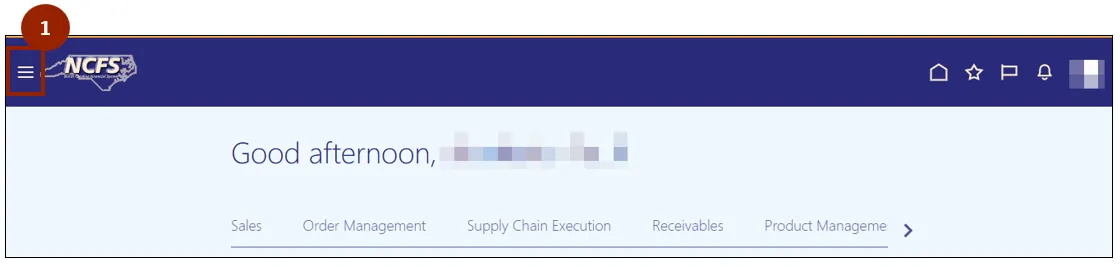
Step 1. From the Home page, click the Navigator in the upper left-hand corner.
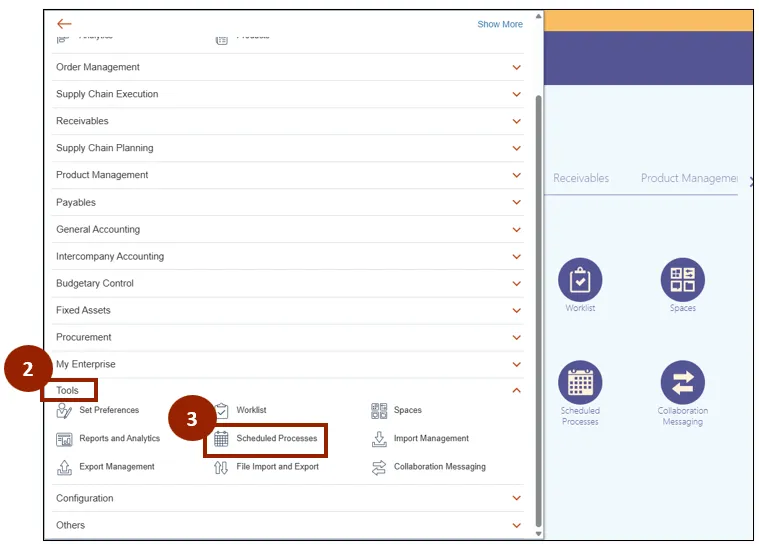
Step 2. Select Tools.
Step 3. Click Scheduled Processes.
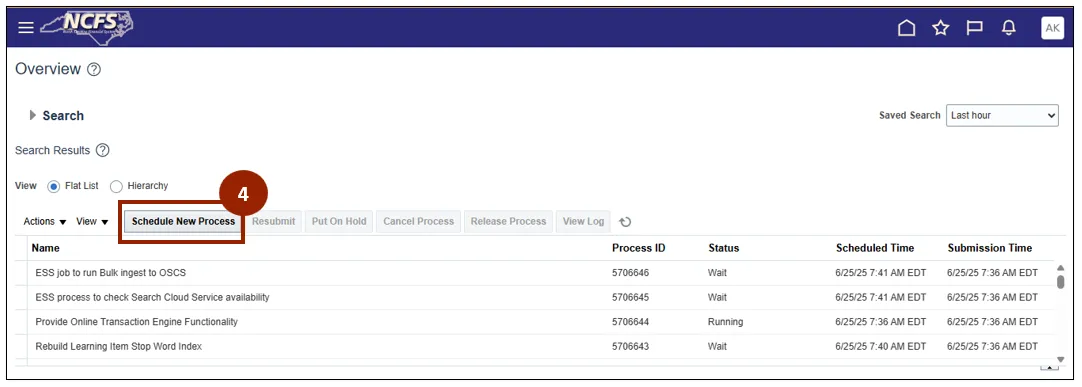
Step 4. On the Scheduled Processes Overview page, select Schedule New Process
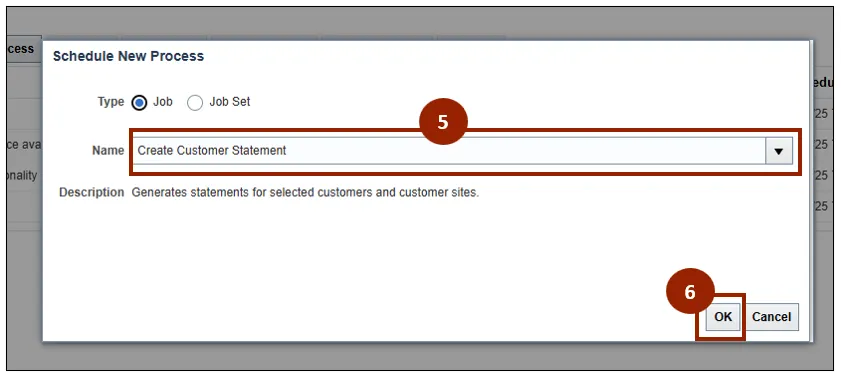
Step 5. In the Name field, enter keywords related to the customer report you want to run (e.g., Create Customer Statements), then select the appropriate report or process from the search results
Step 6. Click OK
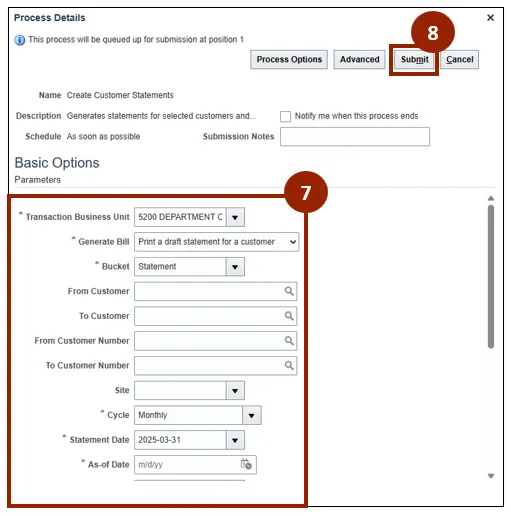
Step 7. In the Process Details window, enter the required information (*) in the following fields:
- Generate Bill
- Bucket
- From Customer
- To Customer
- Cycle
- Statement Date
- As-of Date
Step 8. Click Submit to run an ad hoc report.
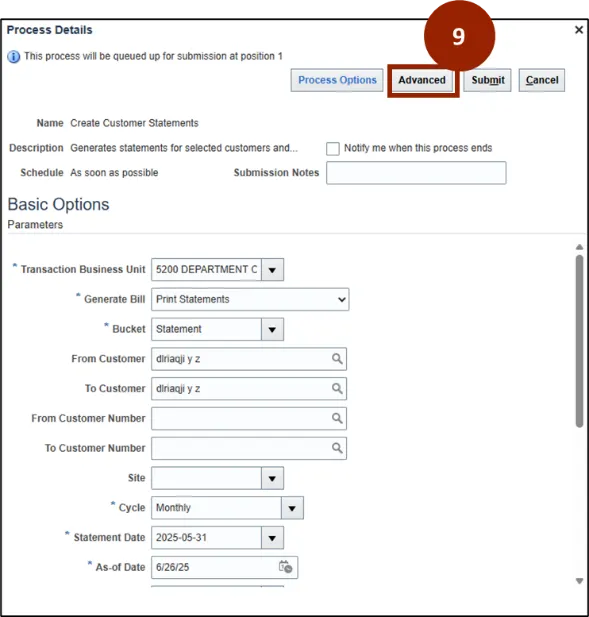
Step 9. Select Advanced.
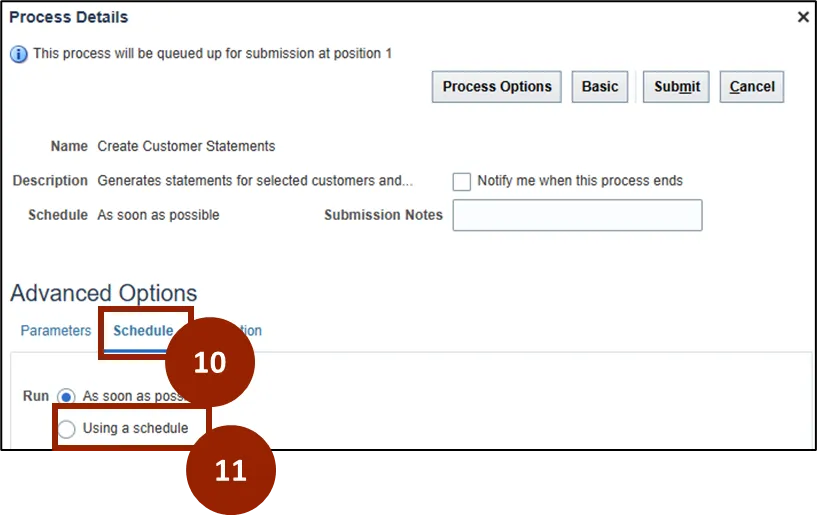
Step 10. Click Schedule to schedule the process.
Step 11. Select the Using a Schedule button.
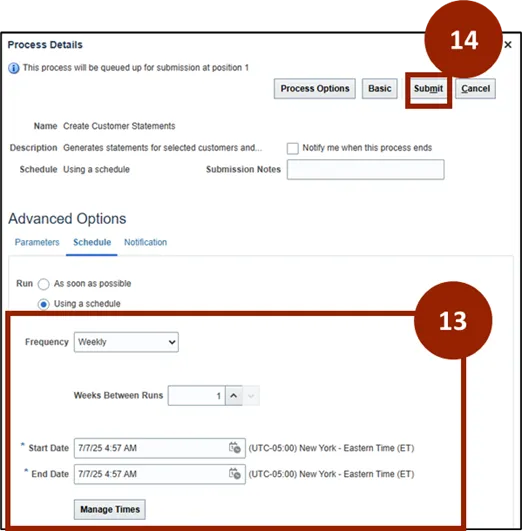
Step 12. In the Schedule section, select the desired frequency to run the customer reports
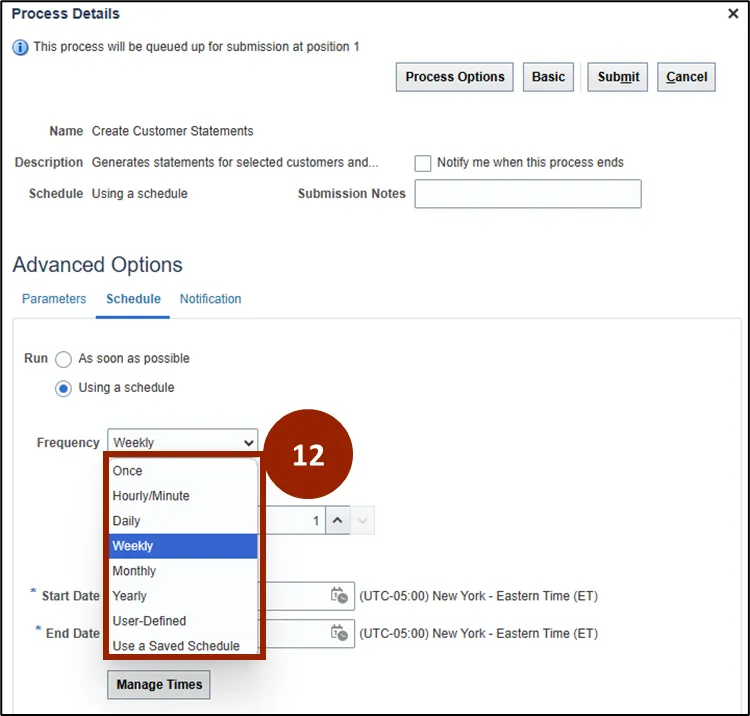
Step 13. Fill in the required details (i.e., Start and End Date).
Step14. Click Submit.
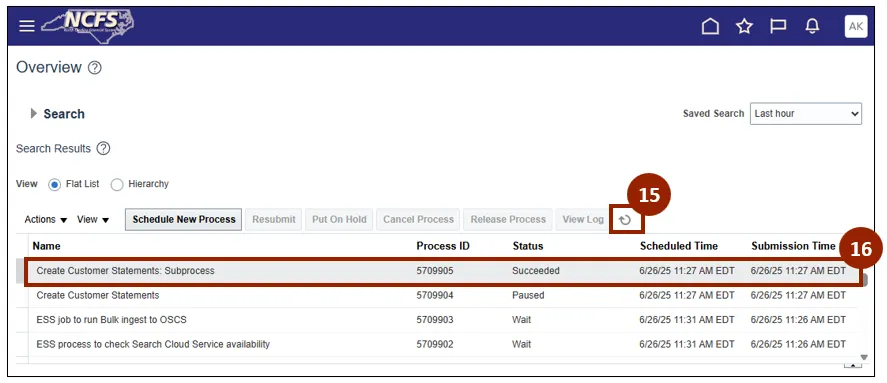
Step 15. The process will appear in the Scheduled Processes list. You can monitor the status here - Queued, Running, Succeeded, or Error.
Step 16. Refresh the list as needed to update the status.
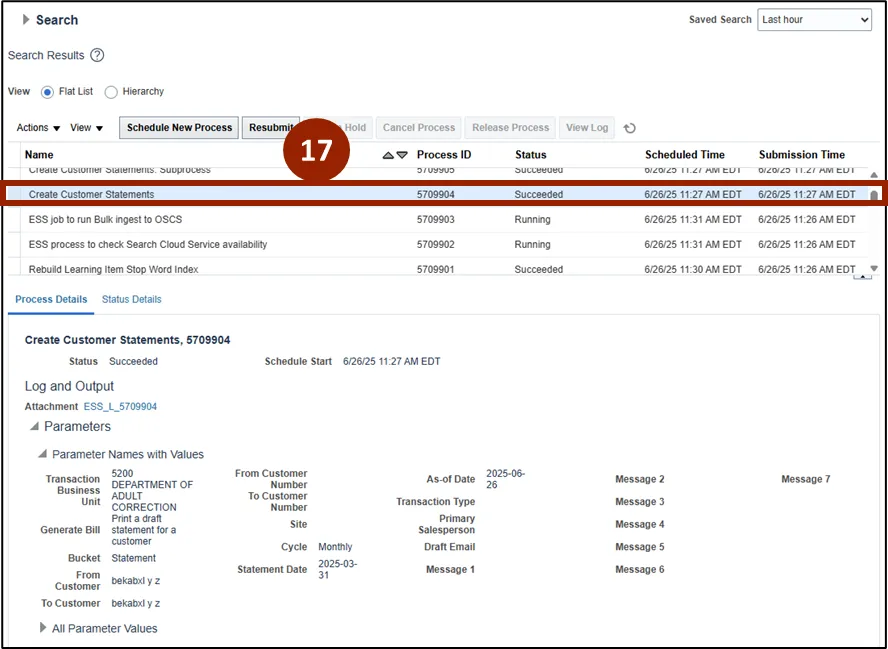
Step 17. Once the process status says Succeeded, select the process row.
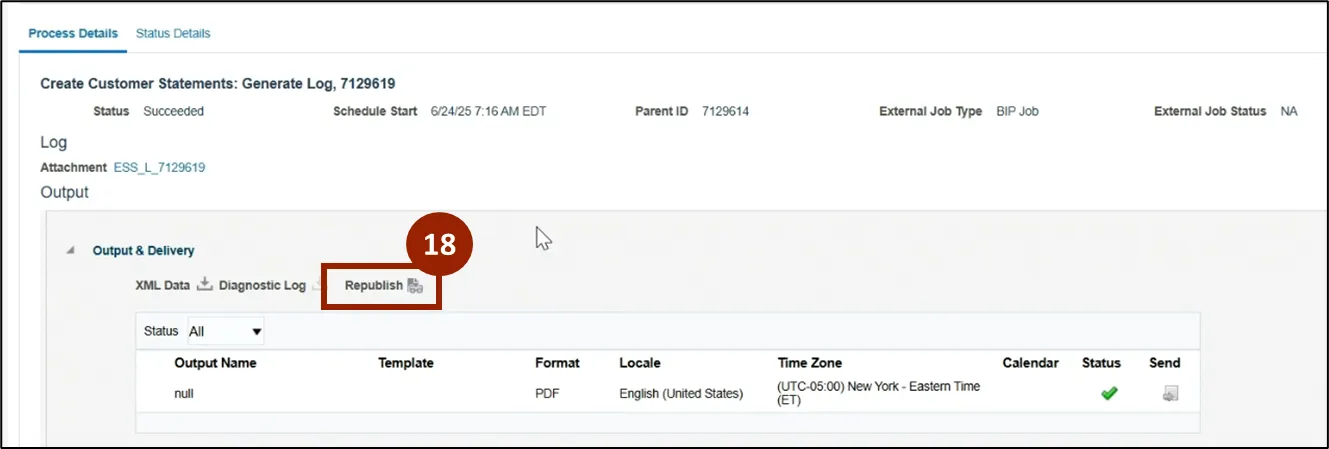
Step 18. Click Republish to access the report.
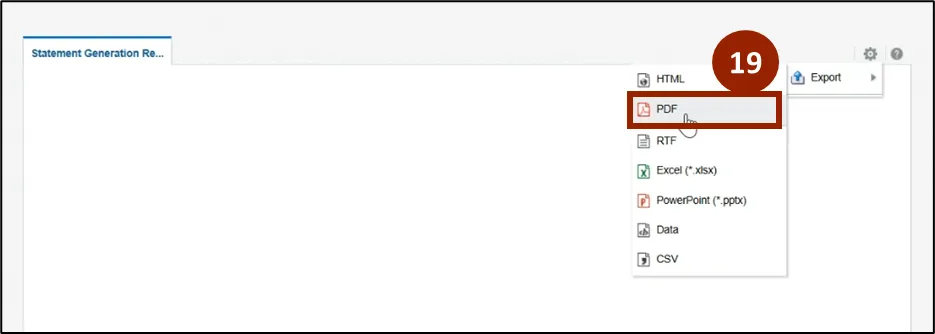
Step 19. Click your desired format from the Export drop-down list.
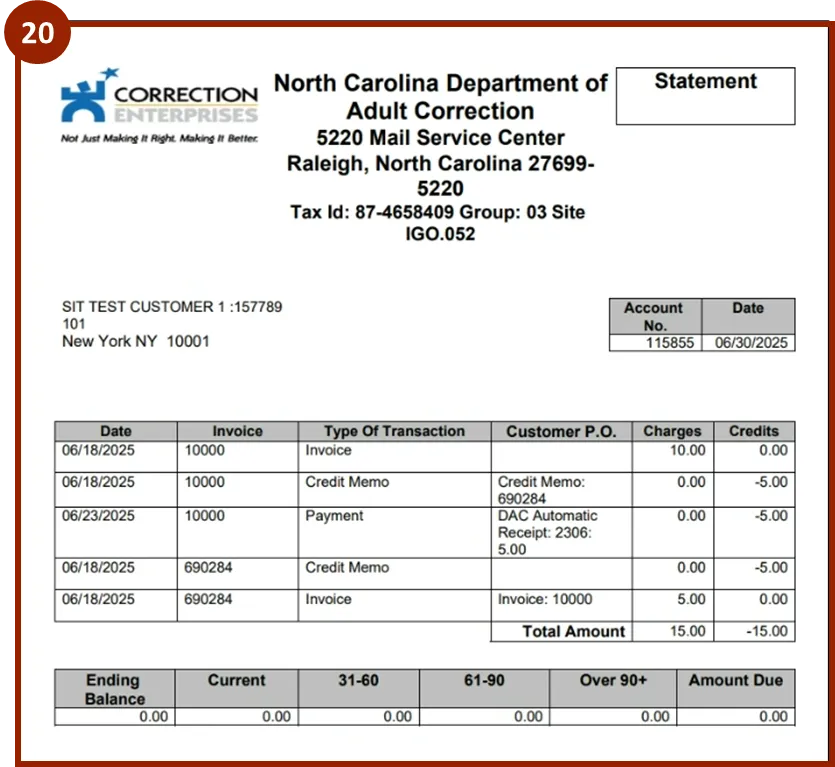
Step 20. The report will download in the selected format.
Wrap-Up
NCFS users can generate and retrieve customer reports in NCFS, schedule automated customer reports to run at daily, weekly, or monthly intervals, and export customer reports in multiple formats using the steps above.
Additional Resources
- Instructor Led Training (ILT)