Purpose
The purpose of this Quick Reference Guide is to provide a step-by-step explanation of how to Inquire on Movement Requests in the North Carolina Financial System.
Introduction and Overview
This QRG covers the procedure of inquiring on movement requests in NCFS which will enable you to create movement requests. The Movement Requests task should be used for inquiry only. No movement requests should be created, closed, or cancelled from this task page. Movement requests are created at the source of the transaction type and should be maintained from the original source.
Inquire on Movement Requests
To Manage Movement Requests in NCFS, please follow the steps below:
Step 1. Log in to the NCFS portal with your credentials to access the system.
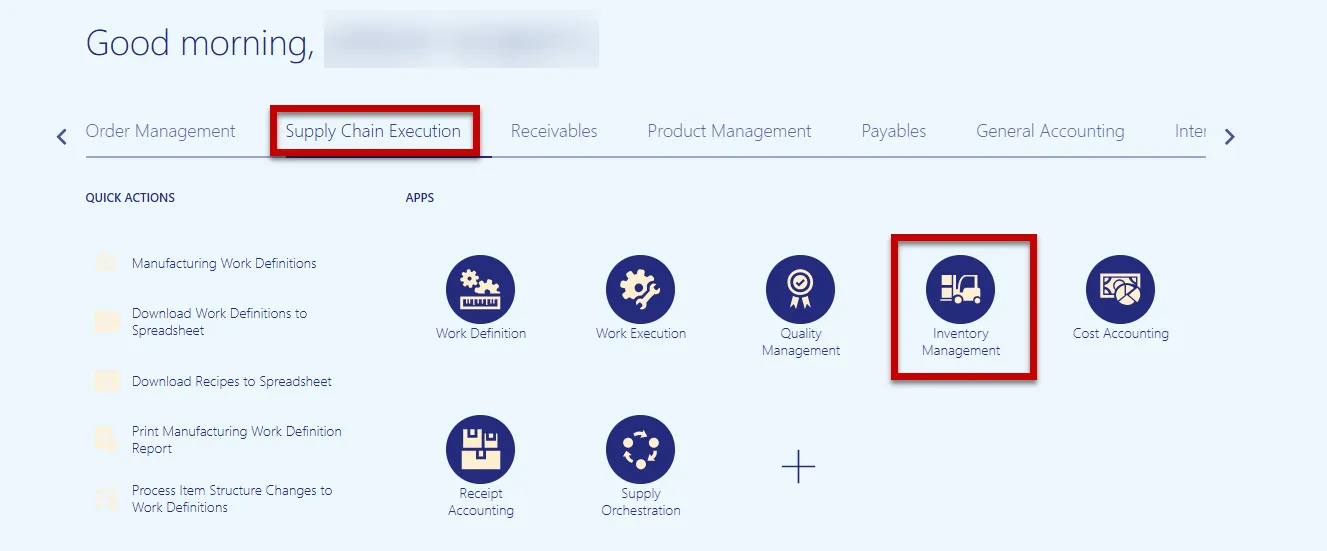
Step 2. On the Home page, click the Supply Chain Execution tab and then select Inventory Management.
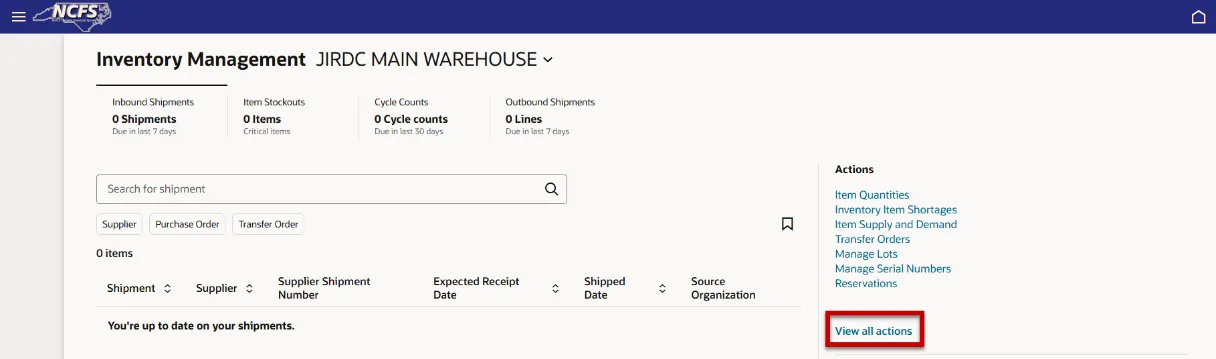
Step 3. On the Inventory Management dashboard, click View all actions hyperlink.
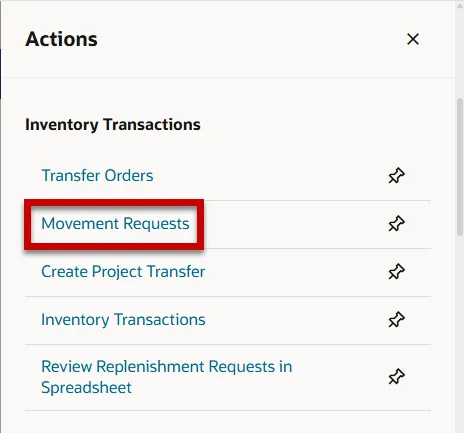
Step 4. The Actions window will appear, and under the Inventory Transactions section, select the Movement Requests task.
Step 5. Select the Movement Requests tab at the bottom of the page. This will allow you to view all movement request for your Inventory Organization.
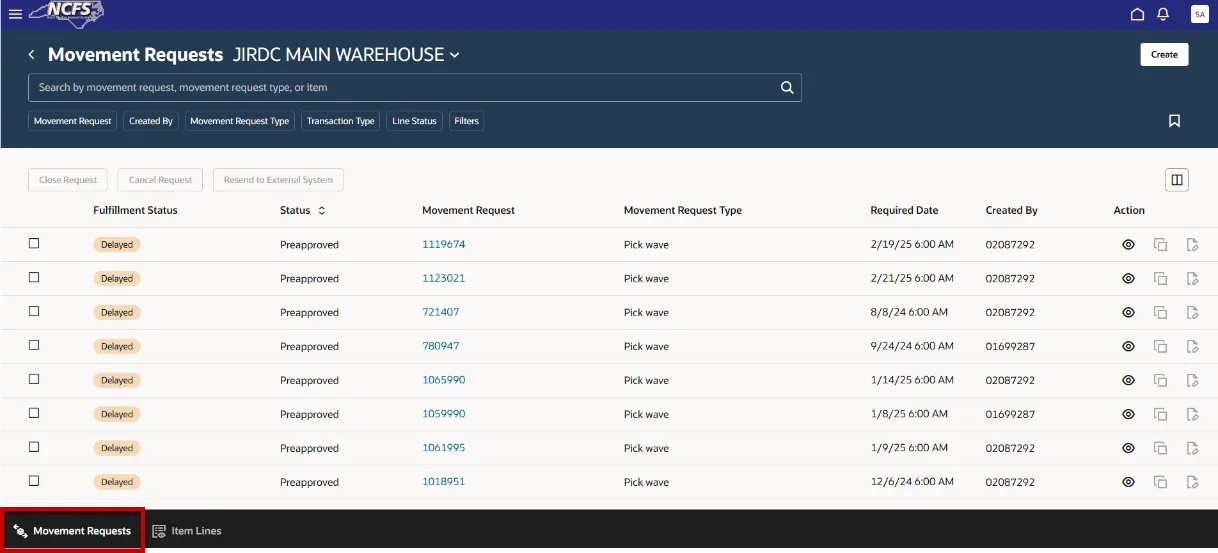
Step 6. Use the available filter chips to narrow your search.
- Movement Request: If known
- Created By: Enter the personal number of the user who created the movement request type
- Movement Request Type: Pick wave
- Transaction Type: Transfer Order Pick
- Line Status: Closed and Preapproved
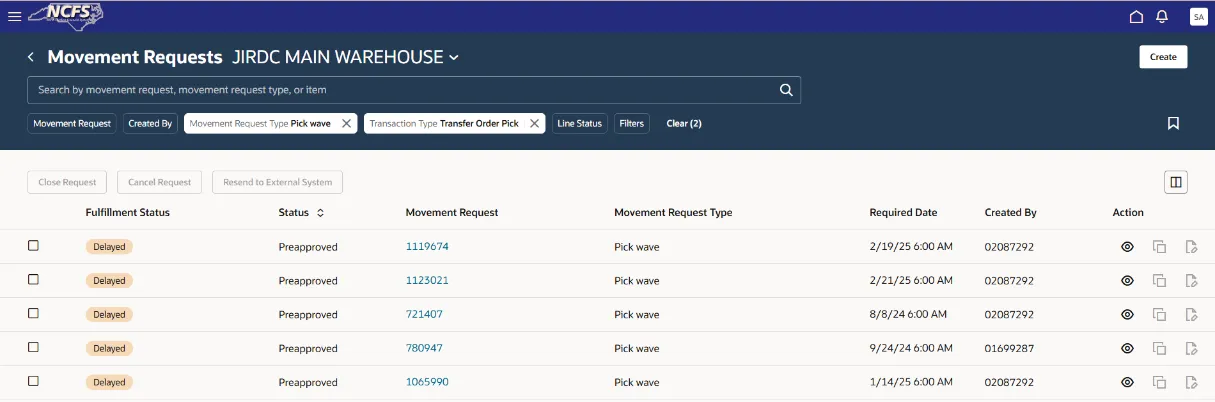
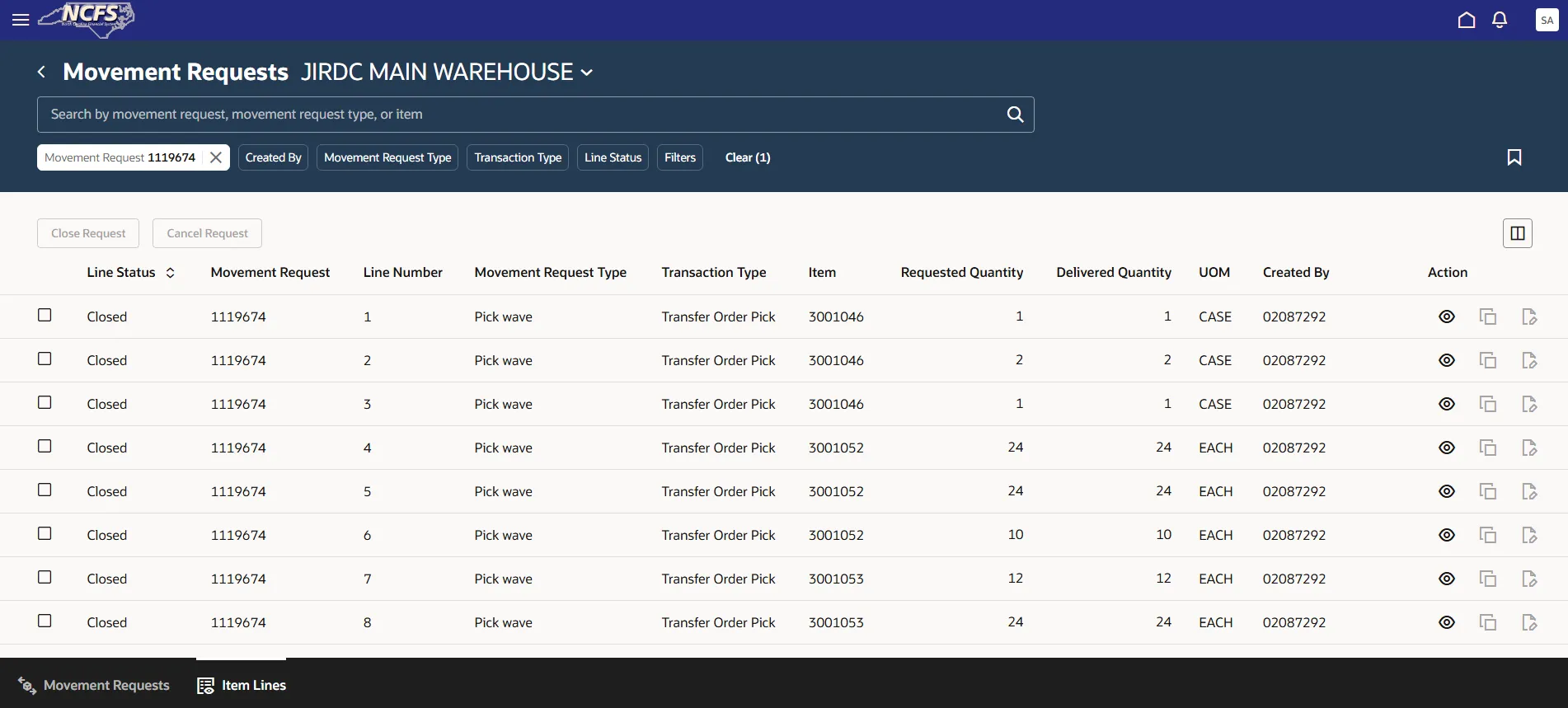
Step 7. Click on the Movement Request number hyperlink to view the item lines associated with the movement request type.
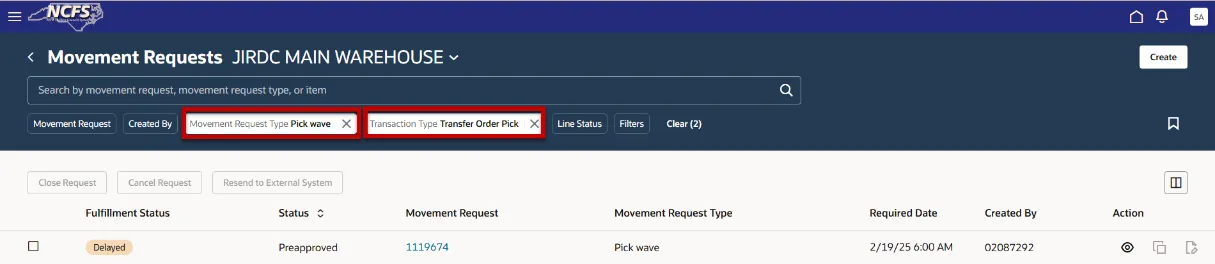
Step 8. This allows you to see all item lines associated with this particular movement request.
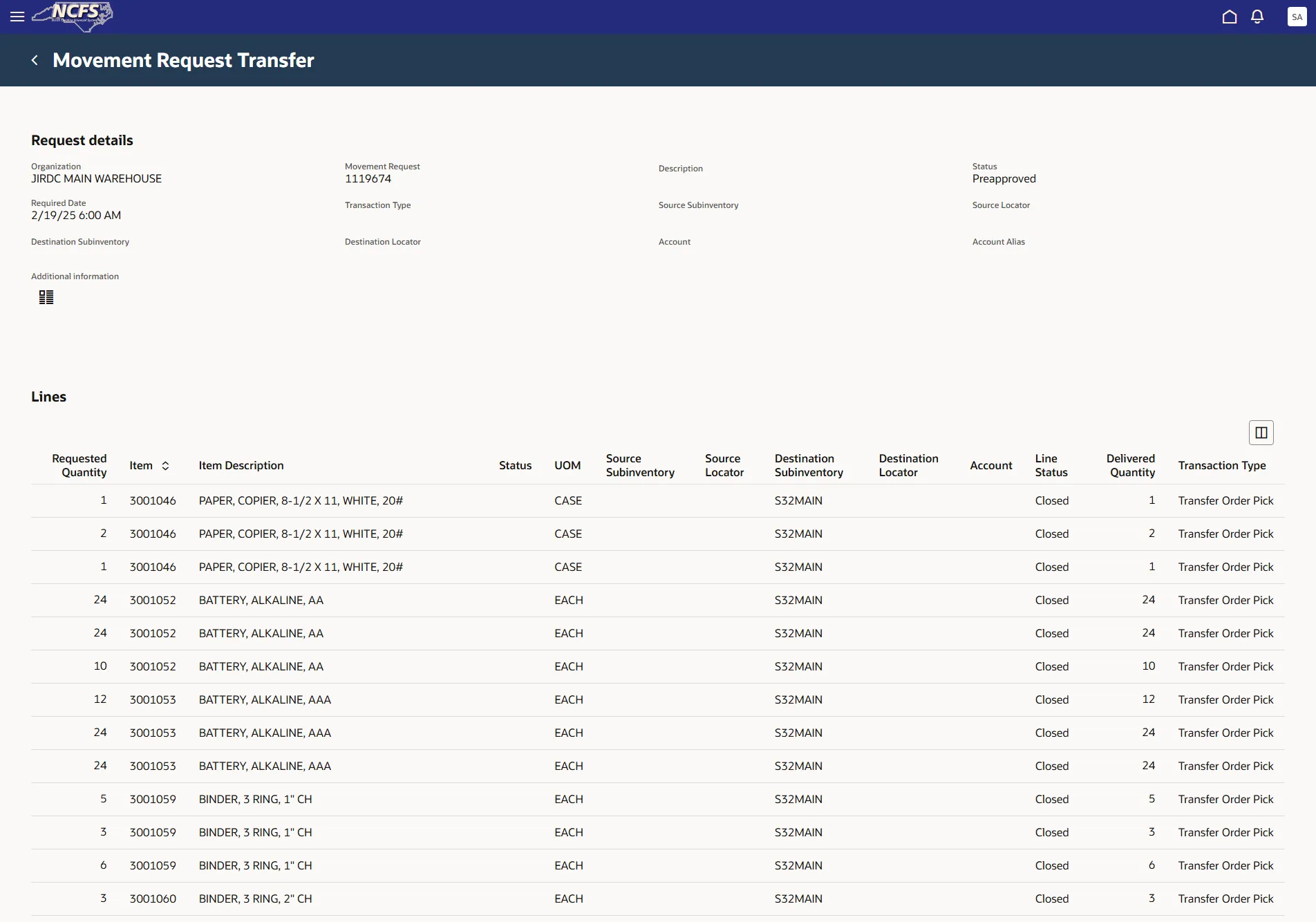
Step 9. Click the check box beside the movement request and then click the eye icon under the Action column.
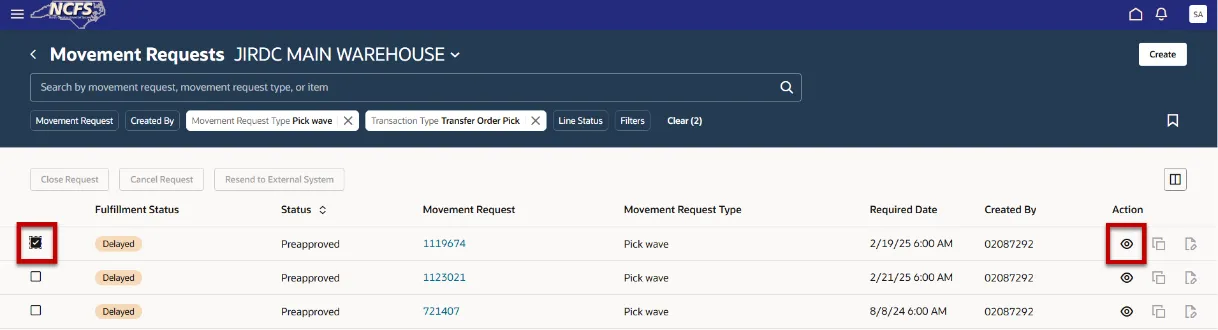
Step 10. This will allow you to see all the line items for the movement request in a different view.
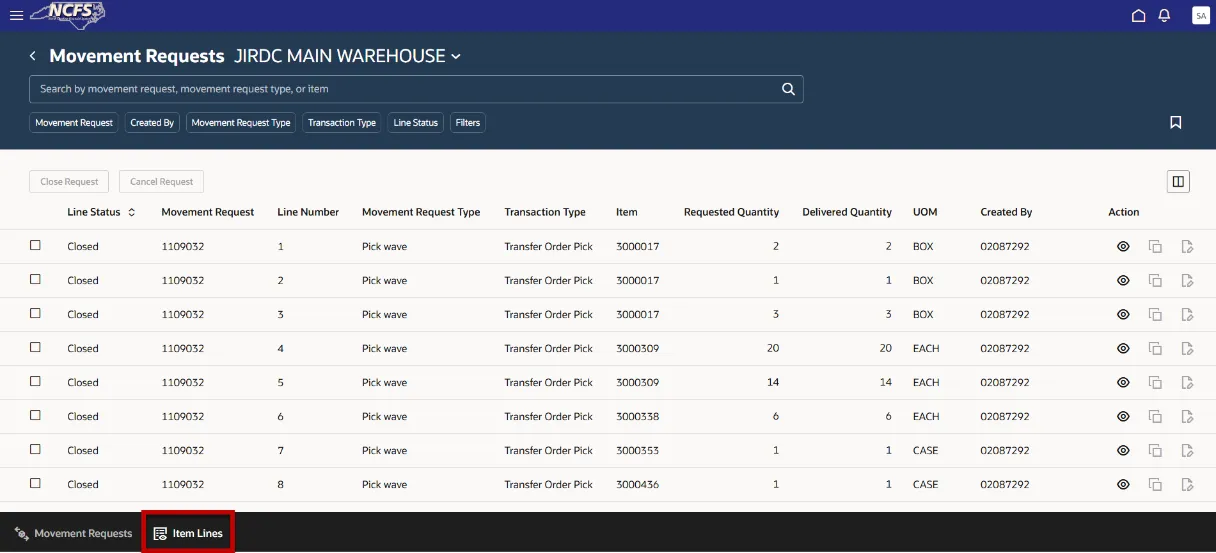
Step 11. The last way to view the item lines, is to click on the Item Lines tab at the bottom of the page.
Step 12. Here we can see all the item lines and the status of the movement request.
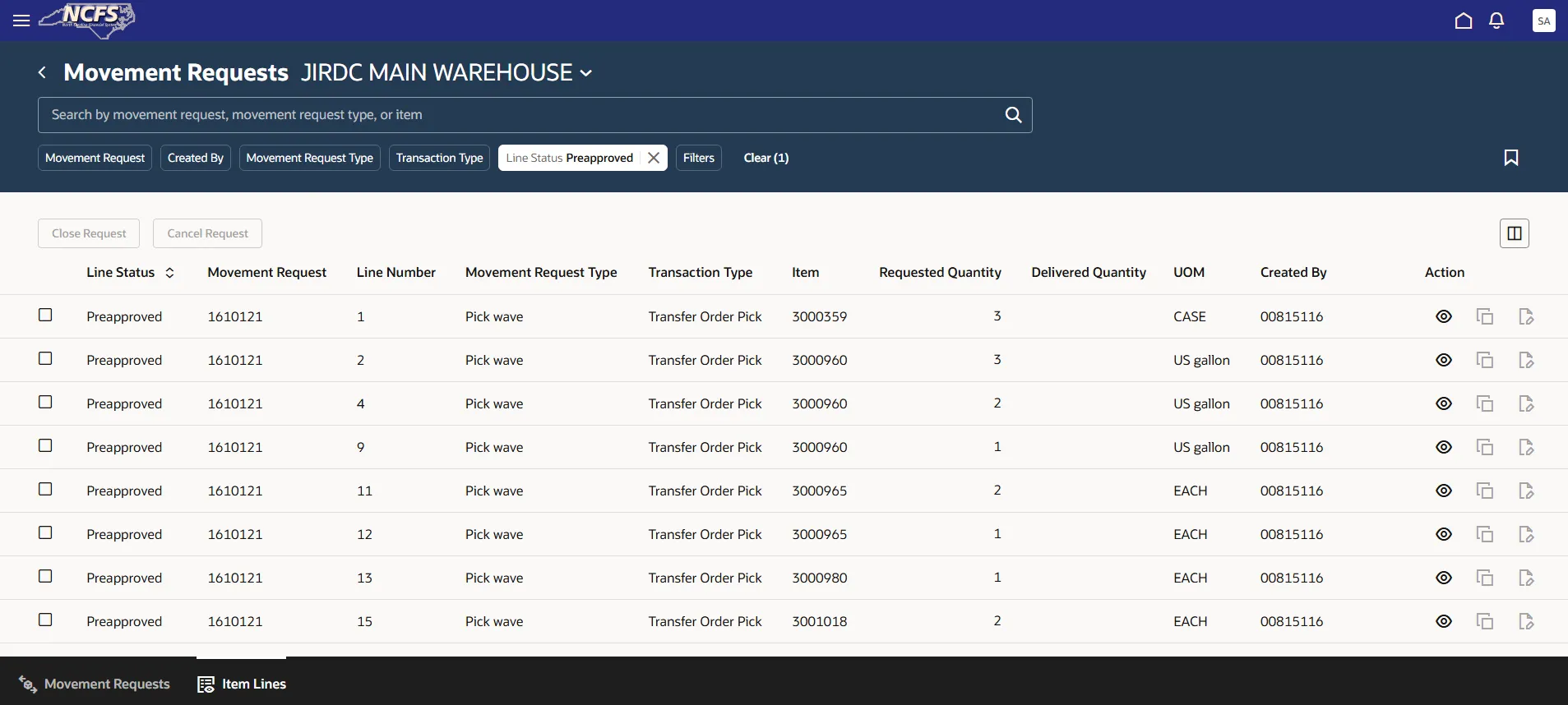
Step 13. A movement request should never be created, closed, or cancelled from this task screen. The transaction should always be created, closed, or cancelled from the source.
Wrap-Up
Using the steps above to inquire on movement requests and view movement request pick slip report. The Movement Requests task should be used for inquiry only. No movement requests should be created, closed, or cancelled from this task page. Movement requests are created at the source of the transaction type and should be maintained from the original source.
Additional Resources
Virtual Instructor-Led Training (vILT)