Purpose
The purpose of this Quick Reference Guide (QRG) is to provide a step-by-step explanation on how to review all completed Inventory Transactions in the North Carolina Financial System (NCFS).
Introduction and Overview
This QRG covers the review of all completed Inventory Transactions in NCFS which will enable you to review Inventory Transactions during a specific period. During audits and reconciliations, you may find that you need to review your past transactions throughout the warehouse to determine if there are any extraneous or missing events. Now you can access your completed transactions using the Redwood Inventory Transactions page available under the Inventory tasks in the Inventory Management work area. The Inventory Transactions page enables you to search and view all your completed transactions, delivering an improved user experience.
View Completed Inventory Transactions
To view Completed Inventory Transactions in NCFS, please follow the steps below:
Step 1. Log in to the NCFS portal with your credentials to access the system.
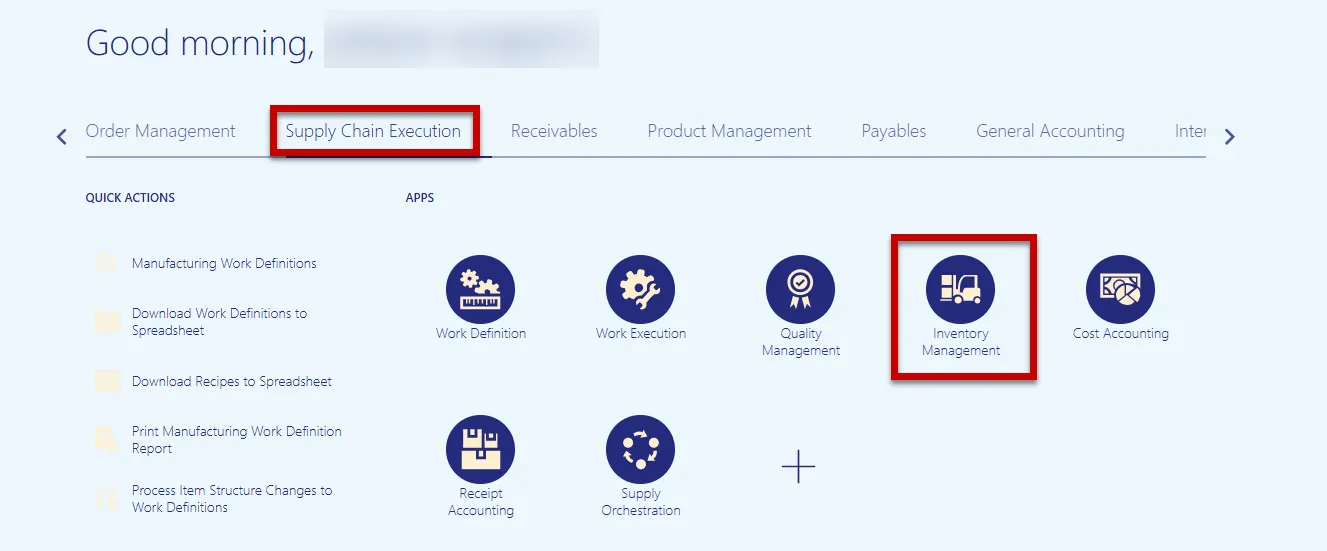
Step 2. On the Home page, click the Supply Chain Execution tab, and select the Inventory Management app.
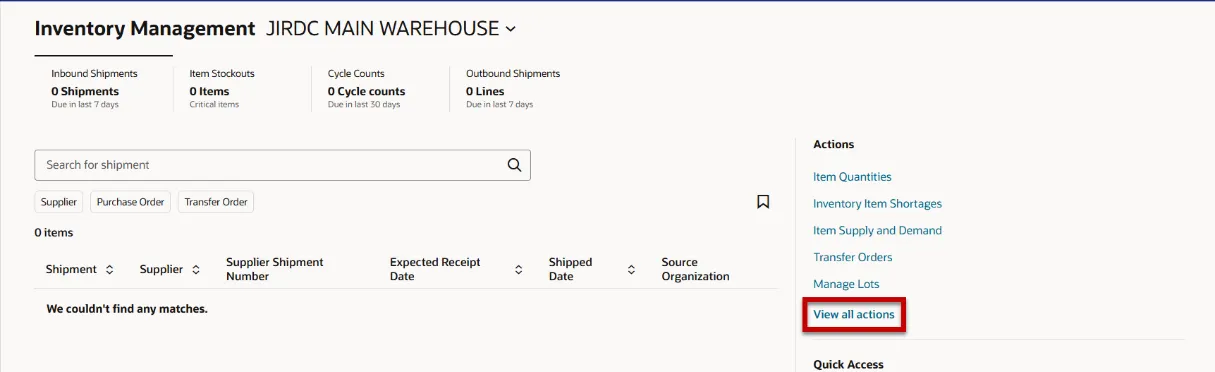
Step 3. On the Inventory Management page, click the View all actions hyperlink.
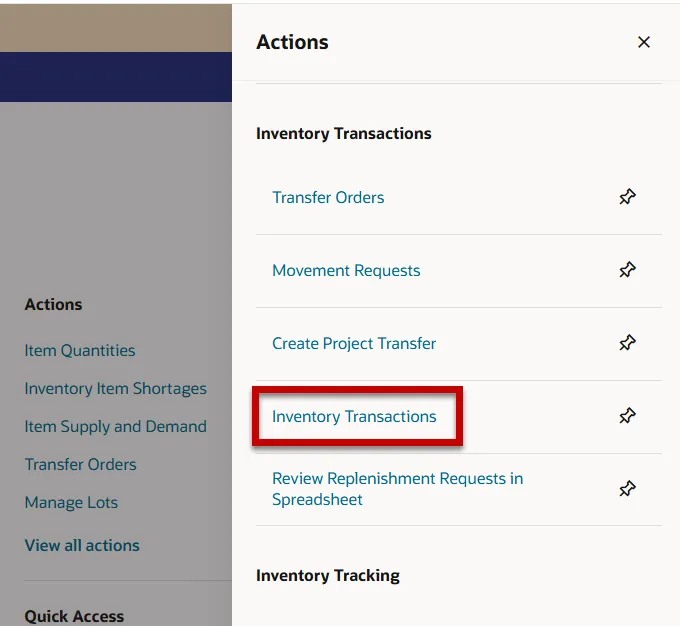
Step 4. Under the Inventory Transactions section, select Inventory Transactions.
Step 5. Click the Completed Transactions Tab at the bottom of the page.
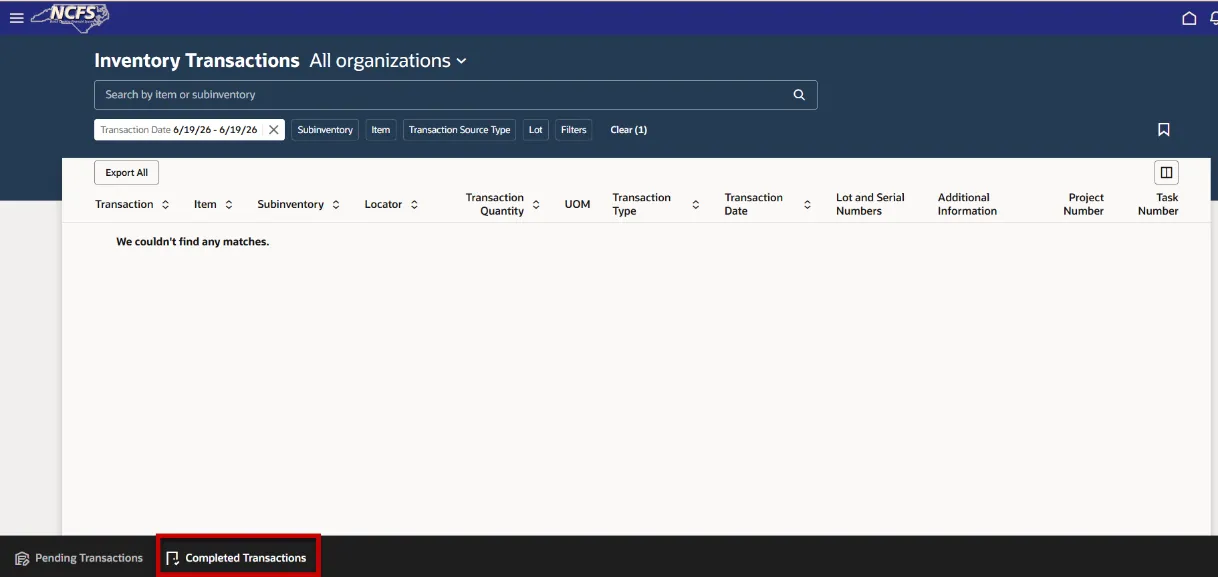
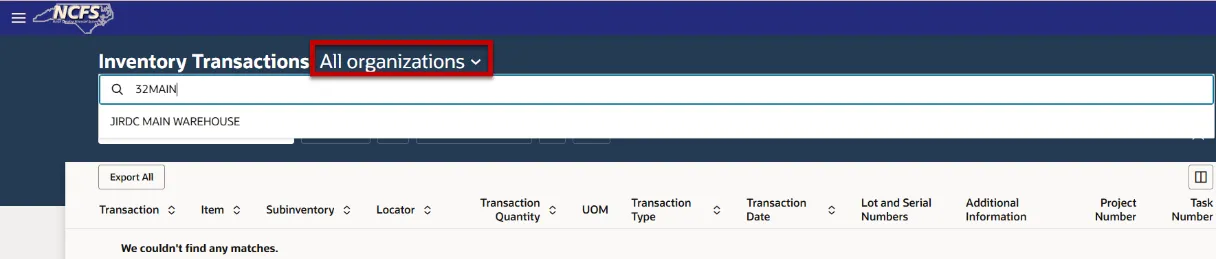
Step 6. “All Organizations” defaults and will allow you to view all completed transactions for all inventory organizations you have security access to. Click the drop-down arrow to select one inventory organization to filter on.
Note: You can search inventory organization by both number and name.
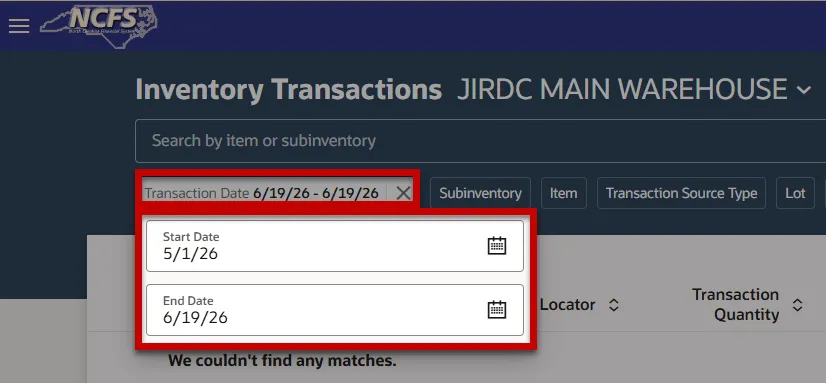
Step 7. Select the Transaction Date range you wish to filter on.
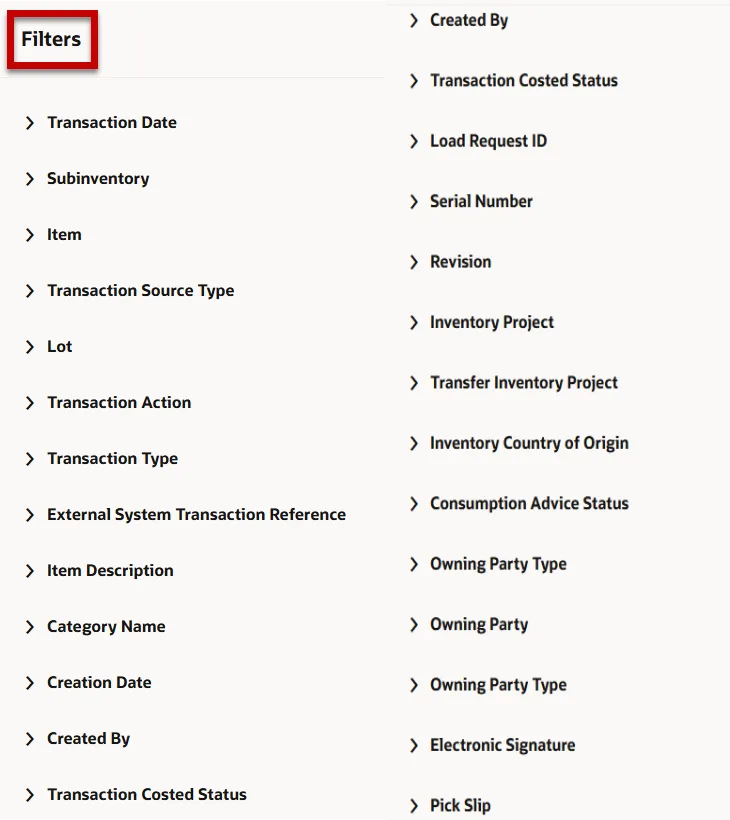
Step 8. Other displayed commonly used filters displayed include:
- Subinventory
- Item
- Transaction Source Type

Step 9. A full list of filter options can be found by clicking the Filters tab.
Step 10. Click the Customize Columns button to add/remove columns.
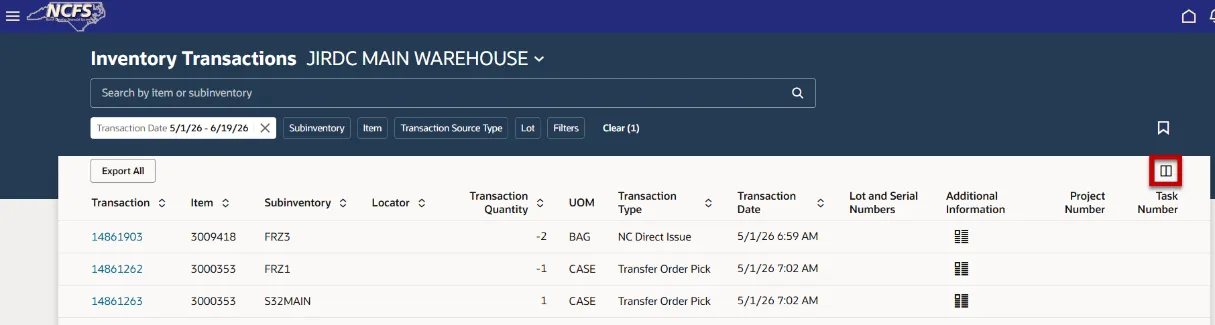
Step 11. Add/Remove columns you deem essential.
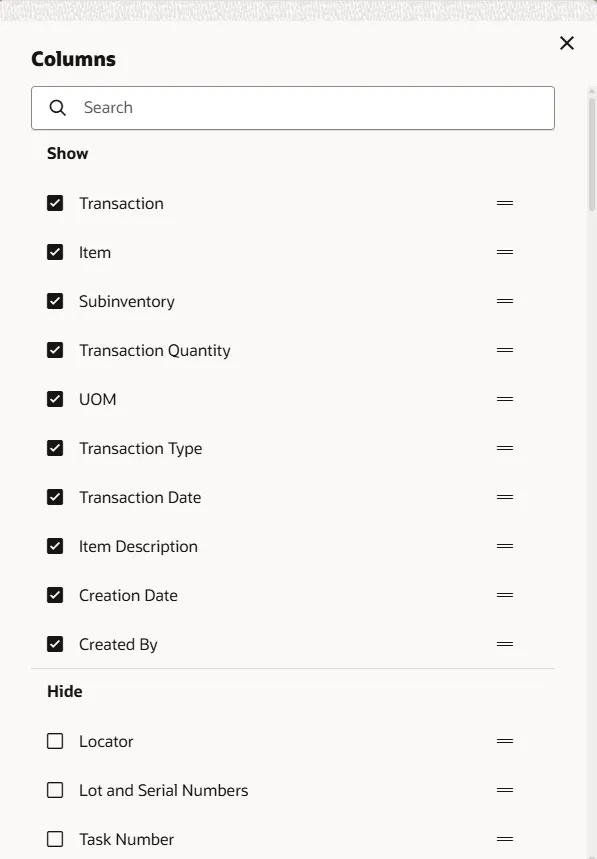
Step 12. Review the new columns and update as needed.
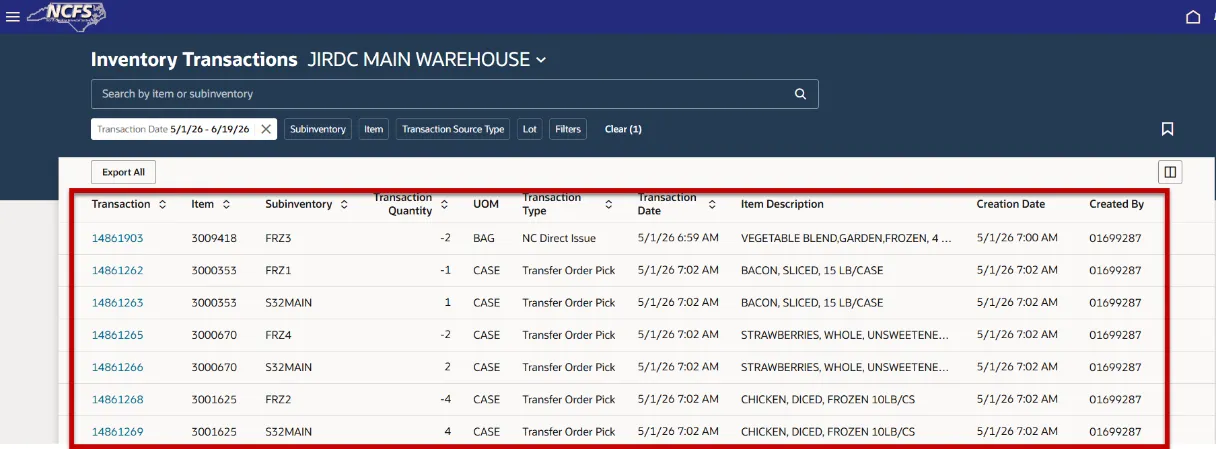
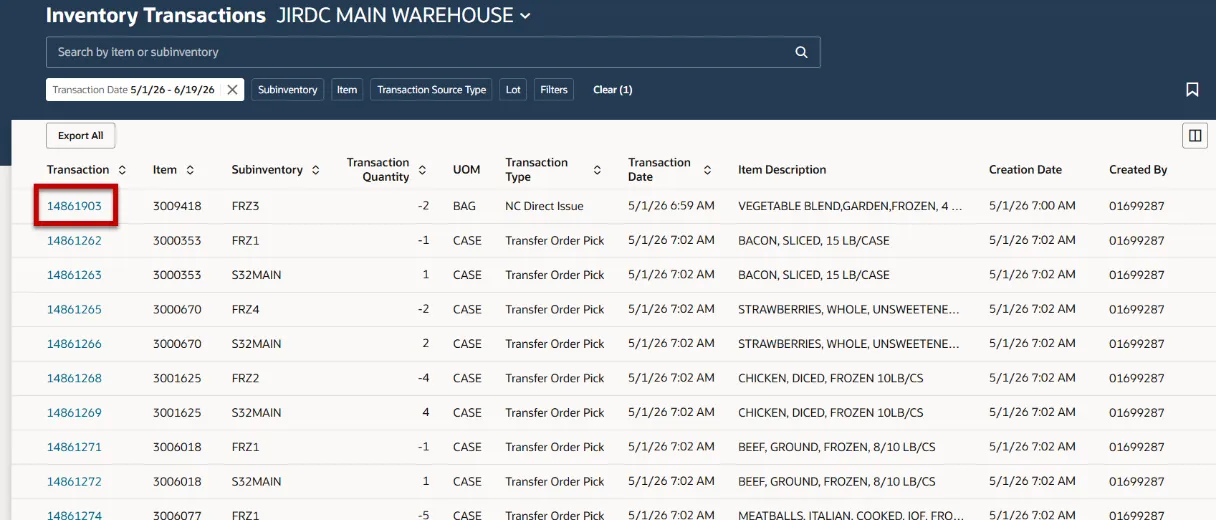
Step 13. Click the Transaction hyperlink to review more details.
Step 14. Transaction, Item, Source location, and Destination location details are viewable if applicable.
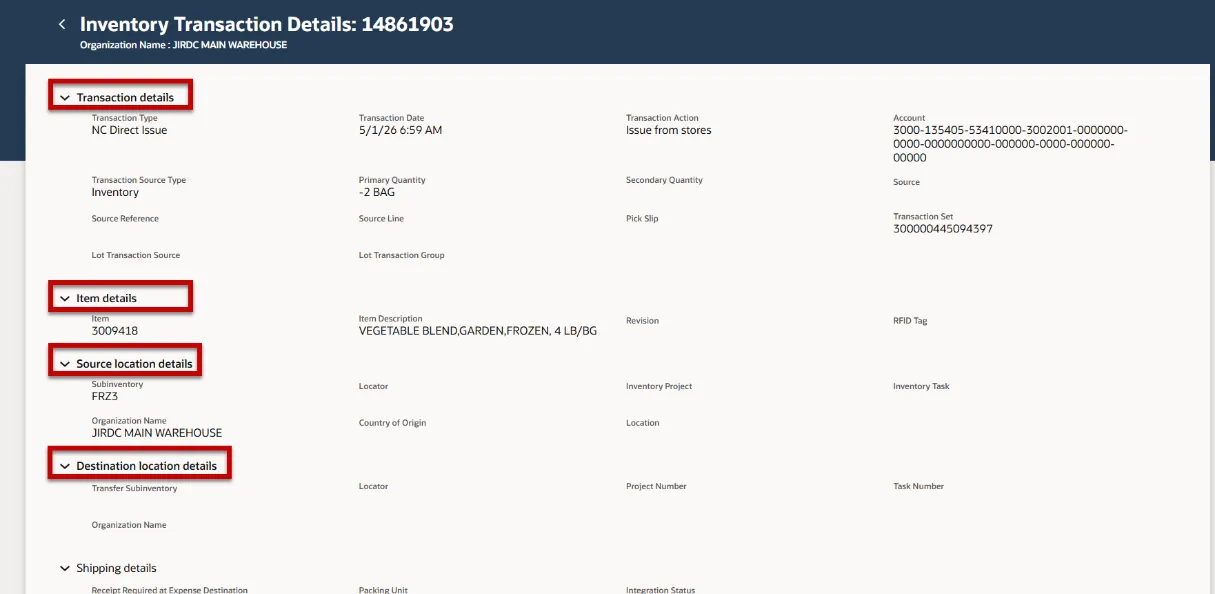
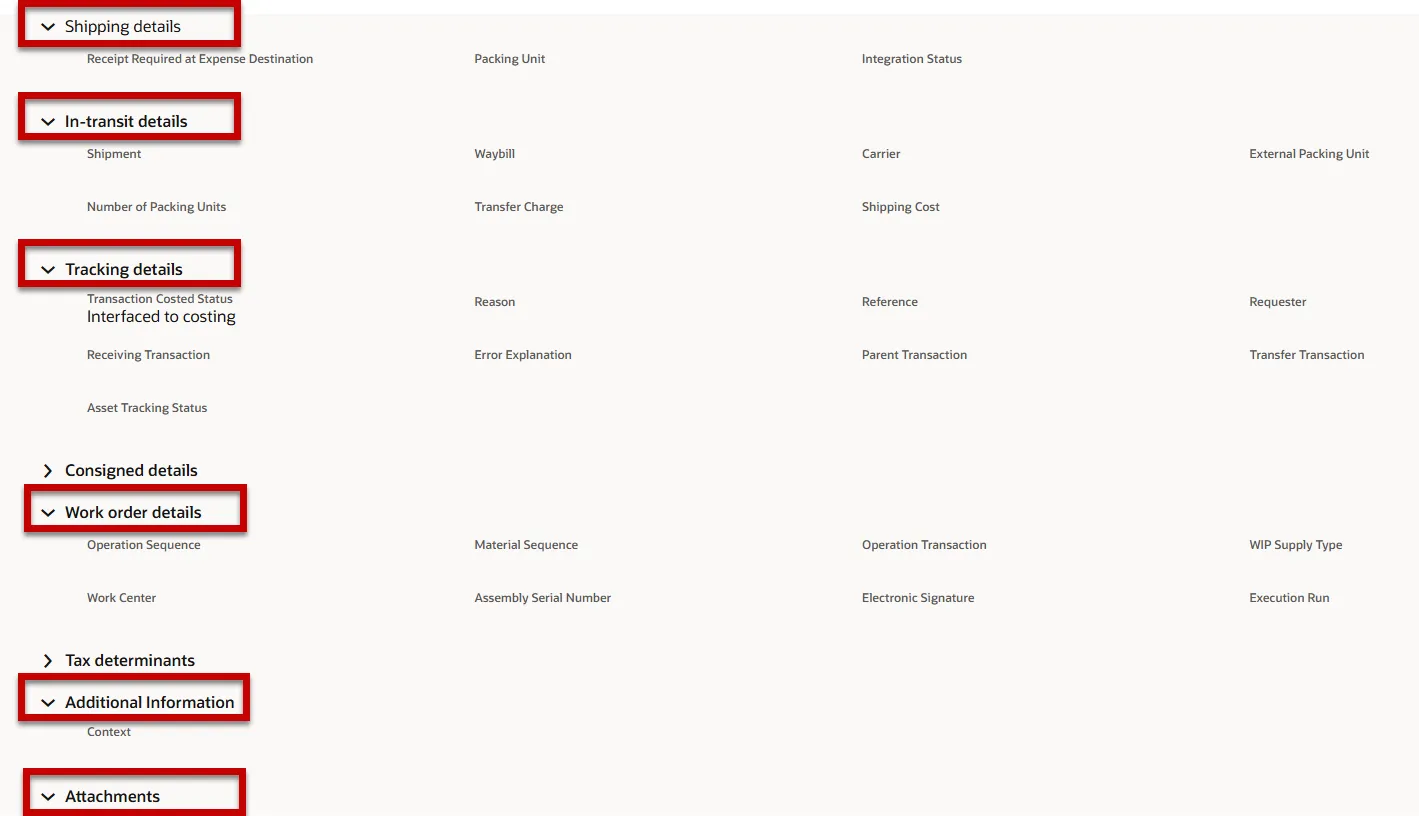
Step 15. Shipping, In-transit, Tracking, Work order, Additional Information, and attachment details can also be viewed if applicable.
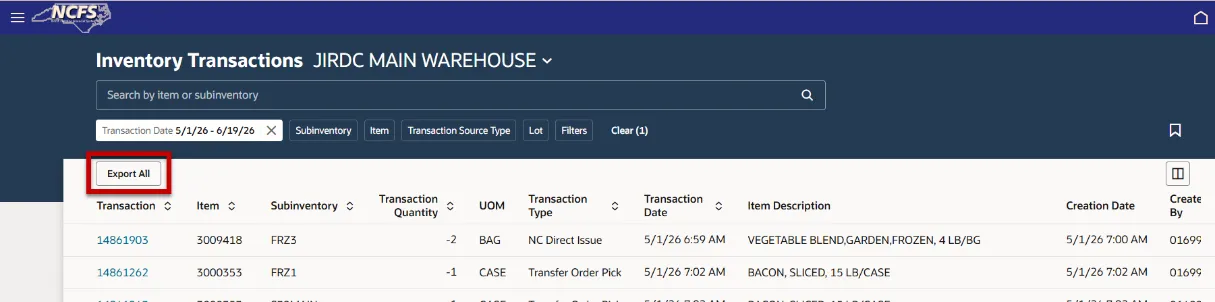
Step 16. To export data into an Excel worksheet for further analysis, click the Export All button.
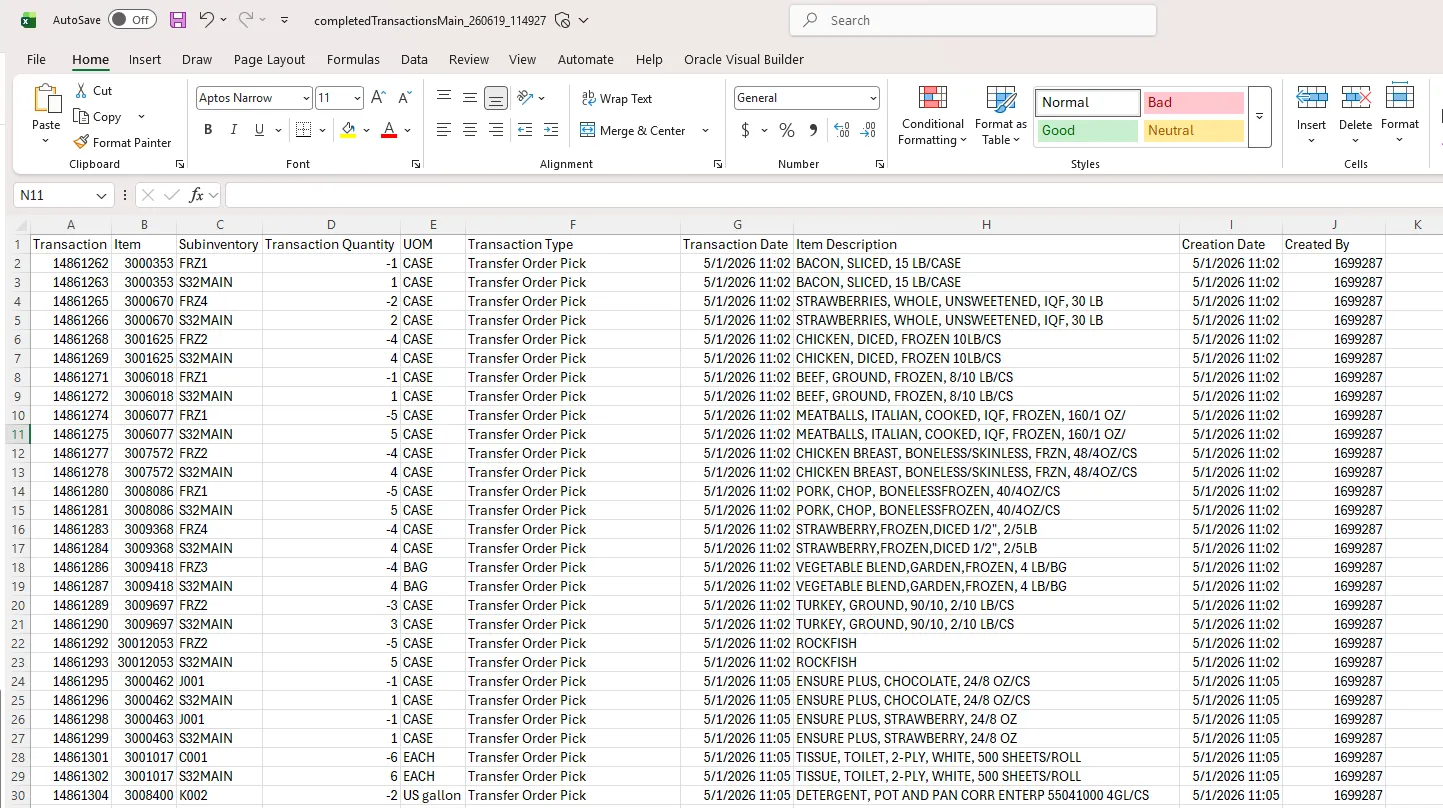
Step 17. This feature allows you to perform further analysis in an Excel Worksheet.
Wrap-Up
Use the steps above to view Complete Inventory Transactions in NCFS.
From the Inventory Transactions page, you can:
- Retrieve specific information about completed transactions
- Find detailed information on those transactions
- Export your transaction data for further analysis and reporting purposes
- To retrieve specific information about completed transactions, enter any relevant search criteria. You can also access lot and serial details for items that are lot controlled, serial controlled, or both, if applicable.
- Use additional filters to refine your search and select the Columns option to add more fields for display on the landing page.
- This page allows you to export your transaction data for further analysis and reporting.
Additional Resources
Virtual Instructor-Led Training (vILT)