Purpose
The purpose of this job aid is to explain the Overview Tree frame of the Business Workplace which is the working environment used for organizing and managing folders, documents, messages, distribution lists and objects.
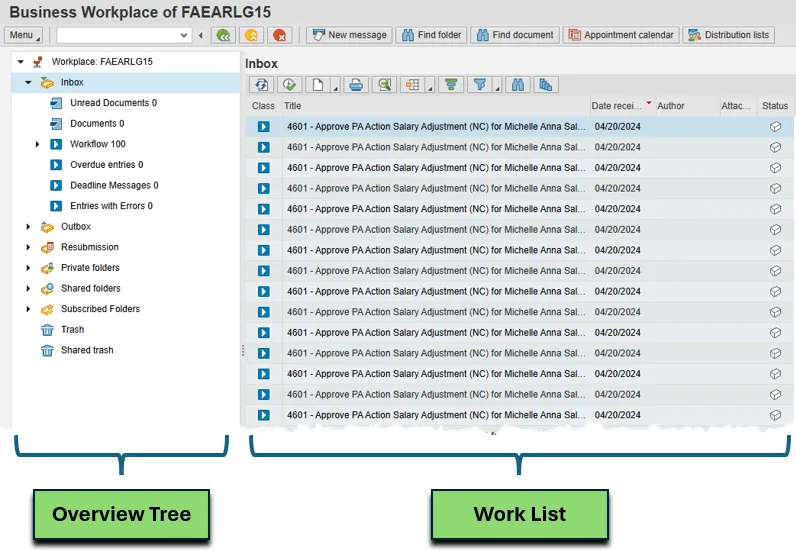
The Overview Tree frame of the Business Workplace is the working environment used for organizing and managing folders, documents, messages, distribution lists and objects. It contains the following sub-areas:
| Symbol | Name | Description |
|---|---|---|
|
Image

|
Inbox | The Workplace Inbox is the place where all Documents that have been sent to the User and Work Items that have been assigned to the User will arrive so they can take action. The following are some of the sub-functions of the Inbox. |
|
Image

|
Unread Documents | Documents are SAP Messages that are created and read similar to any outside Email process (Gmail, Outlook, etc.). Documents are separated by two folders--the Documents that have already been read and the Documents that are new and unread. |
|
Image
|
Workflow |
This folder will hold all the SAP Work Items that arrive for the User to Execute to perform some type of action within the SAP system. The Workflow folder has four sub-folders that give the User extra functionality to sort/filter the Work Items. They are:
|
|
Image

|
Outbox | The Workplace Outbox lists all the Workflows started and the work items forwarded and executed by the User. |
|
Image

|
Documents | Documents are the SAP Messages that this user has sent out. |
|
Image

|
Started Workflows | The Started Workflows view shows the Work Items for the tasks started by this User as a user in dialog or by a triggering event whose event container contains the User's name. |
|
Image

|
Work items executed by me | The Work Items Executed by Me view shows the Work Items for the tasks started by this User as a user in dialog or by a triggering event whose event container contains the User's name. |
|
Image

|
Forwarded work items | The Work Items Executed by Me view shows the Work Items for the tasks started by this User as a user in dialog or by a triggering event whose event container contains the User's name. |
|
Image

|
Resubmission | The Resubmission folder is used to resubmit work items for processing at a later point in time or periodically and to display these work items in a list. |
|
Image
|
Workflow | The Workflow folder contains the Work Items that have been marked for Resubmission. The item status is set to waiting, the User's name is entered as the actual agent, and the requested start date is set to the new resubmission date. |
|
Image

|
Private folders | The Private Folders are used for organizing a User’s documents, distribution lists and work processes. Users can manage the information that they require for their own tasks and work processes and that do not have to be accessed by other Users. Sub-folders can be created by the User to better organize their work. |
|
Image

|
Shared folders | The Shared Folders are used for organizing the documents, distribution lists and Business objects of several Users. Information that is required for group projects and other teamwork--information that is to be made accessible to several Users--can be managed here. It is possible to allow either all Users or only a defined group of Users access to the same information in a folder in Shared folders. Depending on this usage type, a distinction is made between Client folders and Group folders. Access to the folders can be varied according to whether the information is to be used for publication only or whether it is to be processed further. To do this, different access authorizations to a folder can be assigned. Sub-folders can be created by the User here also to better organize the work. |
|
Image

|
Subscribed folders | This Folder is used to gain fast access to the Shared folders that the User frequently uses. It can take a relatively long time to access the required information in Shared folders, particularly those that have very complicated hierarchies. The User can reduce the time and the navigation required by Subscribing to a folder. To subscribe to a Shared folder, position the cursor on the folder in the folder tree, and choose Subscribe in the context menu. |
|
Image

|
Trash | The Trash folder temporarily stores all the documents, distribution lists and folders that the User has deleted from their Private folder area. Deleted documents, distribution lists and folders from Shared folders are moved to the owner's Shared Trash folder. Therefore, every User's Shared Trash folder contains the objects from Shared folders that they have created and that they, or another User, have deleted. Documents for which the expiry date has been reached are placed in the Trash folder automatically, and as long as the deleted objects are stored in the Trash folder, the User can retrieve them in the Private folder area. Trash is deleted automatically at regular intervals. |
Possible Statuses for a Work Iteam
| Symbol | Name | Description |
|---|---|---|

WF-15_16.png
|
Ready | The work item is released for execution and appears in the Workflow inbox of all recipients. |

WF-15_17.png
|
Reserved | The work item has been reserved by a recipient and is, therefore, transferred from the status Ready. It is displayed only in the Workflow inbox of the actual agent and is no longer displayed in the Workflow inboxes of any other recipients. |

WF-15_18.png
|
In Process |
A work item assumes this status if:
In this status, the Workflow system has not yet recognized the point at which processing is completed. As long as the work item has status in process, database changes have not been made. |

WF-15_19.png
|
Executed | This work item is awaiting a specific confirmation of its completion which is required. A work item with executed status can be executed or forwarded several times until it is set to status done in the Business Workplace. |

WF-15_20.png
|
Completed | The execution of the work item is completed and is no longer displayed in the Workflow inbox of the Business Workplace. |

WF-15_21.png
|
Error | Execution of the work item was terminated with an error. |

WF-15_22.png
|
Logically Deleted |
Execution of the work item is no longer useful or required for the Workflow logic. A work item changes to logically deleted status in the following ways:
Work items in the logically deleted status are not displayed in the workflow inbox of the Business Workplace. |