Purpose
The purpose of this job aid is to explain how to use the PA Workflow Report and what information it provides.
The PA Workflow Report returns details about the contents of the Work Items you search for, including, but not limited to the action type/action reason, name of initiator, effective date of the action, as well as both current and proposed new data.
The transaction code for this report is ZPA0189.
There are 4 steps to complete this process.
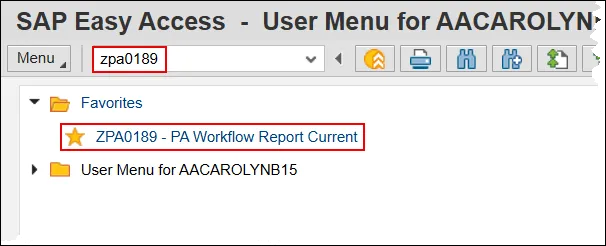
Step 1. Type ZPA0189 in the Command field on the SAP Easy Access screen or double click it from your favorites folder if you’ve previously saved the transaction there.
Step 2. Choose which selection criteria on which you wish to search.
-
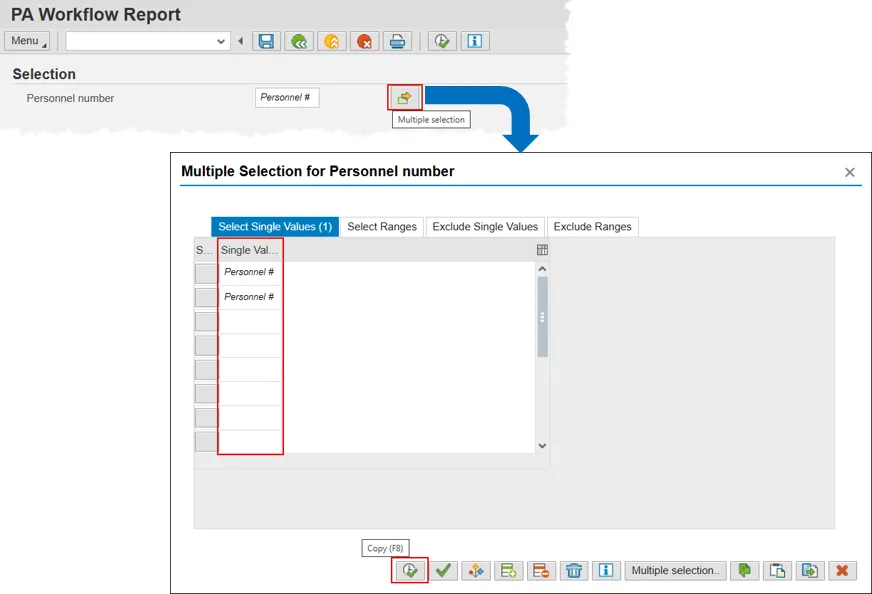
Personnel number – Enter a personnel number to find PCRs that were performed for the individual.
You can review more than one work item at a time by clicking the Multiple selection button. When the pop-up appears, input the personnel numbers you wish to review in the Single Value cells. When they are all entered, click the Copy button on the bottom of the pop-up.
When the pop-up closes, you can see that multiple selections have been made by observing that the box in the multiple selection button has turned green (not pictured).
-
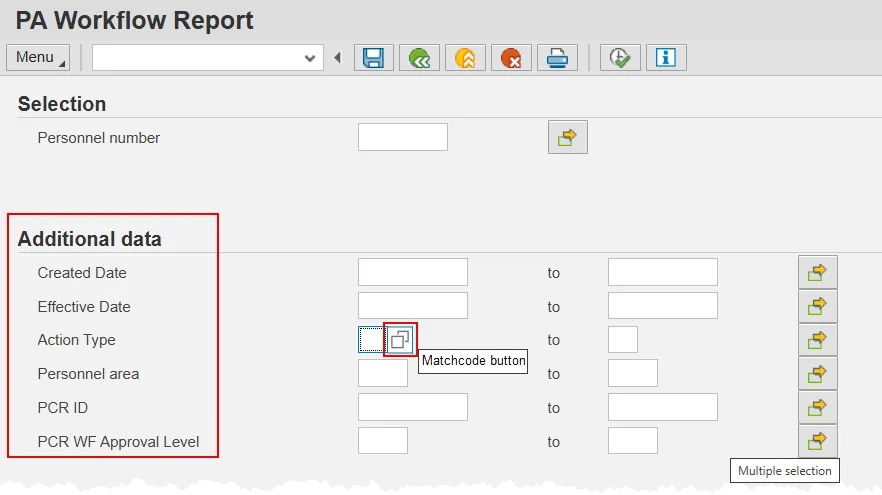
Additional data section – Use this section to search for PCRs using one or more of the following fields: Created Date, Effective Date, Action Type, Personnel Area, PCR ID, PCR WF Approval Level. Data can be typed in by hand, or you can click in the field to be presented with a matchcode button. Clicking the matchcode button will present you with a pop-up from which you can select the appropriate value.
There are two important things to note about using these search fields. First, data input in the Created Date field must be accompanied by data in one of the other 5 fields. The other fields, however, may be searched independently without additional input. And second, the PCR ID will not have the matchcode option. Data input into this field must be explicitly typed in.
As with personnel numbers, you can include multiple values in this section by selecting the Multiple selection button. Or, enter values on both sides of ‘to’ to search a range.
Workflow Report Search Criteria Notes:
The Workflow Reports can be generated only for those entities for which you have security. You can generate the report for your entire agency if you have that security access. The Workflow Report can also be run for smaller groups or for an individual PCR.
Data Search Options
For PA you can search by:
- Personnel number – employee personnel number
NOTE: You must enter all eight digits, including any leading zeros. - Create Date – the date the PCR was created.
- Effective Date – the date of the Action.
- Action type – Use the drop-down menu to select the actions type.
- Personnel area – Agency designation
- PCR ID (if known)
- PCR WF Approval Level – Use the drop-down menu to select the workflow approval levels. (see table below for code definitions)
WF Approval Level Codes
| Level Code | Level Description | Conditions |
|---|---|---|
| ICRE | Awaiting Initiator PCR Initiation | Coded in both screen Tranx programs when PCR is first created (D) |
| IREJ | Awaiting Initiator Resubmission | After rejected waiting for Initiator to Resubmit or Cancel PCR |
| IPRO | Initiator Processing | PA – Waiting for Initiator to complete ZHR_HIRING and/or PA40 |
| DA1 | Division Approval | Waiting for Division Approval |
| AA1 | Agency Approval | Waiting for Agency Approval |
| FA1 | Funding Approval | Waiting for Funding Approval |
| OA1 | OSHR Approval | Waiting for OSHR Approval |
| BA1 | OSBM Approval | OM – Waiting for Budget Approval |
| SOM | OM Shared Services Approval | OM – Waiting for Shared Service Approval and/or processing |
| CREJ | Complete – Rejected | Initiator Cancels PCR after a Rejection |
| CAPR | Complete – Approved | PA – After all approved (Main) OM – After all approved (Main) and after Shared Services Approval |
| CCAN | Complete – Cancelled | PA – After Initiator chooses Reject after Execution. (In Cancel Sub-WF, End of Main) |
Step 3. Once you’ve entered the search parameters, click the Execute button to view the details for the work items(s). The report will return the details of PCRs’ progression through the various levels of approval.
The fields presented will include, but are not limited to, Creator Name, Initiated Date, Name of action type, PCR ID, as well as info about current and proposed new data for the employee.

Step 4. You can save the input data as a Variant, and you can change the Layout of the report results. Review the GN-03 and the GN-01 help documents for more information on these processes.