Purpose
The purpose of this Job Aid is to explain the role of the Agency Funding Approver and how to review Work Items within the Integrated HR-Payroll System.
Trigger
Items are in your SAP Business Workplace that need review, and either approval or rejection.
Job Aid Overview
The Funding Approver is responsible for ensuring that positions are budgeted correctly after position and/or personnel change requests (PCRs) are processed in the Integrated HR-Payroll System.
Tips and Tricks
The Integrated HR-Payroll System has a built-in feature that automatically adjusts the budgeted amount for a position based on the salary of the employee holding the position, or to lower it to its minimum if the position becomes vacant. This feature will not make any changes to funding sources and is sometimes turned off. You may check with BEST Shared Services to determine if the feature is active. If you choose to allow the system to update the budgeted amount, it will be your responsibility to verify that it has done so correctly.
Procedure
As an Agency Funding Approver, you have two important duties in addition to reviewing a Work Item for accuracy.
- Entering the funding source and budgeted amount for a newly created position.
- Ensuring that a position is funded correctly when a PA or OM action causes the budgeted amount or funding source to change. For example, when an employee has a salary adjustment action completed.
Your role becomes active when a Position or Personnel Change Request arrives at the Funding Approver level and is awaiting review. The WF-09 Workflow Approval & WF-16 Workflow Rejection documents cover how to open your SAP Business Workplace, access the Work Items at your approval level and view the proposed changes (including the note provided by the action initiator).
As a funding approver, you should pay special attention to the action type and data related to salary. Actions that always or oftentimes indicate a change in budgeted salary or funding source include, but are not limited to: New Hires, Separations, Salary Adjustments, Promotions, Create New Positions, & Reallocations. Note that both PA and OM actions can affect a position’s funding data.
If the Work Item is a Create New Position action, reference FN-08 for detailed instructions on how to add the funding source and budgeted amount as part of the approval process.
For other actions, you will need to determine if the relevant position funding data needs to be updated. Per policy, a position must be budgeted to equal the combined salary of all employees who hold it, or to the minimum of the salary range if it is vacant.
To view the current data, access transaction PO13D by typing it in the command field and pressing enter, or by double clicking that transaction from your favorites folder if you’ve previously saved it there.
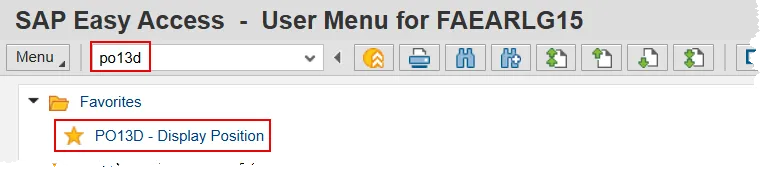
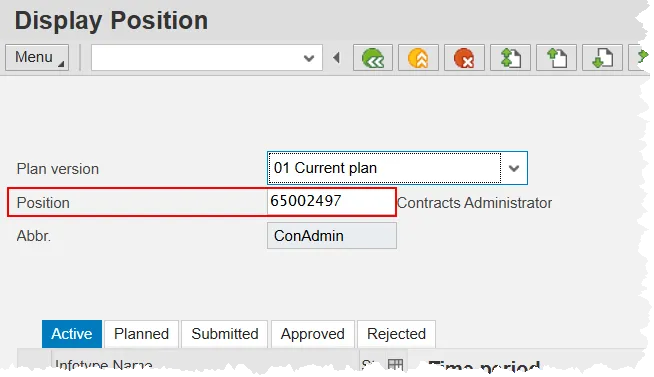
Next, input the relevant position number in the Position field (and press enter) if it is not already there. The position in the screen shots below is from the training database and will not reflect any actual data in the live system.
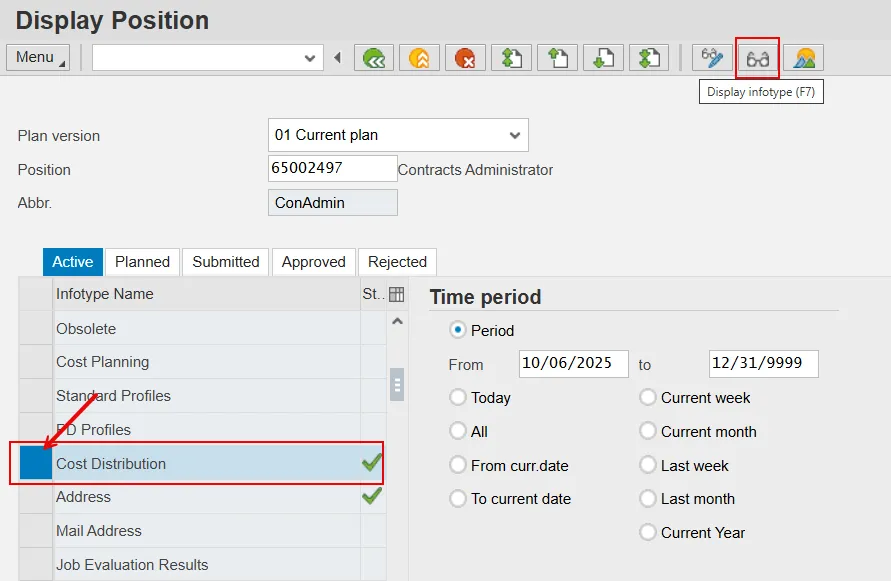
Next, locate the Cost Distribution infotype. You may need to scroll down the list of infotypes to find it. Once identified, select by clicking on the gray box to the left, then click the Display infotype button.
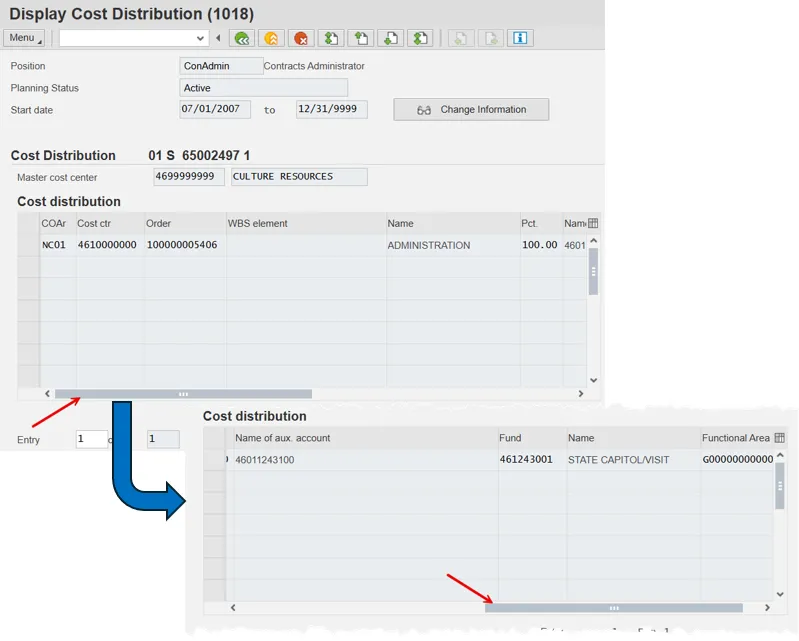
You are now viewing infotype 1018 – Cost Distribution. You will need to utilize the scroll bar at the bottom to see all of the data on this screen. Pressing the Enter key on your keyboard will display the Budget Distribution screen which is where you will find the current budgeted amount.
Use the scroll bar to see all data on IT1018 – Cost Distribution.
Press Enter to display the Budget Distribution screen.
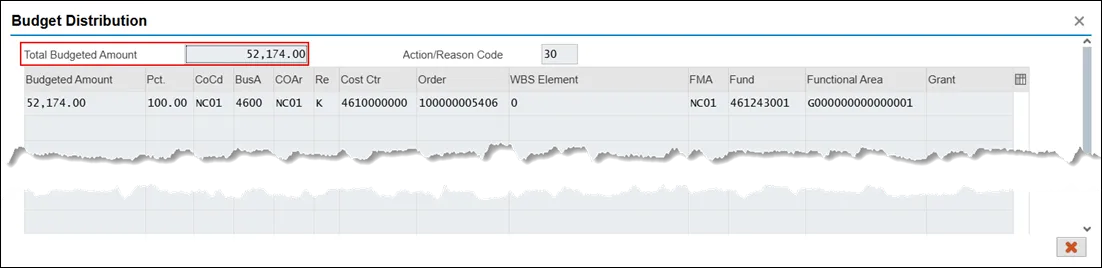
You can close the Budget Distribution pop-up by clicking on the red ‘X’ at the bottom. Then, use the back button to return to the PO13D main screen.
If you determine that total budgeted amount needs to be updated, you have two options.
- Use PO13 to manually update the position data. Reference OM-29 for detailed steps on this process. You should wait until the PCR has been fully approved and is in completed status before updating.
- Allow the system to make an automatic update. Each evening, the Integrated HR-Payroll system runs programs and one of these will compare the budgeted salary of a position to the combined salary of all employees who hold it. If the numbers don’t match, then the system will re-budget the position appropriately. If a position is vacant, it compares to the salary range of the job that describes the position.
Two notes: First, this feature is not always turned on. You are welcome to contact BEST Shared Services to inquire about its status. And second, if you allow the system to make the update, you are responsible for verifying that it has done so correctly. Make sure to use the above instructions to check the data the day after the PCR is completed.
There is no automatic process to change the funding source of a position. So, if you determine that this data needs to change, you will be required to use PO13 to complete this step. The OM-29 help document gives detailed instructions on how to do so.
After your review of the data, you will also choose whether to approve the request and send it to the next level in the Workflow process, or to reject it back to the initiator. There are two help documents that you may find useful in your role as an approver. Both explain how to access and review your work items. One describes how to approve a request and the other covers how to reject it back to the initiator. Those two documents are: