Purpose
The purpose of this Job Aid is to demonstrate how to identify employees whose Overtime Comp Time has expired and then edit those records individually or by sending large sets to BEST Shared Services.
Agencies must get approval/an exception from OSHR before they can extend expired OT comp hours for exempt employees. Historically, there was a blanket approval from OSHR (Provision 7.1) to do this effective March 1, 2021, but that blanket approval was COVID related and is no longer valid.
To determine the OT Comp hours that expired in the prior month
Step 1. Use transaction PT_BAL00.
Step 2. Under Period, select Other Period, and enter the first and last day of the previous month.
Step 3. Under Selection, enter Personnel Number(s) or Organizational Unit number(s)*.
To add the Organizational unit field to the PT_BAL00 transaction selections:
- Select Further Selections
- Under Selection options, double click on Organizational unit and select Enter
Step 4. Under Selection Conditions, select Day balances, and enter T20X (TS OT Comp Quota Expired).
Step 5. Execute.
Step 6. View the PT_BAL00 results. Cumulative hours will display so that only one IT2013 is needed per employee per month.
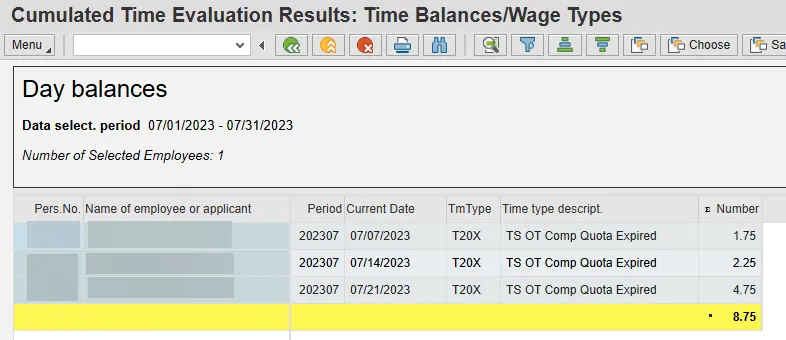
- Remember that all time for the month must be entered, released, and approved before the
results are final. Any later changes to time in that month may affect the results. - Use CATS_DA as needed to verify all time has been entered, released and approved before the next step of creating the IT2013 to extend the hours.
Create an IT2013 to extend the expired hours
Step 1. Use transaction PA30 or PA61.
Step 2. Enter the Personnel no.
Step 3. For Period, enter the first day of the month following the month in which the hours expired.
Step 4. For Infotype, enter 2013 (Quota Corrections).
Step 5. For STy, enter 20 (Overtime Comp Time).
Step 6. Select Create.
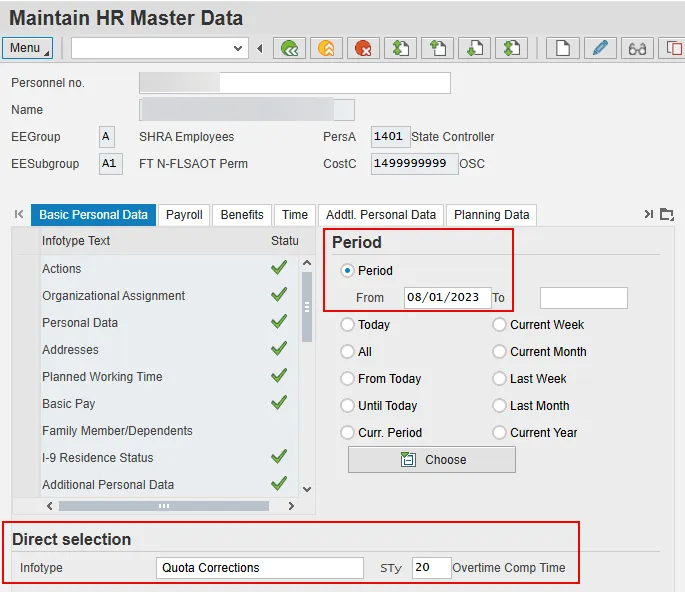
Step 7. In the Quota number field, enter the total number of hours that expired.
Step 8. Leave the default setting of Increase generated entitlement.
Step 9. Leave the default Transfer setting of Do not change transfer time.
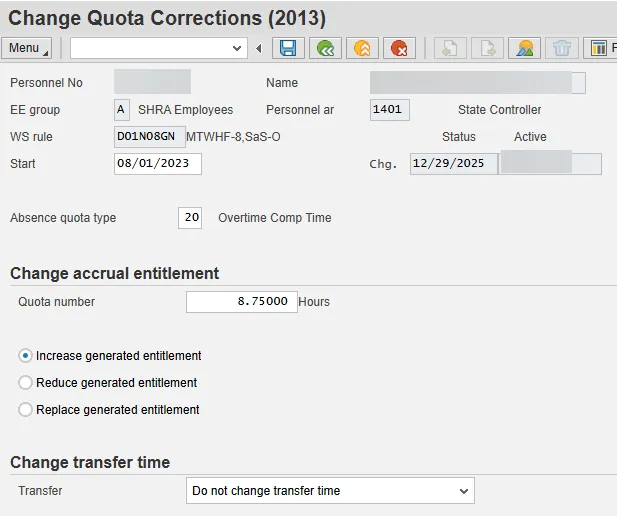
Step 10. Select Menu, Edit and Maintain Text to add a note regarding why the record was created.
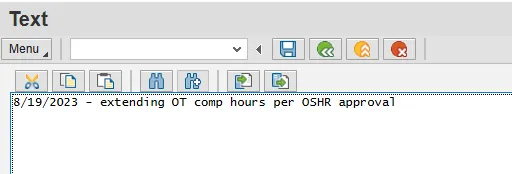
Step 11. Save the note.
Step 12. Save the record.
Once the record is created, Time Eval must run before the hours are visible on the Time Statement.
B0202 Comp Time Aging Report may be used to help project the potential list of employees with OT Comp expirations. This report should only be used to estimate the potential list of impacted employees and not for the hours to be reinstated.
Other Considerations:
- OT Comp hours must expire first before running PT_BAL00 and before the IT2013 is created.
- OT comp expirations are impacted by Payroll Corrections as time evaluation will run expiration programs through the end of the month. Therefore, some OT Comp expirations will show early for those hours that expire on dates after payroll corrections begin.
- Be mindful of any retro time entry changes that occur after processing an IT2013. Any retro time entry changes that involve A/A 9000 could impact the OT Comp balance that was due to expire. After any retro time changes, PT_BAL00 should be run again for the same time period as before to get the updated list of OT Comp expirations. Then, adjust any IT2013s that may already have been created.
OSC can assist with a mass IT2013 load to extend the OT Comp for applicable employees:
- Agencies must have at least 200 records or more that require an extension to process the mass load. Less than 200 records, Agencies can create the IT2013s manually.

- Agencies were provided with an Excel template for submitting the data to OSC.
- Templates must be submitted by the 10th of each month.
- Agencies must research and validate compensatory time for each employee prior to submitting the template to BEST.