Purpose
The purpose of this job aid is to answer frequently asked questions regarding the PTFMLA Workbench in the Integrated HR-Payroll System.
What security roles do I need to create events the PTFMLA Workbench?
Role: FMLA Event Maintainer


Purpose
Establishing the FMLA Event Maintainer Approval Role – Once security has been granted by OSC for this role, the PTFMLA Maintainer will need to first choose the appropriate PTFMLA profile in order to have access to create a PTFMLA workbench. This profile only needs to be set once upon receiving the security role from OSC.
Setting FMLA Profile upon receipt of the PTFMLA Maintainer Role - (Some people DO NOT get this prompt & are not required to set this profile. This is OK!)
Note: Although the FMLA Event Maintainer is the only role that has the security access to establish an FMLA event, this guideline should be distributed to the following roles for use as a resource for navigating within the transaction and for assistance in monitoring FML events: FMLA Event Maintainer, Time Administrator, & Leave Administrator
Step 1. On the SAP EASY ACCESS screen, enter transaction code PTFMLA in the Command field.
Step 2. Press Enter.
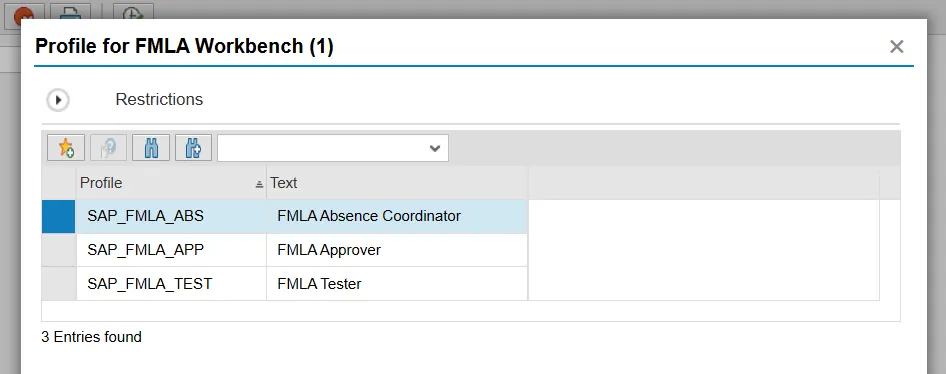
Step 3. In the Profile section, click on the matchcode; three (3) profile options will display
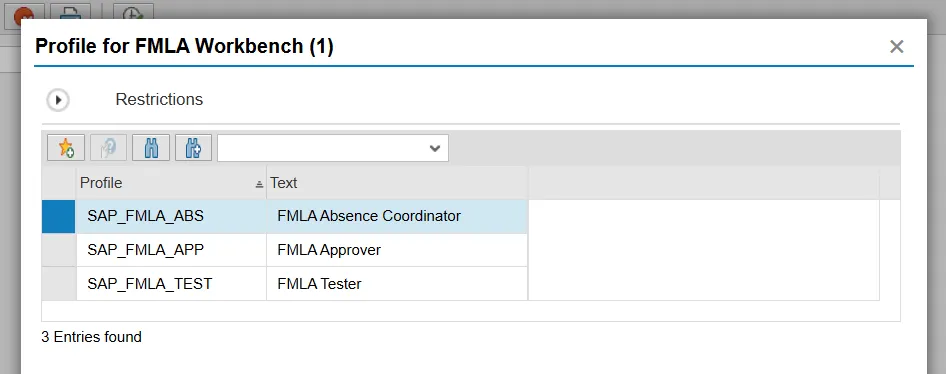
Step 4. Select SAP_FMLA_APP (FMLA Approver) and click Execute.
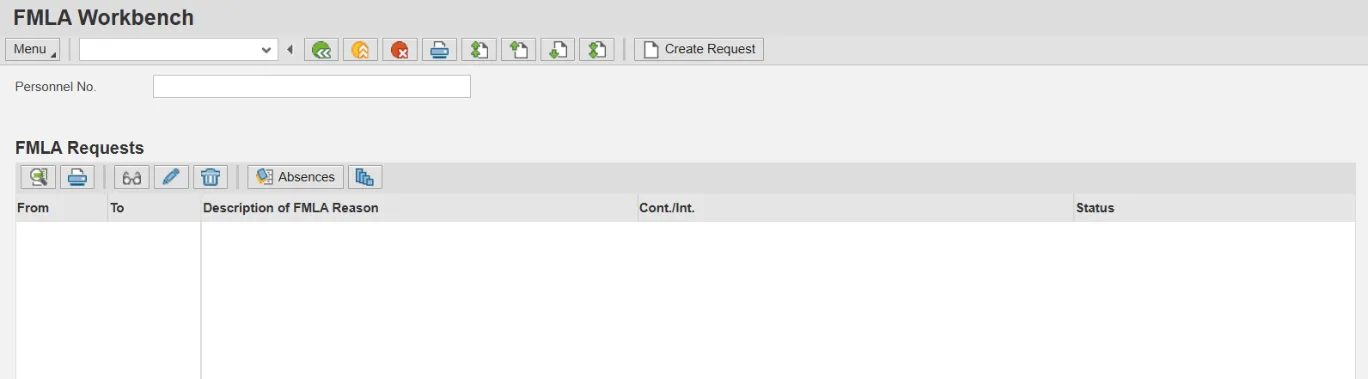
Step 5. You can continue to create an FMLA Event by entering the Personnel # of the employee.
My employee has less than one year of service within the Integrated HR-Payroll System but has creditable service from elsewhere. How do I override the eligibility requirement?
The SAP system is programmed to show if the employee is eligible for FMLA. This can be viewed within transaction PTFMLA using the Check Request button.
Note: The system reads criteria on the IT0007-Planned Working Time to determine eligibility. However, Administrators always should perform a manual review for eligibility and then compare the results with the system check.
- PT_BAL00 can be used to check Length of Service (min. 12 months required)
- Transaction CATS_DA or PA infotypes 2001 & 2002 can be used to check for in pay status hours (min. 1040 in the previous year (from start date of FMLA event) required. All time worked and paid leave counts however Leave Without Pay (9400) does not).
Next, click the 'Applicable Rules' tab. A table will appear with the first column titled 'Name of Rule'. There is a column for 'Eligibility' for which the system checks to see if the employee has 12 months of service and has 1040 hrs in pay status in the preceding 12 months. If there is a green check the employee is eligible.

If there is a red X, under Eligibility, they are not.
If an administrator’s manual review contradicts the system check (see note below), the system does allow a PTFMLA Event Maintainer to override the Eligibility rule functionality for such a situation.
First, select the record with the gray box to the left of the ineligible record. Next, toggle the flag with the Eligibility button. The record will be marked as eligible, and the event can be saved and have absences assigned.
Note: For Non-BEACON to BEACON transfers and other employee Reinstatement actions, the PTFMLA Workbench may indicate an employee is not eligible for FMLA, when they truly are due to prior State service with another valid State entity. The system reads IT0007 only from the start of the employee’s employment in the Integrated HR-Payroll System and does not count employment or pay status hours from the Non-BEACON employer.
The employee has not yet provided the required paperwork for his/her FMLA event. Should I create an event in the Workbench?
FMLA events can be created in the Workbench for employees who have not yet provided the required documentation to support the FML designation. This would be used for employees who have been approved for a provisional FML designation while awaiting supporting documentation.
When creating an event for this type of situation, the ‘In Process’ option can be selected from the drop- down list in the ‘Status’ field:
Once the required paperwork is obtained and FML formally approved, the Status can be changed to ‘Approved’, the ‘Certificate Provided’ box checked and the action resaved.
My employee has eligibility left, but the individual applicable time entries all exceed that balance.
Documenting absence hours is required in SAP to monitor when the FMLA entitlement expires. This includes A/A 9400 once all paid leave is exhausted. Any dates leave is exhausted during the 12-month FMLA period will be listed in the PTFMLA Workbench under the 'Absences' tab so time can be applied toward the FMLA balance, by clicking on and checking the date. It is the Agency’s responsibility to enter any leave exhaustion into CAT2 or IT2001 for FMLA employees who have been placed on LOA status and then click on those dates in the FML workbench to apply the appropriate time toward the FML balance.
Example: Employee has 4.25 hours of FMLA eligibility remaining, however all unassigned absences in the FMLA period exceed 4.25 hours. In this example, we will assume that all of the unassigned absences are 9400/LWOP, though the idea is the same for all paid leave as well.
PTFMLA Absences are not programmed to split up a full day’s absence and apply it to a partial day’s FMLA balance automatically. Leave entries will need to be split up on the day the FML benefit expires if FML expires in partial hours of an 8 hr day. To indicate the partial hours:
- CAT2 entries will need to show 2 line-items for one day to split the 8 hrs of the day.
- Example: One line item of 3.75 hrs of 9400 on the day in which the FMLA entitlement will be exhausted with another line item of 4.25 hrs of 9400 on the same day. Both line items will show up on the ‘Absences’ tab in PTFMLA. You will click on the partial hrs absence that apply to the remaining FMLA balance, OR
- Example: One line item of 3.75 hrs of 9400 on the day in which the FMLA entitlement will be exhausted with another line item of 4.25 hrs of 9400 on the same day. Both line items will show up on the ‘Absences’ tab in PTFMLA. You will click on the partial hrs absence that apply to the remaining FMLA balance, OR
- IT2001 entries will need to be split up on the day FMLA coverage exhausts to accommodate the remaining hrs of the FML benefit.
- Example: If 43.75 hrs are remaining on the FMLA 480 hrs balance in the month of May 2019, an IT2001 would be entered for the period of 5/1/19-5/8/19 for 43.75 hrs and a IT2001 line-item entry for 5/8/19 for 4.25 hrs. Any remaining absences for the month can be entered as normal.
What reports are helpful in monitoring PTFMLA events?
The FML period needs to be monitored to determine when the 480 hr entitlement has been exhausted. Reports can be run in SAP to determine what employees are currently out on LOA-FMLA:
The FML period needs to be monitored to determine when the 480 hr entitlement has been exhausted. Reports can be run in SAP to determine what employees are currently out on LOA-FMLA:
Within BOBJ, there are several report options:
- BP179: Employee Action Detail – This report can provide information for LOA-FML actions within an effective date range or processed date range
- B0080 Last Employee Action in Effect as of Selected Date – This report can provide information on the most current action (to date) for an employee and can be filtered to show all employees currently on LOA-FML as of the current date.
- B0215: FMLA Overview – This report provides information about total amount of FMLA Leave, when eligibility begins and ends, the number of hours used and number of hours remaining
How does attributing absences in the Workbench affect the employee’s personnel records?
Agencies receive a BEACON Time Error report every month listing employees who 'kick out' for payroll processing due to time/leave entry errors. The following Time Errors are generally due to collisions between time/leave entries in CAT2/IT2001 and PTFMLA:
- “Insert cannot be made due to collision”
- “Infotype record was created using the timesheet”
When time is tied to an FML event, by clicking on the absence dates in the PTFMLA workbench, this essentially 'locks down' the record. If any changes are made to leave entries in CAT2/IT2001 for dates that have been previously tied to FML, these changes will NOT automatically update the absences listed in PTFMLA. These changes will generate a collision error resulting in the time/leave entries being kicked out of the payroll process and will show up on the error spreadsheet to be corrected.
To prevent these errors from occurring, any time leave entries that need to be changed in CAT2/IT2001, first review the PTFMLA workbench to determine if the date being changed is checked off as applying to a FMLA event. If the date is tied to FML, then 'uncheck' the dates in PTFMLA and save the change to the FML record.
Changes can then be made in CAT2/IT2001 to any leave entries on that date. Once time evaluation runs to process and update that change, PTFMLA can be accessed to recheck all the absence dates that apply to the FML event.
Example: Leave entries are entered into CAT2/IT2001 exhausting leave on the 12.25 hr schedule. These entries are checked off in
PTFMLA as applying to a FML event. Subsequently, the employee's schedule is changed to the M-F/8hr schedule to exhaust the leave & the 12.25 hr CAT2/IT2001 entries are changed to 8 hrs per day. The 8 hrs DO NOT show up in PTFMLA, the 12.25 hrs are STILL showing and checked. You would have to uncheck all the dates & save the change, then let time eval run, and the next day, the 8 hr entries should show to check off in PTFMLA.
PTFMLA must be reviewed before entering any changes to leave entries in CAT2/IT2001. This can help prevent the error messages and ensure there is no delay in the employee's payroll processing.
How does Leave Offsetting impact the PTFMLA Workbench?
The PTFMLA workbench does not take into account any hours that are offset and moved back into a leave quota. Therefore, as absences are applied to the FMLA balance, more hours can be deducted from the FMLA balance than should be. Facilities must monitor this manually by checking PT50 for any leave offsets returning to the leave balance entitlements.
- For LOA actions, this normally occurs in the first month the employee goes out on LOA status and the last month of LOA when the employee reinstates to employment.
- For Intermittent FML absences, this can occur for any pay period that has excess hours over the standard.
What is the purpose of the ‘Planned Hours’ section on the FMLA Request tab?
The Planned Hours field is directly tied to the ‘Intermittent’ radio button option. If hours are entered into the Planned Hours field, the system will default automatically to the ‘Intermittent’ option and will display the following message when saved: Enter planned hours for intermittent periods only.
Agencies can use this field to indicate the projected amount of time for the intermittent absence.
What types of leave are valid based on the reason for FMLA and the employee’s subgrouping?
The table with that information can be found on the FMLA Reason Absence Assignment help document.
Does the HR-Payroll System recognize when entering a PNR in the Workbench that an employee is either FT or PT and if so, does it indicate the appropriate entitled hours based on this criteria?
Yes. The system will indicate FT or PT and the appropriate hours of entitlement based on the criteria in the IT0007 Planned Working Time record.
Example: A FT Perm working 40 hrs/wk will show a Remainder in Weeks of 12.000.
