Purpose
The purpose of this Business Process Procedure is to explain how to enter a substitute for an employee who is unable to work their shift.
Trigger
There is a need to enter a substitute for an employee who is unable to work on their shift.
Business Process Procedure
In the event that an employee is unable to work his or her shift, another employee can substitute for that shift if approved by the employee’s supervisor. When taking over a shift, the substituting employee assumes all the characteristics for the shift he/she is substituting for, including planned working time and shift premium eligibility. If the substituting employee has the corresponding premium eligibility records, then he/she will be eligible for any premiums associated with the additional shift. The Substitution Infotype (Infotype 2003) enables the substitution functionality.
There are several substitutions available in the Integrated HR-Payroll System. There are two substitutions relevant to shift substitutions.
Employee substitution (subtype 01) - An employee substitution involves specifying a personnel number of the employee for which the substituting employee will be replacing during the period of the substitution record. The substituting employee will assume the planned working time and premium eligibility of the employee specified for period of the substitution record.
Shift substitution (subtype 02) - A shift substitution involves specifying a Daily Work Schedule (DWS) or Work Schedule Rule (WSR) that the substituting employee will work during the period of the substitution record. A DWS should be used for a substitution of a single day. A WSR substitution is more appropriate for a longer substituting period.
After a Substitution record is created, the maintenance of the record is very important due to the possible changes in compensation due to substitutions for premium eligible shifts. If the actual period or date of the Substitution changes, the relevant Infotype 2003 record also must be updated to ensure proper compensation. If a Substitution is no longer necessary or an employee did not actually work the assigned substitution shift, the relevant record should be deleted to ensure additional compensation is not earned through the original Substitution assignment.
This BPP will detail:
- Creating an Employee substitution.
- Creating a Shift substitution.
- Maintaining a substitution record.
- Deleting a substitution record.
Tips and Tricks
There are nine other substitution types in the Integrated HR-Payroll System. The following substitution types are relevant for Leave of Absences (LOA) and will be managed via personnel actions by the Master Data Maintainer.
- 05 - LOA Generic
- 10 - LOA - FMLA
- 11 - LOA - WC Regular
- 12 - LOA - WC Salary Continuation
- 13 - LOA – Military
The following substitution types are relevant for Short-term Disability absences and will be managed via personnel actions by the Short-term Disability Specialist.
- 06 - STD (1st 6 months prior 89)
- 07 - STD (2nd 6 months prior 89)
- 08 - STD (1st 6 months after 89)
- 09 - STD (2nd 6 months after 89)
Access Transaction
Via Transaction Code: PA61
Procedure
There are 31 steps in this process.
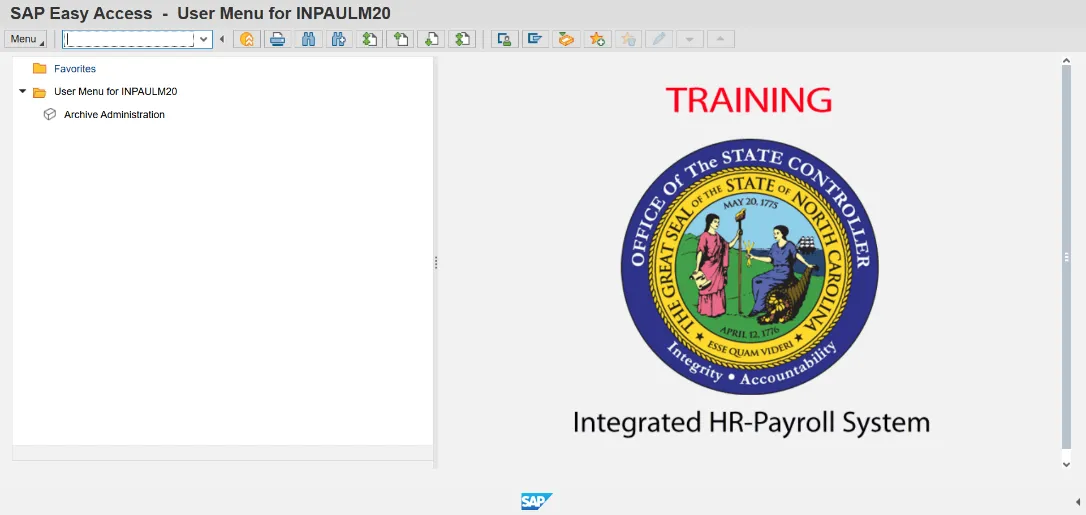
Step 1. Update the Command field using Transaction code PA61.
Step 2. Click Enter.
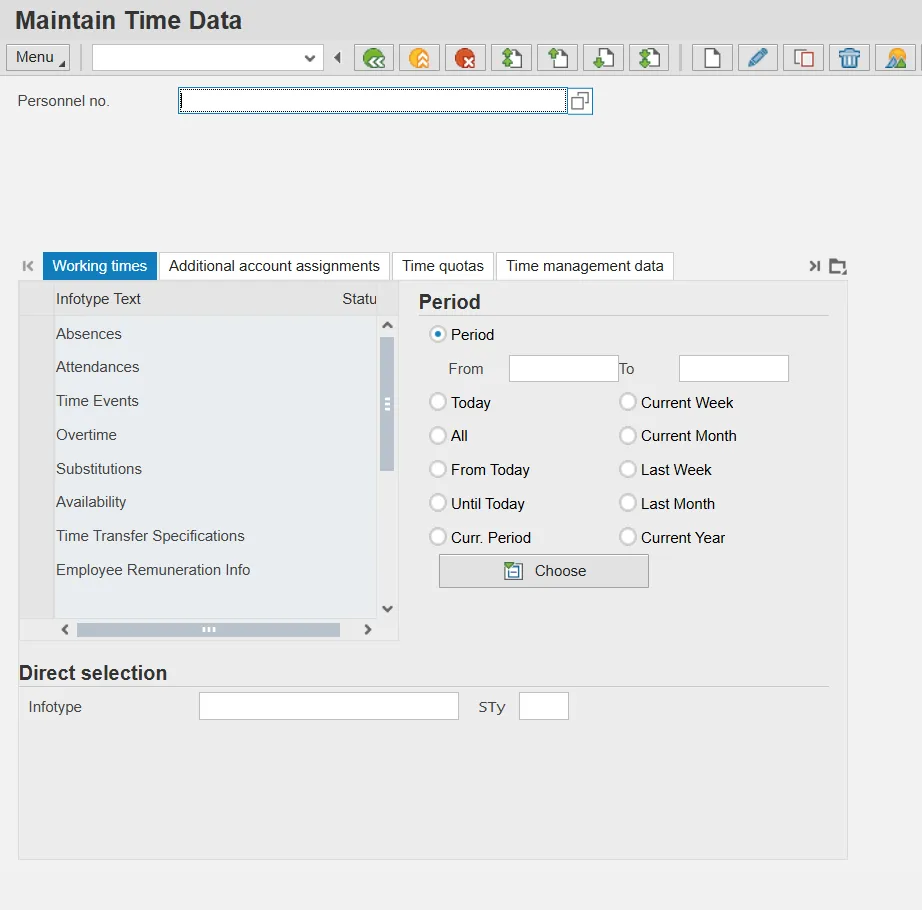
Step 3. Update the Personnel No. field.
Step 4. Click Enter.
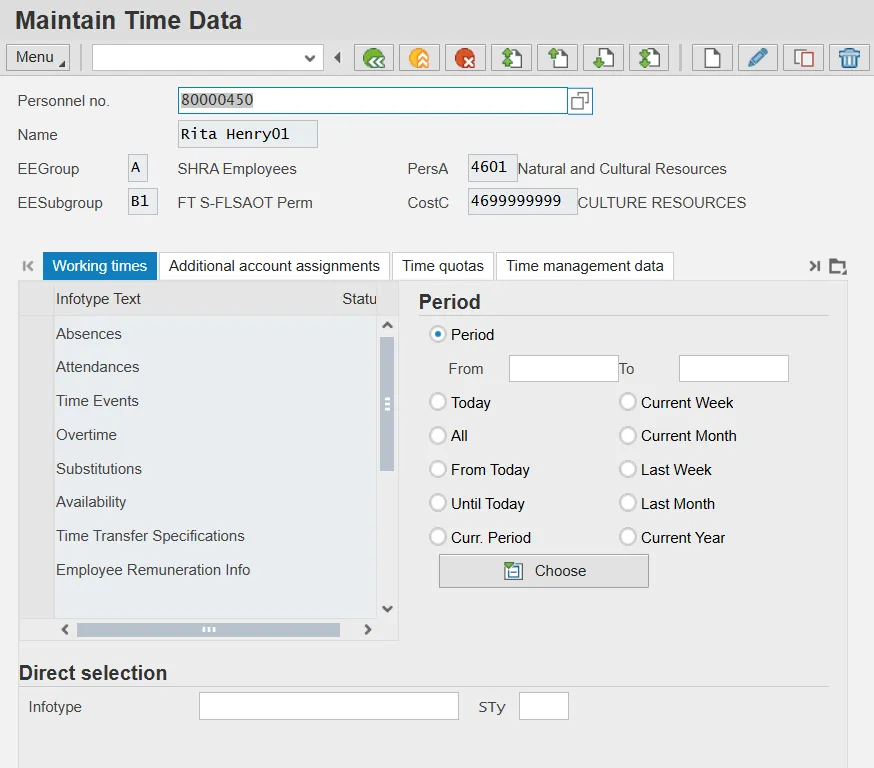
Ensure the correct personnel number was entered after clicking Enter.
These instructions provide information on how to:
- Create an employee substitution
- Create a shift substitution
- Maintain a substitution
- Delete a substitution
Create Employee Substitution
Step 5. Update the following fields:
- From Date
- To Date
- Infotype (Example: 2003)
- Sty (Example: 01)
Step 6. Click Enter.
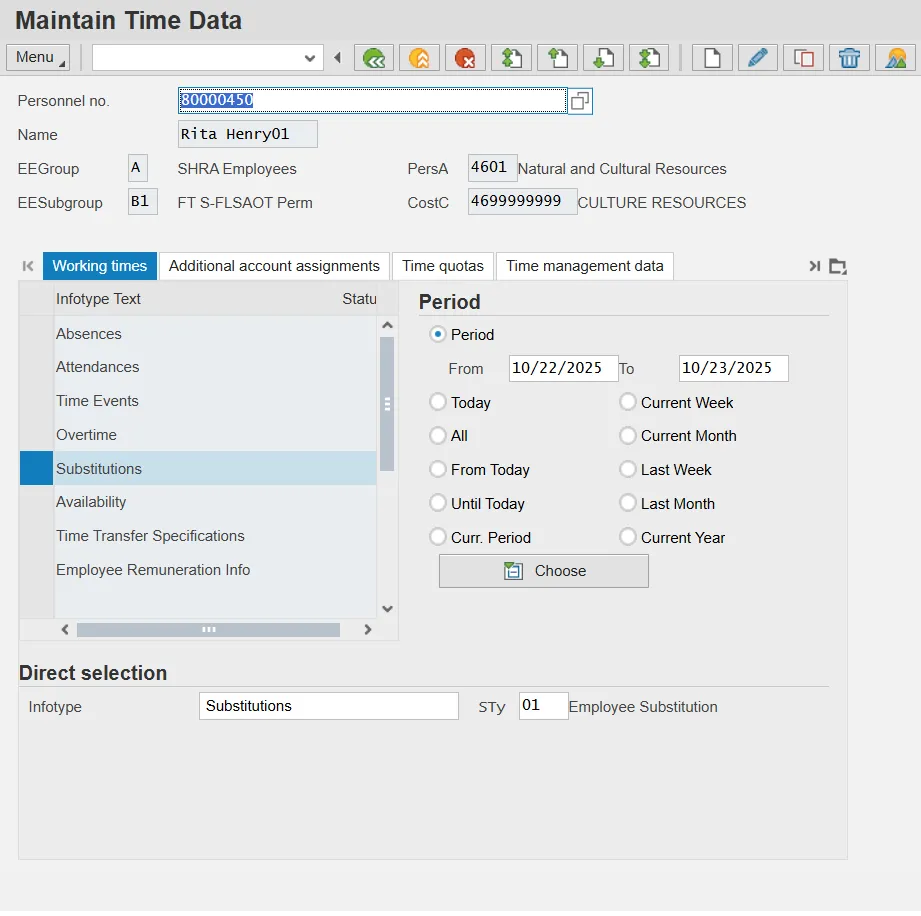
Step 7. Click the Create (F5) button.
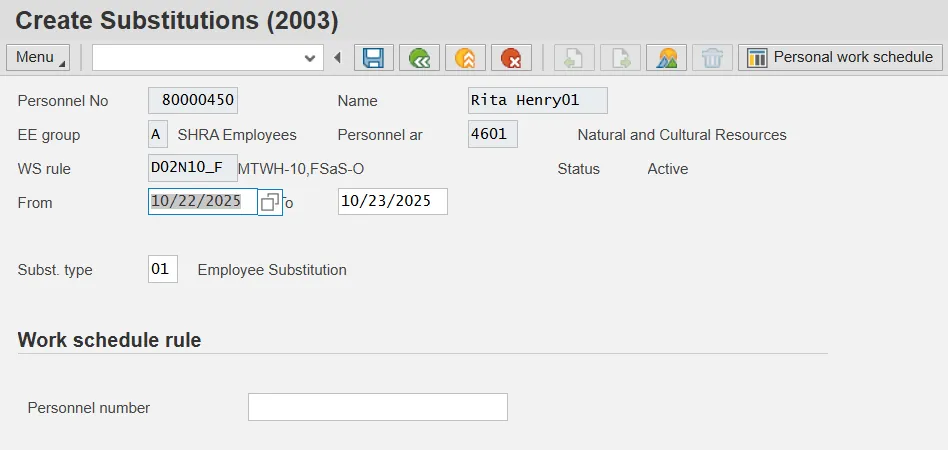
Step 8. Update the Personnel No. field.
Enter the Personnel number of the employee who the current employee will be substituting for during the period identified on the substitution record.
If the personnel number is not known, use the match code to search for the personnel number for which the current employee will be substituting.
Step 9. Press ENTER.
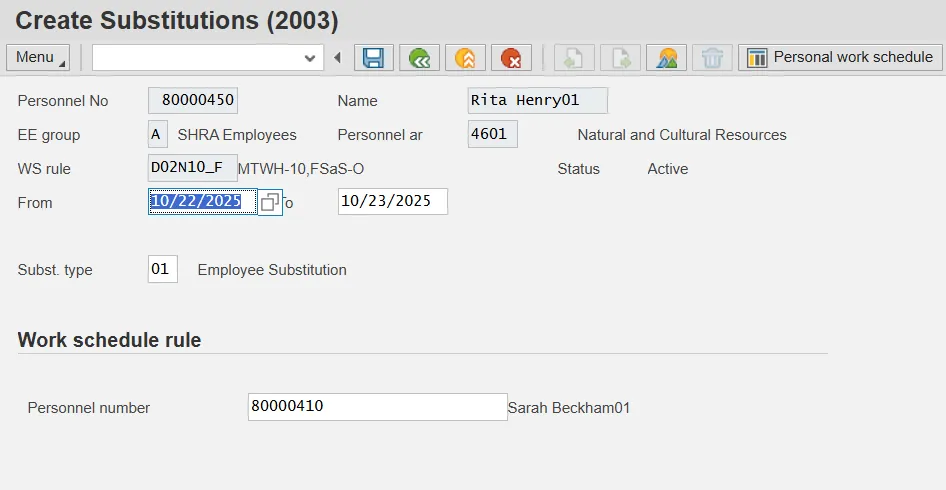
Step 10. Click the Save (Ctrl+S) button.
Create Shift Substitution
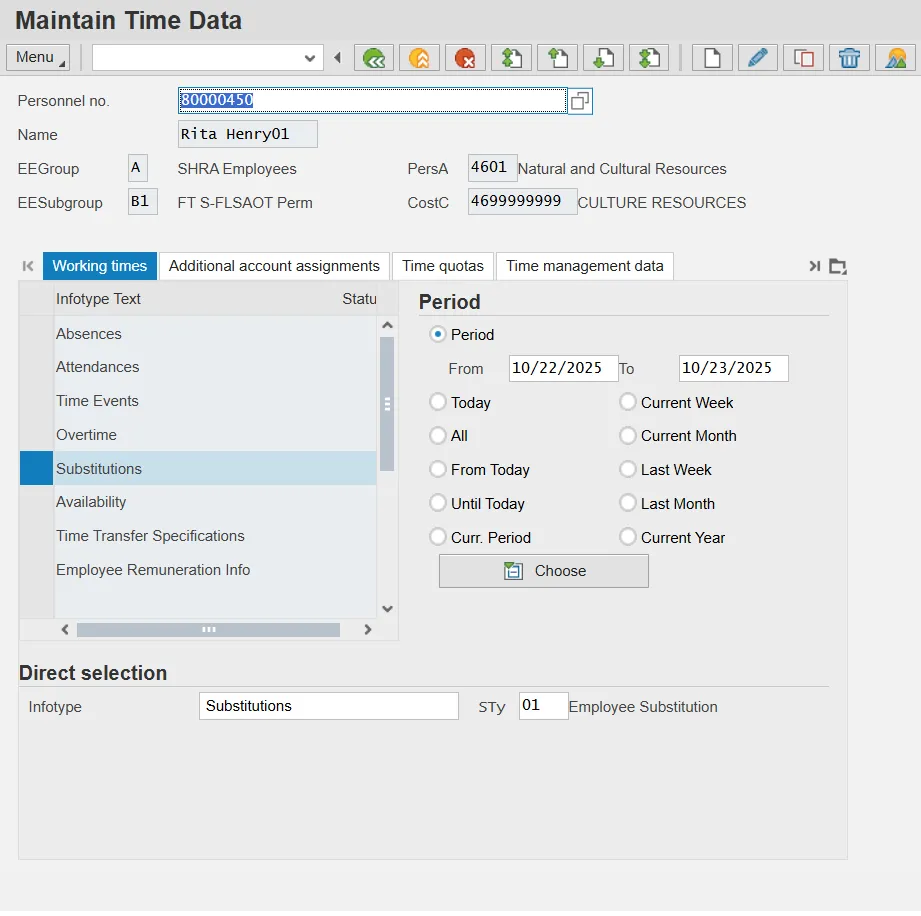
Step 11. Update the following fields:
- From Date
- To Date
- Infotype (Example: 2003)
- Sty (Example: 02)
Step 12. Press ENTER.
Step 13. Click the Create (F5) button.
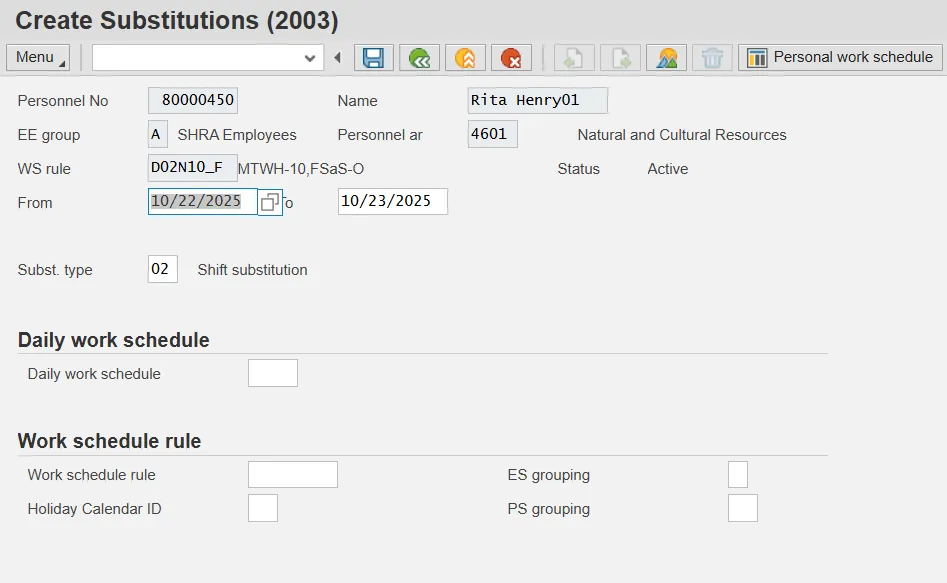
Step 14. Update the following fields:
- Daily Work Schedule (Example: 1N08)
Step 15. Press ENTER.
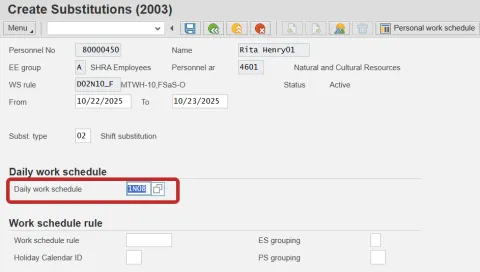
Notes:
- Use F9 or Edit > Maintain Text to add comments. This is highly recommended when creating a WSR.
- WSR substitutions supersede WSR on IT0007. For this reason, if the WSR substitution is needed for an extended period of time, it is better to change IT0007.
Step 16. Click the Save (Ctrl+S) button.
Maintain Substitution
Step 17. Click the All radio button.
Step 18. Update the following fields:
- Infotype (Example:2003)
Step 19. Press ENTER.
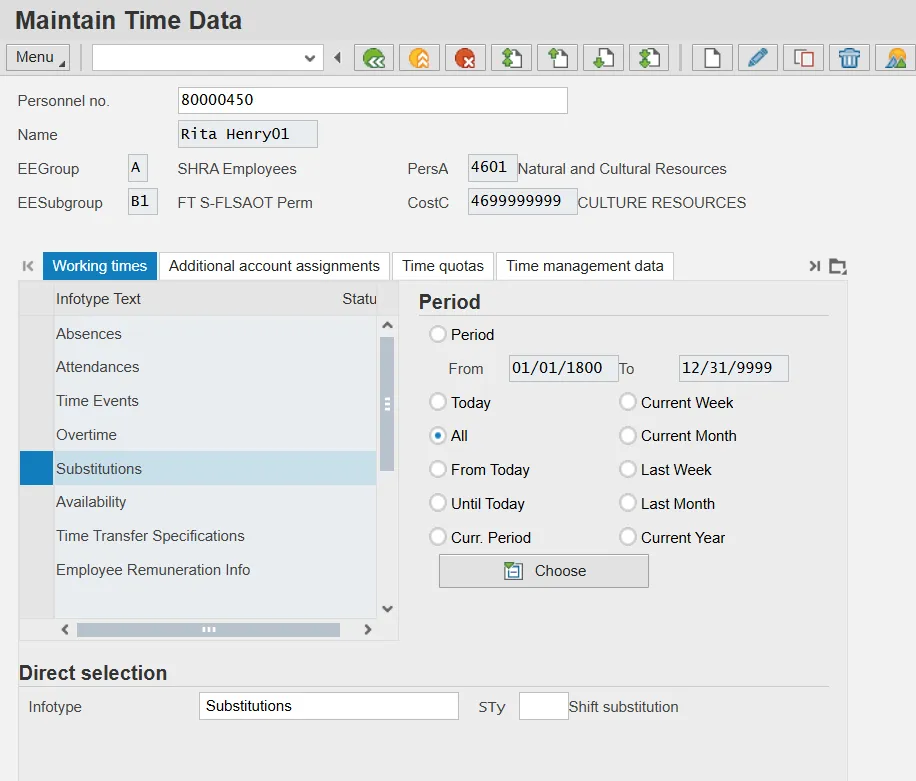
Step 20. Click the Change (F6) button.
Note: If multiple substitution records exist for the employee, use the Next Record or Previous Record buttons to find the record to be maintained.
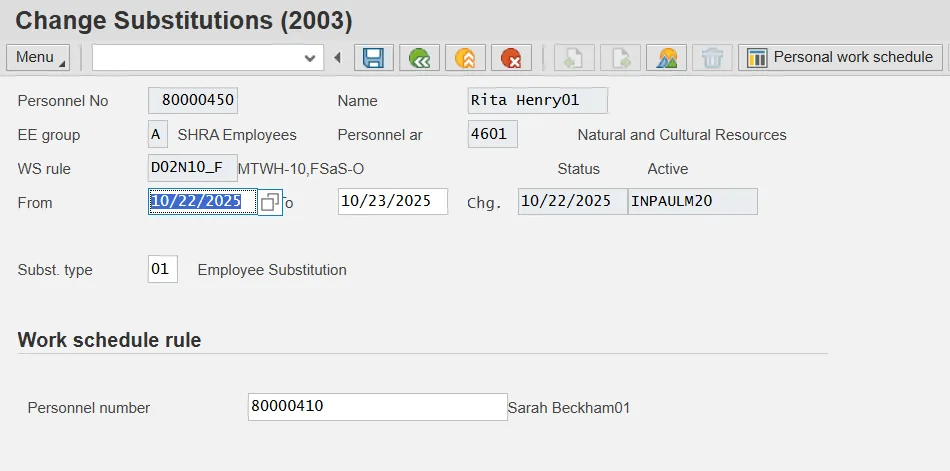
Step 21. Update the following fields:
- From Date
Step 22. Press ENTER.
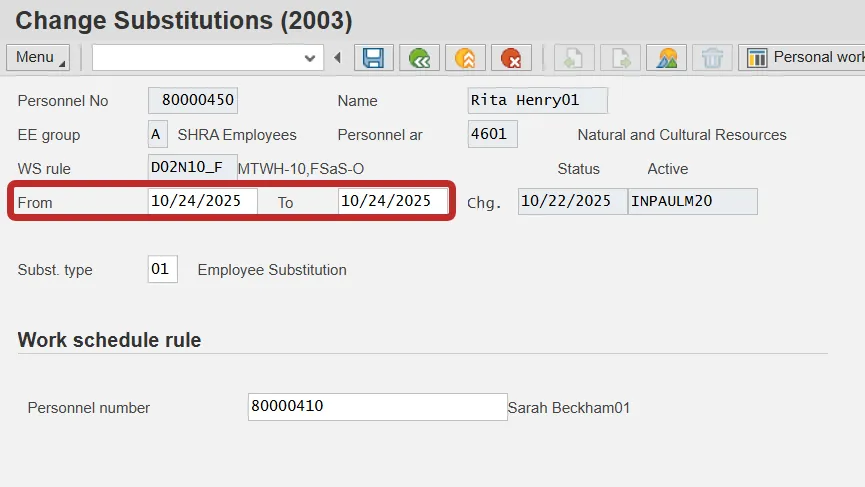
Step 23. Click the Save (Ctrl+S) button.
Delete Substitution
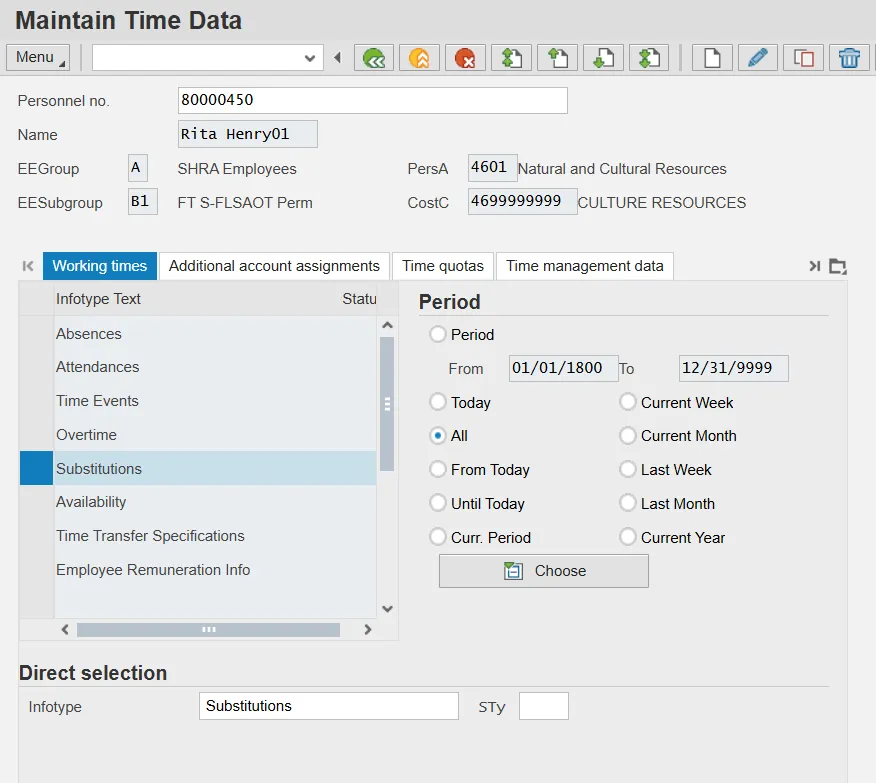
Step 24. Click the All radio button.
Step 25. Update the following fields:
- Infotype (Example: 2003)
Step 26. Press ENTER.
Step 27. Click Overview (Shift+F8) button.
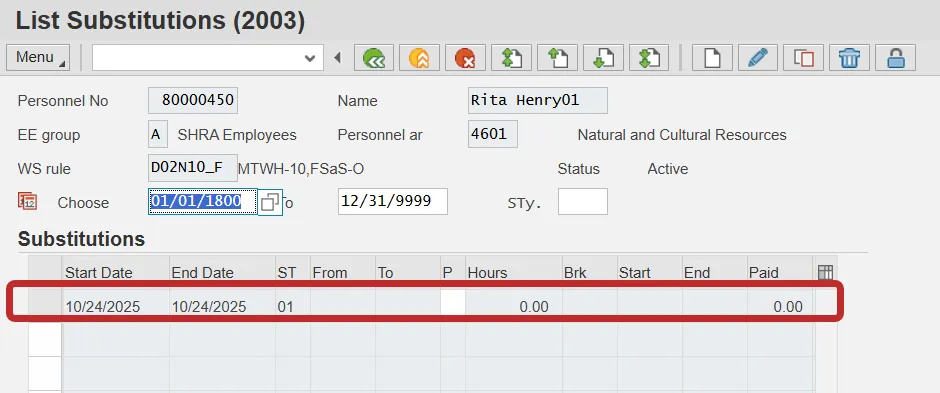
Step 28. Highlight the row of the substitution that needs to be changed.
Step 29. Click the Delete (Shift+F2) button.
Step 30. A second screen will display the record in detail. Review the detail of the record to ensure the correct record has been selected for deletion.
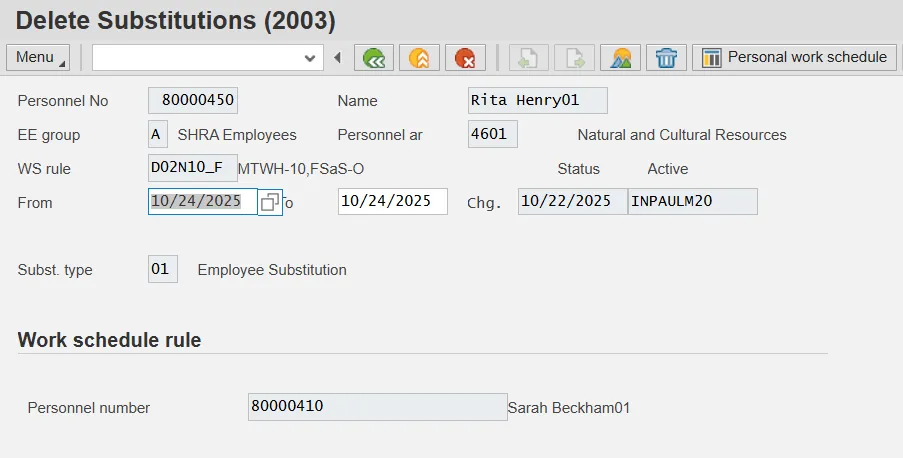
Step 31. Click the Delete (Shift+F2) button.
Note: This action is permanent. You will not receive a confirmation screen before the record is deleted. Be sure this is the correct action before completing it.
The system task is complete.