Purpose
The purpose of this Business Process Procedure is to explain how to create an Infotype 613 (IT0613) donation record in the Integrated HR-Payroll System for an employee who donates leave to another employee approved to participate in the Voluntary Shared Leave (VSL) program.
Business Process Procedure Overview
The State of NC has a policy that permits an employee to donate leave to another employee who has been approved to participate in the Voluntary Shared Leave (VSL) program. An employee can donate Vacation, Bonus, or Sick leave to another employee according to OSHR policy. The Absence Donation Administration Infotype (613) enables the leave donation functionality.
There is a single subtype for Infotype 613 that is relevant for leave donations: Donation (Subtype 0001). Upon creation, the donation record (IT0613) will automatically create a time quota compensation record (infotype 0416) to deduct the amount from the donor’s balances and a quota correction record (infotype 2013) to apply the donation to the receiving employee’s Received Shared Leave quota.
Critical: In order for a leave donation to be processed correctly, the receiving employee must have a current Absence Pool record (Infotype 696). These steps are detailed in the TM-52 Received Shared Leave (Recipient) BPP. Verify that the IT696 eligibility record exists for the recipient employee before continuing.
This BPP will detail:
- Creating a leave donation record.
- Verifying the deduction from the selected quota.
Note: If processing Received Shared Leave across agencies, a ticket should be submitted to BEST@ncosc.gov for assistance by the receiving agency.
Access Transaction
Via Transaction Code: PA61
Processing Donation(s)
There are 11 steps in this process.
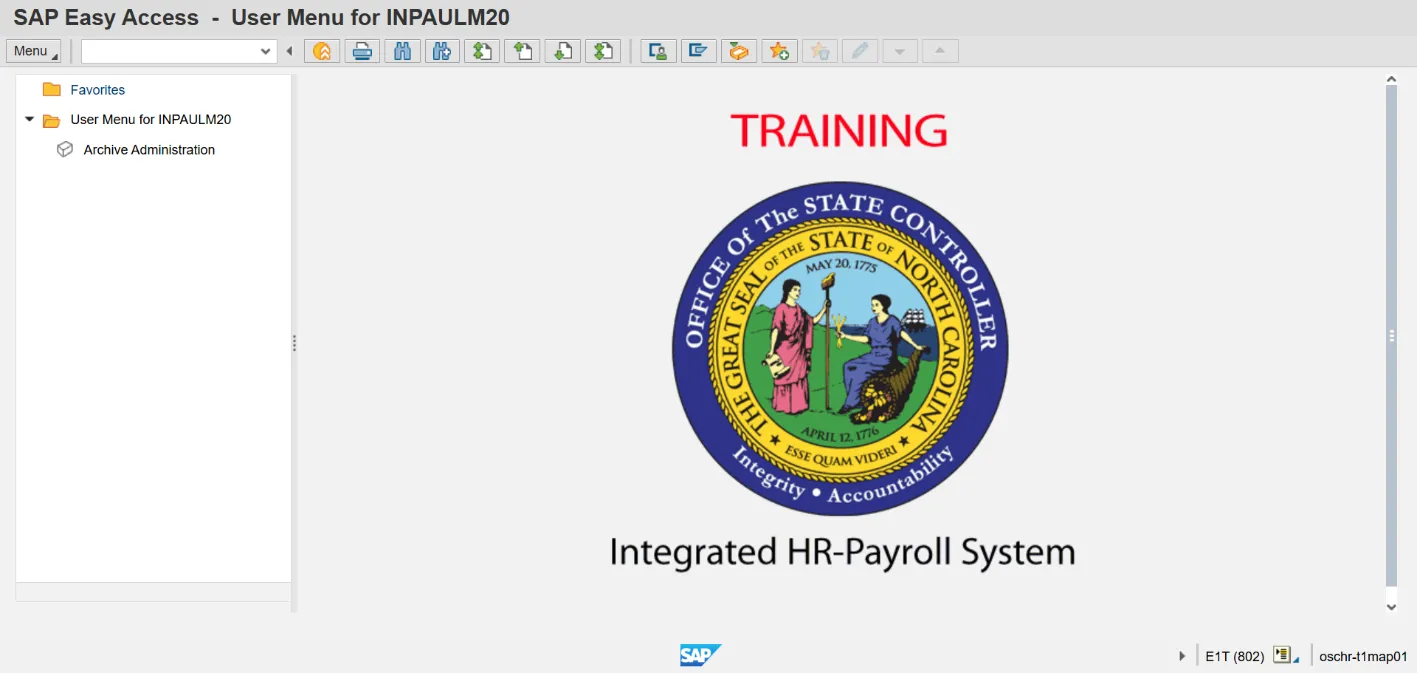
Step 1. In the Command field in the upper left corner of the screen, enter PA61 to open the Maintain Time Data transaction and click the Enter button to the left of the Command field or click Enter on your keyboard. 1. Or, if you have previously added this transaction to your Favorites folder, double click PA61.
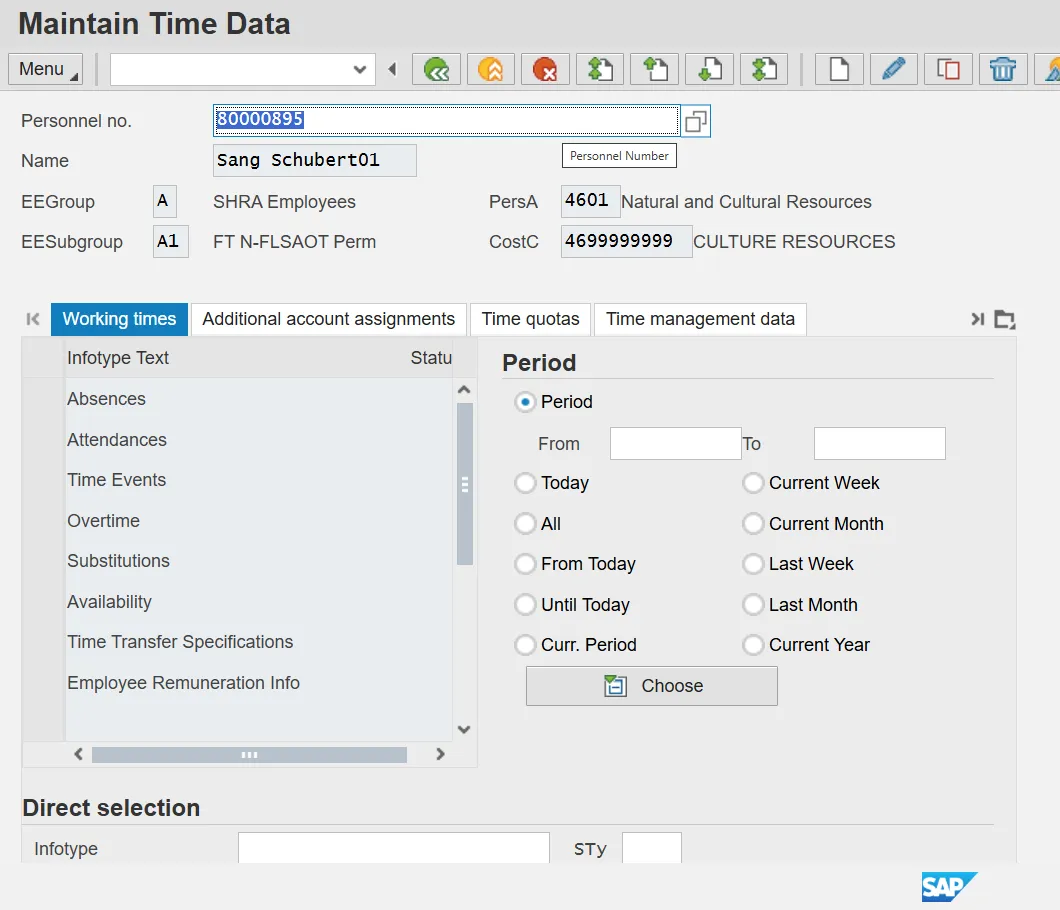
Step 2. Enter the donor employee’s personnel number in Personnel no. field and click Enter on your keyboard. Example: 80000895.
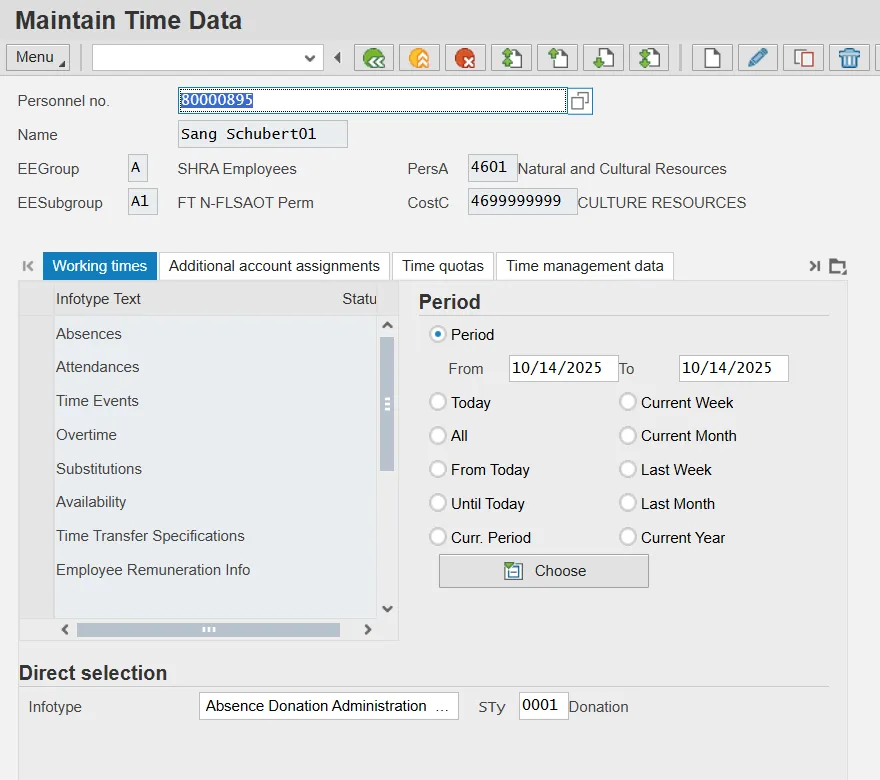
Step 3. In the Period selection area on the right, enter the effective date of the received shared leave donation in the From and To fields. The From and To fields should contain the same date and reflect the date of the donation. Example: 10/14/2025
Step 4. In the Direct Selection area at the bottom, enter 613 in the Infotype field and click Enter on your keyboard. You will see Absence Donation Administration displayed.
Step 5. Then, enter 0001 in the STy field and click Enter on your keyboard. You will see Donation displayed.
Step 6. Click the Create button or (F5).
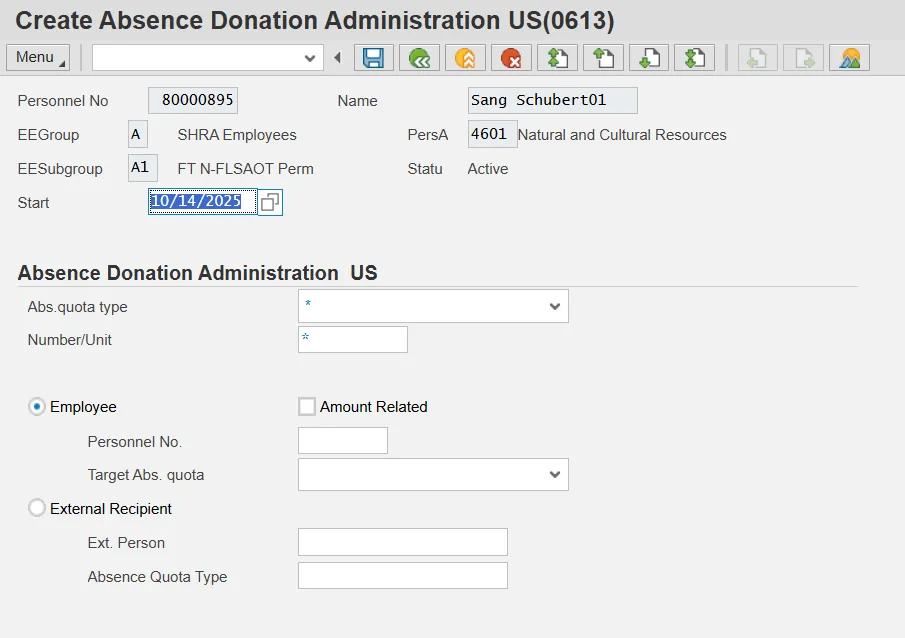
Step 7. Click the Abs. quota type drop-down list. Policy approved quotas include Vacation Leave, Sick Leave, and Bonus Leave. Only the acceptable leave donating absence quota types will appear in the selection list.
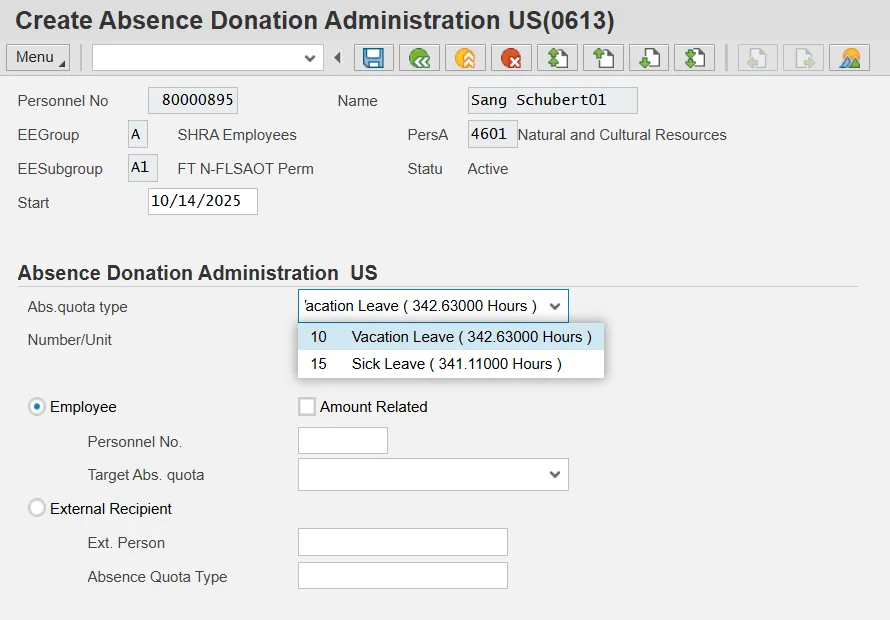
Step 8. Select the appropriate quota. Example: Vacation Leave (342.63000 Hours) selected in the list box.
Step 9. In the Number/Unit field, Enter number/unit equal to the donated hours. Example: 16.
Note: Refer to OSHR Voluntary Shared Leave Policy for minimum donation amounts associated with the VSL program.
Step 10. In the Personnel no. field, enter the personnel number for the employee receiving the donation and click Enter on your keyboard. Example: 80000715
Note: Clicking Enter after entering a personnel number refreshes the transaction. Once refreshed, the recipient’s name will populate, and the Target Abs. quota field generates the default quota 80 Received Shared Leave. Target Abs. quota Received Shared Leave defaults as the only allowable quota. Selection of a different quota type is not allowed per OSHR policy.
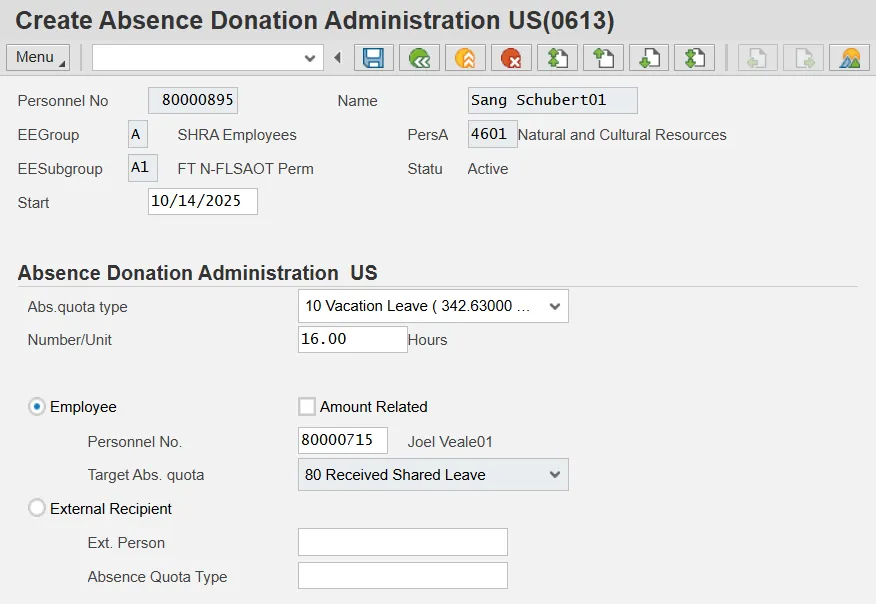
Step 11. Click the Save button (Ctrl+S).
Note: When you Save the IT613-0001 record, an IT2013-80 record is created for the receiving employee in the background. The IT2013 record will be saved with the “Do not change transfer time” option selected as default and should never be changed.
Reviewing Quota Correction
There are 5 steps in this process.
In the previous steps, the Donor employee donated 16 hours of Vacation leave. In the steps below, the donated 16 hours are shown as a quota correction (IT2013) record for the Recipient.
Step 1. While still in transaction code PA61 Maintain Time Data, enter the Recipient’s personnel number in the Personnel no. field in place of the Donor’s and click enter on your keyboard. Example: 80000715
Note: Clicking Enter after entering a personnel number refreshes the transaction. Once refreshed, the recipient’s name will populate.
Step 2. Click the All radio button.
Step 3. In the Direct selection section, enter 2013 in the Infotype field and click Enter on your keyboard.
Step 4. In the STy field, enter 80 and click Enter on your keyboard.
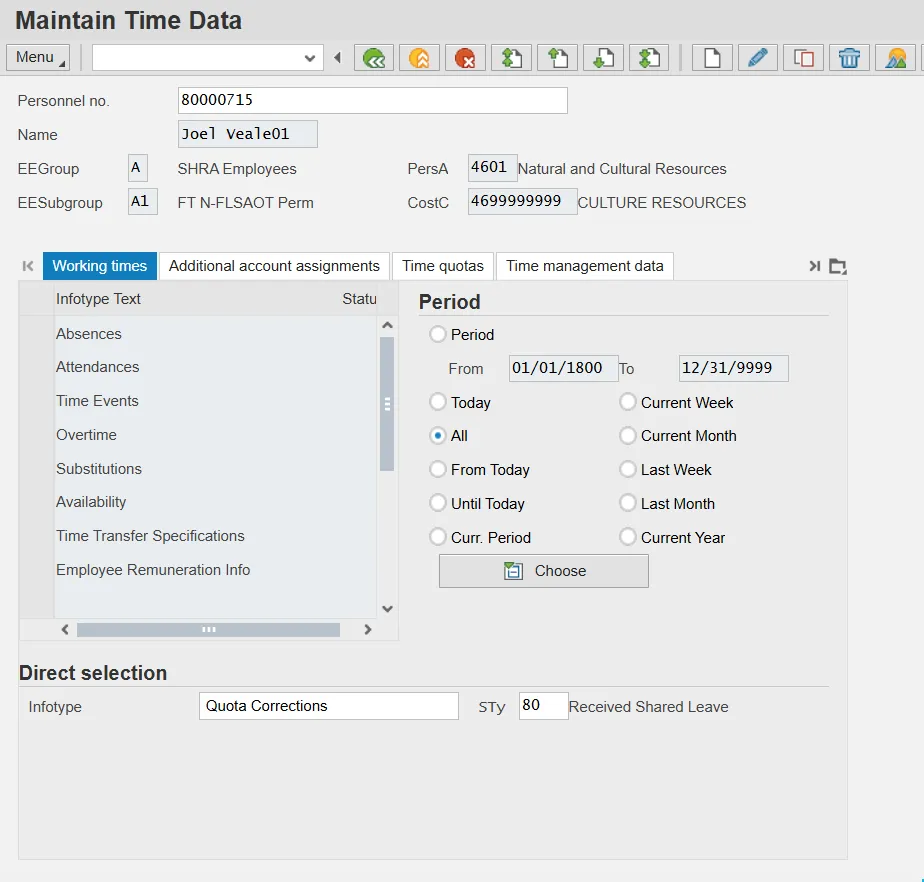
Step 5. Click the Overview button (Shift+F8).
Note: The donated leave will be available to the receiving employee the day after the effective date (Start/End dates) once the nightly Time Evaluation program has processed the donation.