Purpose
The purpose of this Business Process Procedure (BPP) is to explain how to access and change Infotypes 1018 & 9018 as necessary in the Integrated HR-Payroll System.
Trigger
Need to look up and change cost distribution information for a position.
Procedure
There are 14 steps to complete this process.
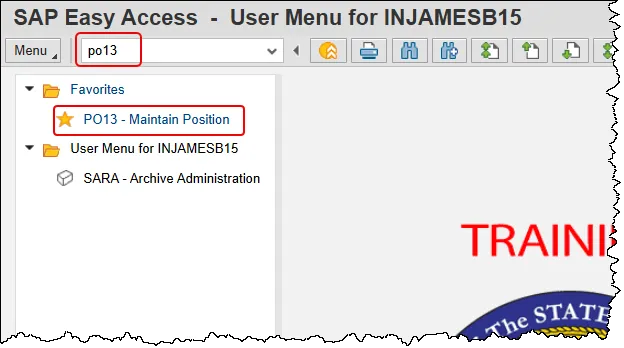
Step 1. Enter PO13 in the command field and press the enter button. Or double click it from your Favorites folder if you’ve previously saved it there.
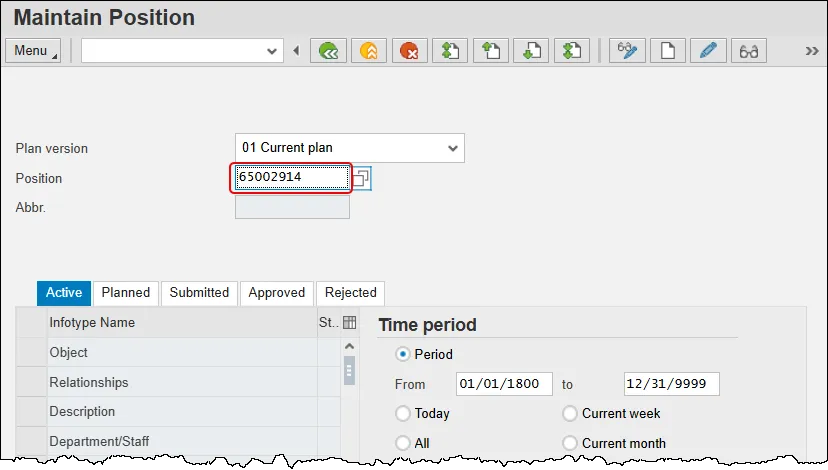
Step 2. Input the position number that needs updating. This document will use 65002914 from the Development Environment. Access client 899 to follow along in a “live” system.
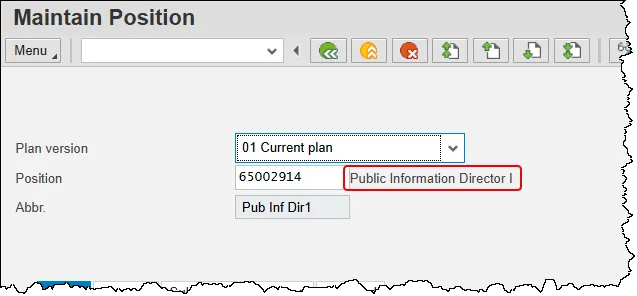
Step 3. Press Enter and verify the position displayed is the one you need to change.
Alert! Be vigilant on this step. A position number may be present already when you access the transaction, so be sure to review the position number and name to ensure they are correct.
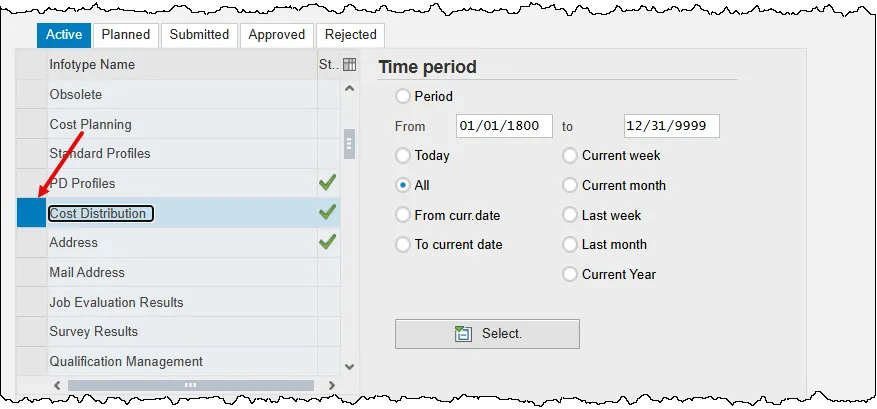
Step 4. Scroll down the list of position infotypes and click the square on the left of the Cost Distribution row.
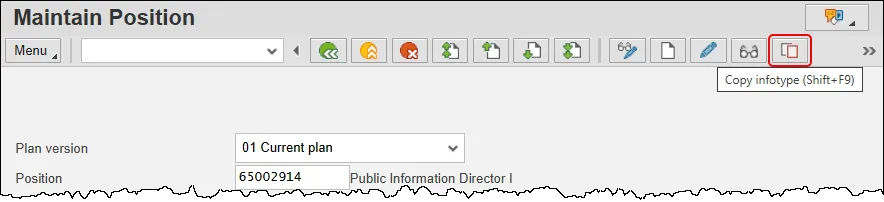
Step 5. Click the Copy infotype button. Using the copy button will delimit the previous record and ensure that history is retained.
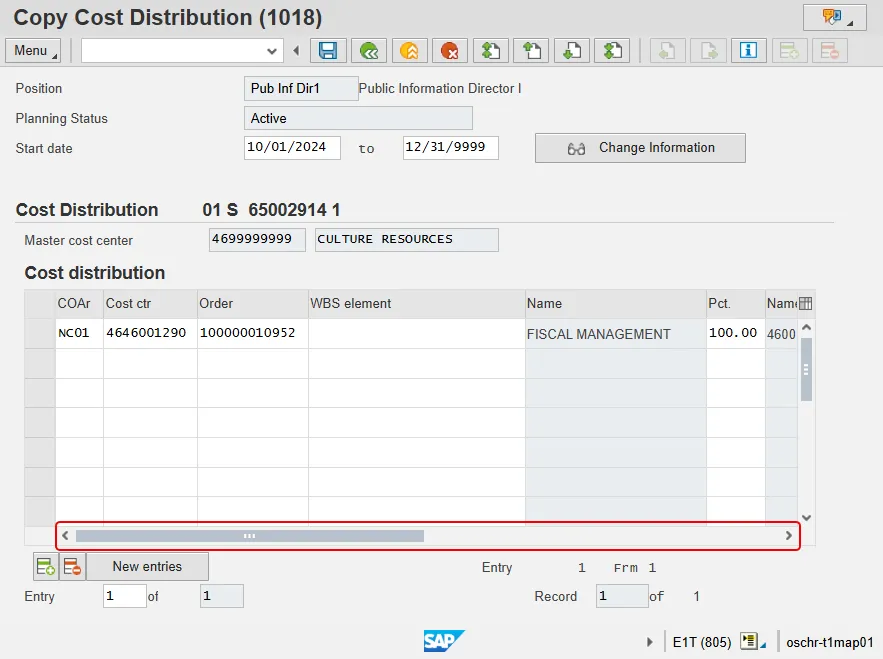
Step 6. Review each of the current Cost Distribution fields for the position by utilizing the scroll bar at the bottom of the row(s) of data.
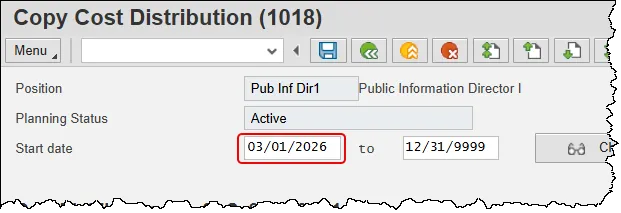
Step 7. Update the Start Date field.
Critical: You must change the Start Date.
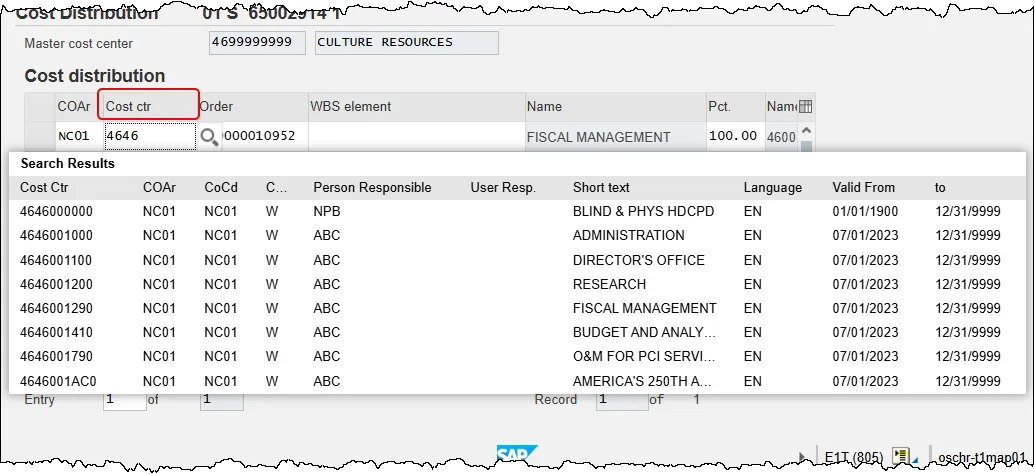
Step 8. Update the Cost Ctr (Cost Center) field as appropriate. In this example we’ll use: 4646001790. See chart at the end of this document for a description of the Cost Center field.
Note: The system will suggest Cost Center numbers as you begin to type. Use this helpful feature to avoid typos!
Step 9. Update the Order field as appropriate. In this example, we’ll use 100000010958. See chart at the end of this document for a description of the Order field.
The system will suggest Order numbers as you type in this field.
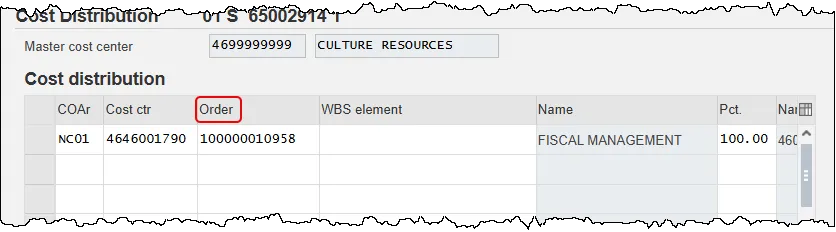
Note: The Order value is a non-intelligent number assigned by the system. It may be beneficial to search by the Description.
- Click in the Order field.
- Click the Matchcode button that appears to the right. It looks like a magnifying glass.
- Enter the NCFS full company center in the Description field to search for the appropriate Order number. Using 46* as shown in the screen shot below will search for NCFS company 4601 (DNCR) and all matches for fund 1000.
- Important Reminder: The screen shots below are taken from a training environment and may not reflect production data.
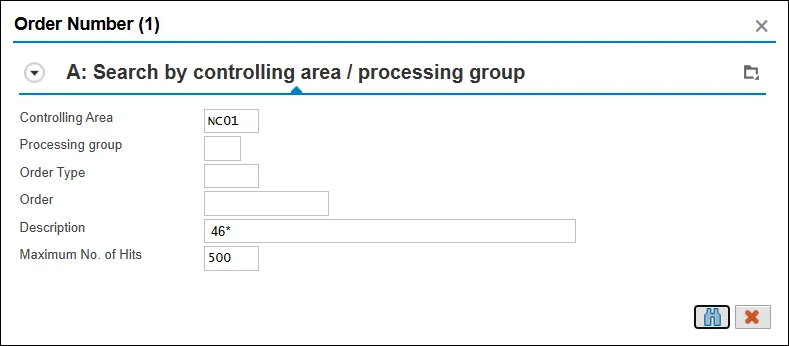
- The Search results will display as shown below.
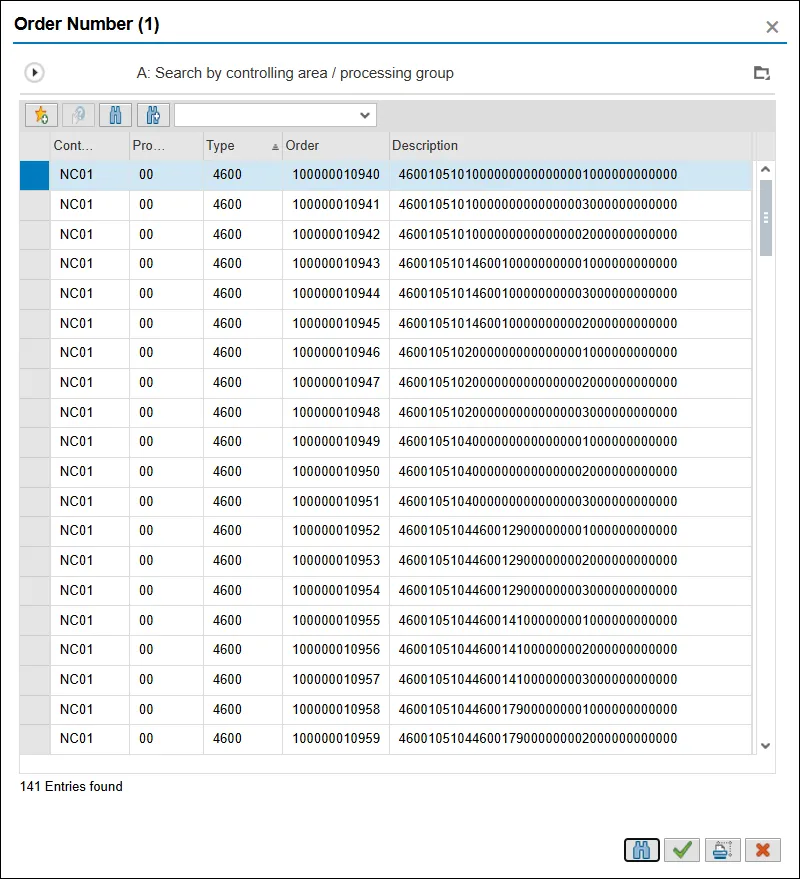
Note: The results of this search will also return NCAS (North Carolina Accounting System) values which are easily discernible as their descriptions have far fewer numerals. They are there for research purposes only.
Per NCFS instruction, agencies should be using NCFS data only.
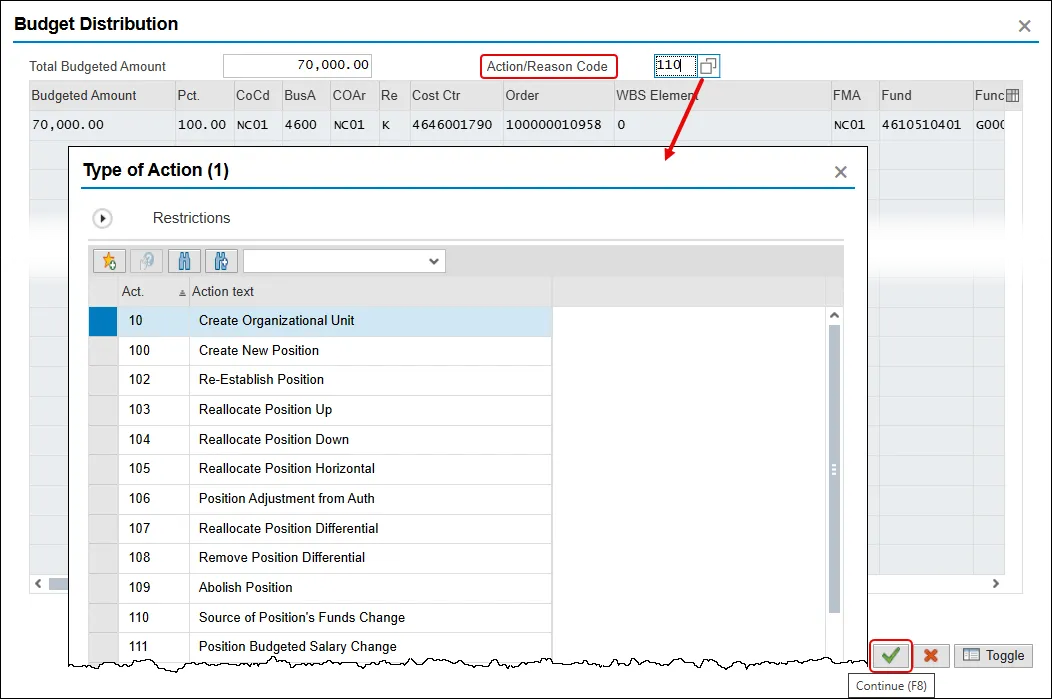
Step 10. Click the Enter key. The Budget Distribution pop-up will appear.
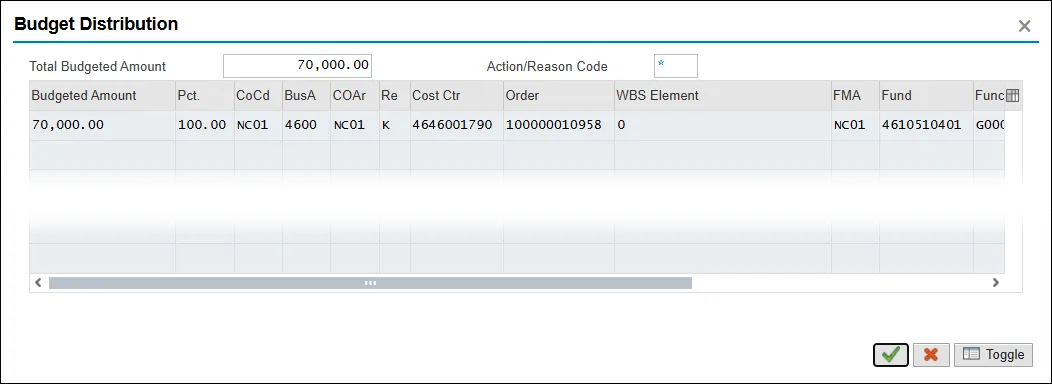
Step 11. Update the Action/Reason Code field. Type in directly or click in the field and then on the Matchcode button to see a list of reasons to choose from.
In this scenario, the correct reason to choose is 110 – Source of Position’s Funds Change.
Then, click the Continue button.
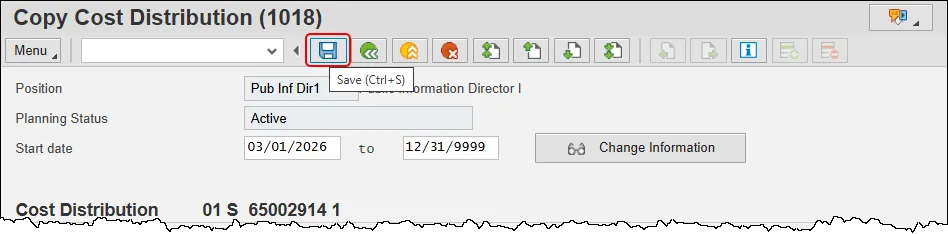
Step 12. Click the Save button.
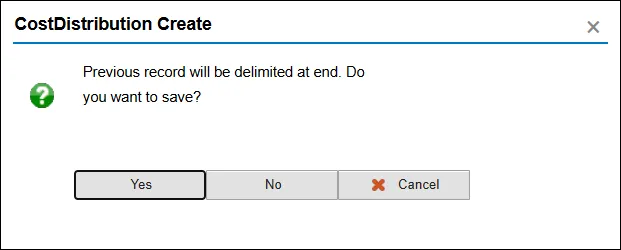
Step 13. In the CostDistribution Create pop-up window click the Yes button.
Step 14. Note that the message on the bottom of the screen that the record has been created. Click the Back button.
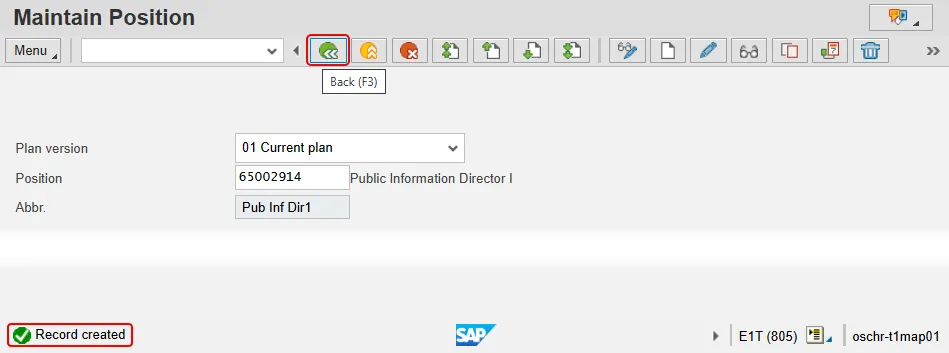
The system task is complete.
Field descriptions for updating IT1018:
- COAr – Only one Controlling Area set up for the system. NC01 will default into this field.
- Cost ctr – Key uniquely identifying a cost center.
- Order – Number which identifies an order within a client. Note that the Internal Order Number is associated with an Internal Order Description, for which there will be 2 types: the older NCAS Description and the present (38 byte) NCFS Description.
- Pct. – Percent. The sum of the rows must add up to 100%!
- Fund – Fund is a strategic organizational unit for identifying the origin or source of funds in the SAP system.
- Functional Area – Only one Functional Area set up for the system. G000000000000001 will default into this field.