Purpose
The purpose of this job aid is to show the ZPOS - Position Overview Screen which shows a “summary snapshot” of a position’s information.
The transaction is initiated by entering a position number and a date to define what timeframe an HR user needs to view a position’s details.
There are 4 steps to complete this process.
Step 1. Enter ZPOS in the Command field on the Easy Access screen and press the Enter key.
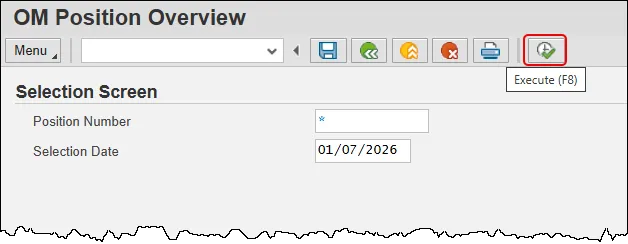
Step 2. Enter a Position Number. Enter the 8-digit position number or click the matchcode to perform a search for the position using the organizational structure.
Step 3. The current date defaults into the Selection Date field. The HR user has the option to enter any date that the position has data in the system and for which the user has security access. If a date entered is not valid, the message ‘No Information for the date Entered’ will appear. If the user is not authorized, a message indicating that they do not have authorization will appear.
Step 4. Click the Execute button to perform the transaction.
The Position Overview screen will display as of the selection date entered on the first screen. The Run Date is the current date. The other fields are pulled from existing infotypes.
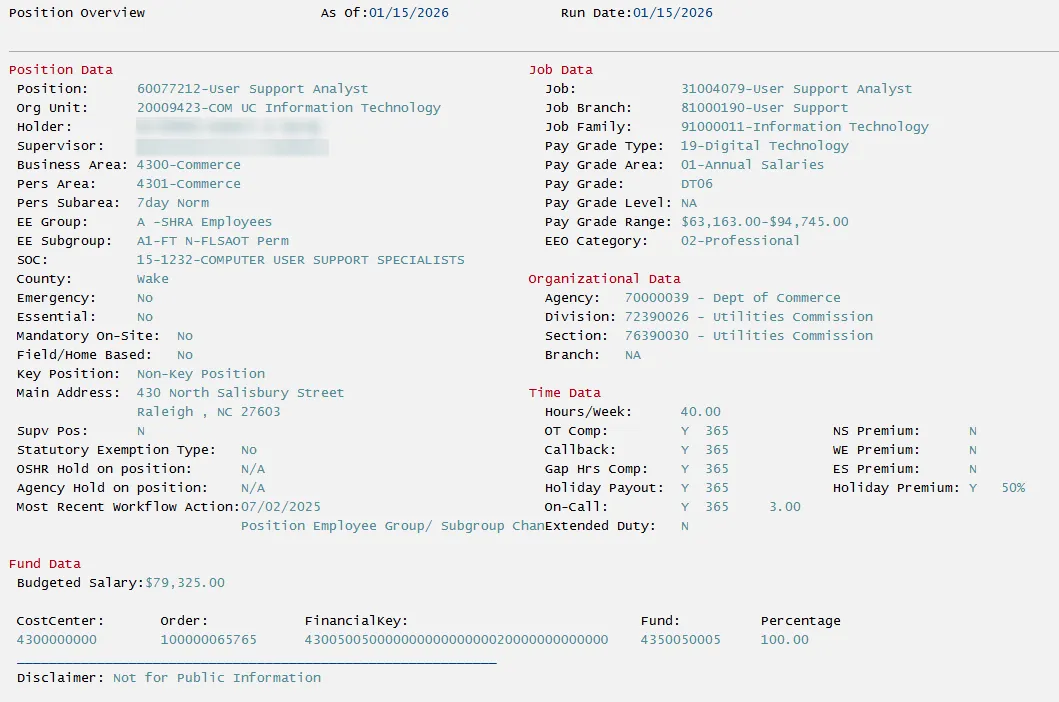
Position Overview Screen: Key Points
Position Data
The Position Data section contains general information about the position including, but not limited to, its 8-digit identifier number, working title, holder information and main address.
Job Data
The job data section contains general information about the job that describes the position also known as its classification. It is an easy place to find the salary range which the position falls into.
Organizational Data
The organizational data section contains information relating to logically grouped organizational units. There are five OM Objects that create a new Organizational Path while leaving your agency’s Organizational Structure intact. These OM objects logically group organization units into the following categories:
- Agency (7A)
- Division (7D)
- Section with Branches (7L)
- Section without Branches (7S)
- Branch (7B)
Time Data
The time data section includes premium pay settings as well as information on how the system will handle situations such as overtime and gap hours amongst others.
Fund Data
The fund data section shows the amount budgeted to the position as well as its funding source. This section can display up to 12 different funding sources for positions that are split funded.