Purpose
The purpose of this job aid is to explain how to review the security roles and Workflow relationships related to Positions in the Integrated HR-Payroll System by using the zsecrole transaction.
This report can be used to review the security roles and Workflow relationships related to Positions. The report will also indicate what person(s) hold the position or if it is vacant, what Personnel Area the person(s) are in, and the top org unit that a role provides access to. The report also provides a more user-friendly description for each role.
Scenarios that this report would be useful for include:
- Reviewing the roles and/or Workflow relationships assigned to a specific position(s).
- Reviewing the roles and/or Workflow relationships assigned to any position in an org unit(s).
- Identifying the positions in an org unit(s) who have a specific role(s).
- Identifying the positions in an org unit(s) who have a specific combination of roles.
Procedure:
- Enter transaction zsecrole in the command field and click enter. Or double click it from your favorites folder if it has previously been saved there.
- Enter the appropriate selection criteria values.
- Click the Execute button.
- Review the results.
Selection Criteria
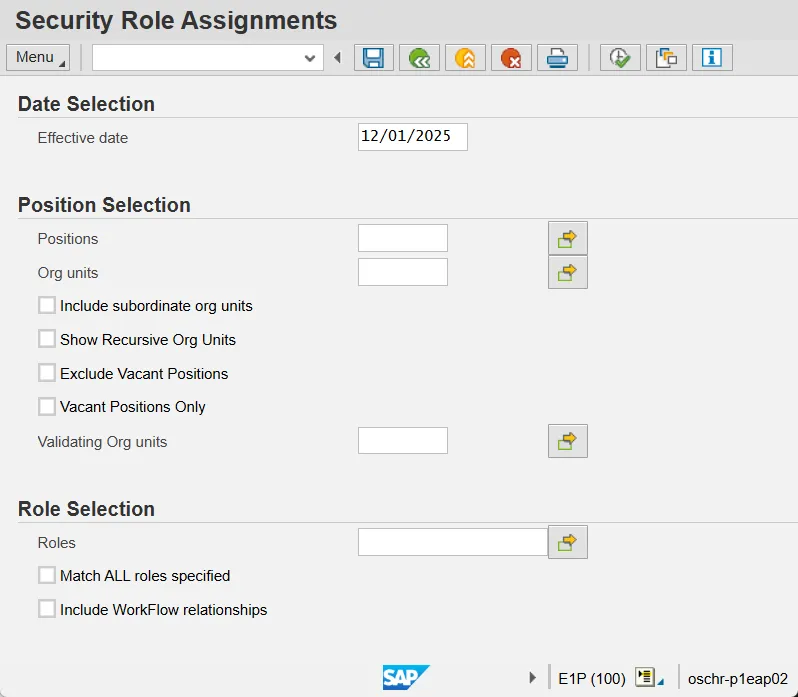
Effective Date: The program will return only records which have a validity date range that includes the Effective Date specified. This field defaults to the current date.
Positions: One or more Positions can be specified. If a Position is specified, you cannot specify an Org Unit. At least one Position or one Org Unit must be specified to run the report.
Org Units: One or more Org Units can be specified. If an Org Unit is specified, you cannot specify a Position. Roles assigned to the Positions in these Org Units on the Effective Date will be included in the report results. You must specify at least one Position or one Org Unit to run the report.
Checkbox “Include subordinate org units”: If this box is checked the program will include all Positions in the Org Units that report to the Org Units specified.
Checkbox “Show Recursive org units”: Used by the OSC security team to monitor role assignments. Not intended for use by most employees.
Checkbox “Exclude Vacant Positions”: If this box is checked the results will filter out any vacant positions.
Checkbox “Vacant Positions Only”: If this box is checked the results will only include positions that are vacant.
Validating Org units: This field is used in conjunction with the Positions field. When entries are made in both fields, only results pertaining to both fields will be returned.
Roles: If one or more Role names are specified, the program will display results for those Roles only.
Note: The matchcode list for this field includes more than 63,000 entries and is not intended for manual selection. Users should either enter the role name directly or leave the field blank to retrieve all relevant results.
Checkbox “Match ALL roles specified”: If this box is checked, the program will display results for those Positions which have ALL of the Roles that have been specified.
Checkbox “Include WorkFlow relationships”: If this box is checked, any WorkFlow relationship records on the Positions specified will be included in the results.
Report Results Details
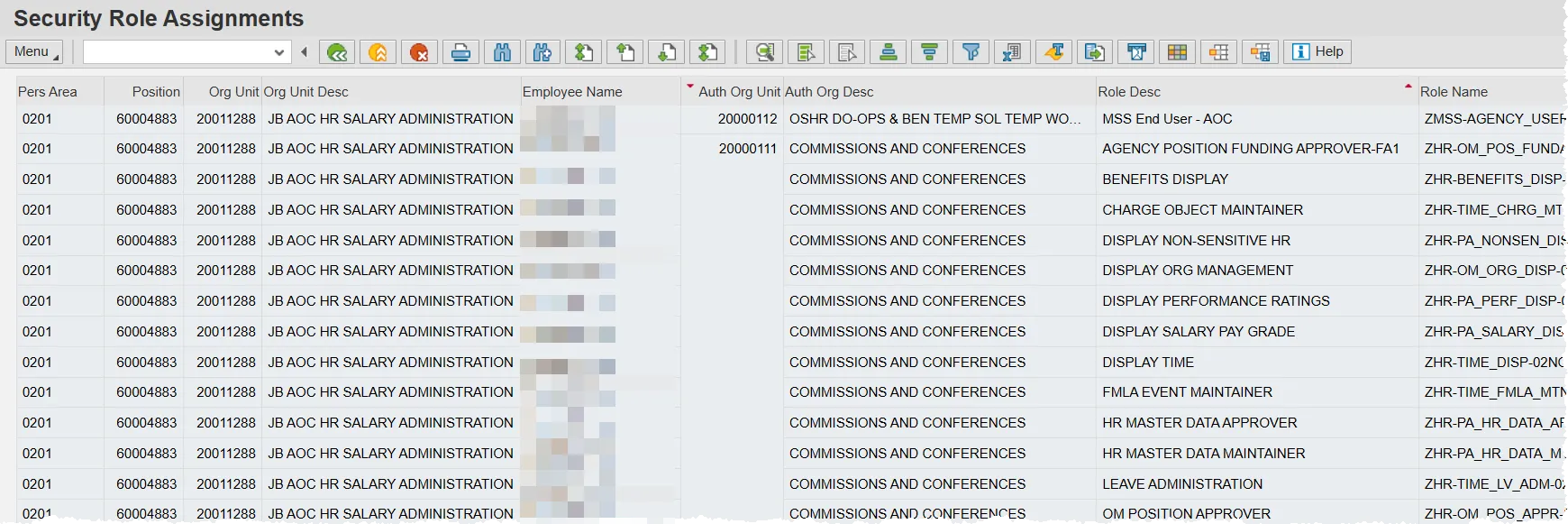
Each Role assignment record or WorkFlow relationship record found will be represented with a separate row in the report results.
Positions with multiple Holders will be represented with a separate row in the results for each Role for each Holder.
Pers No: This column contains the Personnel Number of the Holder of a Position. If no Holder exists, the word VACANT will be in the column.
Position: This column contains the Position number.
Org Unit: This column contains the Org Unit to which the Position belongs.
Org Unit Desc: This column contains the Description of the Org Unit to which the Position belongs.
Employee Name: This column contains the name of the Holder of a Position. If no Holder exists, the word VACANT will be in the column.
Auth Org Unit: This column contains the highest org unit that the role has authorization for. The user will also have authorization for all org units under that one in the org unit hierarchy. This column will be empty for many roles, as they themselves do not contain the authorization setting. This column will be empty for rows showing Workflow relationships.
Auth Org Desc: This column represents the name of the org unit in the Auth Org Unit column.
Role Desc: This column contains the Description of the Role. This column will be empty for rows showing Workflow relationships.
Role Name: This column contains the technical Role Name. This column will be empty for rows showing Workflow relationships.
There are many other columns that you have access to in addition to the ones shown in this screen shot. Use the Managing Report Layout help document to add, remove and rearrange the columns in your report results.