Purpose
The purpose of this business process procedure is to explain how to create and use variants in the Integrated HR-Payroll System.
Business Process Procedure Overview
The filter criteria entered for many reports can be saved as a selection variant for future use, saving time when the report is run on a regular basis.
This document will use an example of monitoring of multiple employees’ time entries. By using a variant, you will only have to enter their personnel numbers one time. In subsequent runs of this report, you can enter all the personnel numbers with a few simple clicks. This concept can be applied to most other reports that can be run in the Integrated HR-Payroll System.
Advantages of using variants
There are three main advantages of using variants when running reports:
- Faster Entry
- Reduced Errors
- Can be used by more than one administrator
Creating a Variant
Begin by running the desired report in the Integrated HR-Payroll System. Enter the data that will be consistent each time you run the report.
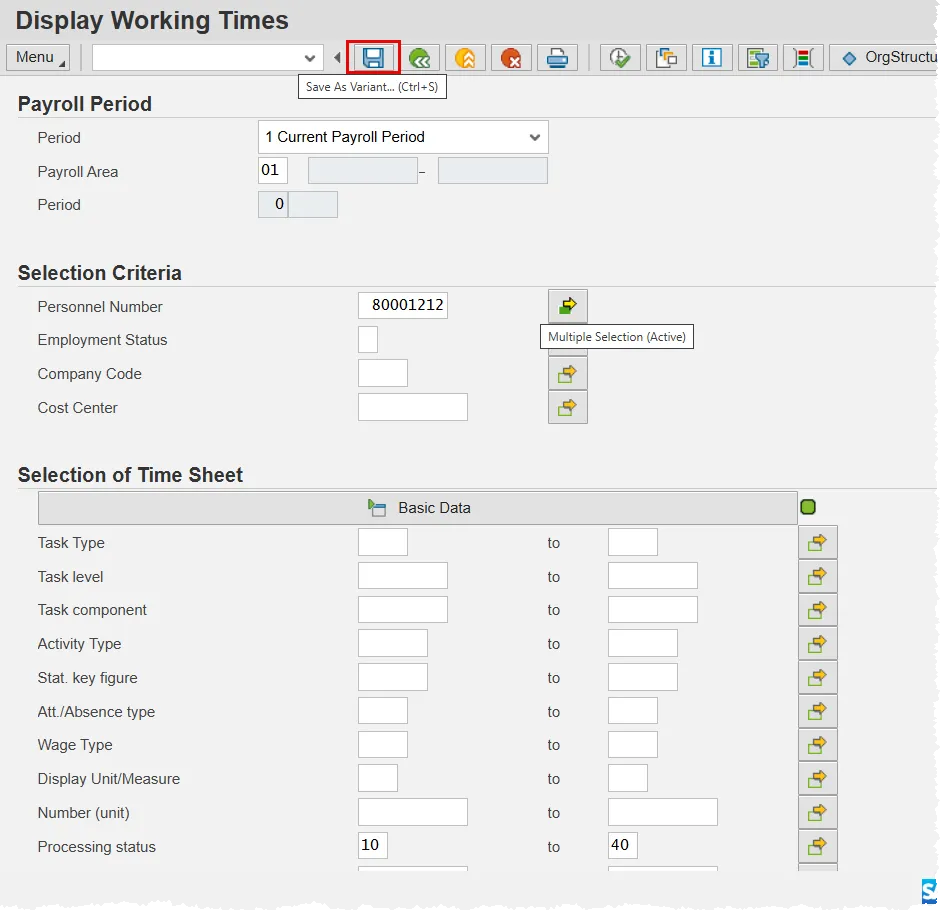
In the screen shot below, the CATS_DA report has been run, and several personnel numbers have been entered by using the Multiple Selection button. (Note the green box on the button indicating that multiple entries exist.)
Once the data is entered, click the Save As Variant button.
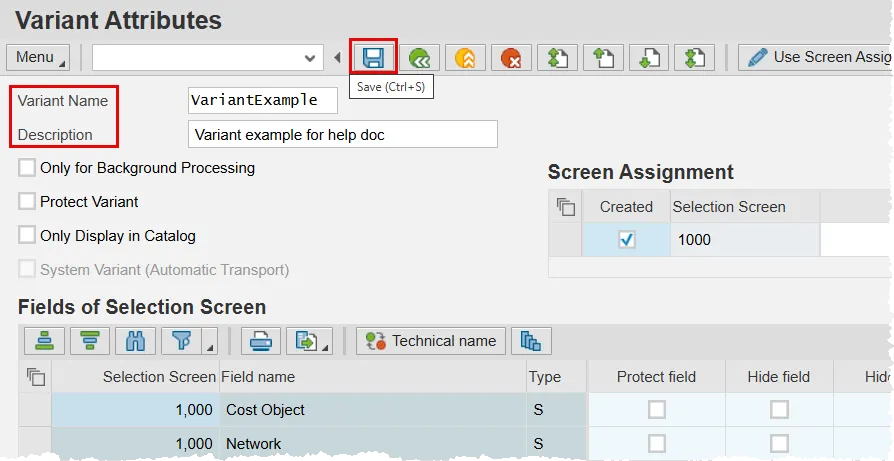
On the Variant Attributes screen, input data in the Variant Name and Description fields.
- Variant Name – The desired title of the variant
- Description – A more detailed description of the Variant
Note: You may elect to put a check in the Protect Variant check box. If you do so, other users can still use your variant, but they will not be able to make any modifications to it.
Next, click the Save button.
You should receive a message that your variant was saved.
Note: To modify an existing variant, save the new criteria with the same name. When asked if you would like to overwrite the existing Variant, click the Yes button.
Using a Selection Variant
Begin by running the desired report in the Integrated HR-Payroll System. Instead of filling in the data fields, click the Get Variant button in the toolbar.

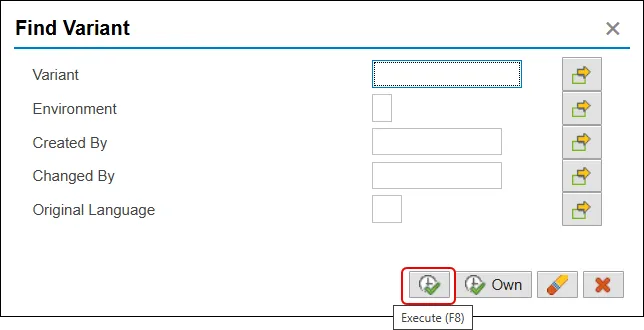
A Find Variant pop-up will appear. Input data to filter the variants that you can choose from. For example, if you enter your personnel number in the Created by field, you will be given a list of variants that you have created. It is not a requirement to enter any data in this pop-up, which would result in all applicable variants being available to choose from.
You could also type the exact name of the variant in the Variant field. If you do, that variant will be applied, without having to choose it from a list, when you click the Execute button.
Once you have entered the filtering data, click the Execute button.
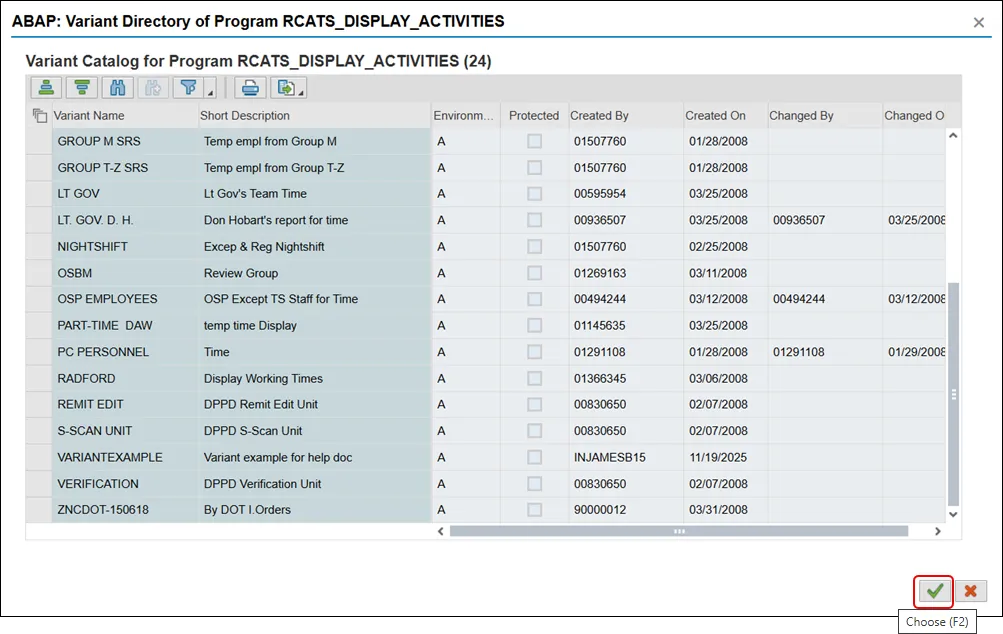
If you did not provide the Variant name in the pop-up, select the one you would like to use from the list provided. You can either double click it, or single click it and then click the Choose button on the bottom of the screen.
The values from the variant will be applied to the report which can subsequently be run.