Purpose
The purpose of this Report Description is to provide information about total amount of FMLA leave, when eligibility begins and ends, the number of hours used, number of hours remaining, number of weeks used, and number of weeks remaining.
Report Description
This report provides information about total amount of FMLA leave, when eligibility begins and ends, the number of hours used, number of hours remaining, number of weeks used, and number of weeks remaining.
Report Location
PT: Family Medical Leave (FMLA)
Report USes
Agencies will be able to monitor FMLA events and track the hours and weeks associated with the event.
How to Generate This Report
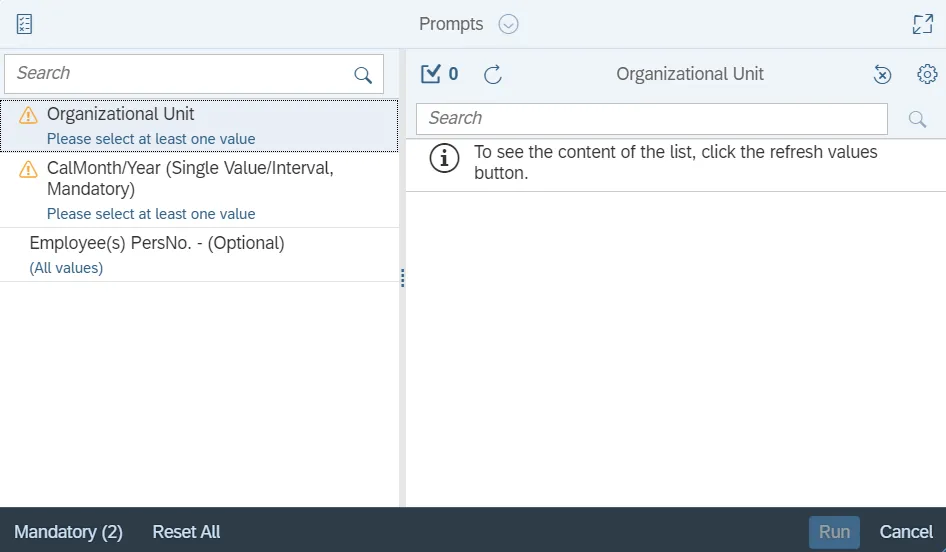
This report is generated after selecting values for the mandatory prompts. All mandatory prompts must have values selected before the Run Icon can be used to generate the report. Mandatory prompts can be identified as mandatory by the exclamation mark inside of the yellow-orange triangle, the square with the checkmark, or the display of (Mandatory). Detailed instructions for interaction with each prompt can be found on the Web Intelligence Prompt List on the OSC website.
The Mandatory prompts for this report are:
- Organizational Unit
- CalMonth/Year (Single Value/Interval, Mandatory)
This report can also be further limited by utilizing the Optional prompts to further limiting the amount of data that retrieved into the body of the report. Optional prompts are indicated as optional in parentheses beside the prompt.
The Optional prompts are:
- Employee(s) PersNo. - (Optional)
Note: Since the system has a large number of employees, using broad wildcard searches can be very slow and may result in an error if the search exceeds the system limit. If the employee number is not known and a name search must be done, narrow down the search by using the wildcard with specific text strings when looking for an employee by name such as:
John*Smith*
*Smith
If the employee number is known, it is best to use the manual entry field in Employee(s) PersNo. - (Optional) to enter the selection.
Initial Layout
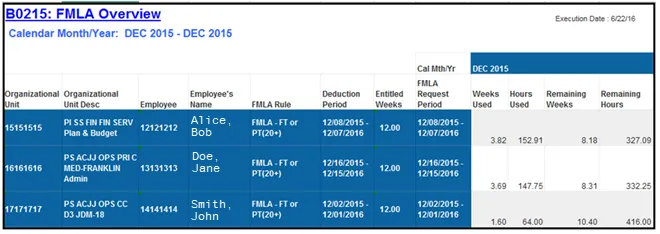
This report provides information about total amount of FMLA leave, when eligibility begins and ends, the number of hours used, number of hours remaining, number of weeks used and number of weeks remaining.
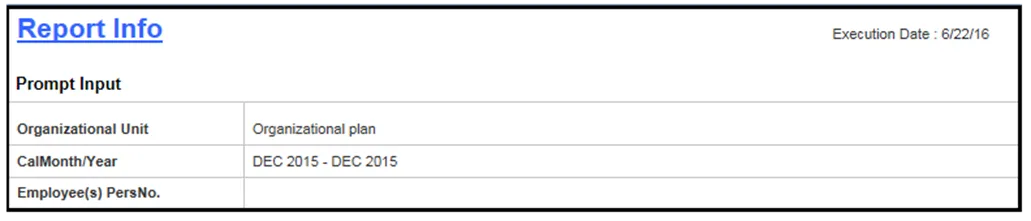
The Report Info tab displays the information about the prompts entered.
Available Objects
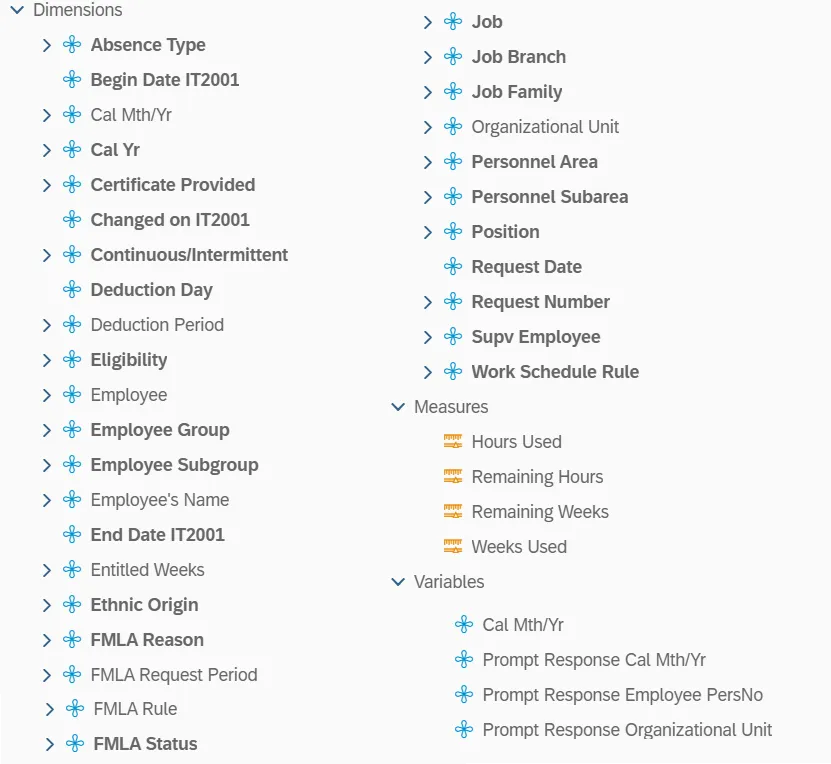
This is a list of the available objects that can be added to the report, from the Document Dictionary once in the Design mode.
Dimensions
- Absence Type
- Begin Date IT2001
- Cal Mth/Yr
- Cal Yr
- Certificate Provided
- Changed on IT2001
- Continuous/Intermittent
- Deduction Day
- Deduction Period
- Eligibility
- Employee
- Employee Group
- Employee Subgroup
- Employee’s Name
- End Date IT2001
- Entitled Weeks
- Ethnic origin
- FMLA Reason
- FMLA Request Period
- FMLA Rule
- FMLA Status
- Job
- Job Branch
- Job Family
- Organizational Unit
- Personnel Area
- Personnel Subarea
- Position
- Request Date
- Request Number
- Supv Employee
- Work Schedule Rule
Measures
- Hours Used
- Remaining Hours
- Remaining Weeks
- Weeks Used
Variables
- Cal Mth/Yr
- Prompt Response Cal Mth/Yr
- Prompt Response Employee PersNo
- Prompt Response Organizational Unit
Special Report Considerations/Features
- When you drag and drop the Available Objects to the Default Layout and refresh, the report runs fine.
- When you drag and drop the Objects back again from Default Layout to Available Objects and refresh, the below error occurs.
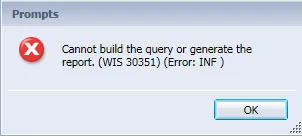
- Refresh One more time to overcome this error and to get the Reporting results.
- FMLA Rule 3 (FIL - FT or PT (20+)) is excluded from report.
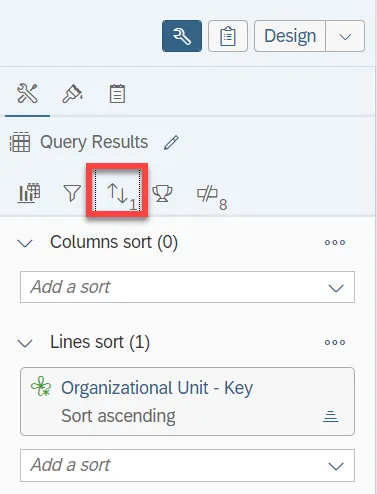
- By default, data is sorted by Organizational Unit (This can be changed as needed):
- To change the sorting for the desired column, follow the steps below. There are 3 steps to complete this process.
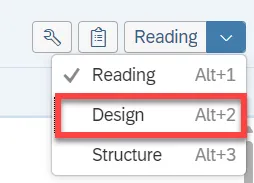
Step 1: Change to Design mode.
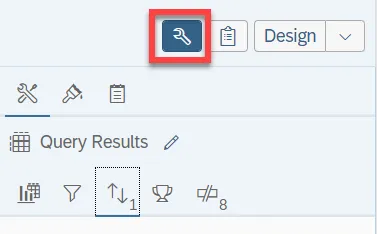
Step 2: Click on the tool icon.
Step 3: Select ascending or descending sort order as needed.