Purpose
The purpose of this Report Description is to explain how to generate a report of voluntary shared leave by donors in the Integrated HR-Payroll System.
Report Description
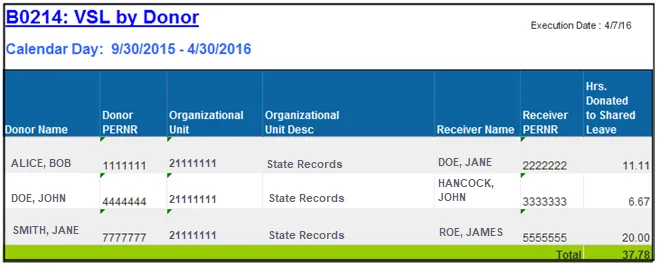
This report displays by donor the hours donated and to whom during a selected time period. The recipient may be within the donor's agency, within another Integrated HR-Payroll System agency, or outside of the Integrated HR-Payroll System.
Report Location
PT: Voluntary Shared Leave
Report Uses
- This Report is used in determining donated VSL hours and identifying the recipient of the donated leave.
- This Report is used in identifying donors who will be given back pro-rated remaining received shared leave donated to a recipient.
How to Generate This Report
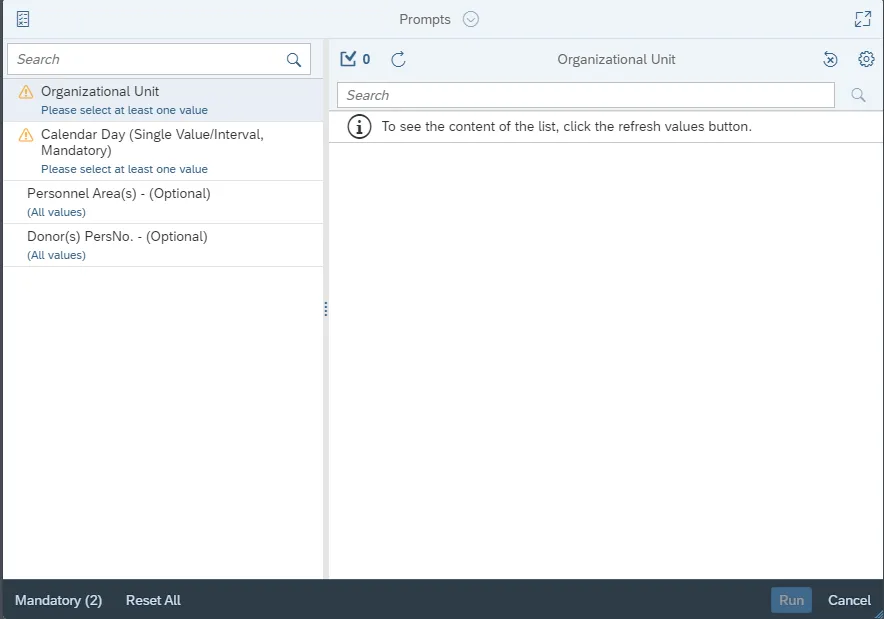
This report is generated after selecting values for the mandatory prompts. All mandatory prompts must have values selected before the Run Icon can be used to generate the report. Mandatory prompts can be identified as mandatory by the exclamation mark inside of the yellow-orange triangle, the square with the checkmark, or the display of (Mandatory). Detailed instructions for interaction with each prompt can be found on the Web Intelligence Prompt List on the OSC website.
The Mandatory prompts for this report are:
- Organizational Unit
- Calendar Day (Single Value/Interval, Mandatory)
This report can also be further limited by utilizing the Optional prompts to further limiting the amount of data that retrieved into the body of the report. Optional prompts are indicated as optional in parentheses beside the prompt.
The Optional prompts are:
- Personnel Area(s) – (Optional)
- Donor(s) PersNo. – (Optional)
Initial Layout
This report displays by donor the hours donated and to whom during a selected time period:
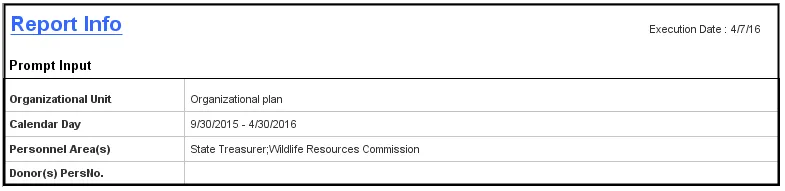
The Report Info tab displays information about the prompts entered.
Available Objects
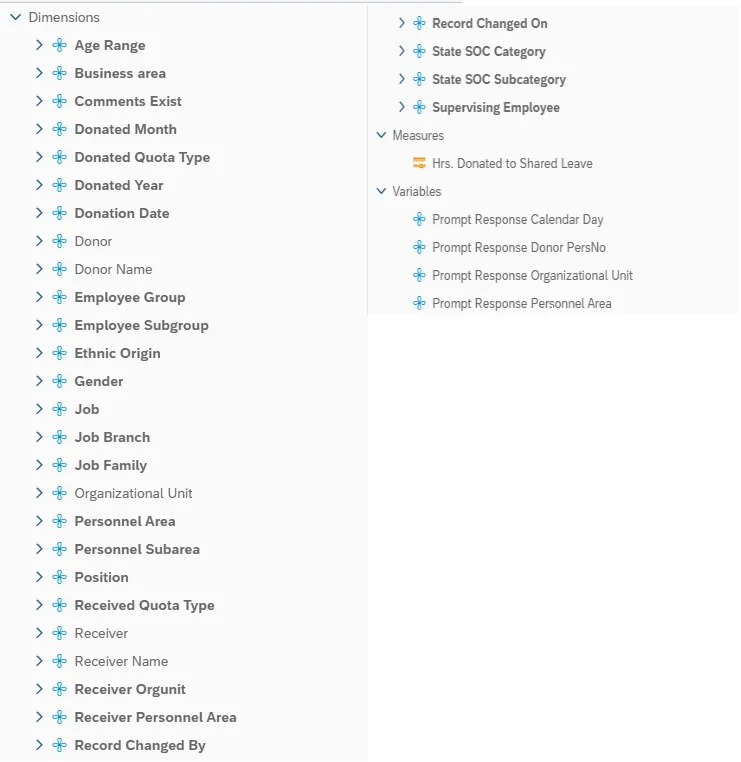
This is a list of the available objects that can be added to the report, from the Document Dictionary once in the Design mode:
Dimensions
- Age Range
- Business area
- Comments Exist
- Donated Month
- Donated Quota Type
- Donated Year
- Donation Date
- Donor
- Donor Name
- Employee Group
- Employee Subgroup
- Ethnic Origin
- Gender
- Job
- Job Branch
- Job Family
- Organizational Unit
- Personnel Area
- Personnel Subarea
- Position
- Received Quota Type
- Receiver
- Receiver Name
- Receiver Orgunit
- Receiver Personnel Area
- Record Changed By
- Record Changed On
- State SOC Category
- State SOC Subcategory
- Supervising Employee
Measures
- Hrs. Donated to Shared Leave
Variables
- Prompt Response Calendar Day
- Prompt Response Donor PersNo
- Prompt Response Organizational Unit
- Prompt Response Personnel Area
Special Report Considerations/Features
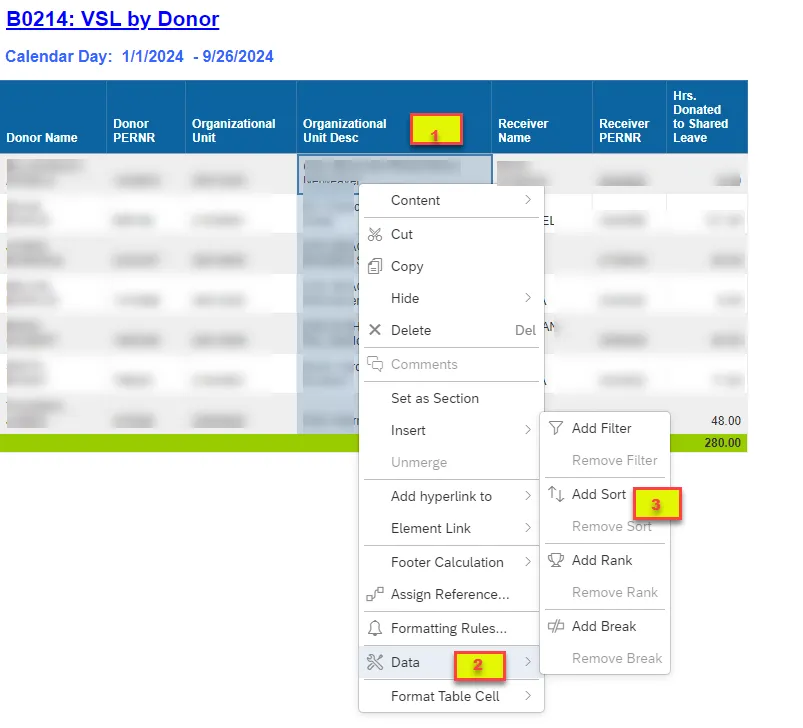
To change the sorting for the desired column, follow the steps below.
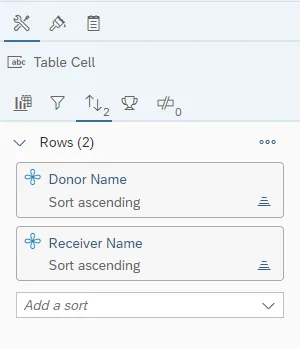
By default, data is sorted by Donor Name and Receiver Name (This can be changed as needed).
There are 3 steps to complete this process.
Step 1: Make sure the “desired column” is selected.
Step 2: Right Click on “Data”.
Step 3: Right Click “Add Sort”.