Purpose
The purpose of this Report Description is to explain how to generate the Time Leveling Exceptions report to monitor discrepancies between planned working time and time entered.
Report Description
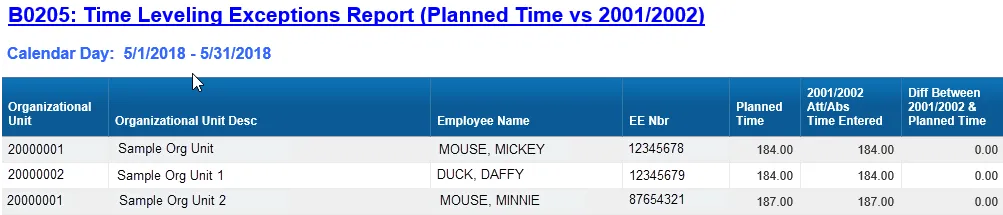
The B0205 Time Leveling Exceptions Report (Planned Time vs 2001/2002) compares the planned hours to the Infotype 2001 (Absences) and Infotype 2002 (Attendances) records and calculates a difference.
Report Location
PT: Timesheet Metrics
Report Uses
This report is used to monitor any discrepancies between planned hours and the Infotype 2001/2002 records, helping to ensure that all planned hours are accounted for in time entry.
How to Generate This Report
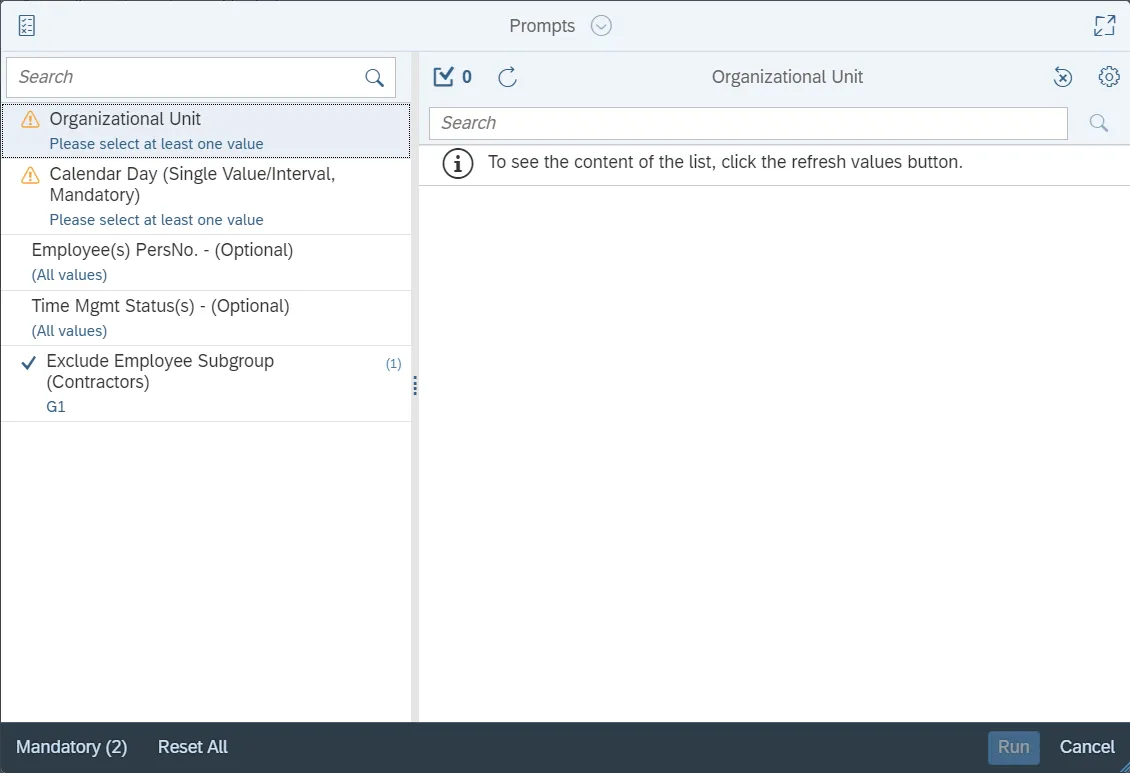
This report is generated after selecting values for the mandatory prompts. All mandatory prompts must have values selected before the Run Icon can be used to generate the report. Mandatory prompts can be identified as mandatory by the exclamation mark inside of the yellow-orange triangle, the square with the checkmark, or the display of (Mandatory). Detailed instructions for interaction with each prompt can be found on the Web Intelligence Prompt List on the OSC website.
The Mandatory prompts for this report are:
- Organizational Unit
- Calendar Day (Single Value/Interval, Mandatory)
This report can also be further limited by utilizing the Optional prompts to further limiting the amount of data that retrieved into the body of the report. Optional prompts are indicated as optional in parentheses beside the prompt.
The Optional prompts are:
- Employee(s) PersNo. - (Optional)
- Time Mgmt Status(s) - (Optional)
Exclusion prompts exclude specified data by default while allowing customers the flexibility of changing them when necessary. Exclusion prompts are identified by the term Exclude followed by the prompt.
The Exclusion prompts are:
- Exclude Employee Subgroup (Contractors)
Initial Layout
The report has two report tabs.
- B0205 Time Leveling Exceptions Report (Planned Time vs 2001/2002) tab: The report tab is used to monitor any discrepancies between planned hours and the Infotype 2001/2002 records, helping to ensure that all planned hours are accounted for in time entry.

- Report Info: This report tab displays the values of the prompt selections for the executed report.

Available Objects
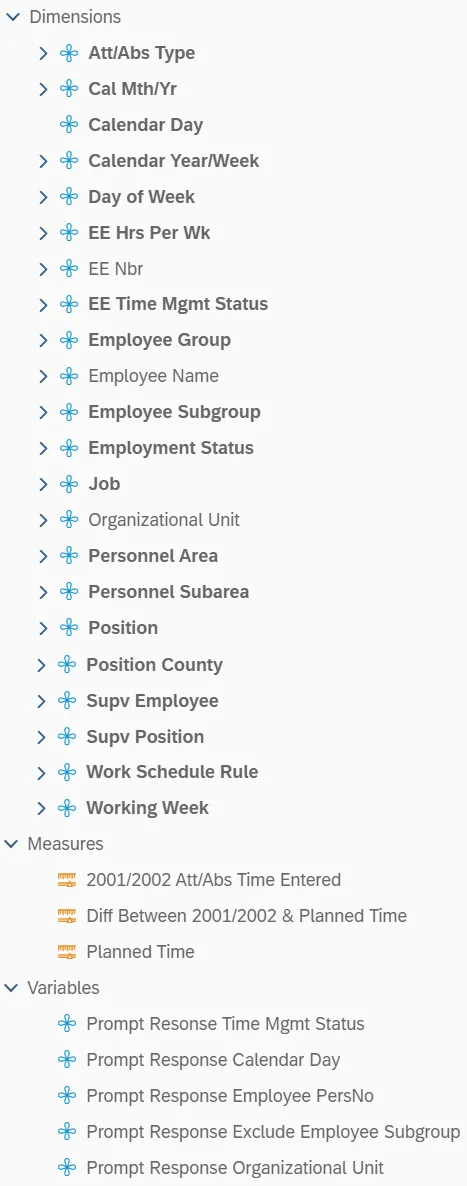
This is a list of the available objects that can be added to the report, from the Document Dictionary once in the Design mode:
Dimensions:
- Att/Abs Type
- Cal Mth/Yr
- Calendar Day
- Calendar Year/Week
- Day of Week
- EE Hrs Per Wk
- EE Nbr
- EE Time Mgmt Status
- Employee Group
- Employee Name
- Employee Subgroup
- Employment Status
- Job
- Organizational Unit
- Personnel Area
- Personnel Subarea
- Position
- Position County
- Supv Employee
- Supv Position
- Work Schedule Rule
- Working Week
Measures:
- 2001/2002 Att/Abs Time Entered
- Diff Between 2001/2002 & Planned Time
- Planned Time
Variables:
- Prompt Resonse Time Mgmt Status
- Prompt Response Calendar Day
- Prompt Response Employee PersNo
- Prompt Response Exclude Employee Subgroup
- Prompt Response Organizational Unit
Special Report Considerations/Features
- Contractors (employee subgroup G1) are excluded from the report by default, but they can be included by clearing the exclusion prompt.
- This report includes only the following Attendance/Absence types:
- A0000000 – A9999999
- 9000 – 9999
- PLHR: Planned Hours
Infotype 2001/2002 records that cover a range of dates are parsed into separate days based on the employee's work schedule. This report automatically applies a condition to suppress display of rows where the difference between the Planned Time and the 2001/2002 Att/Abs Time Entered is 0.
This is an example of an employee that would NOT be listed on the report:

For the dates from 05/01/2018 – 05/08/2018, Mickey Mouse’s Planned Time is 184 hours, and his 2001/2001 Att/Abs Time Entered is 184 hours. The difference in his 2001/2002 Att/Abs Time Entered and Planned Time is 0, so this employee would not be included on the report.
The report filter can be modified to include only employees with zero balances. There are 7 steps to complete this process.
Step 1: Click on any row in the report.
Step 2: Click on the “Show Data/format panel” button.
Step 3: Click on the “Display the filter panel" icon.
Step 4: Click on the ellipsis next to “Diff Between 2001/2002 & Planned Time”.
Step 5: Click on Manage Filter.

Step 6: Change the drop down for Diff Between 2001/2002 & Planned Time from “Not Equal to” to “Equal to”.
Step 7: Click OK.
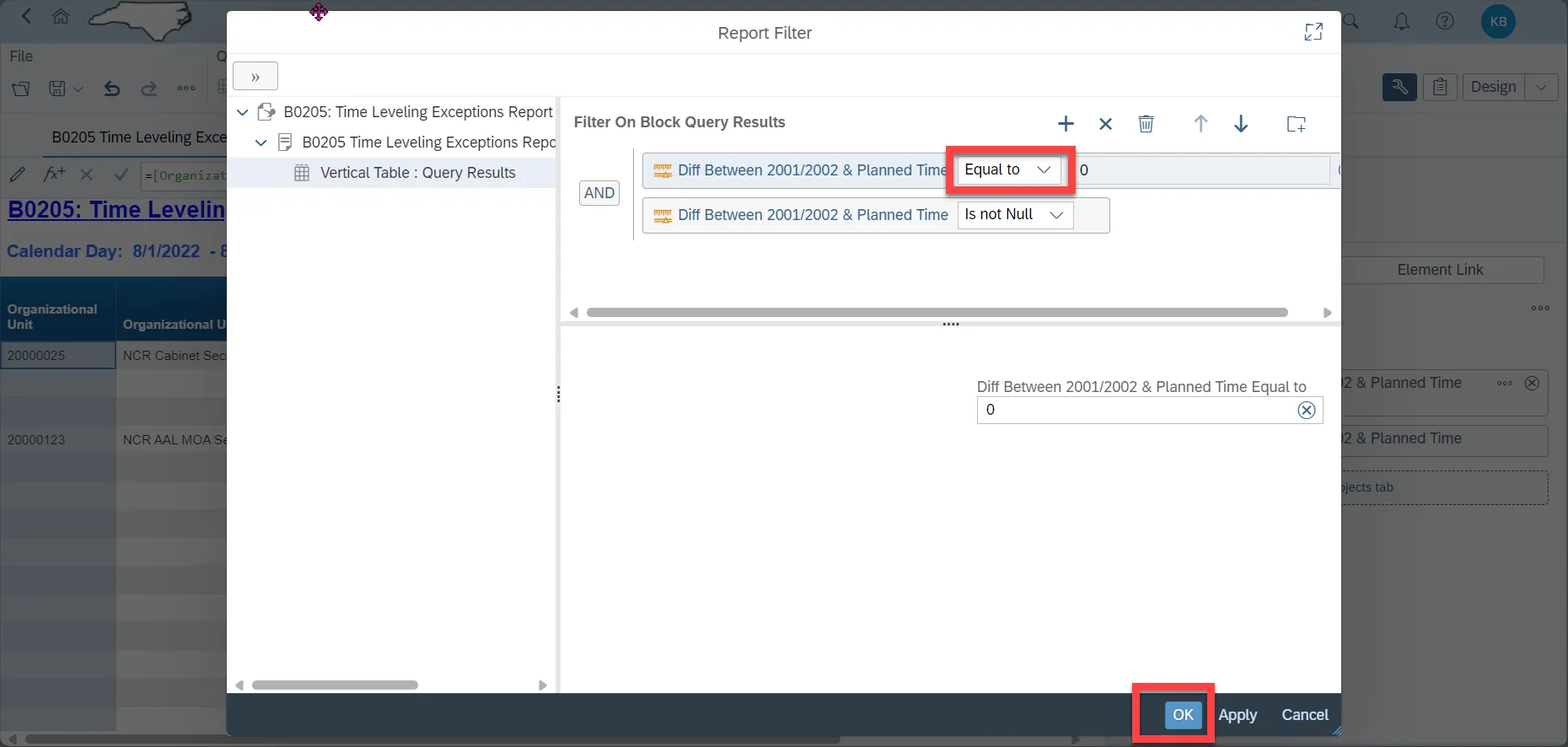
The report will now list only employees with the Difference Between 2001/2002 & Planned Time equal to 0:.