Purpose
The purpose of this Report Description is to explain how to generate the Time Overview by Employee report to show used quota types.
Report Description
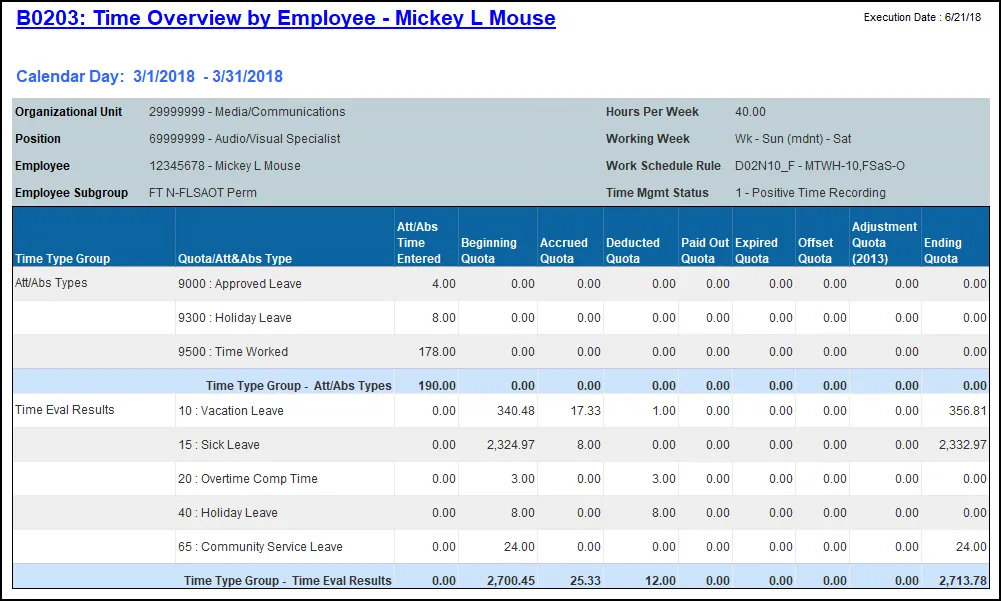
The B0203 Time Overview by Employee report displays the evaluated time for the selection period and how that time updated the quota balances for a single employee. This report is like the current time statement report in ERP (transaction ZNCTIME) but allows for a user defined date range within the current or three prior months. The report will show which quota balance/time type was used when an entry was made; for example: AA9000 (Approved leave) was deducted from quota type Q10 (vacation), Q22 (holiday comp time), or Q20 (overtime comp time), etc.
Report Location
PT: Timesheet Metrics
Report Uses
This report can be used to show which quota type was consumed when an absence was deducted from an Absence type that used a hierarchy. Examples are AA9000 (approved leave) or AA9200 (sick leave). The report displays specific quota(s) used for the time period specified, as there may be more than one quota used to satisfy the deduction.
How to Generate This Report
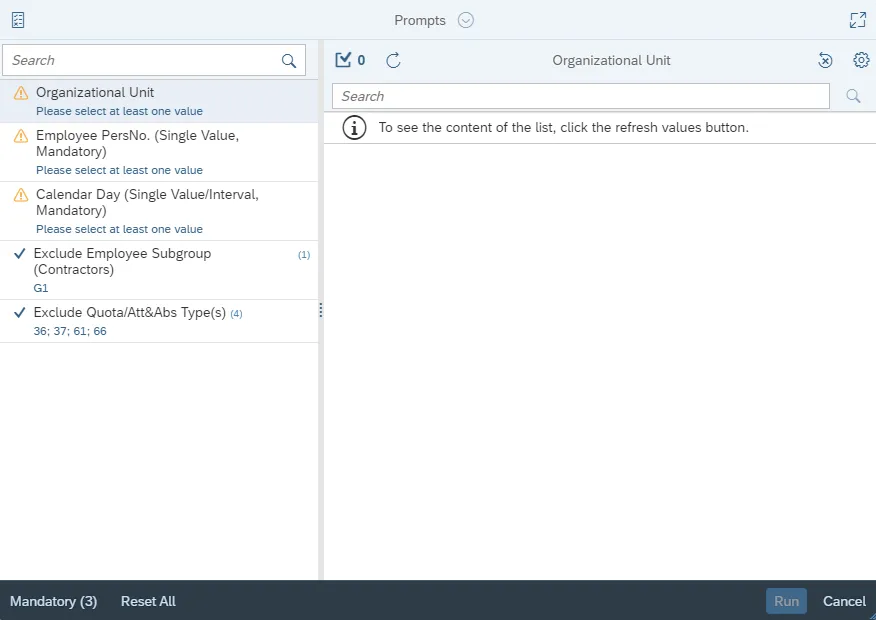
This report is generated after selecting values for the mandatory prompts. All mandatory prompts must have values selected before the Run Icon can be used to generate the report. Mandatory prompts can be identified as mandatory by the exclamation mark inside of the yellow-orange triangle, the square with the checkmark, or the display of (Mandatory). Detailed instructions for interaction with each prompt can be found on the Web Intelligence Prompt List on the OSC website.
The Mandatory prompts for this report are:
- Organizational Unit
- Employee PersNo. (Single Value, Mandatory)
- Calendar Day (Single Value/Interval, Mandatory)
Exclusion prompts exclude specified data by default while allowing customers the flexibility of changing them when necessary. Exclusion prompts are identified by the term Exclude followed by the prompt.
The Exclusion prompts are:
- Exclude Employee Subgroup (Contractors) G1
- Exclude Quota/Att&Abs Type(s) 36 ; 37 ; 61 ; 66
Initial Layout
The report has two report tabs.
- B0203 Time Overview by Employee tab: The report tab can be used to show which quota type was consumed when an absence was deducted from an Absence type that used a hierarchy. Examples are AA9000 (approved leave) or AA9200 (sick leave).
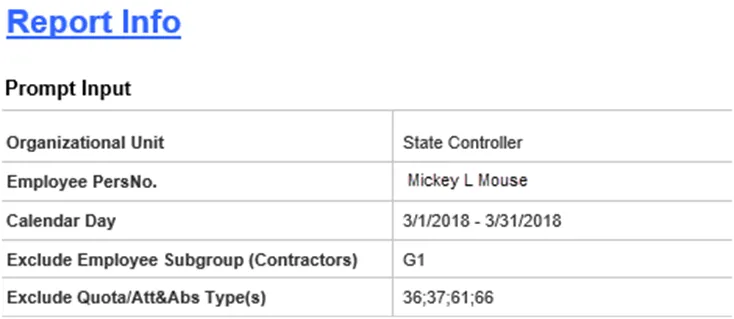
- Report Info tab: The Report Info tab displays the information about the prompts entered.
Available Objects
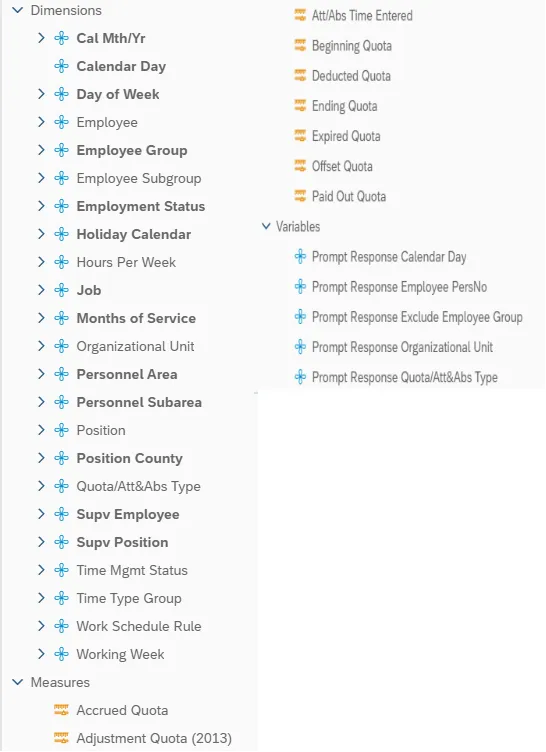
This is a list of the available objects that can be added to the report, from the Document Dictionary once in the Design mode:
Dimensions
- Cal Mth/Yr
- Calendar Day
- Day of Week
- Employee
- Employee Group
- Employee Subgroup
- Employment Status
- Holiday Calendar
- Hours Per Week
- Job
- Months of Service
- Organizational Unit
- Personnel Area
- Personnel Subarea
- Position
- Position County
- Quota/Att&Abs Type
- Supv Employee
- Supv Position
- Time Mgmt Status
- Time Type Group
- Work Schedule Rule
- Working Week
Measures
- Accrued Quota
- Adjustment Quota (2013)
- Att/Abs Time Entered
- Beginning Quota
- Deducted Quota
- Ending Quota
- Expired Quota
- Offset Quota
- Paid Out Quota
Variables
- Prompt Response Calendar Day
- Prompt Response Employee PersNo
- Prompt Response Exclude Employee Group
- Prompt Response Organizational Unit
- Prompt Response Quota/Att&Abs Type
Special Report Considerations/Features
- Data for this report is extracted twice a week on Wednesdays and Saturdays. The data pulled at the time of extraction is for previous three months up to current date.
- Contractors (employee subgroup G1) are excluded from the report by default, but they can be included by clearing the exclusion prompt.
- The following quota/attendance and absence types are excluded from the report:
- MISC (Non A/A & Quota Types)
- PLHR (Planned Hours)
- The following quota/attendance and absence types are excluded from the report by default, but these can be included by clearing the exclusion prompt:
- 36: Advanced Vacation Hours Owed
- 37: Advanced Sick Hours Owed
- 61: Adverse Weather Hours Owed
- 66: Community Service-Tutoring