Purpose
The purpose of this Report Description is to explain how to run the Comp Time Aging report in the Integrated HR-Payroll System.
Report Description
This report displays the current Overtime Comp, Holiday Comp, Gap Hours Comp, and On-Call Comp quota balances and is associated with Three Reporting Views. In the first report tab, Columns representing current and future months display the number of hours set to age out in that month. A second report tab allows the user to display hours aging out by current and future months as well as the costs associated with the Comp hours. The final report is a graphical representation of the age out hours or related costs by current and future months.
Report Location
PT: Comp and Liability Aging
Report Uses
This report is used to help agencies better understand and plan for the usage of Comp Hours and/or the payout of those hours.
How to Generate This Report
This report is generated after selecting values for the mandatory prompts. All mandatory prompts must have values selected before the Run Icon can be used to generate the report. Mandatory prompts can be identified as mandatory by the exclamation mark inside of the yellow-orange triangle, the square with the checkmark, or the display of (Mandatory). Detailed instructions for interaction with each prompt can be found on the Web Intelligence Prompt List on the OSC website.
The Mandatory prompts for this report are:
- Organizational Unit
This report can also be further limited by utilizing the Optional prompts to further limiting the amount of data that retrieved into the body of the report. Optional prompts are indicated as options in parentheses beside the prompt.
The Optional prompts are:
- Employee(s) PersNo.
- NOTE: Since the system contains a large number of employees, using broad wildcard searches can be very slow and may result in an error if the search exceeds the system limit. If the employee number is not known and a name search must be done, narrow the search by using the wildcard with specific text strings when looking for an employee by name such as:
- John*Smith*
- *Smith
- If the employee number is known, it is best to use the manual entry field in Employee(s) PersNo. – Optional section to enter the selection.
- NOTE: Since the system contains a large number of employees, using broad wildcard searches can be very slow and may result in an error if the search exceeds the system limit. If the employee number is not known and a name search must be done, narrow the search by using the wildcard with specific text strings when looking for an employee by name such as:

Initial Layout
This report displays the current Overtime Comp, Holiday Comp, Gap Hours Comp, and On-Call Comp quota balances. Columns representing each current and future months’ display, the number of hours set to age out in that month:
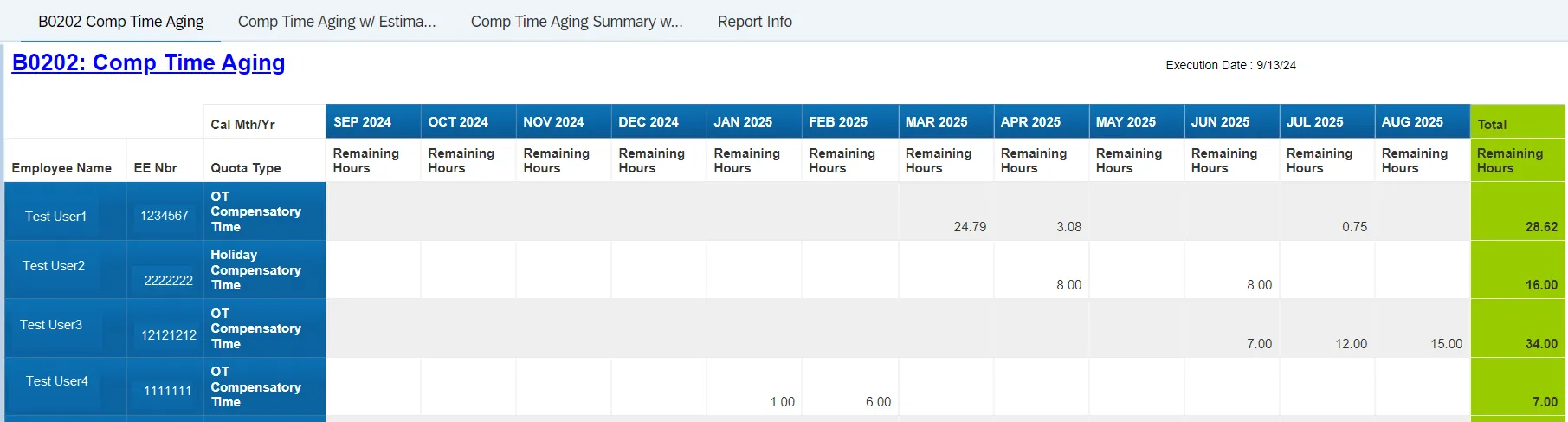
This report has three tabs at the top of the screen and each one provides a different analysis of the data and provides a detailed and summary info of Employee name, EE Nbr, Quota type, Cal Mth/Yr, Remaining Hours and Estimated Cost.

The following are the list of tabs available in B0202:
- B0202: Comp Time Aging
- Comp Time Aging w/Estimated Payout Cost
- Comp Time Aging Summary with Graph
- B0202: Comp Time Aging
- This report displays the current Overtime Comp, Holiday Comp, Gap Hours Comp, and On-Call Comp quota balances. Columns representing each current and future months’ display, the number of hours set to age out in that month.
- Comp Time Aging w/Estimated Payout Cost
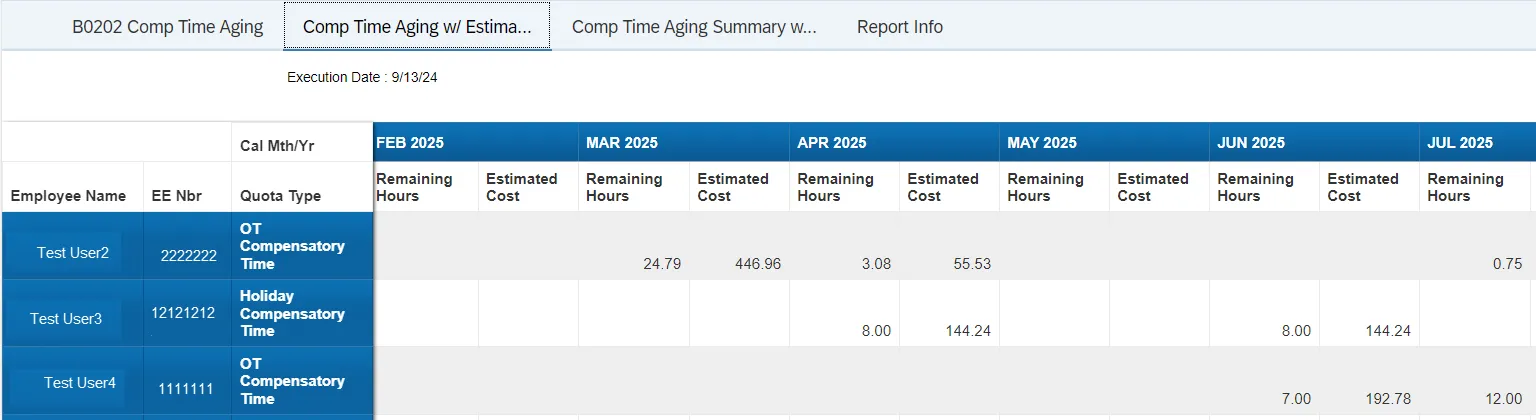
- This report tab displays hours aging out by current and future months as well as the costs associated with the Comp hours. By default, this report is displayed for FLSA EE Subgroup and can be changed to Non-FLSA and Temp/Other EE Subgroups and instructions are explained below in Special Report Considerations/Features
Continued…
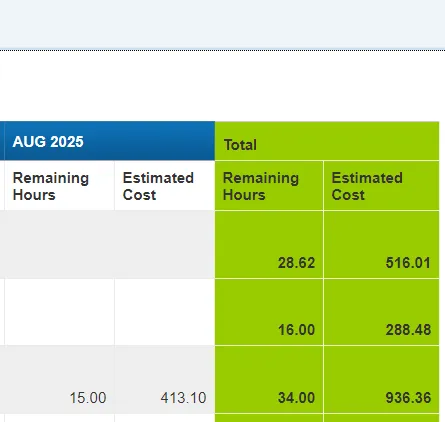
- Comp Time Aging Summary with Graph
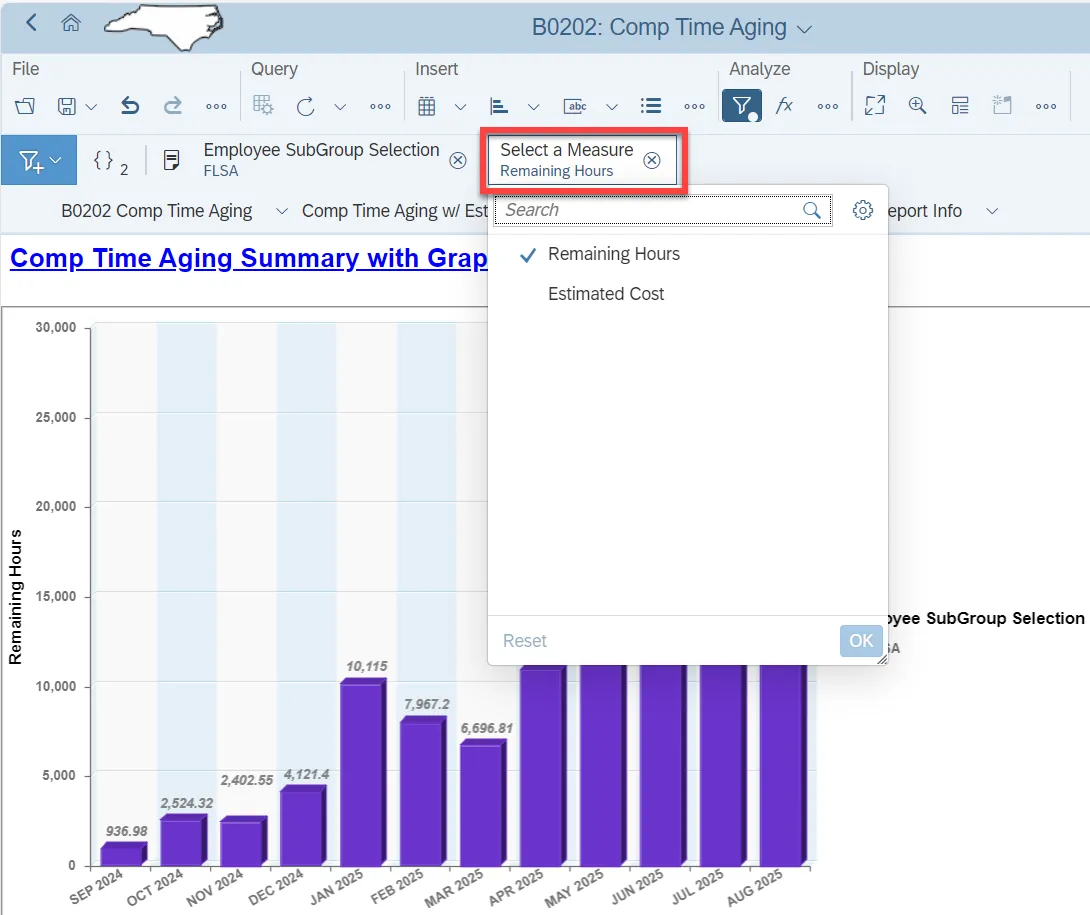
- This report tab displays a graphical representation of the age out hours or related costs by current and future months. By default, the graph is displayed for FLSA EE Subgroup and remaining hours.
- And can be changed to Non-FLSA and Temp/Other EE Subgroups or to Estimated Cost and instructions are explained below in Special Report Considerations/Features.

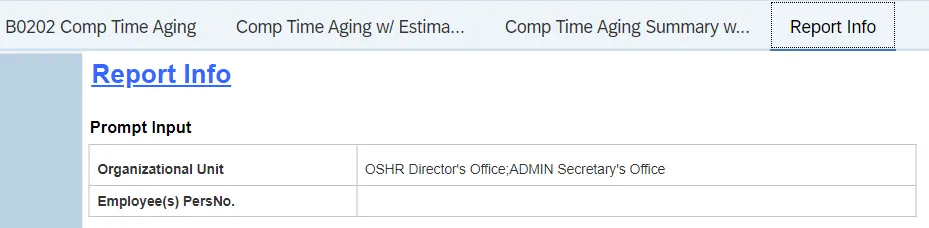
- Report Info
- The Report Info tab displays information about the prompts entered.
Available Objects
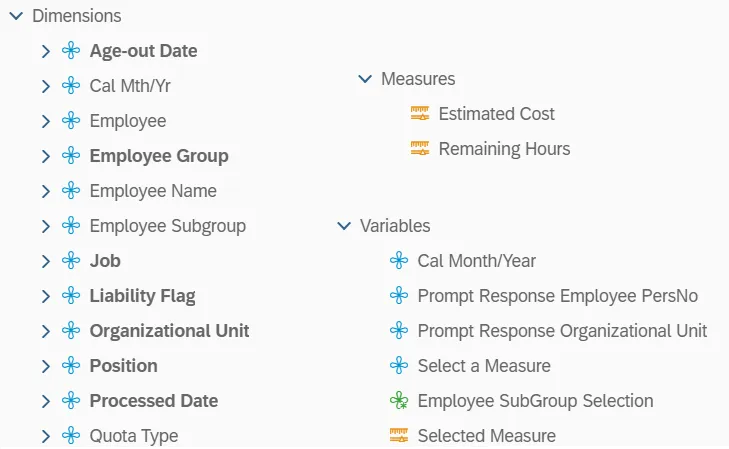
This is a list of the available objects that can be added to the report, from the Document Dictionary once in the Design mode:
Dimensions
- Age-out Date
- Cal Mth/Yr
- Employee
- Employee Group
- Employee Name
- Employee Subgroup
- Job
- Liability Flag
- Organizational Unit
- Position
- Processed Date
- Quota Type
Measures
- Estimated Cost
- Remaining Hours
Variables
- Cal MonthYear
- Prompt Response Employee PerNo
- Prompt Response Organizational Unit
- Select a Measure
- Selected Measure
Special Report Considerations/Features
There is a default filter applied to the Report to exclude the following Quota Types.
“B0202 Comp Time Aging” Tab
- Adverse Weather Liability
- Holiday Leave Time
“Comp Time Aging w/Estimated Payout Cost” and “Comp Time Aging Summary with Graph” Tabs
- Adverse Weather Liability
- Holiday Leave Time
- Emergency Closing Compensatory
To modify this default filter to include the excluded quota types to be shown, follow the steps below. There are 8 steps to complete this process.
Step 1: Change to Design mode.

Step 2: Click on the Filter button, under the Analyze navigation. The Filter bar will appear.

Step 3: Click on New in the Input Controls panel to display the Select Report Object prompt.
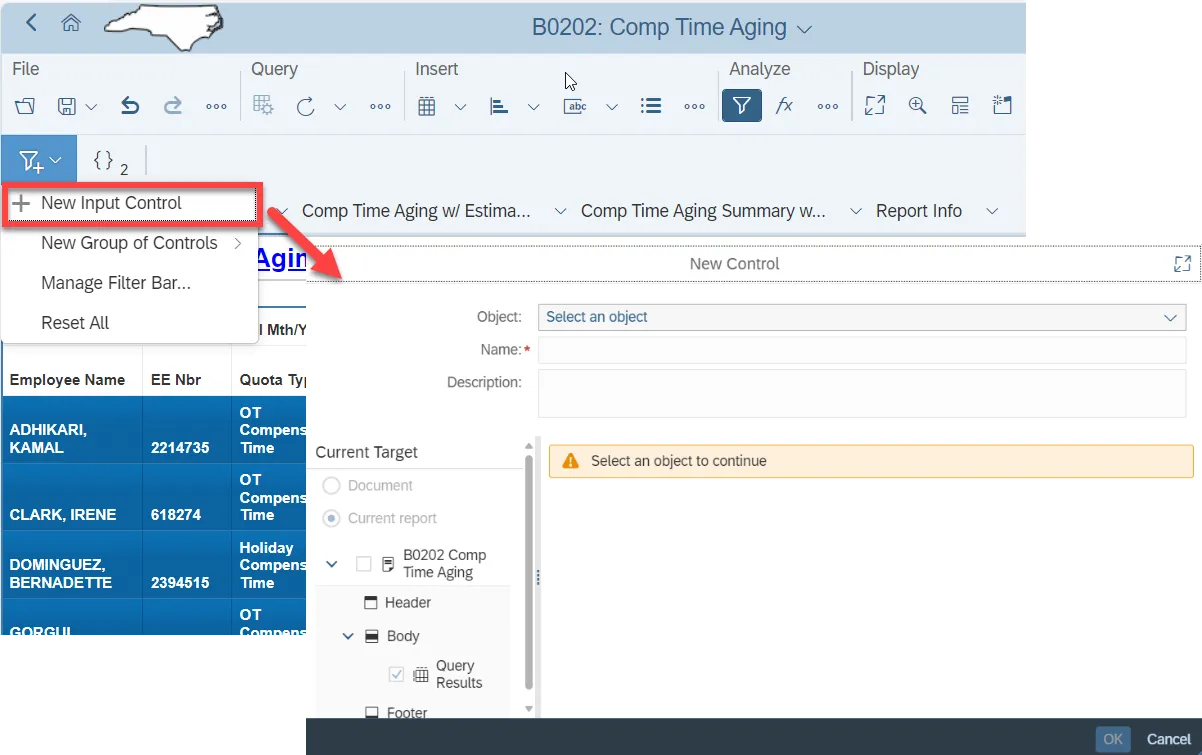
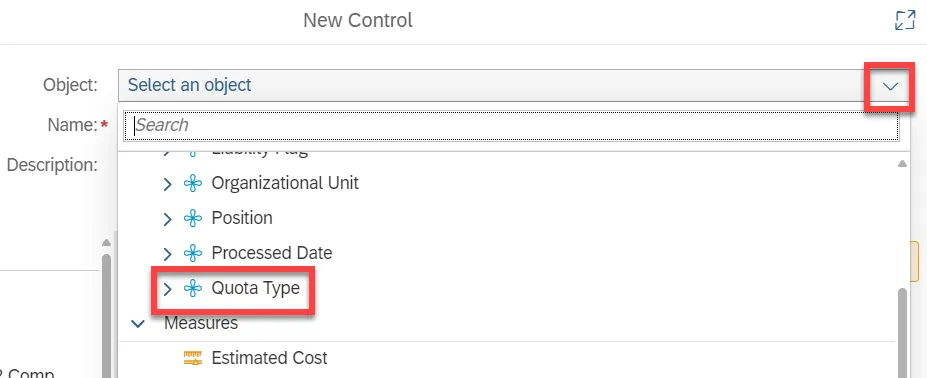
Step 4: Select Quota Type from the available Objects.
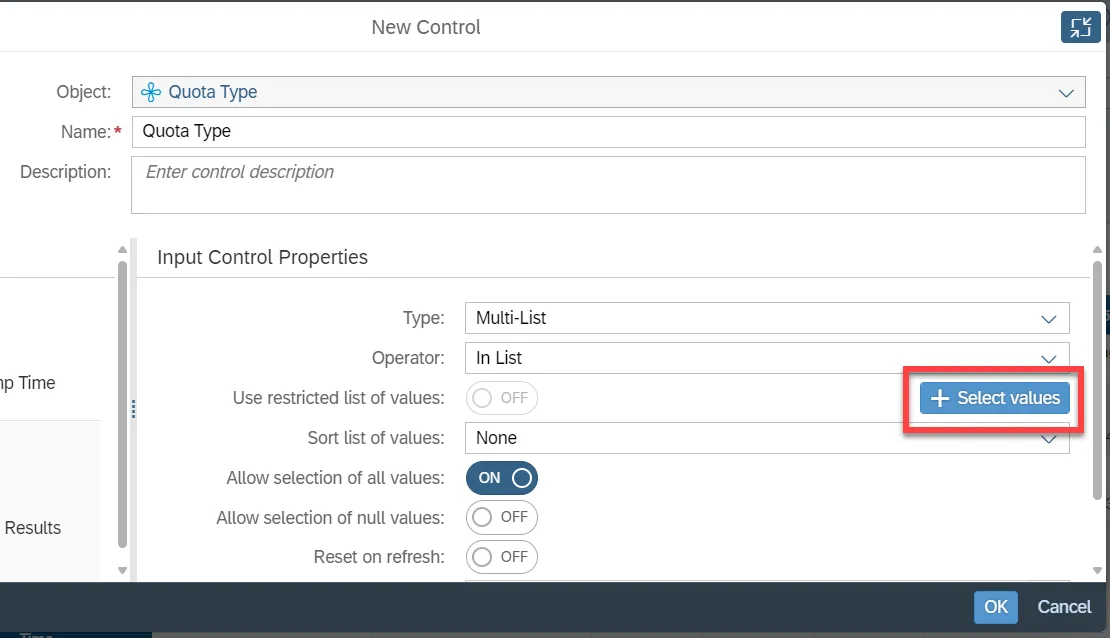
Step 5: When the New Control screen pops up, click the +Select values button
Step 6: Click an available quota type.
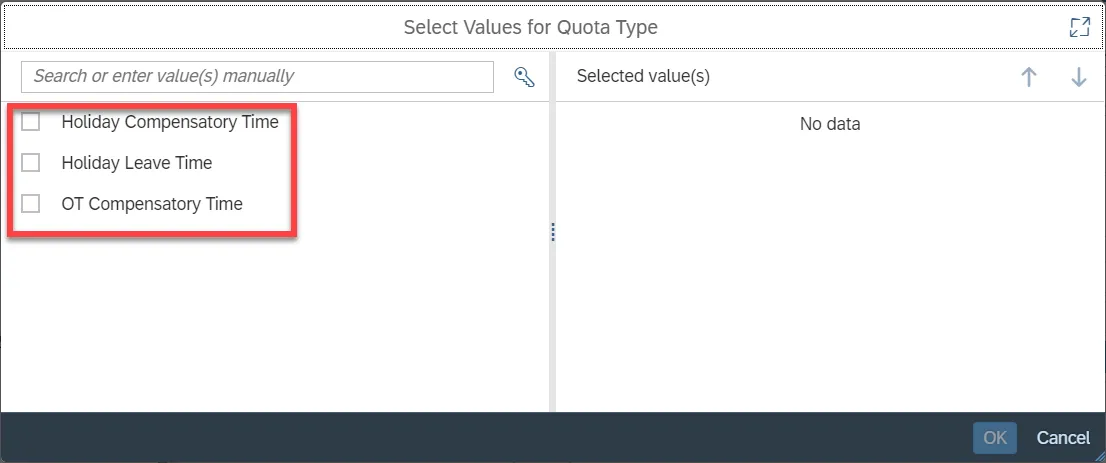
Step 7: Click OK.
Step 8: Your input control will now appear in the Filter bar.

- The Employee Subgroups in “Comp Time Aging w/Estimated Payout Cost” and “Comp Time Aging Summary with Graph” tabs are grouped by FLSA, Non-FLSA and Temp/Other EE Subgroups.
- Remaining Hours/Estimated Costs are displayed based on the Selection on a particular EE Subgroup from “Employee SubGroup Selection” Input Control.
- By default, the “Comp Time Aging w/Estimated Payout Cost” report tab is displayed for FSLA EE Subgroup. Click the available filters when in design mode to include the other groups.
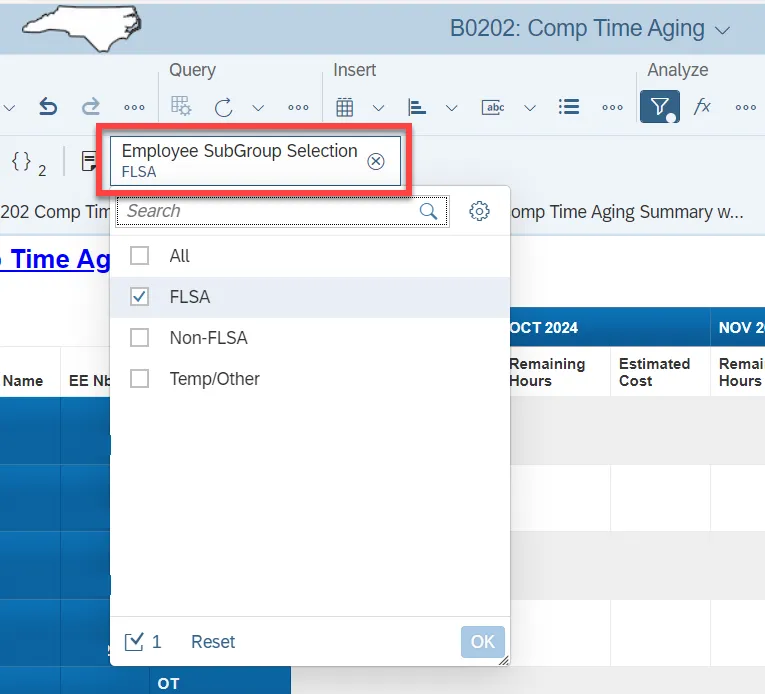
- By default, the graph in “Comp Time Aging Summary with Graph” report tab is displayed for FSLA EE Subgroup and Remaining Hours. To include the other groups, follow the above process. click on the Radio Button “Estimated Cost” to view the graph by Estimated Cost for Selected groups.
- The Employee Subgroups that correspond to a specific group are listed below.
- FLSA
- FT S-FLSA Perm 10C
- FT S-FLSA Perm 115C
- FT S-FLSA Perm 11C
- FT S-FLSA Perm 12C
- FT S-FLSA Prob 10C
- FT S-FLSA Prob 115C
- FT S-FLSA Prob 11C
- FT S-FLSA Prob 12C
- FT S-FLSA TL 10C
- FT S-FLSA TL 115C
- FT S-FLSA TL 11C
- FT S-FLSA TL 12C
- FT S-FLSA TLProb 10C
- FT S-FLSA TLProb 11C
- FT S-FLSA TLProb 12C
- FT S-FLSAOT Fld Trne
- FT S-FLSAOT Perm
- FT S-FLSAOT Perm CR
- FT S-FLSAOT Perm JBS
- FT S-FLSAOT Prob
- FT S-FLSAOT TL
- FT S-FLSAOT TL ACJP
- FT S-FLSAOT TL CR
- FT S-FLSAOT TL JBS
- FT S-FLSAOT TL Prob
- FT S-FLSAOT Trne
- FT S-FLSAOTPerm ACJP
- FT S-FLSATLProb 115C
- PT S-FLSA Perm 10C
- PT S-FLSA Perm 115C
- PT S-FLSA Perm 11C
- PT S-FLSA Perm 12C
- PT S-FLSA Prob 10C
- PT S-FLSA Prob 115C
- PT S-FLSA Prob 11C
- PT S-FLSA Prob 12C
- PT S-FLSA TL 10C
- PT S-FLSA TL 115C
- PT S-FLSA TL 11C
- PT S-FLSA TL 12C
- PT S-FLSA TLProb 10C
- PT S-FLSA TLProb 11C
- PT S-FLSA TLProb 12C
- PT S-FLSAOT Fld Trne
- PT S-FLSAOT Perm
- PT S-FLSAOT Perm CR
- PT S-FLSAOT Perm JBS
- PT S-FLSAOT MAG
- PT S-FLSAOT Prob
- PT S-FLSAOT Trne
- PT S-FLSAOTPerm ACJP
- PT S-FLSATLProb 115C
- PT S-FLSAOT Perm JBS
- PT S-FLSAOT MAG
- PT S-FLSAOT Prob
- PT S-FLSAOT TL
- PT S-FLSAOT TL ACJP
- PT S-FLSAOT TL CR
- Non-FLSA
- FT EPA
- FT N-FLSA Perm 10C
- FT N-FLSA Perm 115C
- FT N-FLSA Perm 11C
- FT N-FLSA Perm 12C
- FT N-FLSA Prob 10C
- FT N-FLSA Prob 115C
- FT N-FLSA Prob 11C
- FT N-FLSA Prob 12C
- FT N-FLSA TL 10C
- FT N-FLSA TL 115C
- FT N-FLSA TL 11C
- FT N-FLSA TL 12C
- FT N-FLSA TLProb 10C
- FT N-FLSA TLProb 11C
- FT N-FLSA TLProb 12C
- FT N-FLSAOT Perm
- FT N-FLSAOT Perm AD
- FT N-FLSAOT Perm ADA
- FT N-FLSAOT Perm CJP
- FT N-FLSAOT Perm CSC
- FT N-FLSAOT Perm DA
- FT N-FLSAOT Perm Dir
- FT N-FLSAOT TL DA
- FT N-FLSAOT TL Dir
- FT N-FLSAOT TL JB1
- FT N-FLSAOT TL JB2
- FT N-FLSAOT TL JB3
- FT N-FLSAOT TL JBS
- FT N-FLSAOT TL MAG
- FT N-FLSAOT TL SC
- FT N-FLSAOT Prob
- FT N-FLSAOT TL
- FT N-FLSAOT TL AD
- FT N-FLSAOT TL ACJP
- FT N-FLSAOT TL ADA
- FT N-FLSAOT TL CJP
- FT N-FLSAOT TL CSC
- FT N-FLSAOT TL DA
- FT N-FLSAOT TL Dir
- FT N-FLSAOT TL JB1
- FT N-FLSAOT TL JB2
- FT N-FLSAOT TL JB3
- FT N-FLSAOT TL JBS
- FT N-FLSAOT TL MAG
- FT N-FLSAOT TL Prob
- FT N-FLSAOT TL SC
- FT N-FLSAOTPerm ACJP
- FT N-FLSAOT TL JB2
- FT N-FLSAOT TL JB3
- FT N-FLSATLProb 115C
- N/A EPA Chief Deputy
- N/A EPA Chief Deputy
- N/A EPA ConstitutOff
- N/A EPA ConstitutOff
- N/A EPA ExManagerial
- N/A EPA ExManagerial
- N/A EPA Gov's Staff
- N/A EPA Gov's Staff
- N/A EPA Lt Gov Staff
- N/A EPA Lt Gov Staff
- N/A EPA MiscStat Pos
- N/A EPA MiscStat Pos
- N/A EPA PM Conf Asst
- N/A EPA PM Conf Asst
- N/A EPA PM Conf Sec
- N/A EPA PM Conf Sec
- N/A EPA Pol-MkingGov
- N/A EPA Pol-MkingGov
- N/A EPA Pos Gov
- N/A EPA Pos Gov
- N/A EPA Sal Bd & Com
- N/A EPA Sal Bd&Com
- PT N-FLSAOT TL MAG
- PT N-FLSAOT TL Prob
- N/A EPA Sal GA
- N/A EPA Sal GA
- N/A EPA Sal GARecGov
- N/A EPA Sal GARecGov
- N/A EPA Sal Gov&ABC
- N/A EPA Sal Gov&ABC
- N/A EPA SalGA RecGov
- N/A EPA StatGAAprAct
- N/A EPA StatGAAprAct
- N/A EPA StatutoryPos
- N/A EPA StatutoryPos
- PT EPA
- PT N-FLSA Perm 10C
- PT N-FLSA Perm 115C
- PT N-FLSA Perm 11C
- PT N-FLSA Perm 12C
- PT N-FLSA Prob 10C
- PT N-FLSA Prob 115C
- PT N-FLSA Prob 11C
- PT N-FLSA Prob 12C
- PT N-FLSA TL 10C
- PT N-FLSA TL 115C
- PT N-FLSA TL 11C
- PT N-FLSA TL 12C
- PT N-FLSAOTTemp ACJP
- PT N-FLSATLProb 115C
- PT N-FLSA TLProb 10C
- PT N-FLSA TLProb 11C
- PT N-FLSA TLProb 12C
- PT N-FLSAOT Perm
- PT N-FLSAOT Perm AD
- PT N-FLSAOT Perm ADA
- PT N-FLSAOT Perm CJP
- PT N-FLSAOT Perm CSC
- PT N-FLSAOT Perm DA
- PT N-FLSAOT Perm Dir
- PT N-FLSAOT Perm JB1
- PT N-FLSAOT Perm JB2
- PT N-FLSAOT Perm JB3
- PT N-FLSAOT Perm JBS
- PT N-FLSAOT Perm MAG
- PT N-FLSAOT Perm SC
- PT N-FLSAOT Prob
- PT N-FLSAOT TL
- PT N-FLSAOT TL ACJP
- PT N-FLSAOT TL AD
- PT N-FLSAOT TL ADA
- PT N-FLSAOT TL CJP
- PT N-FLSAOT TL CSC
- PT N-FLSAOT TL SC
- PT N-FLSAOT TL JBS
- PT N-FLSAOT TL JB1
Temp/Other
- FT S-FLSAOT Intermit
- FT S-FLSAOT Student
- FT S-FLSAOT Temp
- FT S-FLSAOT Temp CR
- FT S-FLSAOT Temp JBS
- FT S-FLSAOT Temp ACJP
- PT S-FLSAOT Intermit
- PT S-FLSAOT Student
- PT S-FLSAOT Temp
- PT S-FLSAOT Temp CR
- PT S-FLSAOT Temp JBS
- PT S-FLSAOT Temp ACJP
- Board Member
- Contractor
- Federal
- FT N-FLSAOT Intermit
- FT N-FLSAOT Student
- FT N-FLSAOT Temp
- FT N-FLSAOT Temp AD
- FT N-FLSAOT Temp ADA
- FT N-FLSAOT Temp CJP
- FT N-FLSAOT Temp CSC
- FT N-FLSAOT Temp DA
- FT N-FLSAOT Temp Dir
- FT N-FLSAOT Temp JB1
- FT N-FLSAOT Temp JB2
- FT N-FLSAOT Temp JB3
- FT N-FLSAOT Temp JBS
- FT N-FLSAOT Temp MAG
- FT N-FLSAOT Temp SC
- FT N-FLSAOT Temp ACJP
- National Guard
- Pick-up FireFighter
- PT N-FLSAOT Intermit
- PT N-FLSAOT Student
- PT N-FLSAOT Temp AD
- PT N-FLSAOT Temp ADA
- PT N-FLSAOT Temp CJP
- PT N-FLSAOT Temp CSC
- PT N-FLSAOT Temp DA
- PT N-FLSAOT Temp Dir
- PT N-FLSAOT Temp JB1
- PT N-FLSAOT Temp JB2
- PT N-FLSAOT Temp JB3
- PT N-FLSAOT Temp JBS
- PT N-FLSAOT Temp MAG
- PT N-FLSAOT Temp SC
- PT N-FLSAOT Temp ACJP
- Temp FT N-FLSAOT
- Temp FT S-FLSAOT
- Temp FT N-FLSAOT
- Temp FT S-FLSAOT
- Temp Sol FT N-FLSAOT
- Temp Sol FT S-FLSAOT
- Temp Sol PT N-FLSAOT
- Temp Sol PT S-FLSAOT
- Volunteer
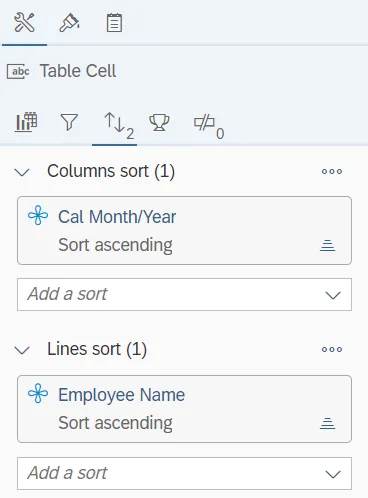
Follow the steps below to change the sorting for the desired column. There are 5 steps to complete this process.
Step 1: By default, data is sorted by Employee Name (This can be changed as needed).
Step 2: Right click on the “desired column”.
Step 3: Click on “Data”.
Step 4: Click on “Add Sort”.
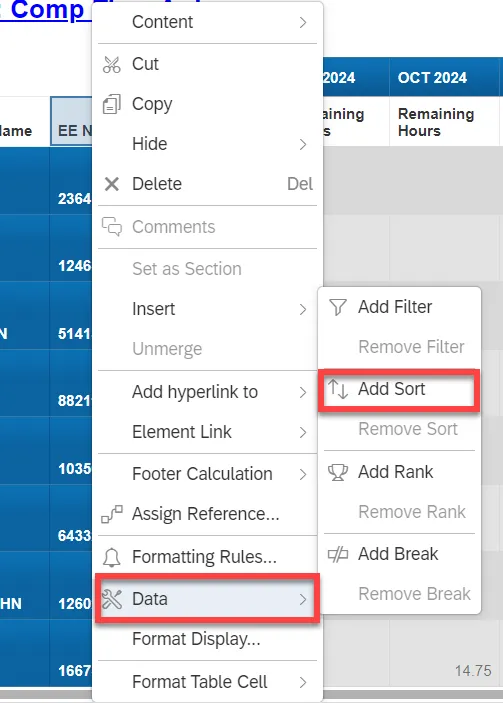
Step 5: Select ascending or descending sort order as needed.