Purpose
The purpose of this Report Description is to explain how to generate employee information for I-9 employment eligibility verification and residence status in the Integrated HR-Payroll System.
Report Description
This report provides employee information for I-9 Residence Status and Residence Status expirations and its associated two reporting views.
Report Location
PA: Foreign Nationals
Report Uses
- This report can be used to monitor when an employee’s resident status will expire, to view visa numbers, work permit numbers, or other details related to a foreign employee work right status.
- This report is used to compare what is entered into SAP vs what is entered into the Foreign National Information System.
How to Generate This Report
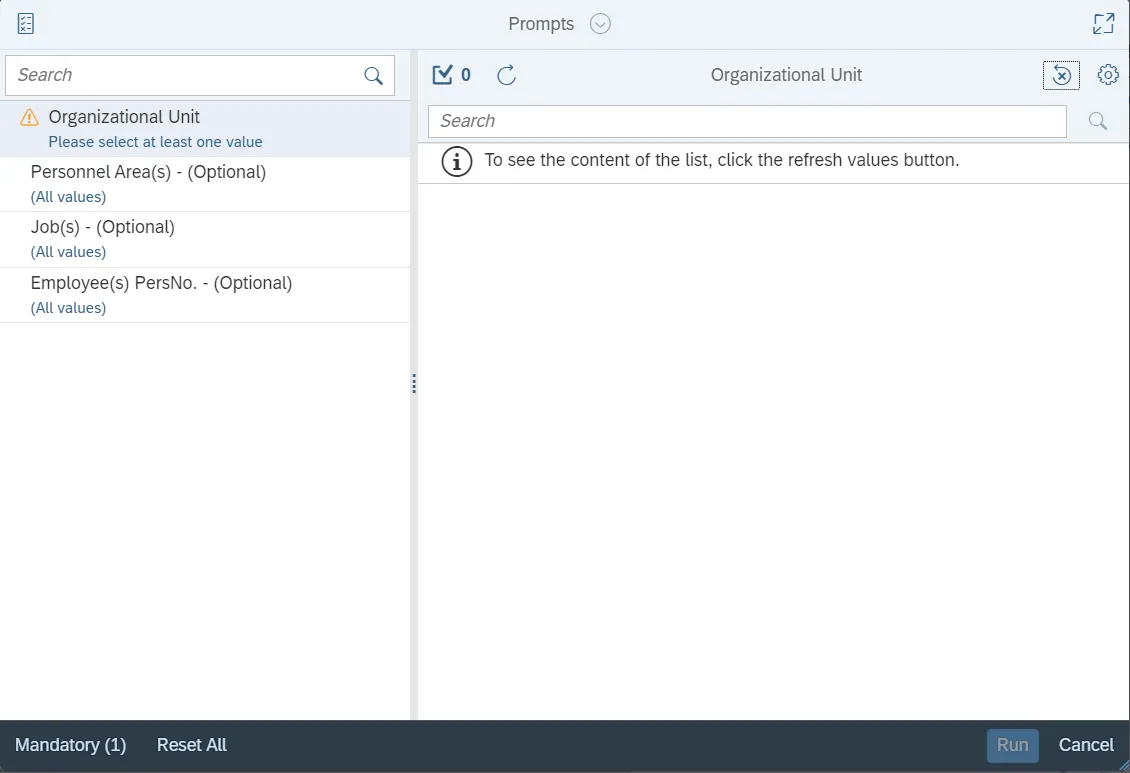
This report is generated after selecting values for the mandatory prompts. All mandatory prompts must have values selected before the Run Icon can be used to generate the report. Mandatory prompts can be identified as mandatory by the exclamation mark inside of the yellow-orange triangle, the square with the checkmark, or the display of (Mandatory). Detailed instructions for interaction with each prompt can be found on the Web Intelligence Prompt List on the OSC website.
The Mandatory prompts for this report are:
- Organizational Unit
This report can also be further limited by utilizing the Optional prompts to further limiting the amount of data that retrieved into the body of the report. Optional prompts are indicated as optional in parentheses beside the prompt.
The Optional prompts are:
- Personnel Area(s) - (Optional)
- Job(s) - (Optional)
- Employee(s) PersNo. - (Optional)
Initial Layout
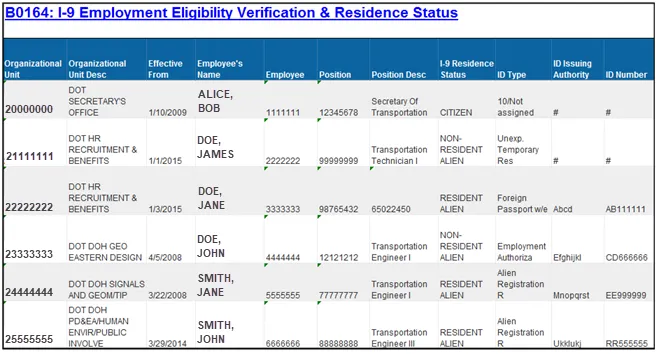
This report has two report tabs as well as the Report Info tab.

- B0164: I-9 Employment Eligibility Verification & Residence Status
- This report tab displays the employee information for I-9 Residence Status expirations like ID and Work Permit.
Continued…
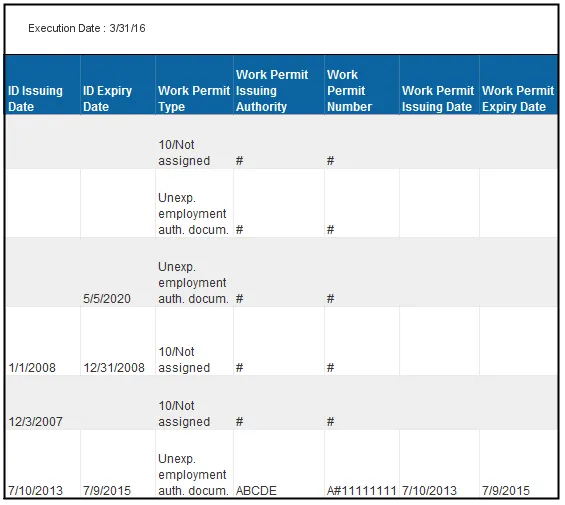
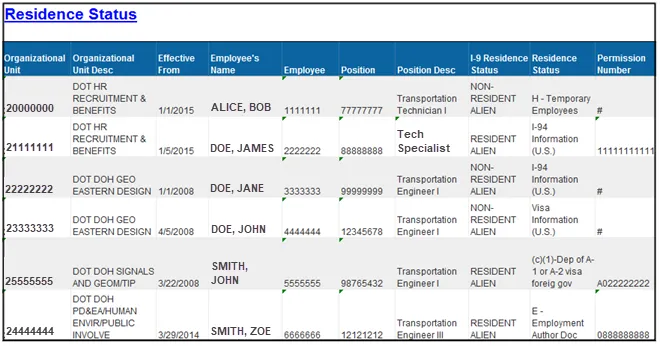
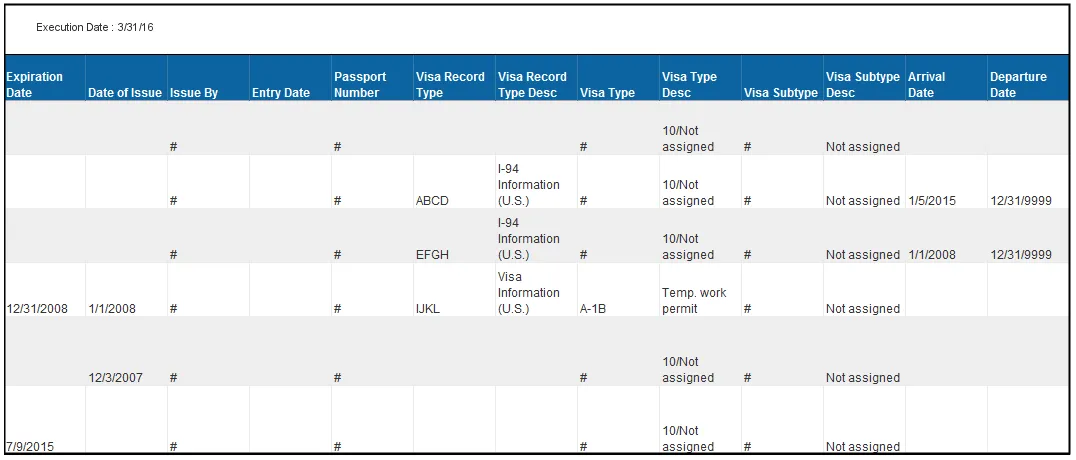
- Residence Status
- This report tab displays the employee information for Residence Status expirations like Permission Number, Expiry date, Passport Number, Visa Type, Visa Subtype, Arrival and Departure Date, etc.
Continued….
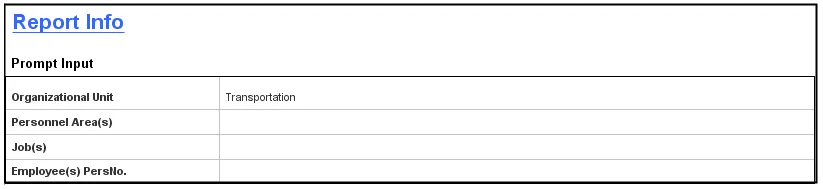
- Report Info
- This report tab displays information about the prompts entered.
Available Objects
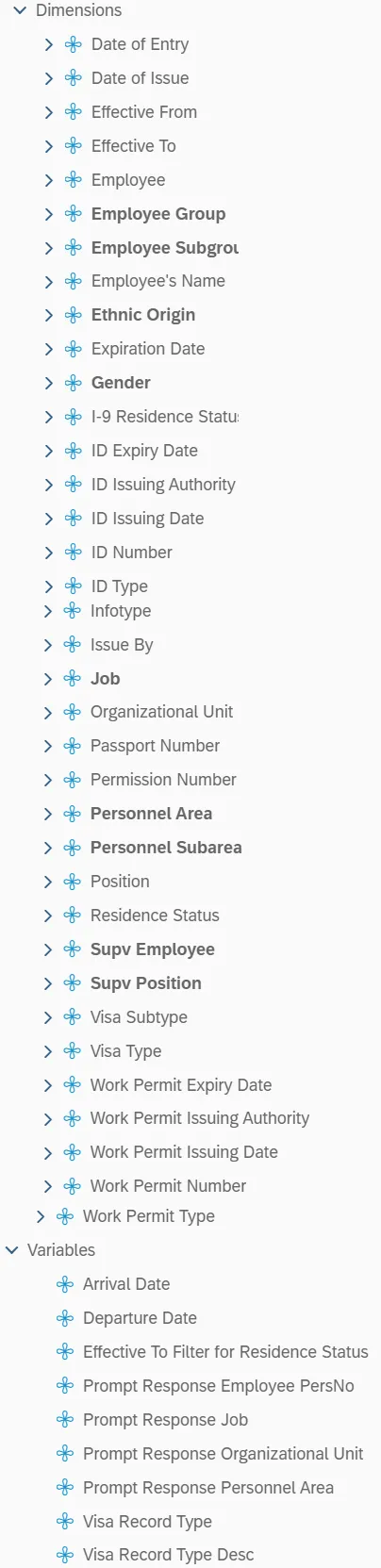
This is a list of the available objects that can be added to the report, from the Document Dictionary once in the Design mode:
Dimensions
- Date of Entry
- Date of Issue
- Effective From
- Effective To
- Employee
- Employee Group
- Employee Subgroup
- Employee's Name
- Ethnic Origin
- Expiration Date
- Gender
- I-9 Residence Status
- ID Expiry Date
- ID Issuing Authority
- ID Issuing Date
- ID Number
- ID Type
- Infotype
- Issue By
- Job
- Organizational Unit
- Passport Number
- Permission Number
- Personnel Area
- Personnel Subarea
- Position
- Residence Status
- Supv Employee
- Supv Position
- Visa Subtype
- Visa Type
- Work Permit Expiry Date
- Work Permit Issuing Authority
- Work Permit Issuing Date
- Work Permit Number
- Work Permit Type
Variables
- Arrival Date
- Departure Date
- Effective To Filter for Residence Status
- Prompt Response Employee PersNo
- Prompt Response Job
- Prompt Response Organizational Unit
- Prompt Response Personnel Area
- Visa Record Type
- Visa Record Type Desc
Special Report Considerations/Features
- Only active employees are included on this report.
- Contractor employee subgroups are excluded from this report.
- Below are the default filters applied to the Report:
- “B0164: I-9 Employment Eligibility Verification & Residence Status” Tab
- “Infotype” Equal to I-9 Residence Status
- “Effective to” Equal to 12/31/9999
- “Residence Status” Tab
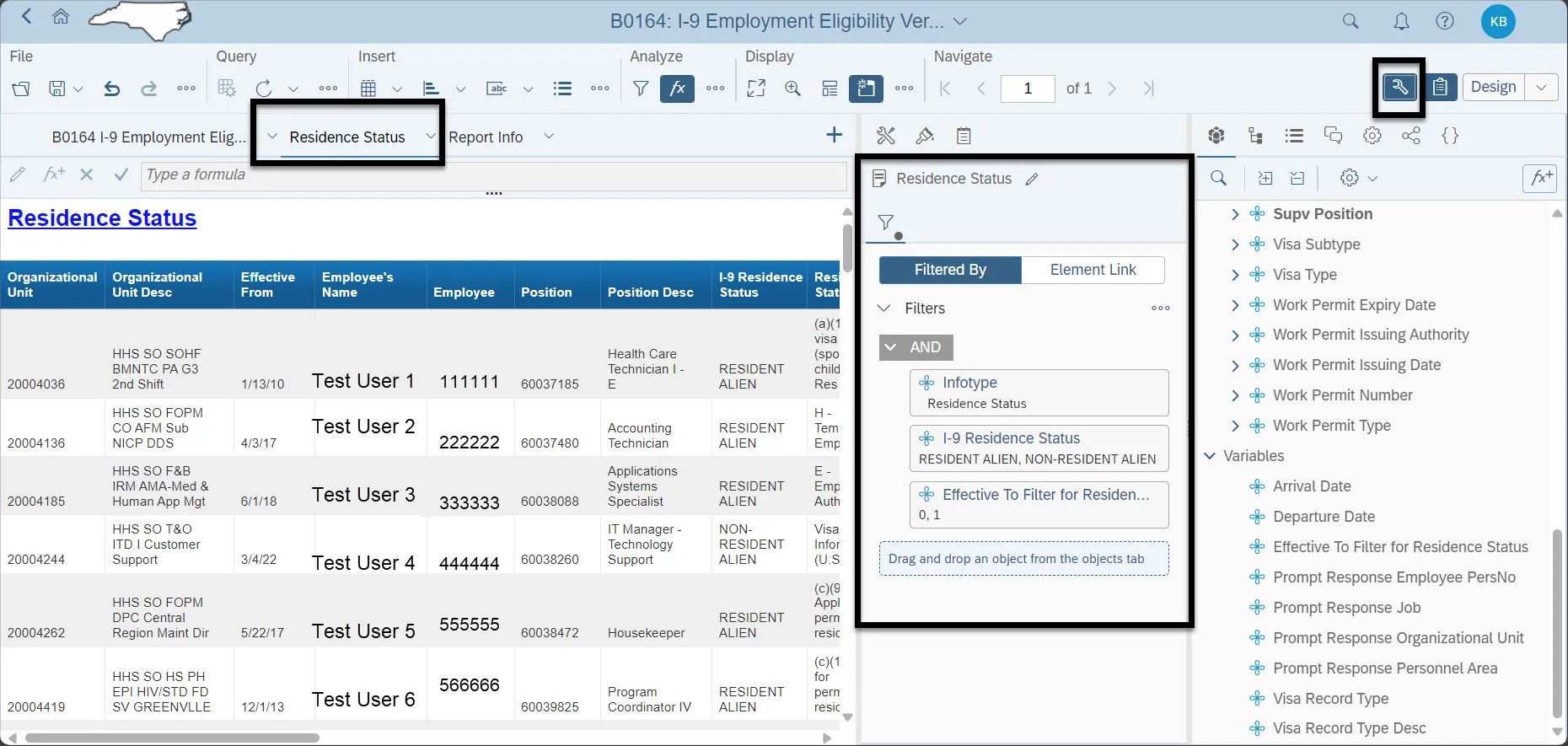
- “Infotype” Equal to Residence Status
- “I-9 Residence Status” Equal to Resident Alien and Non-Resident Alien.
- “Effective to” Equal to 12/31/9999 for Residence Status other than US02 (I-94 Information (U.S.))
NOTE: Please do not change these default Report Filters as the changes will affect the Report Results.
- “B0164: I-9 Employment Eligibility Verification & Residence Status” Tab
- To check the default filter on the first report tab, please follow the steps below. There are 3 steps to complete this process.
Step 1: Make sure you are in Design Mode.
Step 2: Click on the “Show data/format panel icon.

Step 3: Click on the ellipsis next to “Filters and select “Manage filters”.
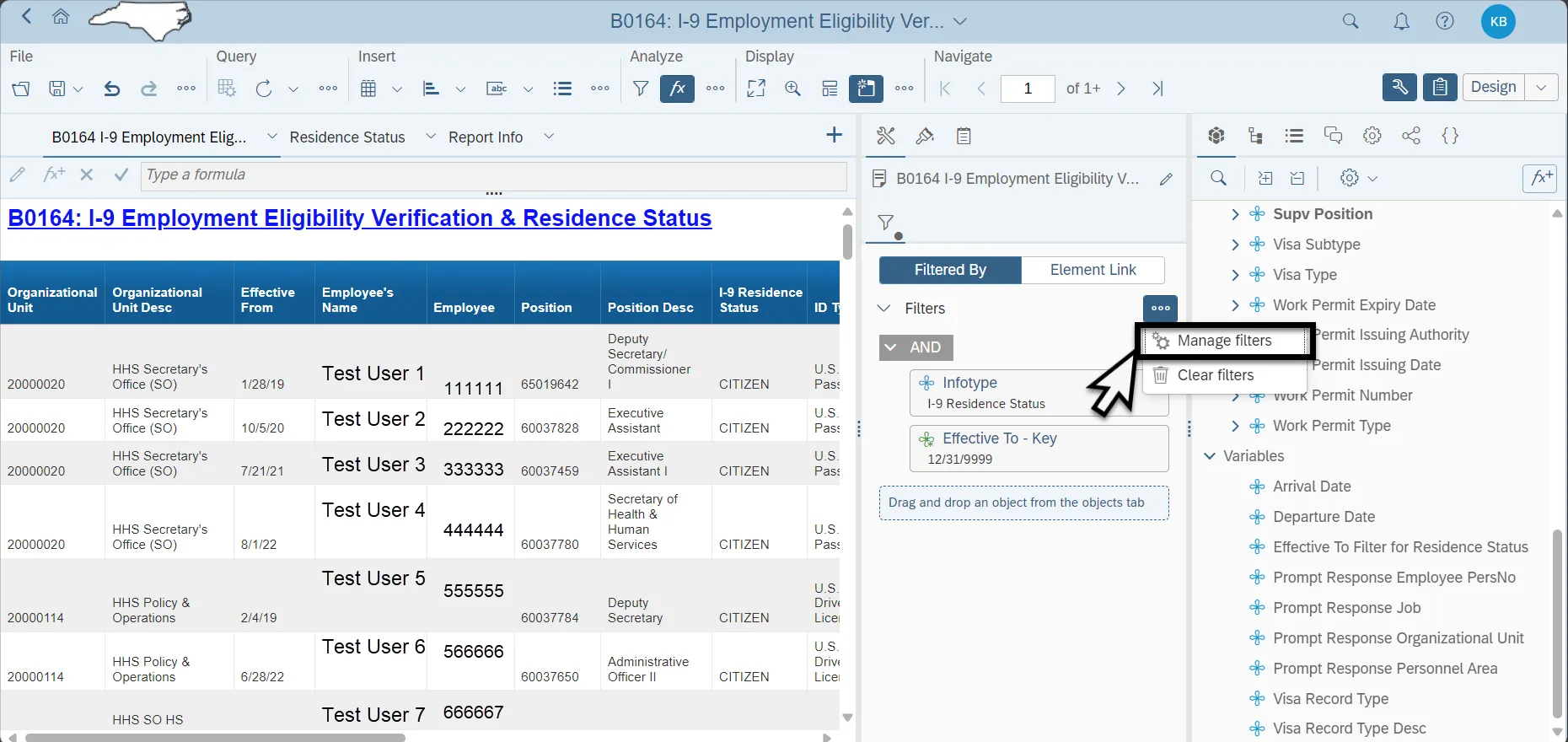
- To check the default filter on the Residence Status report tab, please follow the steps below. There are 5 steps to complete this process.
Step 1: Make sure you are in Design Mode.
Step 2: Select the “Residence Status” report tab.
Step 3: Click on the “Show data/format panel icon.
Step 4: Click on the ellipsis next to “Filters and select “Manage filters”.
Step 5: When the Edit screen pops up, the default filters applied will be visible.