Purpose
The purpose of this report description is to explain how to generate the Positions by Statutory Exemption Type.
Report Description
The B0145 Positions by Statutory Exemption Type report displays Statutory Exempt Type positions with Employee details and Employee salary amount.
Report Location
OM: Position Data
Report Uses
- This report can be used to view a list of positions with statutory exemptions by type along with employee details for specified organizational unit(s).
- It can be used for organizational management, budget and funding planning for statutory exempt positions within organizational units.
How to Generate This Report
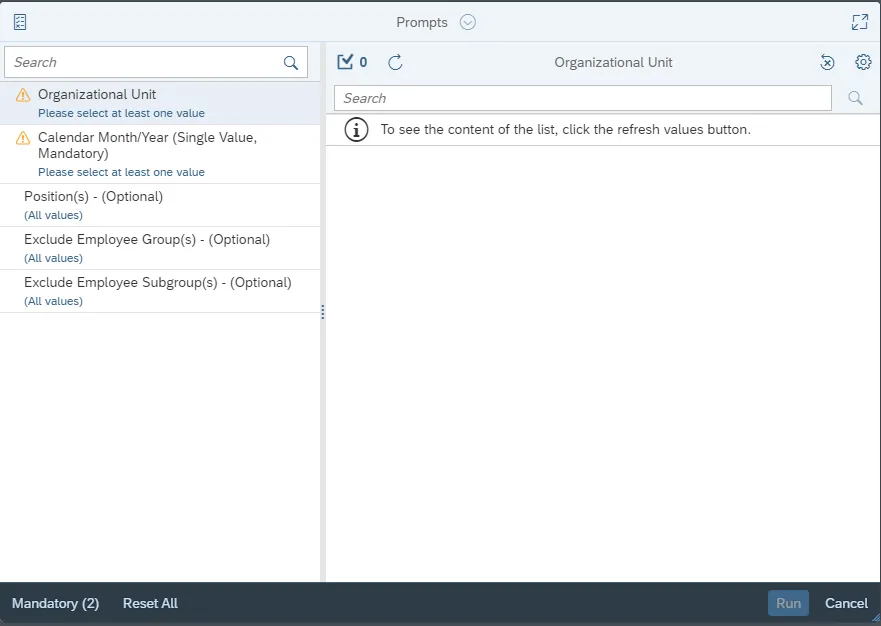
This report is generated after selecting values for the mandatory prompts. All mandatory prompts must have values selected before the Run Icon can be used to generate the report. Mandatory prompts can be identified as mandatory by the exclamation mark inside of the yellow-orange triangle, the square with the checkmark, or the display of (Mandatory). Detailed instructions for interaction with each prompt can be found on the Web Intelligence Prompt List on the OSC website.
The Mandatory prompts for this report are:
- Organizational Unit
- Calendar Month/Year (Single Value, Mandatory)
This report can also be further limited by utilizing the Optional prompts to further limiting the amount of data that retrieved into the body of the report. Optional prompts are indicated as optional in parentheses beside the prompt.
The Optional prompts are:
- Position(s) – (Optional)
Exclusion prompts exclude specified data by default while allowing customers the flexibility of changing them when necessary. Exclusion prompts are identified by the term Exclude followed by the prompt.
The Exclusion prompts are:
- Exclude Employee Group(s) – (Optional)
- Exclude Employee Subgroup(s) – (Optional)
Initial Layout
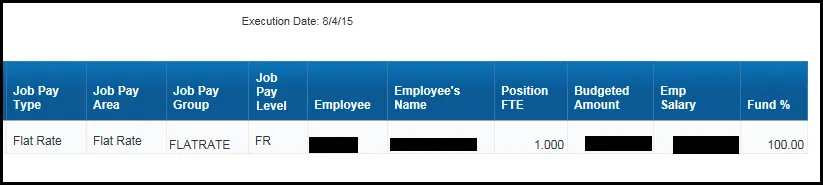
This is a sample row from the report, which shows the columns available on the base report.
Note: The two fields Employee Group and Employee Subgroup displayed in the report are based on the Position.

Continued...
Available Objects
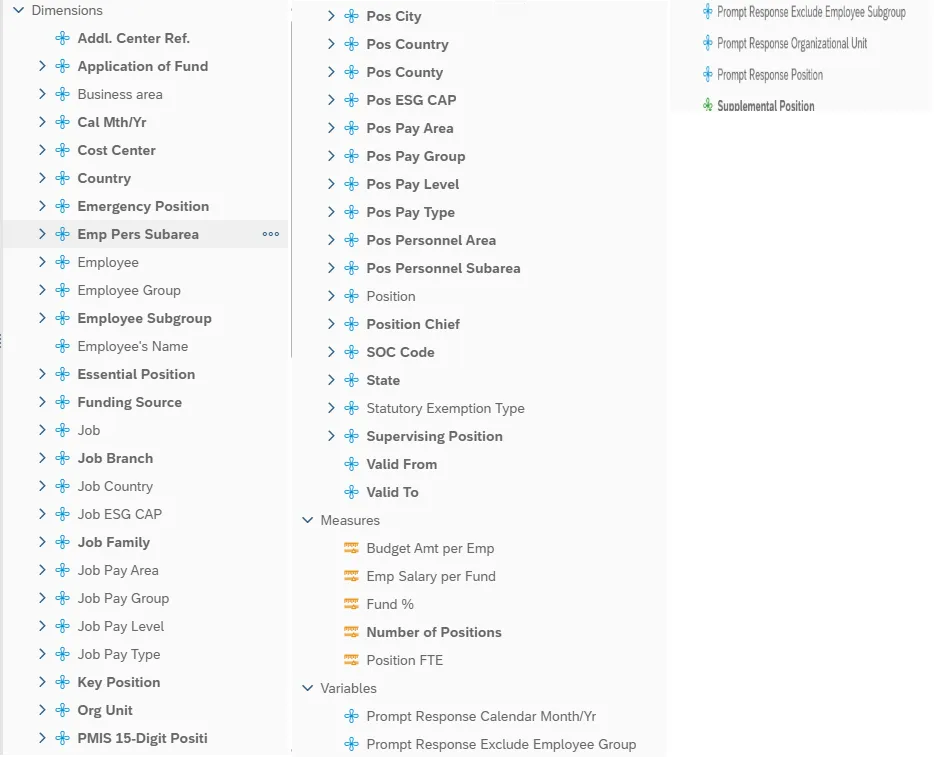
This is a list of the available objects that can be added to the report, from the Document Dictionary once in the Design mode:
Dimensions
- Addl. Center Ref
- Application of Fund
- Business area
- Cal Mth/Yr
- Cost Center
- Country
- Emergency Position
- Emp Pers Subarea
- Employee
- Employee Group
- Employee Subgroup
- Employee’s Name
- Essential Position
- Funding Source
- Job
- Job Branch
- Job Country
- Job ESG CAP
- Job Family
- Job Pay Area
- Job Pay Group
- Job Pay Level
- Job Pay Type
- Key Position
- Org Unit
- PMIS 15-Digit Positi
- Pos City
- Pos Country
- Pos County
- Pos ESG CAP
- Pos Pay Area
- Pos Pay Group
- Pos Pay Level
- Pos Pay Type
- Pos Personnel Area
- Pos Personnel Subarea
- Position
- Position Chief
- SOC Code
- State
- Statutory Exemption Type
- Supervising Position
- Valid From
- Valid To
Measures
- Budget Amt per Emp
- Emp Salary per Fund
- Fund %
- Number of Positions
- Position FTE
Variables
- Prompt Response Calendar Month/Yr
- Prompt Response Exclude Employee Group
- Prompt Response Exclude Employee Subgroup
- Prompt Response Organizational Unit
- Prompt Response Position
- Supplemental Position
Special Report Considerations/Features
- Position Personnel area was added to this report on August 17, 2017, and began being populated at that time. If the report is run for a date prior to August 2017, then the position personnel area will not be populated, and will display as “#” or as “not assigned”.
- Temporary employees or Supplemental Staff (O, X) are included in this report by default.
- The Exclude Employee Group and Exclude Employee Subgroup exclusion prompts can be used to exclude the Supplemental Staffs.
- The ‘Supplemental Position’ variable in the Available Objects can be used to filter out the Supplemental Staff after dragging this variable into the report and refresh.
- Contractors (G1) are included in this report by default as they are a subgroup of Supplemental Staff (O, X).
- The Exclude Employee Group and Exclude Employee Subgroup exclusion prompts can be used to exclude the Contractors (G1).
How to Exclude Supplemental Staff Positions?
- Using Exclusion Prompt
As described earlier in the Exclusion prompt section of this document, enter the Exclude Employee Groups prompt and Exclude Employee Subgroup prompt by selecting appropriate Supplemental Staff position Employee Groups and Employee Subgroups, and run the report.
- Employee Group – Supplemental Staff
- Supplemental Staff
- X Supmental Staf Grant
Employee Subgroup - Supplemental Staff
| 15 | FT N-FLSAOT Temp Dir | |
| 25 | FT N-FLSAOT Temp JB1 | |
| 35 | FT N-FLSAOT Temp JB2 | |
| 45 | FT N-FLSAOT Temp JB3 | |
| 55 | FT N-FLSAOT Temp DA | |
| 65 | FT N-FLSAOT Temp ADA | |
| 75 | FT N-FLSAOT Temp MAG | |
| 85 | FT N-FLSAOT Temp CR | |
| 95 | FT N-FLSAOT Temp CSC | |
| 0E | PT S-FLSAOT Temp MAG | |
| 1E | PT N-FLSAOT Temp Dir | |
| 2E | PT N-FLSAOT Temp JB1 | |
| 3E | PT N-FLSAOT Temp JB2 | |
| 4E | PT N-FLSAOT Temp JB3 | |
| 5E | PT N-FLSAOT Temp DA | |
| 6E | PT N-FLSAOT Temp ADA | |
| 7E | PT N-FLSAOT Temp MAG | |
| Q5 | FT N-FLSAOT Temp SC | |
| S5 | FT N-FLSAOT Temp CJP | |
| SI | FT N-FLSAOT Temp ACJP | |
| SO | FT S-FLSAOT Temp ACJP | |
| T5 | FT N-FLSAOT Temp AD | |
| U5 | FT N-FLSAOT Temp JBS | |
| 8E | PT N-FLSAOT Temp CR | |
| 9E | PT N-FLSAOT Temp SC | |
| QE | PT N-FLSAOT Temp JBS | |
| SE | PT N-FLSAOT Temp CJP | |
| SL | PT S-NLSAOT Temp ACJP | |
| SR | PT S-FLSAOT Temp ACJP | |
| TE | PT N-FLSAOT Temp AD | |
| UE | PT N-FLSAOT Temp JBS | |
| VE | PT S-FLSAOT Temp JBS | |
| V5 | FT S-FLSAOT Temp JBS |
Note: (You can also cut and paste this list in the prompt where it says, ‘Type values here’ and press ‘>’ right arrow).
Using ‘Supplemental Position’ Variable
- When you run the report without entering the Exclusion prompt values, the report will show the Supplemental Staff positions (if any) in the report for the given Organizational Unit and Calendar Month prompts.

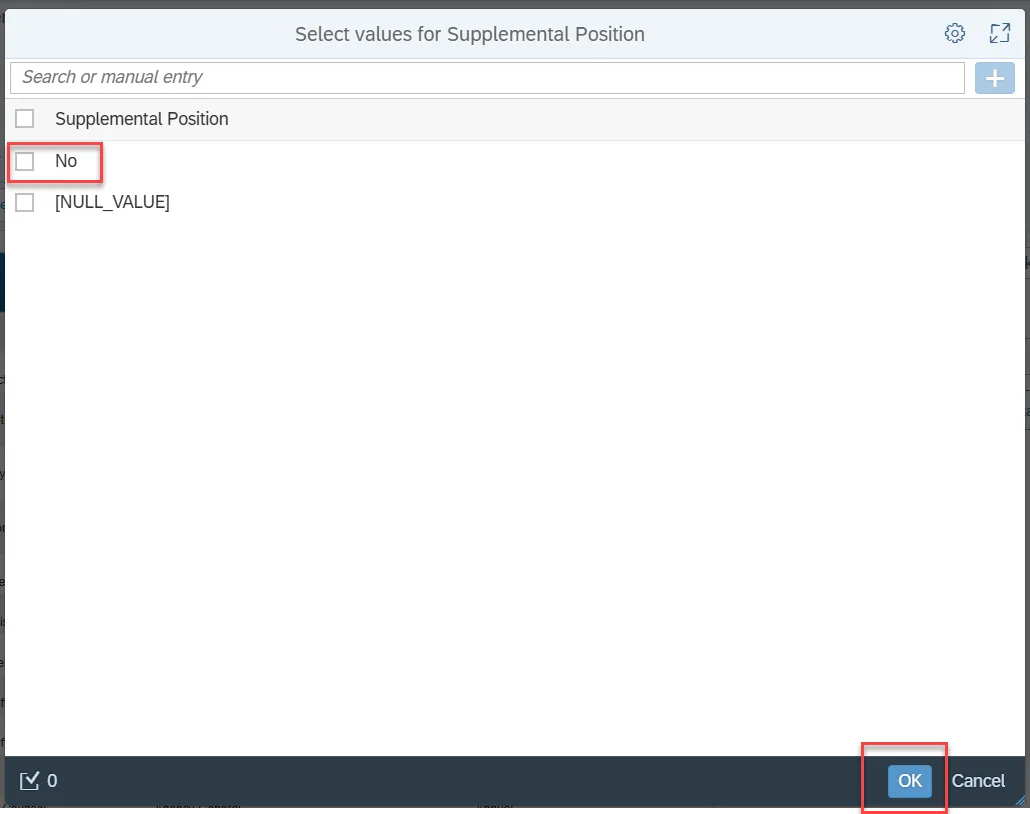
- To get positions other than Supplemental Staff in the report, in Design mode you can set a filter with filter value as ‘No’ to the variable ‘Supplemental Position’. This variable is listed at the bottom in the Available Objects screen.
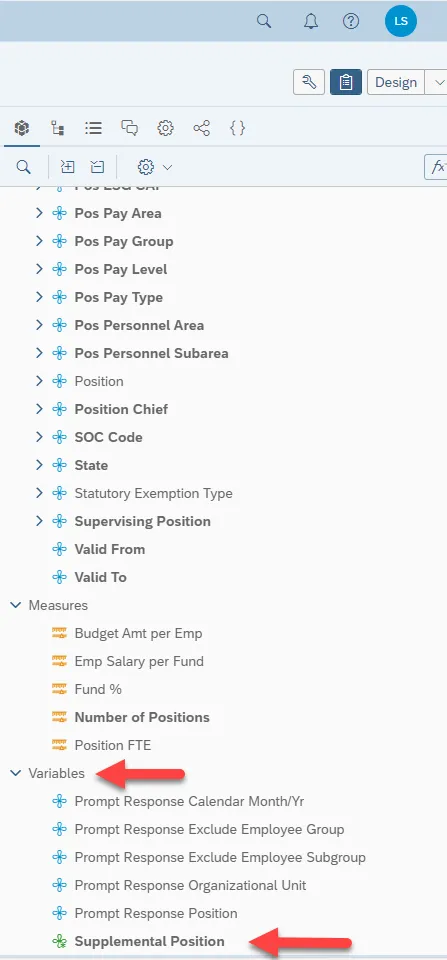
How To Set a Filter?
Add the Supplemental Position variable to the report in Design Mode.
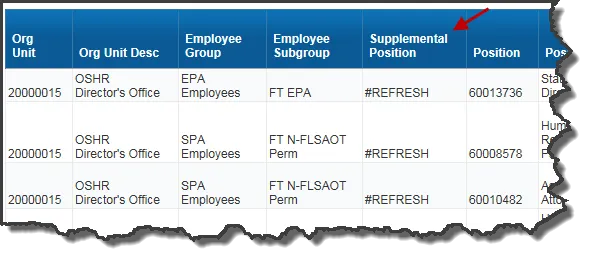
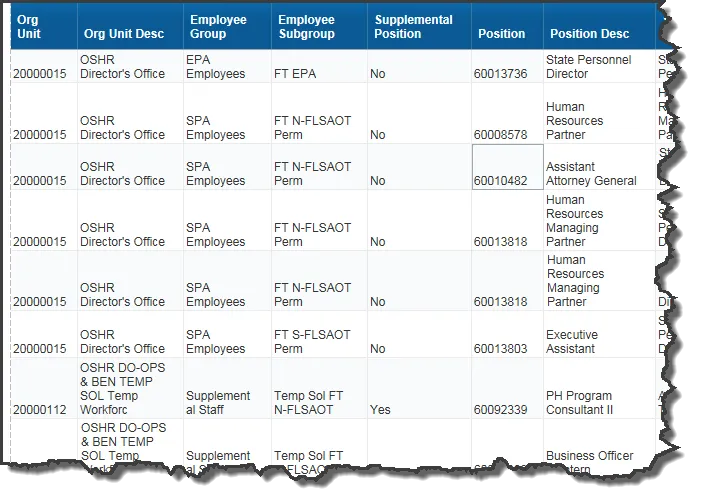
- Refresh the report when you see the #REFRESH in the Supplemental Position column.
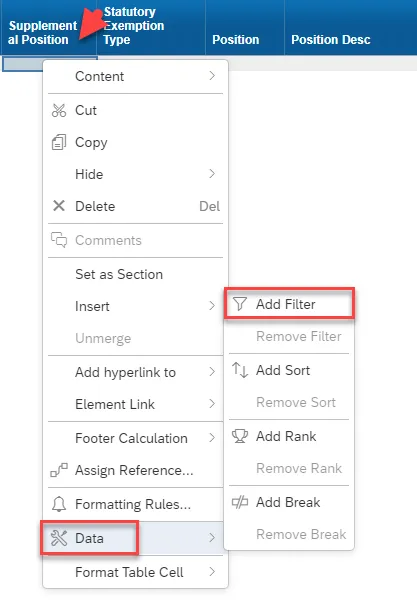
- Choose the ‘Add Filter’ by right click on Supplemental Position column and choose Data.
- Inside the Filter Window:
- Select 'No' in the Supplemental Position box.
- Click OK.
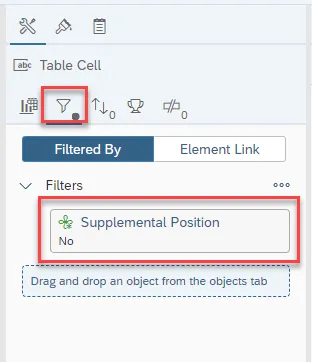
- Now you will notice the Supplemental Staff Positions are excluded in the report because of this filter and the Table Cell to the right of the report indicates the filtering.