Purpose
The purpose of this report description is to explain how to generate the Employee Salary Actions with Budget Detail Report.
Report Description
This report shows employee salary actions and budget detail corresponding with the action Effective Date. Budgeted and salary amounts shown are based on the funding percent designated by the Cost Distribution for the position. Budget information includes Fund, Application of Fund, Funding Source, and Cost Center.
Report Location
PA: Actions & Budget
Report Uses
- Action and Budget Monitoring to help with reconciling employee salary against the position's budget amount by funding source.
- Central Budget would use this new report in conjunction with confirming available salary reserve balances/deficits.
- HR would use it to ensure the budget/salary matches and that the funding is correct on the actions.
How to Generate This Report
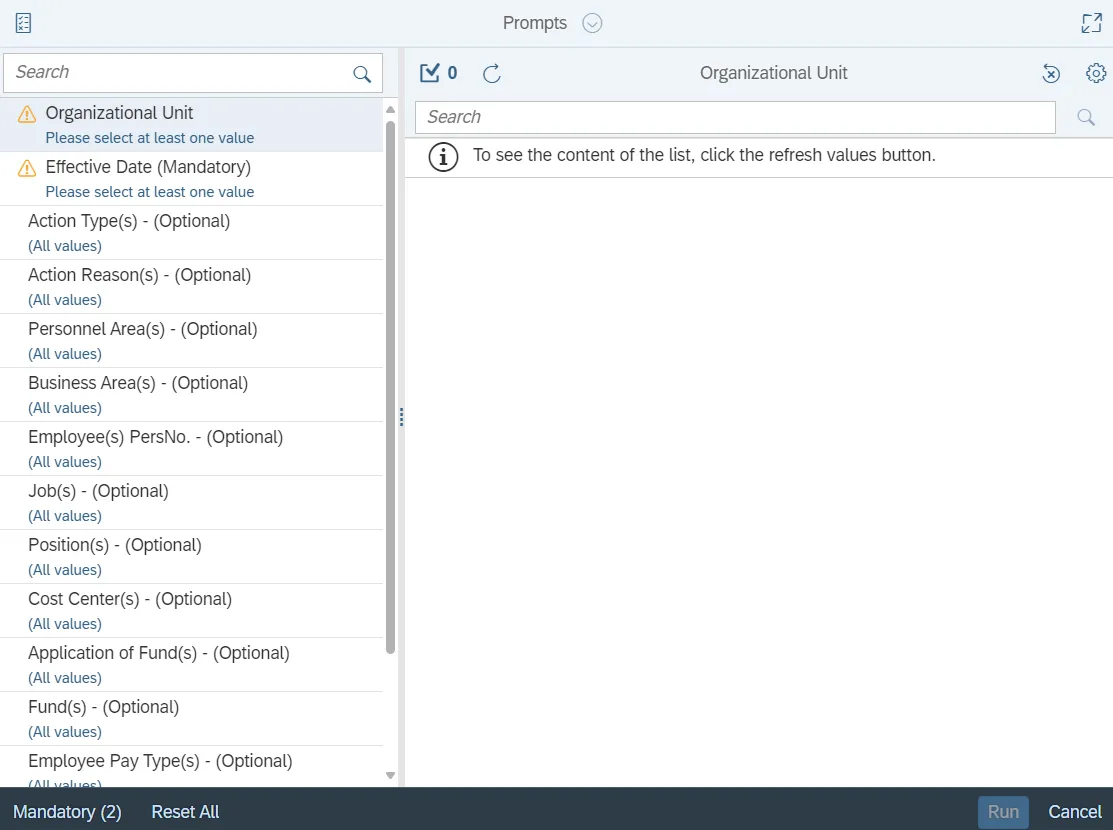
This report is generated after selecting values for the mandatory prompts. All mandatory prompts must have values selected before the Run Icon can be used to generate the report. Mandatory prompts can be identified as mandatory by the exclamation mark inside of the yellow-orange triangle, the square with the checkmark, or the display of (Mandatory). Detailed instructions for interaction with each prompt can be found on the Web Intelligence Prompt List on the OSC website.
The Mandatory prompts for this report are:
- Organizational Unit
- Effective Date (Mandatory)
This report can also be further limited by utilizing the Optional prompts to further limiting the amount of data that retrieved into the body of the report. Optional prompts are indicated as optional in parentheses beside the prompt.
The Optional prompts are:
- Action Type(s) - (Optional)
- Action Reason(s) - (Optional)
- Personnel Area(s) - (Optional)
- Business Area(s) - (Optional)
- Employee(s) PersNo. - (Optional)
- Job(s) - (Optional)
- Position(s) - (Optional)
- Cost Center(s) - (Optional)
- Application of Fund(s) - (Optional)
- Fund(s) - (Optional)
- Employee Pay Type(s) - (Optional)
- Employee Pay Area(s) - (Optional)
- Note: Since we have a large number of employees in the system, using broad wildcard searches can be very slow and may result in an error if the search exceeds the system limit. If you do not know the employee number and must do a name search, you can narrow down your search by using the wildcard with specific text strings when looking for an employee by name such as:
- John*Doe*
- *Doe
- If you know the employee number, it is best to use the manual entry field in Employee(s) PersNo. - (Optional) to enter your selection.
- Note: Since we have a large number of employees in the system, using broad wildcard searches can be very slow and may result in an error if the search exceeds the system limit. If you do not know the employee number and must do a name search, you can narrow down your search by using the wildcard with specific text strings when looking for an employee by name such as:
Exclusion prompts exclude specified data by default while allowing customers the flexibility of changing them when necessary. Exclusion prompts are identified by the term Exclude followed by the prompt.
The Exclusion prompts are:
- Exclude Employee Subgroup (Contractor, National Guard)
Initial Layout
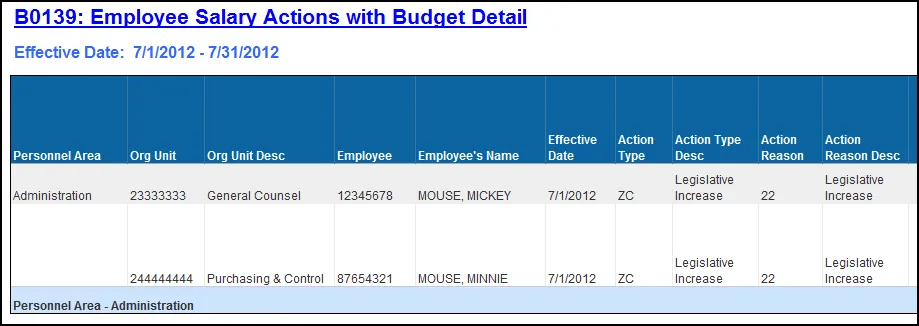
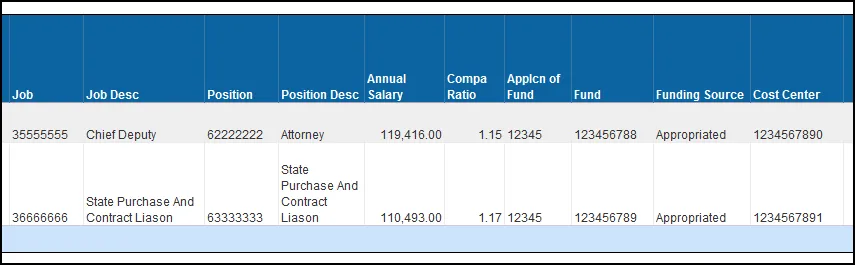
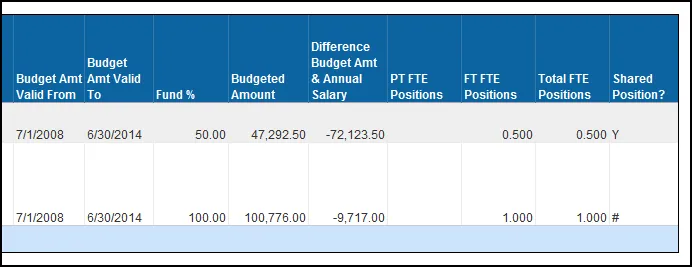
The report lists all postings for the prompt values selected. Below is a sample of the initial layout rendered.
Continued...
Continued...
Available Objects
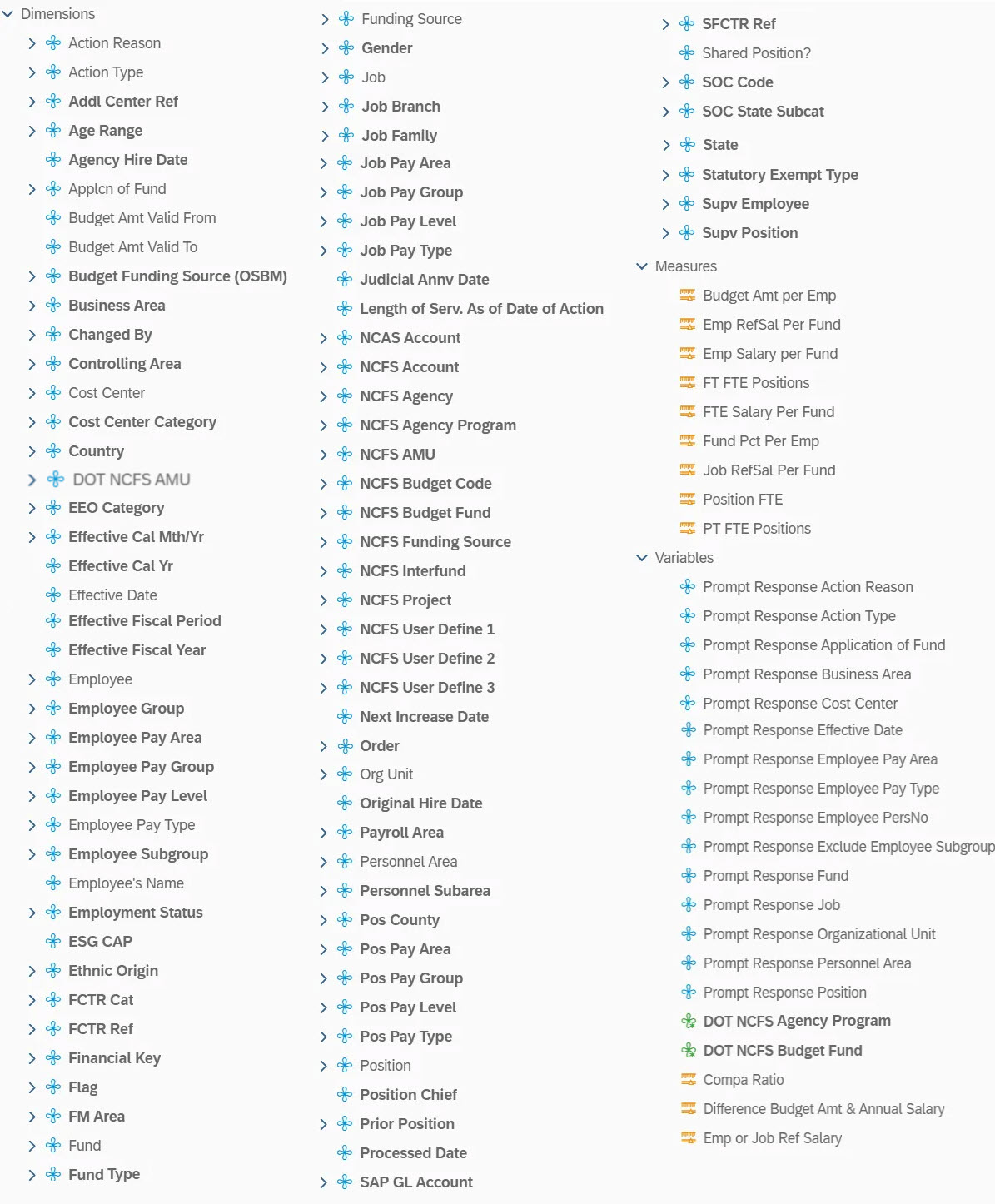
This is a list of the available objects that can be added to the report, from the Document Dictionary once in the Design mode:
Dimensions
- Action Reason
- Action Type
- Addl Center Ref
- Age Range
- Agency hire Date
- Applcn of Fund
- Budget Amt Valid From
- Budget Amt Valid To
- Budget Funding Source (OSBM)
- Business Area
- Changed By
- Controlling Area
- Cost Center
- Cost Center Category
- Country
- DOT NCFS AMU
- EEP Category
- Effective Cal Mth/Yr
- Effective Cal Yr
- Effective Date
- Effective Fiscal Period
- Effective Fiscal Year
- Employee
- Employee Group
- Employee Pay Area
- Employee Pay Group
- Employee Pay Level
- Employee Pay Type
- Employee Subgroup
- Employee’s Name
- Employment Status
- ESG CAP
- Ethnic Origin
- FCTR Cat
- FCTR Ref
- Financial Key
- Flag
- FM Area
- Fund
- Fund Type
- Funding Source
- Gender
- Job
- Job Branch
- Job Family
- Job Pay Area
- Job Pay Group
- Job Pay Level
- Job Pay Type
- Judicial Annv Date
- Length of Serv. As of Date of Action
- NCAS Account
- NCFS Account
- NCFS Agency Program
- NCFS AMU
- NCFS Budget Code
- NCFS Budget Fund
- NCFS Funding Source
- NCFS Interfund
- NCFS Project
- NCFS User Define 1
- NCFS User Define 2
- NCFS User Define 3
- Next Increase Date
- Order
- Org Unit
- Original Hire Date
- Payroll Area
- Personnel Area
- Personnel Subarea
- Pos County
- Pos Pay Area=
- Pos Pay Group
- Pos Pay Level
- Pos Pay Type
- Position
- Position Chief
- Prior Position
- Processed Date
- SAP GL Account
- SFCTR Ref
- Shared Position?
- SOC Code
- SOC State Subcat
- State
- Statutory Exempt Type
- Supv Employee
- Supv Position
Measures
- Budget Amt per Emp
- Emp RefSal Per Fund
- Emp Salary per Fund
- FT FTE Positions
- FTE Salary Per Fund
- Fund Pct Per Emp
- Job RefSal Per Fund
- PT FTE Positions
Variables
- Prompt Response Action Reason
- Prompt Response Action Type
- Prompt Response Application of Fund
- Prompt Response Business Area
- Prompt Response Cost Center
- Prompt Response Effective Date
- Prompt Response Employee Pay Area
- Prompt Response Employee Pay Type
- Prompt Response Employee PersNo
- Prompt Response Exclude Employee Subgroup
- Prompt Response Fund
- Prompt Response Job
- Prompt Response Organizational Unit
- Prompt Response Personnel Area
- Prompt Response Position
- DOT NCFS Agency Program
- DOT NCFS Budget Fund
- Compa Ratio
- Difference Budget Amt & Annual Salary
- Emp or Job Ref Salary
Special Report Considerations/Features
- Because some positions may be split-funded, multiple lines may show for the same employee action with each line breaking out the specific fund split.
- When positions are shared across multiple employees, the Fund %, Budgeted Amount, and Position FTE measures are all divided by the number of employees sharing the position.
- NOTE: The Fund %, Budgeted Amount, and Position FTE measures may not add up to the original amount if not all employees sharing the same position appear on the report. The Shared Position? data element will indicate when an employee is in a shared position.
- The types of actions selected for this report are based on actions defined by the Functional Team that affect salary. The entries are stored in table ZPA_ACTIONS. The table identifies 12 specific salary affecting actions.
| Action Type | Action Description |
|---|---|
| Z0 | New Hire (NC) |
| Z1 | Promotion (NC) |
| Z2 | Reinstatement/Reemployment (NC) |
| Z7 | Non-Beacon to Beacon (NC) |
| Z8 | Transfer (NC) |
| Z9 | Appointment Change (NC) |
| ZA | Reallocation (NC) |
| ZB | Demotion (NC) |
| ZC | Salary Adjustment (NC) |
| ZD | Cancel Salary Adjustment (NC) |
| ZE | Range Revision (NC) |
| ZH | Career Progression (NC) |
- There are 100+ combinations of these 12 actions paired with unique action reasons that are deemed as salary affecting. The complete table can be viewed in the spreadsheet B0139 Salary Actions List located under sub-folder ‘_Help/Reference Documents’ of the primary ‘HR-Payroll’ public folder.
- When there are multiple salary changing actions with the same Effective Date, the Infotype 0008 change history table is reviewed to determine which salary change went with which action. However, if for some reason the number of actions does not equal the number of IT0008 change records for that same date, then we are unable to determine which action caused what salary change so the most recent IT0008 salary is shown for all actions on that day. When this scenario happens, the action records will be flagged, and the “Flag” data element (from Available Objects) will show an ‘X’ value to signify this.
- NCFS Accounting Segments - are available for reporting in this report as drag and drop from Available Objects.
- NCFS accounting segments here are specific to an NCFS internal order in SAP HR/Payroll ERP system. Transactions with no NCFS internal orders will not display values for the NCFS segments in the BI BOBJ report.
- NCFS Agency, NCFS Agency Program, NCFS AMU, NCFS Budget Code, NCFS Budget Fund, NCFS Funding Source, NCFS Interfund, NCFS Project, NCFS User Define 1, NCFS User Define 2, NCFS User Define 3
- Agencies (like NCDOT, DES and DWS) that do not use NCFS Internal Orders will not see the values for the above NCFS segments in reports.
- NCFS Account and Budget Funding Source (OSBM) are available for reporting. Values are corresponding crosswalk to SAP GL Account and Funding Source in SAP HR Payroll system.
- Financial Key is representative of internal order from NCFS and old NCAS systems.
- DOT specific NCFS objects viz DOT NCFS Agency Program, DOT NCFS AMU and DOT NCFS Budget Fund are added to the report as needed for NC HB199. Source of these new objects are maintained in crosswalk tables in the ERP HR Payroll system.
- NCFS accounting segments here are specific to an NCFS internal order in SAP HR/Payroll ERP system. Transactions with no NCFS internal orders will not display values for the NCFS segments in the BI BOBJ report.