Purpose
The purpose of this report description is to explain how to generate the Employee Education Verification report.
Report Description
This report lists active employees' credentials.
Report Location
PA: Certification and Qualifications
Report Uses
This report is used to monitor whether the employee education qualifications have been verified. The report provides the verification status and if the verification has not been completed in time, the report displays how many days have elapsed since the hire date.
How to Generate This Report
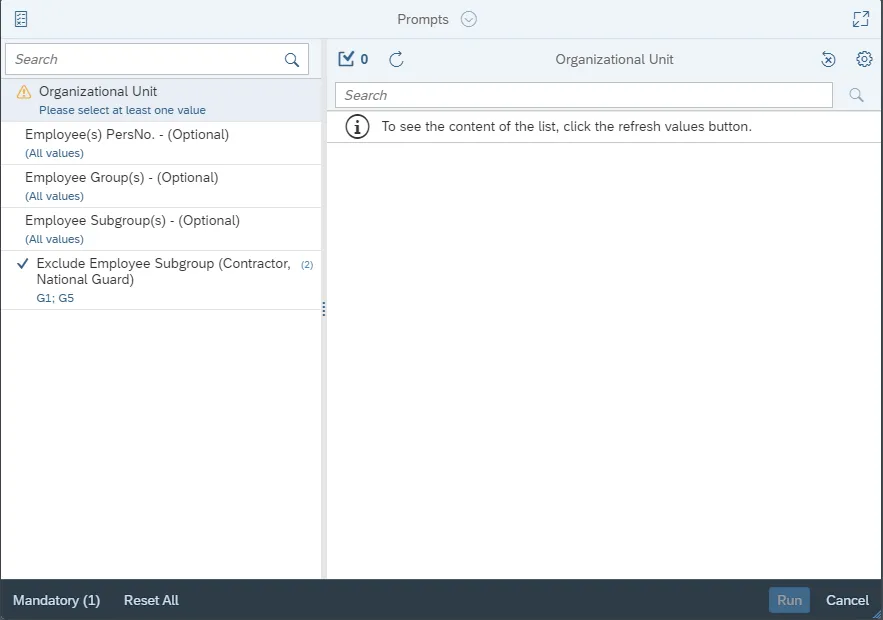
This report is generated after selecting values for the mandatory prompts. All mandatory prompts must have values selected before the Run Icon can be used to generate the report. Mandatory prompts can be identified as mandatory by the exclamation mark inside of the yellow-orange triangle, the square with the checkmark, or the display of (Mandatory). Detailed instructions for interaction with each prompt can be found on the Web Intelligence Prompt List on the OSC website.
The Mandatory prompts for this report are:
- Organizational Unit
This report can also be further limited by utilizing the Optional prompts to further limiting the amount of data that retrieved into the body of the report. Optional prompts are indicated as optional in parentheses beside the prompt.
The Optional prompts are:
- Employee(s) PersNo. – (Optional)
- Employee Group(s) – (Optional)
- Employee Subgroup(s) – (Optional)
Exclusion prompts exclude specified data by default while allowing customers the flexibility of changing them when necessary. Exclusion prompts are identified by the term Exclude followed by the prompt.
The Exclusion prompts are:
- Exclude Employee Subgroup (Contractor, National Guard) G1; G5
Initial Layout
The report is generated with a list of Organizational No. of Employees by Personnel Area. This is a sample of the report:
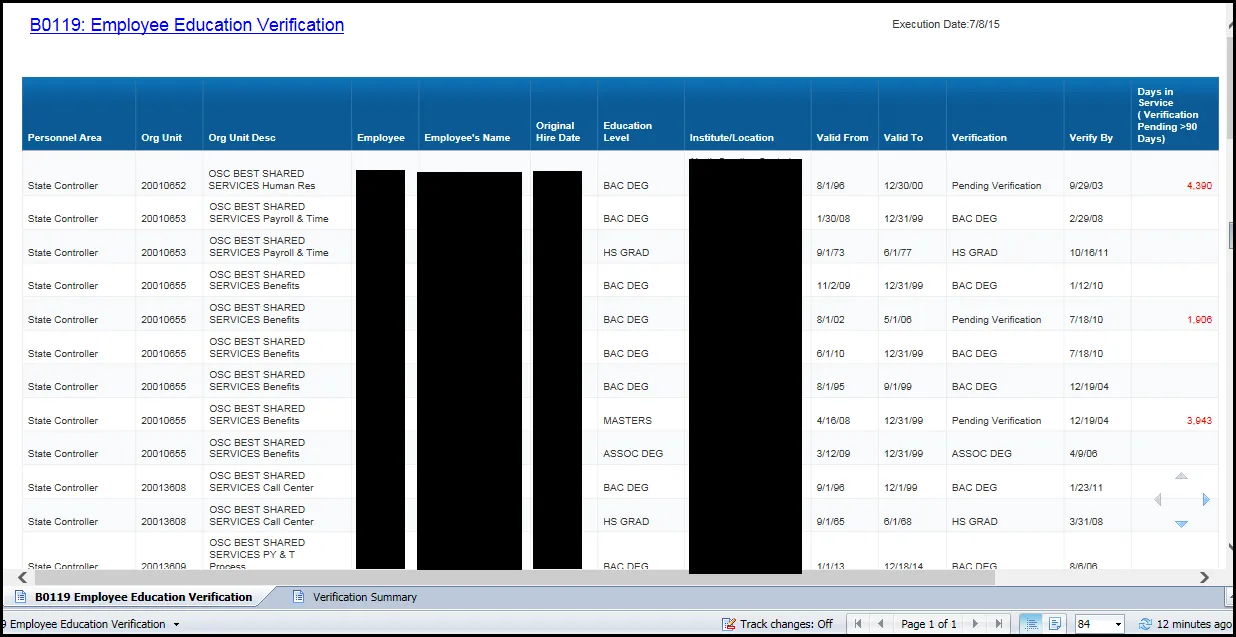
This report has 3 tabs at the top of the screen and each one is a report of its own kind. The first tab named B0119 Employee Education Verification provides a detailed report, second tab is Verification summary info, and third tab is Report Info.

The following are tabs available in B0119:
- B0119 Employee Education Verification
- Verification Summary
- Report Info
B0119 Employee Education Verification
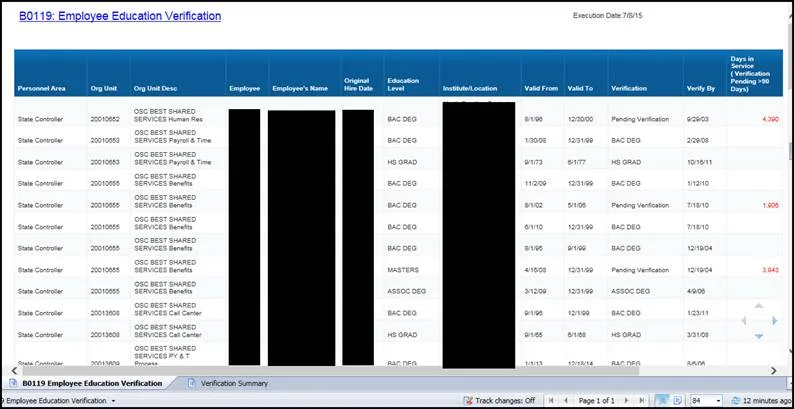
This report lists active employees' credentials. Verify By date included for HR to verify all employees within 90 days of Entry Date.
Verification Summary
This report lists verification summary of active employees' credentials.
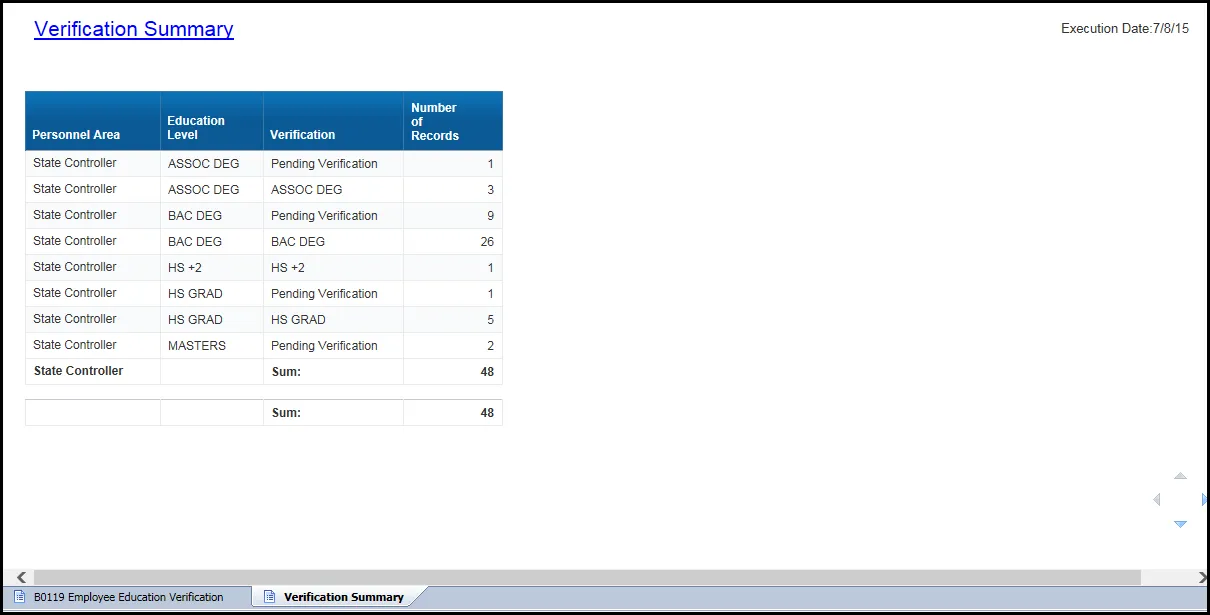
Note: This report has a break total on Personnel Area and has an ascending sort on Personnel Area and Education Level.
Available Objects
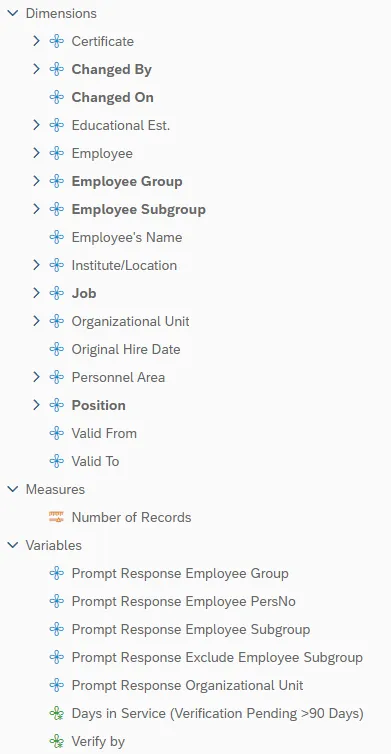
This is a list of the available objects that can be added to the report, from the Document Dictionary once in the Design mode:
Dimensions
- Certificate
- Changed By
- Changed On
- Educational Est.
- Employee
- Employee Group
- Employee Subgroup
- Employee’s Name
- Institute/Location
- Job
- Organizational Unit
- Original Hire Date
- Personnel Area
- Position
- Valid From
- Valid To
Measures
- Number of Records
Variables
- Prompt Response Employee Group
- Prompt Response Employee PersNo
- Prompt Response Employee Subgroup
- Prompt Response Exclude Employee Subgroup
- Prompt Response Organizational Unit
- Days in Service (Verification Pending >90 Days)
- Verify By
Special Report Considerations/Features
- Days in Service (Verification Pending >90 Days) is calculated for the Employees with 09 Pending Verification status. It is displayed for only those employees where the verification date expired over 90 days from the Original Hire date.
- Verify By column is 90 days from the original hire date.
- Employee Subgroup G1 – Contractors and G5 – National Guards are excluded from the report. Refer the Exclusion Prompt “Exclude Employee SubGroup (Contractors, National Guard) G1; G5” for details.
- Employment Status - Active. Report runs for Active Employees only.
- There is a default filter applied to the report to exclude the conversion Valid From dates of 12/01/2007 and 3/1/2008.