Purpose
The purpose of this Report Description is to explain the purpose of and how to generate the Active Position Counts report.
Report Description
This report shows SPA, EPA, and Supplemental/Judicial full-time equivalent position counts for the organizational unit(s) and calendar month/year selected.
Report Location
OM: Position Data
Report Uses
This report can be used to gather “at-a-glance” Full-time Equivalent (FTE) counts for organizational units as needed. It is broken down into Subject to the Personnel Act (SPA), Exempt from the personnel Act (EPA), and Supplemental/Judicial categories, so it can be used to quickly identify which organizational units have positions within these categories, along with the count for each category.
How to Generate This Report
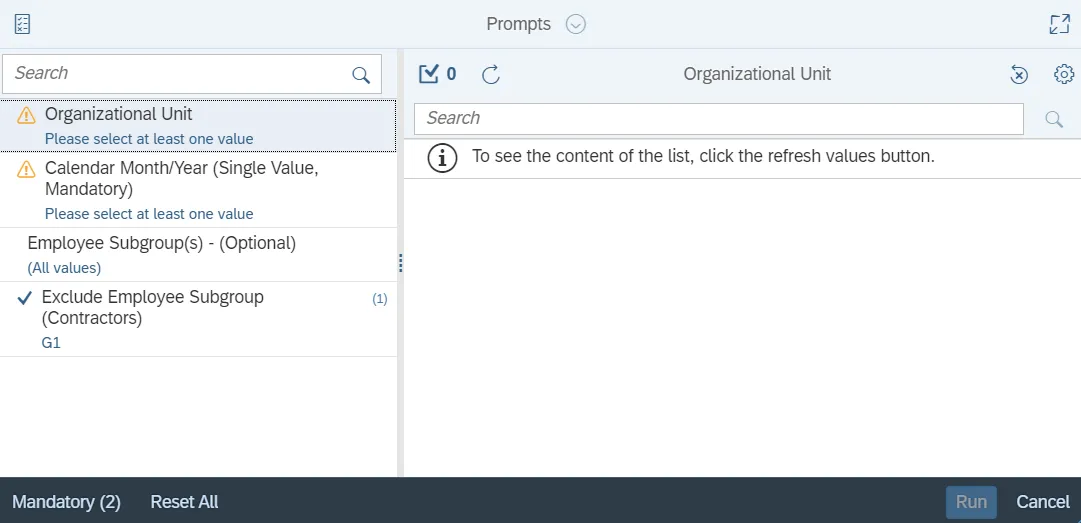
This report is generated after selecting values for the mandatory prompts. All mandatory prompts must have values selected before the Run Icon can be used to generate the report. Mandatory prompts can be identified as mandatory by the exclamation mark inside of the yellow-orange triangle, the square with the checkmark, or the display of (Mandatory). Detailed instructions for interaction with each prompt can be found on the Web Intelligence Prompt List on the OSC website.
The Mandatory prompts for this report are:
- Organizational Unit
- Calendar Month/Year (Single Value, Mandatory)
This report can also be further limited by utilizing the Optional prompts to further limiting the amount of data that retrieved into the body of the report. Optional prompts are indicated as optional in parentheses beside the prompt.
The Optional prompts are:
- Employee Subgroup(s) - (Optional)
Exclusion prompts exclude specified data by default while allowing customers the flexibility of changing them when necessary. Exclusion prompts are identified by the term Exclude followed by the prompt.
The Exclusion prompts are:
- Exclude Employee Subgroup (Contractors)
Initial Layout
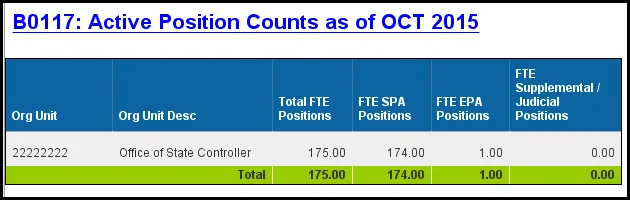
The report is generated with a list of position counts for the org unit selected. This is a sample of the report which shows the columns available on the base report:
Available Objects
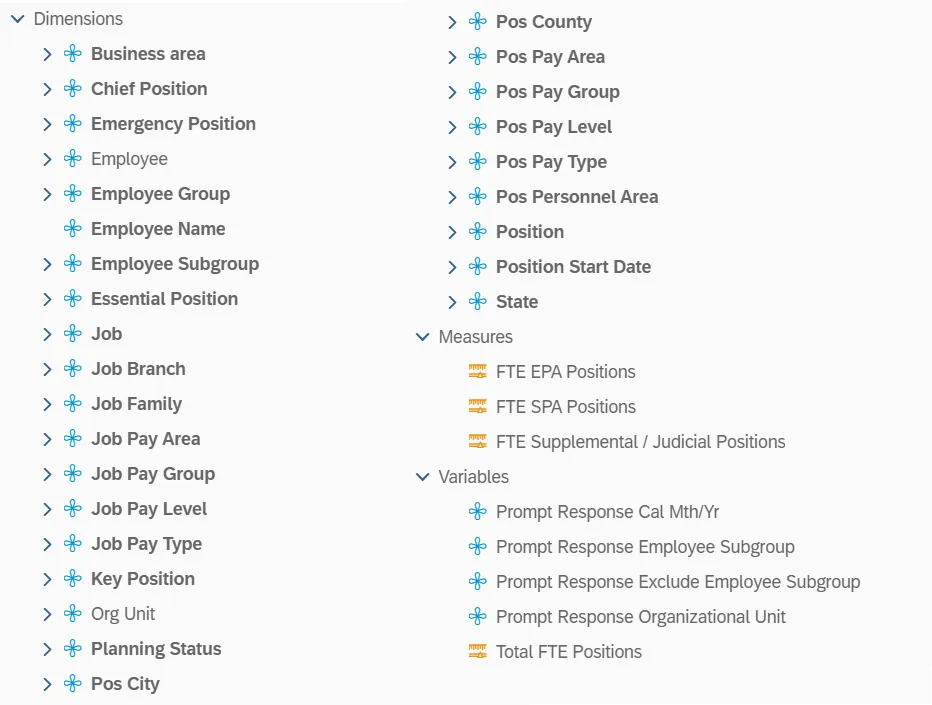
This is a list of the available objects that can be added to the report, from the Document Dictionary once in the Design mode:
Dimensions
- Business Area
- Chief position
- Emergency Position
- Employee
- Employee Group
- Employee Name
- Employee Subgroup
- Essential Position
- Job
- Job Branch
- Job Family
- Job Pay Area
- Job Pay Group
- Job Pay Level
- Job Pay Type
- Key Position
- Org Unit
- Planning Status
- Pos City
- Pos County
- Pos Pay Area
- Pos Pay Group
- Pos Pay Level
- Pos Pay Type
- Pos Personnel Area
- Position
- Position Start Date
- State
Measures
- FTE EPA Positions
- FTE SPA Positions
- FTE Supplemental / Judicial Positions
Variables
- Prompt Response Cal Mth/Yr
- Prompt Response Employee Subgroup
- Prompt Response Exclude Employee Subgroup
- Prompt Response Organizational Unit
- Total FTE Positions
Special Report Considerations/Features
- Positions assigned to the Contractor employee subgroup are excluded from this report by default.
- Position Personnel area was added to this report on September 9, 2016, and began being populated at that time. If the report is run for a date prior to September 2016, then the position personnel area will not be populated and will display as “#” or as “not assigned.”
- Field/Home Based indicator is available from Position attributes (expanded list) in Available Objects.