Purpose
The purpose of this report is to display a list of active employees by personnel area in the Integrated HR-Payroll System.
Report Description
This report lists active employees by personnel area/contract type. Additional data elements include demographics and position detail.
Report Location
PA: Employee Details
Report Uses
This report is used to provide a list of employees with a listing of their relevant employment details. It is meant to be a general all-purpose employee list and with the use of filtering and navigation. This report can have a number of specific uses depending on department needs. Below are a few common examples:
- List of employees by Org unit, Division, or Section
- List of employees by employee group (i.e., list of all EPA employees)
- List of employees within a specific job
- Birthday list
How to Generate This Report
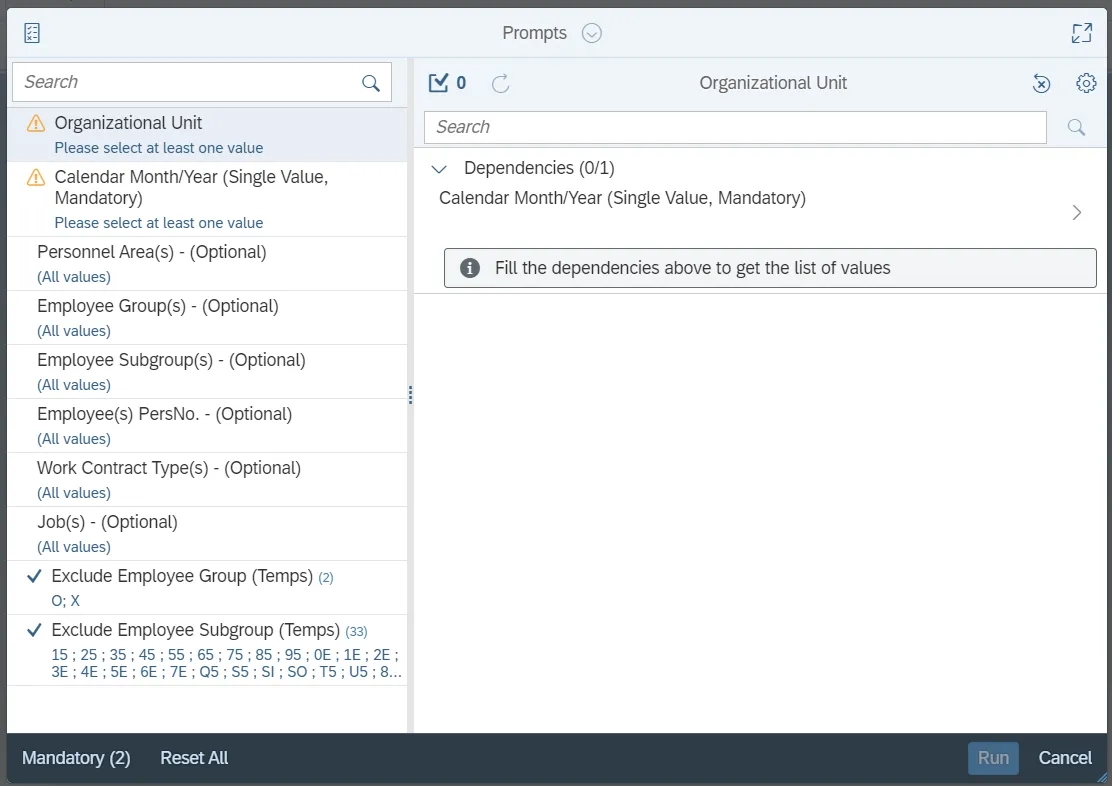
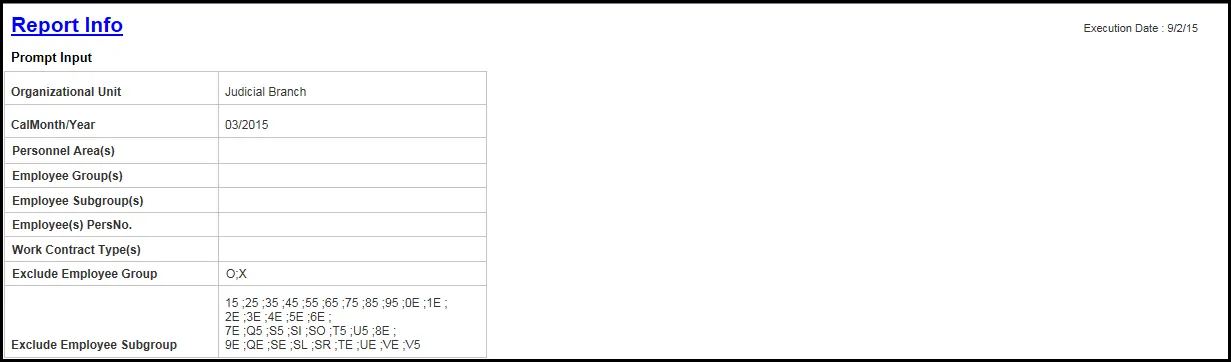
This report is generated after selecting values for the mandatory prompts. All mandatory prompts must have values selected before the Run Icon can be used to generate the report. Mandatory prompts can be identified as mandatory by the exclamation mark inside of the yellow-orange triangle, the square with the checkmark, or the display of (Mandatory). Detailed instructions for interaction with each prompt can be found on the Web Intelligence Prompt List on the OSC website.
The Mandatory prompts for this report are:
- Organization Unit
- Calendar Month/Year
- This prompt must be completed before any other prompt will populate.
This report can also be further limited by utilizing the Optional prompts to further limiting the amount of data that retrieved into the body of the report. Optional prompts are indicated as option in parentheses beside the prompt.
The Optional prompts are:
- Personnel Area(s)
- Employee Group(s)
- Employee Subgroup(s)
- Employee(s) PersNo.
- Work Contract Type(s)
- Job(s)
Exclusion prompts exclude specified data by default while allowing customers the flexibility of changing them when necessary. Exclusion prompts are identified by the term Exclude followed by the prompt.
The Exclusion prompts are:
- Employee Group (Temps)
- Employee Subgroup (Temps)
Initial Layout
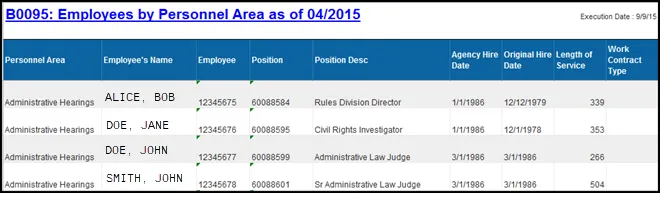
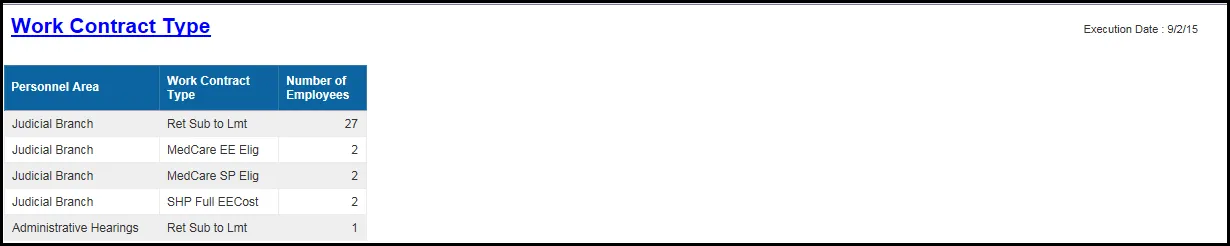
The report shows Employee details by Personnel Area. Below is a sample data.
Continued in second tab…
Continued in third tab…
Available Objects
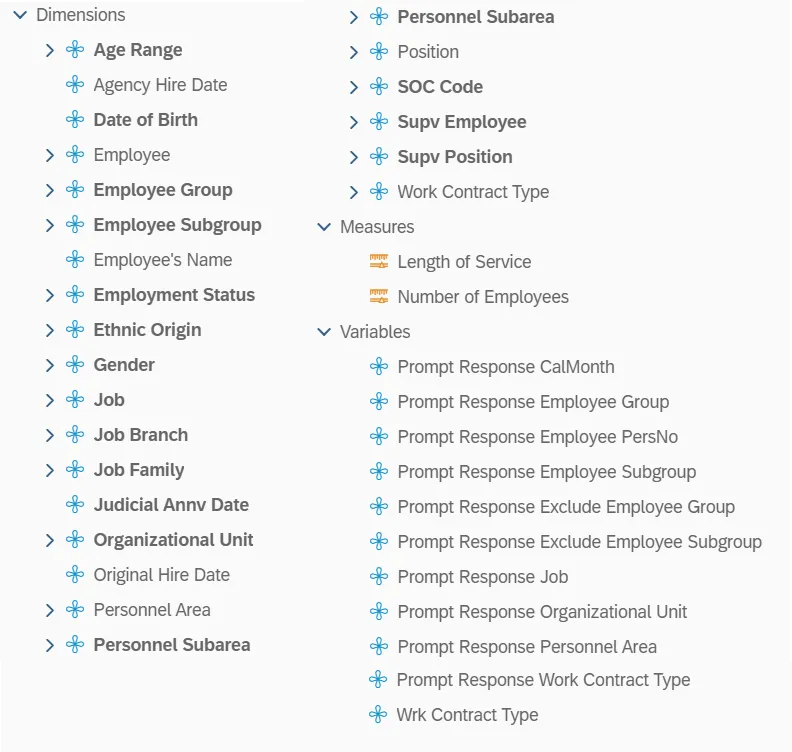
The following are available objects that can be added to the report, once in Design mode.
Dimensions
- Age Range
- Agency Hire Date
- Date of Birth
- Employee
- Employee Group
- Employee Subgroup
- Employee’s Name
- Employment Status
- Ethnic Origin
- Gender
- Job
- Job Branch
- Job Family
- Judicial Annv Date
- Organizational Unit
- Original Hire Date
- Personnel Area
- Personnel Subarea
- Position
- SOC Code
- Supv Employee
- Supv Position
- Work Contract T
Measures
- Length of Service
- Number of Employees
Variables
- Prompt Response CalMonth
- Prompt Response Employee Group
- Prompt Response Employee PersNo
- Prompt Response Employee Subgroup
- Prompt Response Exclude Employee Group
- Prompt Response Exclude Employee Subgroup
- Prompt Response Job
- Prompt Response Organizational Unit
- Prompt Response Personnel Area
- Prompt Response Work Contract Type
- Wrk Contract Type
Special Report Considerations/Features
- Temporary employees are excluded by default but this can be changed.
- ‘EE Telework Eligible’ and ‘EE Telework Type’ can be added to report by expanding the Employee attributes (expanded list) in Available Objects.
- Report only pulls active employees.
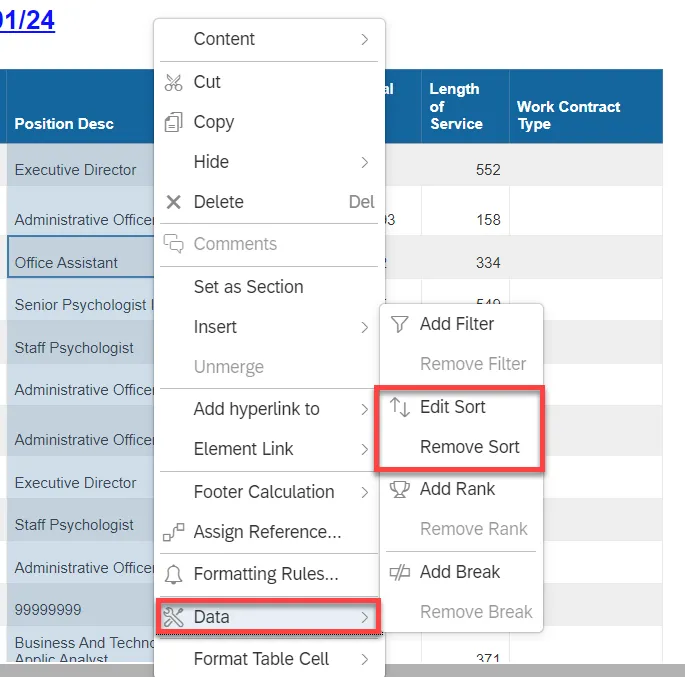
- To change the sorting for the desired column. By default, data is sorted by Personnel Area. (This can be changed as needed).
- Make sure the “desired column” is selected.
- Right-click and select Data
- Select Edit Sort or Remove Sort