Purpose
The purpose of this Report Description is to explain how to display position eligibility settings in the Integrated HR-Payroll System.
Report Description
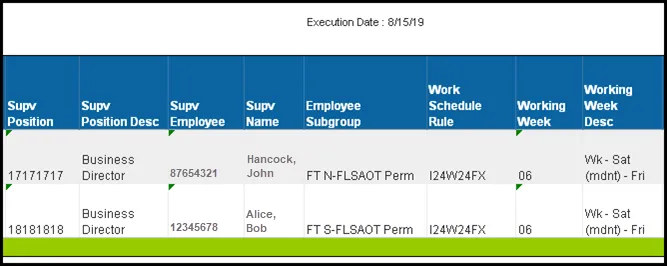
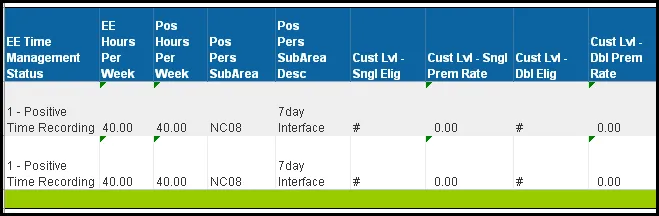
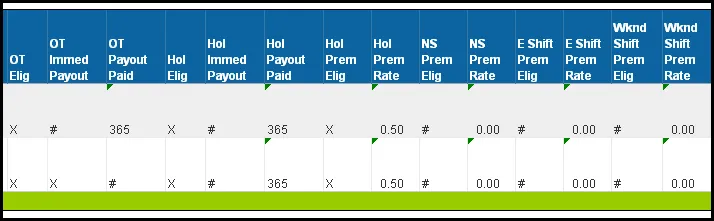
This report displays Position Eligibility Settings such as Time Settings, EEO Designations, and Job Information.
Report Location
OM: Position/Time Eligibility
Report Uses
- This report is used to evaluate position settings to ensure they are set correctly and are consistent across similar positions within an organizational structure. Some positions settings impact pay.
- This Report can be used to answer questions such as which positions are eligible for Overtime Comp Pay.
- If you are researching Retroactive changes to position time settings, refer to B0152 – Retroactive Position Time Settings – Metrics.
How to Generate This Report
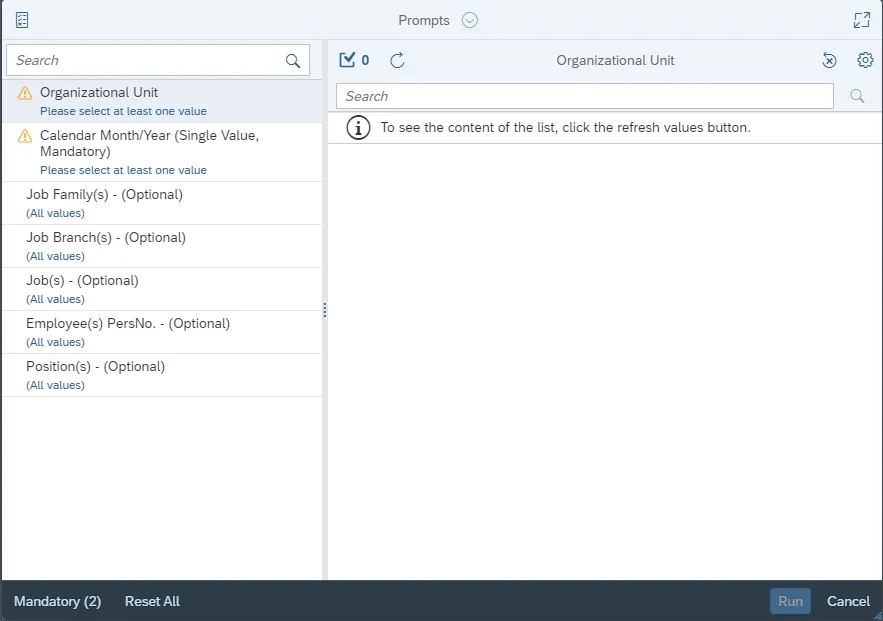
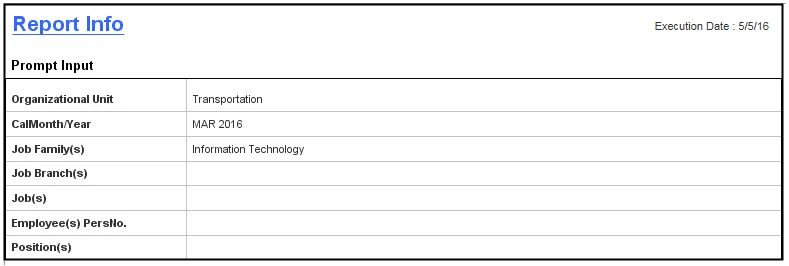
This report is generated after selecting values for the mandatory prompts. All mandatory prompts must have values selected before the Run Icon can be used to generate the report. Mandatory prompts can be identified as mandatory by the exclamation mark inside of the yellow-orange triangle, the square with the checkmark, or the display of (Mandatory). Detailed instructions for interaction with each prompt can be found on the Web Intelligence Prompt List on the OSC website.
The Mandatory prompts for this report are:
- Organizational Unit
- Calendar Month/Year (Single Value, Mandatory)
This report can also be further limited by utilizing the Optional prompts to further limiting the amount of data that retrieved into the body of the report. Optional prompts are indicated as optional in parentheses beside the prompt.
The Optional prompts are:
- Job Family(s) – (Optional)
- Job Branch(s) – (Optional)
- Job(s) – (Optional)
- Employee(s) PersNo. – (Optional)
- Position(s) – (Optional)
Initial Layout
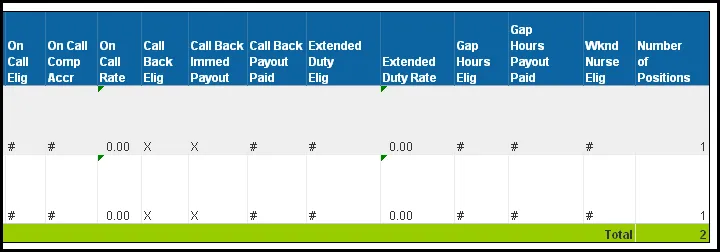
This report displays Position Eligibility Settings such as Time Settings, EEO Designations and Job Information:

Continued...
Continued...
Continued...
Continued...
The Report Info tab displays information about the prompts entered.
Available Objects
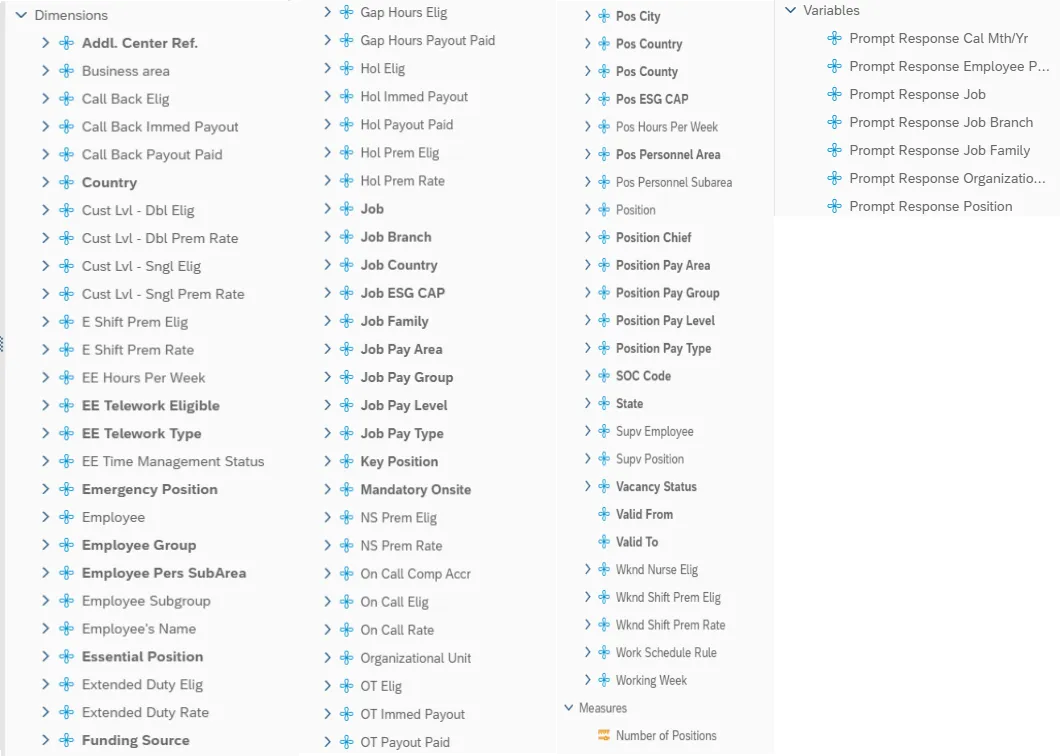
This is a list of the available objects that can be added to the report, from the Document Dictionary once in the Design mode:
Dimensions
- Addl. Center Ref.
- Business area
- Call Back Elig
- Call Back Immed Payout
- Call Back Payout Paid
- Country
- Cust Lvl – Dbl Elig
- Cust Lvl – Dbl Prem Rate
- Cust Lvl – Sngl Elig
- Cust Lvl – Sngl Prem Rate
- E Shift Prem Elig
- E Shift Prem Rate
- EE Hours Per Week
- EE Telework Eligible
- EE Telework Type
- EE Time Management Status
- Emergency Position
- Employee
- Employee Group
- Employee Pers SubArea
- Employee Subgroup
- Employee’s Name
- Essential Position
- Extended Duty Elig
- Extended Duty Rate
- Funding Source
- Gap Hours Elig
- Gap Hours Payout Paid
- Hol Elig
- Hol Immed Payout
- Hol Payout Paid
- Hol Prem Elig
- Hol Prem Rate
- Job
- Job Branch
- Job Country
- Job ESG CAP
- Job Family
- Job Pay Area
- Job Pay Group
- Job Pay Level
- Job Pay Type
- Key Position
- Mandatory Onsite
- NS Prem Elig
- NS Prem Rate
- On Call Comp Accr
- On Call Elig
- On Call Rate
- Organizational Unit
- OT Elig
- OT Immed Payout
- OT Payout Paid
- Pos City
- Pos Country
- Pos County
- Pos ESG CAP
- Pos Hours Per Week
- Pos Personnel Area
- Pos Personnel Subarea
- Position
- Position Chief
- Position Pay Area
- Position Pay Group
- Position Pay Level
- Position Pay Type
- SOC Code
- State
- Supv Employee
- Supv Position
- Vacancy Status
- Valid From
- Valid To
- Wknd Nurse Elig
- Wknd Shift Prem Elig
- Wknd Shift Prem Rate
- Work Schedule Rule
- Working Week
Measures
- Number of Positions
Variables
- Prompt Response Cal Mth/Yr
- Prompt Response Employee PersNo
- Prompt Response Job
- Prompt Response Job Branch
- Prompt Response Job Family
- Prompt Response Organizational Unit
- Prompt Response Position
Special Report Considerations/Features
- There is a default filter applied to the report to exclude the Vacant Positions. Vacant positions are indicated by Employee equal to #. Filter is defined as Employee not equal to # to exclude vacancies. This filter can be changed if desired.
-
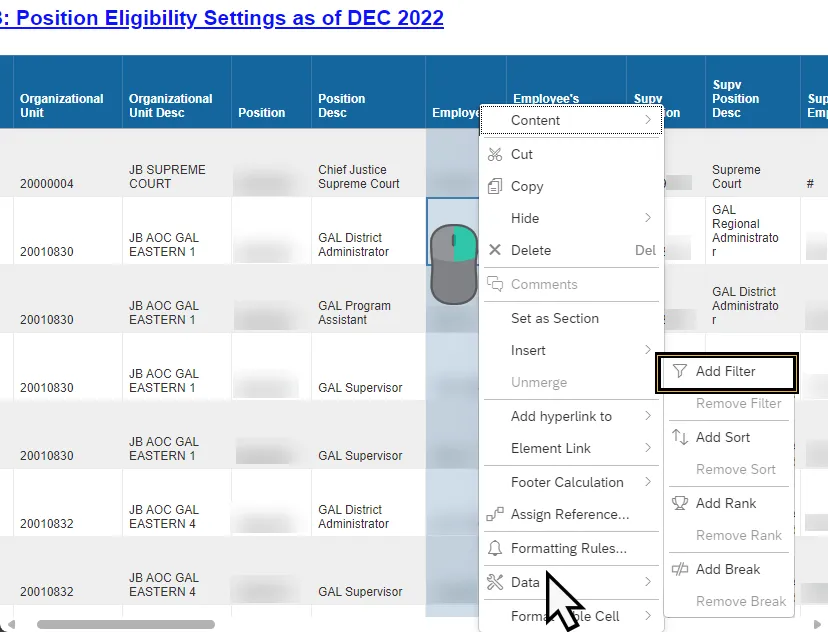
To change the default filter to check for Vacant Positions:
1. Highlight the Employee Key column (1).
2. Right-Mouse click to bring up the context menu.
3. Select Data (2).
4. Select Add Filter (3).
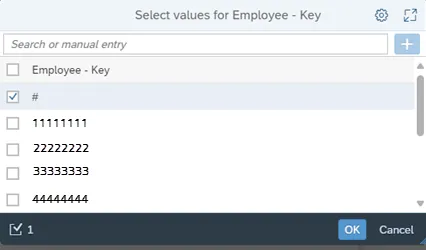
5. When the Edit screen pops up, you can see the default filters applied. To change this filter to Equal to Blank (#) to check for Vacant Positions.
6. Now you can see the Vacant Positions in the Report where Employee is equal to the Blank (#).
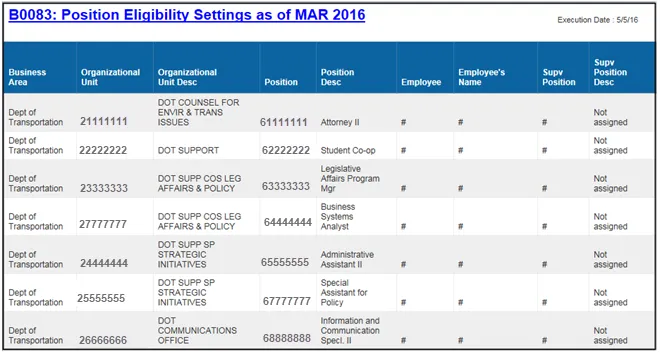
Note: To change the Report Filter back to excluding vacant positions, follow the same process above and change the Check mark to the “Employee - Key”.
- By default, data is sorted by Business Area. This can be changed as desired.
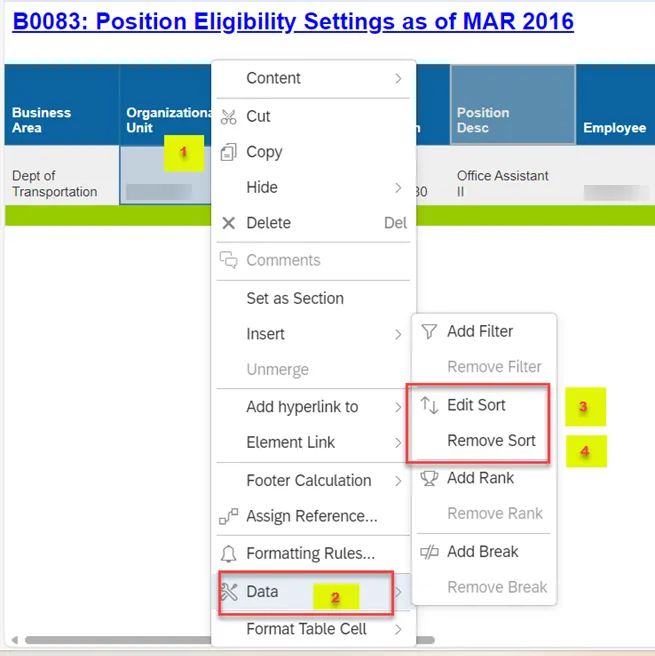
- To change the sorting to another column:
1. Make sure the “desired column” is selected (1).
2. Right -click, select Data (2).
3. Click on Edit Sort, select ascending or descending sort as needed (3).
4. Click on “Remove all sorts” (4).
- Position Personnel area was added to this report on August 17, 2017, and began being populated at that time. If the report is run for a date prior to August 2017, the position personnel area will not be populated and will display as “#” or as “not assigned.”