Purpose
The purpose of this Report Description is to explain how to see details about retroactive position time setting changes in the Integrated HR-Payroll System.
Report Description
This report displays metrics derived from retroactive position time settings that are impacting for the organizational unit and calendar month/year interval selected. Metrics are displayed in the ranges of <39 days, 30 -59 days, and >59 days.
This report calculates the difference between changed on dates and effective dates.
This report can be used to monitor pay-impacting retroactive position time setting changes.
Report Location
OM: Position/Time Eligibility
Report Uses
This report is used as a monitoring tool to evaluate retroactive position time settings changes which impact employee pay.
How to Generate This Report
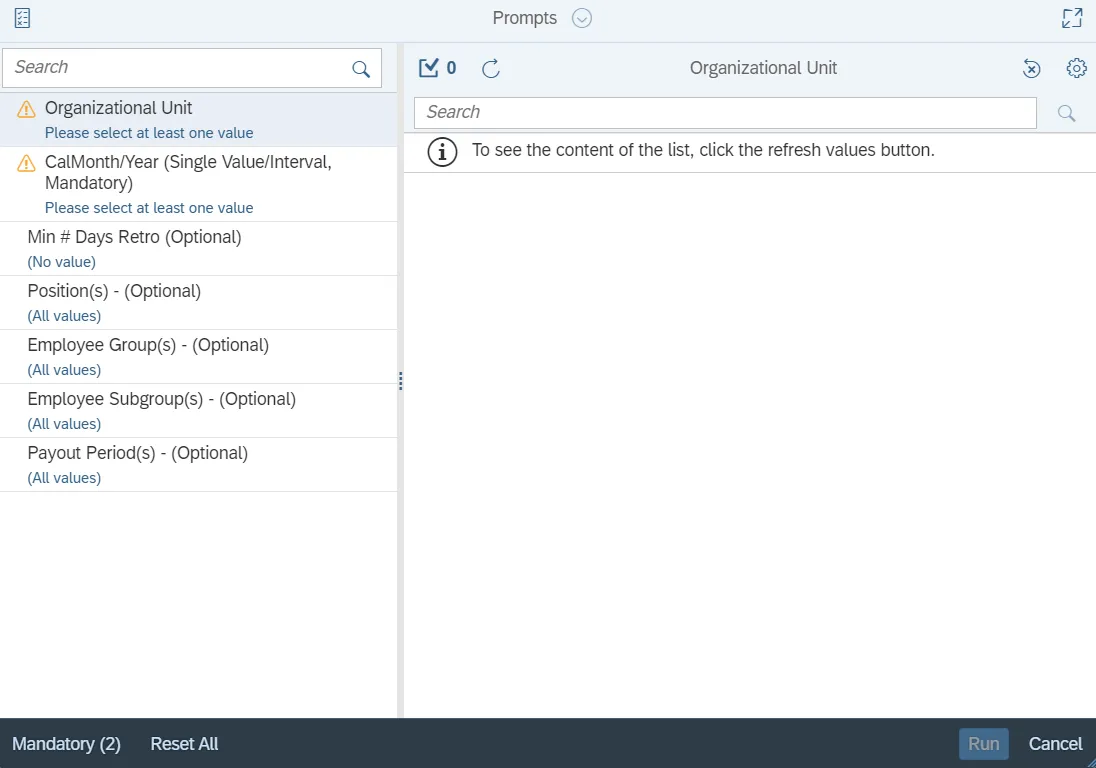
This report is generated after selecting values for the mandatory prompts. All mandatory prompts must have values selected before the Run Icon can be used to generate the report. Mandatory prompts can be identified as mandatory by the exclamation mark inside of the yellow-orange triangle, the square with the checkmark, or the display of (Mandatory). Detailed instructions for interaction with each prompt can be found on the Web Intelligence Prompt List on the OSC website.
The Mandatory prompts for this report are:
- Organizational Unit
- CalMonth/Year (Single Value/Interval, Mandatory)
This report can also be further limited by utilizing the Optional prompts to further limiting the amount of data that retrieved into the body of the report. Optional prompts are indicated as optional in parentheses beside the prompt.
The Optional prompts are:
- Min # Days Retro (Optional)
- Position(s) - (Optional)
- Employee Group(s) - (Optional)
- Employee Subgroup(s) - (Optional)
- Payout Period(s) - (Optional)
Initial Layout
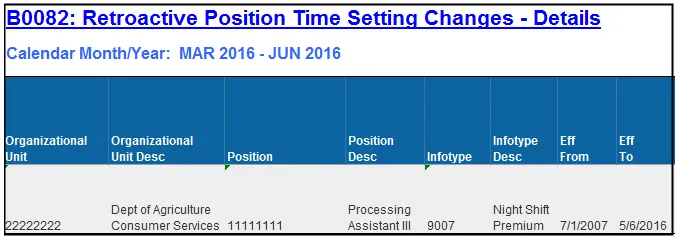
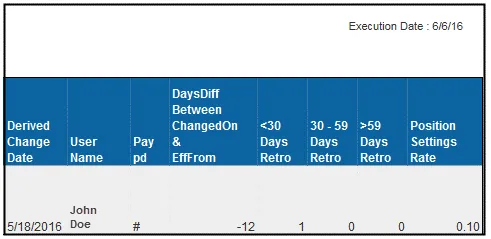
Retroactive Position Time Setting Changes – Details: This report displays metrics derived from retroactive position time settings that are pay impacting for the organizational unit and calendar month/year interval selected. Metrics are displayed in the ranges of <39 days, 30 -59 days, and >59 days:
Continued...
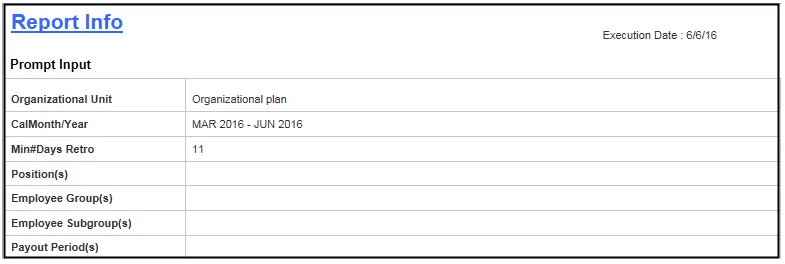
The Report Info tab displays the information about the prompts entered.
Available Objects
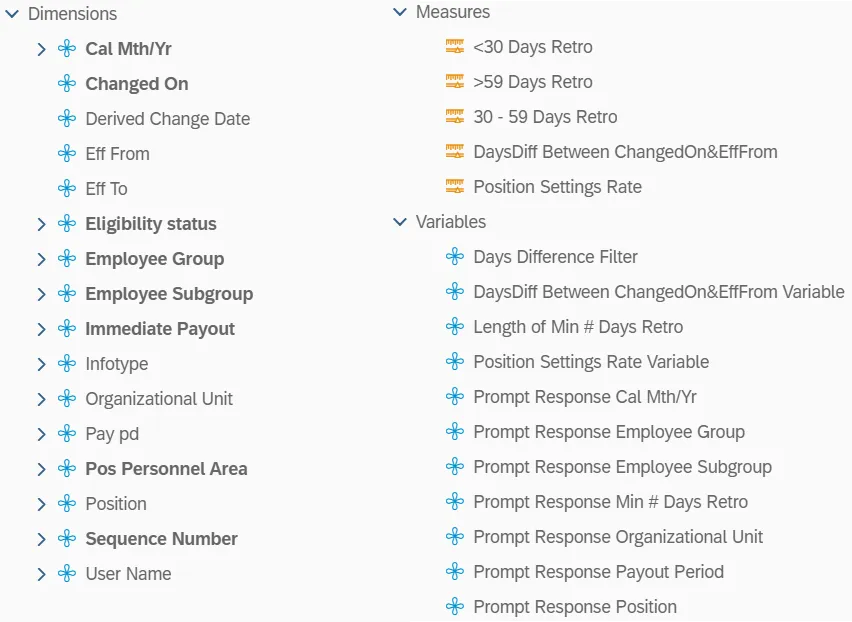
This is a list of the available objects that can be added to the report, from the Document Dictionary once in the Design mode:
Dimensions
- Cal Mth/Yr
- Changed On
- Derived Change Date
- Eff From
- Eff To
- Eligibility status
- Employee Group
- Employee Subgroup
- Immediate Payout
- Infotype
- Organizational Unit
- Pay pd
- Pos Personnel Area
- Position
- Sequence Number
- User Name
Measures
- <30 Days Retro
- >59 Days Retro
- 30-59 Days Retro
- DaysDiff Between ChangedOn&EffFrom
- Position Settings Rate
Variables
- Days Difference Filter
- DaysDiff Between ChangedOn&EffFrom Variable
- Length of Min # Days Retro
- Position Settings Rate Variable
- Prompt Response Cal Mth/Yr
- Prompt Response Employee Group
- Prompt Response Employee Subgroup
- Prompt Response Min # Days Retro
- Prompt Response Organizational Unit
- Prompt Response Payout Period
- Prompt Response Position
Special Report Considerations/Features
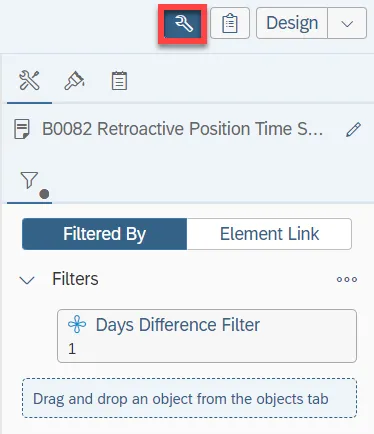
- There is a default filter applied to the report to calculate the Days Difference between Changed on and Effective from dates based on the Prompt Value entered in Min # Days Retro (Optional).
Note: Please don’t change this default Report Filter as the changes will affect the Report Results.
o To check this default filter:
1. Make sure that you are in Design Mode.
2. Click on the Tool icon.
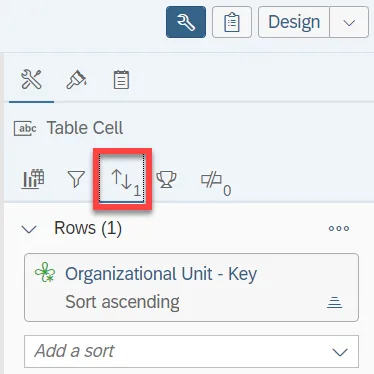
- By default, data is sorted by Organizational Unit. This can be changed as desired.
o To change the sorting to another column
1. Make sure you are in Design Mode.
2. Click on the Tool icon.
3. Click on the “Display the sort panel” icon.
- Position Personnel area was added to this report on August 17, 2017 and began being populated at that time. If the report is run for a date prior to August 2017, then the position personnel area will not be populated and will display as “#” or as “not assigned.”
- Field/Home Based indicator is available from Position attributes (expanded list) in Available Objects.