Purpose
The purpose of this report description is to explain how to generate the B0068 Labor Report.
Report Description
The B0068: Labor Report provides overall employee totals and totals by gender for employees who are active within the organizational unit and calendar month/year specified.
Report Location
PA: ESC Labor Report Counts
Report Uses
- This report can be used to obtain the workforce employee totals required by the Employee Security Commission.
- This report can be used to see at-a-glance totals for employees who work in specific organizational unit(s).
- This report can be used to compare employee totals as of specified calendar months/years for an organizational unit or units. The report would need to be run separately for each date needed. The totals for each report can then be compared to determine the trends in the size of the workforce by gender for organizational unit(s) over time.
How to Generate This Report
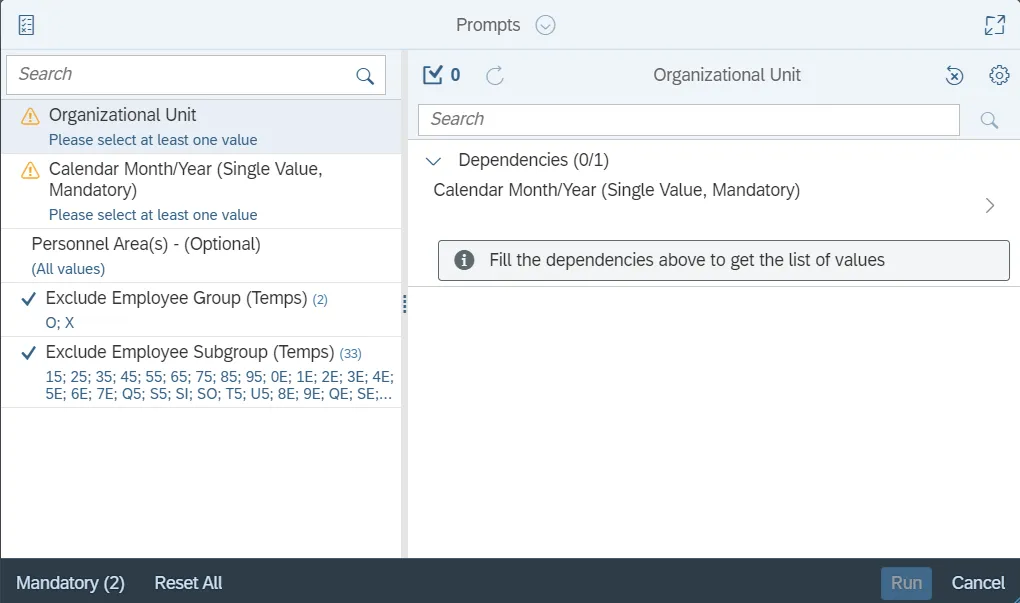
This report is generated after selecting values for the mandatory prompts. All mandatory prompts must have values selected before the Run Icon can be used to generate the report. Mandatory prompts can be identified as mandatory by the exclamation mark inside of the yellow-orange triangle, the square with the checkmark, or the display of (Mandatory). Detailed instructions for interaction with each prompt can be found on the Web Intelligence Prompt List on the OSC website.
The Mandatory prompts for this report are:
- Organizational Unit
- Calendar Month/Year (Single Value, Mandatory)
This report can also be further limited by utilizing the Optional prompts to further limiting the amount of data that retrieved into the body of the report. Optional prompts are indicated as option in parentheses beside the prompt.
The Optional prompts are:
- Personnel Area(s) - (Optional)
Exclusion prompts exclude specified data by default while allowing customers the flexibility of changing them when necessary. Exclusion prompts are identified by the term Exclude followed by the prompt.
The Exclusion prompts are:
- Exclude Employee Group (Temps)
- Exclude Employee Subgroup (Temps)
Note: The Employee Group and the Employee Subgroup exclusions work together as a set to exclude temporary employees. If you want to clear the Temp exclusion, both exclusions (Employee Group and Employee Subgroup) must be cleared.
Initial Layout
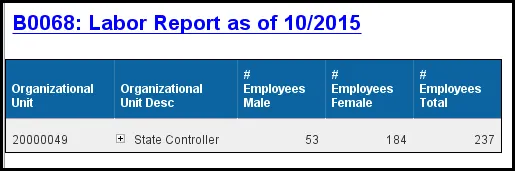
The report is generated with the total number of active employees for the organizational unit(s) specified. The totals are also broken down by the number of male and female employees. This is a sample of the report:
Note: See Special Report Considerations/Features for notes about the behavior for the organization unit hierarchy, and considerations when using the drill-down feature.
Available Objects
This is a list of the available objects that can be added to the report, from the Document Dictionary once in the Design mode:
Dimensions
- Organizational Unit
- Employee Group
- Employee Subgroup
- Personnel Area
- Personnel Subarea
- Organizational Unit – Agency (Key)
- Organizational Unit – Agency (Text)
- Organizational Unit – Branch (Key)
- Organizational Unit – Branch (Text)
- Organizational Unit – Business area (Key)
- Organizational Unit – Business area (Text)
- Organizational Unit – Company code (Key)
- Organizational Unit – Company code (Text)
- Organizational Unit – Division (Key)
- Organizational Unit – Division (Text)
- Organizational Unit – Key
- Organizational Unit – Personnel Area (Key)
- Organizational Unit – Personnel Area (Text)
- Organizational Unit – Personnel Subarea (Key)
- Organizational Unit – Personnel Subarea (Text)
- Organizational Unit – Section – no branch (Key)
- Organizational Unit – Section – no branch (Text)
- Organizational Unit – Section with Branch (Key)
- Organizational Unit – Section with Branch (Text)
Measures
- Number of Employees
- Number of Employees Female
- Number of Employees Male
Variables
- Prompt Response Cal Mth/Yr
- Prompt Response Exclude Employee Group
- Prompt Response Exclude Employee Subgroup
- Prompt Response Organizational Unit
- Prompt Response Personnel Area
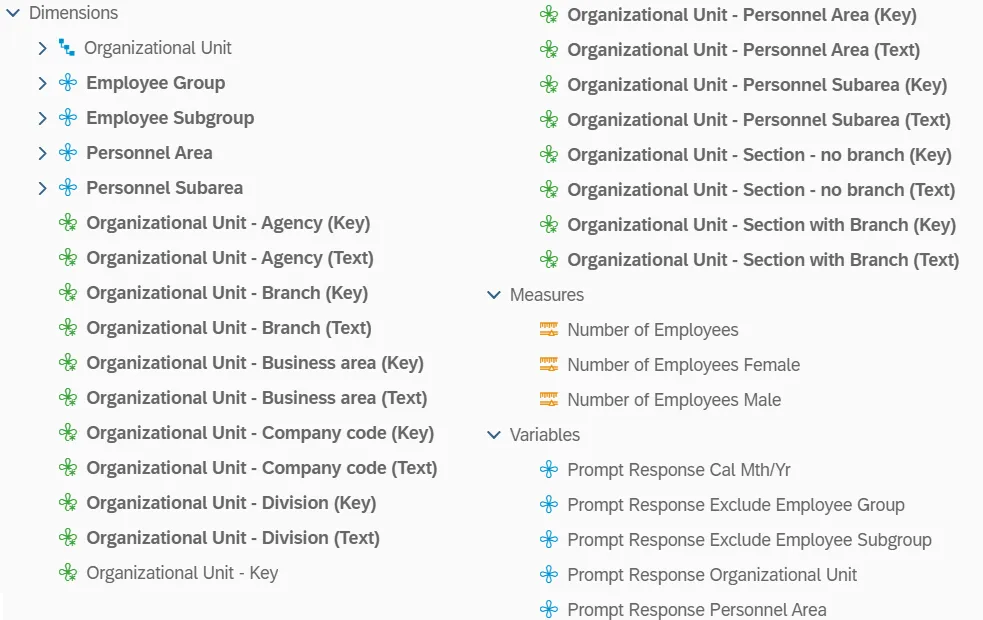
Note: See Special Report Considerations/Features for notes about the organization unit hierarchy, and the organizational unit attributes display.
Special Report Considerations/Features
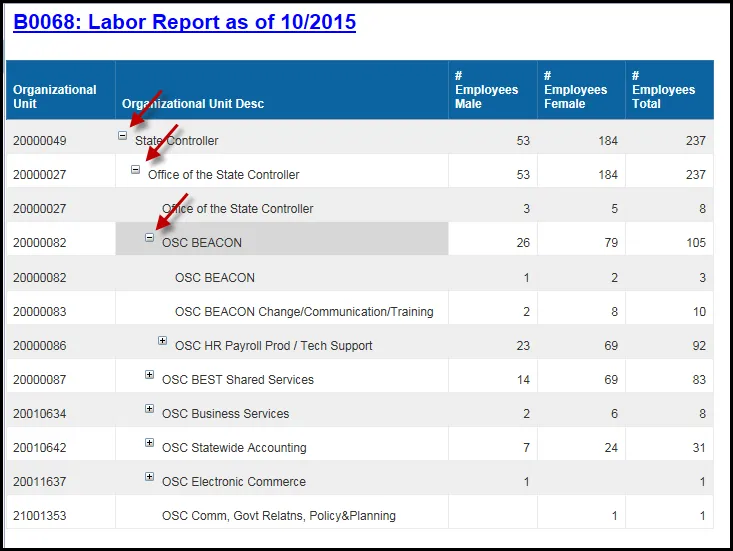
- The drill-down feature for the organizational unit is available on this report. You can click on the plus sign (+) to the left of the organizational unit description to drill down to view totals for organizational units within the higher-level organizational unit.
- This is an example of the report with the hierarchy expanded to three levels:
- The organizational unit hierarchy displays first in the list of available objects by default. The remaining organizational unit attributes are listed separately from the Organizational Unit hierarchy. The attributes are displayed after the list of available objects with keys, just after the Personnel Subarea.
- Only active employees are included in this report.
- Temporary employee groups and employee subgroups are excluded from this report by default, and this can be changed. Refer to the exclusion prompts for detailed instructions on how to remove these exclusions.
- Employee groups excluded: O, X
- Employee subgroups excluded:
- 15 FT N-FLSAOT Temp Dir
- 25 FT N-FLSAOT Temp JB1
- 35 FT N-FLSAOT Temp JB2
- 45 FT N-FLSAOT Temp JB3
- 55 FT N-FLSAOT Temp DA
- 65 FT N-FLSAOT Temp ADA
- 75 FT N-FLSAOT Temp MAG
- 1E PT N-FLSAOT Temp Dir
- 2E PT N-FLSAOT Temp JB1
- 3E PT N-FLSAOT Temp JB2
- 4E PT N-FLSAOT Temp JB3
- 5E PT N-FLSAOT Temp DA
- 6E PT N-FLSAOT Temp ADA
- 7E PT N-FLSAOT Temp MAG
- 0E PT S-FLSAOT Temp MAG
- 85 FT N-FLSAOT Temp CR
- 95 FT N-FLSAOT Temp CSC
- Q5 FT N-FLSAOT Temp SC
- S5 FT N-FLSAOT Temp CJP
- SI FT N-FLSAOT Temp ACJP
- SO FT S-FLSAOT Temp ACJP
- T5 FT N-FLSAOT Temp AD
- U5 FT N-FLSAOT Temp JBS
- 8E PT N-FLSAOT Temp CR
- 9E PT N-FLSAOT Temp CSC
- QE PT N-FLSAOT Temp CSC
- SE FT N-FLSAOT Temp SC
- SL PT N-FLSAOT Temp ACJP
- SR PT S-FLSAOT Temp ACJP
- TE PT N-FLSAOT Temp AD
- UE PT N-FLSAOT Temp JBS
- VE PT S-FLSAOT Temp JBS
- V5 FT S-FLSAOT Temp JBS