Purpose
The purpose of this Report Description is to show employee action detail and action counts for Separations and Outbound Transfers. This report can be used to examine action detail of Separations and Outbound Agency Transfers for validation of metrics on the ‘B0042: Employee Turnover’ report.
Report Description
This report shows employee action detail and action counts for Separations and Outbound Transfers
Report Location
PA: Turnover
Report Uses
This report can be used to examine action details of Separations and Outbound Agency Transfers for validation of metrics on the ‘B0042: Employee Turnover’ report.
How to Generate This Report
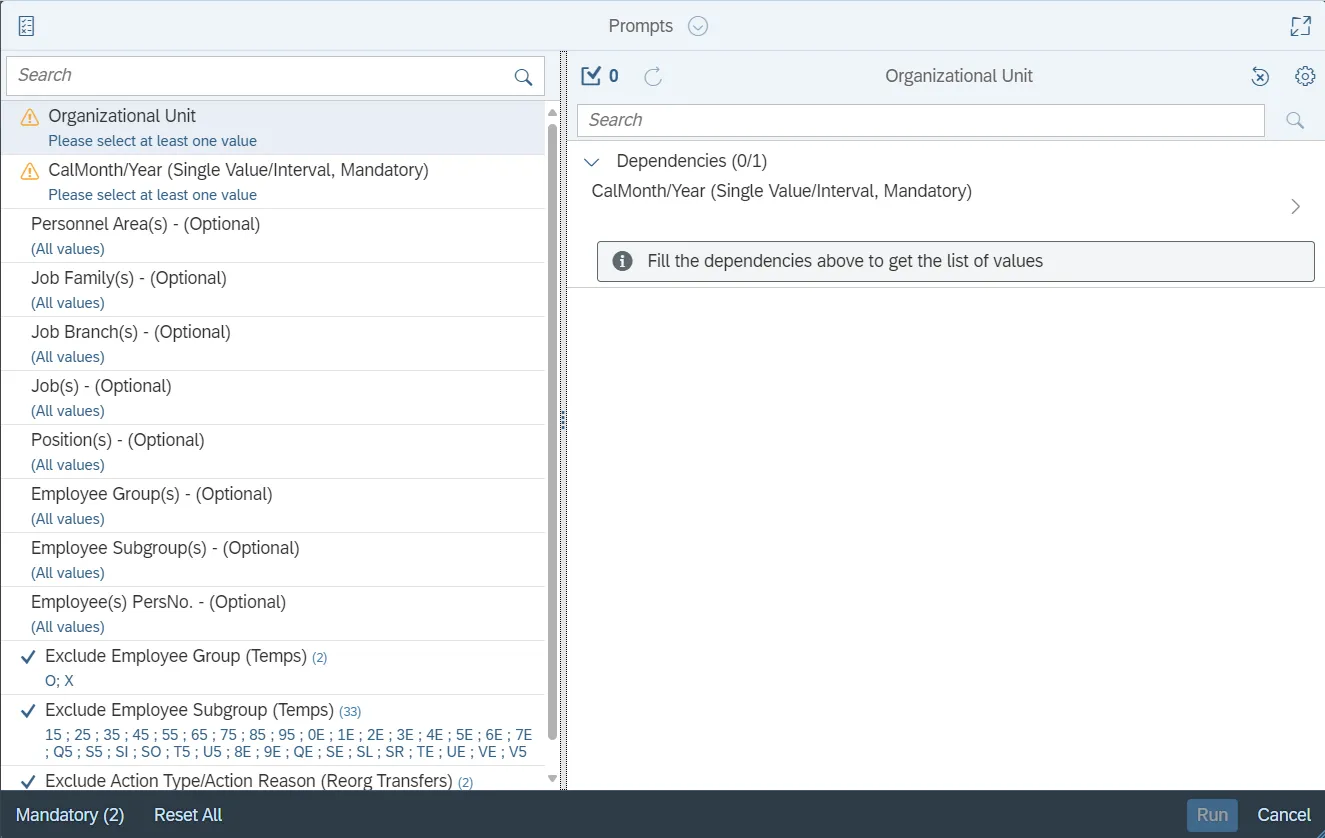
This report is generated after selecting values for the mandatory prompts. All mandatory prompts must have values selected before the Run Icon can be used to generate the report. Mandatory prompts can be identified as mandatory by the exclamation mark inside of the yellow-orange triangle, the square with the checkmark, or the display of (Mandatory). Detailed instructions for interaction with each prompt can be found on the Web Intelligence Prompt List on the OSC website.
The Mandatory prompts for this report are:
- Organizational Unit
- CalMonth/Year (Single Value/Interval, Mandatory)
This report can also be further limited by utilizing the Optional prompts to further limiting the amount of data that retrieved into the body of the report. Optional prompts are indicated as optional in parentheses beside the prompt.
The Optional prompts are:
- Personnel Area(s) - (Optional)
- Job Family(s) - (Optional)
- Job Branch(s) - (Optional)
- Job(s) - (Optional)
- Position(s) - (Optional)
- Employee Group(s) - (Optional)
- Employee Subgroup(s) - (Optional)
- Employee(s) PersNo. - (Optional)
Note: Since we have a large number of positions in the system, using only the single wildcard character (*) can be very slow and may result in an error if the search exceeds the system limit. If this happens, you can narrow down your search by using the wildcard with specific text strings such as:
- Deputy*
- *Analyst*
- Admin*
- If you know the position number, it is best to use the manual entry field (in step 6) to enter your selection.
Exclusion prompts exclude specified data by default while allowing customers the flexibility of changing them when necessary. Exclusion prompts are identified by the term Exclude followed by the prompt.
The Exclusion prompts are:
- Exclude Employee Group (Temps)
- Exclude Employee Subgroup (Temps)
- Exclude Action Type/Action Reason (Reorg Transfers)
Note: The Employee Group and the Employee Subgroup exclusions work together as a set to exclude temporary employees. If you want to clear the Temp exclusion, both exclusions (EE Group and EE Subgroup) must be cleared.
Initial Layout
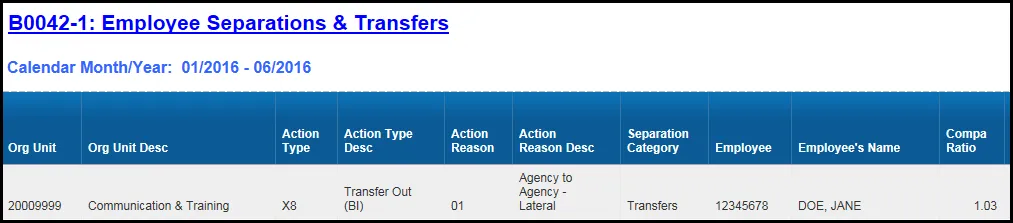
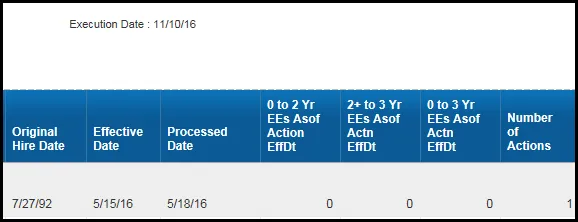
The report shows employee action details and action counts. This is a sample rendering:
Continued...
Available Objects
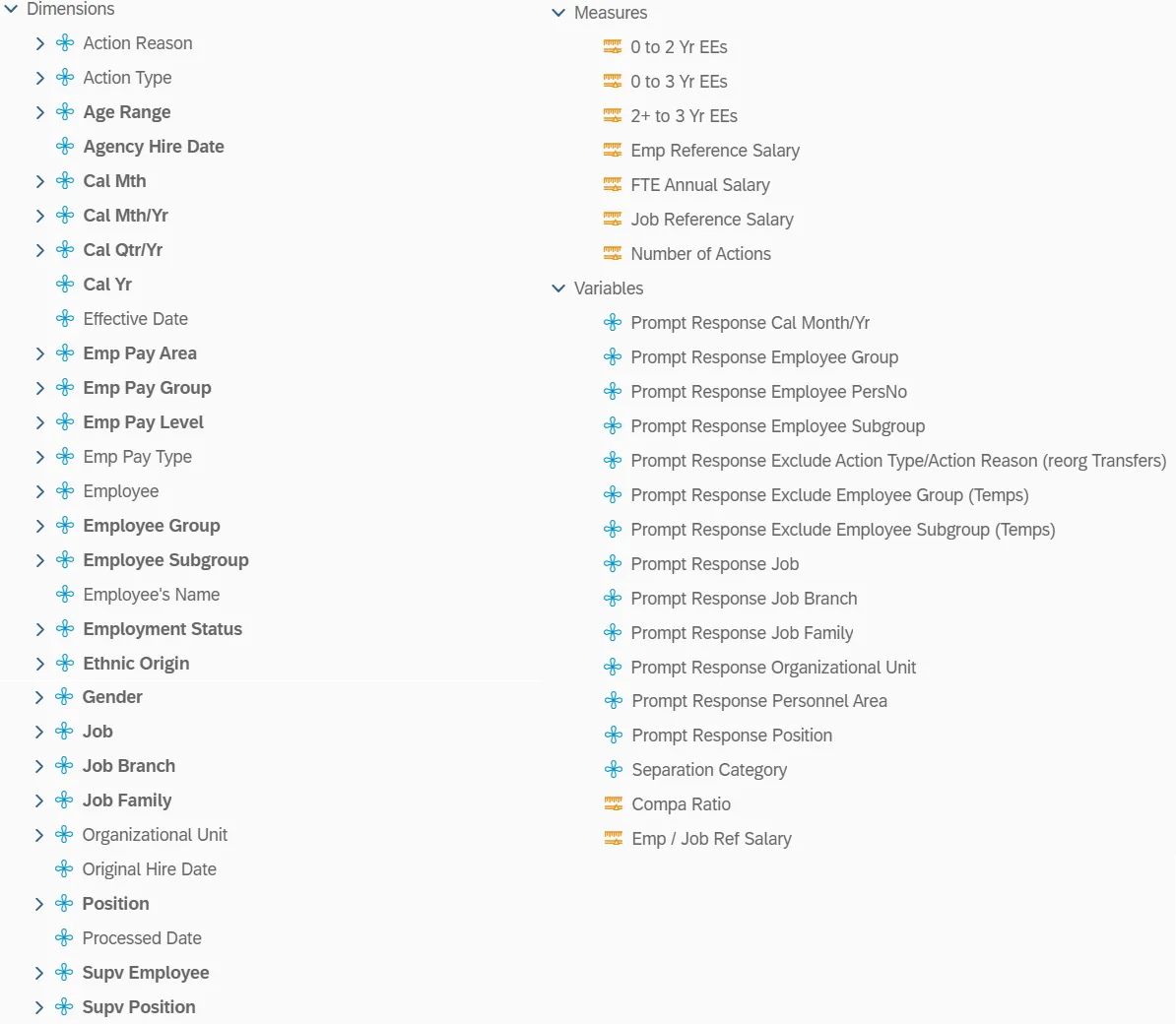
This is a list of the available objects that can be added to the report, from the Document Dictionary once in the Design mode:
Dimensions
- Action Reason
- Action Type
- Age Range
- Agency hire Date
- Cal Mth
- Cal Mth/Yr
- Cal Qtr/Yr
- Cal Yr
- Effective Date
- Emp Pay Area
- Emp Pay Group
- Emp Pay Level
- Emp Pay Type
- Employee
- Employee Group
- Employee Subgroup
- Employee’s Name
- Employment Status
- Ethnic Origin
- Gender
- Job
- Job Branch
- Job Family
- Organizational Unit
- Original Hire Date
- Position
- Processed Date
- Supv Employee
- Supv position
Measures
- 0 to 2 Yr EEs
- 0 to 3 Yr EEs
- 2+ to 3 Yr EEs
- Emp Reference Salary
- FTE Annual Salary
- Job Reference Salary
- Number of Actions
Variables
- Prompt Response Cal Month/Yr
- Prompt Response Employee Group
- Prompt Response Employee PersNo
- Prompt Response Employee Subgroup
- Prompt Response Exclude Action Type/Action Reason (reorg Transfers)
- Prompt Response Exclude Employee Group (Temps)
- Prompt Response Exclude Employee Subgroup (Temps)
- Prompt Response Job
- Prompt Response Job Branch
- Prompt Response Job Family
- Prompt Response Organizational Unit
- Prompt Response Personnel Area
- Prompt Response Position
- Separation Category
- Compa Ratio
- Emp / Job Ref Salary
Special Report Considerations/Features
- The Compa Ratio is calculated based on the job of the employee’s organizational assignment as of the effective date of the separation, except for ZF Action type separations. For ZF action types, the job of the employee’s organizational assignment as of one day prior to the separation effective date is used for the Compa Ratio calculation.
- The Compa ratio is calculated by dividing the FTE annual salary as of the separation date by the employee or job reference salary. The job reference salary is used in the calculation for banded jobs, and the employee reference salary is used for non-banded jobs. The Compa Ratio will not be calculated for an employee if the employee reference salary or the job reference salary does not exist.
- ZG/04 (Separation/Did Not Report) and ZG/26 (Separation/Cancel Sep Pay Continuation) actions are excluded.
- Temporary employees are excluded by default, but this can be changed.
- Reorg Transfer actions are excluded by default, but this can be changed.
- Since the BEACON system only captures incoming Agency Transfer actions (Z8), the X8 - Transfer Out (BI) action was created (only in BI) to assist in Turnover reporting. This X8 action is a copy of the original Z8 action but is instead assigned to the Agency that lost the employee from the transfer action.
- There is an Input Control available to assist in filtering by Separation Category. This may be needed to validate the various Separation counts on the ‘B0042: Employee Turnover’ report. Interaction with this Input Control will alter the report detail to reflect only the categories you have selected. The yellow Total line will also reflect the totaling appropriate to your selection.
-
Click the Filter icon.
Image
-
Click the Separation Category.
Image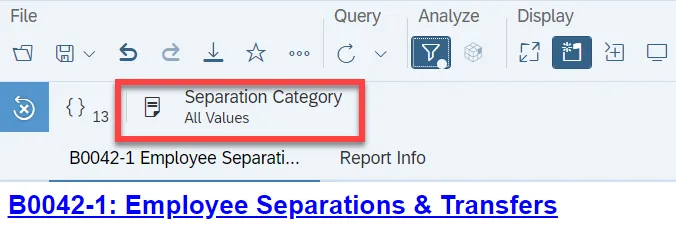
-
Select or deselect as needed.
Image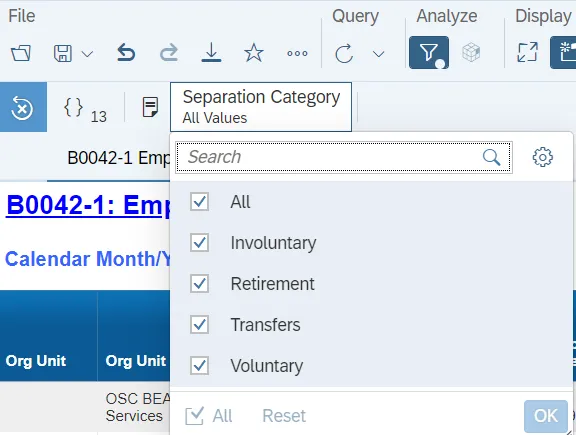
-
The following table identifies how specific Action Type/Action Reason codes are slotted to count the various Separation Categories on the ‘B0042: Employee Turnover’ report. The values for Separation Category used in the Input Control above are also defined based on this action table.
Action Type Action Type Desc Action Reason Action Reason Desc Separation Categories ZF SeparationPayContinuation(NC) 1 Retirement LEO Supplement Retirement - Voluntary ZF SeparationPayContinuation(NC) 2 RIFSeverance and/or Health Ins Involuntary ZF SeparationPayContinuation(NC) 4 Separation ShortTermDisability Involuntary ZF SeparationPayContinuation(NC) 5 RTR-RIF Voluntary ZG Separation (NC) 1 Better Employment Voluntary ZG Separation (NC) 2 Personal Reasons Voluntary ZG Separation (NC) 3 Involuntary Separation Involuntary ZG Separation (NC) 4 Did Not Report Exclude ZG Separation (NC) 5 Voluntary Resigned W/O Notice Voluntary ZG Separation (NC) 6 RIF w/no Severance/Health Ins Involuntary ZG Separation (NC) 7 No Reason Given Voluntary ZG Separation (NC) 8 Long Term Disability Involuntary ZG Separation (NC) 9 Retirement Retirement - Voluntary ZG Separation (NC) 10 Retirement Disability Retirement - Voluntary ZG Separation (NC) 11 Contract Ended Involuntary ZG Separation (NC) 12 Time-Limited Appt Term Involuntary ZG Separation (NC) 13 Supplemental Appt Term Involuntary ZG Separation (NC) 14 Appointment Ended Involuntary ZG Separation (NC) 15 Not Re-Elected Involuntary ZG Separation (NC) 16 Dismissed-Gross Inefficiency Involuntary ZG Separation (NC) 17 Dismissed-Conduct Involuntary ZG Separation (NC) 18 Dismissed-Unsat Performance Involuntary ZG Separation (NC) 20 Prior to achieving Perm status Involuntary ZG Separation (NC) 21 Pay in lieu of notice Involuntary ZG Separation (NC) 22 Death Voluntary ZG Separation (NC) 23 Other Voluntary ZG Separation (NC) 24 Terminate while on FMLA Voluntary ZG Separation (NC) 25 Beacon to Non-Beacon Agency Voluntary ZG Separation (NC) 26 Cancel Sep Pay Continuation Exclude ZG Separation (NC) 27 Removal From Office - AOC Only Involuntary ZG Separation (NC) 28 RIF Discontinue Service Retire Retirement - Voluntary ZG Separation (NC) 29 Unavailable to Work Involuntary ZG Separation (NC) 40 115C Dismissal Involuntary ZG Separation (NC) 50 RTR Voluntary ZG Separation (NC) 52 RTR-Retire Retirement - Voluntary X8 Transfer Out (BI) 1 Agency to Agency - Lateral Transfer X8 Transfer Out (BI) 2 Agency to Agency -Reassignment Transfer X8 Transfer Out (BI) 5 Agency to Agency - Promotion Transfer X8 Transfer Out (BI) 6 Within Agency - Lateral Transfer X8 Transfer Out (BI) 7 Within Agency - Reassignment Transfer X8 Transfer Out (BI) 8 Grade-Band Transfer Transfer X8 Transfer Out (BI) 9 Class/Pay Plan Change Transfer X8 Transfer Out (BI) 10 EPA-SPA Transfer X8 Transfer Out (BI) 12 Temp to Perm Transfer X8 Transfer Out (BI) 13 Perm to Temp Transfer X8 Transfer Out (BI) 14 Temp to Temp Transfer X8 Transfer Out (BI) 60 Within Agency Reorganization Transfer X8 Transfer Out (BI) 61 AgencytoAgency Reorganization Transfer