Purpose
The purpose of this report description is to explain how to generate and use the Employee Appointed Exempt Designation report.
Report Description
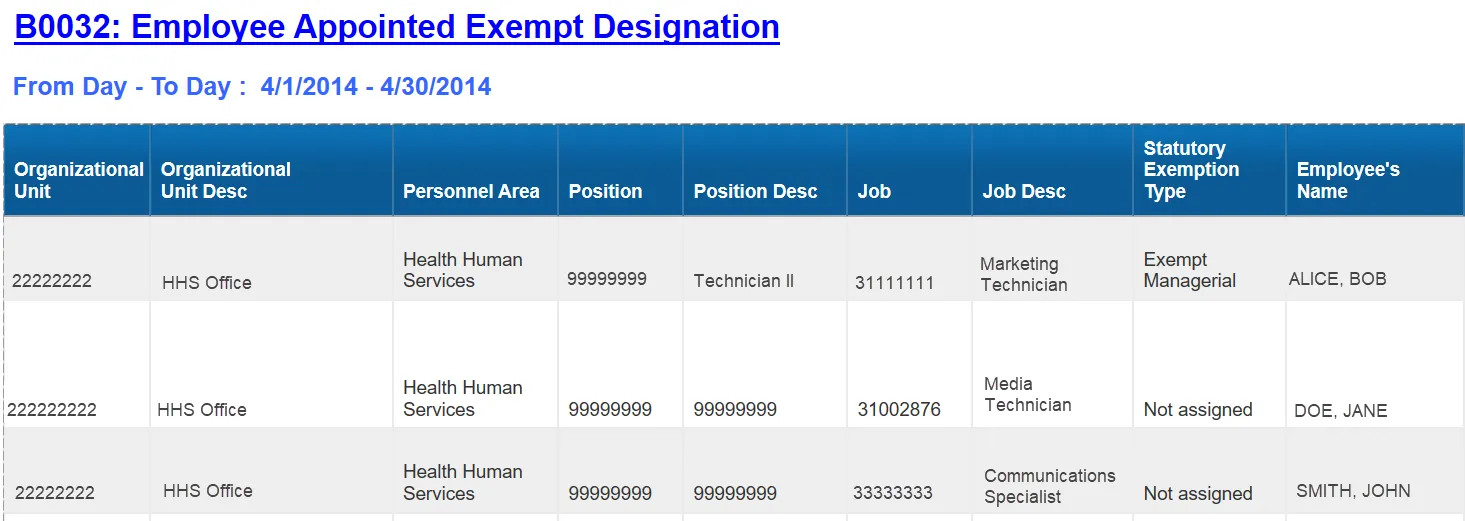
This report shows the appointed employee designations to Exempt Policy-Making and Exempt Managerial. It also provides necessary information for determining employment rights when the employee is removed from the exempt appointment.
Report Location
PA: Employee Details
Report Uses
This report can be used to verify the number of exempt appointments for these two categories and to assist with employment rights as needed.
How to Generate This Report
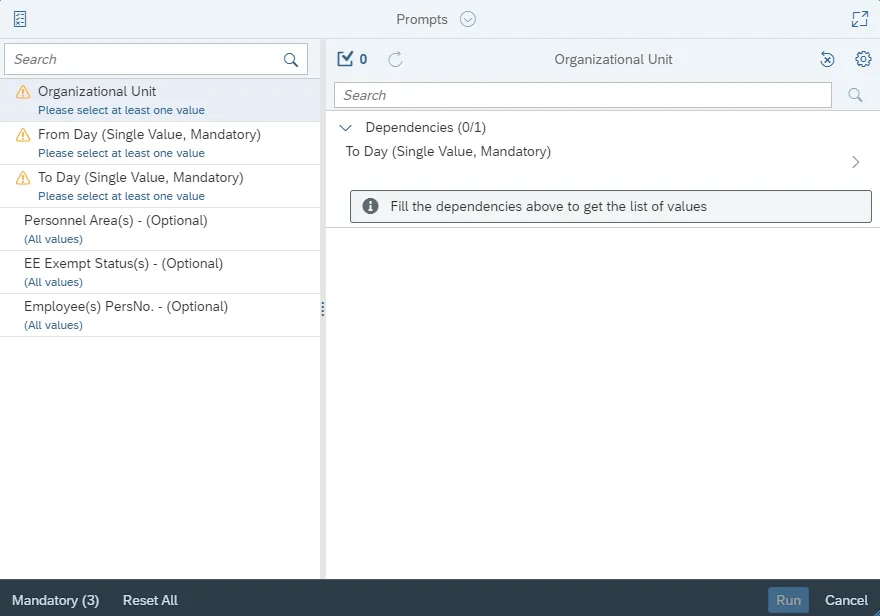
This report is generated after selecting values for the mandatory prompts. All mandatory prompts must have values selected before the Run Icon can be used to generate the report. Mandatory prompts can be identified as mandatory by the exclamation mark inside of the yellow-orange triangle, the square with the checkmark, or the display of (Mandatory). Detailed instructions for interaction with each prompt can be found on the Web Intelligence Prompt List on the OSC website.
The Mandatory prompts for this report are:
- Organizational Unit
- From Day (Single Value, Mandatory)
- To Day (Single Value, Mandatory)
This report can also be further limited by utilizing the Optional prompts to further limiting the amount of data that retrieved into the body of the report. Optional prompts are indicated as optional in parentheses beside the prompt.
The Optional prompts are:
- Personnel Area(s) – (Optional)
- EE Exempt Status(s) – (Optional)
- Employee(s) PersNo. – (Optional)
Initial Layout
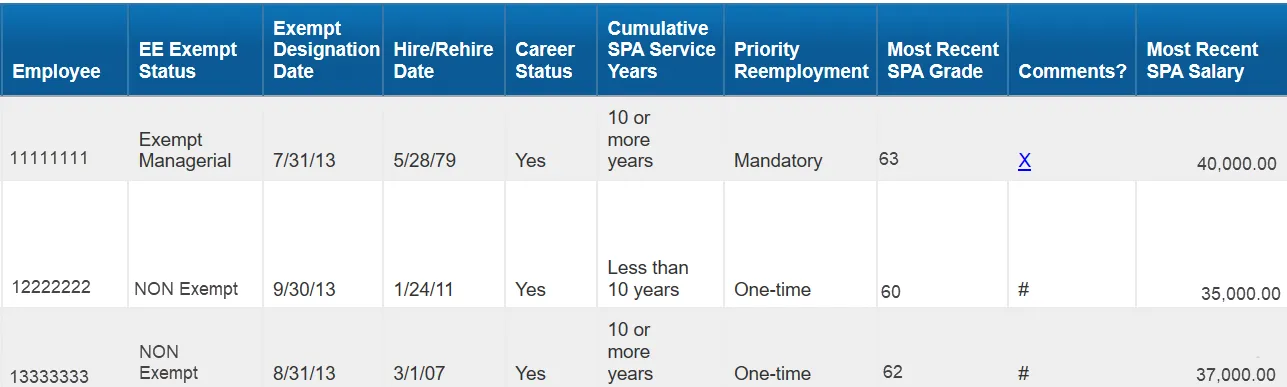
The report shows the employee appointed designations to Exempt Policy-Making and Exempt Managerial. Below is a sample of the report:
Continued …
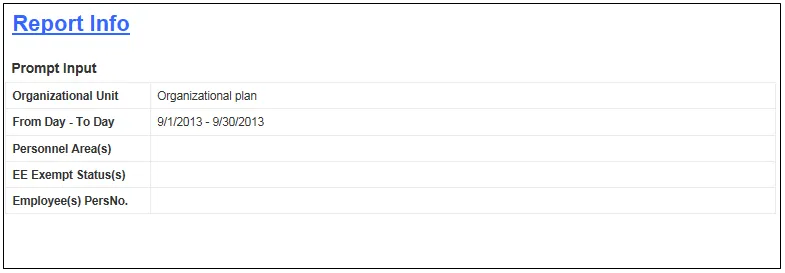
The Report Info tab displays information about the prompts entered.
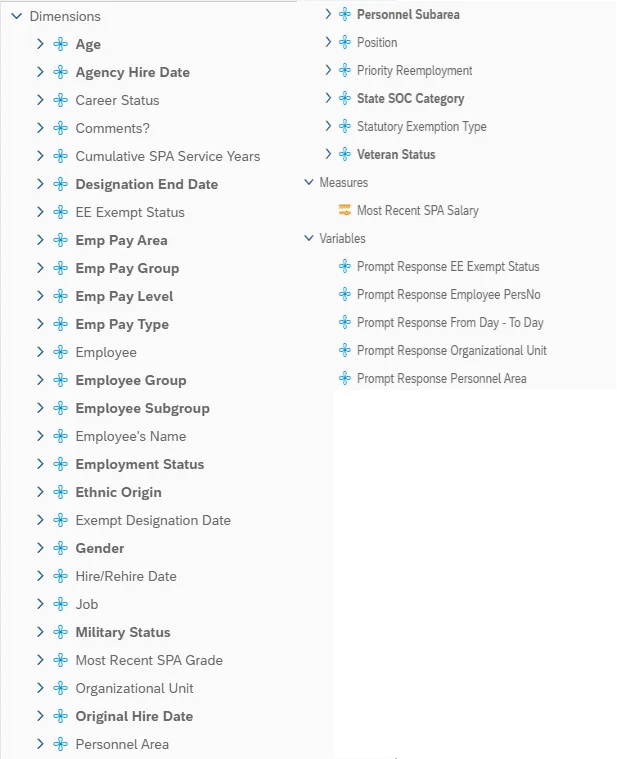
Available Objects
This is a list of the available objects that can be added to the report, from the Document Dictionary once in the Design mode:
Dimensions:
- Age
- Agency Hire Date
- Career Status
- Comments?
- Cumulative SPA Service Years
- Designation End Date
- EE Exempt Status
- Emp Pay Area
- Emp Pay Group
- Emp Pay Level
- Emp Pay Type
- Employee
- Employee Group
- Employee Subgroup
- Employee’s Name
- Employment Status
- Ethnic Origin
- Exempt Designation Date
- Gender
- Hire/Rehire Date
- Job
- Military Status
- Most Recent SPA Grade
- Organizational Unit
- Original Hire Date
- Personnel Area
- Personnel Subarea
- Position
- Priority Reemployment
- State SOC Category
- Statutory Exemption Type
- Veteran Status
Measures:
- Most Recent SPA Salary
Variables:
- Prompt Response EE Exempt Status
- Prompt Response Employee PersNo
- Prompt Response From Day – To Day
- Prompt Response Organizational Unit
- Prompt Response Personnel Area
Special Report Considerations/Features
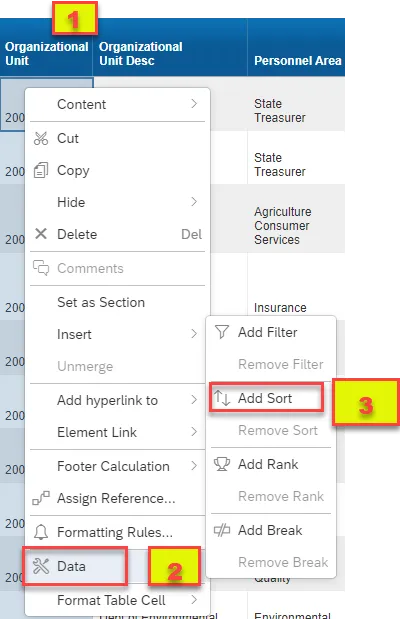
- To change the sorting for the desired column:
- By default, data is sorted by Personnel Area. (This can be changed as needed).
1. Make sure the “desired column” is selected.
2. Right Click and choose “Data”.
3. Choose “Add Sort”.
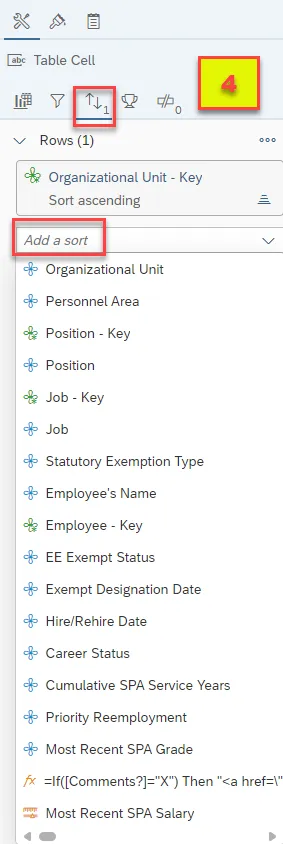
4. On the right-hand menu determine sorting, filtering, or type of sort.
- To View B0022: Comments Report (Hyperlink)
1. Make sure the desired column ‘Comments?’ is selected.
2. Click the ‘X’ as highlighted (1) to navigate to B0022: Comments.
3. The B0022: Comments report opens in a new tab.
