Purpose
The purpose of this Report Description is to explain how to generate and use the staffing by occupational category report.
Report Description
This report shows Equal Employment Opportunity (EEO) demographics by Personnel Area and SOC Category. The demographics represent counts and percentages for Total Employees, New Hires, and Promotions.
Report Location
PA: EEO
Report Uses
- The report is useful in analyzing various characteristics such as race/gender as it relates to various factors.
- The report is used to make comparisons by Personnel Area, SOC Category, Employees, New Hires and Promotions.
- The report is useful in analyzing decisions related to internal equity and any disparity in Percentages Represented by Employees, New Hires and Promotions.
How to Generate This Report
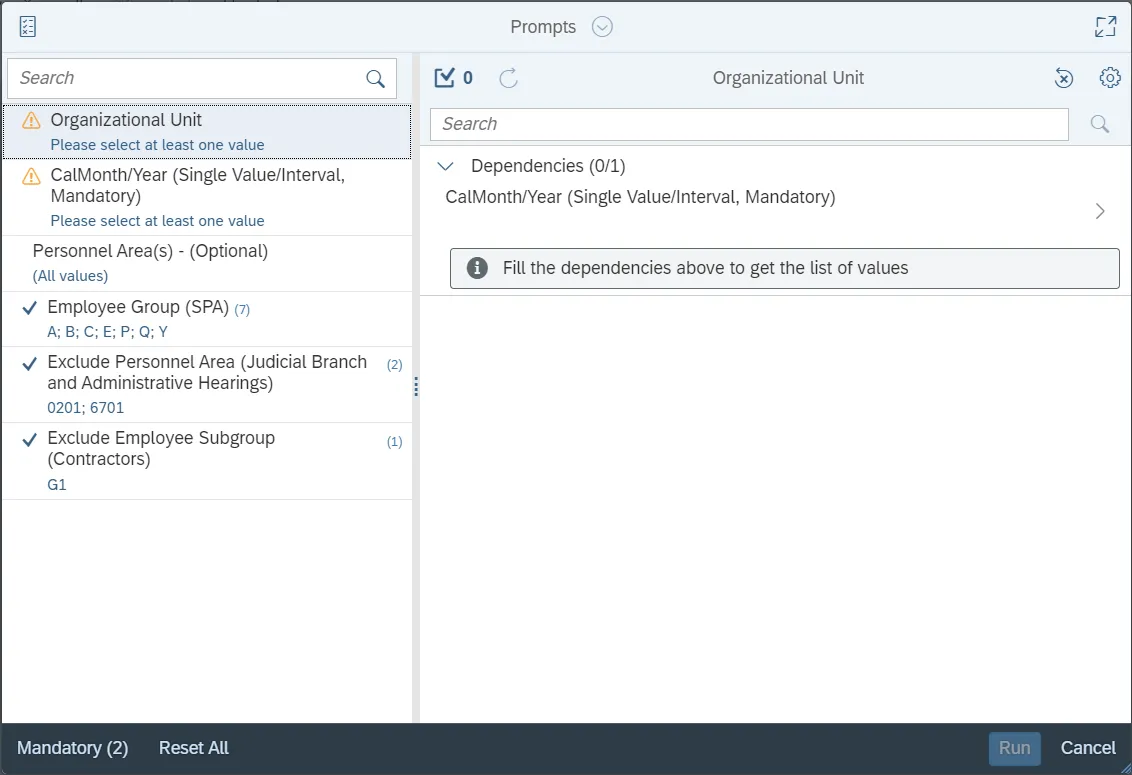
This report is generated after selecting values for the mandatory prompts. All mandatory prompts must have values selected before the Run Icon can be used to generate the report. Mandatory prompts can be identified as mandatory by the exclamation mark inside of the yellow-orange triangle, the square with the checkmark, or the display of (Mandatory). Detailed instructions for interaction with each prompt can be found on the Web Intelligence Prompt List on the OSC website.
The Mandatory prompts for this report are:
- Organizational Unit
- CalMonth/Year (Single Value/Interval, Mandatory)
This report can also be further limited by utilizing the Optional prompts to further limiting the amount of data that retrieved into the body of the report. Optional prompts are indicated as option in parentheses beside the prompt.
The Optional prompts are:
- Personnel Area(s) - (Optional)
- Employee Group (SPA)
Exclusion prompts exclude specified data by default while allowing customers the flexibility of changing them when necessary. Exclusion prompts are identified by the term Exclude followed by the prompt.
The Exclusion prompts are:
- Exclude Personnel Area (Judicial Branch and Administrative Hearings)
- Exclude Employee Subgroup (Contractors)
Initial Layout
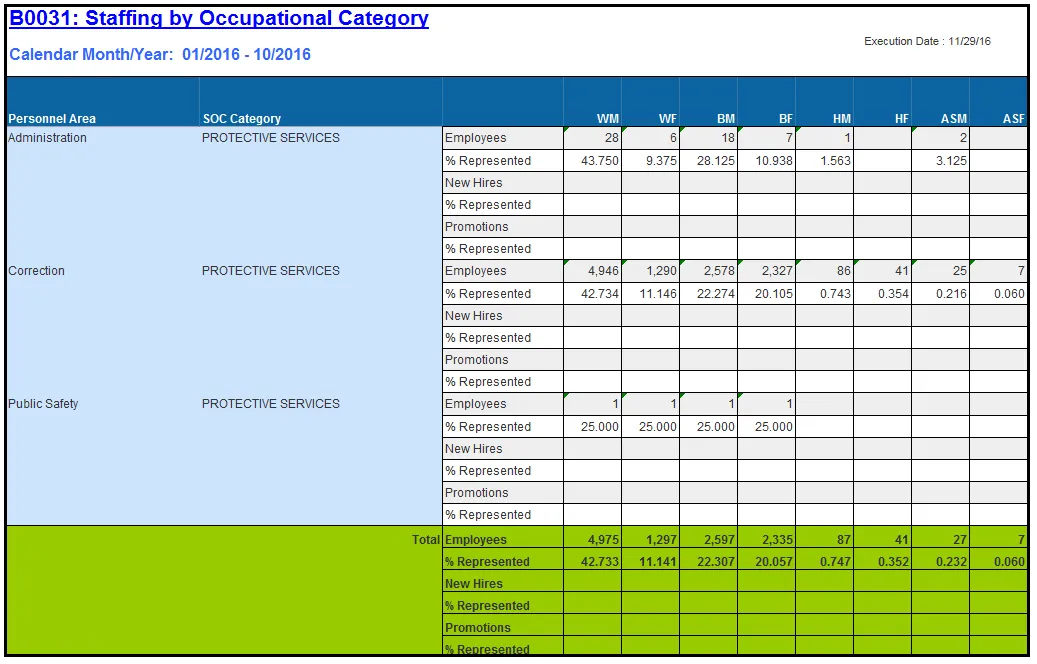
Staffing by Occupational Category
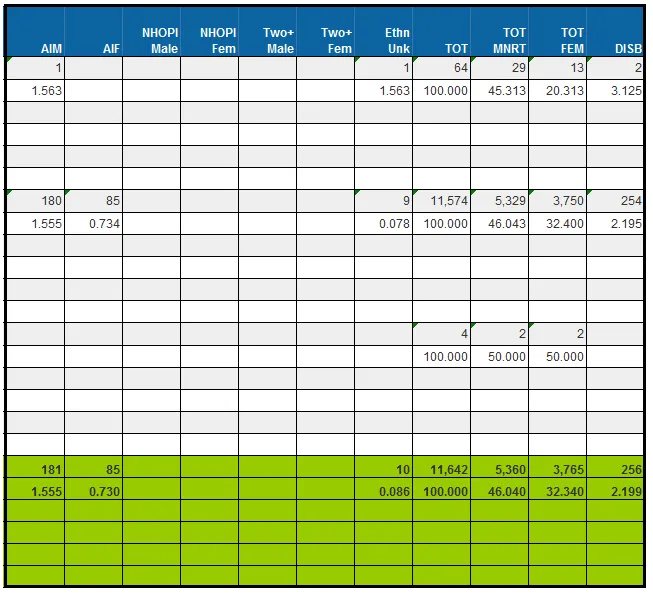
This report shows Equal Employment Opportunity (EEO) demographics by Personnel Area and SOC Category. The demographics represent counts and percentages for Total Employees, New Hires, and Promotions.
Continued...
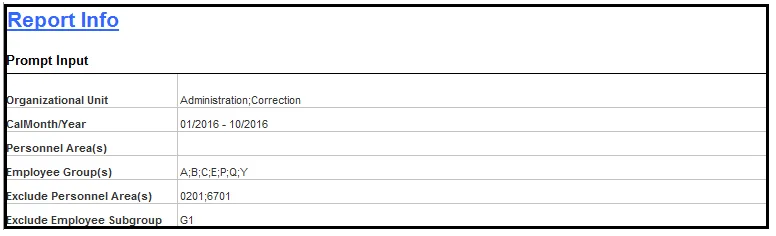
Report Info
The Report Info tab displays the information about the prompts entered.
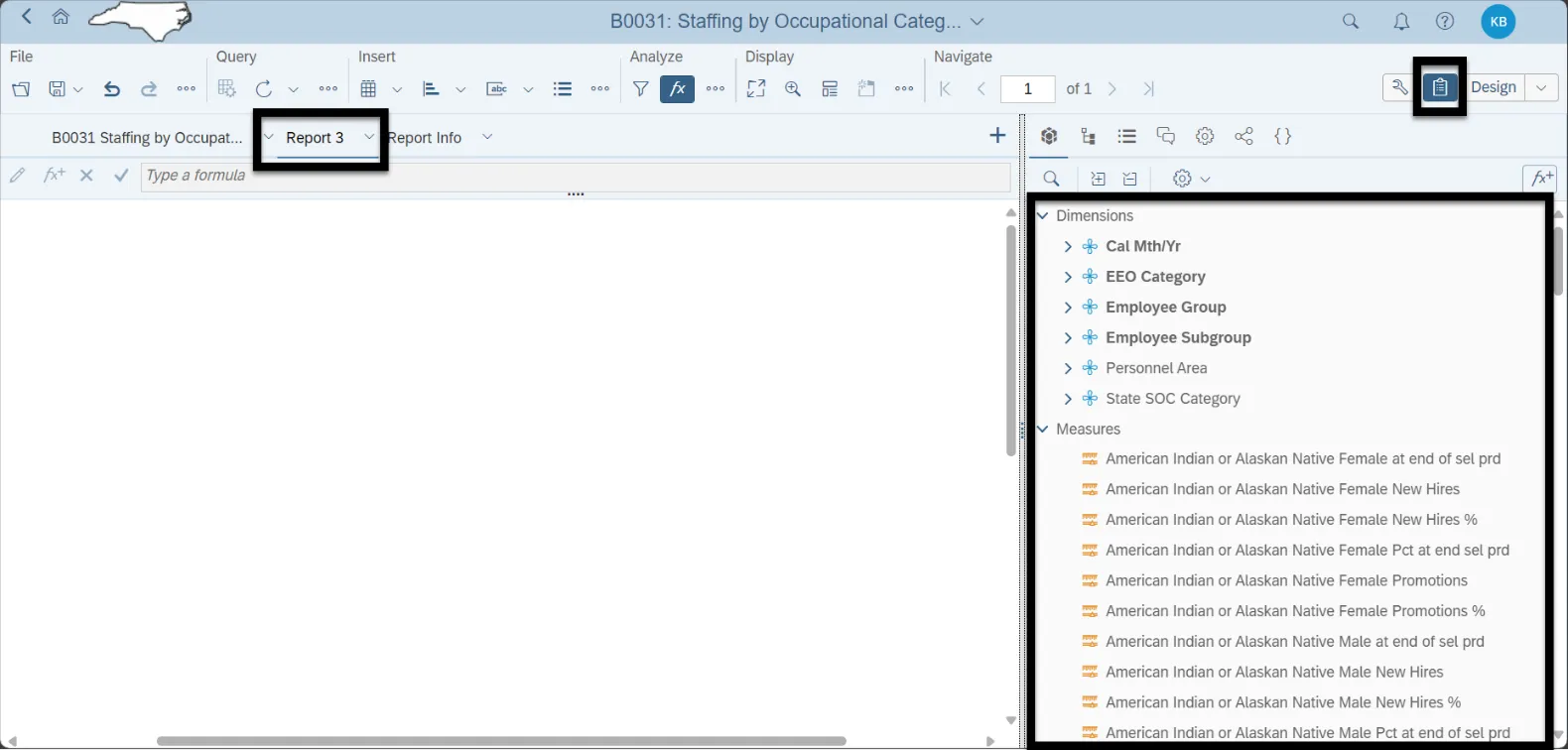
Available Objects
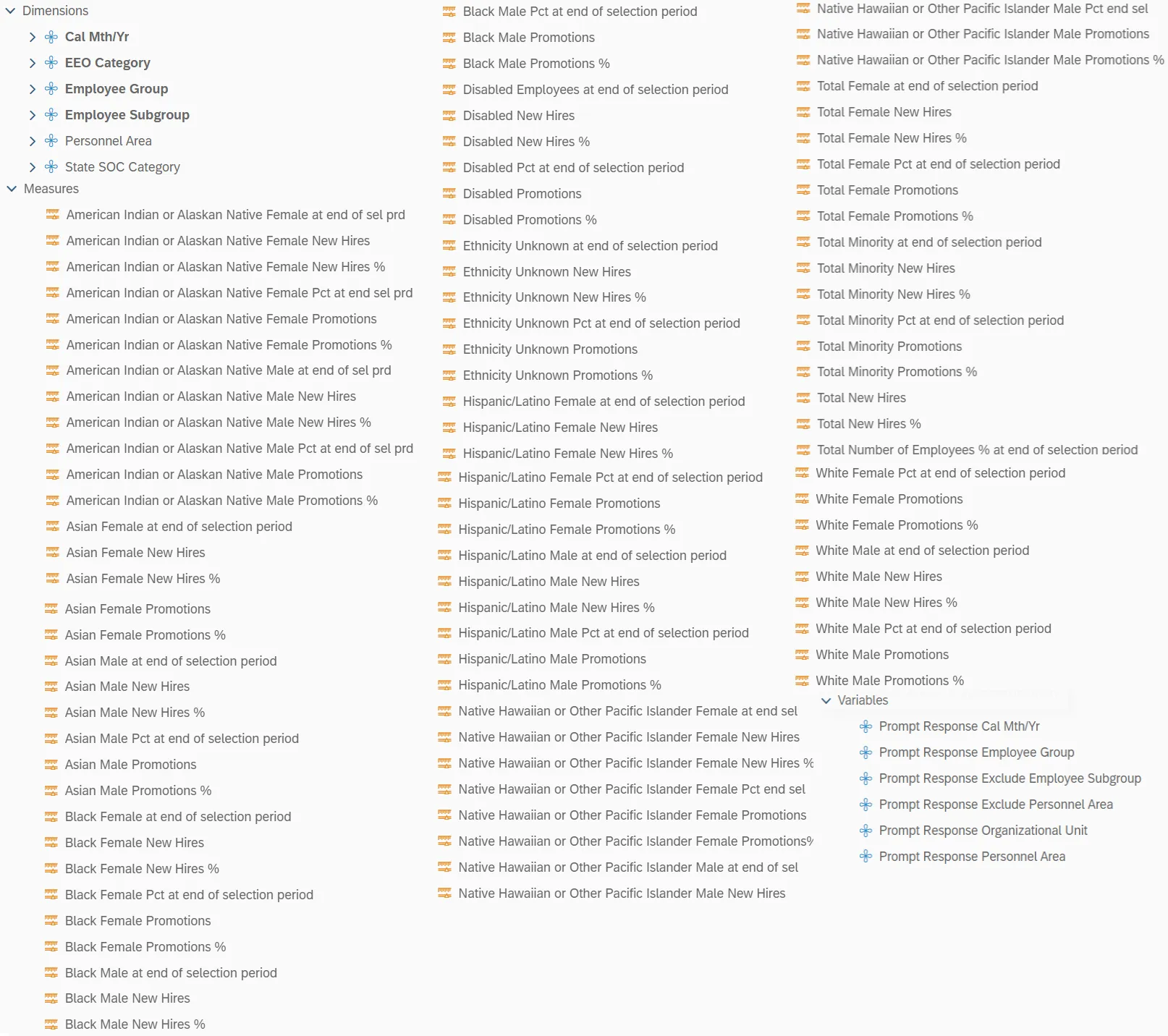
This is a list of the available objects that can be added to the report, from the Document Dictionary once in the Design mode:
Dimensions
- Cal Mth/Yr
- EEO Category
- Employee Group
- Employee Subgroup
- Personnel Area
- State SOC Category
Measures
- American Indian or Alaskan Native Female at end of sel prd
- American Indian or Alaskan Native Female New Hires
- American Indian or Alaskan Native Female New Hires %
- American Indian or Alaskan Native Female Pct at end sel prd
- American Indian or Alaskan Native Female Promotions
- American Indian or Alaskan Native Female Promotions %
- American Indian or Alaskan Native Male at end of sel prd
- American Indian or Alaskan Native Male New Hires
- American Indian or Alaskan Native Male New Hires %
- American Indian or Alaskan Native Male Pct at end of sel prd
- American Indian or Alaskan Native Male Promotions
- American Indian or Alaskan Native Male Promotions %
- Asian Female at end of selection period
- Asian Female New Hires
- Asian Female New Hires %
- Asian Female Pct at end of selection period
- Asian Female Promotions
- Asian Female Promotions %
- Asian Male at end of selection period
- Asian Male New Hires
- Asian Male New Hires %
- Asian Male Pct at end of selection period
- Asian Male Promotions
- Asian Male Promotions %
- Black Female at end of selection period
- Black Female New Hires
- Black Female New Hires %
- Black Female Pct at end of selection period
- Black Female Promotions
- Black Female Promotions %
- Black Male at end of selection period
- Black Male New Hires
- Black Male New Hires %
- Black Male Pct at end of selection period
- Black Male Promotions
- Black Male Promotions %
- Disabled Employees at end of selection period
- Disabled New Hires
- Disabled New Hires %
- Disabled Pct at end of selection period
- Disabled Promotions
- Disabled Promotions %
- Ethnicity Unknown at end of selection period
- Ethnicity Unknown New Hires
- Ethnicity Unknown New Hires %
- Ethnicity Unknown Pct at end of selection period
- Ethnicity Unknown Promotions
- Ethnicity Unknown Promotions %
- Hispanic/Latino Female at end of selection period
- Hispanic/Latino Female New Hires
- Hispanic/Latino Female New Hires %
- Hispanic/Latino Female Pct at end of selection period
- Hispanic/Latino Female Promotions
- Hispanic/Latino Female Promotions %
- Hispanic/Latino Male at end of selection period
- Hispanic/Latino Male New Hires
- Hispanic/Latino Male New Hires %
- Hispanic/Latino Male Pct at end of selection period
- Hispanic/Latino Male Promotions
- Hispanic/Latino Male Promotions %
- Native Hawaiian or Other Pacific Islander Female at end sel
- Native Hawaiian or Other Pacific Islander Female New Hires
- Native Hawaiian or Other Pacific Islander Female New Hires %
- Native Hawaiian or Other Pacific Islander Female Pct end sel
- Native Hawaiian or Other Pacific Islander Female Promotions
- Native Hawaiian or Other Pacific Islander Female Promotions%
- Native Hawaiian or Other Pacific Islander Male at end of sel
- Native Hawaiian or Other Pacific Islander Male New Hires
- Native Hawaiian or Other Pacific Islander Male New Hires %
- Native Hawaiian or Other Pacific Islander Male Pct end sel
- Native Hawaiian or Other Pacific Islander Male Promotions
- Native Hawaiian or Other Pacific Islander Male Promotions %
- Total Female at end of selection period
- Total Female New Hires
- Total Female New Hires %
- Total Female Pct at end of selection period
- Total Female Promotions
- Total Female Promotions %
- Total Minority at end of selection period
- Total Minority New Hires
- Total Minority New Hires %
- Total Minority Pct at end of selection period
- Total Minority Promotions
- Total Minority Promotions %
- Total New Hires
- Total New Hires %
- Total Number of Employees % at end of selection period
- Total Number of Employees at end of selection period
- Total Promotions
- Total Promotions %
- Two or More Races Female at end of selection period
- Two or More Races Female New Hires
- Two or More Races Female New Hires %
- Two or More Races Female Pct at end of selection period
- Two or More Races Female Promotions
- Two or More Races Female Promotions %
- Two or More Races Male at end of selection period
- Two or More Races Male New Hires
- Two or More Races Male New Hires %
- Two or More Races Male Pct at end of selection period
- Two or More Races Male Promotions
- Two or More Races Male Promotions %
- White Female at end of selection period
- White Female New Hires
- White Female New Hires %
- White Female Pct at end of selection period
- White Female Promotions
- White Female Promotions %
- White Male at end of selection period
- White Male New Hires
- White Male New Hires %
- White Male Pct at end of selection period
- White Male Promotions
- White Male Promotions %
Variables
- Prompt Response Cal Mth/Yr
- Prompt Response Employee Group
- Prompt Response Exclude Employee Subgroup
- Prompt Response Exclude Personnel Area
- Prompt Response Organizational Unit
- Prompt Response Personnel Area
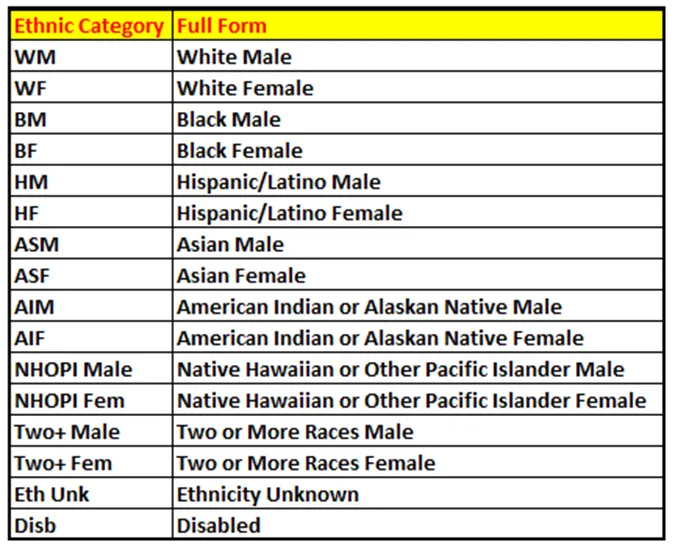
List of Ethnic Categories Displayed in the Report
Special Report Considerations/Features
- Only active employees are included on this report.
- By default, the Report will provide information only for ‘SPA’ Employee Groups, and this can be changed. Please refer to Employee Group (SPA) in Optional Prompts to change the Employee Group selections.
- By default, Personnel Areas ‘Judicial Branch’ and ‘Administrative Hearings’ are excluded in the report, and this can be changed. Please refer Exclude Personnel Area (Judicial Branch and Administrative Hearings) in Exclusion Prompts to remove the default values.
- By default, Employee Subgroup ‘Contractors’ are excluded in the report, and this can be changed. Please refer to Exclude Employee Subgroup (Contractors) in Exclusion Prompts to remove the default value.
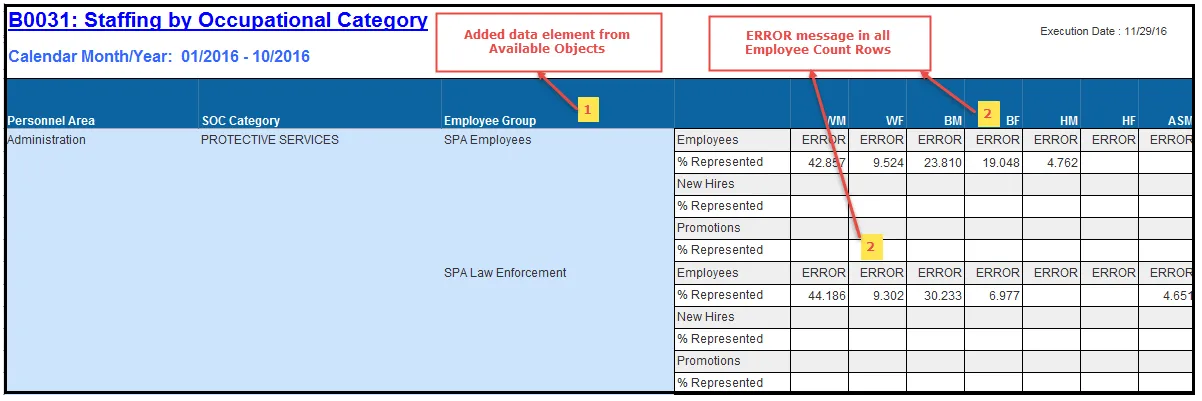
- Since this is Fixed format report, please do not apply any Report Filters, and don’t add any data elements from Available Objects.
- The below #ERROR message will appear in all Employee count rows when any data elements from Available Objects are added.
Custom Analysis
If custom analysis is required, create a new reporting tab and build a custom view without changing the default report tab ‘B0031 Staffing by Occupational Category.
- Creating new reporting tab:
- Change to Design Mode.
- Right-Mouse click on the reporting tab ‘B0031 Staffing by Occupational Category.
- Click New.
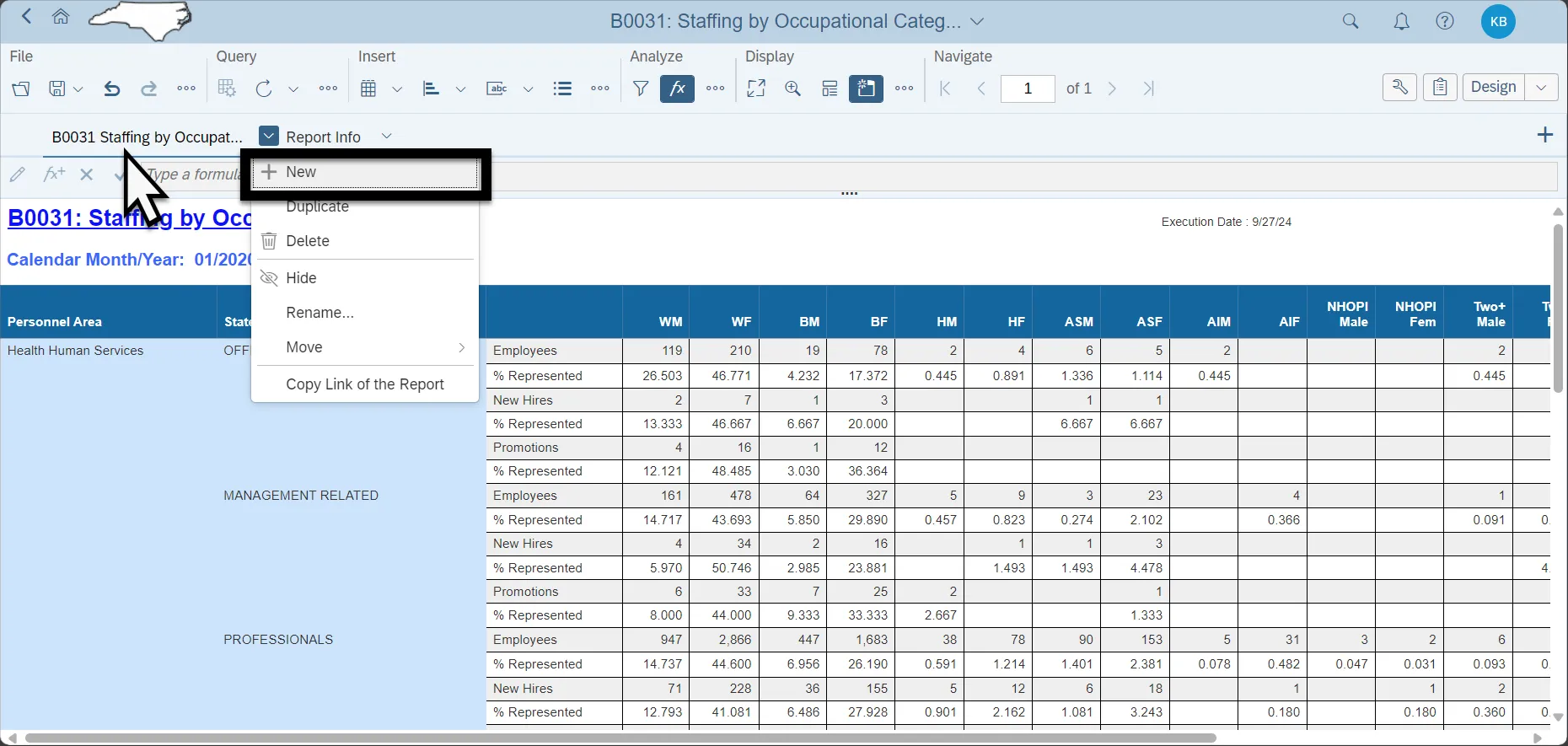
4. Drag and drop the available objects in the new reporting tab and build a custom view.