Purpose
The purpose of this report description is to explain the usage and how to generate the Comprehensive Job Data report.
Report Description
The B0024 Comprehensive Job Data report displays details about selected job(s), including job min/max/ref information. This report is used by OSHR to analyze job data as it relates to positions and employees. Analysis can be completed via Pay Types, Pay Areas, Job Branches, and Job Families or by Individual Jobs.
Report Location
OSHR Executive Oversight
Report Uses
- This report can be generated to view a list of job classifications across the state by default and later narrowed down to individual agencies using organizational units.
- The report can be used to compare the job classifications statewide to job classifications within a specific agency.
- This report displays Job MIN and MAX by relevant date, and list Jobs as specified in prompt. OSHR uses this report to compare Positions to Jobs, Jobs to Jobs, Jobs within Job Families, Job Pay Areas, etc. Analysis is performed on a more global Job level or even Job Family level across the state.
- This report lists all jobs with or without any associated positions.
How to Generate This Report
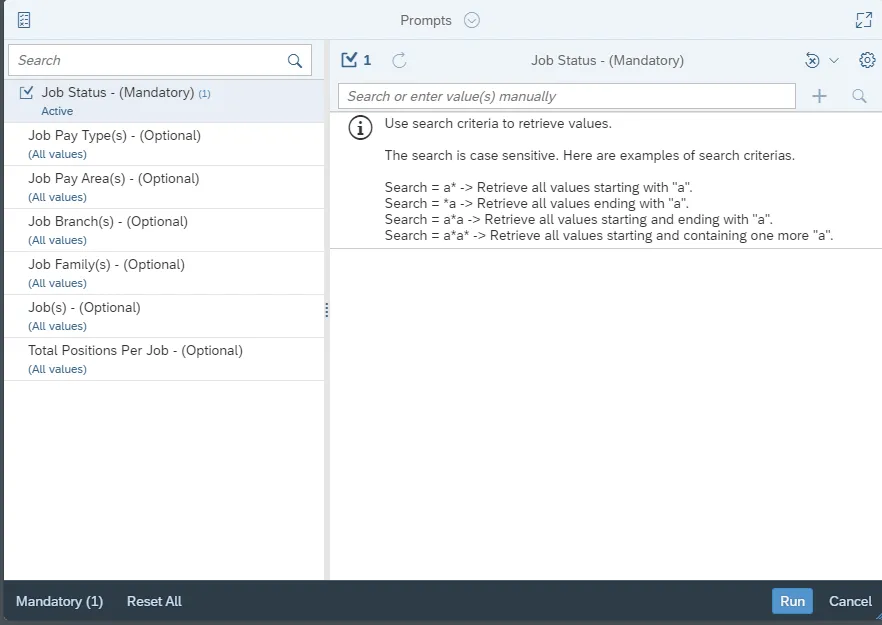
This report is generated after selecting values for the mandatory prompts. All mandatory prompts must have values selected before the Run Icon can be used to generate the report. Mandatory prompts can be identified as mandatory by the exclamation mark inside of the yellow-orange triangle, the square with the checkmark, or the display of (Mandatory). Detailed instructions for interaction with each prompt can be found on the Web Intelligence Prompt List on the OSC website.
The Mandatory prompts for this report are:
- Job Status – (Mandatory)
This report can also be further limited by utilizing the Optional prompts to further limiting the amount of data that retrieved into the body of the report. Optional prompts are indicated as optional in parentheses beside the prompt.
The Optional prompts are:
- Job Pay Type(s) – (Optional)
- Job Pay Area(s) – (Optional)
- Job Branch(s) – (Optional)
- Job Family(s) – (Optional)
- Job(s) – (Optional)
- Total Positions Per Job - (Optional)
-
Initial Layout
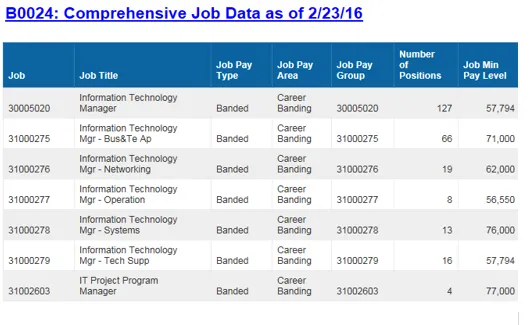
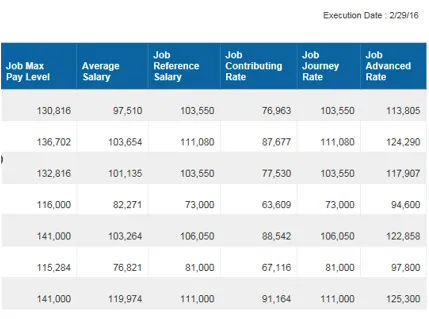
This is a sample of the report.
Continued…
Available Objects
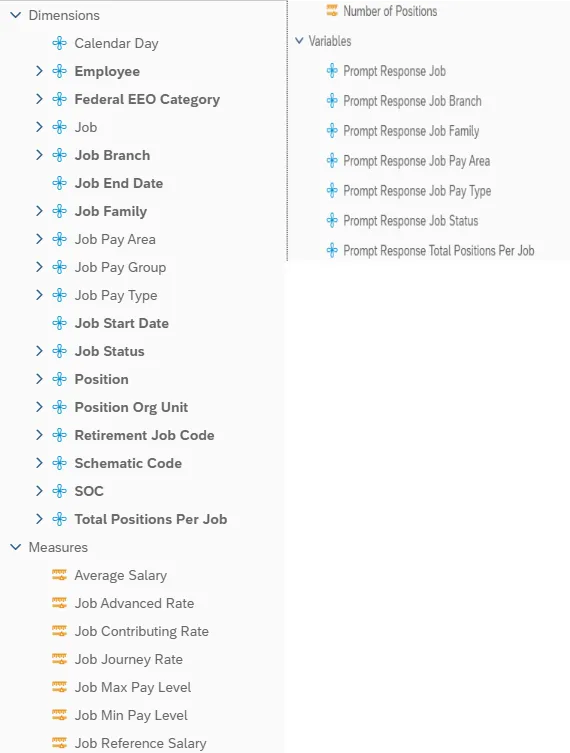
This is a list of the available objects that can be added to the report, from the Document Dictionary once in the Design mode.
Dimensions
- Calendar Day
- Employee
- Federal EEO Category
- Job
- Job Branch
- Job End Date
- Job Family
- Job Pay Area
- Job Pay Group
- Job Pay Type
- Job Start Date
- Job Status
- Position
- Position Org Unit
- Retirement Job Code
- Schematic Code
- SOC
- Total Positions Per Job
Measures
- Average Salary
- Job Advanced Rate
- Job Contributing Rate
- Job Journey Rate
- Job Max Pay Level
- Job Min Pay Level
- Job Reference Salary
- Number of Positions
Variables
- Prompt Response Job
- Prompt Response Job Branch
- Prompt Response Job Family
- Prompt Response Job Pay Area
- Prompt Response Job Pay Type
- Prompt Response Job Status
- Prompt Response Total Positions Per Job
Special Report Considerations/Features
- Job Pay Area code 09 (Judicial) is excluded from this report.
- Job Status prompt comes with the default selected value ‘Active’ which will show the active jobs in the system. To see inactive or obsolete Job list, choose Inactive or Obsolete Job Status value in this prompt.
- The Total Positions per Job prompt value will restrict the report result based on number of positions assigned to this Job or below the number value in the prompt. To see Jobs with no positions assigned, choose ‘#’ value to this prompt.
- Input Control ‘Number of Position’ can be used to restrict the report results to list the Jobs with a specified number of positions. For example, to restrict the jobs list to only those with between 10 and 50 positions assigned to them. The initial report has an active input control set to the range 0 to 20000. Change these initial settings as given in the instruction below to see the list of jobs with desired range of positions selected through the input control sliders. The slider control can move on both directions.
- Field/Home Based indicator is available from Position attributes (expanded list) in Available Objects.
Using Input Control ‘Number of Positions’
To View:
- In Design Mode, if an Input Control filter is already applied in a report, this can be seen in Reading/Design mode with Funnel icon highlighted with a blue dot next to it in the Analyze section.

- Click on the funnel filter icon which will display the defined Input Controls for the report tab.

To Edit and Use:
- In Design Mode, place the mouse cursor inside the ‘Number of Positions’ input and control.
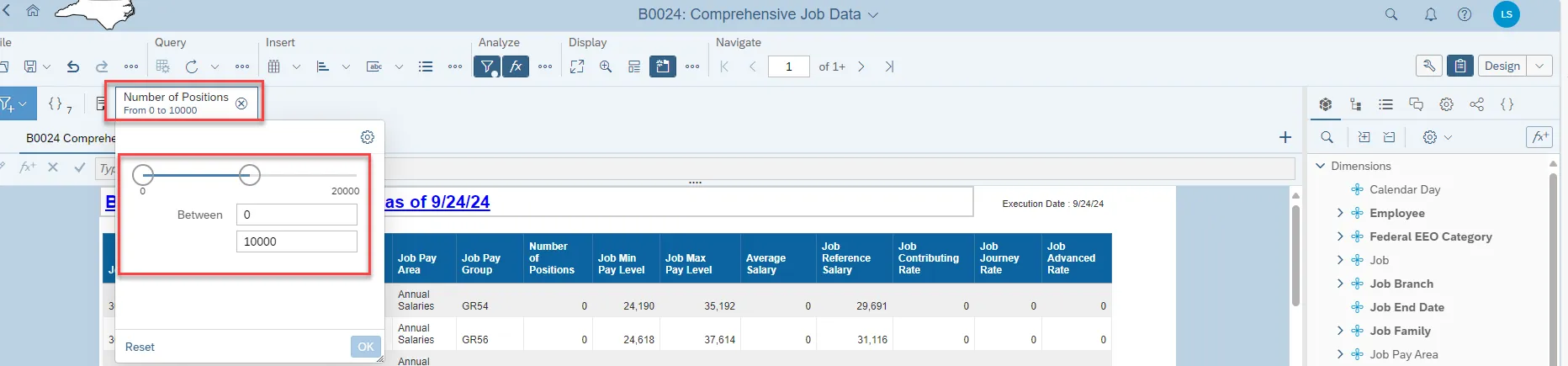
- Input control properties tab will show the current setting of the of the double slider input control for ‘Number of Positions’.
- Now move the sliders in either direction. As the slider moves, the increment value changes will show, and report result which match the settings.
- Return to Edit mode of this input control and reset the values the original values in the report need to be seen.