Purpose
The purpose of this report description is to explain the Disabled Employee Analysis Report and how to generate it in the system.
Report Description
This report shows the number of employees by personnel area, with the number of disabled employees, and the percentage of disabled to the total number of employees for the organizational unit(s) specified.
Report Location
PA: Disability
Report Uses
- This report can be used to show a summary of the number of employees, who have reported a disability, within each org unit by personnel area.
- The disability code is among many available objects that can be added to the report. It can be added to the report if a list of the number of specific disabilities that have been reported by employees within your organizational unit(s) is needed.
- The employee is also an available object that can be added to the report. It can be added to the report to identify the employee(s) with specific a disability, if certain accommodations or needs are required for an employee with a specific disability.
How to Generate This Report
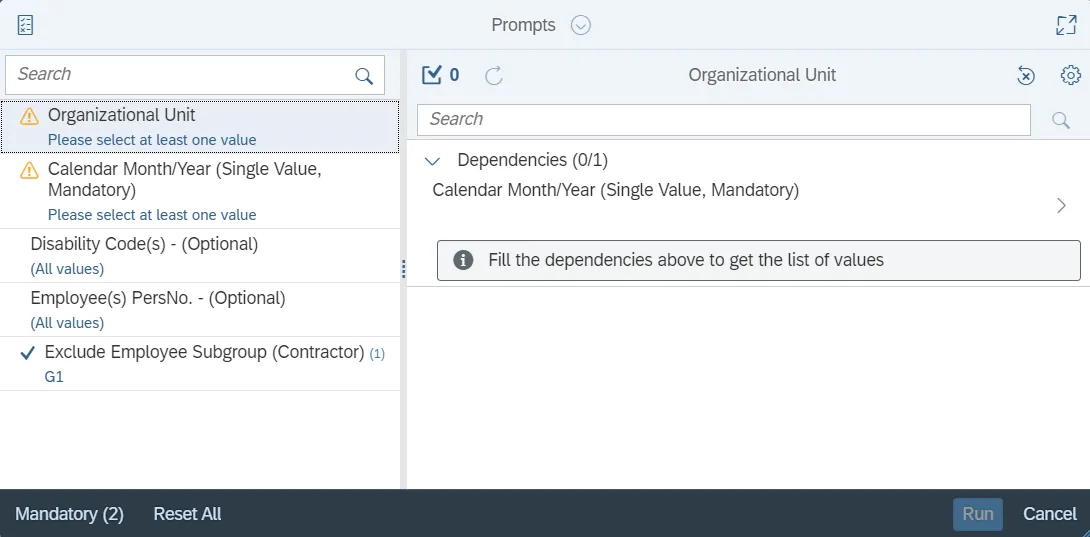
This report is generated after selecting values for the mandatory prompts. All mandatory prompts must have values selected before the Run Icon can be used to generate the report. Mandatory prompts can be identified as mandatory by the exclamation mark inside of the yellow-orange triangle, the square with the checkmark, or the display of (Mandatory). Detailed instructions for interaction with each prompt can be found on the OSC website at Web Intelligence Prompts | NCOSC.
The Mandatory prompts for this report are:
- Organizational Unit
- Calendar Month/Year (Single Value, Mandatory)
This report can also be further limited by utilizing the Optional prompts to further limiting the amount of data that retrieved into the body of the report. Optional prompts are indicated as option in parentheses beside the prompt.
The Optional prompts are:
- Disability Code(s) - (Optional)
- Employee(s) PersNo. - (Optional)
- Note: Since the system has a large number of employees, using broad wildcard searches can be very slow and may result in an error if the search exceeds the system limit. If the employee number is not known and a name search must be done, narrow down the search by using the wildcard with specific text strings when looking for an employee by name such as:
- Mickey*Mouse*
- *Mouse
- Note: Since the system has a large number of employees, using broad wildcard searches can be very slow and may result in an error if the search exceeds the system limit. If the employee number is not known and a name search must be done, narrow down the search by using the wildcard with specific text strings when looking for an employee by name such as:
If the employee number is known, it is best to use the manual entry field in the Employee(s) PersNo. - (Optional) to enter your selection
Exclusion prompts exclude specified data by default while allowing customers the flexibility of changing them when necessary. Exclusion prompts are identified by the term Exclude followed by the prompt.
The Exclusion prompts are:
- Exclude Employee Subgroup (Contractor)
Initial Layout
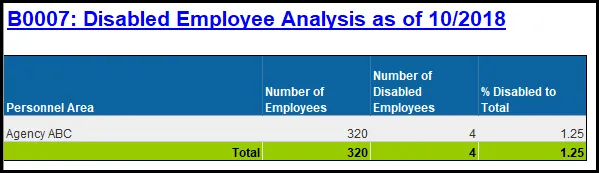
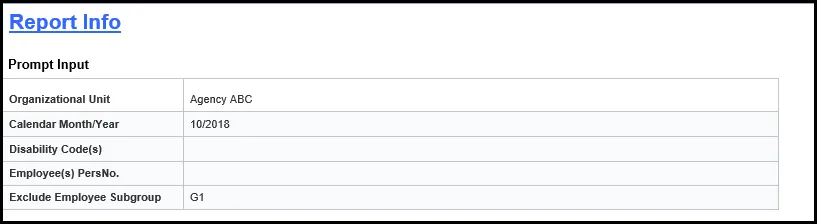
This report contains one report tab and one Report Info tab. Below are sample renderings from each tab.
B0007 Disabled Employee Analysis: The B0007 Disabled Employee Analysis tab shows the number of employees by personnel area, with the number of disabled employees, and the percentage of disabled to the total number of employees for the organizational unit(s) specified.
The Report Info tab displays the information about the prompts entered.
Available Objects
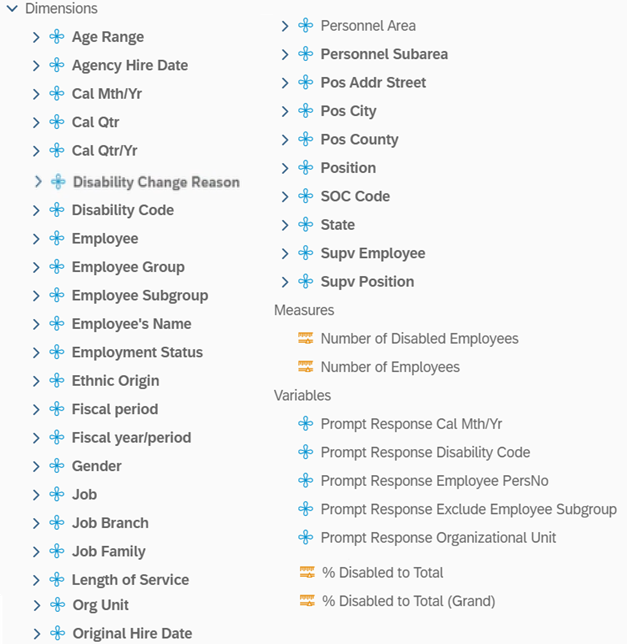
This is a list of the available objects that can be added to the report, from the Document Dictionary once in the Design mode:
Dimensions
- Age Range
- Agency Hire Date
- Cal Mth/Yr
- Cal Qtr
- Cal Qtr/Yr
- Disability Change Reason
- Disability Code
- Employee
- Employee Group
- Employee Subgroup
- Employee’s Name
- Employment Status
- Ethnic Origin
- Fiscal period
- Fiscal year/period
- Gender
- Job
- Job Branch
- Job Family
- Length of Service
- Org Unit
- Original Hire Date
- Personnel Area
- Personnel Subarea
- Pos Addr Street
- Pos City
- Pos County
- Position
- SOC Code
- State
- Supv Employee
- Supv Position
Measures
- Number of Disabled Employees
- Number of Employees
Variables
- Prompt Response Cal Mth/Yr
- Prompt Response Disability Code
- Prompt Response Employee PersNo
- Prompt Response Exclude Employee Subgroup
- Prompt Response Organizational Unit
- % Disabled to Total
- % Disabled to Total (Grand)
Special Report Considerations/Features
- This report shows the totals for only the active employees for the organizational unit(s) selected as of the calendar month/year selected.
- Beginning 6/25/2020, the system will show 3 values for Disability Code. Based on the dates selected for the report prompt, if June2020 or later is selected, only 3 values will be available.
| Disability Code | Description |
|---|---|
| N | No, I don’t have a disability |
| X | Yes, I have a disability (or previously had a disability) |
| Y | I don’t wish to answer |
- If May2020 or any earlier month is selected for the date prompt, the following Disability Codes may be shown.
| Disability Code | Description |
|---|---|
| A | None/prefer not to report |
| B | Blind or severely visually impaired |
| C | Deaf or severely hearing impaired |
| D | Loss or limited use of arms and/or hands |
| E | Non-ambulatory (must use a wheelchair) |
| F | Other orthopedic impairment (e.g. amputation, arthritis, etc.) |
| G | Respiratory impairment |
| H | Nervous system/neurological disorder |
| I | Mental restored |
| J | Intellectual disability |
| K | Learning disability |
| L | Other (heart disease, diabetes, speech impairment) |
| M | Other (specify in COMMENTS section) |
Note: The A-M codes above can only be seen in BOBJ reports because historical data is maintained in BI. These historical codes CANNOT be seen in ERP.
- Disability information has been migrated from Infotype 0077 to 9877 and during this process a new field has been added for ‘Disability Change Reason Code’ and the following are the Codes and Text.
- In compliance to federal regulation C.F.R. 60-741.42(e), as of March 2026, the disability information in SAP HR Payroll system are moved from infotype 0077 to 9877.
- A new field called ‘Disability Change Reason Code’ is added to the infotype 9877 to capture whether the disability is self-reported by the employee through Fiori portal or through an HR Action.
| Disability Change Reason Code | Description of Disability Change Reason Code |
| 0 | Employee Self Report |
| 1 | Hiring Action |
| 2 | Error entering data |
| 3 | Employee report change in disability |