Purpose
The purpose of this Report Description is to display the hours and associated quota that will be paid out in the next payroll that were created using IT0416. It also displays a cost estimate for each quota based on a calculated hourly rate. Report Description B0213.
Report Description
This report displays the hours and associated quota that will be paid out in the next payroll that were created using IT0416. It also displays a cost estimate for each quota based on a calculated hourly rate.
Report Location
PT: Quota Payouts
Report Uses
- Agencies use this report to project expected payouts for employees who are retiring or separating for other reasons.
- This report is used to help agencies verify hours that were keyed to IT0416 that will be paid out for Vacation, Holiday Comp, On Call, GAP, Call Back, Comp Time, or Bonus hours and to estimate the payroll cost.
- Report can be used to monitor different types of quota payouts per agency, org unit etc.
- Report can also be used by fiscal staff to determine estimated payroll cost.
- It can also be used to monitor improper payouts such as comp time for exempt employees, free compensation for VSL, or exhausting Sick leave payouts for Long Term Disability.
Data Load Frequency
The Payout data being shown for this report is loaded every weekday morning, excluding holidays.
How to Generate This Report
This report is generated after selecting values for the mandatory prompts. All mandatory prompts must have values selected before the Run Icon can be used to generate the report. Mandatory prompts can be identified as mandatory by the exclamation mark inside of the yellow-orange triangle, the square with the checkmark, or the display of (Mandatory). Detailed instructions for interaction with each prompt can be found on the Web Intelligence Prompt List on the OSC website.
The Mandatory prompts for this report are:
- Organizational Unit
- Start Date (Range, Mandatory)
This report can also be further limited by utilizing the Optional prompts to further limiting the amount of data that retrieved into the body of the report. Optional prompts are indicated as optional in parentheses beside the prompt.
The Optional prompts are:
- Personnel Area(s) - (Optional)
- Employee(s) PersNo. - (Optional)
- Compensation Method(s) - (Optional)
NOTE: Since we have a large number of employees in the system, using broad wildcard searches can be very slow and may result in an error if the search exceeds the system limit. If you do not know the employee number and must do a name search, you can narrow down your search by using the wildcard with specific text strings when looking for an employee by name such as:
Mickey*Mouse*
*Mouse
If you know the employee number, it is best to use the manual entry field (in step 7) to enter your selection.

Default Layout
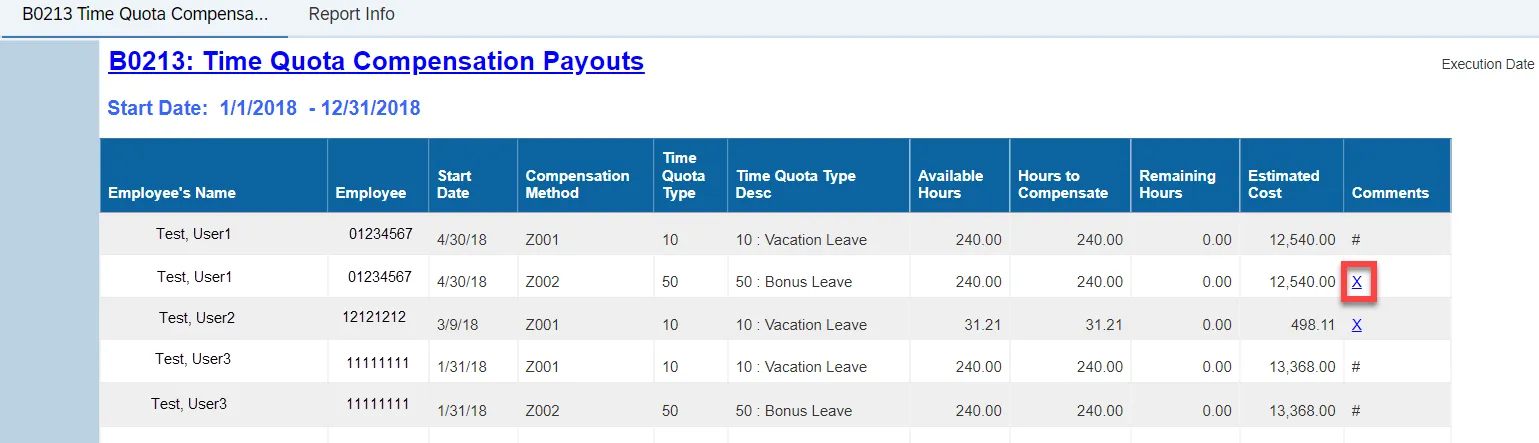
The report lists quota balances and estimated costs for each employee as of the date selected. Below is a sample rendering.

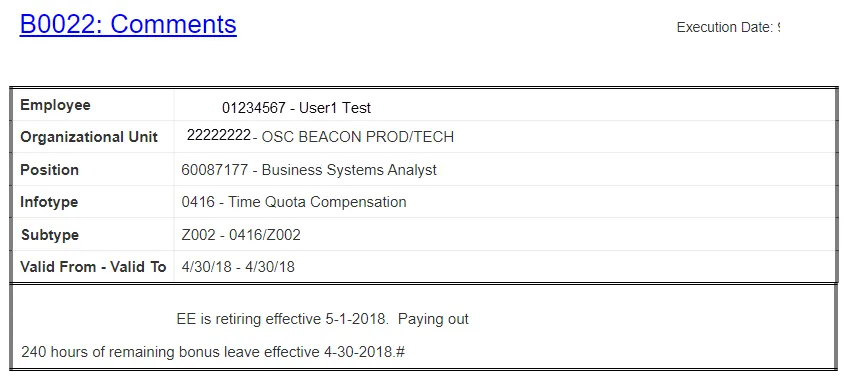
- Click on the hyperlink to navigate to the B0022: Comments.
Available Objects
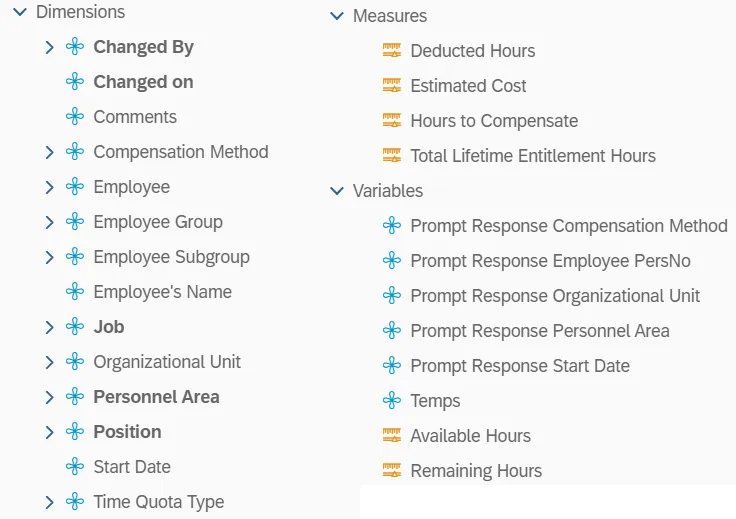
This is a list of the available objects that can be added to the report, from the Document Dictionary once in the Design mode:
Dimensions
- Changed By
- Changed on
- Comments
- Compensation Method
- Employee
- Employee Group
- Employee Subgroup
- Employee Name’s
- Job
- Organizational Unit
- Personnel Area
- Position
- Start Date
- Time Quota Type
Measures
- Deducted Hours
- Estimated Cost
- Hours to Compensate
- Total Lifetime Entitlement Hours
Variables
- Prompt Response Compensation Method
- Prompt Response Employee PersNo
- Prompt Response Organizational Unit
- Prompt Response Personnel Area
- Prompt Response Start Date
- Temps
- Available Hours
- Remaining Hours
Special Report Considerations/Features
- Estimated Quota Cost - Calculated based on the EE hourly rate determined from the EE Annual salary, multiplied by the Hours to Compensate.
- Available Hours - Calculated based on the Total Lifetime Entitlement Hours minus the Deducted Hours plus the Hours to Compensate. Total Lifetime Entitlement Hours and Deducted Hours reflect the most current balances, including all approved time entries which have been processed during time evaluation.
- Deducted Hours include all leave taken (consumed) and all IT416, Time Quota Compensation within the selected date range.
- Remaining Hours - Calculated based on the Total Lifetime Entitlement Hours minus the Deducted Hours.
- Contractors are not excluded by default on this report. This can be changed.
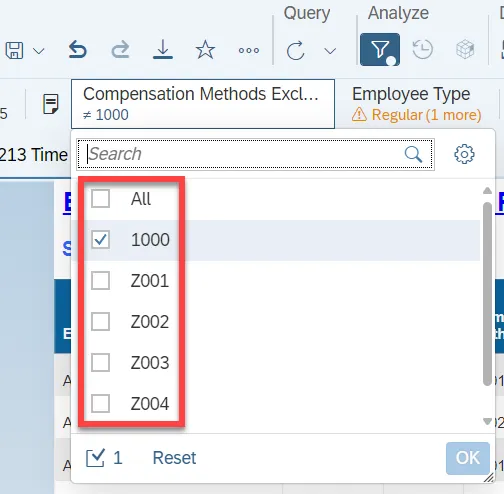
- If an Input Control filter is already applied in a report, this can be seen in Reading/Design mode with Funnel icon highlighted with a blue dot next to it in the Analyze section.
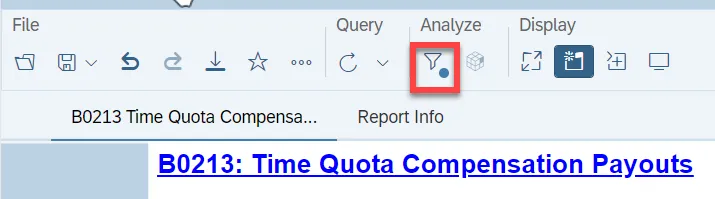
- Click on the funnel filter icon which will display the defined Input Controls for the report tab.
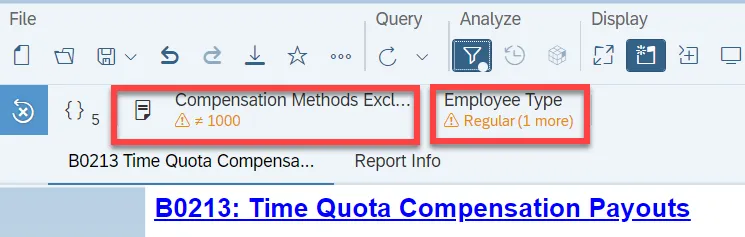
- Select or unselect the values to include or exclude the filter in the report.
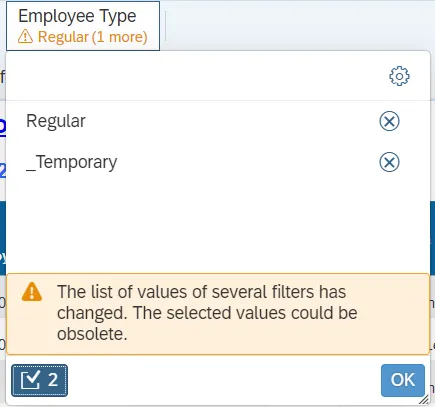
- There is a default filter through “Input Controls” applied to the report to exclude the following Compensation Method quotas:
- 1000: Free compensation
- Z010: STD/LTD Exhausting Vacation Leave
- Z011: STD/LTD Exhausting Sick Leave
- Z012: STD/LTD Exhausting Bonus Leave
- To modify this default filter to allow other quotas to be shown select the Compensation Methods Excluded tab.
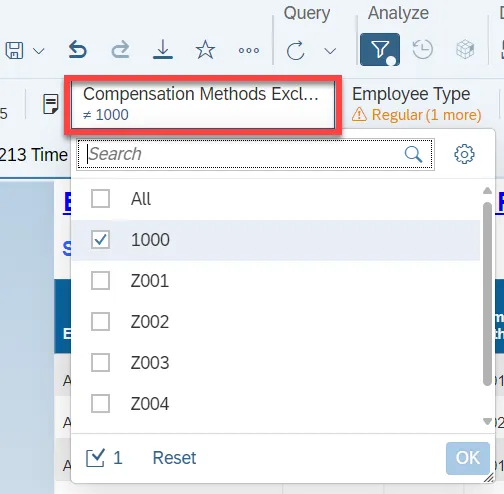
- Select or unselect the values to include or exclude the filter in the report.