Purpose
The purpose of this Report Description is to explain how the LOA Actions with Absences will show Employee Leave of Absence (LOA) Actions and Time Entry that correspond to the LOA period.
Report Description
The B0185: LOA Actions with Absences Shows Employee Leave of Absence (LOA) Actions and Time Entry corresponding to the LOA period.
Report Location
PA: Employee Actions
Report Uses
- This report can be used to help monitor timesheet data entry in the Integrated HR/Payroll system while an employee is on a Leave of Absence (LOA) event.
- This report provides an input control which can be used to isolate records where time other than leave has been recorded during an LOA event. Generally, entries that are not leave related, will cause an error in the time evaluation process. This report provides visibility to the erroneous records. See the “Special Report Considerations/Features” section for further information on how to use the input control tool.
- This report provides statistics such as the number of LOA events within a specific period and total hours of LOA with and without pay.
How to Generate This Report
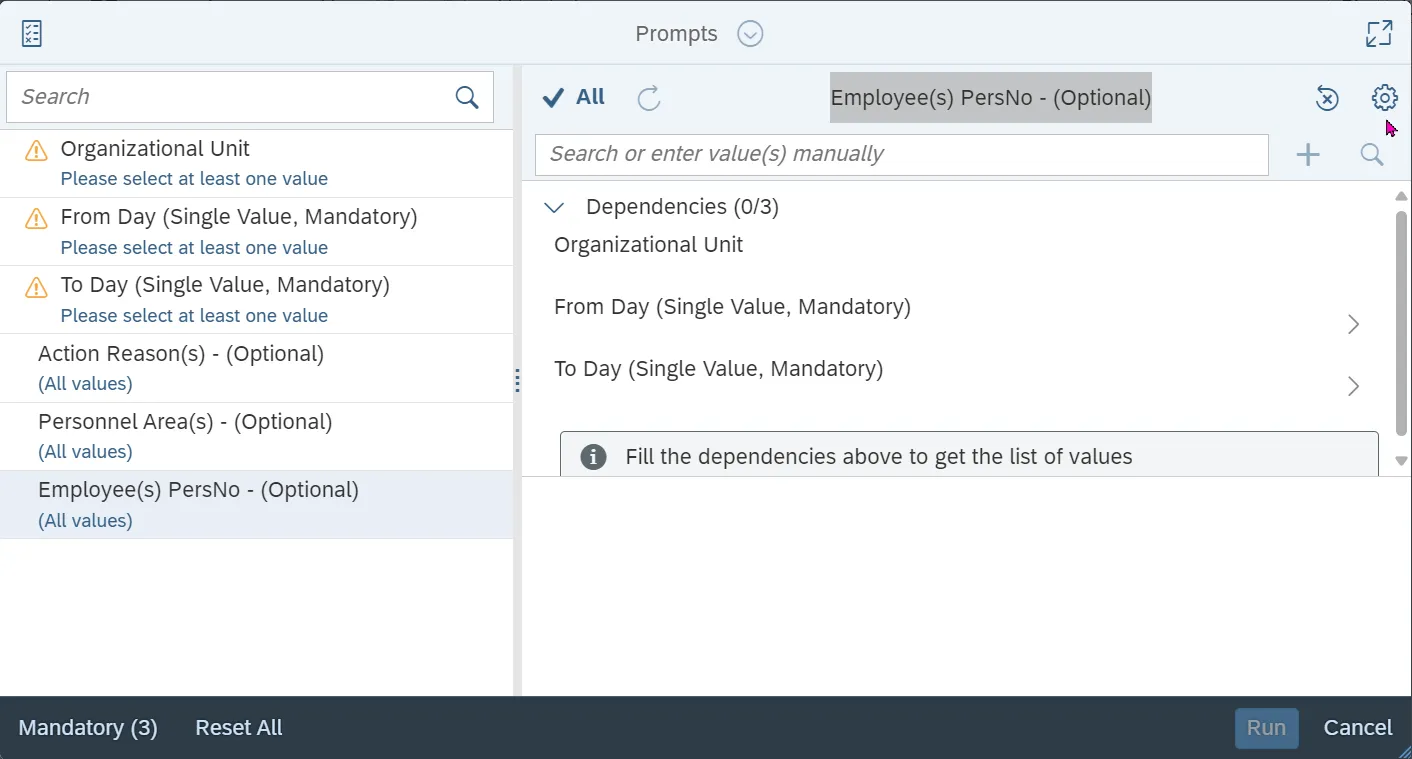
This report is generated after selecting values for the mandatory prompts. All mandatory prompts must have values selected before the Run Icon can be used to generate the report. Mandatory prompts can be identified as mandatory by the exclamation mark inside of the yellow-orange triangle, the square with the checkmark, or the display of (Mandatory). Detailed instructions for interaction with each prompt can be found on the Web Intelligence Prompt List on the OSC website.
The Mandatory prompts for this report are:
- Organizational Unit
- From Day (Single Value, Mandatory)
- To Day (Single Value, Mandatory)
This report can also be further limited by utilizing the Optional prompts to further limiting the amount of data that retrieved into the body of the report. Optional prompts are indicated as optional in parentheses beside the prompt.
The Optional prompts are:
- Action Reason(s) - (Optional)
- Personnel Area(s) - (Optional)
- Employee(s) PersNo - (Optional)
Initial Layout
The report is generated with a list of Leave of Absence (LOA) Actions for each employee who was on LOA during the time frame selected. Below is a sample of the report:
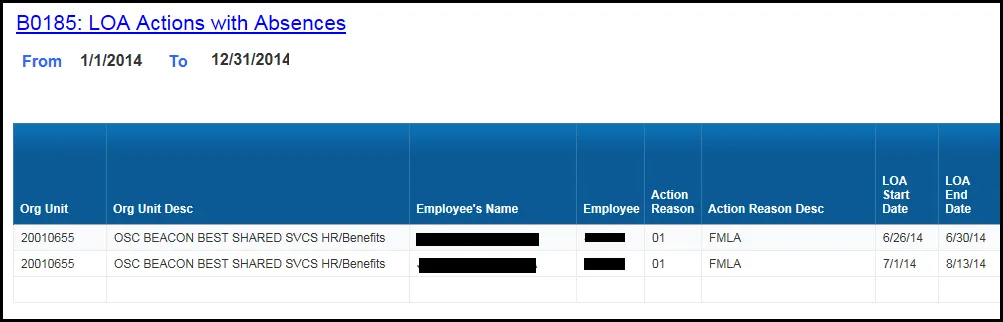
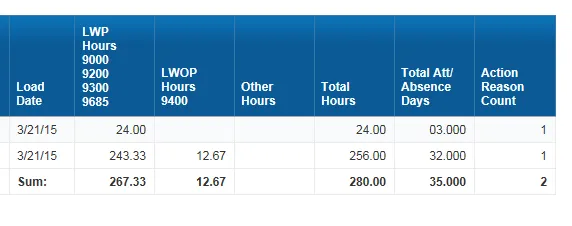
Report detail continued:
Available Objects
This is a list of the available objects that can be added to the report, from the Document Dictionary once in the Design mode:
Dimensions
- Action Reason
- Action Type
- Agency Hire Date
- Att/Abs End Dt
- Att/Abs Strt Dt
- Att/Abs Type
- Cal Mth/Year
- EE Time Mngt. Status
- Employee
- Employee Group
- Employee Subgroup
- Employee's Name
- Employment Status
- Exceptions
- From Day
- Job
- Length of Service
- LOA Processed Dt
- LOA SeqNr
- Load Date
- Organizational Unit
- Original Hire Date
- Personnel Area
- Personnel Subarea
- Position
- Prior Position
- Supervising Employee
- Supervising Position
- To Day
- Work Schedule Rule
Measures
- Att/Abs Time Entered
- Attendance or Absence Days
- LWOP Hours 9400
- LWP 9000 9200 9300 9685
- Number of Actions
- Number of Records
- Other Hours
Variables
- Prompt Response Action Reason
- Prompt Response Employee PersNo
- Prompt Response From Day - To Day
- Prompt Response Organizational Unit
- Prompt Response Personnel Area
Special Report Considerations/Features
- Leave of Absence (LOA) actions are Action Type Z3 – Leave of Absence (NC).
- Leave with Pay (LWP) hours: Time entered using the Attendance/Absence (A/A) type
9000 – Approved Leave, 9200 – Sick Leave, 9300 – Holiday Leave, and 9685 – Injury Leave. - Leave without Pay (LWOP) hours: Time entered using the Attendance/Absence type 9400.
- Other hours: Time entered using the Attendance/Absence types other than 9000, 9200, 9300, 9400, and 9685.
- This report pulls data from IT0302, IT2001, and IT2002.
- Total Att/Absence Days is the number of Attendance or Absence days.
- Action Reason Count is the Number of Actions.
- If one or more completed PCRs exist for an action, the “LOA Processed Dt” available object is populated with the date from the most recent processed PCR action. If no completed PCR exists for the action, the Processed Date is populated with the “Changed on” date from the action infotype.
Input Control
This feature is available in Design mode only and is accessed through clicking on the Filter button, under the Analyze navigation. The Filter Bar will appear. See screen shot below which shows the location of the Input Control icon and the Input control that has been defined for this report.
- No. of Other Hours Greater Than: By default, this condition is set blank or empty value meaning that all records will be pulled into the report.
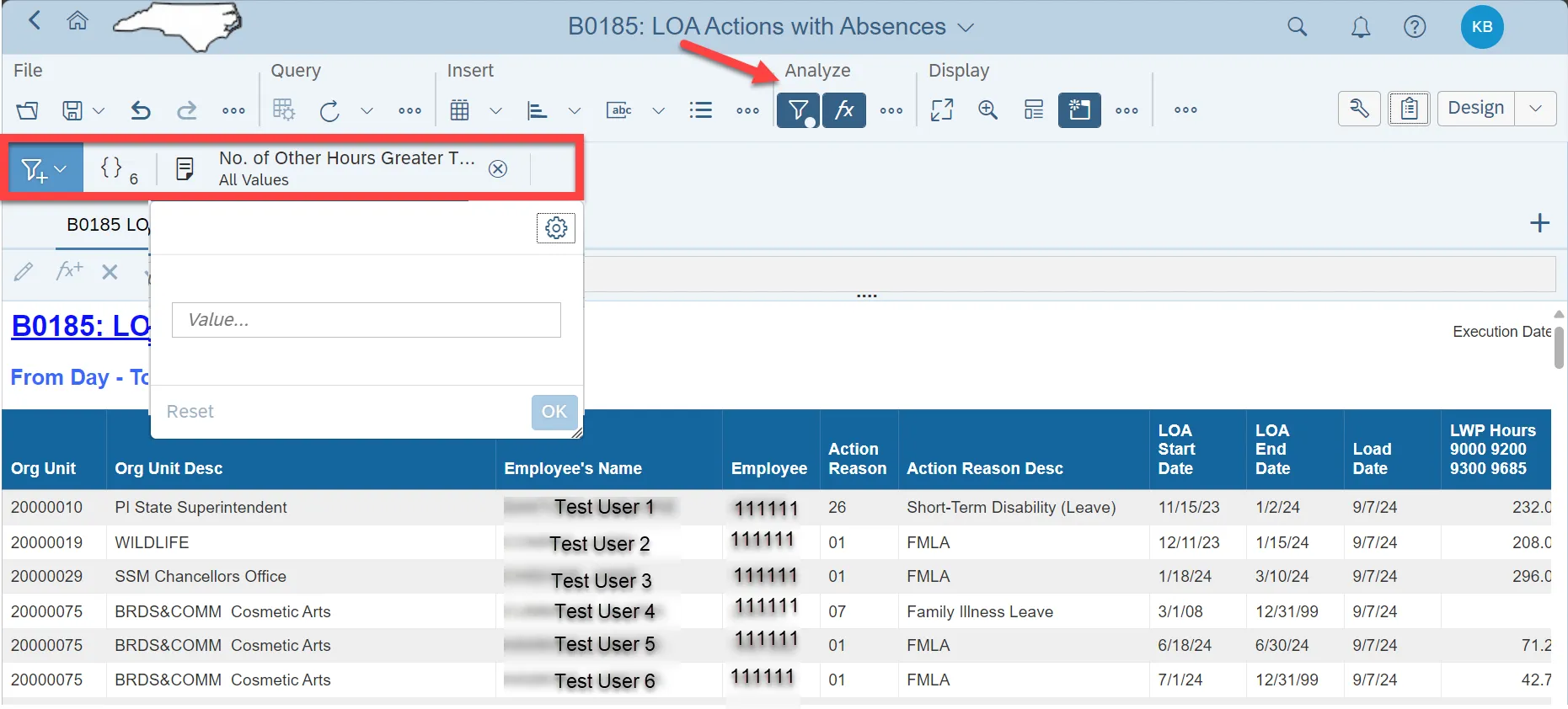
- This input control feature can be used to reduce the number of records in the report to only those where the employee has entered time other than leave during their LOA event. Time entered other than leave during the LOA event is generally incorrect and will cause errors during the time evaluation processing. If the condition is set to a zero in the ‘No.of Other Hours Greater Than:’ field, this will result in the records being filtered for any entries greater than zero in the ‘Other Hours’ column.
- A more detailed example of how to use this Input Control is described below:
- For example, when you run the report for the calendar day period from 01/01/2014 to 12/31/2014 with no condition set for ‘No.of Other Hours Greater Than:’ (meaning blank), the report generated will include records with blank Other Hours. See the result below:

- When you set the condition for ‘No.of Other Hours Greater Than:’ with a value (including zero), the generated report will not include the records with blank Other Hours. The report will include only the records with other hours greater than zero. See the result below:
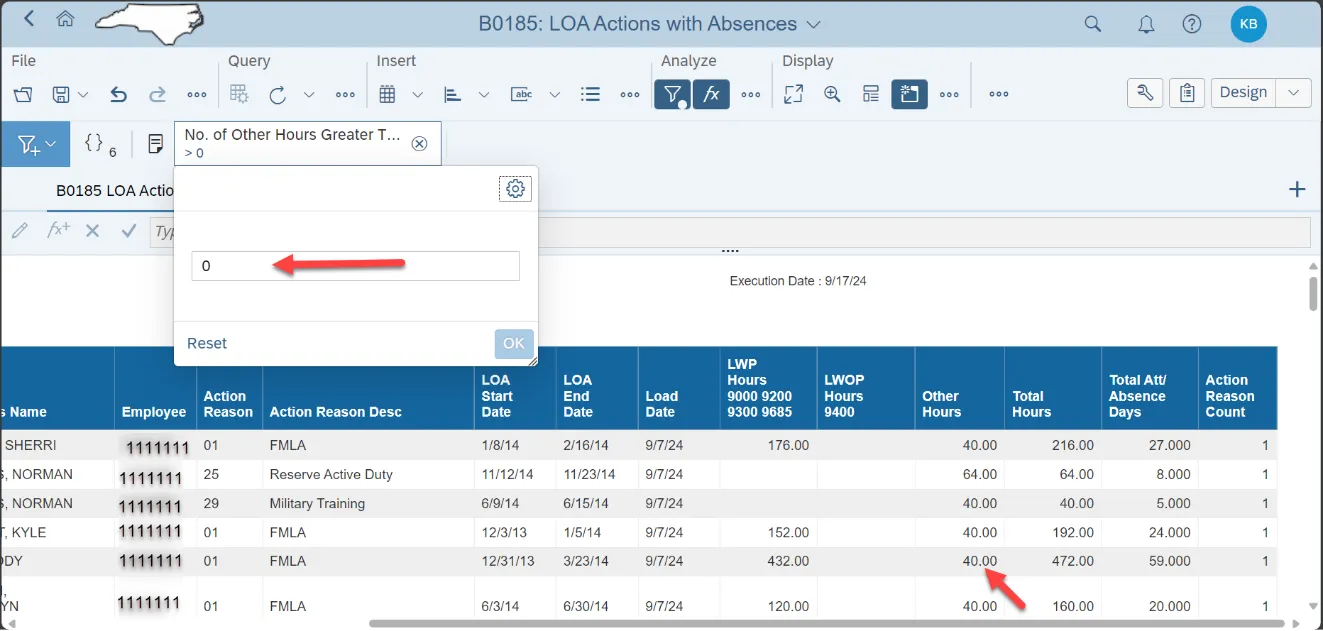
- When the condition is set for greater than 40, the record included in the screenshot above will be filtered from the report.
- To reverse the condition set, click reset in the Input Control and press OK. The ‘No.of Other Hours Greater Than’ field in Input Controls should be blank.