Purpose
The purpose of this Report Description is to explain how to generate the Agency EEO Plan – Federal (Fixed Format) in BOBJ in the Integrated HR-Payroll System.
Report Description
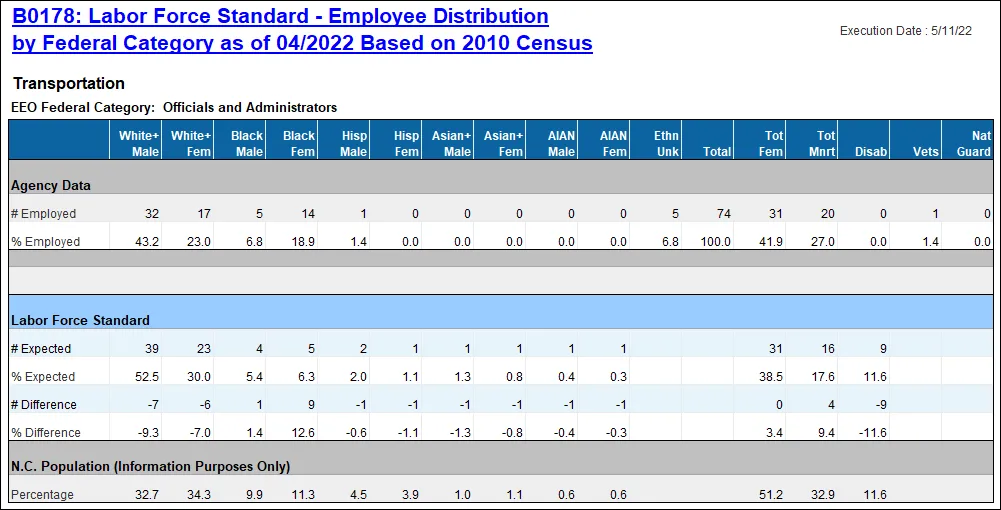
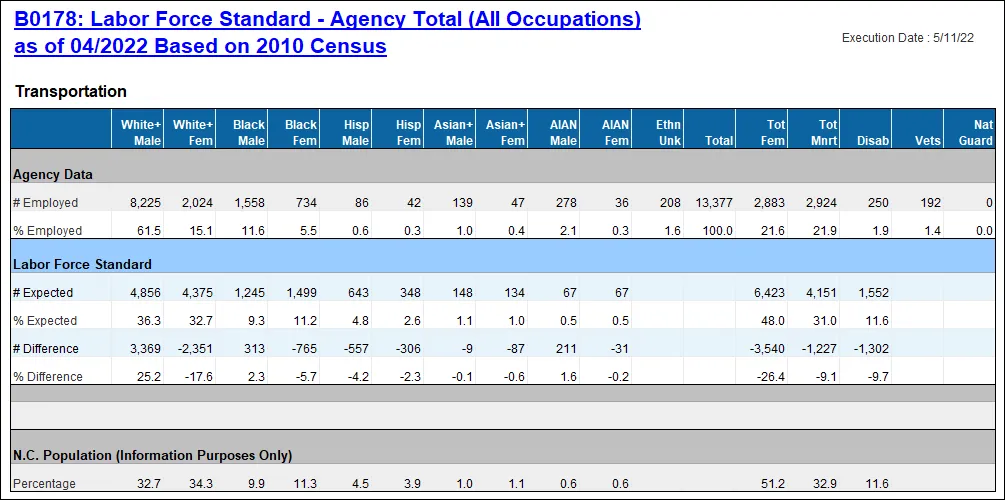
This report compares an agency’s work force to the NC population and the NC occupation specific labor force by EEO Federal Category and by All Occupations. It contains three reporting views. (The NC population and labor force are defined through the most recent US census data.)
The reporting tab ‘Employee Distribution -Info Only’ compares an agency’s work force to the NC population and the NC occupation specific labor force by EEO Federal Category.
The reporting tab ‘Agency Total (All Occupations)’ compares an agency’s overall work force data to the NC population and the NC all occupations labor force.
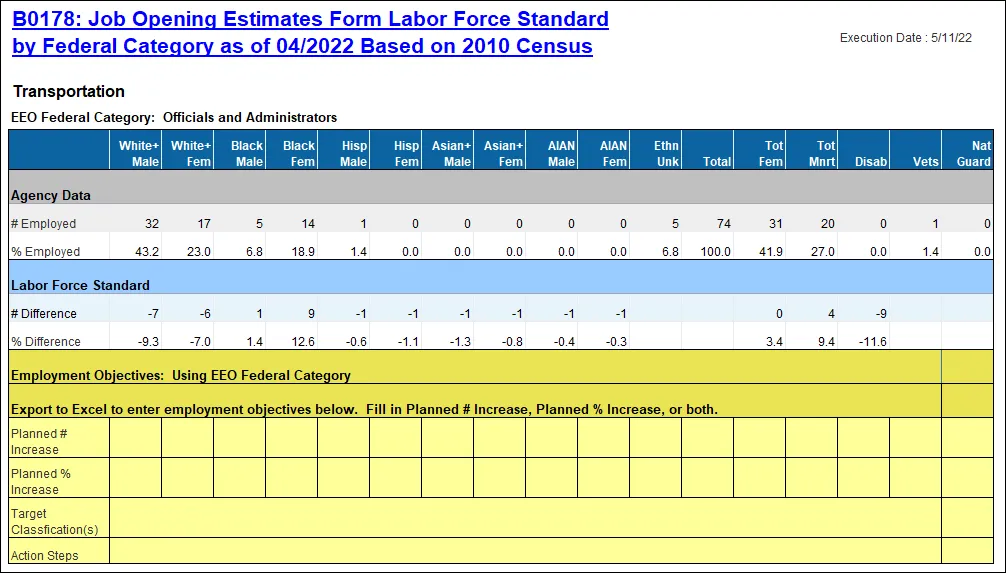
The reporting tab ‘Job Opening Estimates Form’ compares an agency’s work force to the NC occupation specific labor force by EEO Federal Category. This tab is intended for Agencies to use for their annual EEO goal planning. It includes a section for agencies to manually enter their Employment Objectives (once exported to Excel).
Report Location
PA: EEO
Report Uses
- This report is used to analyze the composition of an agency’s work force and shows the comparison to the NC Census data. It can be useful in determining the distribution of employees in an agency’s work force and is helpful in EEO planning to help create a more diverse work force.
- Employment objectives are to be entered on the JOB OPENING ESTIMATES form. Once the position openings for the next year have been estimated for each occupational category for which underutilization has been identified (having five or more workers), employment objectives are established for each underutilized group, by either number, percentage, or both. These objectives should be meaningful and obtainable. The employment objective setting process must be flexible and account for various factors that may affect the agency’s ability to recruit qualified underutilized employees in target classifications. It also must be based on reasonable expectations of success, as outlined in the action steps.
Note: Please refer to OSHR guidelines for more detailed information on how this form should be used to generate an agency’s EEO Plan.
How to Generate This Report
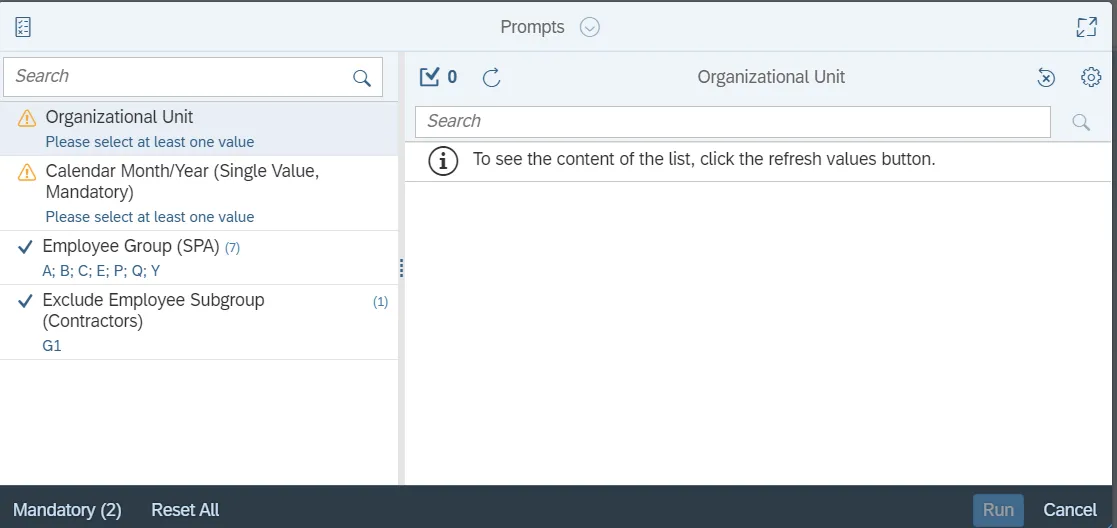
This report is generated after selecting values for the mandatory prompts. All mandatory prompts must have values selected before the Run Icon can be used to generate the report. Mandatory prompts can be identified as mandatory by the exclamation mark inside of the yellow-orange triangle, the square with the checkmark, or the display of (Mandatory). Detailed instructions for interaction with each prompt can be found on the Web Intelligence Prompt List on the OSC website.
The Mandatory prompts for this report are:
- Organizational Unit
- Calendar Month/Year (Single Value, Mandatory)
Note: Current month data is not available in this report, the most current data available is always the Previous month. For example, if today is 7/13/2018, the most current selection for Calendar Month/Year would be 6/2018.
This report can also be further limited by utilizing the Optional prompts to further limiting the amount of data that retrieved into the body of the report. Optional prompts are indicated as optional in parentheses beside the prompt.
The Optional prompts are:
- Employee Group (SPA)
| Employee Group | Description |
|---|---|
| A | SPA Employees |
| B | SPA Law Enforcement |
| C | SPA Non Teacher 10M |
| E | SPA Non Teacher 11M |
| P | SPA Bi-Weekly |
| Q | SPA LEO Bi-Weekly |
| Y | SPA Bi-Weekly Grant |
Exclusion prompts exclude specified data by default while allowing customers the flexibility of changing them when necessary. Exclusion prompts are identified by the term Exclude followed by the prompt.
The Exclusion prompts are:
- Exclude Employee Subgroup (Contractors)
Initial Layout
This report contains four report tabs.

Employee Distribution -InfoOnly
Agency Total (All Occupations)
Job Opening Estimates Form
Report Info
This tab contains information about the values selected for each of the prompts. It also contains definitions about the different sections represented in the report content.
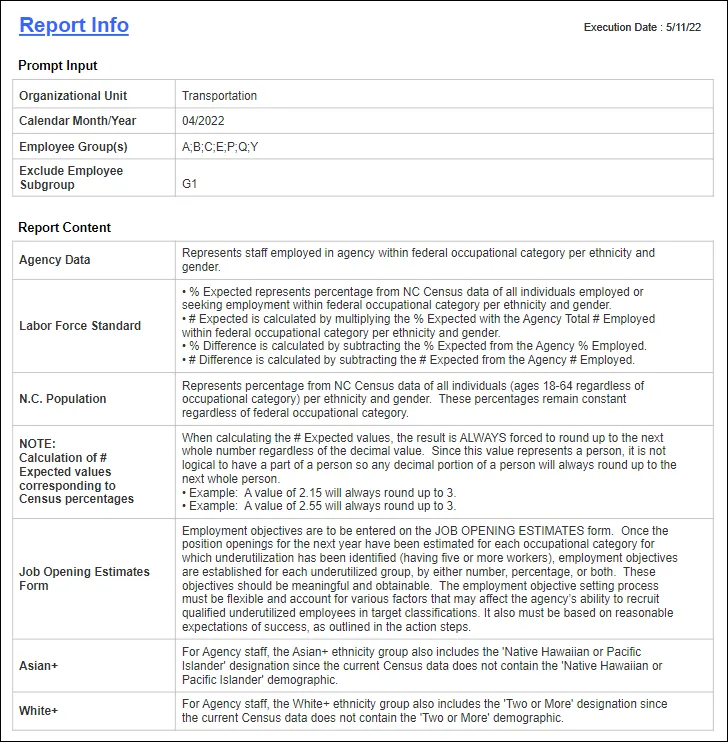
Available Objects
This is a list of the available objects that can be added to the report, from the Document Dictionary once in the Design mode:
Dimensions
- EEO Category
- EEO Row Label
- EEO Row Type
- Personnel Area
- U.S. Census Year
Measures
- AIAN Fem Census Pct
- AIAN Female
- AIAN Mal Census Pct
- AIAN Male
- Asian Fem Census Pct
- Asian Female
- Asian Mal Census Pct
- Asian Male
- Black Fem Census Pct
- Black Female
- Black Mal Census Pct
- Black Male
- Disabled
- Disabled Census Pct
- Emp Count
- Ethnicity Unknown
- Female
- Hisp Fem Census Pct
- Hisp Female
- Hisp Mal Census Pct
- Hisp Male
- Minority
- National Guard
- NHPI Female
- NHPI Male
- Two+ Female
- Two+ Male
- Veteran
- White Fem Census Pct
- White Female
- White Mal Census Pct
- White Male
Variables
- EEO Federal Category
- EEO Row Type Custom Text
- Prompt Response Calendar Month/Year
- Prompt Response EEO Job Category View
- Prompt Response Employee Group
- Prompt Response Exclude Employee Subgroup
- Prompt Response Organizational Unit
- Report Controls Selected
- AIAN Fem
- AIAN Fem All Occ
- AIAN Female Diff Nbr
- AIAN Female Diff Pct
- AIAN Female Exp
- AIAN Female Pct
- AIAN Mal
- AIAN Mal All Occ
- AIAN Male Diff Nbr
- AIAN Male Diff Pct
- AIAN Male Exp
- AIAN F Male Pct
- Asian Female Exp
- AIAN Male Exp
- Asian+ Fem
- Asian+ Fem All Occ
- Asian+ Female
- Asian+ Female Diff Nbr
- Asian+ Female Diff Pct
- Asian+ Female Pct
- Asian+ Mal
- Asian+ Mal All Occ
- Asian+ Male
- Asian+ Male Diff Nbr
- Asian+ Male Diff Pct
- Asian+ Male Pct
- Black Fem
- Black Fem All Occ
- Black Female Diff Nbr
- Black Female Diff Pct
- Black Female Exp
- Black Female Pct
- Black Mal
- Black Mal All Occ
- Black Male Diff Nbr
- Black Male Diff Pct
- Black Male Exp
- Black Male Pct
- Disab
- Disab All Occ
- Disab Diff Nbr
- Disab Diff Pct
- Disab Exp
- Disab Pct
- EmpCount
- EmpCount All Occ
- Ethn Unk
- Ethn Unk All Occ
- Ethn Unk Pct
- Fem All Occ
- Fem Census Pct
- Female Diff Nbr
- Female Diff Pct
- Female Exp
- Female Pct
- Hisp Fem
- Hisp Fem All Occ
- Hisp Fem Diff Nbr
- Hisp Fem Diff Pct
- Hisp Fem Exp
- Hisp Fem Pct
- Hisp Mal
- Hisp Mal All Occ
- Hisp Male Diff Nbr
- Hisp Male Diff Pct
- Hisp Male Exp
- Hisp Male Pct
- Minority Census Pct
- Minority Diff Nbr
- Minority Diff Pct
- Minority Exp
- Minority Pct
- Minority Tot
- Minority Tot All Occ
- Nat Guard
- National Guard All Occ
- National Guard Pct
- NHPI Female Pct
- NHPI Male Pct
- Two+ Female Pct
- Two+ Male Pct
- Vet
- Veteran All Occ
- Veteran Pct
- White Female Exp
- White Male Exp
- White+ Fem
- White+ Fem All Occ
- White+ Female
- White+ Female Diff Nbr
- White+ Female Diff Pct
- White+ Female Pct
- White+ Mal
- White+ Mal All Occ
- White+ Male
- White+ Male Diff Nbr
- White+ Male Diff Pct
- White+ Male Pct
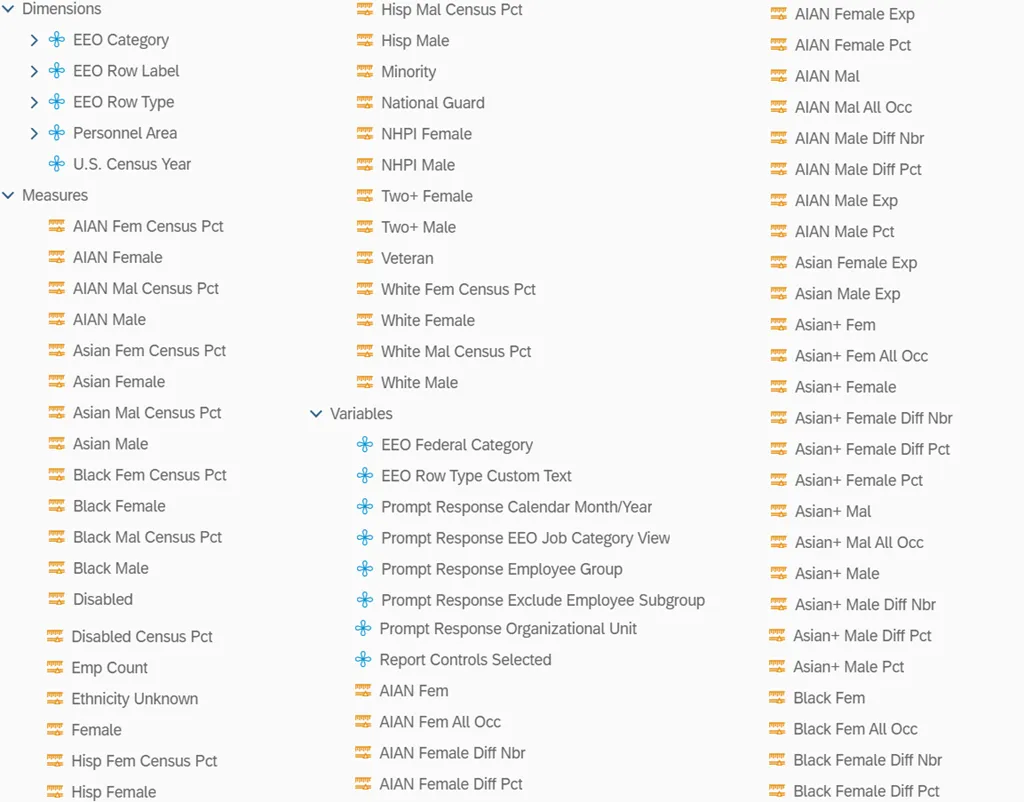
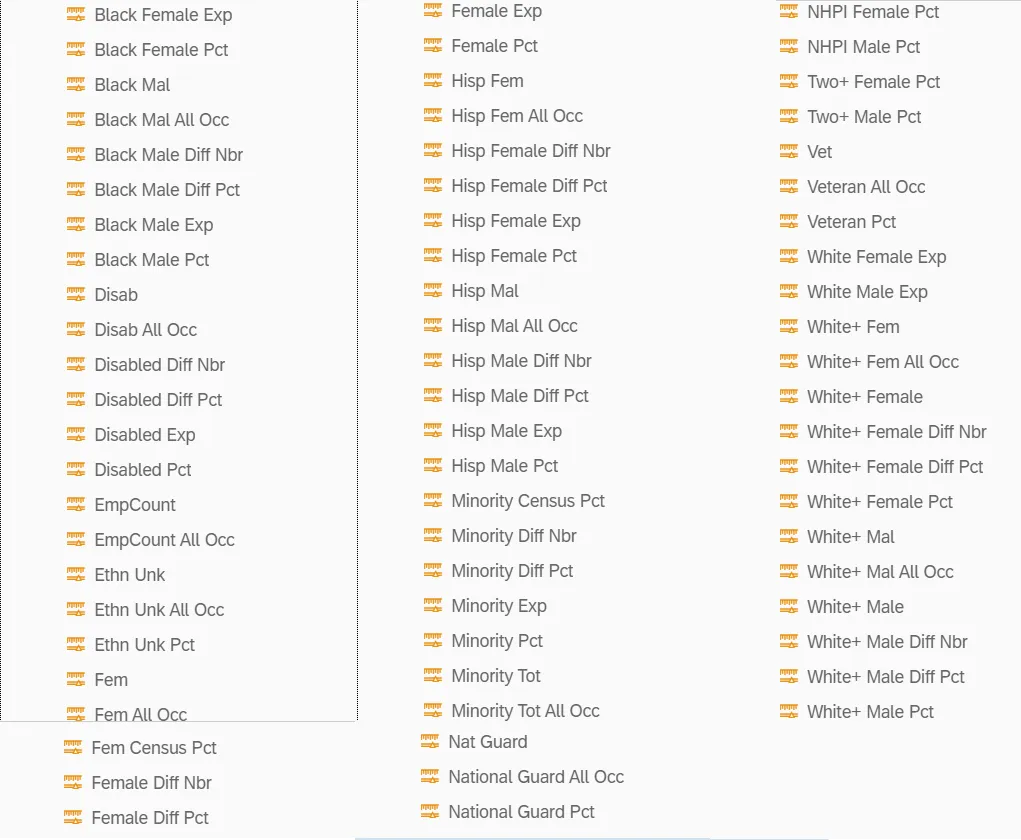
-
Special Report Considerations/Features
- This report is meant to be a fixed format report and should not be navigated in any way. It is designed with specific margin and page break settings to accommodate (landscape/legal) print format when exporting to PDF.
- When exporting to Excel, the margin setting on all tabs should be set to ‘Narrow’. Adjusting these margins in Excel will allow for a friendlier print product.
- The Report Info tab contains detailed information about report content such as definitions of each data section and how calculations are defined.
- This report does not support current month data. Data are loaded as monthly snapshots once a month closes out. For this reason, we will always be one month behind. Year to date data is supported (minus current month) along with the previous 5 years.
- Only active employees that are part of the SPA employee groups (shown below) are included on this report.
| Employee Group | Description |
|---|---|
| A | SPA Employees |
| B | SPA Law Enforcement |
| C | SPA Non Teacher 10M |
| E | SPA Non Teacher 11M |
| P | SPA Bi-Weekly |
| Q | SPA LEO Bi-Weekly |
| Y | SPA Bi-Weekly Grant |
- Refer to Employee Group (SPA) in Optional Prompts to change the Employee Group selections.
- By default, Employee Subgroup ‘Contractors’ are excluded in the report, and this can be changed. Refer to Exclude Employee Subgroup (Contractors) in Exclusion Prompts to remove the default value.
- When calculating the # Expected values, the CEILING function is used so that the result is ALWAYS forced to round up to the next whole number regardless of the decimal value. Since this value represents a person, it is not logical to have part of a person so any decimal portion of a person will always round up to the next whole person.
- Example: A value of 2.15 will always round up to 3.
- Example: A value of 2.55 will always round up to 3.